steering wheel Hyundai Sonata Hybrid 2017 Owner's Guide
[x] Cancel search | Manufacturer: HYUNDAI, Model Year: 2017, Model line: Sonata Hybrid, Model: Hyundai Sonata Hybrid 2017Pages: 562, PDF Size: 16.44 MB
Page 185 of 562
3-88
Convenient features of your vehicle
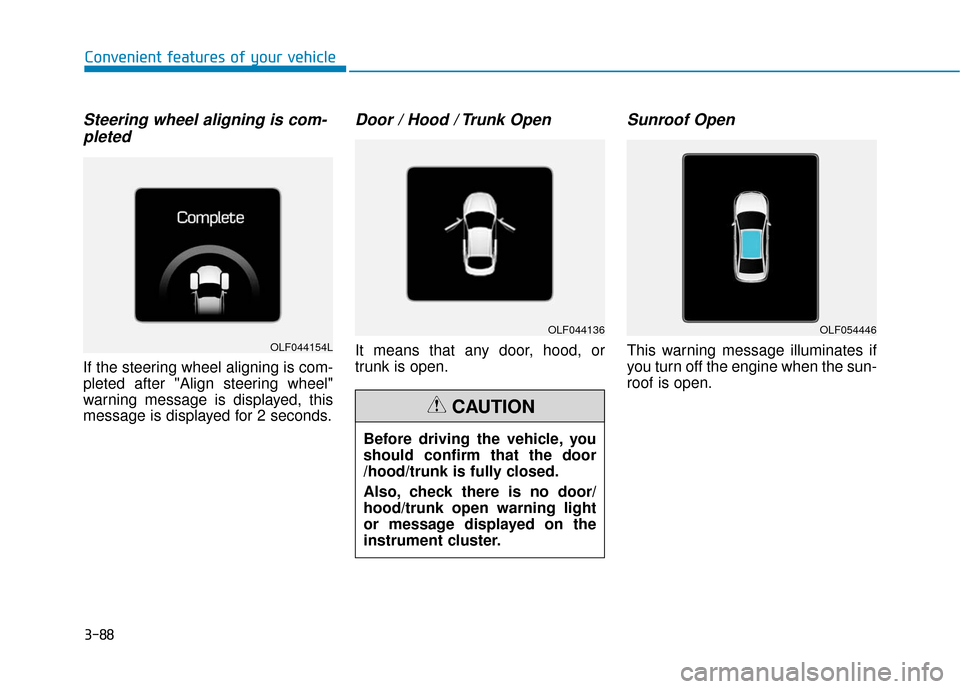
Steering wheel aligning is com-pleted
If the steering wheel aligning is com-
pleted after "Align steering wheel"
warning message is displayed, this
message is displayed for 2 seconds.
Door / Hood / Trunk Open
It means that any door, hood, or
trunk is open.
Sunroof Open
This warning message illuminates if
you turn off the engine when the sun-
roof is open.OLF044154L
OLF044136OLF054446
Before driving the vehicle, you
should confirm that the door
/hood/trunk is fully closed.
Also, check there is no door/
hood/trunk open warning light
or message displayed on the
instrument cluster.
CAUTION
Page 189 of 562
3-92
Convenient features of your vehicle
Overview
The trip computer is a microcomput-
er-controlled driver information sys-
tem that displays information related
to driving.
Information
Some driving information stored in
the trip computer (for example
Average Vehicle Speed) resets if the
battery is disconnected.
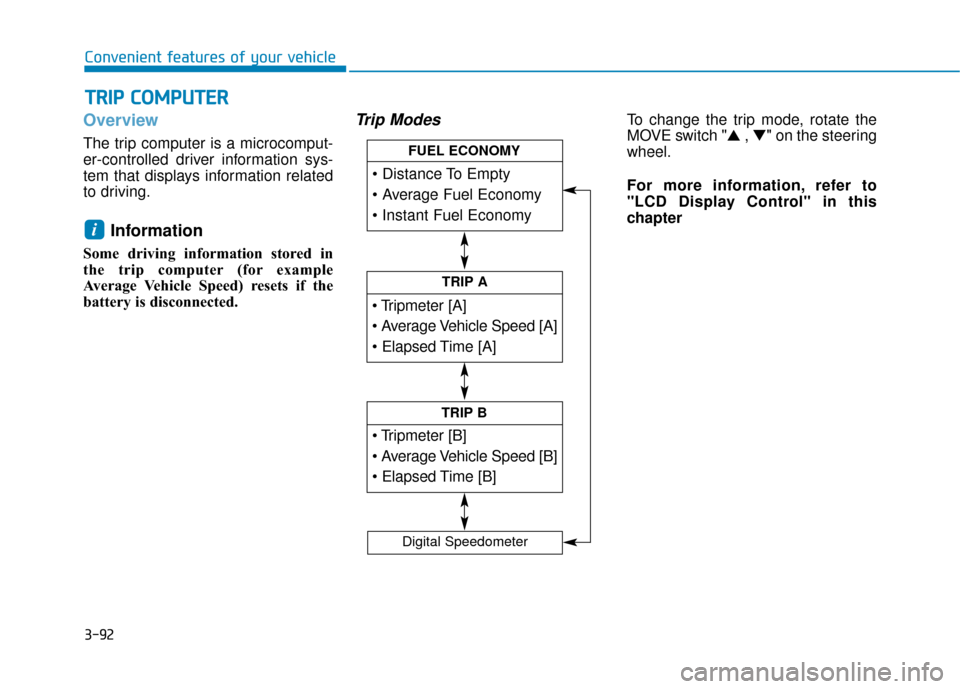
Trip ModesTo change the trip mode, rotate the
MOVE switch "▲ , ▼" on the steering
wheel.
For more information, refer to
"LCD Display Control" in this
chapter
i
T T R
R I
IP
P
C
C O
O M
M P
PU
U T
TE
ER
R
TRIP A
TRIP B
FUEL ECONOMY
Digital Speedometer
Page 190 of 562
3-93
Convenient features of your vehicle
3
Trip A/BInformation
If you reset one of the tripmeter,
elapsed time, and average vehicle
speed, they will be reset all together.
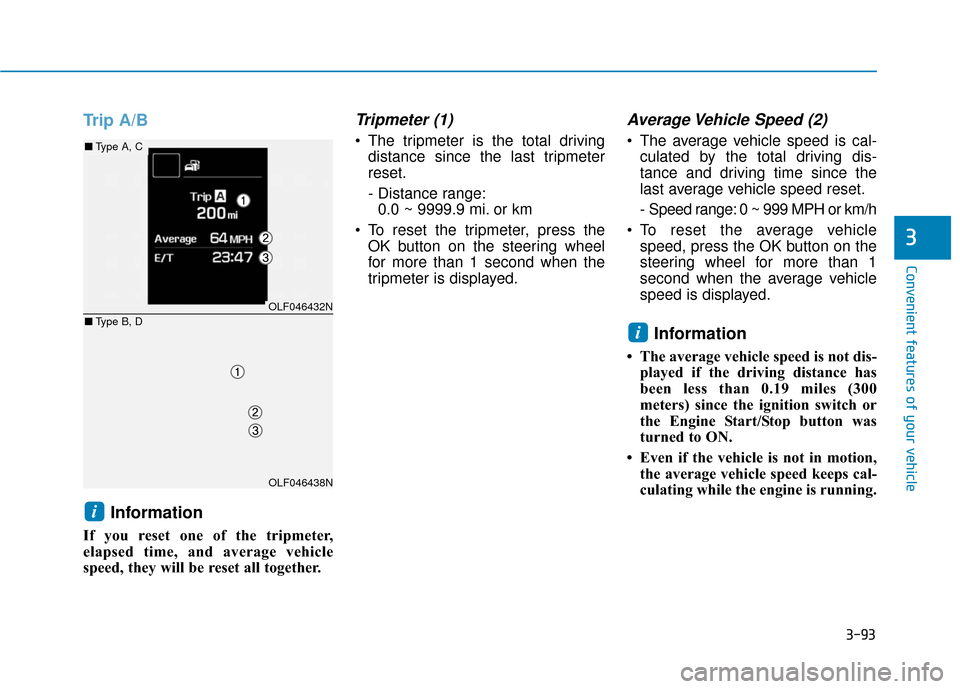
Tripmeter (1)
The tripmeter is the total drivingdistance since the last tripmeter
reset.
- Distance range:0.0 ~ 9999.9 mi. or km
To reset the tripmeter, press the OK button on the steering wheel
for more than 1 second when the
tripmeter is displayed.
Average Vehicle Speed (2)
The average vehicle speed is cal-culated by the total driving dis-
tance and driving time since the
last average vehicle speed reset.
- Speed range: 0 ~ 999 MPH or km/h
To reset the average vehicle speed, press the OK button on the
steering wheel for more than 1
second when the average vehicle
speed is displayed.
Information
• The average vehicle speed is not dis-played if the driving distance has
been less than 0.19 miles (300
meters) since the ignition switch or
the Engine Start/Stop button was
turned to ON.
• Even if the vehicle is not in motion, the average vehicle speed keeps cal-
culating while the engine is running.
i
i
OLF046432N
OLF046438N
■ Type A, C
■ Type B, D
Page 191 of 562
3-94
Convenient features of your vehicle
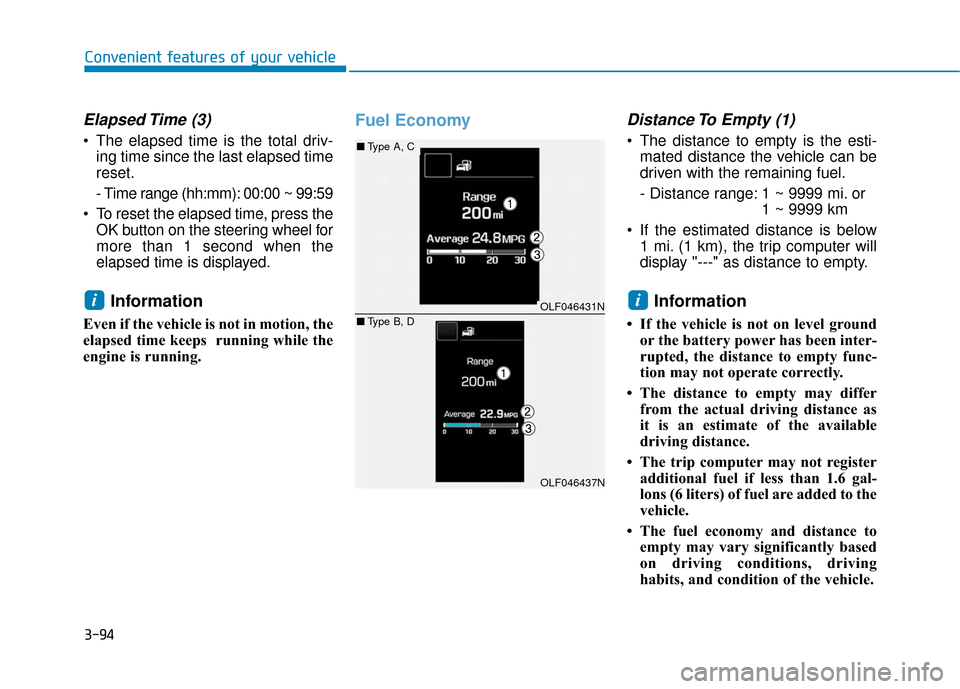
Elapsed Time (3)
The elapsed time is the total driv-ing time since the last elapsed time
reset.
- Time range (hh:mm): 00:00 ~ 99:59
To reset the elapsed time, press the OK button on the steering wheel for
more than 1 second when the
elapsed time is displayed.
Information
Even if the vehicle is not in motion, the
elapsed time keeps running while the
engine is running.
Fuel EconomyDistance To Empty (1)
The distance to empty is the esti-mated distance the vehicle can be
driven with the remaining fuel.
- Distance range: 1 ~ 9999 mi. or 1 ~ 9999 km
If the estimated distance is below 1 mi. (1 km), the trip computer will
display "---" as distance to empty.
Information
• If the vehicle is not on level groundor the battery power has been inter-
rupted, the distance to empty func-
tion may not operate correctly.
• The distance to empty may differ from the actual driving distance as
it is an estimate of the available
driving distance.
• The trip computer may not register additional fuel if less than 1.6 gal-
lons (6 liters) of fuel are added to the
vehicle.
• The fuel economy and distance to empty may vary significantly based
on driving conditions, driving
habits, and condition of the vehicle.
iiOLF046431N
OLF046437N
■ Type A, C
■ Type B, D
Page 192 of 562
3-95
Convenient features of your vehicle
3
Average Fuel Economy (2)
The average fuel economy is calcu-lated by the total driving distance
and fuel consumption since the last
average fuel economy reset.
- Fuel economy range:0.0 ~ 99.9 MPG or L/100km or
km/L
The average fuel economy can be reset both manually and automati-
cally.
Manual reset
To clear the average fuel economy
manually, press the OK button on the
steering wheel for more than 1 sec-
ond when the average fuel economy
is displayed.
For more information on the OK
button, refer to the "LCD Display
Control" in this chapter.
Automatic reset
To make the average fuel economy
be reset automatically whenever refu-
eling, select the "Auto Reset" mode in
User Setting menu of the LCD display
(Refer to "LCD Display").
Under "Auto Reset" mode, the aver-
age fuel economy will be cleared to
zero (---) when the vehicle speed
exceeds 1 km/h after refueling more
than 1.6 gallons (6 liters).
Information
The average fuel economy is not dis-
played for more accurate calculation
if the vehicle does not drive more than
0.19 miles (300 meters) since the igni-
tion switch or the Engine Start/Stop
button is turned to ON.
Instant Fuel Economy (3)
This mode displays the instant fuel
economy during the last few seconds
when the vehicle speed is more than
6.2 MPH (10 km/h).
- Fuel economy range: 0 ~ 50 MPG or 0 ~ 30 L/100km
i
Page 261 of 562
Multimedia System
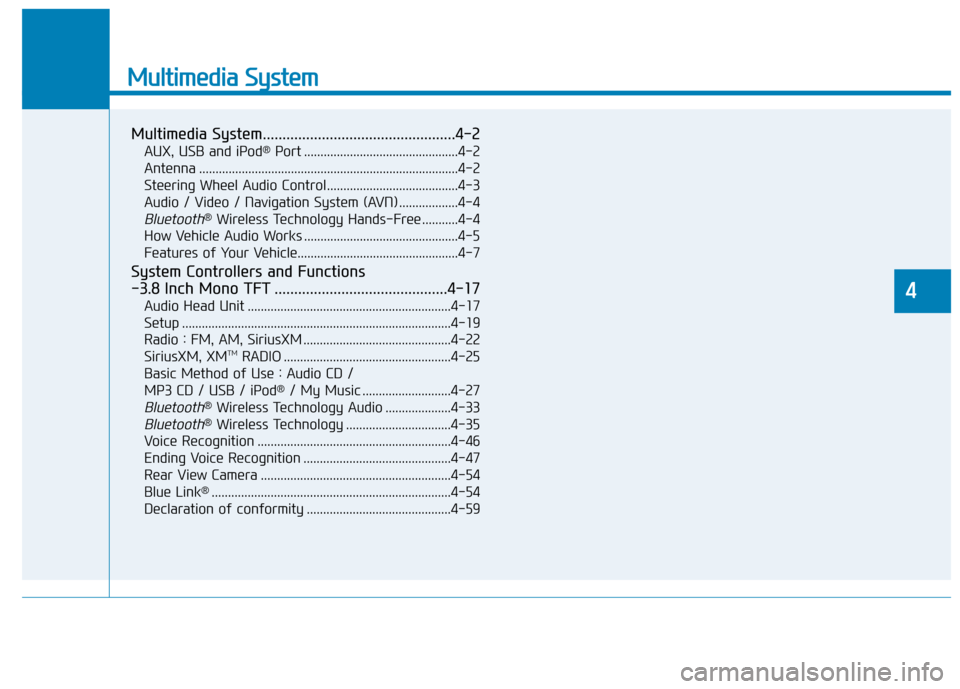
Multimedia System.................................................4-2
AUX, USB and iPod®Port ...............................................4-2
Antenna ........................................................................\
.......4-2
Steering Wheel Audio Control........................................4-3
Audio / Video / Navigation System (AVN) ..................4-4
Bluetooth®Wireless Technology Hands-Free ...........4-4
How Vehicle Audio Works ...............................................4-5
Features of Your Vehicle.................................................4-7
System Controllers and Functions
-3.8 Inch Mono TFT ............................................4-17
Audio Head Unit ..............................................................4-17
Setup ........................................................................\
..........4-19
Radio : FM, AM, SiriusXM .............................................4-22
SiriusXM, XM
TMRADIO ...................................................4-25
Basic Method of Use : Audio CD /
MP3 CD / USB / iPod
®/ My Music ...........................4-27
Bluetooth®Wireless Technology Audio ....................4-33
Bluetooth®Wireless Technology ................................4-35
Voice Recognition ...........................................................4-46
Ending Voice Recognition .............................................4-47
Rear View Camera ..........................................................4-54
Blue Link
®........................................................................\
.4-54
Declaration of conformity ............................................4-59
4
Page 263 of 562
4-3
Multimedia System
Do not clean the inside of therear window glass with a cleaner
or scraper to remove foreign
deposits as this may cause dam-
age to the antenna elements.
Avoid adding metallic coatings such as Ni, Cd, and so on. These
can degrade the receiving AM
and FM broadcast signals.
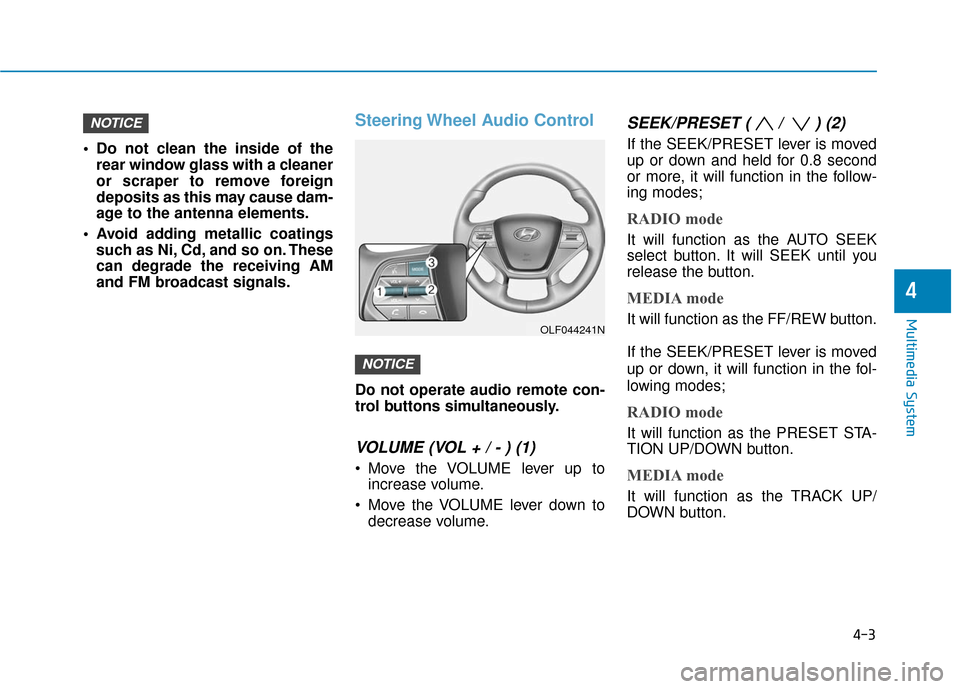
Steering Wheel Audio Control
Do not operate audio remote con-
trol buttons simultaneously.
VOLUME (VOL + / - ) (1)
Move the VOLUME lever up toincrease volume.
Move the VOLUME lever down to decrease volume.
SEEK/PRESET ( / ) (2)
If the SEEK/PRESET lever is moved
up or down and held for 0.8 second
or more, it will function in the follow-
ing modes;
RADIO mode
It will function as the AUTO SEEK
select button. It will SEEK until you
release the button.
MEDIA mode
It will function as the FF/REW button.
If the SEEK/PRESET lever is moved
up or down, it will function in the fol-
lowing modes;
RADIO mode
It will function as the PRESET STA-
TION UP/DOWN button.
MEDIA mode
It will function as the TRACK UP/
DOWN button.
NOTICE
NOTICE
4
OLF044241N
Page 294 of 562
4-34
Multimedia System
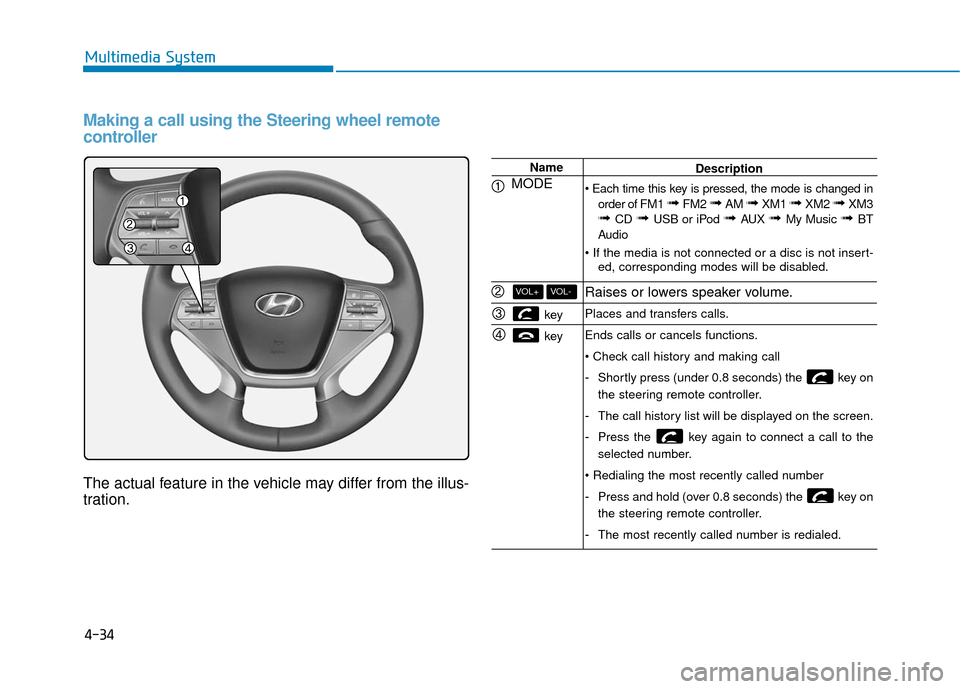
Making a call using the Steering wheel remote
controller
The actual feature in the vehicle may differ from the illus-
tration.
Name
MODE
key
key
VOL-VOL+
Description
order of FM1
➟ FM2 ➟ AM ➟ XM1 ➟ XM2 ➟ XM3➟ CD ➟ USB or iPod ➟ AUX ➟ My Music ➟ BT
Audio
ed, corresponding modes will be disabled.
Raises or lowers speaker volume.
Places and transfers calls.
Ends calls or cancels functions.
-Shortly press (under 0.8 seconds) the key on
the steering remote controller.
- The call history list will be displayed on the screen.
- Press the key again to connect a call to the
selected number.
- Press and hold (over 0.8 seconds) the key on
the steering remote controller.
- The most recently called number is redialed.
Page 296 of 562
4-36
Multimedia System
Pairing key / key
on the Steering Remote
Controller
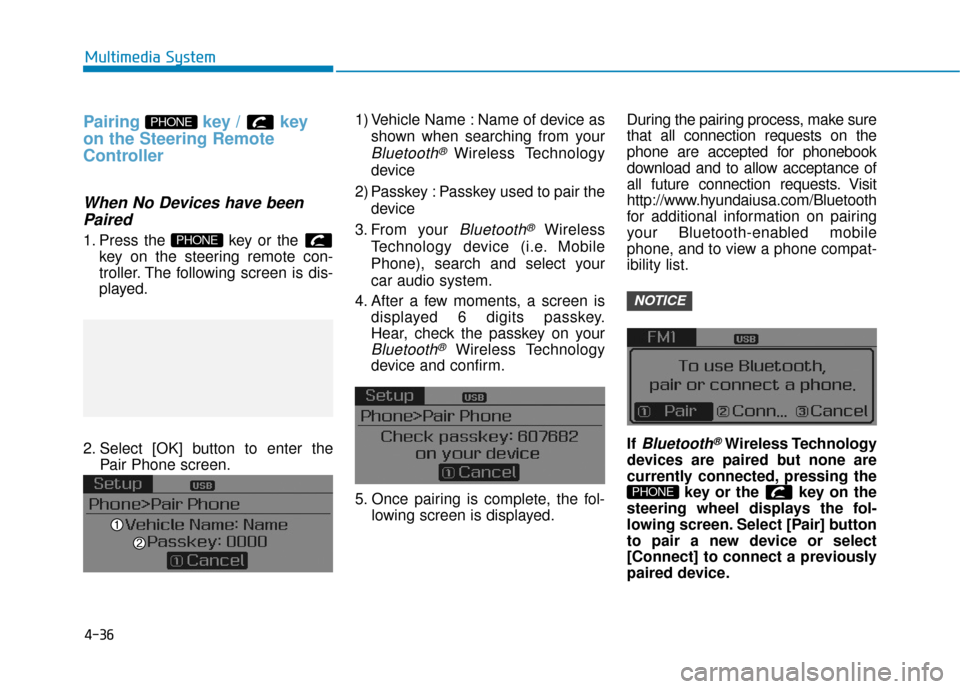
When No Devices have beenPaired
1. Press the key or the
key on the steering remote con-
troller. The following screen is dis-
played.
2. Select [OK] button to enter the Pair Phone screen. 1) Vehicle Name : Name of device as
shown when searching from your
Bluetooth® Wireless Technology
device
2) Passkey : Passkey used to pair the device
3. From your
Bluetooth®Wireless
Technology device (i.e. Mobile
Phone), search and select your
car audio system.
4. After a few moments, a screen is displayed 6 digits passkey.
Hear, check the passkey on your
Bluetooth®Wireless Technology
device and confirm.
5. Once pairing is complete, the fol- lowing screen is displayed. During the pairing process, make sure
that all connection requests on the
phone are accepted for phonebook
download and to allow acceptance of
all future connection requests. Visit
http://www.hyundaiusa.com/Bluetooth
for additional information on pairing
your Bluetooth-enabled mobile
phone, and to view a phone compat-
ibility list.
If
Bluetooth®Wireless Technology
devices are paired but none are
currently connected, pressing the key or the key on the
steering wheel displays the fol-
lowing screen. Select [Pair] button
to pair a new device or select
[Connect] to connect a previously
paired device.
PHONE
NOTICE
PHONE
PHONE
Page 303 of 562
4-43
Multimedia System
4
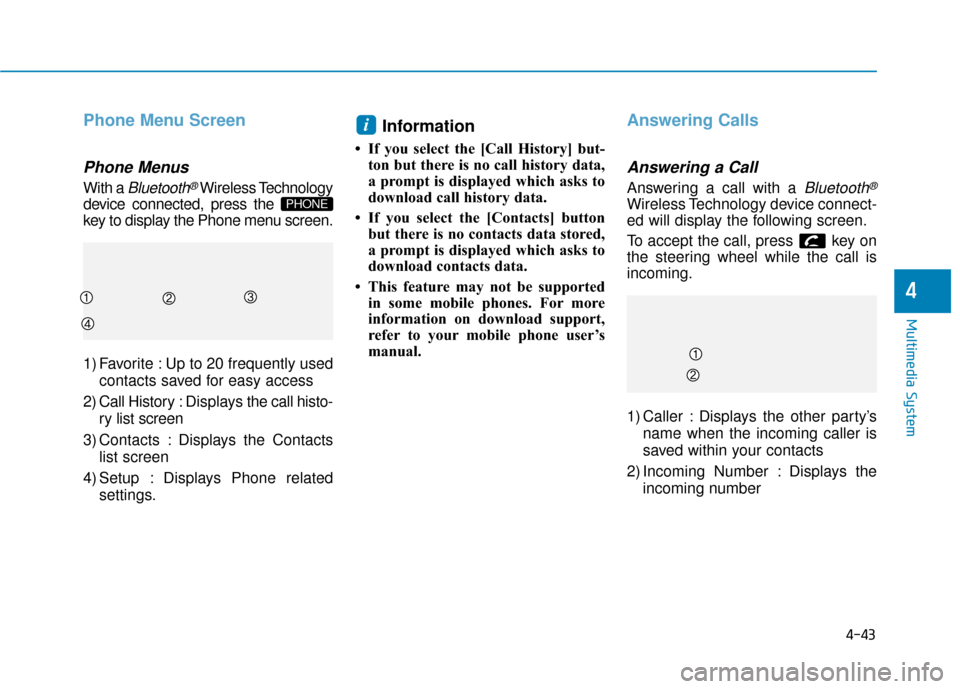
Phone Menu Screen
Phone Menus
With a Bluetooth®Wireless Technology
device connected, press the
key to display the Phone menu screen.
1) Favorite : Up to 20 frequently used
contacts saved for easy access
2) Call History : Displaysthe call histo-
ry list screen
3) Contacts : Displays the Contacts list screen
4) Setup : Displays Phone related settings.
Information
• If you select the [Call History] but-ton but there is no call history data,
a prompt is displayed which asks to
download call history data.
• If you select the [Contacts] button but there is no contacts data stored,
a prompt is displayed which asks to
download contacts data.
• This feature may not be supported in some mobile phones. For more
information on download support,
refer to your mobile phone user’s
manual.
Answering Calls
Answering a Call
Answering a call with a Bluetooth®
Wireless Technology device connect-
ed will display the following screen.
To accept the call, press key on
the steering wheel while the call is
incoming.
1) Caller : Displays the other party’s
name when the incoming caller is
saved within your contacts
2) Incoming Number : Displays the incoming number
i
PHONE