service reset HYUNDAI SONATA HYBRID 2022 Owners Manual
[x] Cancel search | Manufacturer: HYUNDAI, Model Year: 2022, Model line: SONATA HYBRID, Model: HYUNDAI SONATA HYBRID 2022Pages: 527, PDF Size: 64.14 MB
Page 131 of 527
04
4-27
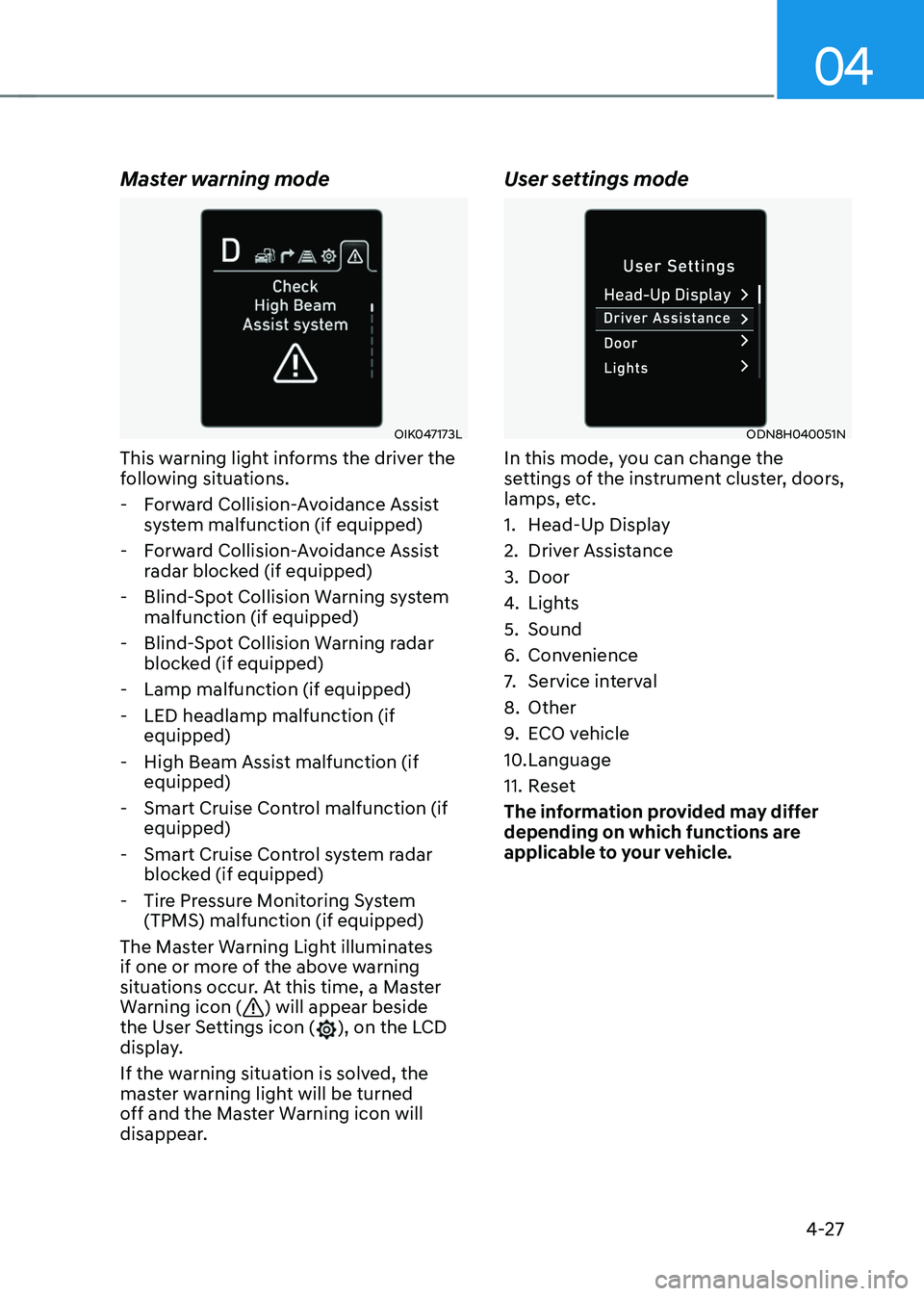
Master warning mode
OIK047173L
This warning light informs the driver the
following situations.
-Forward Collision-Avoidance Assist
system malfunction (if equipped)
-Forward Collision-Avoidance Assist
radar blocked (if equipped)
-Blind-Spot Collision Warning system
malfunction (if equipped)
-Blind-Spot Collision Warning radar
blocked (if equipped)
-Lamp malfunction (if equipped)
-LED headlamp malfunction (if
equipped)
-High Beam Assist malfunction (if
equipped)
-Smart Cruise Control malfunction (if
equipped)
-Smart Cruise Control system radar
blocked (if equipped)
-Tire Pressure Monitoring System
(TPMS) malfunction (if equipped)
The Master Warning Light illuminates
if one or more of the above warning
situations occur. At this time, a Master
Warning icon (
) will appear beside
the User Settings icon (), on the LCD
display.
If the warning situation is solved, the
master warning light will be turned
off and the Master Warning icon will
disappear.
User settings mode
ODN8H040051N
In this mode, you can change the
settings of the instrument cluster, doors,
lamps, etc.
1. Head-Up Display
2. Driver Assistance
3. Door
4. Lights
5. Sound
6. Convenience
7. Service interval
8. Other
9. ECO vehicle
10. Language
11. Reset
The information provided may differ
depending on which functions are
applicable to your vehicle.
Page 139 of 527
04
4-35
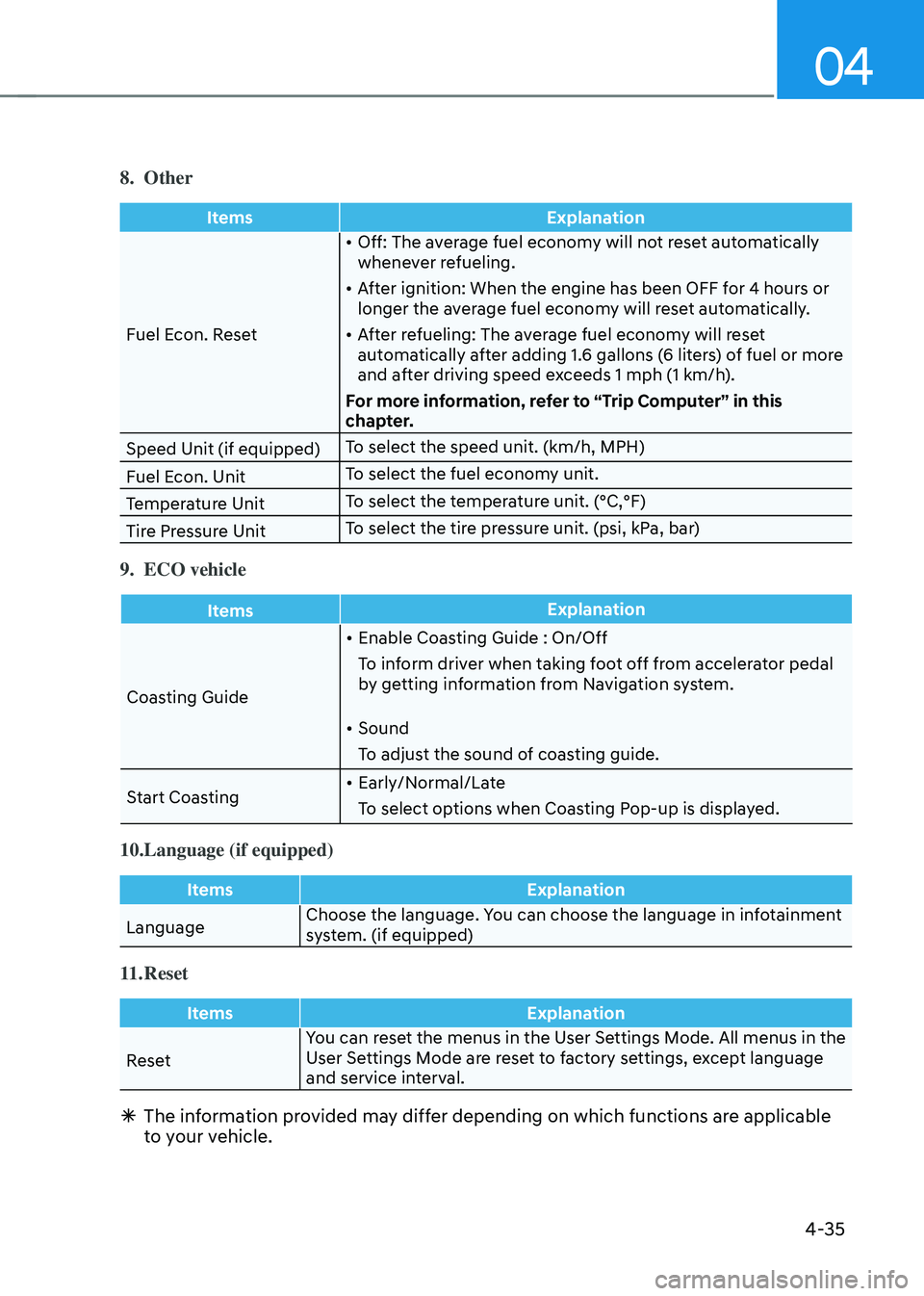
8. Other
ItemsExplanation
Fuel Econ. Reset •
Off: The average fuel economy will not reset automatically
whenever refueling.
• After ignition: When the engine has been OFF for 4 hours or
longer the average fuel economy will reset automatically.
• After refueling: The average fuel economy will reset
automatically after adding 1.6 gallons (6 liters) of fuel or more
and after driving speed exceeds 1 mph (1 km/h).
For more information, refer to “Trip Computer” in this
chapter.
Speed Unit (if equipped) To select the speed unit. (km/h, MPH)
Fuel Econ. Unit To select the fuel economy unit.
Temperature Unit To select the temperature unit. (°C,°F)
Tire Pressure Unit To select the tire pressure unit. (psi, kPa, bar)
9. ECO vehicle
Items
Explanation
Coasting Guide •
Enable Coasting Guide : On/Off
To inform driver when taking foot off from accelerator pedal
by getting information from Navigation system.
• Sound
To adjust the sound of coasting guide.
Start Coasting •
Early/Normal/Late
To select options when Coasting Pop-up is displayed.
10. Language (if equipped)
Items Explanation
Language Choose the language. You can choose the language in infotainment
system. (if equipped)
11. Reset
Items
Explanation
Reset You can reset the menus in the User Settings Mode. All menus in the
User Settings Mode are reset to factory settings, except language
and service interval.
Ã
The information provided may differ depending on which functions are applicable
to your vehicle.
Page 148 of 527
Instrument Cluster
4-44
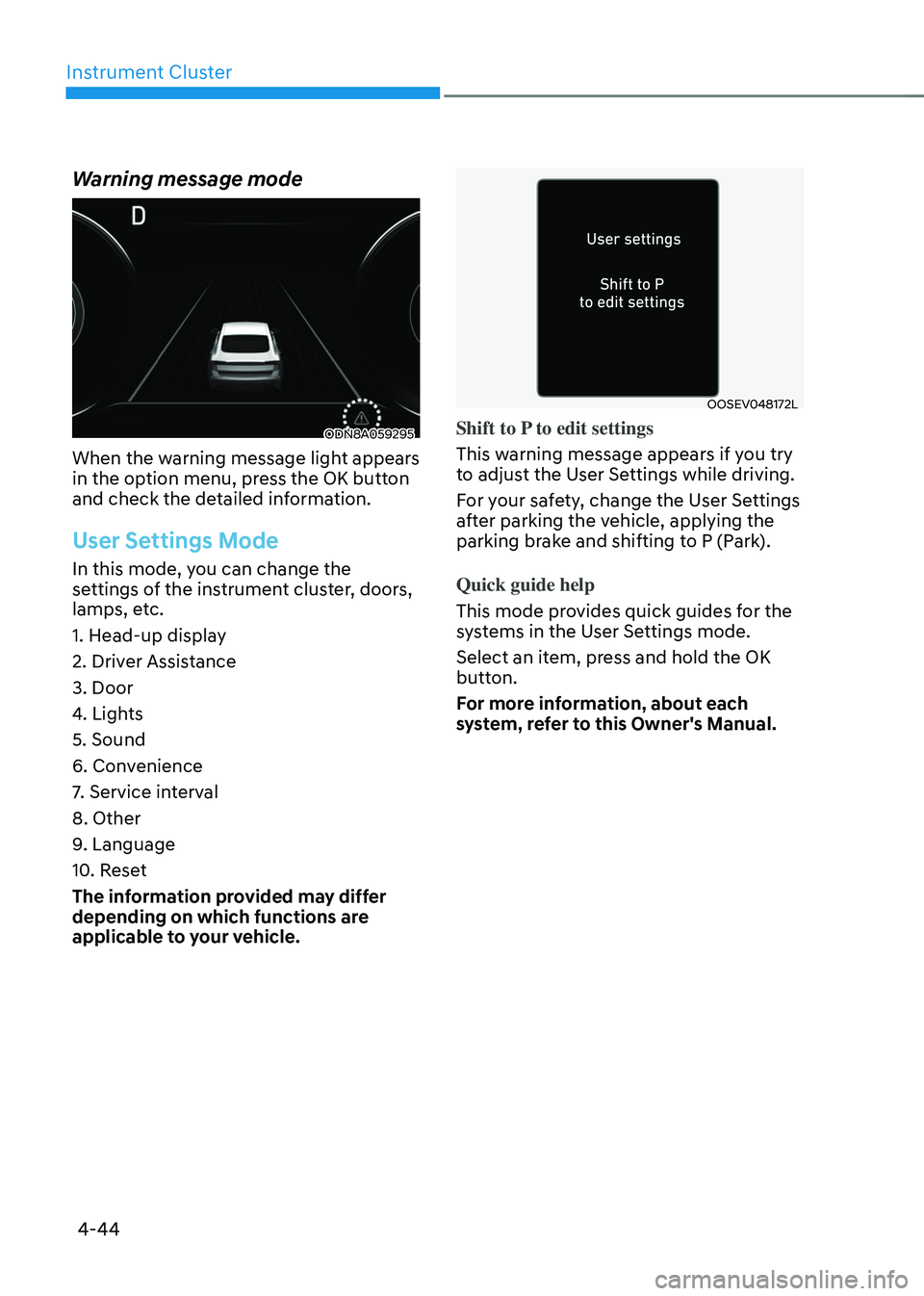
Warning message mode
ODN8A059295
When the warning message light appears
in the option menu, press the OK button
and check the detailed information.
User Settings Mode
In this mode, you can change the
settings of the instrument cluster, doors,
lamps, etc.
1. Head-up display
2. Driver Assistance
3. Door
4. Lights
5. Sound
6. Convenience
7. Service interval
8. Other
9. Language
10. Reset
The information provided may differ
depending on which functions are
applicable to your vehicle.
OOSEV048172L
Shift to P to edit settings
This warning message appears if you try
to adjust the User Settings while driving.
For your safety, change the User Settings
after parking the vehicle, applying the
parking brake and shifting to P (Park).
Quick guide help
This mode provides quick guides for the
systems in the User Settings mode.
Select an item, press and hold the OK
button.
For more information, about each
system, refer to this Owner's Manual.
Page 167 of 527
05
5-19
Smartphone change/App deletion
If you change your smartphone or delete
the Hyundai Digital Key App, please refer
to the following to set up your Digital
Key:
Smartphone Change/ Reset
If you change or reset the smartphone,
the registered digital key in your previous
smartphone may not be used. Please
refer to following procedure to use the
digital key.
1. Install the digital key application and
log in.
2. If you are the owner, retry the Digital
key save process.
3. If you are the sharer, need to re-share
the key from owner.
App delete & reinstall/ Delete App data
You can re-download the digital key
from server in these cases as follow
procedure.
1. Reinstall the application and log in.
2. Input the PIN number for user
verification.
3. If PIN is correct, digital key data
will be re-downloaded to your
smartphone and you can use it
without any further registration or
sharing.
Smartphone operability with Digital Key
The digital key application may not
be available to old type smartphones.
Please check the available smartphone
models with your dealer. NFC antenna
position on the smartphone can be
confirmed on each smartphone’s manual
or contact to customer service center of
the smartphone manufacture.
CAUTION
• Do not leave the registered digital
key (smartphone) and card key in
your vehicle. Please carry around
your keys all the times.
• The driver should carry card key
while driving, in order to make sure
to re-start up immediately after
vehicle completely stopped in an
emergency.
• If you happen to lose your digital
key (smartphone) or card key
registered as a main user’s key, you
should immediately delete the key
on the vehicle’s key menu. For more
information, refer to the Digital Key
Deletion in this chapter.
• If you registered your digital key
(smartphone) or card key in the
vehicle, a message appears on the
instrument cluster and let you know
the key is registered.
(Message: Digital key(s) active.)
• If you buy a used vehicle, you should
confirm the message and delete the
registered smartphone key and card
key. In this case, you should carry
your smart key.
• If you keep place the NFC card
of the digital key on the interior
authentication pad (wireless
charger) while driving, it may cause a
malfunction of the NFC card.
• You should remove your NFC card
of the digital key on the interior
authentication pad after turning on
the engine.
• Hyundai digital key app may not
work properly when the NFC or
Bluetooth communication between
smartphone and car is not good.
Page 169 of 527
05
5-21
ÃIf a sharer changes or reset the
smartphone, the key should be re-
shared from owner.
ÃSome of the old smartphone may
not work properly. Please check the
available smartphone models with
your dealer.
ÃNFC antenna position on the
smartphone can be confirmed
on each smartphone’s manual or
contact to customer service center
of the smartphone manufacture.
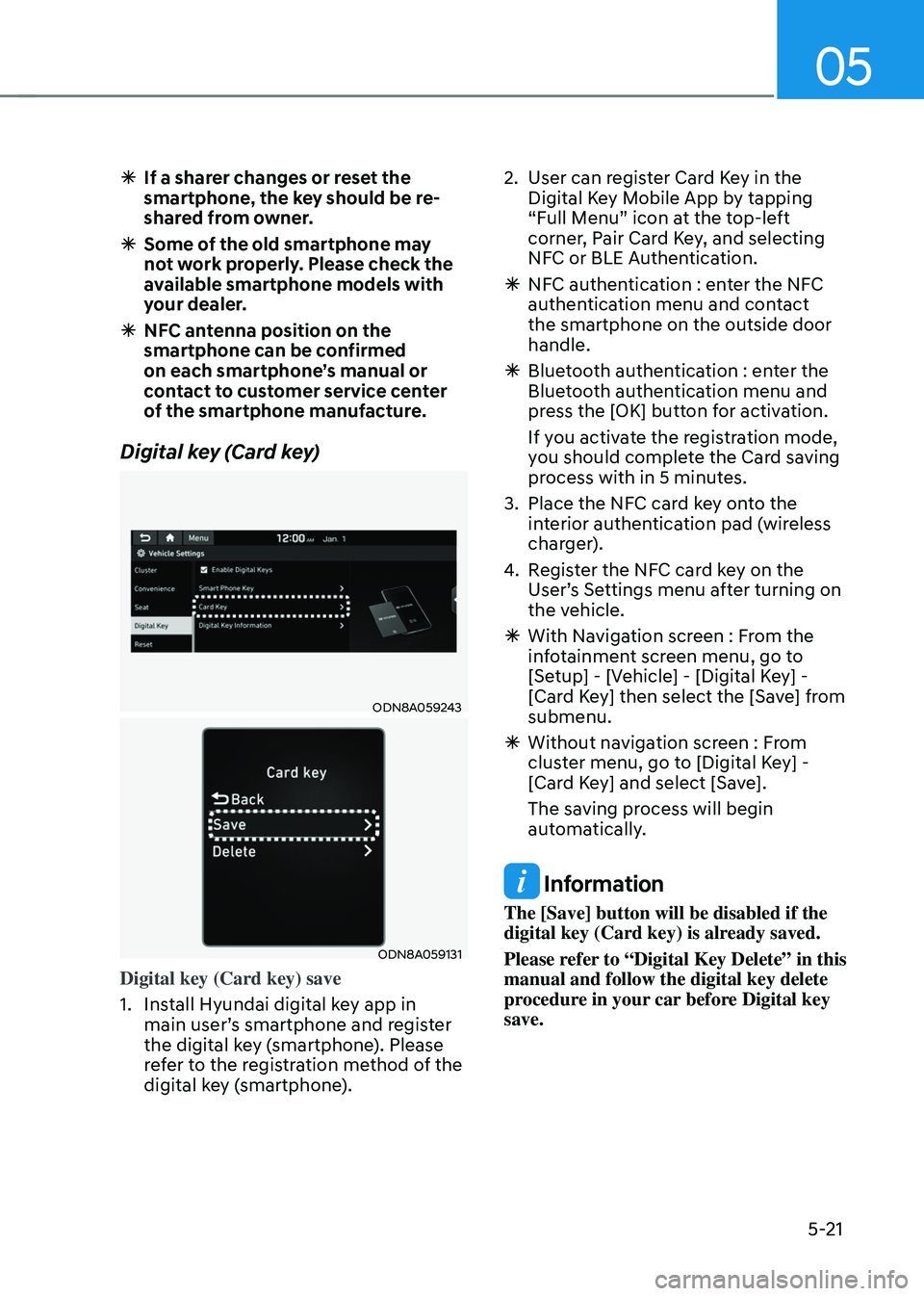
Digital key (Card key)
ODN8A059243
ODN8A059131
Digital key (Card key) save
1. Install Hyundai digital key app in
main user’s smartphone and register
the digital key (smartphone). Please
refer to the registration method of the
digital key (smartphone).
2. User can register Card Key in the
Digital Key Mobile App by tapping
“Full Menu” icon at the top-left
corner, Pair Card Key, and selecting
NFC or BLE Authentication.
ÃNFC authentication : enter the NFC
authentication menu and contact
the smartphone on the outside door
handle.
ÃBluetooth authentication : enter the
Bluetooth authentication menu and
press the [OK] button for activation.
If you activate the registration mode,
you should complete the Card saving
process with in 5 minutes.
3. Place the NFC card key onto the
interior authentication pad (wireless
charger).
4. Register the NFC card key on the
User’s Settings menu after turning on
the vehicle.
ÃWith Navigation screen : From the
infotainment screen menu, go to
[Setup] - [Vehicle] - [Digital Key] -
[Card Key] then select the [Save] from
submenu.
ÃWithout navigation screen : From
cluster menu, go to [Digital Key] -
[Card Key] and select [Save].
The saving process will begin
automatically.
Information
The [Save] button will be disabled if the
digital key (Card key) is already saved.
Please refer to “Digital Key Delete” in this
manual and follow the digital key delete
procedure in your car before Digital key
save.
Page 383 of 527
06
6-107
CAUTION
Navigation-based Cruise Control
system may not function properly in the
following situations:
• The navigation is not working
properly.
• The navigation is not updated.
• The real-time GPS or map
information provided has errors.
• The navigation is overloaded by
performing functions such as route
search, video playback, voice
recognition, etc. are performing
simultaneously.
• GPS signals are blocked in areas such
as a tunnel.
• The driver goes off course or the
route to the destination is changed
or canceled by resetting the
navigation.
• The vehicle enters a service station
or rest area.
• A section of the highway’s shape has
changed.
• Android Auto or Car Play is operating.
• The navigation cannot detect the
current vehicle position (ex: elevated
roads including overpass adjacent to
general roads or nearby roads exist
in a parallel way).
• The navigation is being updated
while driving.
• The navigation is being reset while
driving.
• The road is slippery due to bad
weather such as rain or snow.
Information
This device complies with Part 15 of the
FCC rules.
Operation is subject to the following three
conditions:
1. This device may not cause harmful
interference, and
2. This device must accept any
interference received, including
interference that may cause undesired
operation.
3. Changes or modifications not expressly
approved by the party responsible
for compliance could void the user's
authority to operate the device.
Information
Radio frequency radiation exposure
information:
This equipment complies with FCC
radiation exposure limits set forth for an
uncontrolled environment.
This equipment should be installed and
operated with minimum distance of 8 in.
(20 cm) between the radiator (antenna)
and your body.
This transmitter must not be co-located or
operating in conjunction with any other
antenna or transmitter.
Page 395 of 527
06
6-119
CAUTION
Highway Driving Assist system may
not function properly in the following
situations:
• The navigation is not working
properly.
• The navigation is not updated.
• The real-time GPS or map
information provided has errors.
• The navigation is overloaded by
performing functions such as route
search, video playback, voice
recognition, etc. are performing
simultaneously.
• GPS signals are blocked in areas such
as a tunnel.
• The driver goes off course or the
route to the destination is changed
or canceled by resetting the
navigation.
• The vehicle enters a service station
or rest area
• Android Auto or Car Play is operating.
• The navigation cannot detect the
current vehicle position (ex: elevated
roads including overpass adjacent to
general roads or nearby roads exist
in a parallel way).
• The navigation is being updated
while driving.
• The navigation is being reset while
driving.
• The road is slippery due to bad
weather such as rain or snow.
Information
• For information's on headway control
and the front radar, refer to "Smart
Cruise Control (SCC)" in this chapter.
• For information's on steering control
and distance control and the front
camera, refer to "Lane Following Assist
(LFA)" in this chapter.
Information
This device complies with Part 15 of the
FCC rules.
Operation is subject to the following three
conditions:
1. This device may not cause harmful
interference, and
2. This device must accept any
interference received, including
interference that may cause undesired
operation.
3. Changes or modifications not expressly
approved by the party responsible
for compliance could void the user's
authority to operate the device.
Information
Radio frequency radiation exposure
information:
This equipment complies with FCC
radiation exposure limits set forth for an
uncontrolled environment.
This equipment should be installed and
operated with minimum distance of 8 in.
(20 cm) between the radiator (antenna)
and your body.
This transmitter must not be co-located or
operating in conjunction with any other
antenna or transmitter.
Page 425 of 527
07
7-5
NOTICE
External power source using 12V battery
The use of external power accessories
may reduce performance and function
of the vehicle. Especially, the use of
dash cameras may shut off the power of
the vehicle prior to the dash camera’s
automatic shut-down.
If the power of the vehicle is shut off,
start the vehicle as explained. (refer to
“Using the 12V Battery Reset Switch”)
Jump Starting
In the event vehicle still does not have a
functional 12V battery (check if interior
lights will not turn on) then you can try
a jump start to the engine compartment
jumper terminals using a 12V booster
pack or jumper cables from another
vehicle’s 12V battery according to the
following instructions.
CAUTION
Jump starting can be dangerous if
done incorrectly. Follow the jump
starting procedure in this section to
avoid serious injury or damage to
your vehicle. If in doubt about how to
properly jump start your vehicle, we
strongly recommend that you have a
service technician or towing service do
it for you.
1. Position the vehicles close enough
that the jumper cables will reach, but
do not allow the vehicles to touch.
Avoid fans or any moving parts in the
engine compartment at all times, even
when the vehicles are turned off.
2. Turn off all electrical devices such as
radios, lights, air conditioning, etc.
Put the vehicles in P (Park) and set the
parking brake. Turn both vehicles OFF.
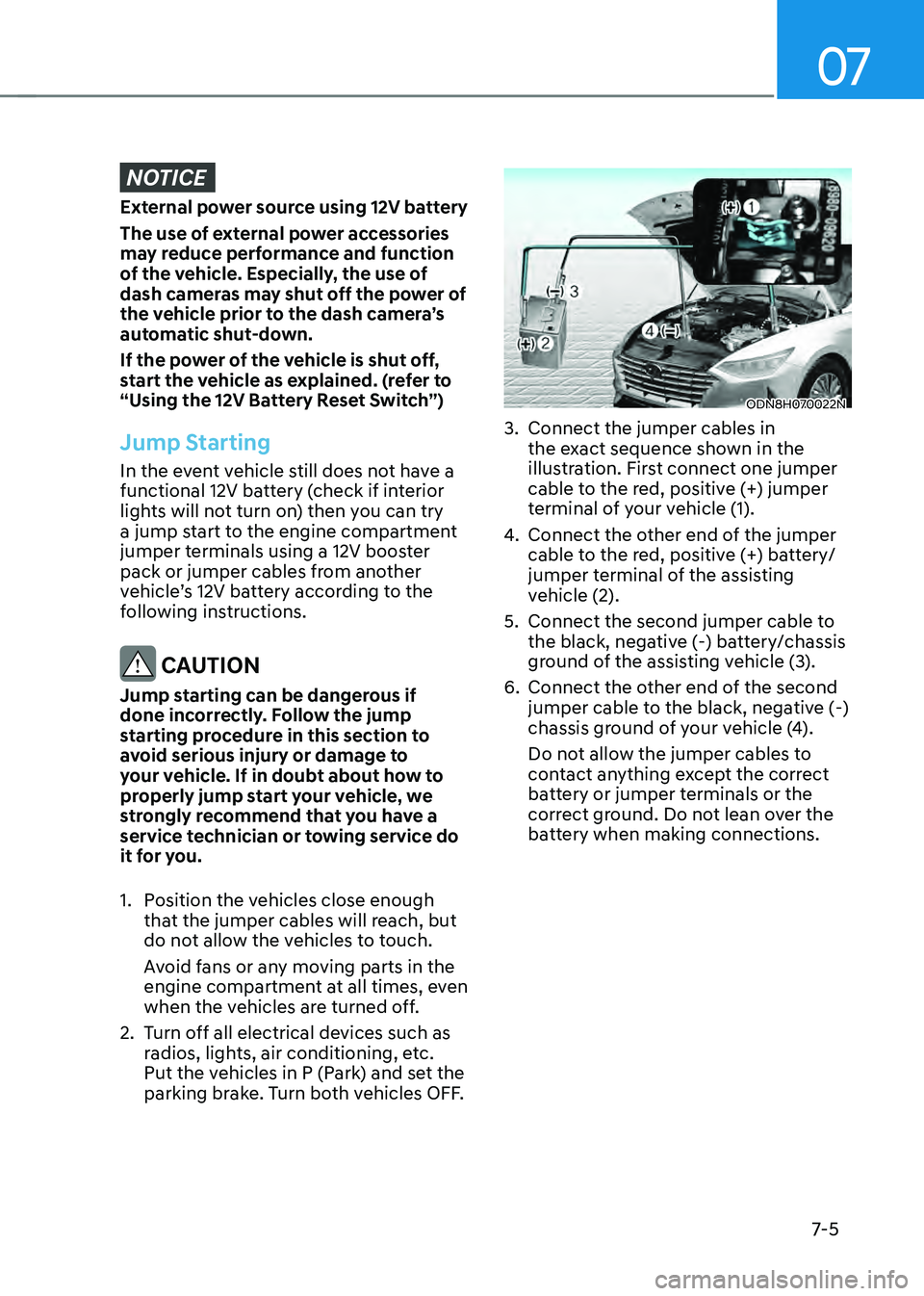
ODN8H070022N
3. Connect the jumper cables in
the exact sequence shown in the
illustration. First connect one jumper
cable to the red, positive (+) jumper
terminal of your vehicle (1).
4. Connect the other end of the jumper
cable to the red, positive (+) battery/
jumper terminal of the assisting
vehicle (2).
5. Connect the second jumper cable to
the black, negative (-) battery/chassis
ground of the assisting vehicle (3).
6. Connect the other end of the second
jumper cable to the black, negative (-)
chassis ground of your vehicle (4).
Do not allow the jumper cables to
contact anything except the correct
battery or jumper terminals or the
correct ground. Do not lean over the
battery when making connections.