trip computer HYUNDAI SONATA HYBRID 2022 Owners Manual
[x] Cancel search | Manufacturer: HYUNDAI, Model Year: 2022, Model line: SONATA HYBRID, Model: HYUNDAI SONATA HYBRID 2022Pages: 527, PDF Size: 64.14 MB
Page 107 of 527

Check Hybrid system ........................................................................\
.......................4-23
Stop safely and check Hybrid system ....................................................................4-23
Check Hybrid system. Do not start engine ............................................................4-23
Stop safely and check power supply ......................................................................4-23
Check virtual engine sound system ........................................................................\
4-23
Refuel to prevent Hybrid battery damage
.............................................................4-23
Refill inverter coolant ........................................................................\
......................4-23
Park with engine On to charge battery ..................................................................4-23
Start engine to avoid battery discharge .................................................................4-23
LCD Display (TYPE A, B) ........................................................................\
..........4-24LCD Display Control ........................................................................\
...........................4-24
LCD Display Modes ........................................................................\
............................4-25
Trip computer mode ........................................................................\
........................4-26
Turn By Turn (TBT) mode ........................................................................\
................4-26
Driving Assist mode ........................................................................\
.........................4-26
Master warning mode ........................................................................\
.....................4-27
User settings mode ........................................................................\
..........................4-27
Trip Computer ........................................................................\
..................................... 4-36
Trip modes
........................................................................\
........................................4-36
Average fuel economy/Instant fuel economy .......................................................4-36
Accumulated Info display ........................................................................\
................4-37
Drive Info display
........................................................................\
.............................4-37
Digital speedometer ........................................................................\
........................4-38
Smart shift ........................................................................\
........................................4-38
Engine coolant temperature ........................................................................\
...........4-38
LCD display (type c) ........................................................................\
................4-39LCD Display Control ........................................................................\
...........................4-39
View Modes ........................................................................\
.......................................4-40
Utility View Mode ........................................................................\
...............................4-41
Utility Items ........................................................................\
......................................4-41
Driving Assist view mode ........................................................................\
................4-42
Turn By Turn (TBT) view mode ........................................................................\
........4-42
Parking Assist view mode ........................................................................\
................4-42
Other Information Display ........................................................................\
..............4-43
Option Menu ........................................................................\
......................................4-43
Warning message mode ........................................................................\
................. 4-44
User Settings Mode
........................................................................\
...........................4-44
4
Page 108 of 527
4-4
Instrument Cluster
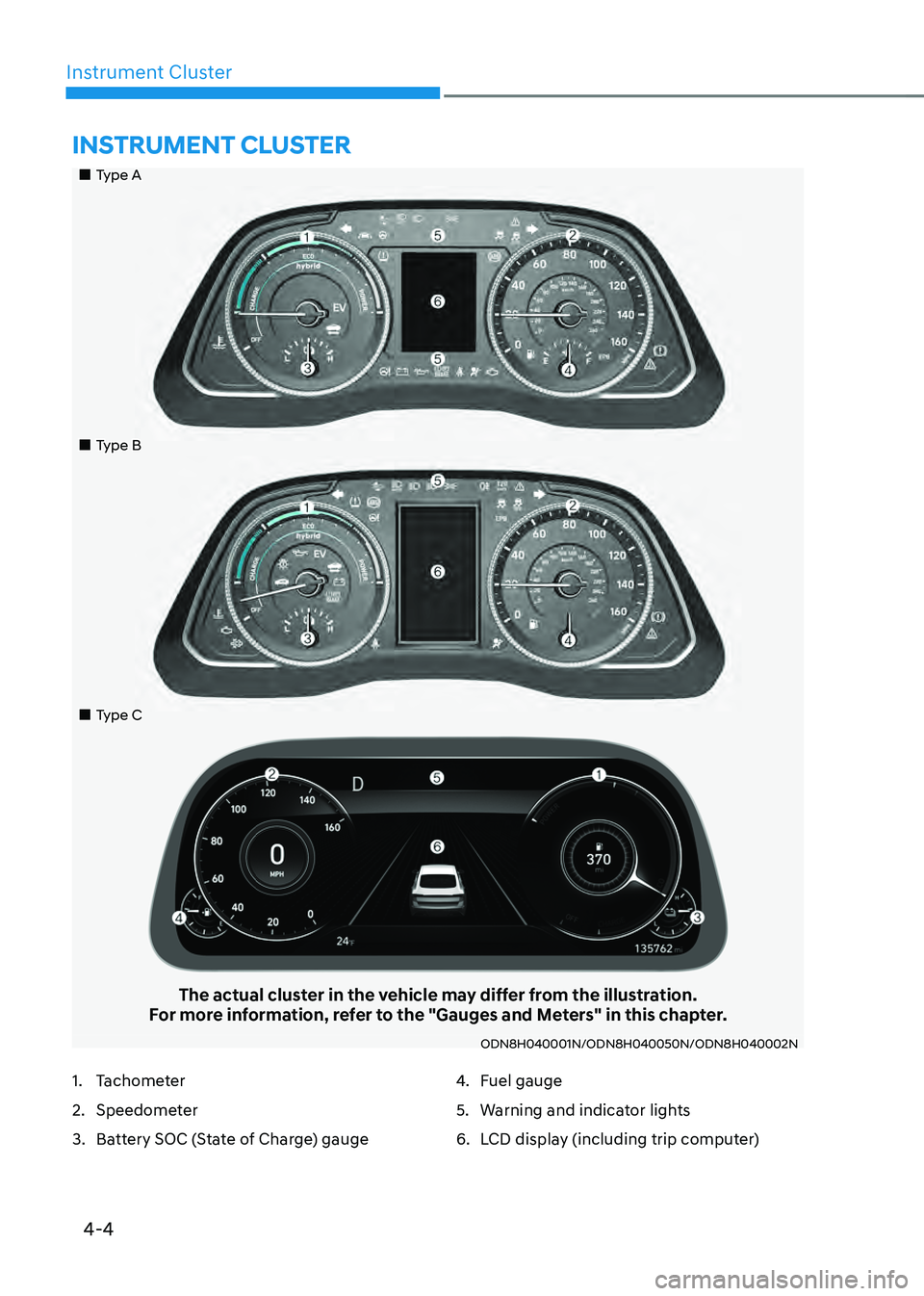
„„Type A
„„Type B
„„Type C
The actual cluster in the vehicle may differ from the illustration.For more information, refer to the "Gauges and Meters" in this chapter.
ODN8H040001N/ODN8H040050N/ODN8H040002N
INSTRUMENT CLUSTER
1. Tachometer
2. Speedometer
3. Battery SOC (State of Charge) gauge
4. Fuel gauge
5. Warning and indicator lights
6. LCD display (including trip computer)
Page 112 of 527
Instrument Cluster
4-8
You can change the temperature unit
from °F to °C or °C to °F in the User
Settings mode in the cluster:
-Go to User Settings Mode → Other → Temperature Unit.
For vehicles equipped with Automatic
Climate Control, you can also:
- Press and hold the AUTO and OFF
buttons on the climate control unit for
3 seconds
Both the temperature unit on the cluster
LCD display and climate control screen
will change.
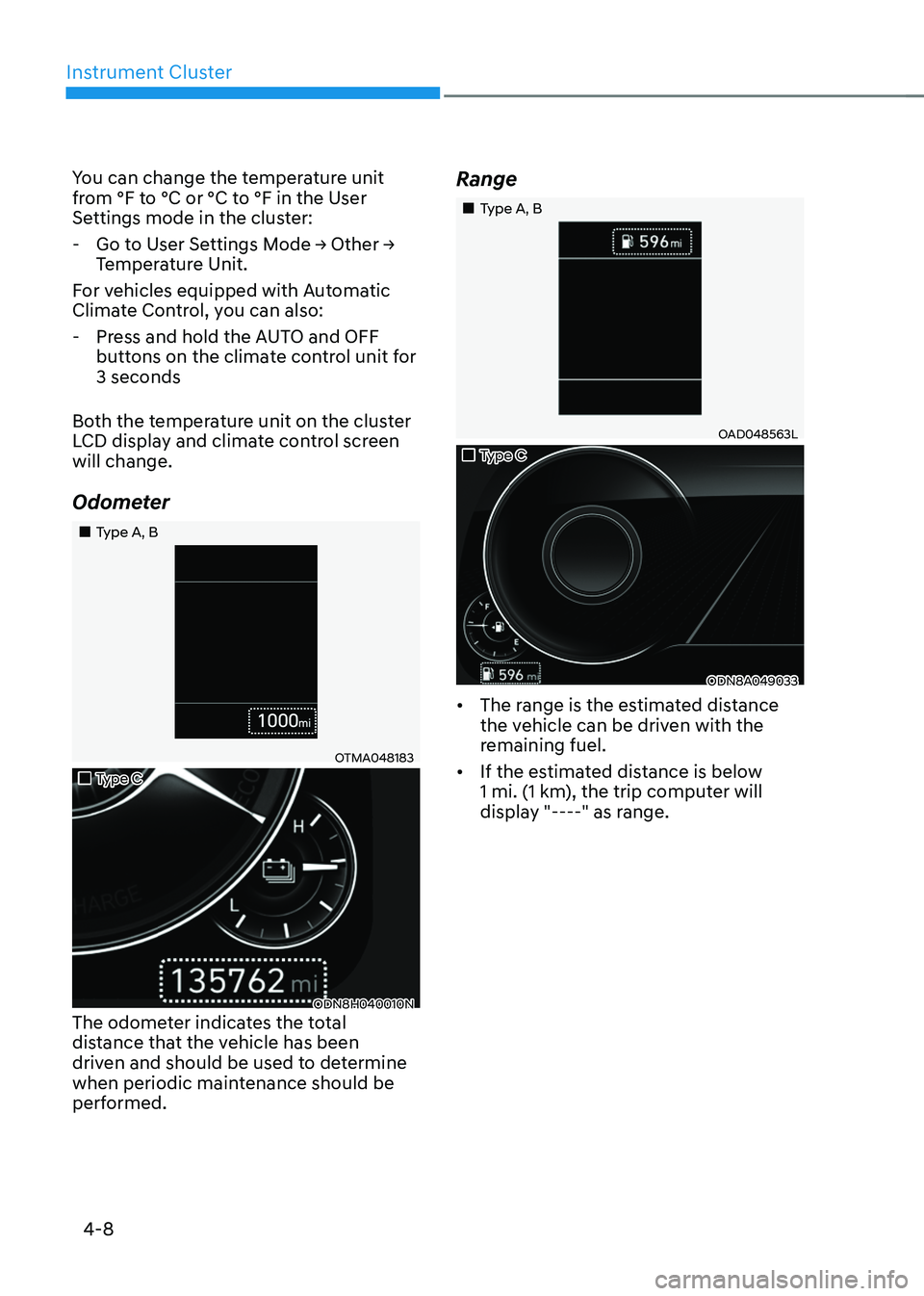
Odometer
„„Type A, B
OTMA048183
„„Type C
ODN8H040010NThe odometer indicates the total
distance that the vehicle has been
driven and should be used to determine
when periodic maintenance should be
performed.
Range
„„Type A, B
OAD048563L
„„Type C
ODN8A049033
• The range is the estimated distance
the vehicle can be driven with the
remaining fuel.
• If the estimated distance is below
1 mi. (1 km), the trip computer will
display "----" as range.
Page 113 of 527
04
4-9
Information
• If the vehicle is not on level ground or
the battery power has been interrupted,
the range function may not operate
correctly.
• The range may differ from the actual
driving distance as it is only an estimate
of the available driving range for the
vehicle and driving conditions.
• The trip computer may not register
additional fuel if less than 1.6 gallon (6
liters) of fuel are added to the vehicle.
• The range may vary significantly based
on driving conditions, driving habits,
and condition of the vehicle.
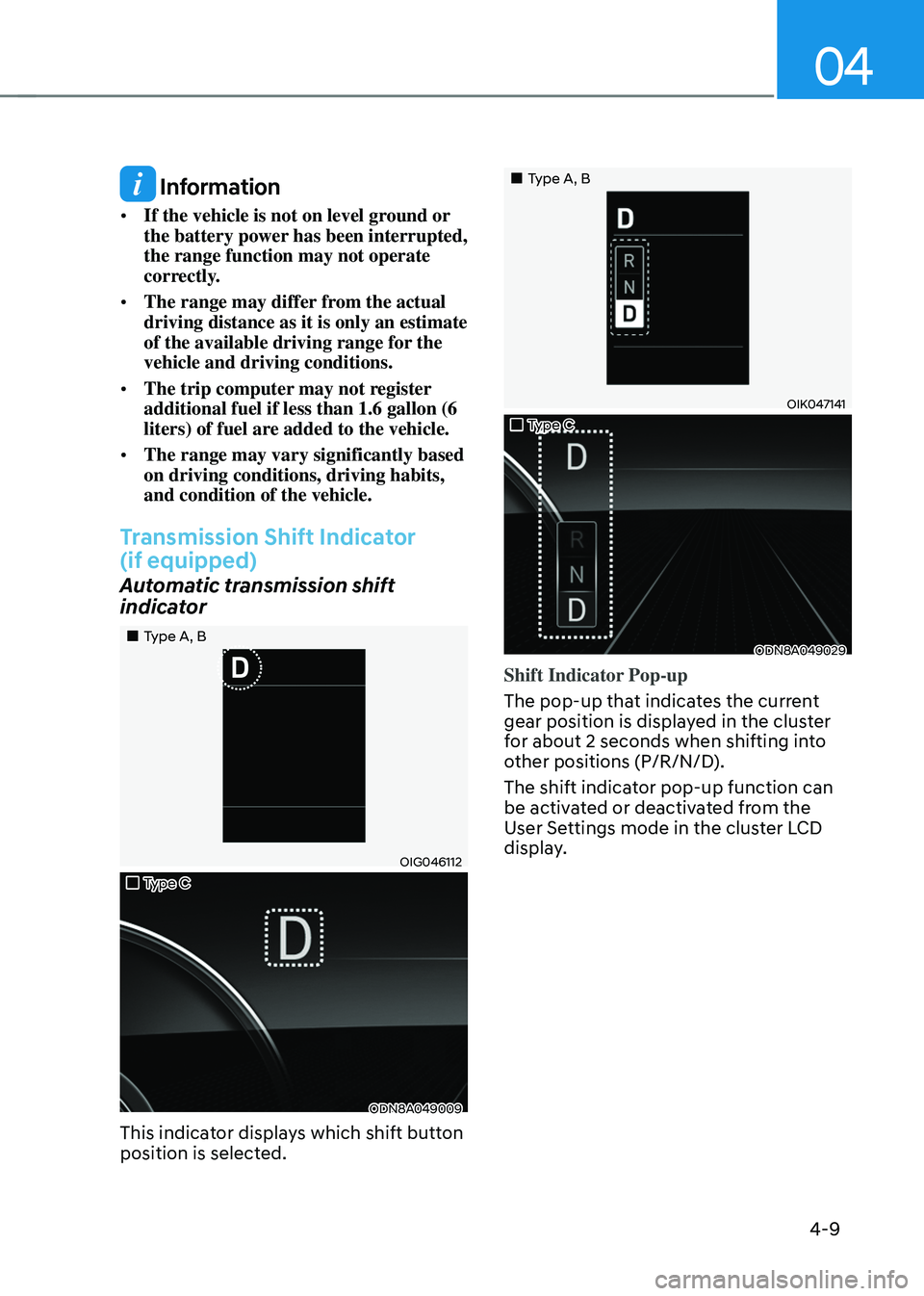
Transmission Shift Indicator
(if equipped)
Automatic transmission shift
indicator
„„Type A, B
OIG046112
„„Type C
ODN8A049009
This indicator displays which shift button
position is selected.
„„Type A, B
OIK047141
„„Type C
ODN8A049029
Shift Indicator Pop-up
The pop-up that indicates the current
gear position is displayed in the cluster
for about 2 seconds when shifting into
other positions (P/R/N/D).
The shift indicator pop-up function can
be activated or deactivated from the
User Settings mode in the cluster LCD
display.
Page 129 of 527
04
4-25
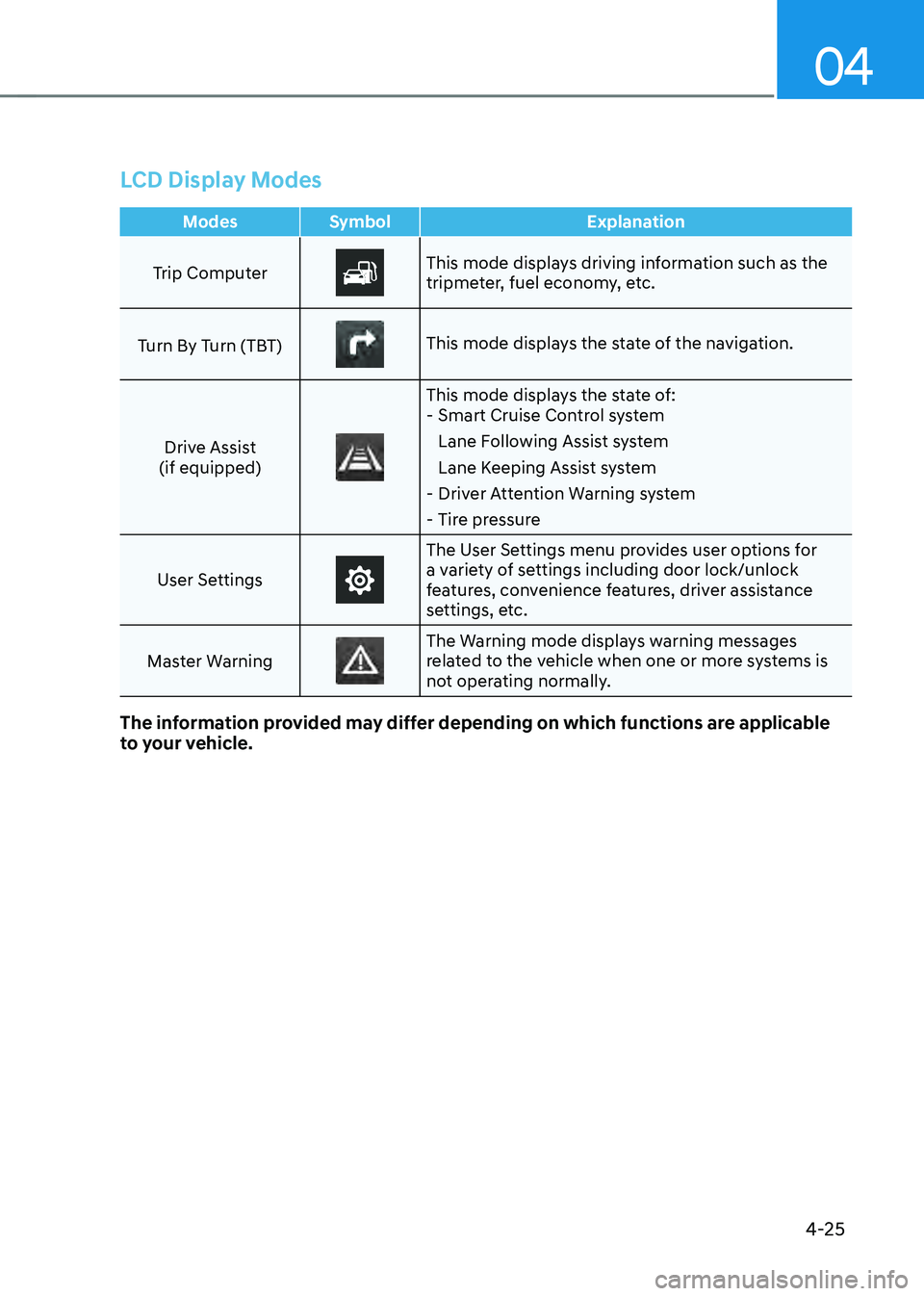
LCD Display Modes
ModesSymbol Explanation
Trip Computer
This mode displays driving information such as the
tripmeter, fuel economy, etc.
Turn By Turn (TBT)
This mode displays the state of the navigation.
Drive Assist
(if equipped)
This mode displays the state of: - Smart Cruise Control system
Lane Following Assist system
Lane Keeping Assist system
-Driver Attention Warning system
-Tire pressure
User Settings
The User Settings menu provides user options for
a variety of settings including door lock/unlock
features, convenience features, driver assistance
settings, etc.
Master Warning
The Warning mode displays warning messages
related to the vehicle when one or more systems is
not operating normally.
The information provided may differ depending on which functions are applicable
to your vehicle.
Page 130 of 527
Instrument Cluster
4-26
Trip computer mode
OIK047124N
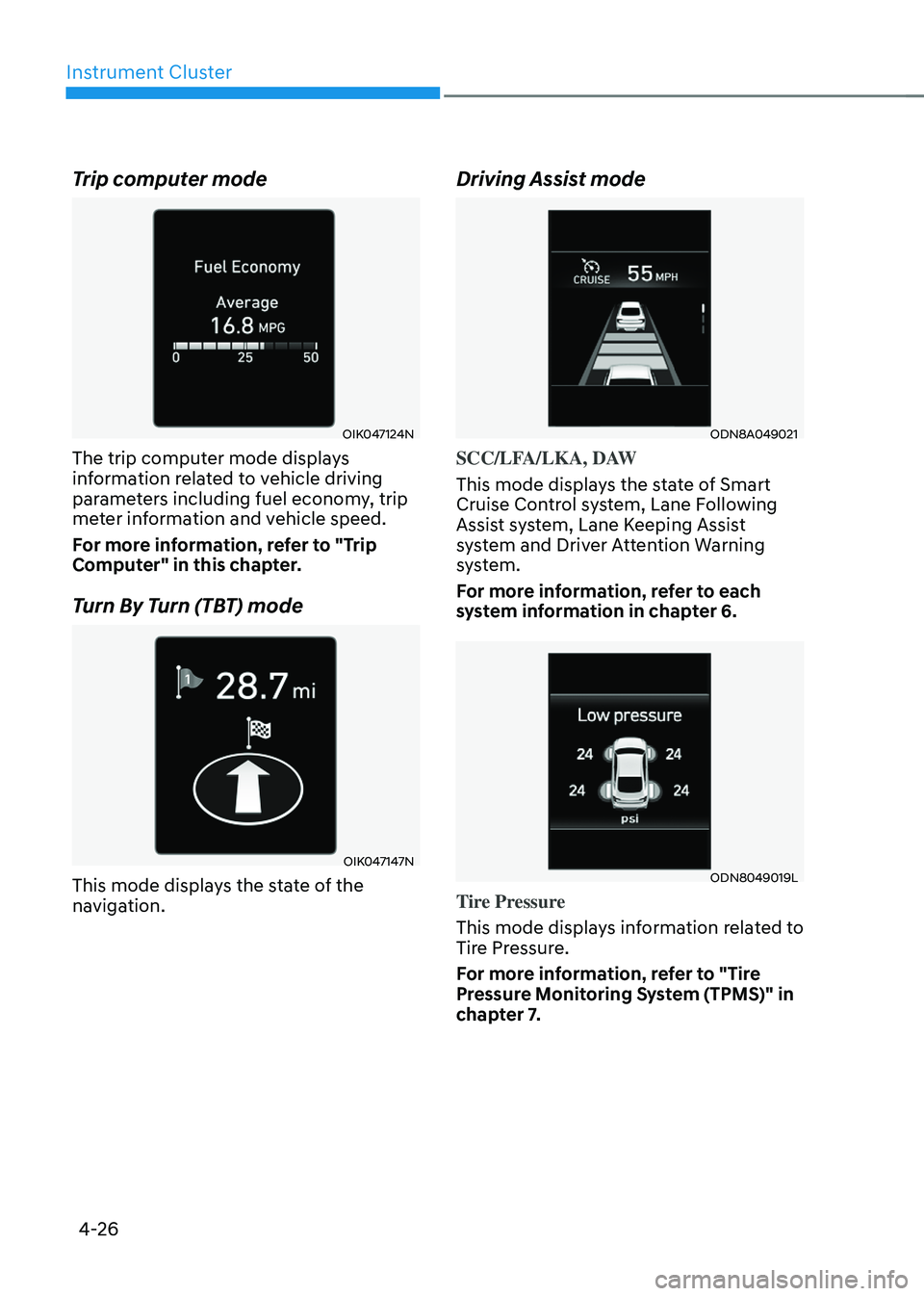
The trip computer mode displays
information related to vehicle driving
parameters including fuel economy, trip
meter information and vehicle speed.
For more information, refer to "Trip
Computer" in this chapter.
Turn By Turn (TBT) mode
OIK047147N
This mode displays the state of the
navigation.
Driving Assist mode
ODN8A049021
SCC/LFA/LKA, DAW
This mode displays the state of Smart
Cruise Control system, Lane Following
Assist system, Lane Keeping Assist
system and Driver Attention Warning
system.
For more information, refer to each
system information in chapter 6.
ODN8049019L
Tire Pressure
This mode displays information related to
Tire Pressure.
For more information, refer to "Tire
Pressure Monitoring System (TPMS)" in
chapter 7.
Page 139 of 527
04
4-35
8. Other
ItemsExplanation
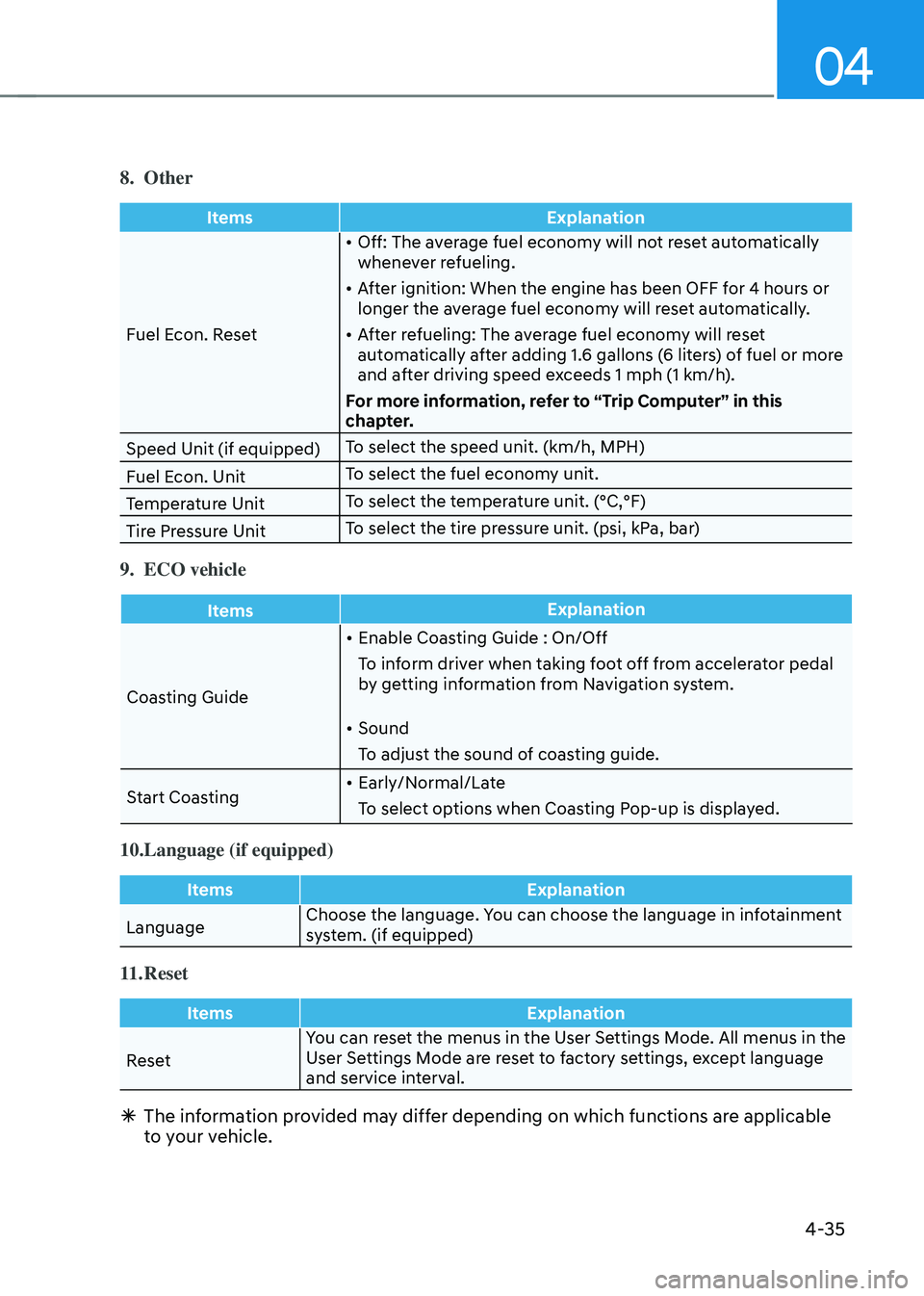
Fuel Econ. Reset •
Off: The average fuel economy will not reset automatically
whenever refueling.
• After ignition: When the engine has been OFF for 4 hours or
longer the average fuel economy will reset automatically.
• After refueling: The average fuel economy will reset
automatically after adding 1.6 gallons (6 liters) of fuel or more
and after driving speed exceeds 1 mph (1 km/h).
For more information, refer to “Trip Computer” in this
chapter.
Speed Unit (if equipped) To select the speed unit. (km/h, MPH)
Fuel Econ. Unit To select the fuel economy unit.
Temperature Unit To select the temperature unit. (°C,°F)
Tire Pressure Unit To select the tire pressure unit. (psi, kPa, bar)
9. ECO vehicle
Items
Explanation
Coasting Guide •
Enable Coasting Guide : On/Off
To inform driver when taking foot off from accelerator pedal
by getting information from Navigation system.
• Sound
To adjust the sound of coasting guide.
Start Coasting •
Early/Normal/Late
To select options when Coasting Pop-up is displayed.
10. Language (if equipped)
Items Explanation
Language Choose the language. You can choose the language in infotainment
system. (if equipped)
11. Reset
Items
Explanation
Reset You can reset the menus in the User Settings Mode. All menus in the
User Settings Mode are reset to factory settings, except language
and service interval.
Ã
The information provided may differ depending on which functions are applicable
to your vehicle.
Page 140 of 527
Instrument Cluster
4-36
Trip Computer
The trip computer is a microcomputer-
controlled driver information system that
displays information related to driving.
Information
Some driving information stored in the
trip computer (for example Average
Vehicle Speed) resets if the battery is
disconnected.
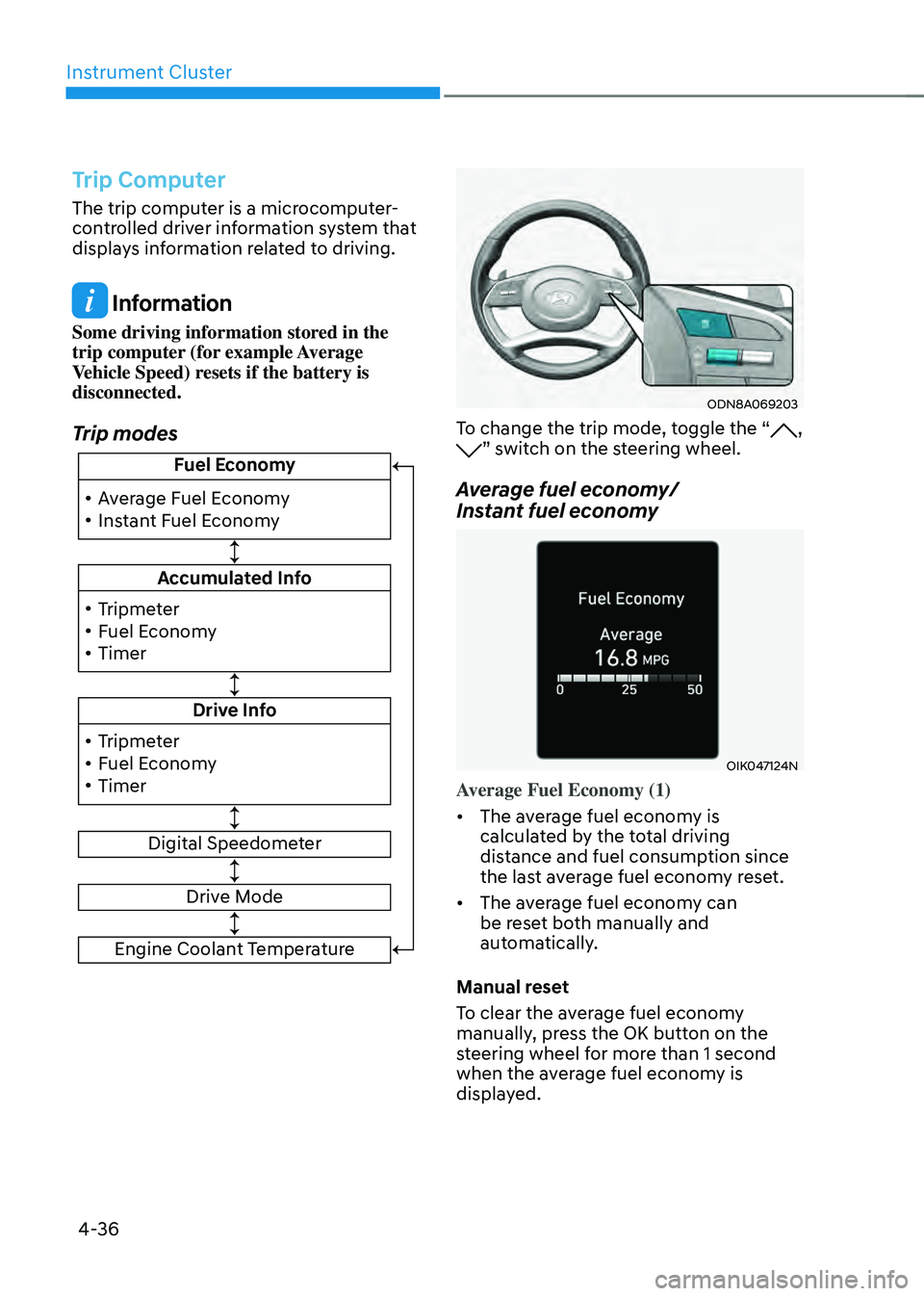
Trip modes
!ŸAverage Fuel Economy
!Ÿ Instant Fuel Economy Fuel Economy
Accumulated Info
Drive Info
Digital Speedometer
!Ÿ
Tripmeter
!Ÿ Fuel Economy
!Ÿ Timer
!Ÿ Tripmeter
!Ÿ Fuel Economy
!Ÿ Timer
Drive Mode
Engine Coolant Temperature
ODN8A069203
To change the trip mode, toggle the “, ” switch on the steering wheel.
Average fuel economy/
Instant fuel economy
OIK047124N
Average Fuel Economy (1)
•
The average fuel economy is
calculated by the total driving
distance and fuel consumption since
the last average fuel econ om y reset.
• The average fuel economy can
be reset both manually and
automatically.
Manual reset
To clear the average fuel economy
manually, press the OK button on the
steering wheel for more than 1 second
when the average fuel economy is
displayed.
Page 277 of 527

While Driving
6
6. While Driving
Before Driving ........................................................................\
...........................6-5Before Entering the Vehicle ........................................................................\
.................6-5
Before Starting ........................................................................\
.....................................6-5
Ignition Switch ........................................................................\
..........................6-6Engine Start/Stop Button ........................................................................\
...................6-6
Remote Start ........................................................................\
........................................6-9
Automatic Transmission ........................................................................\
..........6-10Automatic Transmission Operation ........................................................................\
...6-10
Parking ........................................................................\
................................................6-13
LCD Display Message ........................................................................\
.........................6-14
Good Driving Practices ........................................................................\
.....................6-15
Paddle Shifter (Manual Shift Mode) ........................................................................\
..6-16
Coasting guide ........................................................................\
.........................6-17
Brake System
........................................................................\
............................6-18Power Brakes ........................................................................\
......................................6-18
Disc Brakes Wear Indicator ........................................................................\
................ 6-19
Electronic Parking Brake (EPB)
........................................................................\
..........6-19
Auto Hold ........................................................................\
............................................6-24
Anti-lock Brake System (ABS) ........................................................................\
.6-27Electronic Stability Control (ESC) ........................................................................\
.....6-28
Vehicle Stability Management (VSM) .......................................................................6-31
Hill-Start Assist Control (HAC) ........................................................................\
...........6-32
Good Braking Practices ........................................................................\
.....................6-32
Drive Mode Integrated Control System .........................................................6-33Drive Mode ........................................................................\
.........................................6-33
Drive Mode on Trip Computer ........................................................................\
...........6-37
Forward Collision – Avoidance Assist (FCA) - Sensor Fusion ......................6-38System Setting and Activation ........................................................................\
.........6-38
FCA Warning Message and Brake Control ...............................................................6-40
FCA Sensor ........................................................................\
........................................6-43
System Malfunction ........................................................................\
..........................6-45
Limitations of the System ........................................................................\
..................6-47
Junction Turning ........................................................................\
................................6-53
Page 313 of 527
06
6-37
Drive Mode on Trip Computer
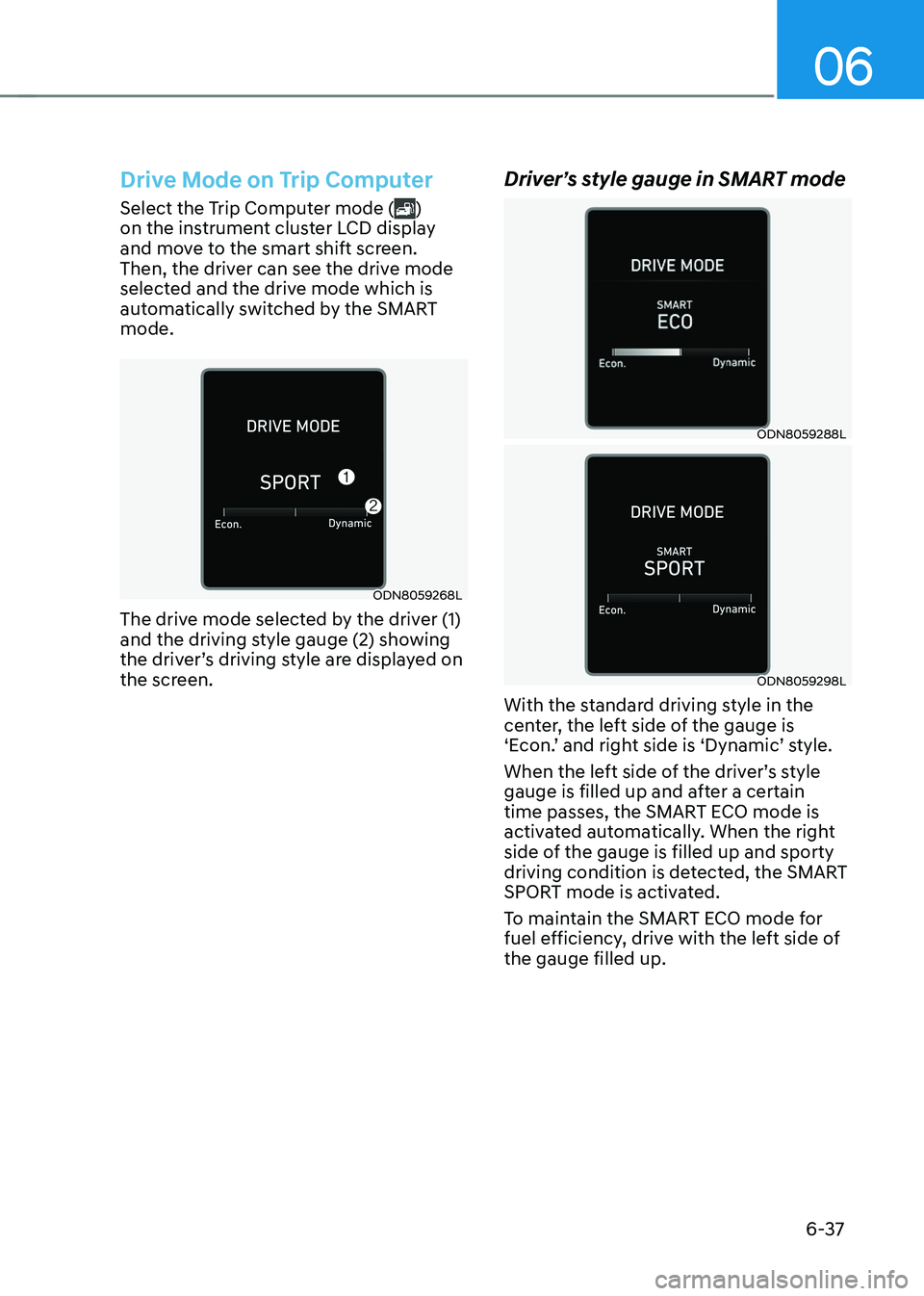
Select the Trip Computer mode ()
on the instrument cluster LCD display
and move to the smart shift screen.
Then, the driver can see the drive mode
selected and the drive mode which is
automatically switched by the SMART
mode.
ODN8059268L
The drive mode selected by the driver (1)
and the driving style gauge (2) showing
the driver’s driving style are displayed on
the screen.
Driver’s style gauge in SMART mode
ODN8059288L
ODN8059298L
With the standard driving style in the
center, the left side of the gauge is
‘Econ.’ and right side is ‘Dynamic’ style.
When the left side of the driver’s style
gauge is filled up and after a certain
time passes, the SMART ECO mode is
activated automatically. When the right
side of the gauge is filled up and sporty
driving condition is detected, the SMART
SPORT mode is activated.
To maintain the SMART ECO mode for
fuel efficiency, drive with the left side of
the gauge filled up.