warning HYUNDAI SONATA LIMITED 2016 Owners Manual
[x] Cancel search | Manufacturer: HYUNDAI, Model Year: 2016, Model line: SONATA LIMITED, Model: HYUNDAI SONATA LIMITED 2016Pages: 708, PDF Size: 25.96 MB
Page 244 of 708
3-149
Convenient features of your vehicle
3
To prevent damage to the Power
Outlets :
Use the power outlet only whenthe engine is running and
remove the accessory plug after
use. Using the accessory plug
for prolonged periods of time
with the engine off could cause
the battery to discharge.
Only use 12V electric acces- sories which are less than 180
W(Watt) in electric capacity.
Adjust the air-conditioner or heater to the lowest operating
level when using the power outlet.
Close the cover when not in use.
Some electronic devices can cause electronic interference
when plugged into a vehicle’s
power outlet. These devices may
cause excessive audio static
and malfunctions in other elec-
tronic systems or devices used
in your vehicle.
(Continued)(Continued)
Push the plug in as far as it will
go. If good contact is not made,
the plug may overheat and the
fuse may open.
Plug in battery equipped electri- cal/electronic devices with
reverse current protection. The
current from the battery may
flow into the vehicle’s electri-
cal/electronic system and cause
system malfunction.
NOTICE
Avoid electrical shocks. Do not
place your fingers or foreign
objects (pin, etc.) into a power
outlet or touch the power outlet
with a wet hand.
WARNING
Page 245 of 708
3-150
Convenient features of your vehicle
Clock
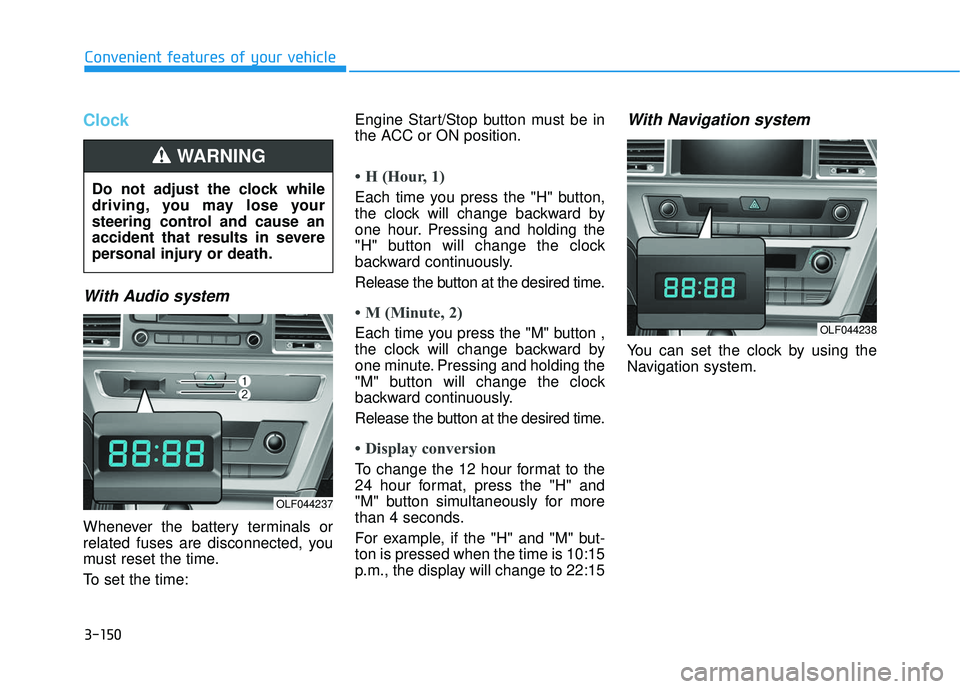
With Audio system
Whenever the battery terminals or
related fuses are disconnected, you
must reset the time.
To set the time:Engine Start/Stop button must be in
the ACC or ON position.
• H (Hour, 1)
Each time you press the "H" button,
the clock will change backward by
one hour. Pressing and holding the
"H" button will change the clock
backward continuously.
Release the button at the desired time.
• M (Minute, 2)
Each time you press the "M" button ,
the clock will change backward by
one minute. Pressing and holding the
"M" button will change the clock
backward continuously.
Release the button at the desired time.
• Display conversion
To change the 12 hour format to the
24 hour format, press the "H" and
"M" button simultaneously for more
than 4 seconds.
For example, if the "H" and "M" but-
ton is pressed when the time is 10:15
p.m., the display will change to 22:15
With Navigation system
You can set the clock by using the
Navigation system.
Do not adjust the clock while
driving, you may lose your
steering control and cause an
accident that results in severe
personal injury or death.
WARNING
OLF044237
OLF044238
Page 246 of 708
3-151
Convenient features of your vehicle
3
GPS Time check
The clock is automatically updated
through the navigation system.
GPS Time non-check
The clock can be manually adjusted.
1. Select the "System Settings" onthe "INFO/Setup" screen.
2. Select the "Clock Settings".
3. Select the "Time Settings" by rotating the controller on the cen-
ter console panel.
4. Select the "Time Format" to the 12 hour or 24 hour format.
For more information, please refer to
the manual that was separately sup-
plied with your vehicle.
Clothes Hanger
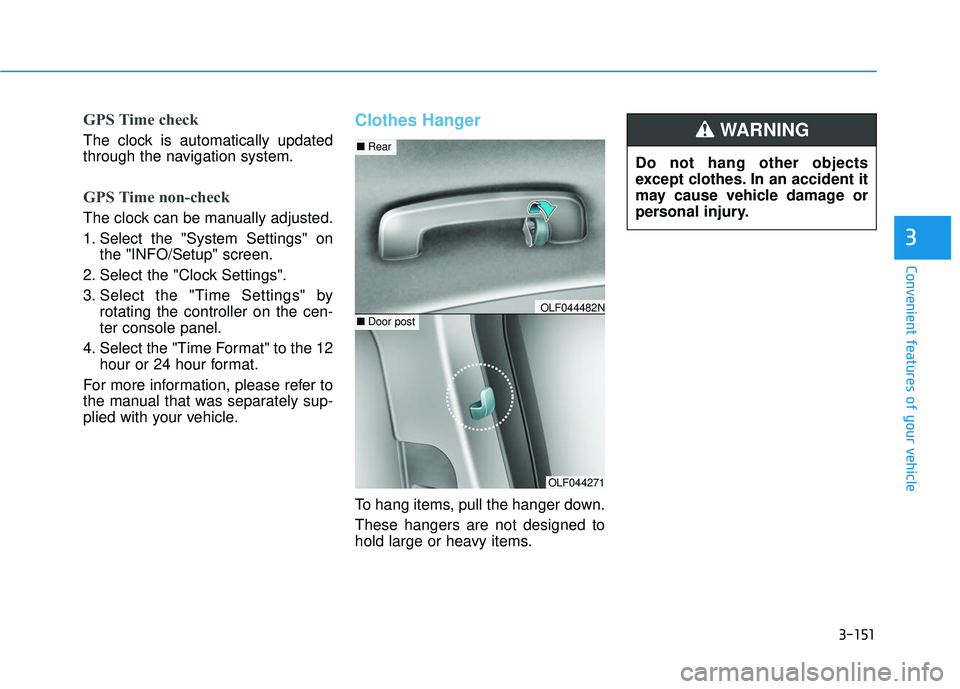
To hang items, pull the hanger down.
These hangers are not designed to
hold large or heavy items. Do not hang other objects
except clothes. In an accident it
may cause vehicle damage or
personal injury.
WARNING
OLF044271
■
Rear
■Door postOLF044482N
Page 247 of 708
3-152
Convenient features of your vehicle
Floor Mat Anchor(s)
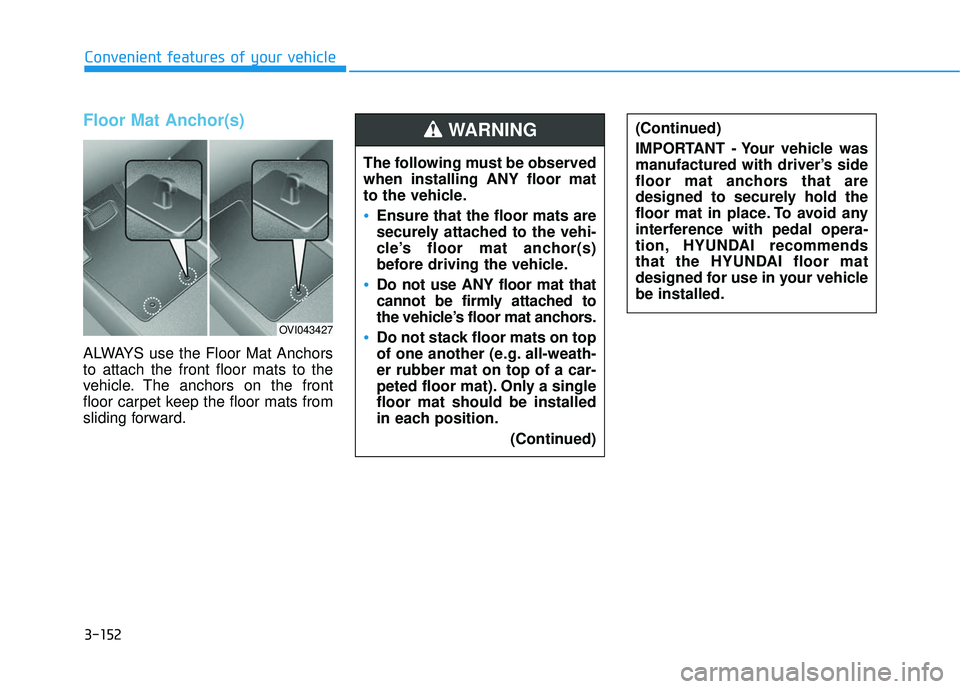
ALWAYS use the Floor Mat Anchors
to attach the front floor mats to the
vehicle. The anchors on the front
floor carpet keep the floor mats from
sliding forward.
OVI043427
The following must be observed
when installing ANY floor mat
to the vehicle.
Ensure that the floor mats are
securely attached to the vehi-
cle’s floor mat anchor(s)
before driving the vehicle.
Do not use ANY floor mat that
cannot be firmly attached to
the vehicle’s floor mat anchors.
Do not stack floor mats on top
of one another (e.g. all-weath-
er rubber mat on top of a car-
peted floor mat). Only a single
floor mat should be installed
in each position.(Continued)
(Continued)
IMPORTANT - Your vehicle was
manufactured with driver’s side
floor mat anchors that are
designed to securely hold the
floor mat in place. To avoid any
interference with pedal opera-
tion, HYUNDAI recommends
that the HYUNDAI floor mat
designed for use in your vehicle
be installed.WARNING
Page 248 of 708
3-153
Convenient features of your vehicle
3
Side Curtain (if equipped)
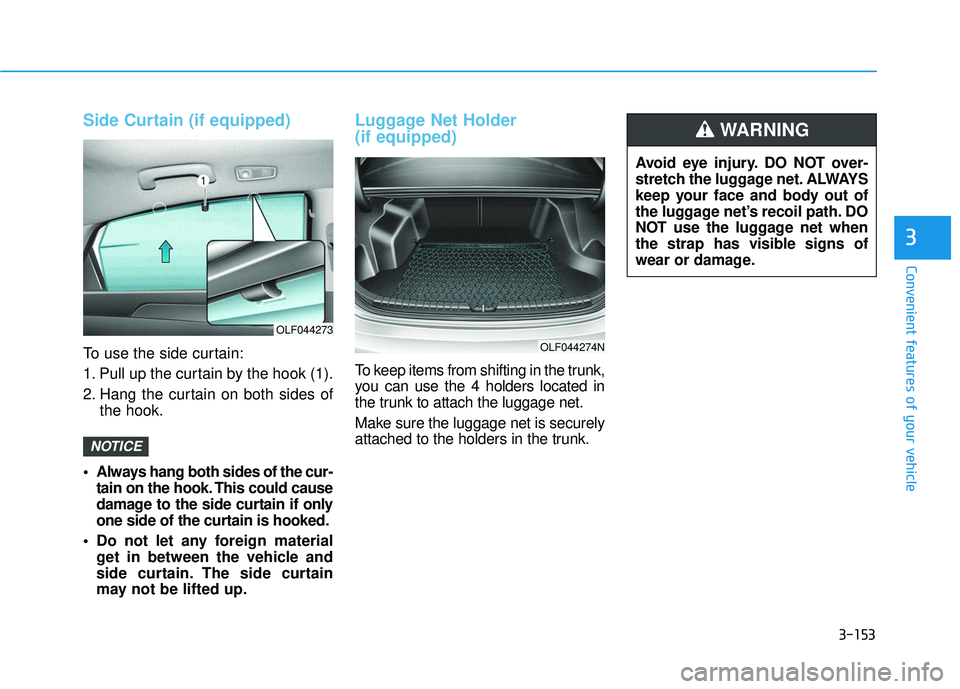
To use the side curtain:
1. Pull up the curtain by the hook (1).
2. Hang the curtain on both sides ofthe hook.
Always hang both sides of the cur- tain on the hook. This could cause
damage to the side curtain if only
one side of the curtain is hooked.
Do not let any foreign material get in between the vehicle and
side curtain. The side curtain
may not be lifted up.
Luggage Net Holder
(if equipped)
To keep items from shifting in the trunk,
you can use the 4 holders located in
the trunk to attach the luggage net.
Make sure the luggage net is securely
attached to the holders in the trunk.
NOTICE
OLF044273
OLF044274N
Avoid eye injury. DO NOT over-
stretch the luggage net. ALWAYS
keep your face and body out of
the luggage net’s recoil path. DO
NOT use the luggage net when
the strap has visible signs of
wear or damage.
WARNING
Page 256 of 708
4-8
Multimedia System
Caring for disc
If the temperature inside the car is toohigh, open the car windows to venti-
late before using the system.
It is illegal to copy and use MP3/WMA files without permission.
Use CDs that are created only by
lawful means.
Do not apply volatile agents, such as benzene and thinner, normal
cleaners and magnetic sprays
made for analogue disc onto CDs.
To prevent the disc surface from getting damaged, hold CDs by the
edges or the center hole only.
Clean the disc surface with a piece of soft cloth before playback (wipe
it from the center to the outside
edge).
Do not damage the disc surface or attach pieces of sticky tape or
paper.
Make certain only CDs are insert- ed into the CD player (Do not insert
more than one CD at a time).
Keep CDs in their cases after use to protect them from scratches or dirt. Depending on the type of CD-
R/CD-RW CDs, certain CDs may
not operate normally according to
the manufacturing companies. In
such circumstances, continued
use may cause malfunctions to
your audio system.
Information - Playing an
Incompatible Copy Protected
Audio CD
Some copy protected CDs, which do
not comply with international audio
CD standards (Red Book), may not
play on your car audio. Please note
that inabilities to properly play a copy
protected CD may indicate that the
CD is defective, not the CD player.
Using a cellular phone or a two- way radio
When a cellular phone is used inside
the vehicle, noise may be produced
from the audio system. This does not
mean that something is wrong with
the audio equipment. In such a case,
try to operate mobile devices as far
from the audio equipment as possible.
i
When using a communication
system such as a cellular phone
or a radio set inside the vehicle, a
separate external antenna must
be fitted. When a cellular phone
or a radio set is used with an
internal antenna alone, it may
interfere with the vehicle's electri-
cal system and adversely affect
safe operation of the vehicle.
CAUTION
Do not use a cellular phone
while driving. Stop at a safe
location to use a cellular phone.
WARNING
Page 257 of 708
4-9
Multimedia System
4
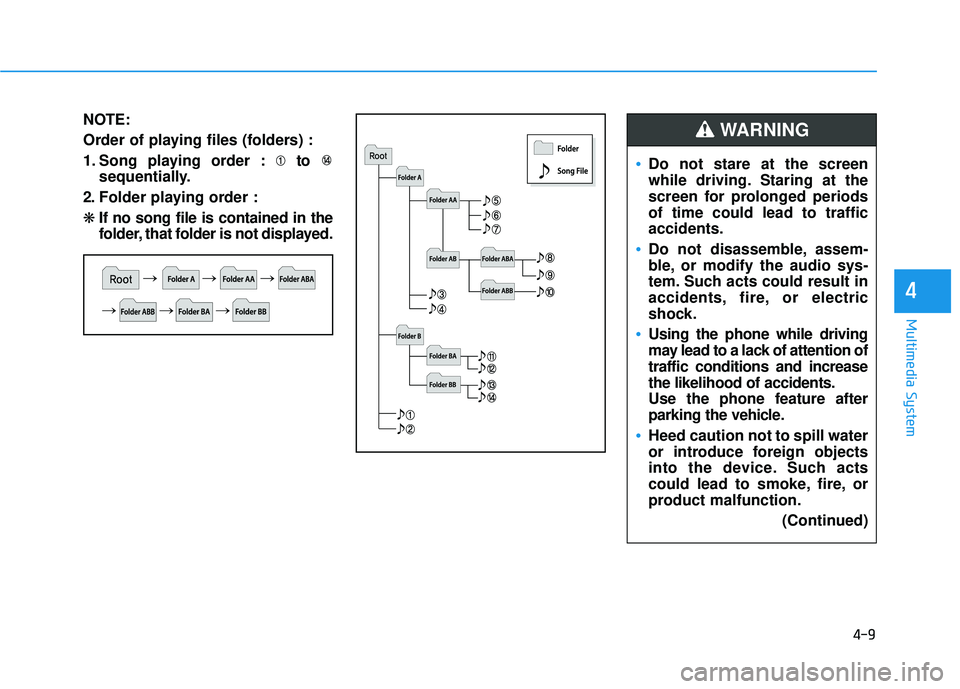
NOTE:
Order of playing files (folders) :
1. Song playing order : to sequentially.
2. Folder playing order :
❋ If no song file is contained in the
folder, that folder is not displayed.
Do not stare at the screen
while driving. Staring at the
screen for prolonged periods
of time could lead to traffic
accidents.
Do not disassemble, assem-
ble, or modify the audio sys-
tem. Such acts could result in
accidents, fire, or electric
shock.
Using the phone while driving
may lead to a lack of attention of
traffic conditions and increase
the likelihood of accidents.
Use the phone feature after
parking the vehicle.
Heed caution not to spill water
or introduce foreign objects
into the device. Such acts
could lead to smoke, fire, or
product malfunction.
(Continued)
WARNING
Page 284 of 708
4-36
Multimedia System
B
Bl
lu
u e
et
to
o o
ot
th
h®
®W
W i
ir
r e
e l
le
e s
ss
s
T
T e
ec
ch
h n
no
o l
lo
o g
gy
y
Pairing a Bluetooth®Wireless
Technology Device
What is Bluetooth®Wireless
Technology Pairing?
Pairing refers to the process of syn-
chronizing your
Bluetooth®Wireless
Technology phone or device with the
car audio system for connection.
Pairing is necessary to connect and
use the
Bluetooth®Wireless
Technology feature.
Phone (if equipped)
Before using the
Bluetooth®
Wireless Technology phone
features
In order to use Bluetooth®Wireless
Technology phone, you must first
pair and connect the
Bluetooth®
Wireless Technology mobile phone.
If the mobile phone is not paired or connected, it is not possible to
enter Phone mode. Once a phone
is paired or connected, the guid-
ance screen will be displayed.
If Priority is set upon vehicle igni- tion(IGN/ACC ON), the
Bluetooth®
Wireless Technology phone will be
automatically connected. Even if
you are outside, the first
Bluetooth®
Wireless Technology phone will be
automatically connected once you
are in the vicinity of the vehicle. If you
do not want automatic
Bluetooth®
Wireless Technology phone connec-
tion, set the
Bluetooth®Wireless
Technology power to OFF.
Driving while distracted can
result in a loss of vehicle con-
trol that may lead to an acci-
dent, severe personal injury,
and death. The driver’s primary
responsibility is in the safe and
legal operation of a vehicle, and
use of any handheld devices,
other equipment, or vehicle sys-
tems which take the driver’s
eyes, attention and focus away
from the safe operation of a
vehicle or which are not permis-
sible by law should never be
used during operation of the
vehicle.
WARNING
Page 375 of 708
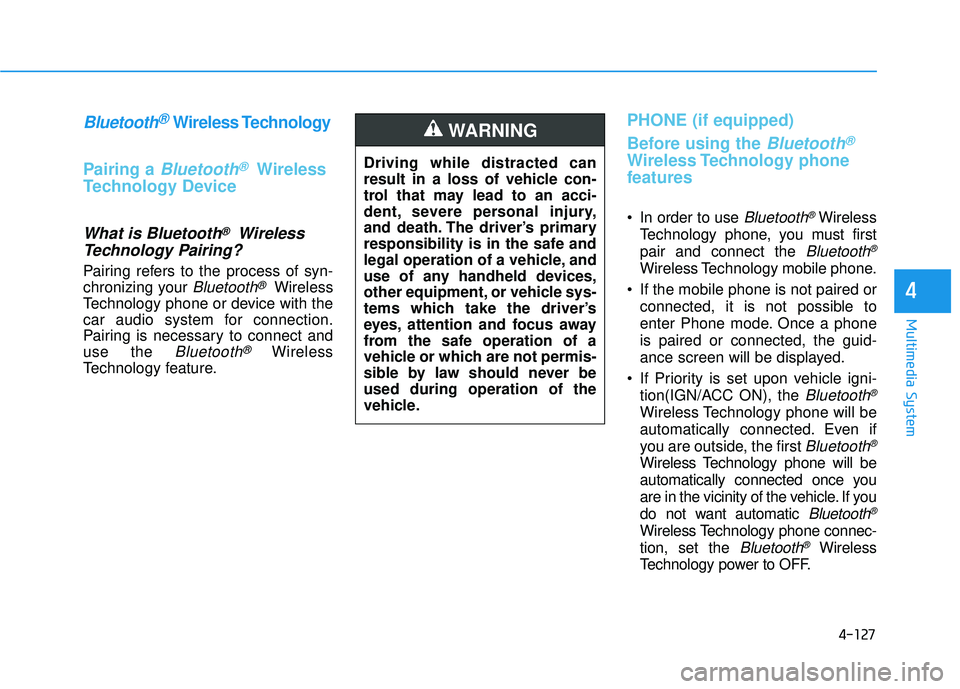
4-127
Multimedia System
4
Bluetooth®Wireless Technology
Pairing a
Bluetooth®Wireless
Technology Device
What is Bluetooth®Wireless
Technology Pairing?
Pairing refers to the process of syn-
chronizing your
Bluetooth®Wireless
Technology phone or device with the
car audio system for connection.
Pairing is necessary to connect and
use the
Bluetooth®Wireless
Technology feature.
PHONE (if equipped)
Before using the
Bluetooth®
Wireless Technology phone
features
In order to use Bluetooth®Wireless
Technology phone, you must first
pair and connect the
Bluetooth®
Wireless Technology mobile phone.
If the mobile phone is not paired or connected, it is not possible to
enter Phone mode. Once a phone
is paired or connected, the guid-
ance screen will be displayed.
If Priority is set upon vehicle igni- tion(IGN/ACC ON), the
Bluetooth®
Wireless Technology phone will be
automatically connected. Even if
you are outside, the first
Bluetooth®
Wireless Technology phone will be
automatically connected once you
are in the vicinity of the vehicle. If you
do not want automatic
Bluetooth®
Wireless Technology phone connec-
tion, set the
Bluetooth®Wireless
Technology power to OFF.
Driving while distracted can
result in a loss of vehicle con-
trol that may lead to an acci-
dent, severe personal injury,
and death. The driver’s primary
responsibility is in the safe and
legal operation of a vehicle, and
use of any handheld devices,
other equipment, or vehicle sys-
tems which take the driver’s
eyes, attention and focus away
from the safe operation of a
vehicle or which are not permis-
sible by law should never be
used during operation of the
vehicle.
WARNING
Page 447 of 708
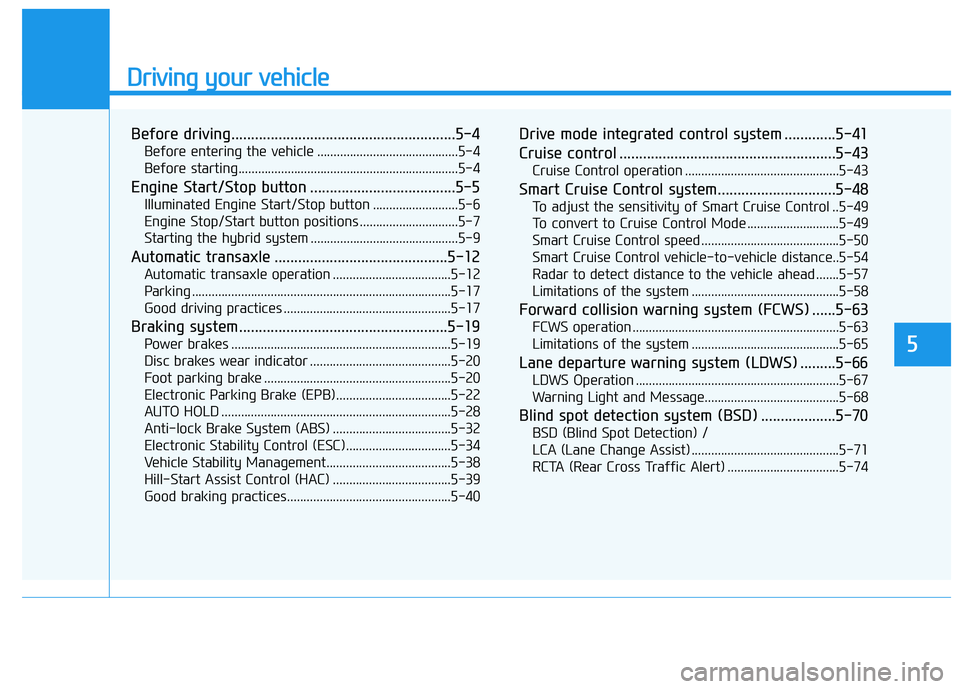
Driving your vehicle
Before driving.........................................................5-4
Before entering the vehicle ...........................................5-4
Before starting...................................................................5-4
Engine Start/Stop button .....................................5-5
Illuminated Engine Start/Stop button ..........................5-6
Engine Stop/Start button positions ..............................5-7
Starting the hybrid system .............................................5-9
Automatic transaxle ............................................5-12
Automatic transaxle operation ....................................5-12
Parking ........................................................................\
.......5-17
Good driving practices ...................................................5-17
Braking system.....................................................5-19
Power brakes ...................................................................5-19
Disc brakes wear indicator ...........................................5-20
Foot parking brake .........................................................5-20
Electronic Parking Brake (EPB)...................................5-22
AUTO HOLD ......................................................................5-\
28
Anti-lock Brake System (ABS) ....................................5-32
Electronic Stability Control (ESC)................................5-34
Vehicle Stability Management......................................5-38
Hill-Start Assist Control (HAC) ....................................5-39
Good braking practices..................................................5-40
Drive mode integrated control system .............5-41
Cruise control .......................................................5-43
Cruise Control operation ...............................................5-43
Smart Cruise Control system..............................5-48
To adjust the sensitivity of Smart Cruise Control ..5-49
To convert to Cruise Control Mode ............................5-49
Smart Cruise Control speed ..........................................5-50
Smart Cruise Control vehicle-to-vehicle distance..5-54
Radar to detect distance to the vehicle ahead .......5-57
Limitations of the system .............................................5-58
Forward collision warning system (FCWS) ......5-63
FCWS operation ...............................................................5-63
Limitations of the system .............................................5-65
Lane departure warning system (LDWS) .........5-66
LDWS Operation ..............................................................5-67
Warning Light and Message.........................................5-68
Blind spot detection system (BSD) ...................5-70
BSD (Blind Spot Detection) /
LCA (Lane Change Assist) .............................................5-71
RCTA (Rear Cross Traffic Alert) ..................................5-74
5