change time HYUNDAI SONATA LIMITED 2016 Workshop Manual
[x] Cancel search | Manufacturer: HYUNDAI, Model Year: 2016, Model line: SONATA LIMITED, Model: HYUNDAI SONATA LIMITED 2016Pages: 708, PDF Size: 25.96 MB
Page 354 of 708
4-106
Multimedia System
R
RE
EA
A R
R
V
V I
IE
E W
W
C
C A
A M
M E
ER
R A
A
(
(i if
f
e
e q
q u
u i
ip
p p
pe
ed
d )
)
The system has been equipped
with a rear view camera for user
safety by allowing a wider rear
range of vision.
The rear view camera will automat- ically operate when the ignition key
is turned ON and the shift lever is
set to R (Reverse).
The rear view camera will automat- ically stop operating when set to a
different lever.
B BL
LU
U E
E
L
L I
IN
N K
K®
®(
(I
IF
F
E
E Q
Q U
UI
IP
P P
PE
ED
D )
)
Hyundai aims to offer differentiated
customer values through a
‘Connected Car Life,’ which is to pro-
vide consumers with fast and reliable
IT technology. As consumers’ lifestyles
become more and more mobile in
thanks to remarkable advances in
smart phones, tablet PCs and overall
wireless telecommunication, new
lifestyle patterns demand seamless
connection between one’s office,
home, outdoors and automobiles.
Automobile companies are now faced
with the task of shifting their paradigm
from vehicle-centered services to cus-
tomer value-centered services, with
the ultimate goal of securing global
leadership in the field of vehicle IT and
telematics. Hyundai Motor plans to achieve this
by realizing a terminal platform flexi-
ble to changes in IT technology,
cooperating with global IT compa-
nies, creating an eco-system and
providing the latest contents & servic-
es based on an open environment.
The rear view camera has been
equipped with an optical lens to
provide a wider range of vision
and may appear different from
the actual distance. For safety,
directly check the rear and
left/right sides.
CAUTION
Page 358 of 708
4-110
Multimedia System
Information
iPod®is a registered trademark of
Apple Inc. iPod®mobile digital device
sold separately. The Bluetooth®word
mark and logos are registered trade-
marks owned by Bluetooth
®SIG, Inc.
and any use of such marks by
Hyundai is under license. SiriusXM
services require a subscription sold
separately, or as a package, by Sirius
XM Radio Inc. If you decide to con-
tinue service after your trial, the sub-
scription plan you choose will auto-
matically renew thereafter and you
will be charged according to your cho-
sen payment method at thencurrent
rates. Fees and taxes apply. To cancel
you must call SiriusXM at 1-866-635-
2349. See SiriusXM Customer
Agreement for complete terms at
www.siriusxm.com. SiriusXM U.S.
satellite and data services are avail-
able only in the 48 contiguous USA,
DC and PR (with coverage limita-
tions). SiriusXM satellite service is
also available in Canada; see www.sir-
iusxm.ca. All fees and programming
subject to change.
(Continued)(Continued)
Sirius, XM and all related marks and
logos are trademarks of Sirius XM
Radio Inc. Android™ is a trademark
of Google, Inc. BlackBerry is a regis-
tered trademark of Research In
Motion Limited (RIM). All other
marks, channel names and logos are
the property of their respective own-
ers. All rights reserved.
i
Page 359 of 708
4-111
Multimedia System
4
S
SY
Y S
ST
T E
EM
M
C
C O
O N
NT
TR
R O
O L
LL
LE
E R
R S
S
A
A N
N D
D
F
F U
U N
NC
CT
T I
IO
O N
NS
S
Audio Head Unit
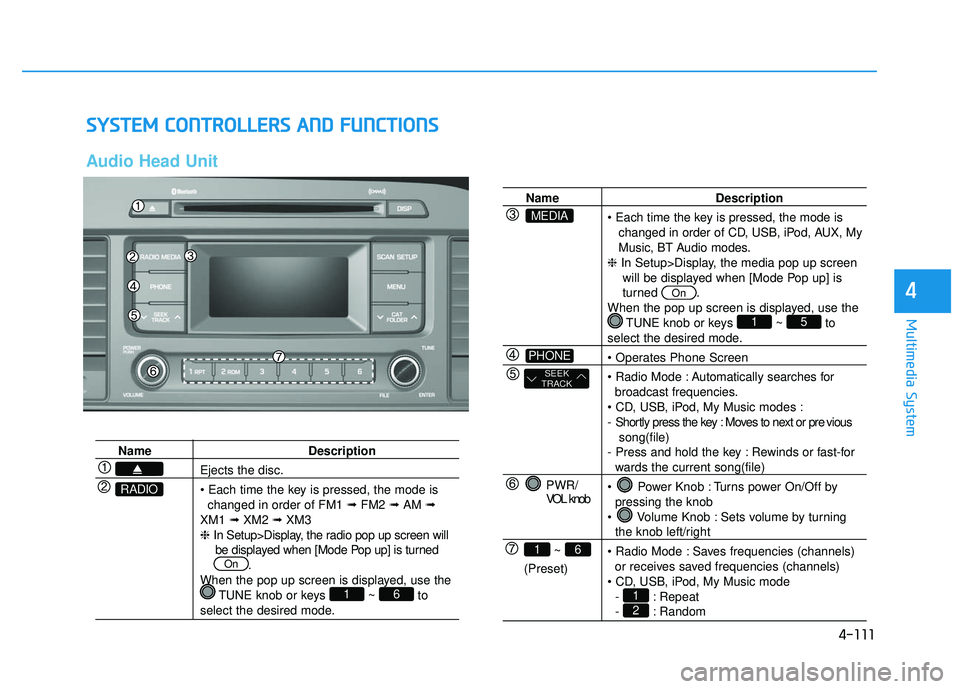
Name Description
Ejects the disc.
• Each time the key is pressed, the mode is
changed in order of FM1 ➟FM2 ➟AM ➟
XM1 ➟XM2 ➟XM3
❈ In Setup>Display, the radio pop up screen will
be displayed when [Mode Pop up] is turned .
When the pop up screen is displayed, use the TUNE knob or keys ~ to
select the desired mode.
61
On
RADIO
Name Description
changed in order of CD, USB, iPod, AUX, My
Music, BT Audio modes.
❈ In Setup>Display, the media pop up screen
will be displayed when [Mode Pop up] is
turned .
When the pop up screen is displayed, use the TUNE knob or keys ~ to
select the desired mode.
Automatically searches for broadcast frequencies.
- Shortly press the key : Moves to next or pre vious song(file)
- Press and hold the key : Rewinds or fast-for
wards the current song(file)
Power Knob : Turns power On/Off by pressing the knob
Volume Knob : Sets volume by turning
the knob left/right
Saves frequencies (channels) or receives saved frequencies (channels)
- : Repeat
- : Random21
51
On
PWR/
VOL knob
~
(Preset)
61
SEEK
TRACK
PHONE
MEDIA
Page 360 of 708
4-112
Multimedia System
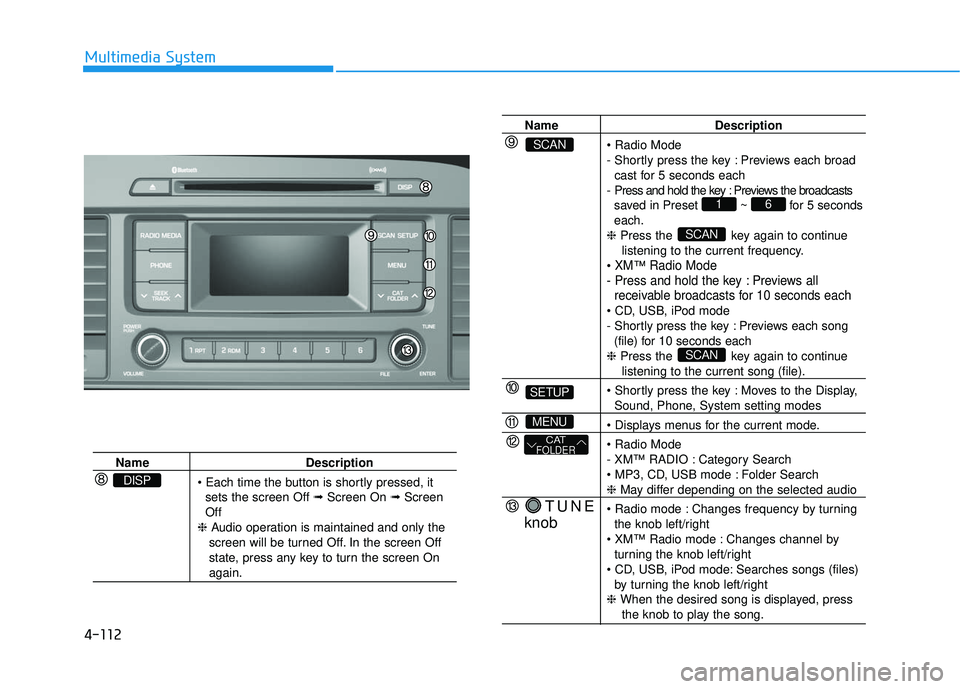
NameDescription
sets the screen Off ➟ Screen On ➟Screen
Off
❈ Audio operation is maintained and only the
screen will be turned Off. In the screen Off
state, press any key to turn the screen On
again.
DISP
Name Description
- Shortly press the key : Previews each broad cast for 5 seconds each
- Press and hold the key : Previews the broadcasts saved in Preset ~ for 5 seconds
each.
❈ Press the key again to continue
listening to the current frequency.
XM™Radio Mode
- Press and hold the key : Previews all receivable broadcasts for 10 seconds each
- Shortly press the key : Previews each song
(file) for 10 seconds each
❈ Press the key again to continue
listening to the current song (file).
Moves to the Display,
Sound, Phone, System setting modes
- XM™ RADIO : Category Search
Folder Search
❈ May differ depending on the selected audio
Changes frequency by turning the knob left/right
Changes channel by turning the knob left/right
Searches songs (files) by turning the knob left/right
❈ When the desired song is displayed, press
the knob to play the song.
SCAN
SCAN
61
TUNE
knob
CATFOLDER
MENU
SETUP
SCAN
Page 361 of 708
![HYUNDAI SONATA LIMITED 2016 Workshop Manual 4-113
Multimedia System
4
S
SE
E T
T U
U P
P
Display Settings
Press the key Select
[Display] through TUNE knob or
key Mode Pop up
[Mode Pop up] Changes
/
selection mode
During On state, press the](/img/35/56186/w960_56186-360.png "HYUNDAI SONATA LIMITED 2016 Workshop Manual 4-113
Multimedia System
4
S
SE
E T
T U
U P
P
Display Settings
Press the key Select
[Display] through TUNE knob or
key Mode Pop up
[Mode Pop up] Changes
/
selection mode
During On state, press the")
4-113
Multimedia System
4
S
SE
E T
T U
U P
P
Display Settings
Press the key Select
[Display] through TUNE knob or
key Mode Pop up
[Mode Pop up] Changes
/
selection mode
During On state, press the
or key to display the mode
change pop up screen. Media Display
When playing an MP3 file, select the
desired display info from ‘Folder/File’
or ‘Album/Artist/Song’.MEDIA
RADIO
OffOn
1
SETUP
Page 363 of 708
![HYUNDAI SONATA LIMITED 2016 Workshop Manual 4-115
Multimedia System
4
System Settings
Press the key Select [System]
through tune knob or key
Memory Information
Displays currently used memory and
total system memory.
Select [Memory Information](/img/35/56186/w960_56186-362.png "HYUNDAI SONATA LIMITED 2016 Workshop Manual 4-115
Multimedia System
4
System Settings
Press the key Select [System]
through tune knob or key
Memory Information
Displays currently used memory and
total system memory.
Select [Memory Information")
4-115
Multimedia System
4
System Settings
Press the key Select [System]
through tune knob or key
Memory Information
Displays currently used memory and
total system memory.
Select [Memory Information] OK
The currently used memory is dis-
played on the left side while the total
system memory is displayed on the
right side.
Prompt Feedback
This feature is used to change voice
command feedback between Normal
and Expert modes.
Select [Prompt Feedback] Set
through
TUNEknob
Normal(On) : This mode is for beginner users and provides
detailed instructions during voice
command operation.
Expert(Off) : This mode is for expert
users and omits some information
during voice command operation.
(When using Expert mode, guid-
ance instructions can be heard
through the [Help] or [Menu] com-
mands. Language
This menu is used to set the display
and voice recognition language.
Select [Language] Set through TUNE
knob
❈
The system will reboot after the
language is changed.
❈ Language support by region
-
4
SETUP
Page 364 of 708
4-116
Multimedia System
R
RA
A D
DI
IO
O
:
:
F
F M
M ,
,
A
A M
M
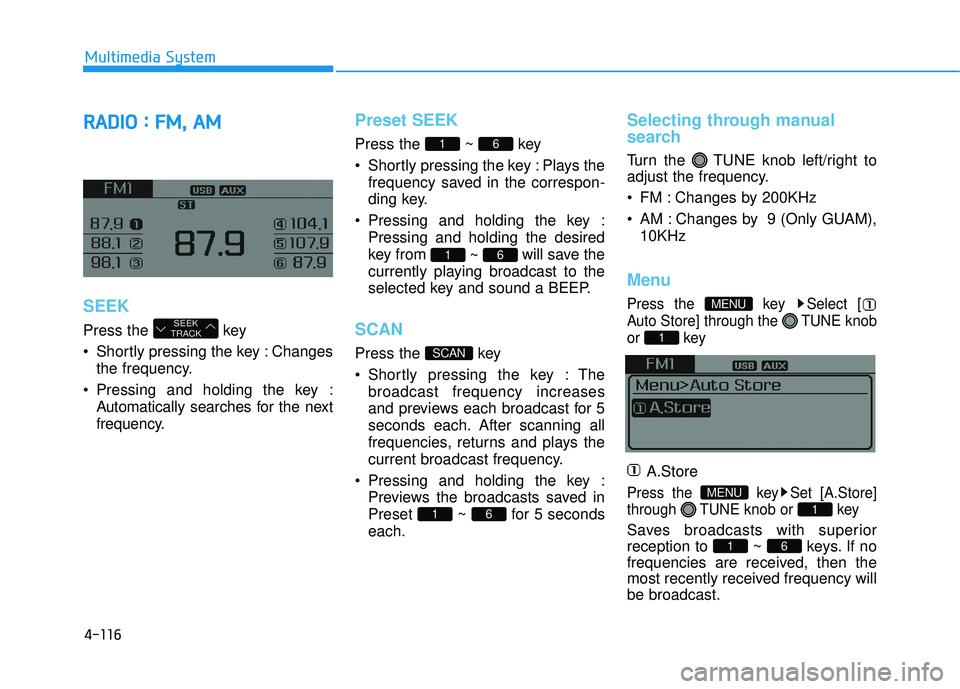
SEEK
Press the key
Shortly pressing the key : Changes
the frequency.
Pressing and holding the key : Automatically searches for the next
frequency.
Preset SEEK
Press the ~ key
Shortly pressing the key : Plays thefrequency saved in the correspon-
ding key.
Pressing and holding the key : Pressing and holding the desired
key from ~ will save the
currently playing broadcast to the
selected key and sound a BEEP.
SCAN
Press the key
Shortly pressing the key : The broadcast frequency increases
and previews each broadcast for 5
seconds each. After scanning all
frequencies, returns and plays the
current broadcast frequency.
Pressing and holding the key : Previews the broadcasts saved in
Preset ~ for 5 seconds
each.
Selecting through manual
search
Turn the TUNE knob left/right to
adjust the frequency.
FM : Changes by 200KHz
AM : Changes by 9 (Only GUAM),10KHz
Menu
Press the key Select [
Auto Store] through the TUNE knob
or key
A.Store
Press the key Set [A.Store]
through TUNE knob or key
Saves broadcasts with superior
reception to ~ keys. If no
frequencies are received, then the
most recently received frequency will
be broadcast.61
1
MENU
1
MENU
61
SCAN
61
61
SEEK
TRACK
Page 365 of 708
4-117
Multimedia System
4
X
XM
MT
TM
MR
R A
A D
DI
IO
O
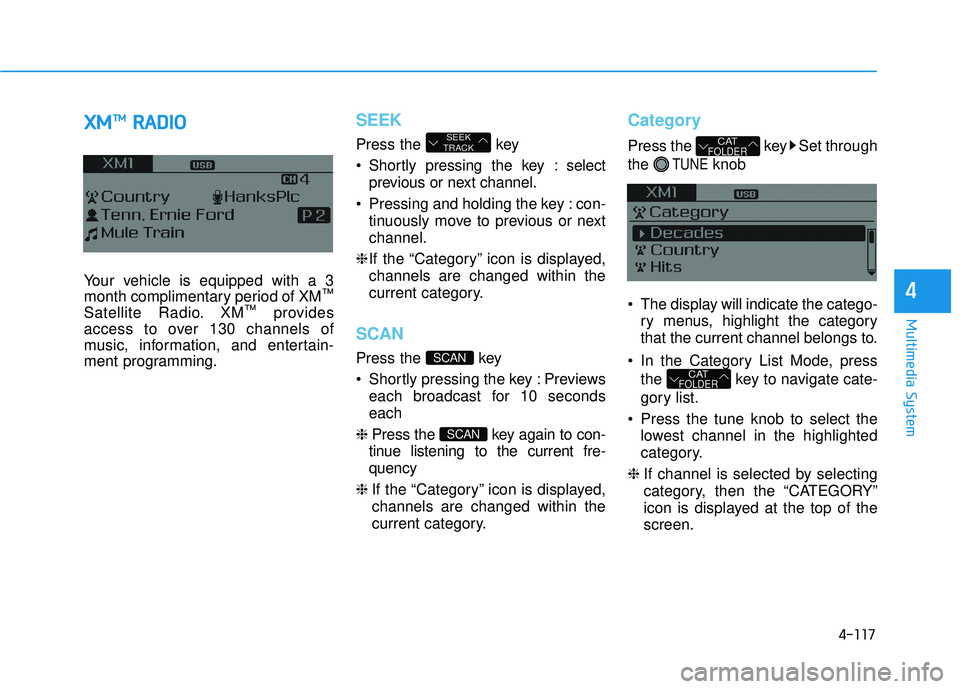
Your vehicle is equipped with a 3
month complimentary period of XM™
Satellite Radio. XM™provides
access to over 130 channels of
music, information, and entertain-
ment programming.
SEEK
Press the key
Shortly pressing the key : select
previous or next channel.
Pressing and holding the key : con- tinuously move to previous or next
channel.
❈ If the “Category” icon is displayed,
channels are changed within the
current category.
SCAN
Press the key
Shortly pressing the key : Previews each broadcast for 10 seconds
each
❈ Press the key again to con-
tinue listening to the current fre-
quency
❈ If the “Category” icon is displayed,
channels are changed within the
current category.
Category
Press the key Set through
the
TUNEknob
The display will indicate the catego- ry menus, highlight the category
that the current channel belongs to.
In the Category List Mode, press the key to navigate cate-
gory list.
Press the tune knob to select the lowest channel in the highlighted
category.
❈ If channel is selected by selecting
category, then the “CATEGORY”
icon is displayed at the top of the
screen.
CATFOLDER
CATFOLDER
SCAN
SCAN
SEEK
TRACK
Page 372 of 708
![HYUNDAI SONATA LIMITED 2016 Workshop Manual 4-124
Multimedia System
Delete All
Set [ Del.All] through the TUNE
knob or key.
Deletes all songs of My Music.
Delete Selection
Press the key Set [ Del.Sel]
through the TUNEknob or key.
Songs with](/img/35/56186/w960_56186-371.png "HYUNDAI SONATA LIMITED 2016 Workshop Manual 4-124
Multimedia System
Delete All
Set [ Del.All] through the TUNE
knob or key.
Deletes all songs of My Music.
Delete Selection
Press the key Set [ Del.Sel]
through the TUNEknob or key.
Songs with")
4-124
Multimedia System
Delete All
Set [ Del.All] through the TUNE
knob or key.
Deletes all songs of My Music.
Delete Selection
Press the key Set [ Del.Sel]
through the TUNEknob or key.
Songs within My Music are selected
and deleted.
➀Select the songs you wish to
delete from the list.
➁ After selecting, press the
key and select the delete menu.
AUX
AUX is used to play external MEDIA
currently connected with the AUX
terminal.
AUX mode will automatically start
when an external device is connect-
ed to the AUX terminal.
If an external device is connected,
you can also press the key to
change to AUX mode.
❈ AUX mode cannot be started
unless there is an external device
connected to the AUX terminal.
MEDIA
MENU
6
MENU
5
Page 373 of 708
4-125
Multimedia System
4
Bluetooth®Wireless
Technology AUDIO
What is
Bluetooth®Wireless
Technology?
Bluetooth®Wireless Technology allows
devices to be connected in a short dis-
tance, including hands-free devices,
stereo headsets, wireless remote con-
trollers, etc. For more information, visit
the
Bluetooth®Wireless Technology
website
at www.Bluetooth.com
Before using Bluetooth®Wireless
Technology audio features
Bluetooth®Wireless Technology
audio may not be supported
depending on the compatibility of
your
Bluetooth®Wireless
Technology mobile phone.
In order to use
Bluetooth®Wireless
Technology audio, you must first
pair and connect the
Bluetooth®
Wireless Technology mobile phone.
Bluetooth®Wireless Technology
audio can be used only when the
[Audio Streaming] of Phone is
turned .
❈ Setting
Bluetooth®Wireless
Technology Audio Streaming :
Press the key Select
[Phone] through the tune knob or key Select [Audio
Streaming] through the TUNE
knob Set /
Starting Bluetooth®Wireless
Technology Audio
Press the key to change
the mode in order of CD ➟ USB ➟
AUX ➟ My Music ➟ BT Audio.
If BT Audio is selected,
Bluetooth®
Wireless Technology audio will
start playing.
❈ Audio may not automatically start
playing in some mobile phones.
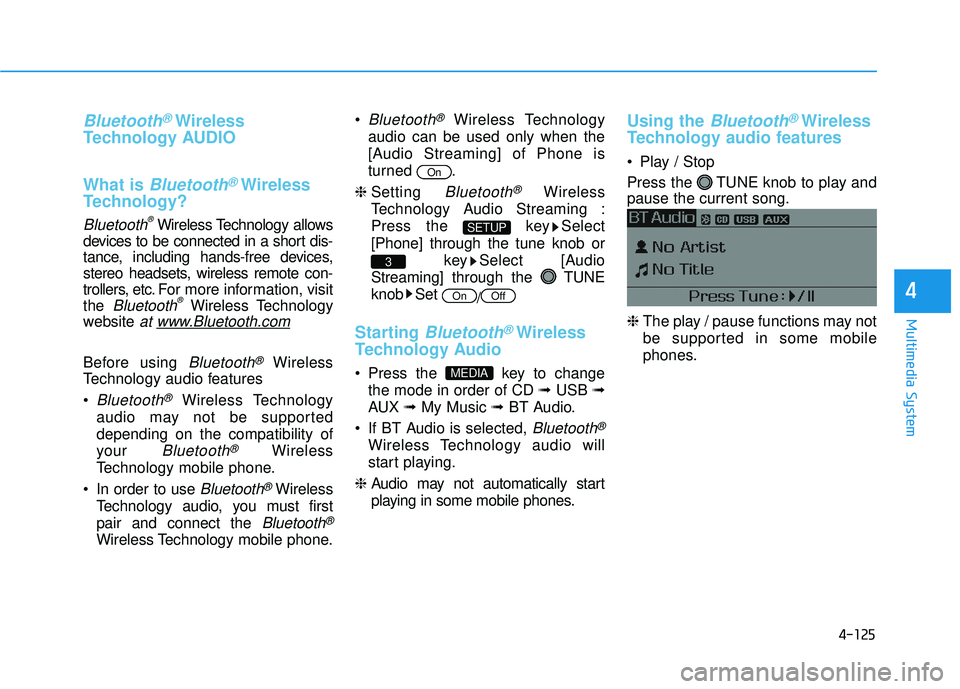
Using the Bluetooth®Wireless
Technology audio features
Play / Stop
Press the TUNE knob to play and
pause the current song.
❈ The play / pause functions may not
be supported in some mobile
phones.
MEDIA
OffOn
3
SETUP
On