ECO mode HYUNDAI SONATA LIMITED 2016 Repair Manual
[x] Cancel search | Manufacturer: HYUNDAI, Model Year: 2016, Model line: SONATA LIMITED, Model: HYUNDAI SONATA LIMITED 2016Pages: 708, PDF Size: 25.96 MB
Page 344 of 708
4-96
Multimedia System
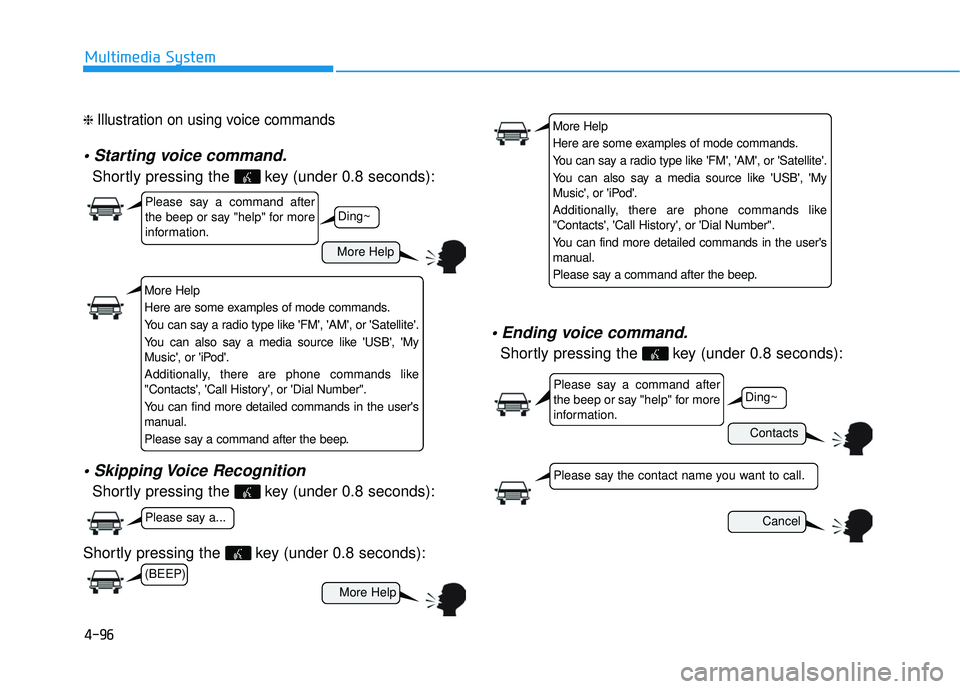
❈ Illustration on using voice commands
Shortly pressing the key (under 0.8 seconds):
Shortly pressing the key (under 0.8 seconds):
Shortly pressing the key (under 0.8 seconds):
voice command.
Shortly pressing the key (under 0.8 seconds):
More Help
Contacts
Cancel
More Help
Please say a command after
the beep or say "help" for more
information.
Please say a command after
the beep or say "help" for more
information.
Please say a...
Please say the contact name you want to call.
Ding~
Ding~
More Help
Here are some examples of mode commands.
You can say a radio type like 'FM', 'AM', or 'Satellite'.
You can also say a media source like 'USB', 'My
Music', or 'iPod'.
Additionally, there are phone commands like
"Contacts', 'Call History', or 'Dial Number".
You can find more detailed commands in the user's
manual.
Please say a command after the beep.
More Help
Here are some examples of mode commands.
You can say a radio type like 'FM', 'AM', or 'Satellite'.
You can also say a media source like 'USB', 'My
Music', or 'iPod'.
Additionally, there are phone commands like
"Contacts', 'Call History', or 'Dial Number".
You can find more detailed commands in the user's
manual.
Please say a command after the beep.
(BEEP)
Page 345 of 708
4-97
Multimedia System
4
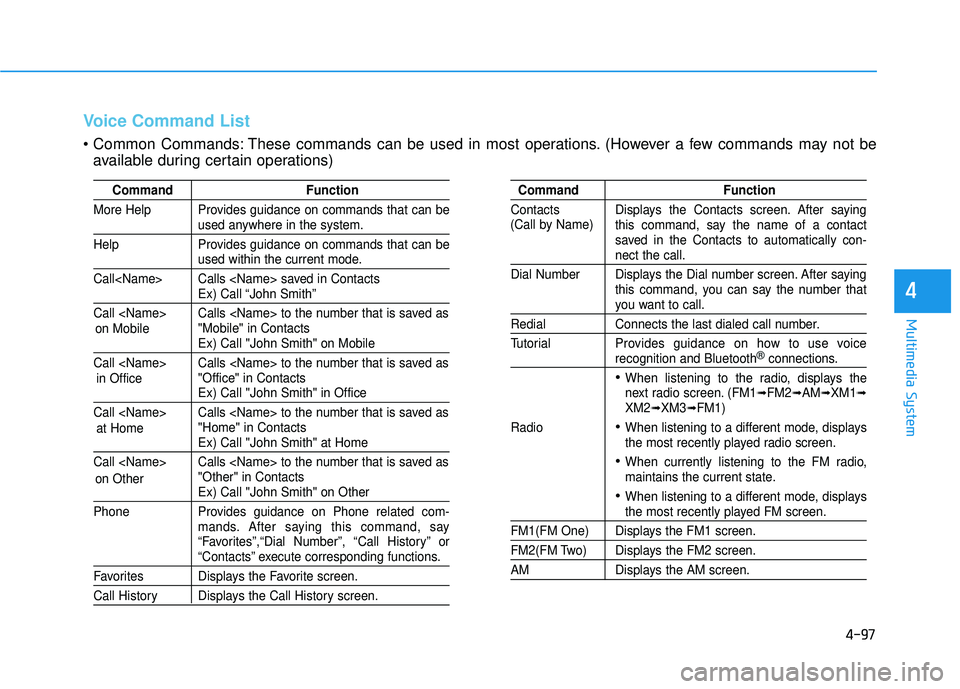
CommandFunction
More Help Provides guidance on commands that can be
used anywhere in the system.
Help Provides guidance on commands that can be
used within the current mode.
Call
Ex) Call “John Smith”
Call
Ex) Call "John Smith" on Mobile
Call
Ex) Call "John Smith" in Office
Call
Ex) Call "John Smith" at Home
Call
Ex) Call "John Smith" on Other
Phone Provides guidance on Phone related com- mands. After saying this command, say
“Favorites”,“Dial Number”, “Call History” or
“Contacts” execute corresponding functions.
Favorites Displays the Favorite screen.
Call History Displays the Call History screen.
Command Function
Contacts Displays the Contacts screen. After saying this command, say the name of a contact
saved in the Contacts to automatically con-
nect the call.
Dial Number Displays the Dial number screen. After saying this command, you can say the number that
you want to call.
RedialConnects the last dialed call number.
Tutorial Provides guidance on how to use voice
recognition and Bluetooth®connections.
When listening to the radio, displays the
next radio screen. (FM1➟FM2➟AM➟XM1➟XM2➟XM3➟FM1)
Radio
When listening to a different mode, displays
the most recently played radio screen.
When currently listening to the FM radio,
maintains the current state.
When listening to a different mode, displaysthe most recently played FM screen.
FM1(FM One) Displays the FM1 screen.
FM2(FM Two) Displays the FM2 screen.
AM Displays the AM screen.
(Call by Name)
Voice Command List
These commands can be used in most operations. (However a few commands may not be
available during certain operations)
on Mobile
in Officeat Home
on Other
Page 351 of 708
![HYUNDAI SONATA LIMITED 2016 Repair Manual 4-103
Multimedia System
4
Variable EQ
This is a premium sound system fea-
ture in which the acoustical mode
can be selected according to musical
preferences.
Select [Variable EQ] Set menu
through TUN](/img/35/56186/w960_56186-350.png "HYUNDAI SONATA LIMITED 2016 Repair Manual 4-103
Multimedia System
4
Variable EQ
This is a premium sound system fea-
ture in which the acoustical mode
can be selected according to musical
preferences.
Select [Variable EQ] Set menu
through TUN")
4-103
Multimedia System
4
Variable EQ
This is a premium sound system fea-
ture in which the acoustical mode
can be selected according to musical
preferences.
Select [Variable EQ] Set menu
through TUNE knob
Natural sound,sound optimized for driver.
Powerful sound emphasizing bass, stereo sound.
Sound similar to a concert or live hall
❈ May differ depending on the
selected audio.
SDVC (Speed Dependent Volume Control)
Press the key Select [Sound]
Select [Speed Dependent Vol.]
The volume level is controlled auto-
matically according to the vehicle
speed. SDVC can be set by selecting
from On / Off.
Voice Recognition Volume
Press the key Select [Sound] Select [Voice Recognition Vol.]
Turn the TUNE knob to adjust the
Voice Recognition volume.SETUP
SETUP
Page 360 of 708
4-112
Multimedia System
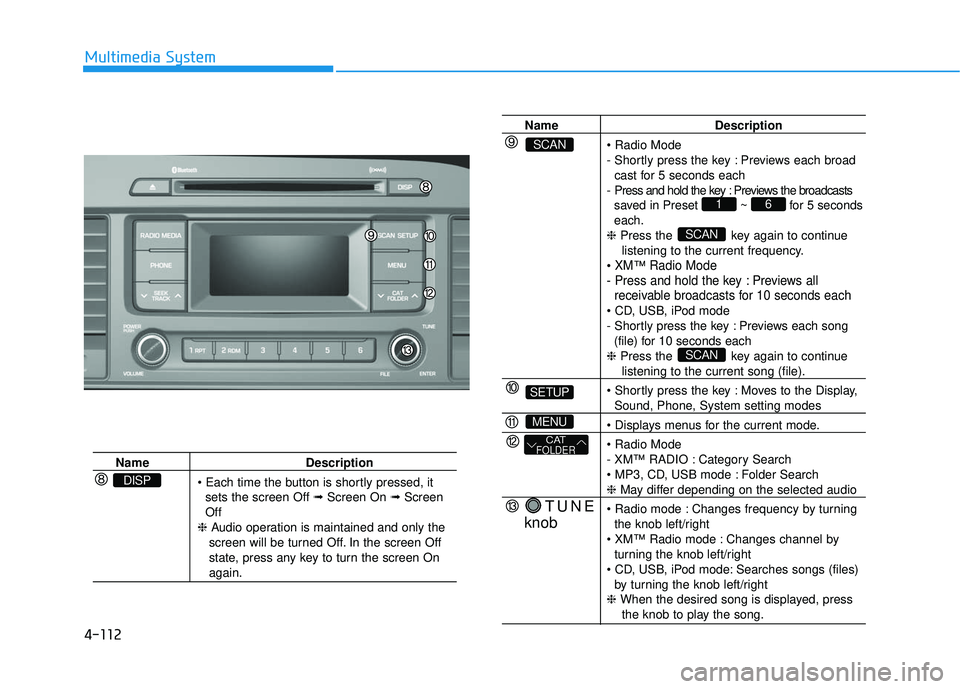
NameDescription
sets the screen Off ➟ Screen On ➟Screen
Off
❈ Audio operation is maintained and only the
screen will be turned Off. In the screen Off
state, press any key to turn the screen On
again.
DISP
Name Description
- Shortly press the key : Previews each broad cast for 5 seconds each
- Press and hold the key : Previews the broadcasts saved in Preset ~ for 5 seconds
each.
❈ Press the key again to continue
listening to the current frequency.
XM™Radio Mode
- Press and hold the key : Previews all receivable broadcasts for 10 seconds each
- Shortly press the key : Previews each song
(file) for 10 seconds each
❈ Press the key again to continue
listening to the current song (file).
Moves to the Display,
Sound, Phone, System setting modes
- XM™ RADIO : Category Search
Folder Search
❈ May differ depending on the selected audio
Changes frequency by turning the knob left/right
Changes channel by turning the knob left/right
Searches songs (files) by turning the knob left/right
❈ When the desired song is displayed, press
the knob to play the song.
SCAN
SCAN
61
TUNE
knob
CATFOLDER
MENU
SETUP
SCAN
Page 363 of 708
![HYUNDAI SONATA LIMITED 2016 Repair Manual 4-115
Multimedia System
4
System Settings
Press the key Select [System]
through tune knob or key
Memory Information
Displays currently used memory and
total system memory.
Select [Memory Information](/img/35/56186/w960_56186-362.png "HYUNDAI SONATA LIMITED 2016 Repair Manual 4-115
Multimedia System
4
System Settings
Press the key Select [System]
through tune knob or key
Memory Information
Displays currently used memory and
total system memory.
Select [Memory Information")
4-115
Multimedia System
4
System Settings
Press the key Select [System]
through tune knob or key
Memory Information
Displays currently used memory and
total system memory.
Select [Memory Information] OK
The currently used memory is dis-
played on the left side while the total
system memory is displayed on the
right side.
Prompt Feedback
This feature is used to change voice
command feedback between Normal
and Expert modes.
Select [Prompt Feedback] Set
through
TUNEknob
Normal(On) : This mode is for beginner users and provides
detailed instructions during voice
command operation.
Expert(Off) : This mode is for expert
users and omits some information
during voice command operation.
(When using Expert mode, guid-
ance instructions can be heard
through the [Help] or [Menu] com-
mands. Language
This menu is used to set the display
and voice recognition language.
Select [Language] Set through TUNE
knob
❈
The system will reboot after the
language is changed.
❈ Language support by region
-
4
SETUP
Page 365 of 708
4-117
Multimedia System
4
X
XM
MT
TM
MR
R A
A D
DI
IO
O
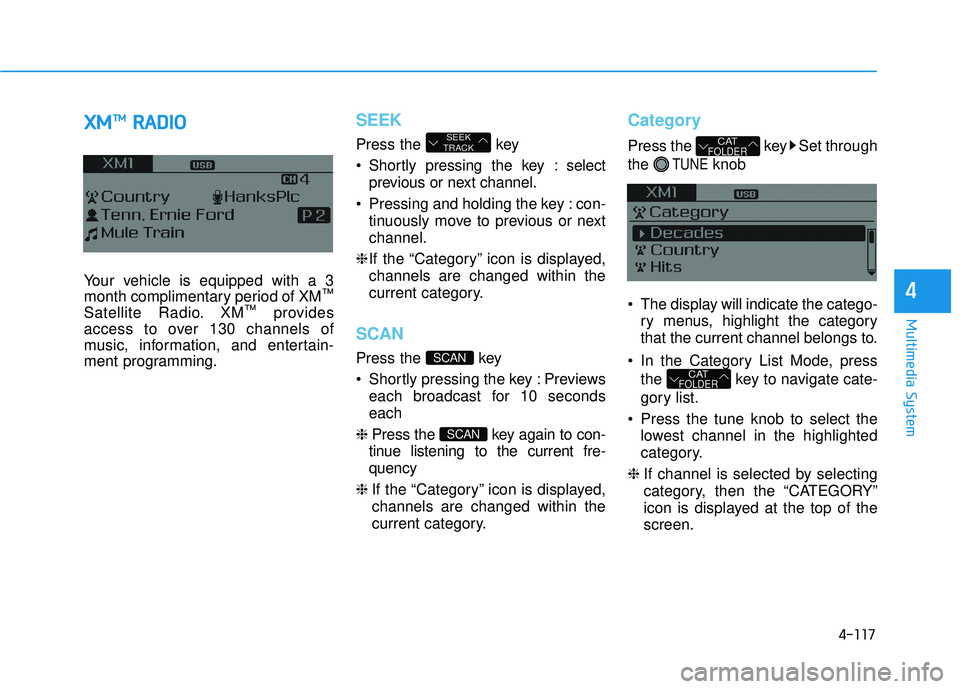
Your vehicle is equipped with a 3
month complimentary period of XM™
Satellite Radio. XM™provides
access to over 130 channels of
music, information, and entertain-
ment programming.
SEEK
Press the key
Shortly pressing the key : select
previous or next channel.
Pressing and holding the key : con- tinuously move to previous or next
channel.
❈ If the “Category” icon is displayed,
channels are changed within the
current category.
SCAN
Press the key
Shortly pressing the key : Previews each broadcast for 10 seconds
each
❈ Press the key again to con-
tinue listening to the current fre-
quency
❈ If the “Category” icon is displayed,
channels are changed within the
current category.
Category
Press the key Set through
the
TUNEknob
The display will indicate the catego- ry menus, highlight the category
that the current channel belongs to.
In the Category List Mode, press the key to navigate cate-
gory list.
Press the tune knob to select the lowest channel in the highlighted
category.
❈ If channel is selected by selecting
category, then the “CATEGORY”
icon is displayed at the top of the
screen.
CATFOLDER
CATFOLDER
SCAN
SCAN
SEEK
TRACK
Page 367 of 708
4-119
Multimedia System
4
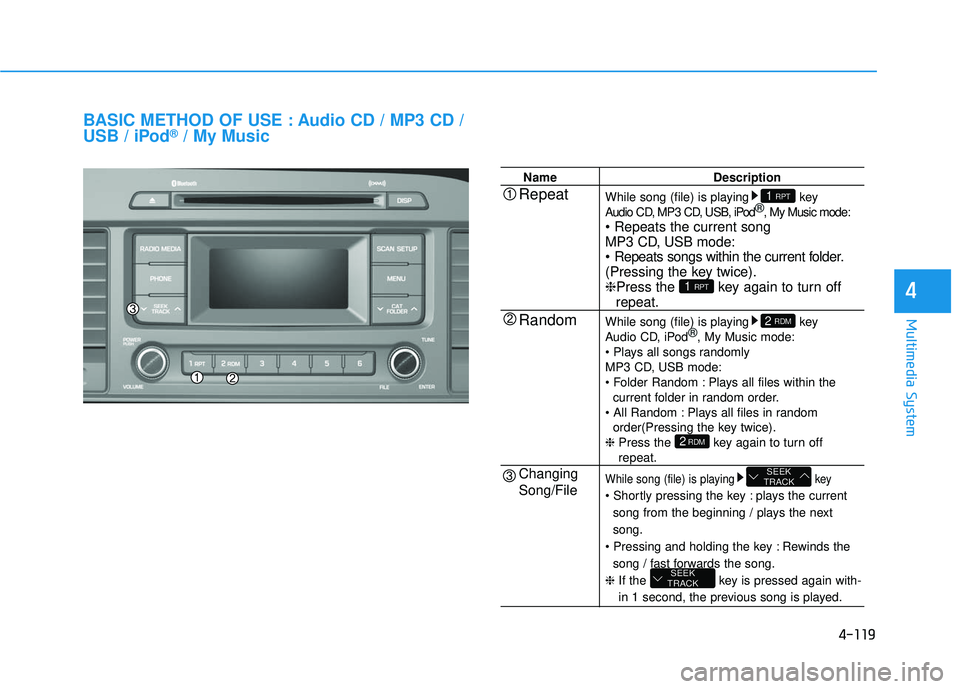
BASIC METHOD OF USE : Audio CD / MP3 CD /
USB / iPod®/ My Music
NameDescription
While song (file) is playing key
Audio CD, MP3 CD, USB, iPod ®
, My Music mode:
MP3 CD, USB mode:
(Pressing the key twice).
❈ Press the key again to turn off
repeat.
While song (file) is playing key
Audio CD, iPod ®
, My Music mode:
MP3 CD, USB mode:
Plays all files within the current folder in random order.
Plays all files in random order(Pressing the key twice).
❈ Press the key again to turn off
repeat.
While song (file) is playing key
plays the current
song from the beginning / plays the next
song.
Rewinds the song / fast forwards the song.
❈ If the key is pressed again with-
in 1 second, the previous song is played.
SEEK
TRACK
SEEK
TRACK
2RDM
2 RDM
1 RPT
1 RPTRepeat
Random
Changing
Song/File
Page 368 of 708
4-120
Multimedia System
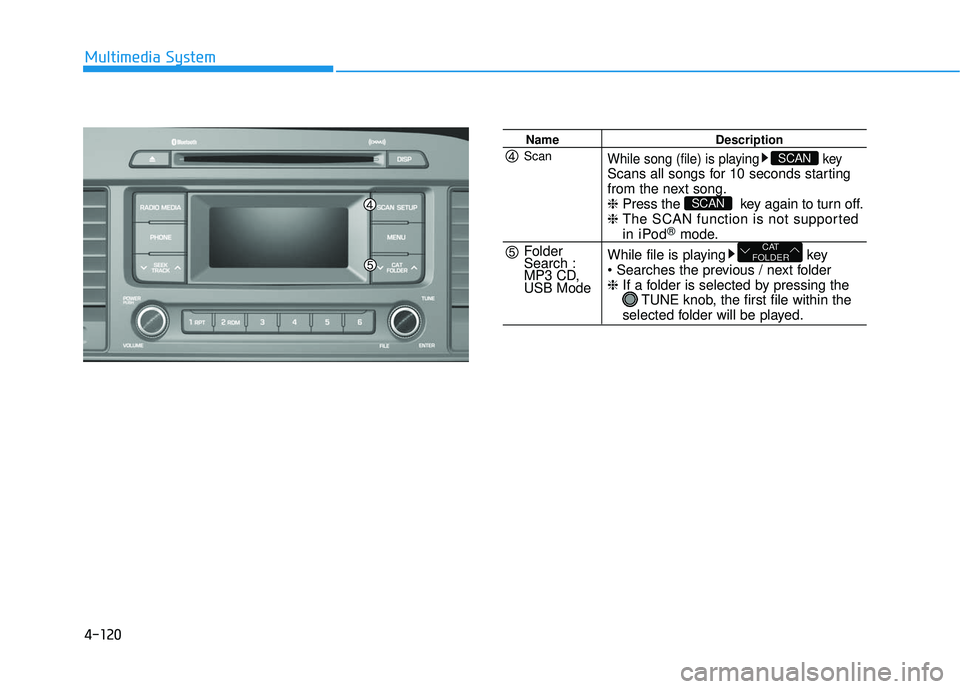
NameDescription
While song (file) is playing keyScans all songs for 10 seconds starting
from the next song.
❈Press the key again to turn off.
❈ The SCAN function is not supported
in iPod®mode.
While file is playing key
❈ If a folder is selected by pressing the
TUNE knob, the first file within the
selected folder will be played.
CAT
FOLDER
SCAN
SCANScan
Folder
Search :
MP3 CD,
USB Mode
Page 374 of 708
4-126
Multimedia System
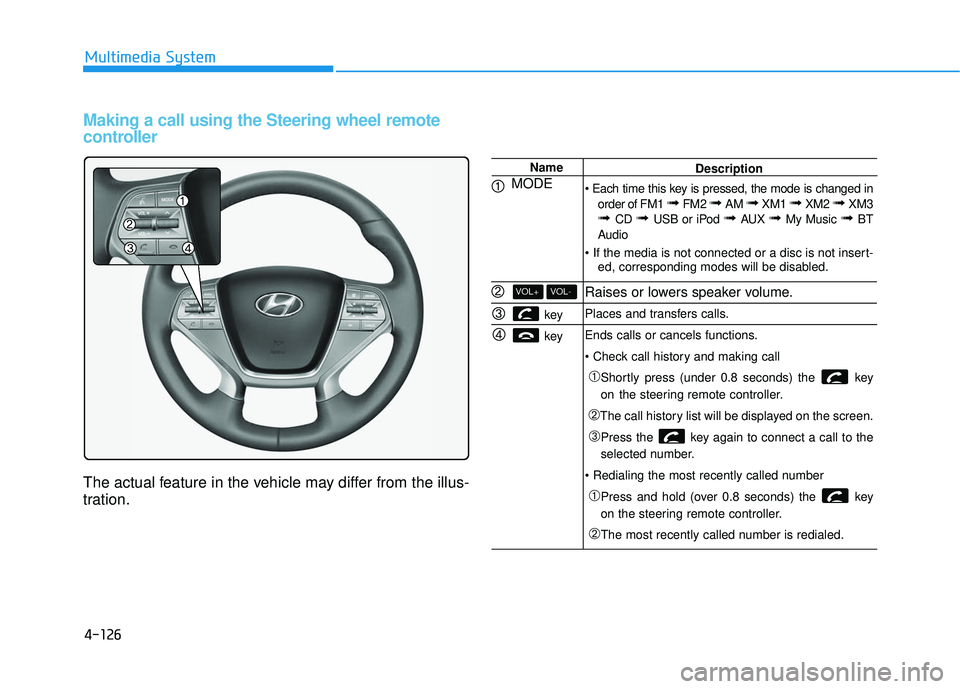
Making a call using the Steering wheel remote
controller
The actual feature in the vehicle may differ from the illus-
tration.
Name
MODE
key
key
VOL-VOL+
Description
order of FM1
➟ FM2 ➟ AM ➟ XM1 ➟ XM2 ➟ XM3➟ CD ➟ USB or iPod ➟ AUX ➟ My Music ➟ BT
Audio
ed, corresponding modes will be disabled.
Raises or lowers speaker volume.
Places and transfers calls.
Ends calls or cancels functions.
➀Shortly press (under 0.8 seconds) the key
on the steering remote controller.
➁The call history list will be displayed on the screen.
➂Press the key again to connect a call to the
selected number.
➀Press and hold (over 0.8 seconds) the key
on the steering remote controller.
➁The most recently called number is redialed.
Page 386 of 708
4-138
Multimedia System
V
VO
O I
IC
C E
E
R
R E
EC
CO
O G
GN
N I
IT
T I
IO
O N
N
Using Voice Recognition
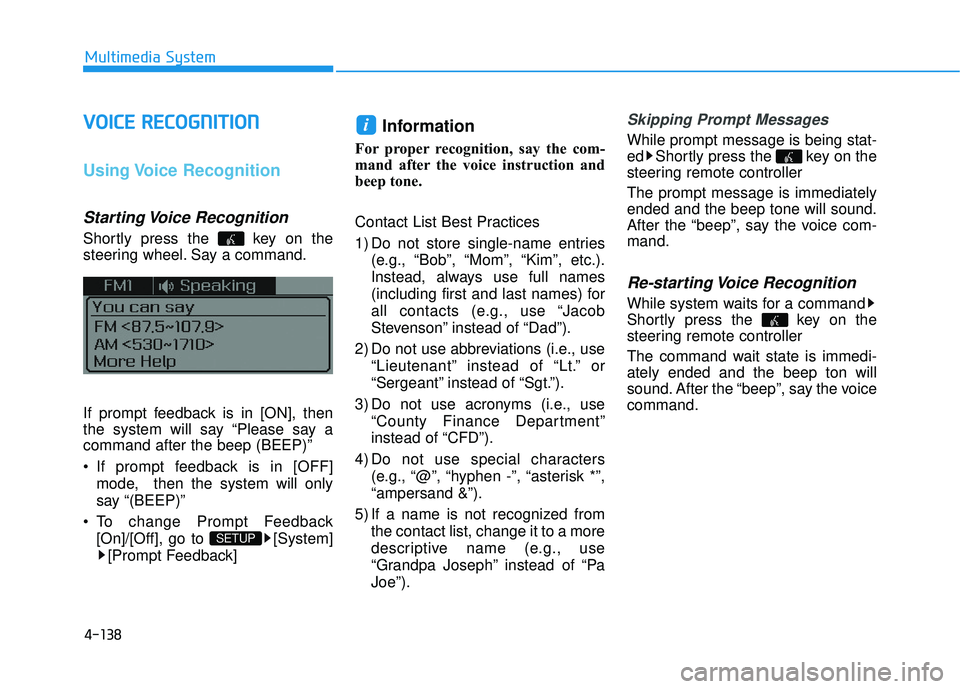
Starting Voice Recognition
Shortly press the key on the
steering wheel. Say a command.
If prompt feedback is in [ON], then
the system will say “Please say a
command after the beep (BEEP)”
If prompt feedback is in [OFF]
mode, then the system will only
say “(BEEP)”
To change Prompt Feedback [On]/[Off], go to [System][Prompt Feedback]
Information
For proper recognition, say the com-
mand after the voice instruction and
beep tone.
Contact List Best Practices
1) Do not store single-name entries (e.g., “Bob”, “Mom”, “Kim”, etc.).
Instead, always use full names
(including first and last names) for
all contacts (e.g., use “Jacob
Stevenson” instead of “Dad”).
2) Do not use abbreviations (i.e., use “Lieutenant” instead of “Lt.” or
“Sergeant” instead of “Sgt.”).
3) Do not use acronyms (i.e., use “County Finance Department”
instead of “CFD”).
4) Do not use special characters (e.g., “@”, “hyphen -”, “asterisk *”,
“ampersand &”).
5) If a name is not recognized from the contact list, change it to a more
descriptive name (e.g., use
“Grandpa Joseph” instead of “Pa
Joe”).
Skipping Prompt Messages
While prompt message is being stat-
ed Shortly press the key on the
steering remote controller
The prompt message is immediately
ended and the beep tone will sound.
After the “beep”, say the voice com-
mand.
Re-starting Voice Recognition
While system waits for a command
Shortly press the key on the
steering remote controller
The command wait state is immedi-
ately ended and the beep ton will
sound. After the “beep”, say the voice
command.
i
SETUP