phone HYUNDAI SONATA LIMITED 2020 Owner's Manual
[x] Cancel search | Manufacturer: HYUNDAI, Model Year: 2020, Model line: SONATA LIMITED, Model: HYUNDAI SONATA LIMITED 2020Pages: 546, PDF Size: 51.21 MB
Page 160 of 546
Convenient Features
5-30
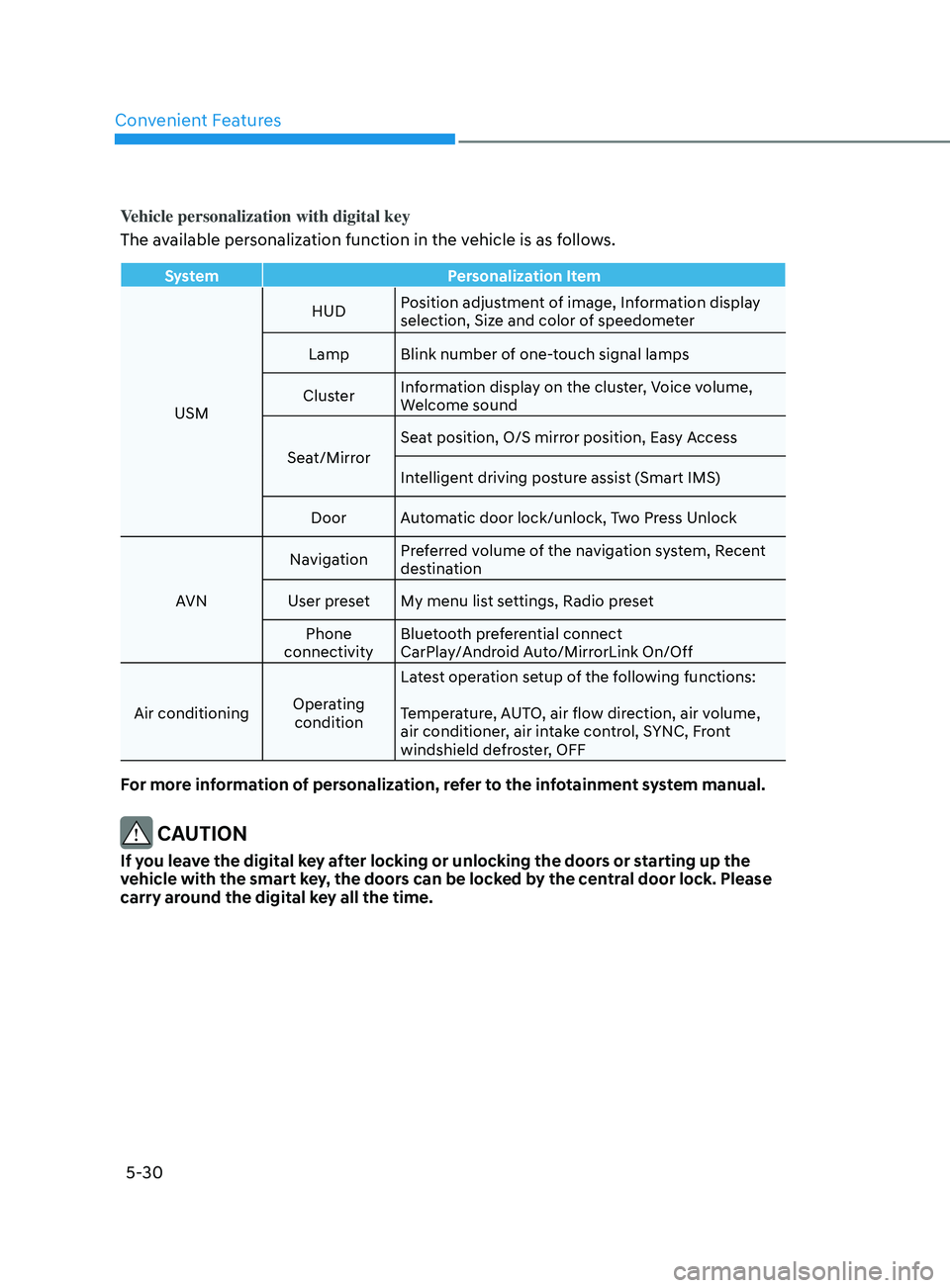
Vehicle personalization with digital key
The available personalization function in the vehicle is as follows.
SystemPersonalization Item
USM HUD
Position adjustment of image, Information display
selection, Size and color of speedometer
Lamp Blink number of one-touch signal lamps
Cluster Information display on the cluster, Voice volume,
Welcome sound
Seat/Mirror Seat position, O/S mirror position, Easy Access
Intelligent driving posture assist (Smart IMS)
Door Automatic door lock/unlock, Two Press Unlock
AVN Navigation
Preferred volume of the navigation system, Recent
destination
User preset My menu list settings, Radio preset Phone
connectivity Bluetooth preferential connect
CarPlay/Android Auto/MirrorLink On/Off
Air conditioning Operating
condition Latest operation setup of the following functions:
Temperature, AUTO, air flow direction, air volume,
air conditioner, air intake control, SYNC, Front
windshield defroster, OFF
For more information of personalization, refer to the infotainment system manual.
CAUTION
If you leave the digital key after locking or unlocking the doors or starting up the
vehicle with the smart key, the doors can be locked by the central door lock. Please
carry around the digital key all the time.
Page 199 of 546
05
5-69
Information
• If you press the door unlock button (2), the Smart
Trunk with Auto
Open function will be deactivated
temporarily. But, if you do not open
any door for 30 seconds, the Smart
Trunk with Auto Open function will be
activated again.
• If
you press the trunk open button
(3) for
more than 1 second, the trunk
opens.
• If
you press the door
lock button (1) or
trunk open button (3) when the Smart
T
runk with Auto Open in the Detect
and Alert stage, the Smart Trunk
with Auto Open function will not be
deactivated.
• In
case you have deactivated the Smart
T
runk with Auto Open function by
pressing the smart key button and
opened a door, the Smart Trunk with
Auto Open function can be activated
again by closing and locking all doors.
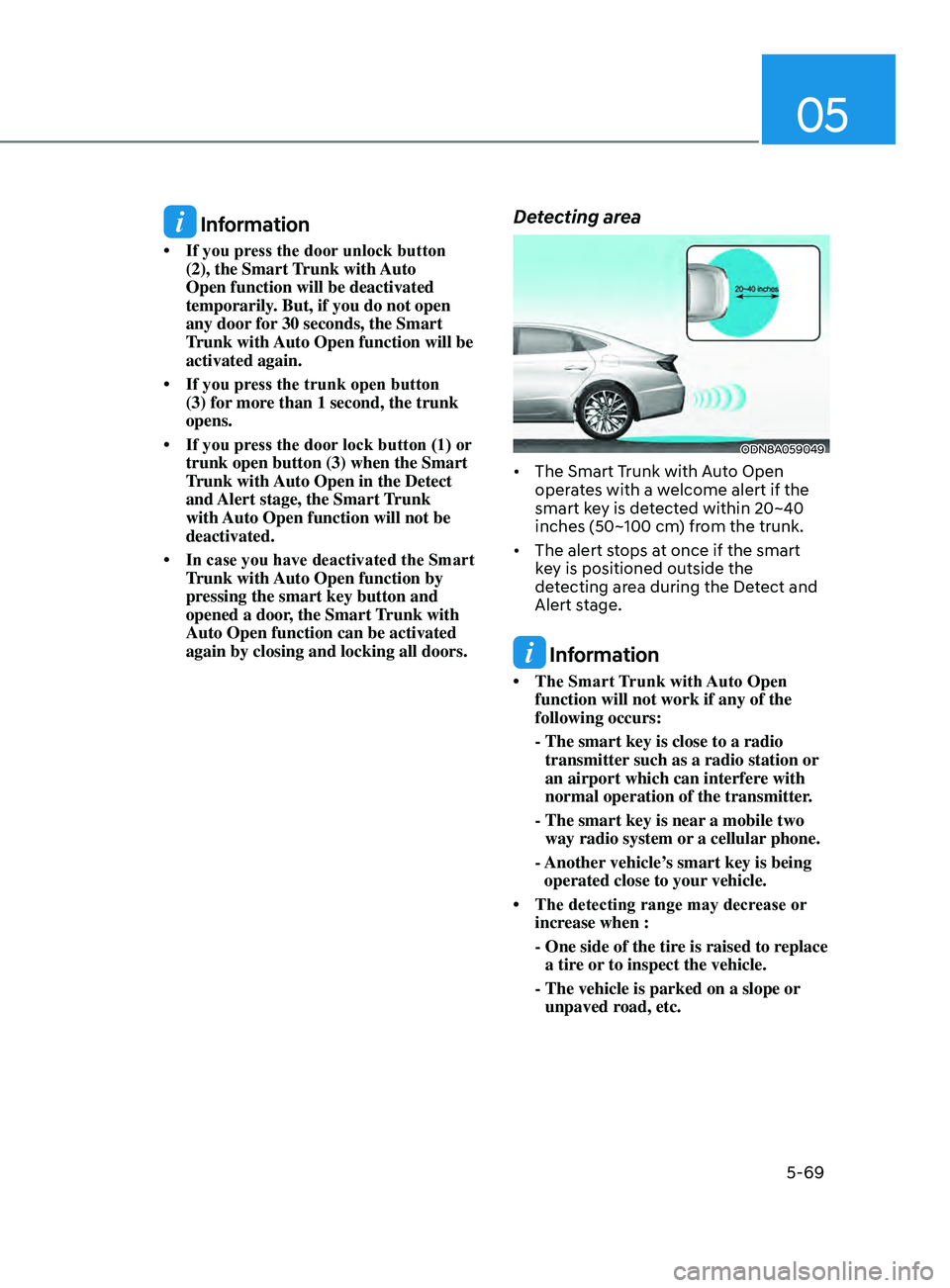
Detecting area
ODN8A059049
• The Smart Trunk with Auto Open oper ates with a welcome alert if the
smart key is detected within 20~40
inches (50~100 cm) from the trunk.
• The
alert stops at once if the smart
k
ey is positioned outside the
detecting area during the Detect and
Alert stage.
Information
• The Smart T runk with Auto Open function will not work if any of the
following occurs:
- The smart key is close to a radio
transmitter
such as a radio station or
an airport which can interfere with
normal operation of the transmitter.
- The smart key is near
a mobile two
way radio system or a cellular phone.
- Another
vehicle’s smart key is being
operated close to your vehicle.
• The
detecting
range
may decrease or
incr
ease when :
-
One side of the tir
e is raised to replace
a tire or to inspect the vehicle.
- The vehicle i
s parked on a slope or
unpaved road, etc.
Page 200 of 546
Convenient Features
5-70
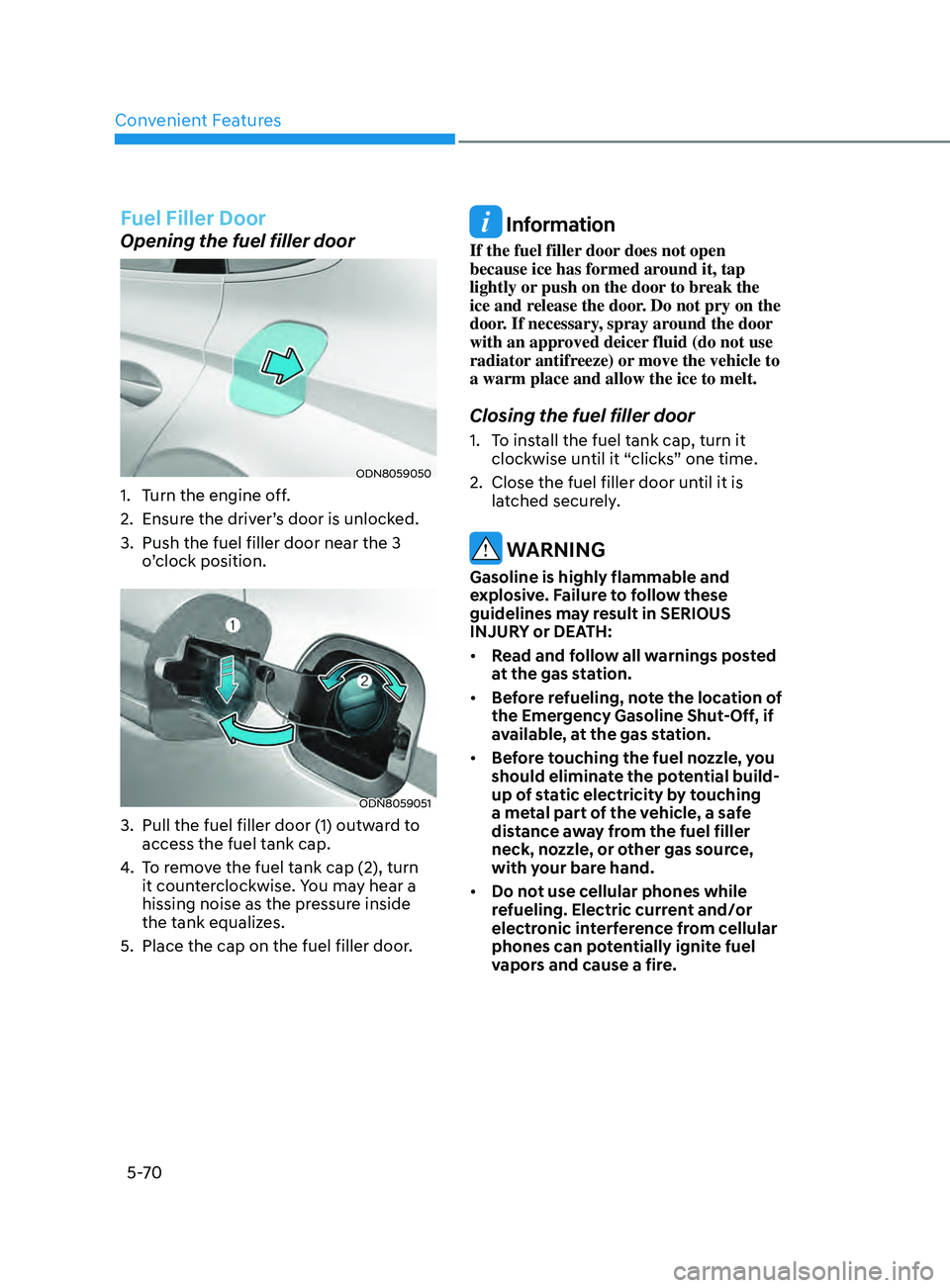
Fuel Filler Door
Opening the fuel filler door
ODN8059050
1. Turn the engine off.
2.
E
nsure the driver’s door is unlocked.
3.
Push the fuel filler door near the 3
o
’clock position.
ODN8059051
3. Pull the fuel filler door (1) outw ard to
access the fuel tank cap.
4.
T
o remove the fuel tank cap (2), turn
it counterclockwise. You may hear a
hissing noise as the pressure inside
the tank equalizes.
5.
Place the cap on the fuel filler door
.
Information
If the fuel filler door does not open
because ice has formed around it, tap
lightly or push on the door to break the
ice and release the door. Do not pry on the
door. If necessary, spray around the door
with an approved deicer fluid (do not use
radiator antifreeze) or move the vehicle to
a warm place and allow the ice to melt.
Closing the fuel filler door
1. To install the fuel tank cap, turn it clockwise until it “clicks” one time.
2.
Close the fuel filler door un
til it is
latched securely.
WARNING
Gasoline is highly flammable and
explosive. Failure to follow these
guidelines may result in SERIOUS
INJURY or DEATH:
• Read and follow all warnings posted
at the gas station.
• Before refueling, note the location of
the Emergency Gasoline Shut-Off, if
available, at the gas station.
• Before touching the fuel nozzle, you
should eliminate the potential build-
up of static electricity by touching
a metal part of the vehicle, a safe
distance away from the fuel filler
neck, nozzle, or other gas source,
with your bare hand.
• Do not use cellular phones while
refueling. Electric current and/or
electronic interference from cellular
phones can potentially ignite fuel
vapors and cause a fire.
Page 227 of 546
05
5-97
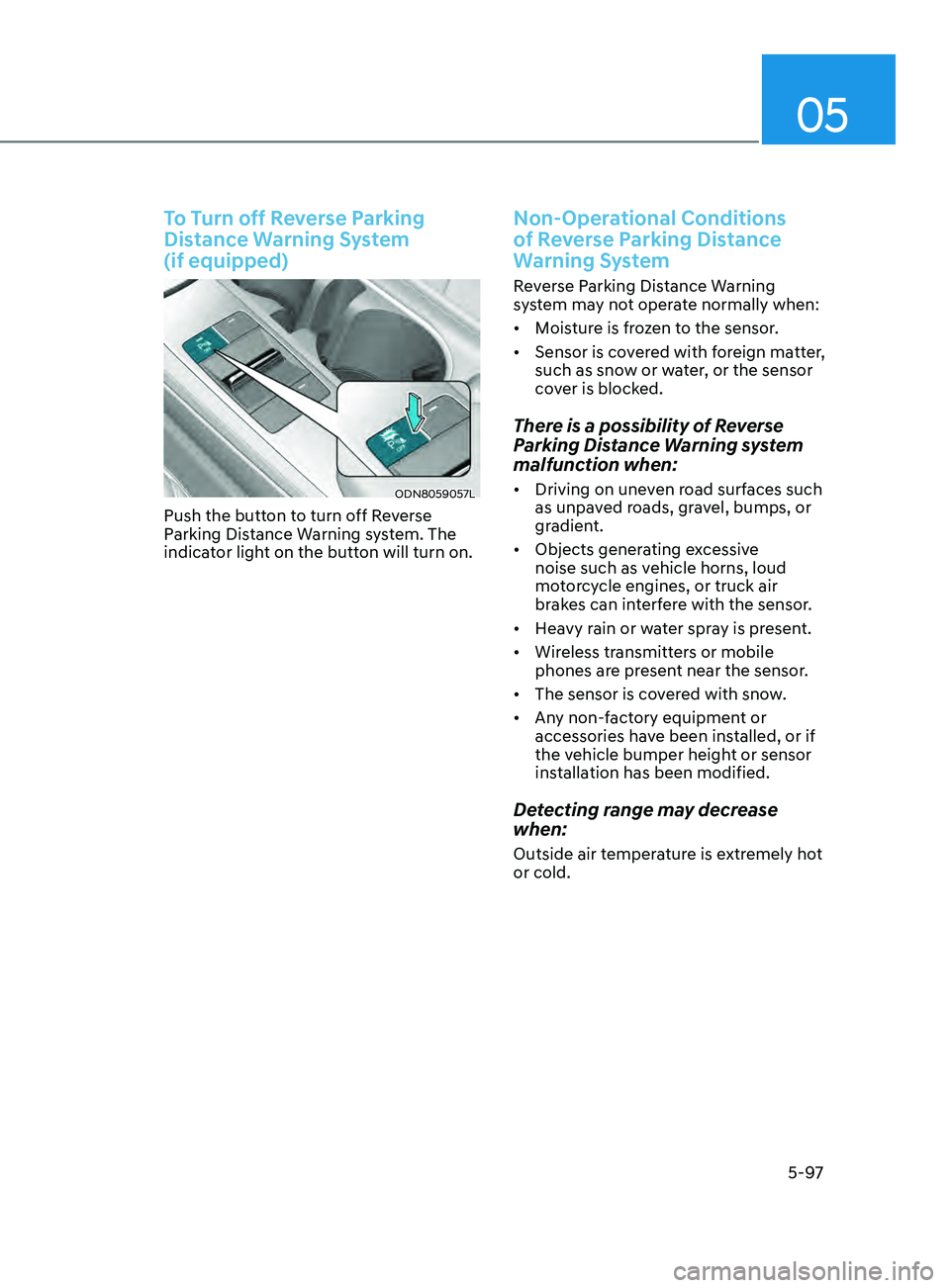
To Turn off Reverse Parking
Distance Warning System
(if equipped)
ODN8059057L
Push the button to turn off Reverse
Parking Distance Warning system. The
indicator light on the button will turn on.
Non-Operational Conditions
of Reverse Parking Distance
Warning System
Reverse Parking Distance Warning
system may not operate normally when:
• Moisture is frozen to the sensor.
• Sensor is covered with foreign matter,
such as snow or water, or the sensor
cover is blocked.
There is a possibility of Reverse
Parking Distance Warning system
malfunction when:
• Driving on uneven road surfaces such
as unpaved roads, gravel, bumps, or
gradient.
• Objects generating excessive
noise such as vehicle horns, loud
motorcycle engines, or truck air
brakes can interfere with the sensor.
• Heavy rain or water spray is present.
• Wireless transmitters or mobile
phones are present near the sensor.
• The sensor is covered with snow.
• Any non-factory equipment or
accessories have been installed, or if
the vehicle bumper height or sensor
installation has been modified.
Detecting range may decrease
when:
Outside air temperature is extremely hot
or cold.
Page 232 of 546
Convenient Features
5-102
Non-Operational Conditions
of Forward/Reverse Parking
Distance Warning System
Forward/Reverse Parking Distance
Warning system may not operate
normally when:
• Moisture is frozen to the sensor.
• Sensor is covered with foreign matter,
such as snow or water, or the sensor
cover is blocked.
There is a possibility of Forward/
Reverse Parking Distance Warning
system malfunction when:
• Driving on uneven road surfaces such
as unpaved roads, gravel, bumps, or
gradient.
• Objects generating excessive
noise such as vehicle horns, loud
motorcycle engines, or truck air
brakes can interfere with the sensor.
• Heavy rain or water spray is present.
• Wireless transmitters or mobile
phones are present near the sensor.
• The sensor is covered with snow.
• Any non-factory equipment or
accessories have been installed, or if
the vehicle bumper height or sensor
installation has been modified.
Detecting range may decrease
when:
Outside air temperature is extremely hot
or cold.
The following objects may not be
recognized by the sensor:
• Sharp or slim objects such as ropes,
chains or small poles.
• Objects, which tend to absorb sensor
frequency such as clothes, spongy
material or snow.
• Undetectable objects smaller than 40
in (100 cm) and narrower than 6 in (14
cm) in diameter.
WARNING
Your new vehicle warranty does not
cover any accidents or damage to the
vehicle or injuries to its occupants
related to Forward/Reverse Parking
Distance Warning system. Always drive
safely and cautiously.
Page 276 of 546
Convenient Features5-146
Sunvisor
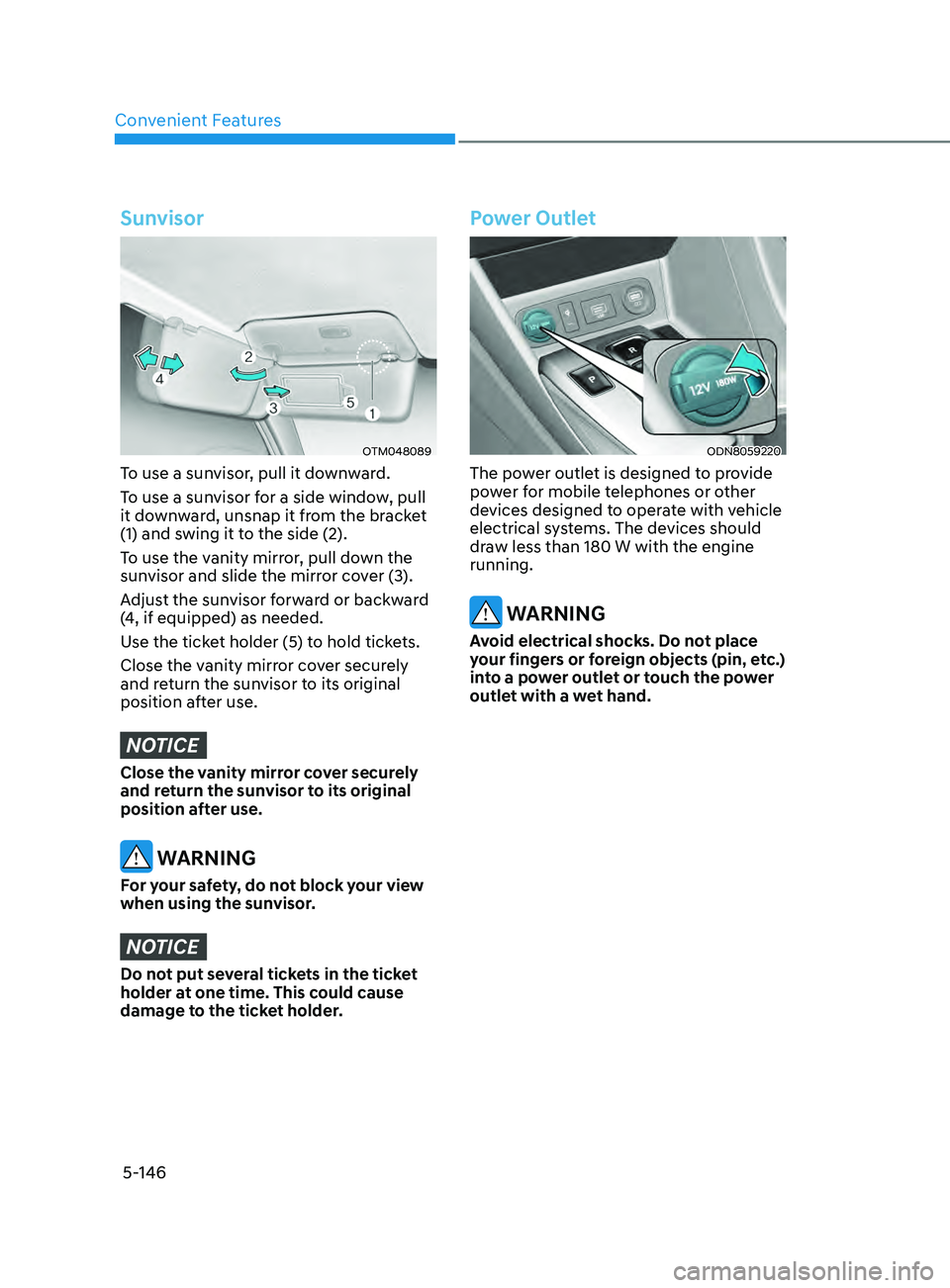
OTM048089
To use a sunvisor, pull it downward.
To use a sunvisor for a side window, pull
it downward, unsnap it from the bracket
(1) and swing it to the side (2).
To use the vanity mirror, pull down the
sunvisor and slide the mirror cover (3).
Adjust the sunvisor forward or backward
(4, if equipped) as needed.
Use the ticket holder (5) to hold tickets.
Close the vanity mirror cover securely
and return the sunvisor to its original
position after use.
NOTICE
Close the vanity mirror cover securely
and return the sunvisor to its original
position after use.
WARNING
For your safety, do not block your view
when using the sunvisor.
NOTICE
Do not put several tickets in the ticket
holder at one time. This could cause
damage to the ticket holder.
Power Outlet
ODN8059220
The power outlet is designed to provide
power for mobile telephones or other
devices designed to operate with vehicle
electrical systems. The devices should
draw less than 180 W with the engine
running.
WARNING
Avoid electrical shocks. Do not place
your fingers or foreign objects (pin, etc.)
into a power outlet or touch the power
outlet with a wet hand.
Page 277 of 546
05
5-147
NOTICE
To prevent damage to the Power
Outlets:
• Use the power outlet only when the
engine is running and remove the
accessory plug after use. Using the
accessory plug for prolonged periods
of time with the engine off could
cause the battery to discharge.
• Only use 12V electric accessories
which are less than 180 W in electric
capacity.
• Adjust the air-conditioner or heater
to the lowest operating level when
using the power outlet.
• Close the cover when not in use.
• Some electronic devices can
cause electronic interference
when plugged into a vehicle’s
power outlet. These devices may
cause excessive audio static and
malfunctions in other electronic
systems or devices used in your
vehicle.
• Push the plug in as far as it will go. If
good contact is not made, the plug
may overheat and the fuse may open.
• Plug in battery equipped electrical/
electronic devices with reverse
current protection. The current
from the battery may flow into the
vehicle’s electrical/electronic system
and cause system malfunction.
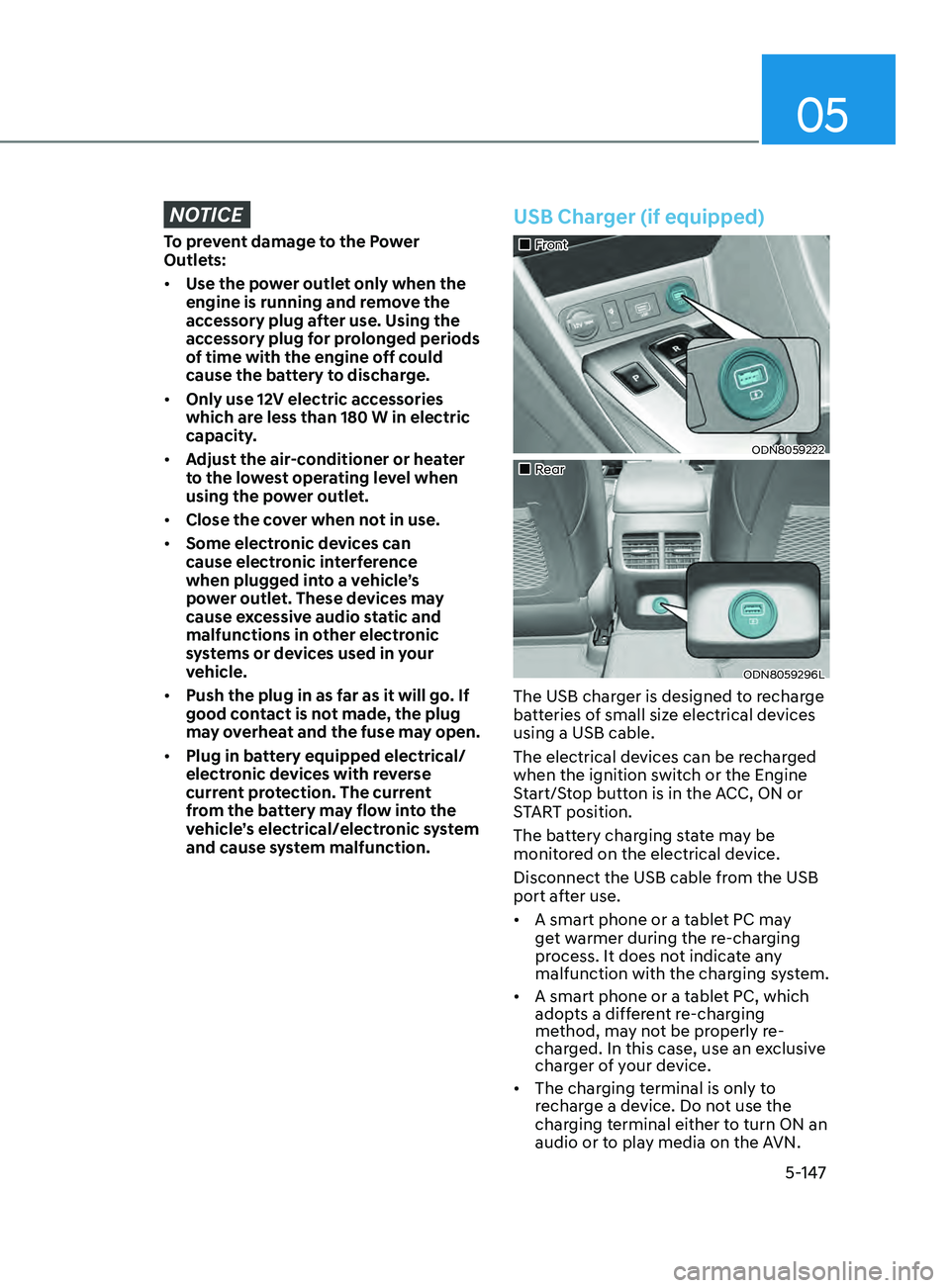
USB Charger (if equipped)
„„Front
ODN8059222
„„Rear
ODN8059296L
The USB charger is designed to recharge
batteries of small size electrical devices
using a USB cable.
The electrical devices can be recharged
when the ignition switch or the Engine
Start/Stop button is in the ACC, ON or
START position.
The battery charging state may be
monitored on the electrical device.
Disconnect the USB cable from the USB
port after use.
• A smart phone or a tablet PC may
get warmer during the re-charging
process. It does not indicate any
malfunction with the charging system.
• A smart phone or a tablet PC, which
adopts a different re-charging
method, may not be properly re-
charged. In this case, use an exclusive
charger of your device.
• The charging terminal is only to
recharge a device. Do not use the
charging terminal either to turn ON an
audio or to play media on the AVN.
Page 278 of 546
![HYUNDAI SONATA LIMITED 2020 Owners Manual Convenient Features
5-148
Wireless Cellular Phone
Charging System (if equipped)
ODN8059223
[A]: Indicator light, [B]: Charging pad
On certain models, the vehicle comes
equipped with a wireless cellu](/img/35/56187/w960_56187-277.png "HYUNDAI SONATA LIMITED 2020 Owners Manual Convenient Features
5-148
Wireless Cellular Phone
Charging System (if equipped)
ODN8059223
[A]: Indicator light, [B]: Charging pad
On certain models, the vehicle comes
equipped with a wireless cellu")
Convenient Features
5-148
Wireless Cellular Phone
Charging System (if equipped)
ODN8059223
[A]: Indicator light, [B]: Charging pad
On certain models, the vehicle comes
equipped with a wireless cellular phone
charger.
The system is available when all doors
are closed, and when the ignition switch
is ON.
To charge a cellular phone
The wireless cellular phone charging
system charges only the Qi-enabled
cellular phones. Read the label on the
cellular phone accessory cover or visit
your cellular phone manufacturer’s
website to check whether your cellular
phone supports the Qi technology.
The wireless charging process starts
when you put a Qi-enabled cellular
phone on the wireless charging unit.
1.
R
emove other items, including the
smart key, from the wireless charging
unit. If not, the wireless charging
process may be interrupted. Place
the cellular phone on the center of
the charging pad (
).
2.
The indica
tor light is orange when
the cellular phone is charging. The
indicator light turns green when
phone charging is complete.
3.
Y
ou can turn ON or OFF the wireless
charging function in the user settings
mode on the instrument cluster. For
further information, refer to the “LCD
Display Modes” in this chapter.
If your cellular phone is not charging:
-
Sligh
tly change the position of the
cellular phone on the charging pad.
-
Mak
e sure the indicator light is
orange.
The indicator light will blink orange for 10
seconds if there is a malfunction in the
wireless charging system.
In this case, temporarily stop the
charging process, and re-attempt to
charge your cellular phone again.
The system warns you with a message
on the LCD display if the cellular phone
is still on the wireless charging unit after
the engine is turned OFF and the front
door is opened.
Information
For some manufacturers’ cellular phones,
the system may not warn you even though
the cellular phone is left on the wireless
charging unit. This is due to the particular
characteristic of the cellular phone and
not a malfunction of the wireless charging.
NOTICE
• The wireless cellular phone charging system may not support certain
cellular phones, which are not
verified for the Qi specification (
).
•
When placing y
our cellular phone
on the charging mat, position the
phone in the middle of the mat for
optimal charging performance. If
your cellular phone is off to the side,
the charging rate may be less and in
some cases the cellular phone may
experience higher heat conduction.
•
In some cases, the wir
eless charging
may stop temporarily when the
Remote Key or Smart Key is used,
either when starting the vehicle or
locking/unlocking the doors, etc.
•
When char
ging certain cellular
phones, the charging indicator
may not change to green when the
cellular phone is fully charged.
Page 279 of 546
05
5-149
• The wireless charging process may temporarily stop, when temperature
abnormally increases inside the
wireless cellular phone charging
system. Stop the charging cellular
phone and wait until temperature
falls to a certain level.
•
The wir
eless charging process may
temporarily stop when there is
any metallic item, such as a coin,
between the wireless cellular phone
charging system and the cellular
phone.
•
When char
ging some cellular phones
with a self-protection feature,
the wireless charging speed may
decrease and the wireless charging
may stop.
•
I
f the cellular phone has a thick
cover, the wireless charging may not
be possible.
•
I
f the cellular phone is not
completely contacting the charging
pad, wireless charging may not
operate properly.
•
Some magne
tic items like credit
cards, phone cards or rail tickets may
be damaged if left with the cellular
phone during the charging process.
•
When an
y cellular phone without
a wireless charging function or a
metallic object is placed on the
charging pad, a small noise may
sound. This small sound is due to the
vehicle discerning compatibility of
the object placed on the charging
pad. It does not affect your vehicle or
the cellular phone in any way. Information
If the ignition switch is in the OFF
position, the charging also stops.
Information
This device complies with part 15 of the
FCC Rules.
Operation is subject to the following two
conditions:
1.
This device may not cause harmful
interfer
ence, and
2.
This device must accept any
interfer
ence received, including
interference that may cause undesired
operation.
Page 284 of 546
Convenient Features
5-154
Bluetooth® Wireless Technology
Hands-Free
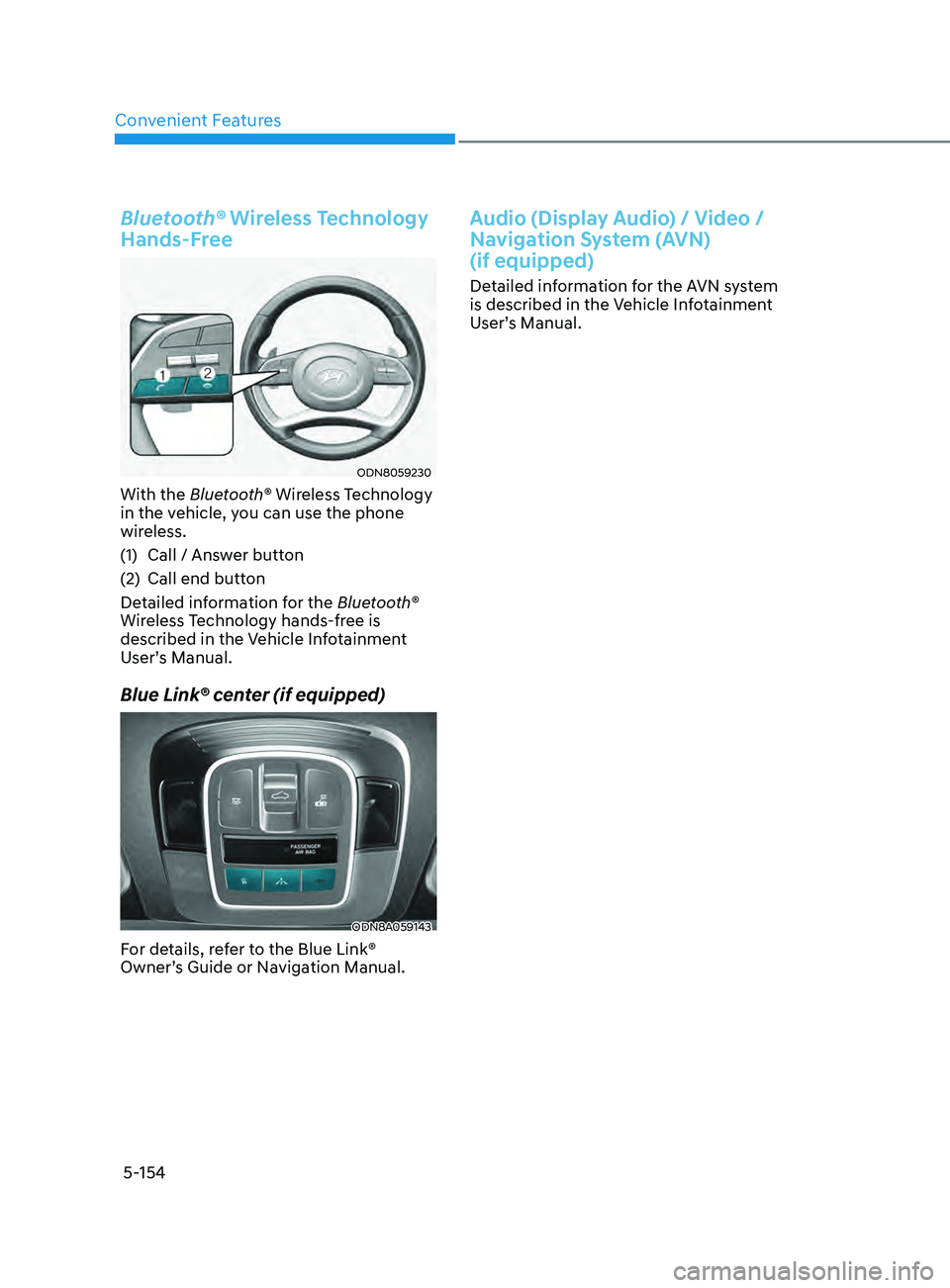
ODN8059230
With the Bluetooth® Wireless Technology
in the vehicle, you can use the phone
wireless.
(1)
Call / Ans
wer button
(2)
Call end butt
on
Detailed information for the Bluetooth®
Wireless Technology hands-free is
described in the Vehicle Infotainment
User’s Manual.
Blue Link® center (if equipped)
ODN8A059143
For details, refer to the Blue Link®
Owner’s Guide or Navigation Manual.
Audio (Display Audio) / Video /
Navigation System (AVN)
(if equipped)
Detailed information for the AVN system
is described in the Vehicle Infotainment
User’s Manual.