change Hyundai Sonata Plug-in Hybrid 2016 Repair Manual
[x] Cancel search | Manufacturer: HYUNDAI, Model Year: 2016, Model line: Sonata Plug-in Hybrid, Model: Hyundai Sonata Plug-in Hybrid 2016Pages: 685, PDF Size: 41.8 MB
Page 336 of 685
4-86
Multimedia System
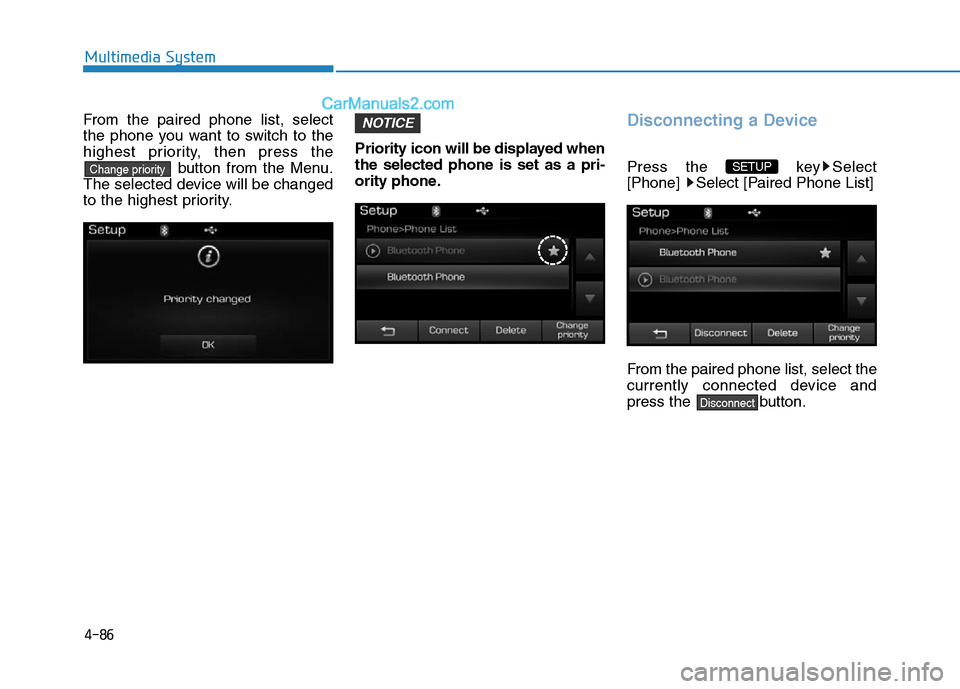
From the paired phone list, select
the phone you want to switch to the
highest priority, then press the
button from the Menu.
The selected device will be changed
to the highest priority.Priority icon will be displayed when
the selected phone is set as a pri-
ority phone.Disconnecting a Device
Press the key Select
[Phone] Select [Paired Phone List]
From the paired phone list, select the
currently connected device and
press the button.
Disconnect
SETUP
NOTICE
Change priority
Page 342 of 685
![Hyundai Sonata Plug-in Hybrid 2016 Repair Manual 4-92
Multimedia System
Bluetooth®Wireless
Technology Setting
Pairing a New Device
Press the key Select
[Phone] Select [Pair Phone]
(For USA)
(Except USA)
(❈the screen can be different by region.)](/img/35/19656/w960_19656-341.png "Hyundai Sonata Plug-in Hybrid 2016 Repair Manual 4-92
Multimedia System
Bluetooth®Wireless
Technology Setting
Pairing a New Device
Press the key Select
[Phone] Select [Pair Phone]
(For USA)
(Except USA)
(❈the screen can be different by region.)")
4-92
Multimedia System
Bluetooth®Wireless
Technology Setting
Pairing a New Device
Press the key Select
[Phone] Select [Pair Phone]
(For USA)
(Except USA)
(❈the screen can be different by region.)
Bluetooth®Wireless Technology
devices can be paired with the audio
system.
For more information, refer to the
“Pairing through Phone Setup” sec-
tion within
Bluetooth®Wireless
Technology.
Viewing Paired Phone List
Press the key Select
[Phone] Select [Paired Phone List]
This feature is used to view mobile
phones that have been paired with
the audio system. Upon selecting a
paired phone, the setup menu is dis-
played.For more information, refer to the
“Setting
Bluetooth®Wireless
Technology Connection” section with-
in
Bluetooth®Wireless Technology.
1) : Moves to the previous
screen
2) Connect/Disconnect Phone :
Connect/ disconnects currently
selected phone
3) Delete : Deletes the currently
selected phone
4) Change Priority : Sets currently
selected phone to highest connec-
tion priority
SETUP
SETUP
Page 343 of 685
4-93
Multimedia System
4
Information- Before down-
loading contacts
• Only contacts within connected
phones can be downloaded. Also
check to see that your mobile phone
supports the download feature.
• To learn more about whether your
mobile phone supports contacts
downloads, refer to your mobile
phone user’s manual.
• The contacts for only the connected
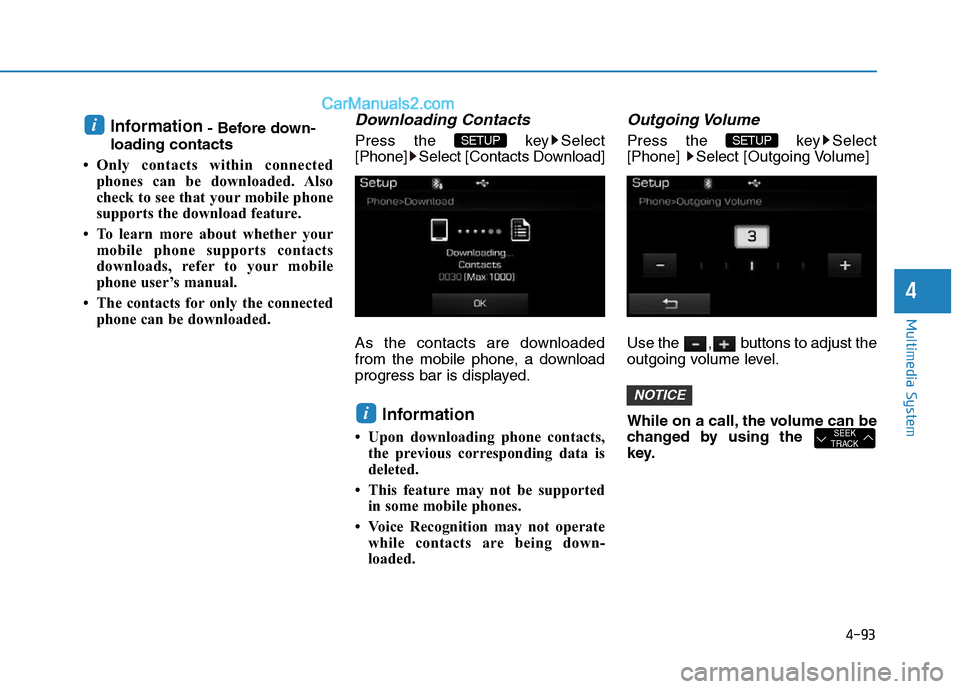
phone can be downloaded.Downloading Contacts
Press the key Select
[Phone] Select [Contacts Download]
As the contacts are downloaded
from the mobile phone, a download
progress bar is displayed.
Information
• Upon downloading phone contacts,
the previous corresponding data is
deleted.
• This feature may not be supported
in some mobile phones.
• Voice Recognition may not operate
while contacts are being down-
loaded.
Outgoing Volume
Press the key Select
[Phone] Select [Outgoing Volume]
Use the , buttons to adjust the
outgoing volume level.
While on a call, the volume can be
changed by using the
key.
SEEK
TRACK
NOTICE
SETUP
i
SETUP i
Page 345 of 685
4-95
Multimedia System
4
VOICE RECOGNITION
Using Voice Recognition
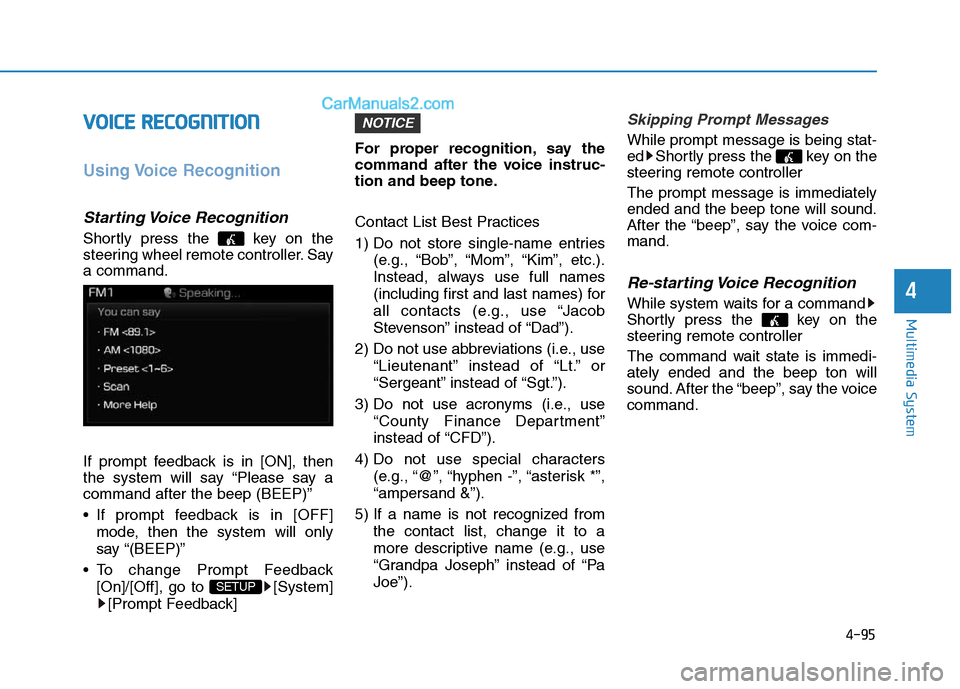
Starting Voice Recognition
Shortly press the key on the
steering wheel remote controller. Say
a command.
If prompt feedback is in [ON], then
the system will say “Please say a
command after the beep (BEEP)”
• If prompt feedback is in [OFF]
mode, then the system will only
say “(BEEP)”
• To change Prompt Feedback
[On]/[Off], go to [System]
[Prompt Feedback]For proper recognition, say the
command after the voice instruc-
tion and beep tone.
Contact List Best Practices
1) Do not store single-name entries
(e.g., “Bob”, “Mom”, “Kim”, etc.).
Instead, always use full names
(including first and last names) for
all contacts (e.g., use “Jacob
Stevenson” instead of “Dad”).
2) Do not use abbreviations (i.e., use
“Lieutenant” instead of “Lt.” or
“Sergeant” instead of “Sgt.”).
3) Do not use acronyms (i.e., use
“County Finance Department”
instead of “CFD”).
4) Do not use special characters
(e.g., “@”, “hyphen -”, “asterisk *”,
“ampersand &”).
5) If a name is not recognized from
the contact list, change it to a
more descriptive name (e.g., use
“Grandpa Joseph” instead of “Pa
Joe”).
Skipping Prompt Messages
While prompt message is being stat-
ed Shortly press the key on the
steering remote controller
The prompt message is immediately
ended and the beep tone will sound.
After the “beep”, say the voice com-
mand.
Re-starting Voice Recognition
While system waits for a command
Shortly press the key on the
steering remote controller
The command wait state is immedi-
ately ended and the beep ton will
sound. After the “beep”, say the voice
command.
NOTICE
SETUP
Page 352 of 685
![Hyundai Sonata Plug-in Hybrid 2016 Repair Manual 4-102
Multimedia System
MP3 Information Display
Press the key Select
[Display] Select [Media Display]
This feature is used to change the
information displayed within USB
and MP3 CD modes.
1) Folder/](/img/35/19656/w960_19656-351.png "Hyundai Sonata Plug-in Hybrid 2016 Repair Manual 4-102
Multimedia System
MP3 Information Display
Press the key Select
[Display] Select [Media Display]
This feature is used to change the
information displayed within USB
and MP3 CD modes.
1) Folder/")
4-102
Multimedia System
MP3 Information Display
Press the key Select
[Display] Select [Media Display]
This feature is used to change the
information displayed within USB
and MP3 CD modes.
1) Folder/File : Displays file name
and folder name
2) Album/Artist/Song : Displays
album name/artist name/song
Sound Settings
Sound Settings
Press the key Select
[Sound] Select [Sound Setting]Use the , , , buttons to
adjust the Fader/Balance settings.
Use the , buttons to adjust the
Bass/Middle/Treble settings.
Press the button to reset.DefaultSETUP
SETUP
Page 355 of 685
![Hyundai Sonata Plug-in Hybrid 2016 Repair Manual 4-105
Multimedia System
4
Prompt Feedback
Press the key Select
[System] Select [Prompt Feedback]
This feature is used to select the
desired prompt feedback option from
ON and OFF.
1) ON : When using](/img/35/19656/w960_19656-354.png "Hyundai Sonata Plug-in Hybrid 2016 Repair Manual 4-105
Multimedia System
4
Prompt Feedback
Press the key Select
[System] Select [Prompt Feedback]
This feature is used to select the
desired prompt feedback option from
ON and OFF.
1) ON : When using")
4-105
Multimedia System
4
Prompt Feedback
Press the key Select
[System] Select [Prompt Feedback]
This feature is used to select the
desired prompt feedback option from
ON and OFF.
1) ON : When using voice recognition,
provides detailed guidance prompts
2) OFF : When using voice recogni-
tion, omits some guidance prompts
Language
Press the key Select
[System] Select [Language]
❈This feature is used to change the
system and voice recognition lan-
guage.
❈if the language is changed, the
system will restart and apply the
selected language.SETUP SETUP
Page 360 of 685
4-110
Multimedia System
Information
iPod®is a registered trademark of
Apple Inc. iPod®mobile digital device
sold separately. The Bluetooth®word
mark and logos are registered trade-
marks owned by Bluetooth
®SIG, Inc.
and any use of such marks by
Hyundai is under license. SiriusXM
services require a subscription sold
separately, or as a package, by Sirius
XM Radio Inc. If you decide to con-
tinue service after your trial, the sub-
scription plan you choose will auto-
matically renew thereafter and you
will be charged according to your cho-
sen payment method at thencurrent
rates. Fees and taxes apply. To cancel
you must call SiriusXM at 1-866-635-
2349. See SiriusXM Customer
Agreement for complete terms at
www.siriusxm.com. SiriusXM U.S.
satellite and data services are avail-
able only in the 48 contiguous USA,
DC and PR (with coverage limita-
tions). SiriusXM satellite service is
also available in Canada; see www.sir-
iusxm.ca. All fees and programming
subject to change.
(Continued)(Continued)
Sirius, XM and all related marks and
logos are trademarks of Sirius XM
Radio Inc. Android™ is a trademark
of Google, Inc. BlackBerry is a regis-
tered trademark of Research In
Motion Limited (RIM). All other
marks, channel names and logos are
the property of their respective own-
ers. All rights reserved.
i
Page 361 of 685
4-111
Multimedia System
4
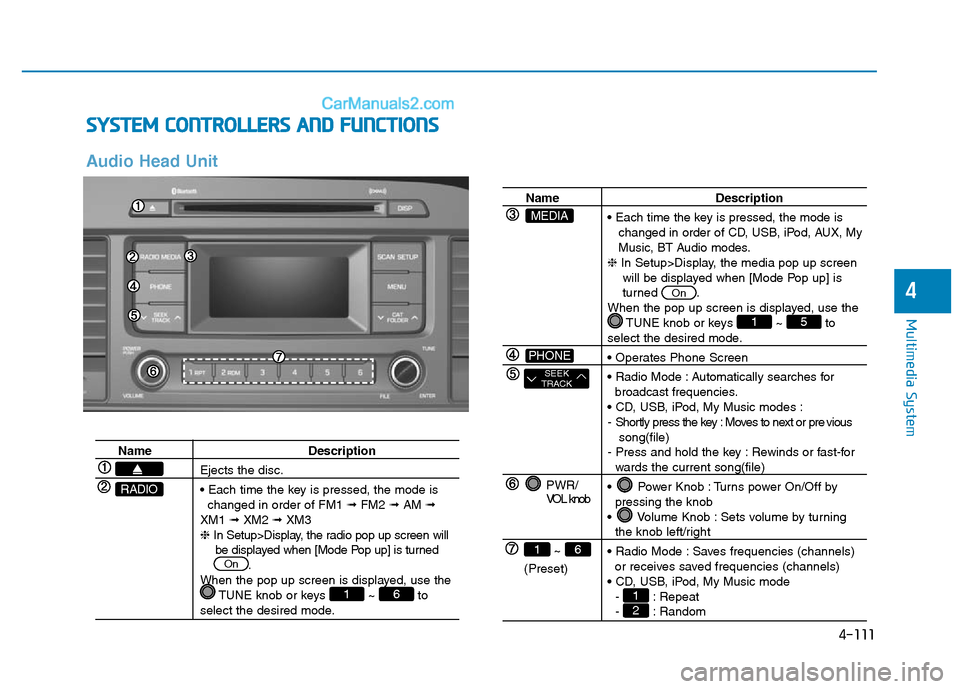
SYSTEM CONTROLLERS AND FUNCTIONS
Audio Head Unit
Name Description
Ejects the disc.
• Each time the key is pressed, the mode is
changed in order of FM1 ➟FM2 ➟AM ➟
XM1 ➟XM2 ➟XM3
❈In Setup>Display, the radio pop up screen will
be displayed when [Mode Pop up] is turned
.
When the pop up screen is displayed, use the
TUNE knob or keys ~ to
select the desired mode.
61
On
RADIO
Name Description
• Each time the key is pressed, the mode is
changed in order of CD, USB, iPod, AUX, My
Music, BT Audio modes.
❈In Setup>Display, the media pop up screen
will be displayed when [Mode Pop up] is
turned .
When the pop up screen is displayed, use the
TUNE knob or keys ~ to
select the desired mode.
• Operates Phone Screen
• Radio Mode : Automatically searches for
broadcast frequencies.
• CD, USB, iPod, My Music modes :
- Shortly press the key : Moves to next or pre vious
song(file)
- Press and hold the key : Rewinds or fast-for
wards the current song(file)
• Power Knob : Turns power On/Off by
pressing the knob
• Volume Knob : Sets volume by turning
the knob left/right
• Radio Mode : Saves frequencies (channels)
or receives saved frequencies (channels)
• CD, USB, iPod, My Music mode
- : Repeat
- : Random21
51
On
PWR/
VOL knob
~
(Preset)
61
SEEK
TRACK
PHONE
MEDIA
Page 362 of 685
4-112
Multimedia System
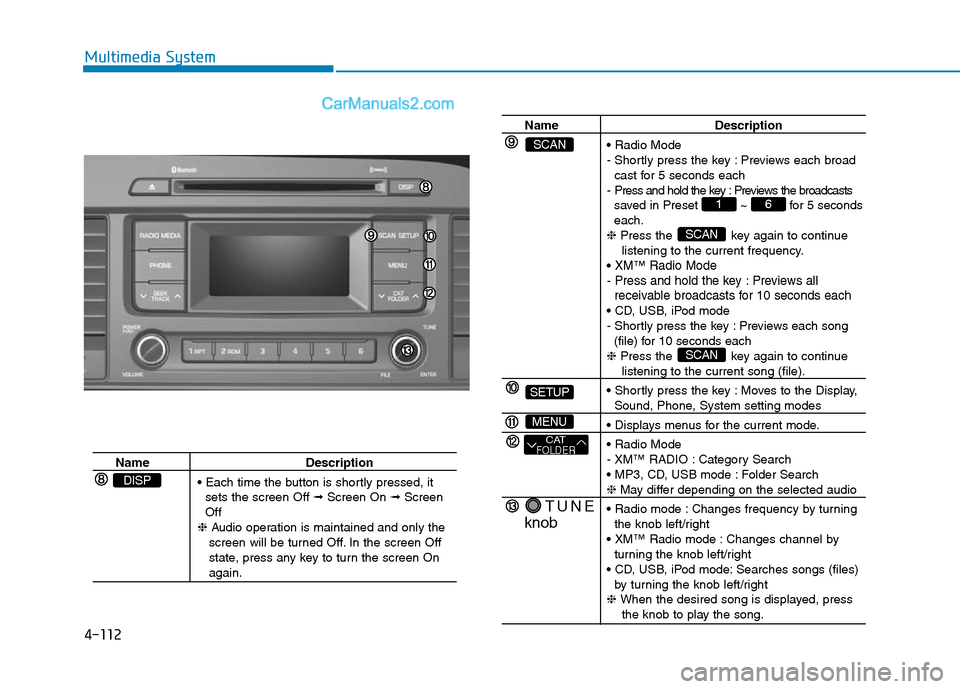
Name Description
• Each time the button is shortly pressed, it
sets the screen Off ➟Screen On ➟Screen
Off
❈Audio operation is maintained and only the
screen will be turned Off. In the screen Off
state, press any key to turn the screen On
again.
DISP
Name Description
• Radio Mode
- Shortly press the key : Previews each broad
cast for 5 seconds each
- Press and hold the key : Previews the broadcasts
saved in Preset ~ for 5 seconds
each.
❈Press the key again to continue
listening to the current frequency.
•
XM™Radio Mode
- Press and hold the key : Previews all
receivable broadcasts for 10 seconds each
• CD, USB, iPod mode
- Shortly press the key : Previews each song
(file) for 10 seconds each
❈Press the key again to continue
listening to the current song (file).
• Shortly press the key : Moves to the Display,
Sound, Phone, System setting modes
• Displays menus for the current mode.
• Radio Mode
- XM™ RADIO : Category Search
• MP3, CD, USB mode : Folder Search
❈May differ depending on the selected audio
• Radio mode : Changes frequency by turning
the knob left/right
• XM™ Radio mode : Changes channel by
turning the knob left/right
• CD, USB, iPod mode: Searches songs (files)
by turning the knob left/right
❈ When the desired song is displayed, press
the knob to play the song.
SCAN
SCAN
61
TUNE
knob
CATFOLDER
MENU
SETUP
SCAN
Page 363 of 685
![Hyundai Sonata Plug-in Hybrid 2016 Repair Manual 4-113
Multimedia System
4
SETUP
Display Settings
Press the key Select
[Display] through TUNE knob or
keyMode Pop up
[Mode Pop up] Changes
/
selection mode
• During On state, press the
or key to](/img/35/19656/w960_19656-362.png "Hyundai Sonata Plug-in Hybrid 2016 Repair Manual 4-113
Multimedia System
4
SETUP
Display Settings
Press the key Select
[Display] through TUNE knob or
keyMode Pop up
[Mode Pop up] Changes
/
selection mode
• During On state, press the
or key to")
4-113
Multimedia System
4
SETUP
Display Settings
Press the key Select
[Display] through TUNE knob or
keyMode Pop up
[Mode Pop up] Changes
/
selection mode
• During On state, press the
or key to display the mode
change pop up screen.Media Display
When playing an MP3 file, select the
desired display info from ‘Folder/File’
or ‘Album/Artist/Song’.MEDIA
RADIO
OffOn
1
SETUP