ESP Hyundai Sonata Turbo 2011 User Guide
[x] Cancel search | Manufacturer: HYUNDAI, Model Year: 2011, Model line: Sonata Turbo, Model: Hyundai Sonata Turbo 2011Pages: 390, PDF Size: 8.44 MB
Page 149 of 390
467
Features of your vehicle
Low washer fluidThis warning light indicates the washer
fluid reservoir is near empty. Refill the
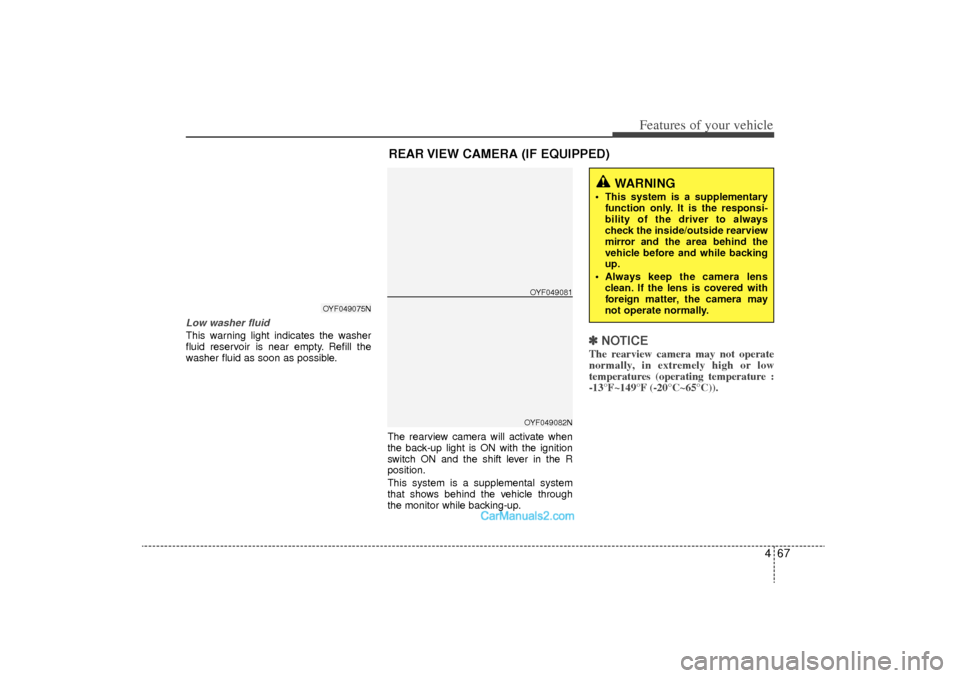
washer fluid as soon as possible.The rearview camera will activate when
the back-up light is ON with the ignition
switch ON and the shift lever in the R
position.
This system is a supplemental system
that shows behind the vehicle through
the monitor while backing-up.
✽ ✽NOTICEThe rearview camera may not operate
normally, in extremely high or low
temperatures (operating temperature :
-13°F~149°F (-20°C~65°C)).
OYF049075N
REAR VIEW CAMERA (IF EQUIPPED)
WARNING
This system is a supplementary
function only. It is the responsi-
bility of the driver to always
check the inside/outside rearview
mirror and the area behind the
vehicle before and while backing
up.
Always keep the camera lens clean. If the lens is covered with
foreign matter, the camera may
not operate normally.
OYF049081OYF049082N
YF HMA 4-103.QXP 8/20/2010 10:55 AM Page 67
Page 151 of 390
469
Features of your vehicle
Headlamp welcome functionWhen the headlight switch is in the ON or
AUTO position and all doors (and trunk)
are closed and locked, if you press the
door unlock button on the transmitter (or
the smart key), the headlights will come
on for about 15 seconds. At this time, if
you press the door lock button on the
transmitter (or smart key) the headlights
will turn off immediately.Daytime running light
(if equipped)Daytime Running Lights (DRL) can make
it easier for others to see the front of your
vehicle during the day. DRL can be help-
ful in many different driving conditions,
and it is especially helpful after dawn and
before sunset.
The DRL system will make the head-
lights turn OFF when:
1. The headlight is ON.
2. Engine stops.
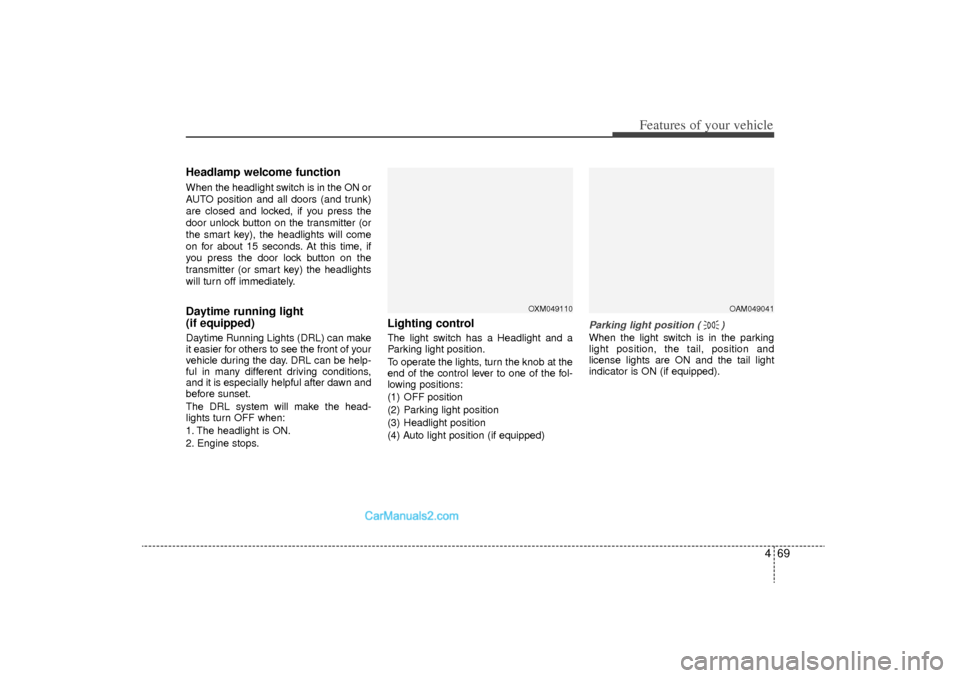
Lighting controlThe light switch has a Headlight and a
Parking light position.
To operate the lights, turn the knob at the
end of the control lever to one of the fol-
lowing positions:
(1) OFF position
(2) Parking light position
(3) Headlight position
(4) Auto light position (if equipped)
Parking light position ( )When the light switch is in the parking
light position, the tail, position and
license lights are ON and the tail light
indicator is ON (if equipped).
OXM049110
OAM049041
YF HMA 4-103.QXP 8/20/2010 10:55 AM Page 69
Page 193 of 390
![Hyundai Sonata Turbo 2011 User Guide 4 111
Features of your vehicle
1. AM Selection ButtonPressing the [AM] button selects the AM
band. AM Mode is displayed on the LCD.2. FM Selection ButtonTurns to FM mode and toggles FM1and
FM2 when th](/img/35/19657/w960_19657-192.png "Hyundai Sonata Turbo 2011 User Guide 4 111
Features of your vehicle
1. AM Selection ButtonPressing the [AM] button selects the AM
band. AM Mode is displayed on the LCD.2. FM Selection ButtonTurns to FM mode and toggles FM1and
FM2 when th")
4 111
Features of your vehicle
1. AM Selection ButtonPressing the [AM] button selects the AM
band. AM Mode is displayed on the LCD.2. FM Selection ButtonTurns to FM mode and toggles FM1and
FM2 when the button is pressed each
time.3. FM/AM ButtonTurns to FM or AM mode, and toggles in
the order of FM1
➟FM2
➟AM
➟FM1...
when the button is pressed each time.
4.
Power ON/OFF Button & VolumeControl Knob
Turns on/off the set when the IGNITION
SWITCH is on ACC or ON. If the button
is turned to the right, it increases the vol-
ume and left,decreases the volume.
Adjusts the volume of the car audio system. Rotate clockwise to increase
the volume or counterclockwise to
decrease.
5. Preset ButtonPush [1]~[6] buttons less than 0.8 sec-
ond to play the channel saved in each
button.Push Preset button for 0.8 second
or longer to save current channel to the
respective button with a beep.6. SCAN Button When the button is pressed, it automat-ically scans the radio stations upwards.
The SCAN feature steps through each station, starting from the initial station,
for ten seconds.
press the [SCAN] button again to stop the scan feature and to listen to the cur-
rently selected channel.7. MUTE ButtonPress the button to mute the sound.
8. SETUP ButtonCD Player : PA710YF
Press this button to turn to the XM option
and the other adjustment mode.
If no action is taken for 5 seconds after
pressing the button, it will return to the
play mode.(After entering SEPUP mode,
move between items using the left, right
and PUSH functions of the [TUNE]
knob.)
The setup changes in the order of TEXT
SCROLL
➟AV C
➟BT
➟XM
CD Changer : PA760YF
In case of PA760YF, Using the [ FOLD-
ER ] and [ENTER] button.
The setup Change in the order of
SOUND
➟XM
➟HD RADIO
➟AV C
➟CLOCK
➟SCROLL
➟PHONE
➟RETURN
SCROLL(TEXT SCROLL) (CD Player : PA710YF)
This funtion is used to display charac-
ters longer than the LCD text display
and can be turned ON/OFF through the
sound quality control knob.
(For CD Changer : PA760YF, Press the
[ FOLDER ] b utton.)
YF HMA 4-105~(Audio).qxp 8/24/2010 2:05 PM Page 111
Page 197 of 390
4 115
Features of your vehicle
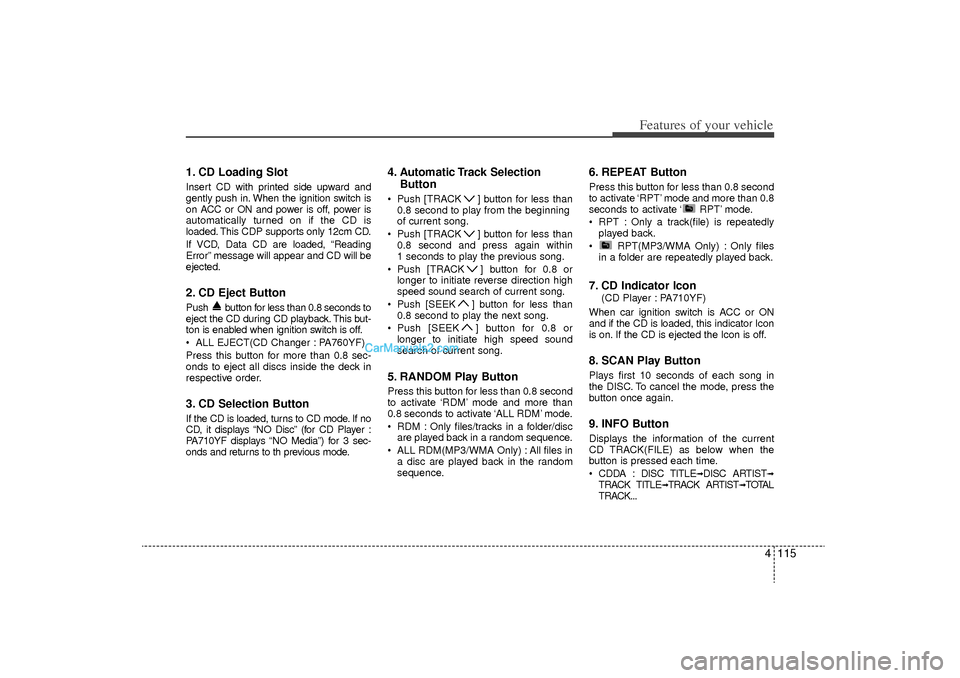
1. CD Loading SlotInsert CD with printed side upward and
gently push in. When the ignition switch is
on ACC or ON and power is off, power is
automatically turned on if the CD is
loaded. This CDP supports only 12cm CD.
If VCD, Data CD are loaded, “Reading
Error” message will appear and CD will be
ejected.2. CD Eject ButtonPush button for less than 0.8 seconds to
eject the CD during CD playback. This but-
ton is enabled when ignition switch is off.
ALL EJECT(CD Changer : PA760YF)
Press this button for more than 0.8 sec-
onds to eject all discs inside the deck in
respective order.3. CD Selection ButtonIf the CD is loaded, turns to CD mode. If no
CD, it displays “NO Disc” (for CD Player :
PA710YF displays “NO Media”) for 3 sec-
onds and returns to th previous mode.
4. Automatic Track SelectionButton Push [TRACK ] button for less than
0.8 second to play from the beginning
of current song.
Push [TRACK ] button for less than 0.8 second and press again within
1 seconds to play the previous song.
Push [TRACK ] button for 0.8 or longer to initiate reverse direction high
speed sound search of current song.
Push [SEEK ] button for less than 0.8 second to play the next song.
Push [SEEK ] button for 0.8 or longer to initiate high speed sound
search of current song.5. RANDOM Play ButtonPress this button for less than 0.8 second
to activate ‘RDM’ mode and more than
0.8 seconds to activate ‘ALL RDM’ mode.
RDM : Only files/tracks in a folder/discare played back in a random sequence.
ALL RDM(MP3/WMA Only) : All files in a disc are played back in the random
sequence.
6. REPEAT ButtonPress this button for less than 0.8 second
to activate ‘RPT’ mode and more than 0.8
seconds to activate ‘ RPT’ mode.
RPT : Only a track(file) is repeatedlyplayed back.
RPT(MP3/WMA Only) : Only files in a folder are repeatedly played back.7. CD Indicator Icon
(CD Player : PA710YF)
When car ignition switch is ACC or ON
and if the CD is loaded, this indicator Icon
is on. If the CD is ejected the Icon is off.
8. SCAN Play ButtonPlays first 10 seconds of each song in
the DISC. To cancel the mode, press the
button once again.9. INFO ButtonDisplays the information of the current
CD TRACK(FILE) as below when the
button is pressed each time.
CDDA : DISC TITLE
➟DISC ARTIST
➟
TRACK TITLE
➟TRACK ARTIST
➟TOTAL
TRACK...
YF HMA 4-105~(Audio).qxp 8/24/2010 2:05 PM Page 115
Page 208 of 390
Features of your vehicle126
4Using XM satellite RadioYour vehicle is equipped with 3 months
complimentary period of XM Satellite
Radio. XM provides access to over 130
channels of music, information, and
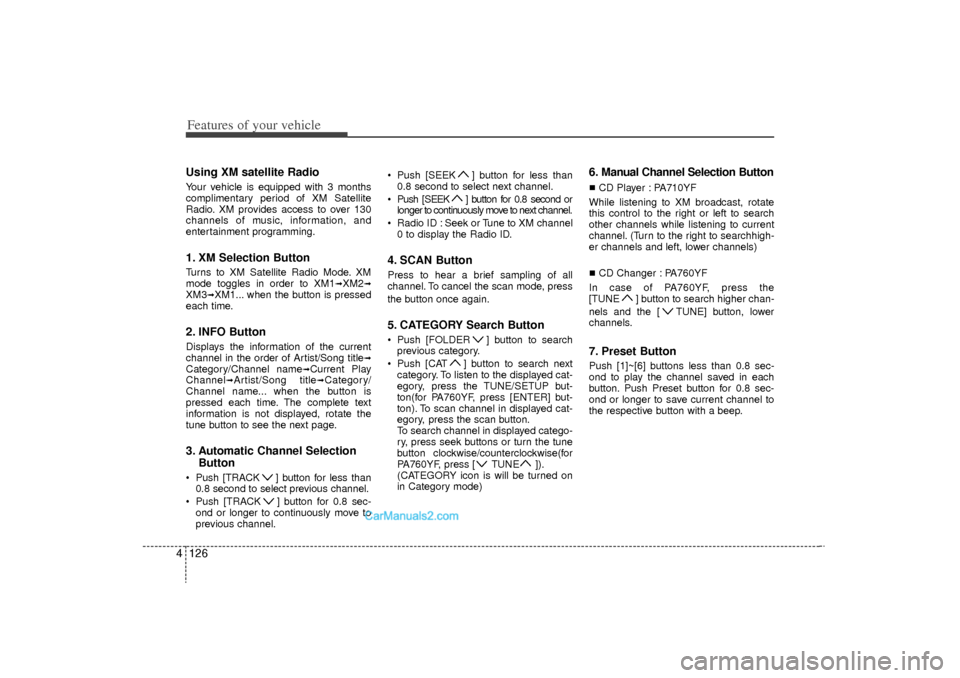
entertainment programming.1. XM Selection ButtonTurns to XM Satellite Radio Mode. XM
mode toggles in order to XM1
➟XM2
➟
XM3
➟XM1... when the button is pressed
each time.
2. INFO ButtonDisplays the information of the current
channel in the order of Artist/Song title
➟
Category/Channel name
➟Current Play
Channel
➟Artist/Song title
➟Category/
Channel name... when the button is
pressed each time. The complete text
information is not displayed, rotate the
tune button to see the next page.
3. Automatic Channel Selection Button Push [TRACK ] button for less than
0.8 second to select previous channel.
Push [TRACK ] button for 0.8 sec- ond or longer to continuously move to
previous channel. Push [SEEK ] button for less than
0.8 second to select next channel.
Push [SEEK ] button for 0.8 second or longer to continuously move to next channel.
Radio ID : Seek or Tune to XM channel 0 to display the Radio ID.
4. SCAN ButtonPress to hear a brief sampling of all
channel. To cancel the scan mode, press
the button once again.5. CATEGORY Search Button Push [FOLDER ] button to searchprevious category.
Push [CAT ] button to search next category. To listen to the displayed cat-
egory, press the TUNE/SETUP but-
ton(for PA760YF, press [ENTER] but-
ton). To scan channel in displayed cat-
egory, press the scan button.
To search channel in displayed catego-
ry, press seek buttons or turn the tune
button clockwise/counterclockwise(for
PA760YF, press [ TUNE ]).
(CATEGORY icon is will be turned on
in Category mode)
6. Manual Channel Selection ButtonCD Player : PA710YF
While listening to XM broadcast, rotate
this control to the right or left to search
other channels while listening to current
channel. (Turn to the right to searchhigh-
er channels and left, lower channels)
CD Changer : PA760YF
In case of PA760YF, press the
[TUNE ] button to search higher chan-
nels and the [ TUNE] button, lower
channels.7. Preset ButtonPush [1]~[6] buttons less than 0.8 sec-
ond to play the channel saved in each
button. Push Preset button for 0.8 sec-
ond or longer to save current channel to
the respective button with a beep.
YF HMA 4-105~(Audio).qxp 8/24/2010 2:06 PM Page 126
Page 211 of 390
4 129
Features of your vehicle
Automatic switching between dig-
ital and analog broadcastingIf the reception of the digital signal is lost,
the system switches automatically to the
analog signal. As soon as the digital sig-
nal is available again it will switch back.
Due to the fact that sub channels are
only broadcasted digital, the system
mutes playback if you have tuned to a
sub channel and the digital signal is lost.
The main line will shows the message No
HD signal in place of station name.
After approximately one minute with the
digital signal lost, the system will auto-
matically tune to the analog signal of the
corresponding frequency.Text based informationHD Radio
TM
stations are able to broad-
cast text based information, e.g. station
name, song title and artist name. The
Driver Information System is able to dis-
play this information.
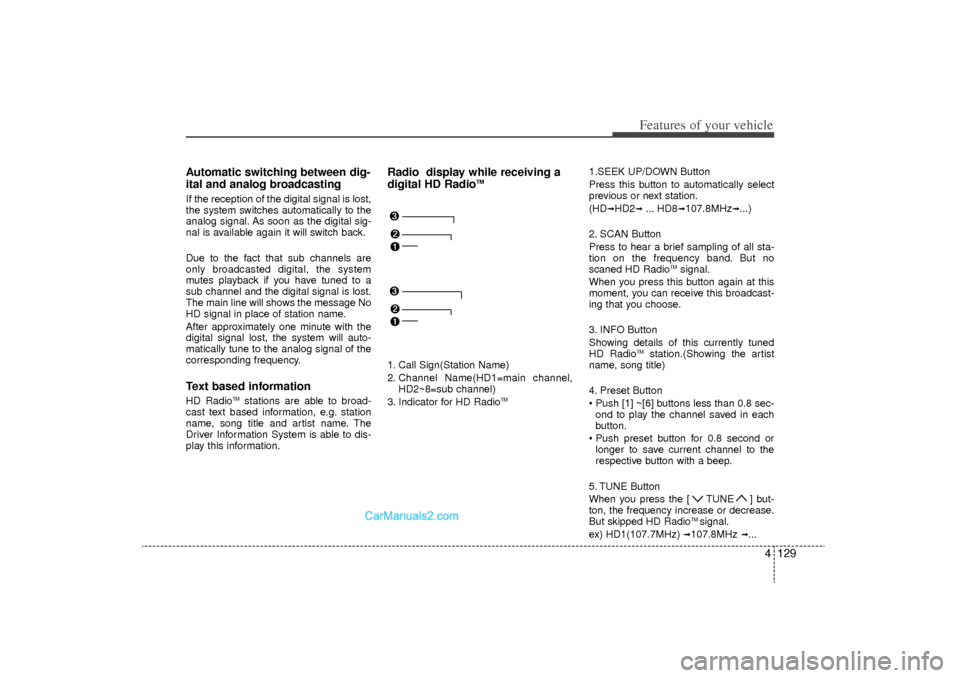
Radio display while receiving a
digital HD Radio
TM
1. Call Sign(Station Name)
2. Channel Name(HD1=main channel, HD2~8=sub channel)
3. Indicator for HD Radio
TM
1.SEEK UP/DOWN Button
Press this button to automatically select
previous or next station.
(HD
➟HD2
➟... HD8
➟107.8MHz
➟...)
2. SCAN Button
Press to hear a brief sampling of all sta-
tion on the frequency band. But no
scaned HD Radio
TMsignal.
When you press this button again at this
moment, you can receive this broadcast-
ing that you choose.
3. INFO Button
Showing details of this currently tuned
HD Radio
TM
station.(Showing the artist
name, song title)
4. Preset Button
Push [1] ~[6] buttons less than 0.8 sec- ond to play the channel saved in each
button.
Push preset button for 0.8 second or longer to save current channel to the
respective button with a beep.
5. TUNE Button
When you press the [ TUNE ] but-
ton, the frequency increase or decrease.
But skipped HD Radio
TM signal.
ex) HD1(107.7MHz)
➟107.8MHz
➟...
YF HMA 4-105~(Audio).qxp 8/24/2010 2:06 PM Page 129
Page 214 of 390
Features of your vehicle132
4■Voice Recognition Activation The voice recognition engine contained
in the Bluetooth System can be activat-
ed in the following conditions:
- Button Activation The voice recognition system will be
active when the button is
pressed and after the sound of a
Beep.
- Active Listening The voice recognition system will be
active for a period of time when the
Voice Recognition system has asked
for a customer response.
The system can recognize single digits- from zero to nine while numbers greater
than ten will not be recognized.
If the command is not recognized, the system will announce "Pardon" or No
input voice signal from microphone. (No
response)
The system shall cancel voice recogni- tion mode in following cases : When
pressing the button and saying
cancel following the beep. When not
making a call and pressing the but-
ton. When voice recognition has failed 3
consecutive times.
At any time if you say “help”, the system
will announce what commands are
available.
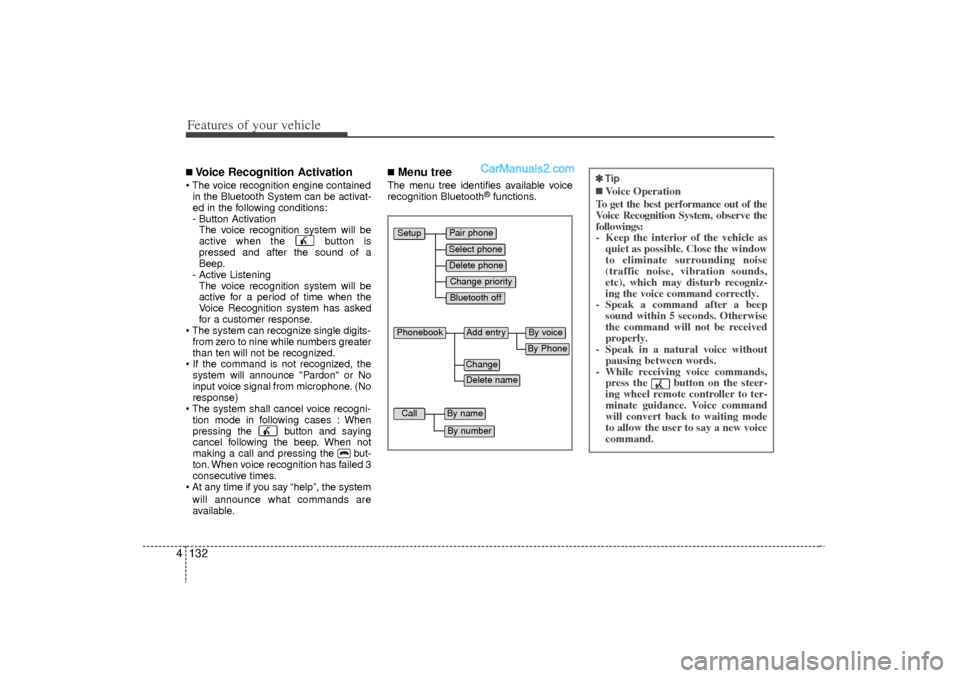
■Menu treeThe menu tree identifies available voice
recognition Bluetooth
®functions.
Pair phoneSelect phoneChange priorityDelete phoneBluetooth off
Setup
Add entry
Phonebook
ChangeDelete name
By PhoneBy voice
Call
By nameBy number
✽
✽ Tip■Voice Operation
To get the best performance out of the
Voice Recognition System, observe the
followings:
- Keep the interior of the vehicle as quiet as possible. Close the window
to eliminate surrounding noise
(traffic noise, vibration sounds,
etc), which may disturb recogniz-
ing the voice command correctly.
- Speak a command after a beep sound within 5 seconds. Otherwise
the command will not be received
properly.
- Speak in a natural voice without pausing between words.
- While receiving voice commands, press the button on the steer-
ing wheel remote controller to ter-
minate guidance. Voice command
will convert back to waiting mode
to allow the user to say a new voice
command.
YF HMA 4-105~(Audio).qxp 8/24/2010 2:06 PM Page 132
Page 219 of 390
4 137
Features of your vehicle
✽
✽NOTICE• The system can recognize single digits
from zero to nine. Numbers that are
ten or greater cannot be recognized.
• You can enter each digit individually or group digits together in preferred
string lengths.
• To speed up input, it is a good idea to group all digits into a continuous
string.
• The display corresponding to each oper- ation appears on the screen as follows:
• Input operation example: 1. Say: “Nine, nine, five”
➟Display: “995”
2. And say: “Seven, three, four”➟Display: “995734”
Adding Entry by Phone➀
Press button.
➁
Say "Phonebook".
\b
Say "Add Entry" after prompt.
➃
Say "By Phone" to proceed.
➄
Say “Yes” to confirm.
➅
Your phone will start to transfer
phone/contact list to the audio system.
This process may take over 10 min-
utes depending on the phone model
and number of entries.
\f
Wait till the audio displays “Transfer
Complete” message.
Changing Name
The registered names can be modified.
➀
Press button.
➁
Say “Phonebook”
\b
Say “Change Name” after prompt.
➃
Say the name of the entry (voice tag).
➄
Say “Yes” to confirm.
➅
Say new desired name.
Deleting Name
The registered names can be deleted.
➀
Press button.
➁
Say “Phonebook”
\b
Say “Delete Name” after prompt.
➃
Say the name of the entry (voice tag)
➄
Say “Yes” to confirm.
■Making a Phone Call Calling by Name
A phone call can be made by speaking
names registered in the audio system.➀
Press button.
➁
Say "Call".
\b
Say “Name” when prompted.
➃
Say desired name (in Phonebook or
voice tag).
➄
Say desired location (phone number
type). Only stored locations can be
selected.
➅
Say “Yes” to confirm and make a call.
✽ ✽ Tip
A shortcut to each of the following func-
tions is available:➀
Say “Call Name”
Direct Calling ➀
Press button.
➁
Sat the following command.
- Call
- Call
- Call
- Call
YF HMA 4-105~(Audio).qxp 8/24/2010 2:06 PM Page 137
Page 226 of 390
Driving your vehicle45
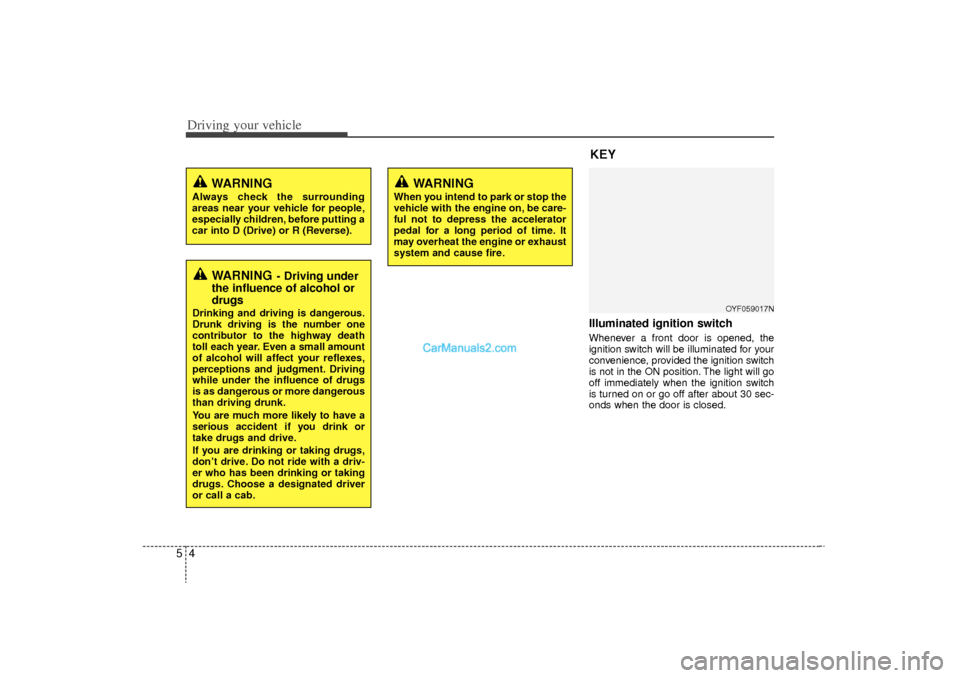
Illuminated ignition switch Whenever a front door is opened, the
ignition switch will be illuminated for your
convenience, provided the ignition switch
is not in the ON position. The light will go
off immediately when the ignition switch
is turned on or go off after about 30 sec-
onds when the door is closed.
OYF059017N
WARNING
Always check the surrounding
areas near your vehicle for people,
especially children, before putting a
car into D (Drive) or R (Reverse).
WARNING
When you intend to park or stop the
vehicle with the engine on, be care-
ful not to depress the accelerator
pedal for a long period of time. It
may overheat the engine or exhaust
system and cause fire.
WARNING
- Driving under
the influence of alcohol or
drugs
Drinking and driving is dangerous.
Drunk driving is the number one
contributor to the highway death
toll each year. Even a small amount
of alcohol will affect your reflexes,
perceptions and judgment. Driving
while under the influence of drugs
is as dangerous or more dangerous
than driving drunk.
You are much more likely to have a
serious accident if you drink or
take drugs and drive.
If you are drinking or taking drugs,
don’t drive. Do not ride with a driv-
er who has been drinking or taking
drugs. Choose a designated driver
or call a cab.
KEY
YF HMA 5.qxp 8/20/2010 5:43 PM Page 4
Page 235 of 390
513
Driving your vehicle
Good driving practices Never take the vehicle out of gear andcoast down a hill. This is extremely
hazardous. Always leave the vehicle in
gear.
Do not "ride" the brakes. This can cause them to overheat and malfunc-
tion. Instead, when you are driving
down a long hill, shift to a lower gear.
When you do this, engine braking will
help slow down the vehicle.
Slow down before shifting to a lower gear. This will help avoid over-revving
the engine, which can cause damage.
Slow down when you encounter cross winds. This gives you much better con-
trol of your vehicle.
Be sure the vehicle is completely stopped before you attempt to shift into
R (Reverse). The transaxle can be
damaged if you do not. To shift into R
(Reverse), depress the clutch, move
the shift lever to neutral, wait three sec-
onds, then shift to the R (Reverse)
position.
Exercise extreme caution when driving on a slippery surface. Be especially
careful when braking, accelerating or
shifting gears. On a slippery surface,
an abrupt change in vehicle speed can
cause the drive wheels to lose traction
and the vehicle to go out of control.
WARNING
Always buckle-up! In a collision,
an unbelted occupant is signifi-
cantly more likely to be seriously
injured or killed than a properly
belted occupant.
Avoid high speeds when corner- ing or turning.
Do not make quick steering wheel movements, such as sharp
lane changes or fast, sharp turns.
The risk of rollover is greatly increased if you lose control of
your vehicle at highway speeds.
Loss of control often occurs if two or more wheels drop off the
roadway and the driver over-
steers to reenter the roadway.
In the event your vehicle leaves the roadway, do not steer sharply.
Instead, slow down before pulling
back into the travel lanes.
Never exceed posted speed lim- its.
YF HMA 5.qxp 8/20/2010 5:44 PM Page 13