display HYUNDAI TUCSON 2009 Owners Manual
[x] Cancel search | Manufacturer: HYUNDAI, Model Year: 2009, Model line: TUCSON, Model: HYUNDAI TUCSON 2009Pages: 273, PDF Size: 10.29 MB
Page 67 of 273
1FEATURES OF YOUR HYUNDAI56
B310B02JM-C
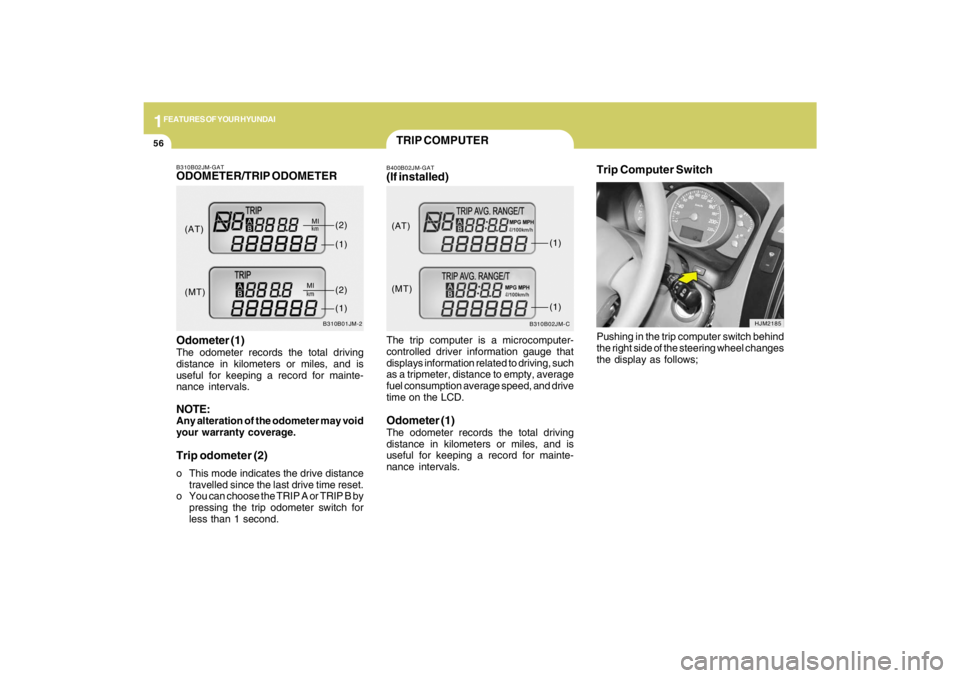
(AT)
(MT)(1)
(1)
TRIP COMPUTERB400B02JM-GAT(If installed)The trip computer is a microcomputer-
controlled driver information gauge that
displays information related to driving, such
as a tripmeter, distance to empty, average
fuel consumption average speed, and drive
time on the LCD.Odometer (1)The odometer records the total driving
distance in kilometers or miles, and is
useful for keeping a record for mainte-
nance intervals.
Trip Computer Switch
HJM2185
Pushing in the trip computer switch behind
the right side of the steering wheel changes
the display as follows;
B310B02JM-GATODOMETER/TRIP ODOMETER
B310B01JM-2
Odometer (1)The odometer records the total driving
distance in kilometers or miles, and is
useful for keeping a record for mainte-
nance intervals.NOTE:Any alteration of the odometer may void
your warranty coverage.Trip odometer (2)o This mode indicates the drive distance
travelled since the last drive time reset.
o You can choose the TRIP A or TRIP B by
pressing the trip odometer switch for
less than 1 second.(AT)
(MT)(1)
(2)(1)(2)
Page 68 of 273
1
FEATURES OF YOUR HYUNDAI
57
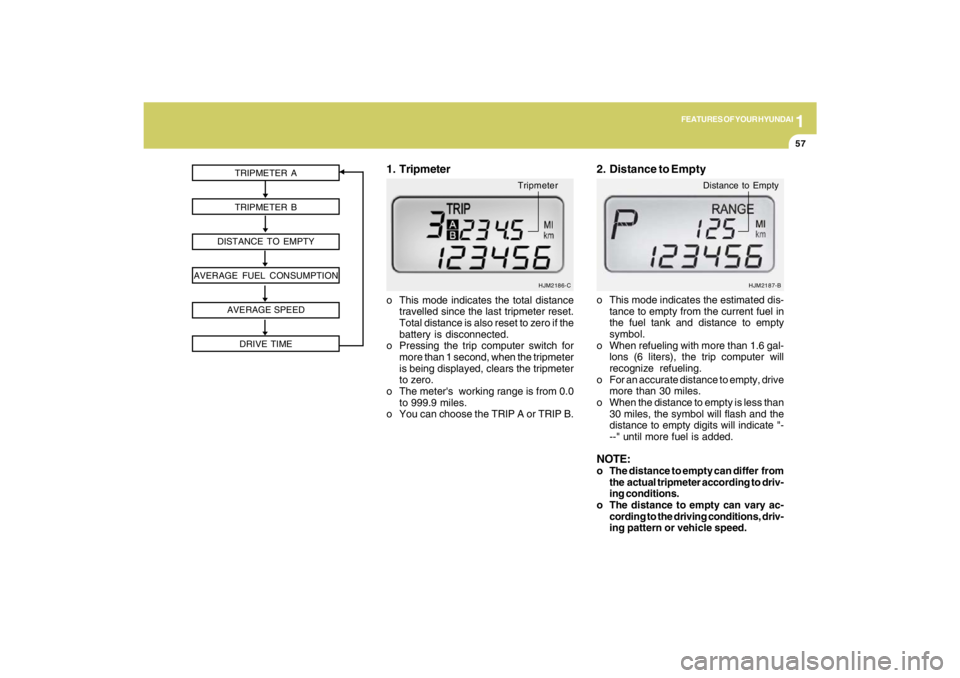
TRIPMETER A
TRIPMETER B
DISTANCE TO EMPTY
AVERAGE FUEL CONSUMPTION
AVERAGE SPEED
DRIVE TIME
HJM2186-C
o This mode indicates the total distance
travelled since the last tripmeter reset.
Total distance is also reset to zero if the
battery is disconnected.
o Pressing the trip computer switch for
more than 1 second, when the tripmeter
is being displayed, clears the tripmeter
to zero.
o The meter's working range is from 0.0
to 999.9 miles.
o You can choose the TRIP A or TRIP B.1. Tripmeter
Tripmeter
o This mode indicates the estimated dis-
tance to empty from the current fuel in
the fuel tank and distance to empty
symbol.
o When refueling with more than 1.6 gal-
lons (6 liters), the trip computer will
recognize refueling.
o For an accurate distance to empty, drive
more than 30 miles.
o When the distance to empty is less than
30 miles, the symbol will flash and the
distance to empty digits will indicate "-
--" until more fuel is added.NOTE:o The distance to empty can differ from
the actual tripmeter according to driv-
ing conditions.
o The distance to empty can vary ac-
cording to the driving conditions, driv-
ing pattern or vehicle speed.2. Distance to Empty
HJM2187-B
Distance to Empty
Page 69 of 273
1FEATURES OF YOUR HYUNDAI58
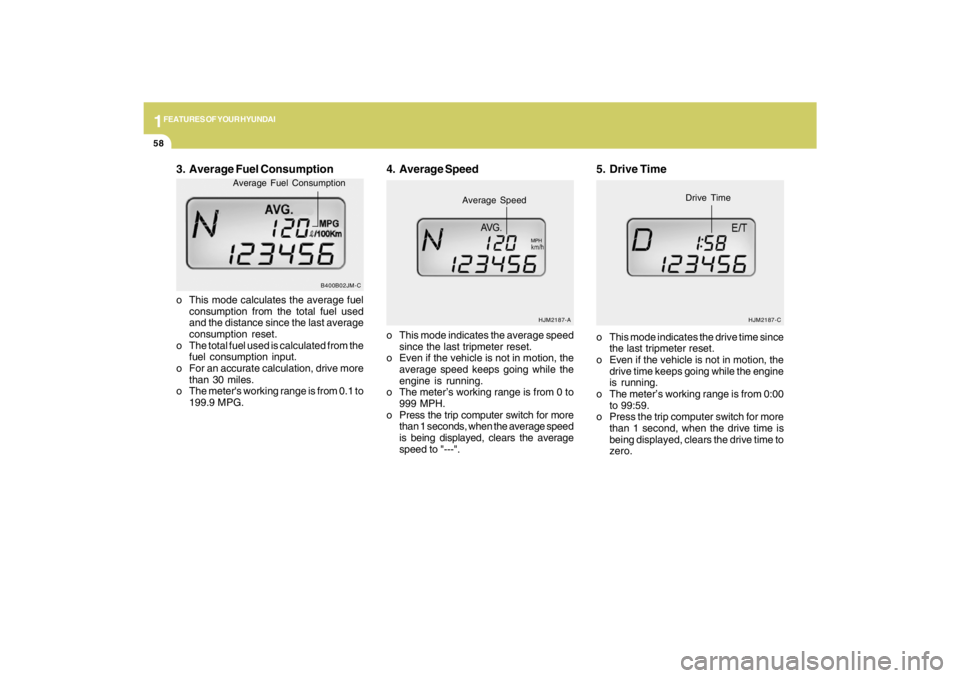
3. Average Fuel Consumptiono This mode calculates the average fuel
consumption from the total fuel used
and the distance since the last average
consumption reset.
o The total fuel used is calculated from the
fuel consumption input.
o For an accurate calculation, drive more
than 30 miles.
o The meter's working range is from 0.1 to
199.9 MPG.o This mode indicates the average speed
since the last tripmeter reset.
o Even if the vehicle is not in motion, the
average speed keeps going while the
engine is running.
o The meter’s working range is from 0 to
999 MPH.
o Press the trip computer switch for more
than 1 seconds, when the average speed
is being displayed, clears the average
speed to "---".
4. Average Speed
HJM2187-A
Average Speed
MPH
5. Drive Timeo This mode indicates the drive time since
the last tripmeter reset.
o Even if the vehicle is not in motion, the
drive time keeps going while the engine
is running.
o The meter’s working range is from 0:00
to 99:59.
o Press the trip computer switch for more
than 1 second, when the drive time is
being displayed, clears the drive time to
zero.
HJM2187-C
Drive Time
B400B02JM-C
Average Fuel Consumption
Page 87 of 273
1FEATURES OF YOUR HYUNDAI76
1. To operate Compass featurePress and release the button, then the
vehicle's directional heading will be dis-
played. Pressing and releasing the button
again will turn off the display.
Heading display
- E : East
- W : West
- S : South
- N : North
ex) NE : North East2. Calibration procedurePress and hold the button for more than 9
but less than 12 seconds. When the com-
pass memory is cleared a "C" will appear
in the display.
- Driving the vehicle in a circle at less
than 5mph 2 times or until the compass
heading appears.
- Driving in a circle in right-handed direc-
tion and opposite direction are pos-
sible, and if the calibration is completed,
the compass heading will appear.
- Keep driving in a circle until a compass
heading appears.
DAY/NIGHT INSIDE REARVIEW
MIRRORB520A01A-AATManual TypeYour Hyundai is equipped with a day/night
inside rearview mirror. The "night" position
is selected by flipping the tab at the bottom
of the mirror toward you. In the "night"
position, the glare of headlights of cars
behind you is reduced.
HJM2070B520C04JM-AAT
AUTOMATIC DIMMING REAR VIEW
MIRROR WITH COMPASS
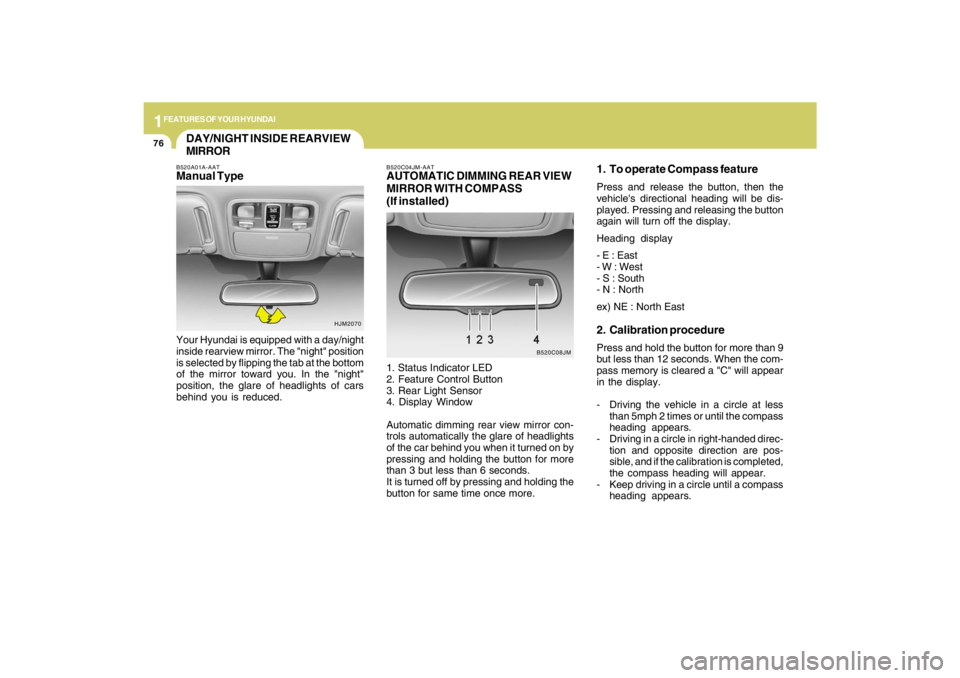
(If installed)1. Status Indicator LED
2. Feature Control Button
3. Rear Light Sensor
4. Display Window
Automatic dimming rear view mirror con-
trols automatically the glare of headlights
of the car behind you when it turned on by
pressing and holding the button for more
than 3 but less than 6 seconds.
It is turned off by pressing and holding the
button for same time once more.
B520C08JM
Page 88 of 273
1
FEATURES OF YOUR HYUNDAI
77
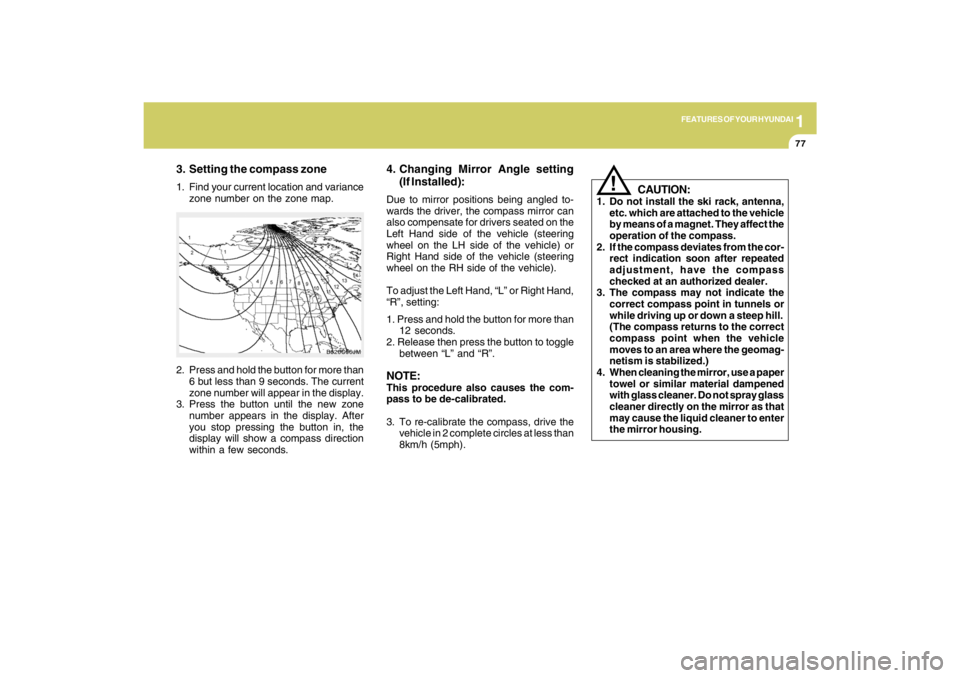
3. Setting the compass zone1. Find your current location and variance
zone number on the zone map.
2. Press and hold the button for more than
6 but less than 9 seconds. The current
zone number will appear in the display.
3. Press the button until the new zone
number appears in the display. After
you stop pressing the button in, the
display will show a compass direction
within a few seconds.
B520C06JM
4. Changing Mirror Angle setting
(If Installed):Due to mirror positions being angled to-
wards the driver, the compass mirror can
also compensate for drivers seated on the
Left Hand side of the vehicle (steering
wheel on the LH side of the vehicle) or
Right Hand side of the vehicle (steering
wheel on the RH side of the vehicle).
To adjust the Left Hand, “L” or Right Hand,
“R”, setting:
1. Press and hold the button for more than
12 seconds.
2. Release then press the button to toggle
between “L” and “R”.NOTE:This procedure also causes the com-
pass to be de-calibrated.
3. To re-calibrate the compass, drive the
vehicle in 2 complete circles at less than
8km/h (5mph).
CAUTION:
1. Do not install the ski rack, antenna,
etc. which are attached to the vehicle
by means of a magnet. They affect the
operation of the compass.
2. If the compass deviates from the cor-
rect indication soon after repeated
adjustment, have the compass
checked at an authorized dealer.
3. The compass may not indicate the
correct compass point in tunnels or
while driving up or down a steep hill.
(The compass returns to the correct
compass point when the vehicle
moves to an area where the geomag-
netism is stabilized.)
4. When cleaning the mirror, use a paper
towel or similar material dampened
with glass cleaner. Do not spray glass
cleaner directly on the mirror as that
may cause the liquid cleaner to enter
the mirror housing.
!
Page 114 of 273
1
FEATURES OF YOUR HYUNDAI
103103103103103
AUTOMATIC HEATING AND COOLING CONTROL SYSTEMB970A01Y-AAT(If installed)Your Hyundai is equipped with an auto-
matic heating and cooling control system
controlled by simply setting the desired
temperature.
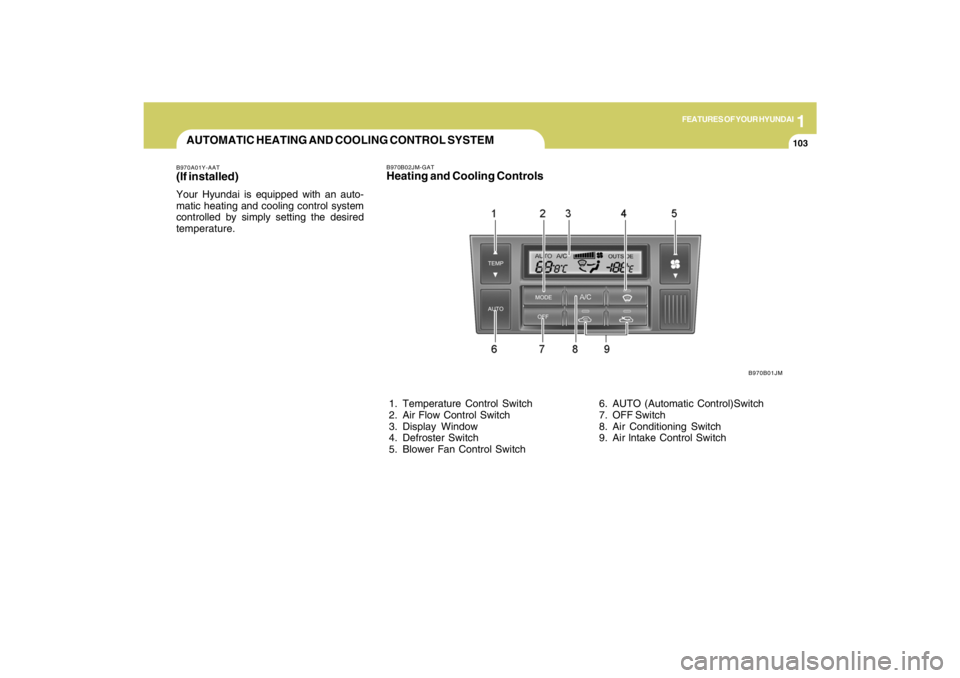
B970B01JM B970B02JM-GAT
Heating and Cooling Controls 1. Temperature Control Switch
2. Air Flow Control Switch
3. Display Window
4. Defroster Switch
5. Blower Fan Control Switch 6. AUTO (Automatic Control)Switch
7. OFF Switch
8. Air Conditioning Switch
9. Air lntake Control Switch
Page 115 of 273
1FEATURES OF YOUR HYUNDAI
104
Photo sensor
HJM2086
NOTE:o If the battery has been discharged or
disconnected, the temperature mode
will reset to Centigrade degrees.
This is a normal condition and you can
change the temperature mode from
Centigrade to Farenheit as follows;
Press the "TEMP" down button and
"AUTO" button simultaneously for 3
secs. The display shows that the unit
of temperature is adjusted to Centi-
grade or Fahrenheit.
(°C
→ →→ →
→°F or °F
→ →→ →
→°C)
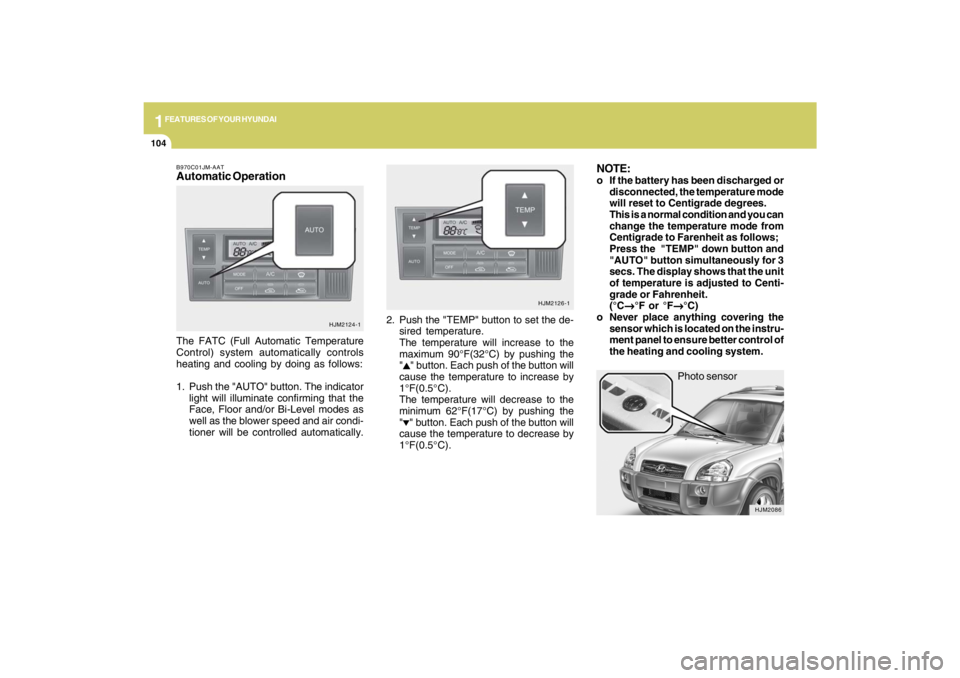
o Never place anything covering the
sensor which is located on the instru-
ment panel to ensure better control of
the heating and cooling system.
B970C01JM-AATAutomatic OperationThe FATC (Full Automatic Temperature
Control) system automatically controls
heating and cooling by doing as follows:
1. Push the "AUTO" button. The indicator
light will illuminate confirming that the
Face, Floor and/or Bi-Level modes as
well as the blower speed and air condi-
tioner will be controlled automatically.2. Push the "TEMP" button to set the de-
sired temperature.
The temperature will increase to the
maximum 90°F(32°C) by pushing the
"
" button. Each push of the button will
cause the temperature to increase by
1°F(0.5°C).
The temperature will decrease to the
minimum 62°F(17°C) by pushing the
"" button. Each push of the button will
cause the temperature to decrease by
1°F(0.5°C).
HJM2124-1HJM2126-1
Page 124 of 273
1
FEATURES OF YOUR HYUNDAI
113113113113113
AUDIO SYSTEMPA710E01JM-GATRADIO, SET UP, VOLUME CONTROL (PA 710S) (If installed)
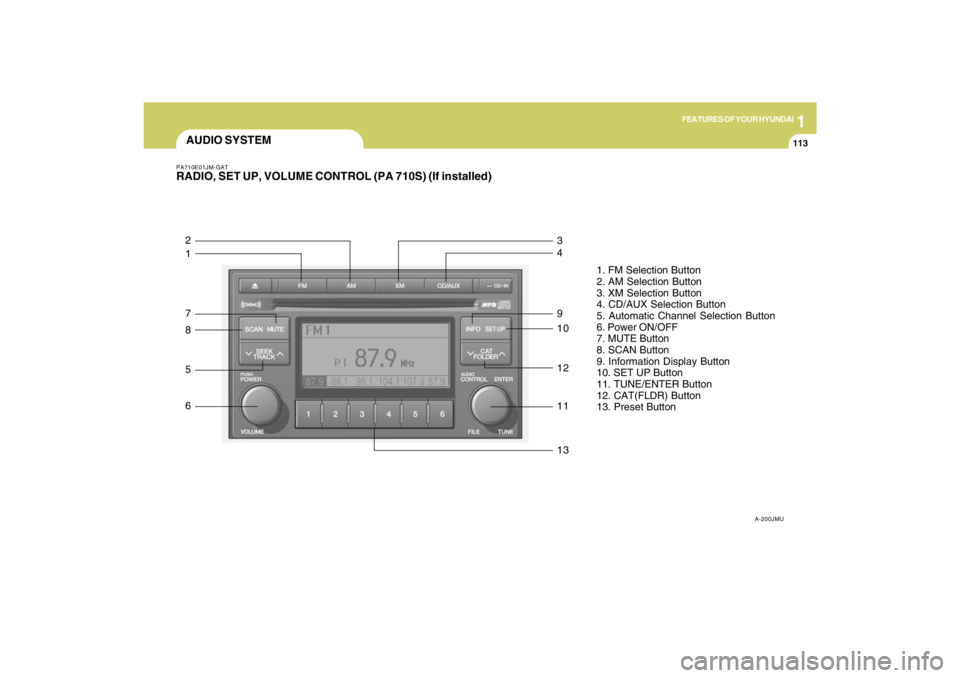
A-200JMU
1. FM Selection Button
2. AM Selection Button
3. XM Selection Button
4. CD/AUX Selection Button
5. Automatic Channel Selection Button
6. Power ON/OFF
7. MUTE Button
8. SCAN Button
9. Information Display Button
10. SET UP Button
11. TUNE/ENTER Button
12. CAT(FLDR) Button
13. Preset Button
1 2
7
8
5
6
13 11 12 10 9 4 3
Page 125 of 273

1FEATURES OF YOUR HYUNDAI
114
1. FM Selection ButtonTurns to FM mode and toggles FM1 and
FM2 when the button is pressed each time.2. AM Selection ButtonTurns to AM mode, and toggles in the order
of AM1➟AM2➟···➟AM1···when the button
is pressed each time.3. XM Selection ButtonTurns to XM mode, and toggles in the order
of XM1➟XM2➟XM3➟···➟XM1··· when the
button is pressed each time.4. CD/AUX Selection ButtonIf there is a cd in the CDP DECK it turns to
CD mode, and if a device is connected to
AUX then it toggles.
CD➟AUX➟CD··· when the button is
pressed each time.(It will not turn to AUX if
the auxiliary device is not connected)
5. Automatic Channel Selection
Buttono When the [SEEK
]button is pressed,
it reduces the band frequency by 200khz
to automatically select channel. Stops
at the previous frequency if no channel
is found.
o When the [SEEK ]button is pressed,
it increases the band frequency by
50khz to automatically select channel.
Stops at the previous frequency if no
channel is found.
6. Power ON/OFF & Volume Control
ButtonTurns on/off the set when the IGNITION
SWITCH is on ACC or ON. If the button is
turned to the right, it increases the volume
and left, decreases the volume.7. MUTE ButtonPress to temporarily cut off the Sound.8. SCAN ButtonIf this button is pressed, the frequencies
will become increased and receive the
corresponding broadcasts.
This function will play the frequencies for
5 seconds (XM MODE : 10 seconds) each
and find other broadcasts as the frequency
increases.Press the button again when desiring to
continue listening to the currently playing
broadcast.
9. Information Display ButtonInformation Display function operation (In-
formation is displayed each time (the) Key
is pressed) : Pressing the Category
➟Channel Name ➟Artist Name➟Song
Title➟Category-KEY for 3 seconds will
display the corresponding text then be-
come restored.
Text Scroll operation :
After pressing (the) Key, if the text to be
displayed is longer than the LCD text line,
then rotating the Tune Knob will operate
the Page up function displaying 8 charac-
ters for 3 seconds each - displays the
maximum lines of text supported by XM.10. SET UP ButtonPress this button to turn to the XMoption,
SCROLL and adjustment mode.
If no action is taken for 5 seconds after
pressing the button, it will return to the play
mode.(After entering SET UP mode, move
between items using the left, right and
PUSH functions of the TUNE button.)
The set up item changes from AUDIO ad-
justment, TEXT SCROLL, XM setup.
Page 126 of 273

1
FEATURES OF YOUR HYUNDAI
115115115115115
11. TUNE/ENTER ButtonTurn this button clockwise by one notch to
increase frequency by 0.05Mhz from cur-
rent frequency.
Turn this button counterclockwise by one
notch to decrease frequency by 0.05Mhz
from current frequency.
Press this button while holding SET UP
button to activate / inactivate the item to.
Select SET UP item using left and right
function of the Tune button.
Pressing the changes the BASS, MIDR-
ANGE, TREBLE, FADER and BALANCE
TUNE mode.
The mode selected is shown on the dis-
play. After selecting each mode, rotate the
Audio control knob clockwise or counter-
clockwise.
o BASS Control
To increase the BASS, rotate the knob
clockwise, while to decrease the BASS,
rotate the knob counterclockwise.
o MID-RANGE Control
To increase the MID-RANGE, rotate the
knob clockwise, while to decrease the
MID-RANGE, rotate the knob counterclock-
wise.o TREBLE Control
To increase the TREBLE, rotate the knob
clockwise, while to decrease the TREBLE,
rotate the knob counterclockwise.
o FADER Control
Turn the control knob clockwise to emph-
asize rear speaker sound (front speaker
sound will be attenuated). When the con-
trol knob is turned counterclockwise, front
speaker sound will be emphasized (rear
speaker sound will be attenuated).
o BALANCE Control
Rotate the knob clockwise to emphasize
right speaker sound (left speaker sound
will be attenuated). When the control knob
is turned counter clockwise, left speaker
sound will be emphasized (right speaker
sound will be attenuated).
12. CAT(FLDR) ButtonMoves [CAT
] Button when Category Up
search operation.
o Category is moved Up from the cat-
egory currently being received and
Category Name becomes displayed.
o If the Enter Key is not pressed within 5
seconds, then the previous mode will
be restored.o If the Key is pressed while in the last
Category, then the first category will
become displayed and operation will
be repeated.
o Corresponding category can be se-
lected by pressing ENTER.
Moves [CAT
] Button when Category
Down search operation.
o Category is moved Down from the cat-
egory currently being received and
Category Name becomes displayed.
o If the Enter Key is not pressed within 5
seconds, then the previous mode will
be restored.
o If the [CAT ] Key is pressed while in
the first Category, then the last category
will become displayed and operation
will be repeated.
o Corresponding category can be se-
lected by pressing ENTER.
13. Preset ButtonPush [1]~[6] buttons less than 0.8 seconds
to play the channel saved in each button.
Push pre-set button for 0.8 seconds or
longer to save current channel to the re-
spective button with a beep.