ECO mode HYUNDAI TUCSON 2010 User Guide
[x] Cancel search | Manufacturer: HYUNDAI, Model Year: 2010, Model line: TUCSON, Model: HYUNDAI TUCSON 2010Pages: 382, PDF Size: 7.39 MB
Page 174 of 382
491
Features of your vehicle
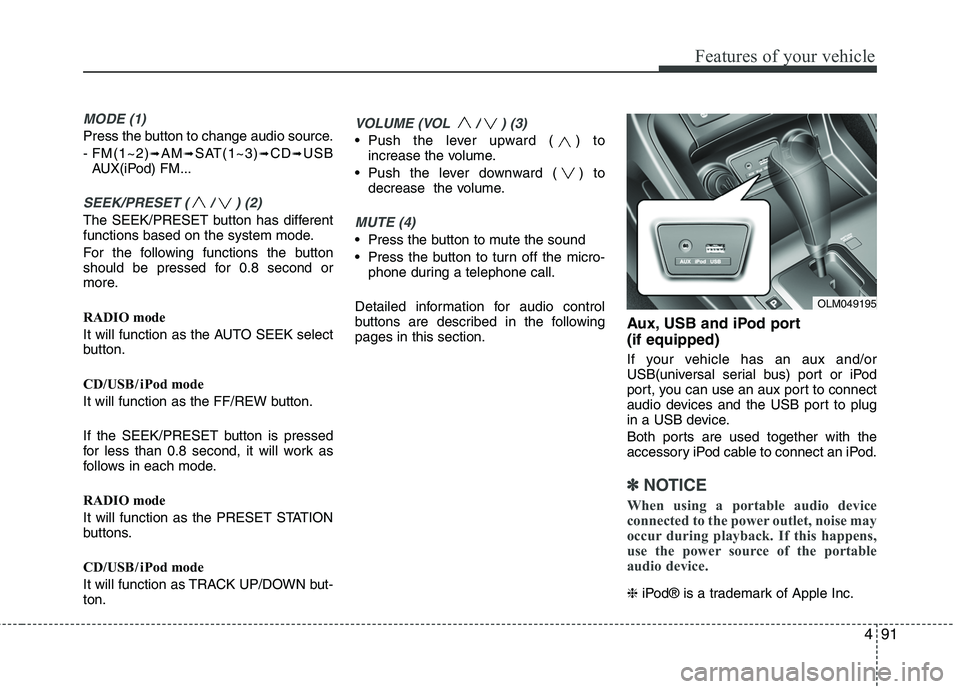
MODE (1)
Press the button to change audio source.
- FM(1~2)
➟AM➟SAT(1~3)➟CD➟USB
AUX(iPod) FM...
SEEK/PRESET ( / ) (2)
The SEEK/PRESET button has different
functions based on the system mode.
For the following functions the button
should be pressed for 0.8 second or
more.
RADIO mode
It will function as the AUTO SEEK select
button.
CD/USB/ iPod mode
It will function as the FF/REW button.
If the SEEK/PRESET button is pressed
for less than 0.8 second, it will work as
follows in each mode.
RADIO mode
It will function as the PRESET STATION
buttons.
CD/USB/ iPod mode
It will function as TRACK UP/DOWN but-
ton.
VOLUME (VOL / ) (3)
• Push the lever upward ( ) to increase the volume.
Push the lever downward ( ) to decrease the volume.
MUTE (4)
Press the button to mute the sound
Press the button to turn off the micro-phone during a telephone call.
Detailed information for audio control
buttons are described in the following
pages in this section.
Aux, USB and iPod port
(if equipped)
If your vehicle has an aux and/or
USB(universal serial bus) port or iPod
port, you can use an aux port to connect
audio devices and the USB port to plug
in a USB device.
Both ports are used together with the
accessory iPod cable to connect an iPod.
✽ ✽ NOTICE
When using a portable audio device
connected to the power outlet, noise may
occur during playback. If this happens,
use the power source of the portable
audio device.
❈ iPod® is a trademark of Apple Inc.
OLM049195
Page 180 of 382
![HYUNDAI TUCSON 2010 User Guide
497
Features of your vehicle
Using RADIO, SETUP, VOLUME
and AUDIO CONTROL
1. AM Selection Button
Pressing the [AM] button selects the AM
band. AM Mode is displayed on the LCD.
2. FM Selection Button](/img/35/56207/w960_56207-179.png "HYUNDAI TUCSON 2010 User Guide
497
Features of your vehicle
Using RADIO, SETUP, VOLUME
and AUDIO CONTROL
1. AM Selection Button
Pressing the [AM] button selects the AM
band. AM Mode is displayed on the LCD.
2. FM Selection Button")
497
Features of your vehicle
Using RADIO, SETUP, VOLUME
and AUDIO CONTROL
1. AM Selection Button
Pressing the [AM] button selects the AM
band. AM Mode is displayed on the LCD.
2. FM Selection Button Turns to FM mode and toggles FM1 and
FM2 when the button is pressed each
time.
3. Automatic Station Seek Button
When the [SEEK ] is pressed, it willautomatically tune to the next lower
station.
When the [SEEK ] is pressed, it will automatically tune to the next higher
station.
4. Power ON/OFF Button & Volume Control Knob
Turns the audio system on/off when
the ignition switch is on ACC or ON.
If the knob is turned clockwise/counter- clockwise, the volume will increase
/decrease.
5. Preset Selection Button
Press [1]~[6] buttons less than 0.8 sec-ond to play the station saved in each
button.
Press [1]~[6] b utton more than 0.8 sec-
ond or longer to save the current station
to the respective button with a beep.
6. SCAN Button
When the button is pressed, it auto- matically scans the radio stations
upwards.
The SCAN feature steps through each station, starting from the initial station,
for ten seconds.
Press the [SCAN] button again to stop the scan feature and to listen to the
currently selected channel.
7. DISP Button
Turn the LCD Display & Backlight on/off
when [DISP] button press.
8. SETUP Button
Press this Button to enter SETUP mode,
If no action is taken for 8 seconds, it will
return to previous mode.
In “SETUP” mode, rotate the TUNE knob
to move the cursor between items, and
push the TUNE knob to select.
Select whether long file names are
scrolled continuously (“ON”) or just once
(“OFF”).
Select this item to turn the SDVC(Speed
Dependent Volume Control) feature ON
or OFF. If it is turned ON, volume level is
adjusted automatically according to the
vehicle speed.
This function creates virtual sound
effects and allows adjustments to the
BASS level.
HIGH
➟MID ➟LOW ➟OFF
Select default display of XM mode.
“Category/Channel name” or “Artist/Song
Title” can be selected.
Page 183 of 382
Features of your vehicle
100
4
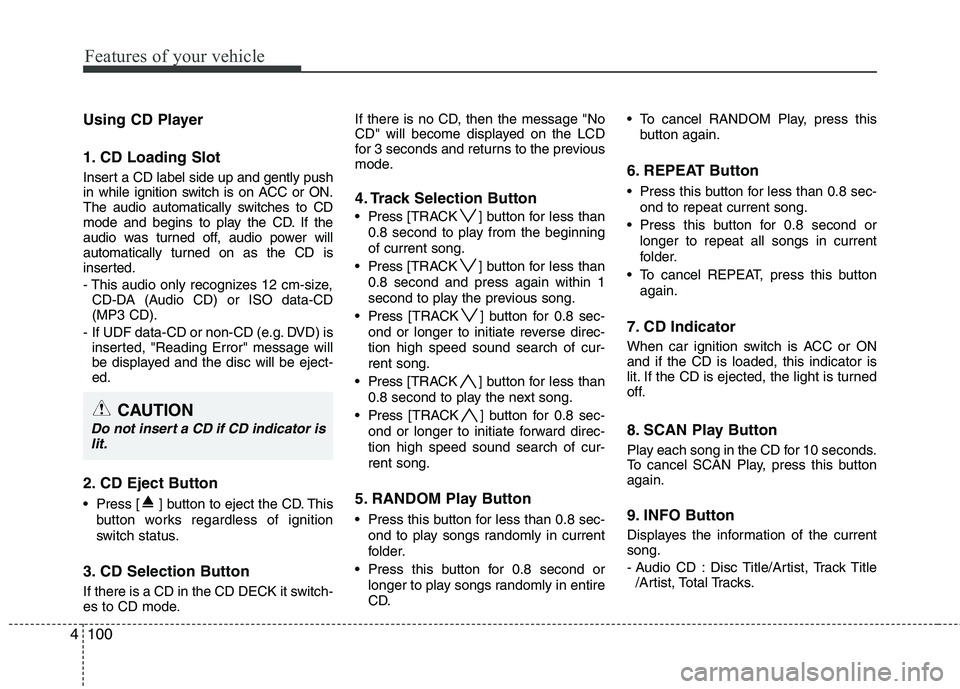
Using CD Player
1. CD Loading Slot
Insert a CD label side up and gently push
in while ignition switch is on ACC or ON.
The audio automatically switches to CD
mode and begins to play the CD. If the
audio was turned off, audio power will
automatically turned on as the CD is
inserted.
- This audio only recognizes 12 cm-size,
CD-DA (Audio CD) or ISO data-CD
(MP3 CD).
- If UDF data-CD or non-CD (e.g. DVD) is inserted, "Reading Error" message will
be displayed and the disc will be eject-
ed.
2. CD Eject Button
Press [ ] button to eject the CD. This
button works regardless of ignition
switch status.
3. CD Selection Button
If there is a CD in the CD DECK it switch-
es to CD mode. If there is no CD, then the message "No
CD" will become displayed on the LCD
for 3 seconds and returns to the previous
mode.
4. Track Selection Button
Press
[TRACK ] button for less than
0.8 second to play from the beginning
of current song.
Press [TRACK ] button for less than
0.8 second and press again within 1
second to play the previous song.
Press [TRACK ] button for 0.8 sec-
ond or longer to initiate reverse direc-
tion high speed sound search of cur-
rent song.
Press [TRACK ] button for less than
0.8 second to play the next song.
Press [TRACK ] button for 0.8 sec-
ond or longer to initiate forward direc-
tion high speed sound search of cur-
rent song.
5. RANDOM Play Button
Press this button for less than 0.8 sec- ond to play songs randomly in current
folder.
Press this button for 0.8 second or longer to play songs randomly in entire
CD. To cancel RANDOM Play, press this
button again.
6. REPEAT Button
Press this button for less than 0.8 sec-ond to repeat current song.
Press this button for 0.8 second or longer to repeat all songs in current
folder.
To cancel REPEAT, press this button again.
7. CD Indicator
When car ignition switch is ACC or ON
and if the CD is loaded, this indicator is
lit. If the CD is ejected, the light is turned
off.
8. SCAN Play Button
Play each song in the CD for 10 seconds.
To cancel SCAN Play, press this button
again.
9. INFO Button
Displayes the information of the current
song.
- Audio CD : Disc Title/Artist, Track Title/Artist, Total Tracks.
CAUTION
Do not insert a CD if CD indicator islit.
Page 185 of 382
Features of your vehicle
102
4
CAUTION IN USING
USB DEVICE
To use an external USB device,
make sure the device is notmounted when starting up thevehicle and mount the deviceafter starting up.
If you start the vehicle when the USB device is mounted, it maydamage the USB device. (USB isnot ESA.)
If the vehicle is started up or turned off while the external USBdevice is connected, the external USB device may not work.
It may not play inauthentic MP3 or WMA files.
1) It can only play MP3 files with the compression rate between8Kbps~320Kbps.
2) It can only play WMA music files with the compression ratebetween 8Kbps~320Kbps.
Take cautions for static electricity when mounting or dismountingthe external USB device.
An encoded MP3 PLAYER is not recognizable.
(Continued)
(Continued) Depending on the condition of the external USB device, the con-nected external USB device canbe unrecognizable.
When the formatted byte/sector setting of External USB devices isnot either 512 BYTE or 2048BYTE, then the device will not berecognized.
Use only a USB device formatted to FAT 12/16/32.
USB devices without USB IF authentication may not be recog-nizable.
Make sure the USB connection terminal does not come in contactwith human bodies or externalobjects.
If you repeat mounting and dis- mounting the USB device in ashort period of time, it may breakthe device.
You may hear a strange noise when mounting or dismounting aUSB device.
(Continued)(Continued) If you dismount the external USB device during playback in USBmode, the external USB device canbe damaged or malfunction.Therefore, mount the external USBdevice when the engine is turned off or in another mode.
Depending on the type and capac- ity of the external USB device orthe type of the files stored in thedevice, there is a difference in thetime taken for recognition of thedevice, but this is not an indicatorof trouble and you only have towait.
Do not use the USB device for other purposes than playing music files.
Use of USB accessories such as recharger or heater using USB I/Fmay lower performance or causetrouble.
If you use devices such as a USB hub purchased separately, thevehicle’s audio system may notrecognize the USB device.Connect the USB device directlyto the multimedia terminal of thevehicle.
(Continued)
Page 188 of 382
4105
Features of your vehicle
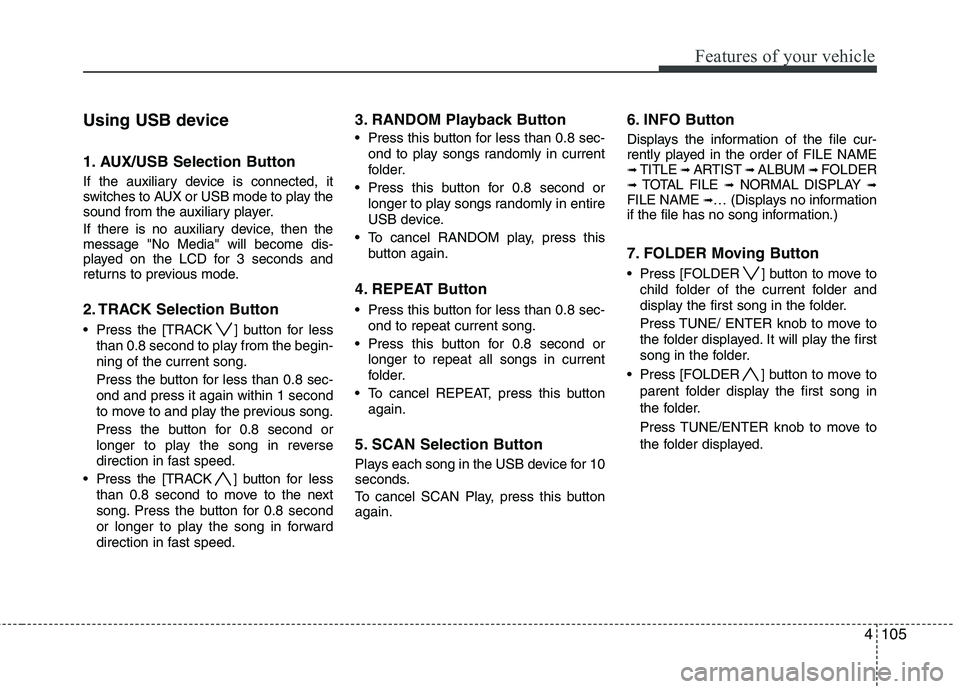
Using USB device
1. AUX/USB Selection Button
If the auxiliary device is connected, it
switches to AUX or USB mode to play the
sound from the auxiliary player.
If there is no auxiliary device, then the
message "No Media" will become dis-
played on the LCD for 3 seconds and
returns to previous mode.
2. TRACK Selection Button
Press the [TRACK ] button for lessthan 0.8 second to play from the begin-
ning of the current song.
Press the button for less than 0.8 sec-
ond and press it again within 1 second
to move to and play the previous song.
Press the button for 0.8 second or
longer to play the song in reverse
direction in fast speed.
Press the [TRACK ] button for less
than 0.8 second to move to the next
song. Press the button for 0.8 second
or longer to play the song in forward
direction in fast speed.
3. RANDOM Playback Button
Press this button for less than 0.8 sec- ond to play songs randomly in current
folder.
Press this button for 0.8 second or longer to play songs randomly in entire
USB device.
To cancel RANDOM play, press this button again.
4. REPEAT Button
Press this button for less than 0.8 sec-ond to repeat current song.
Press this button for 0.8 second or longer to repeat all songs in current
folder.
To cancel REPEAT, press this button again.
5. SCAN Selection Button
Plays each song in the USB device for 10
seconds.
To cancel SCAN Play, press this button
again.
6. INFO Button
Displays the information of the file cur-
rently played in the order of FILE NAME
➟ TITLE ➟ ARTIST ➟ ALBUM ➟ FOLDER➟ TOTAL FILE ➟NORMAL DISPLAY ➟FILE NAME ➟… (Displays no information
if the file has no song information.)
7. FOLDER Moving Button
Press [FOLDER ] button to move to
child folder of the current folder and
display the first song in the folder.
Press TUNE/ ENTER knob to move to
the folder displayed. It will play the first
song in the folder.
Press [FOLDER ] button to move to parent folder display the first song in
the folder.
Press TUNE/ENTER knob to move to
the folder displayed.
Page 191 of 382
Features of your vehicle
108
4
Using iPod
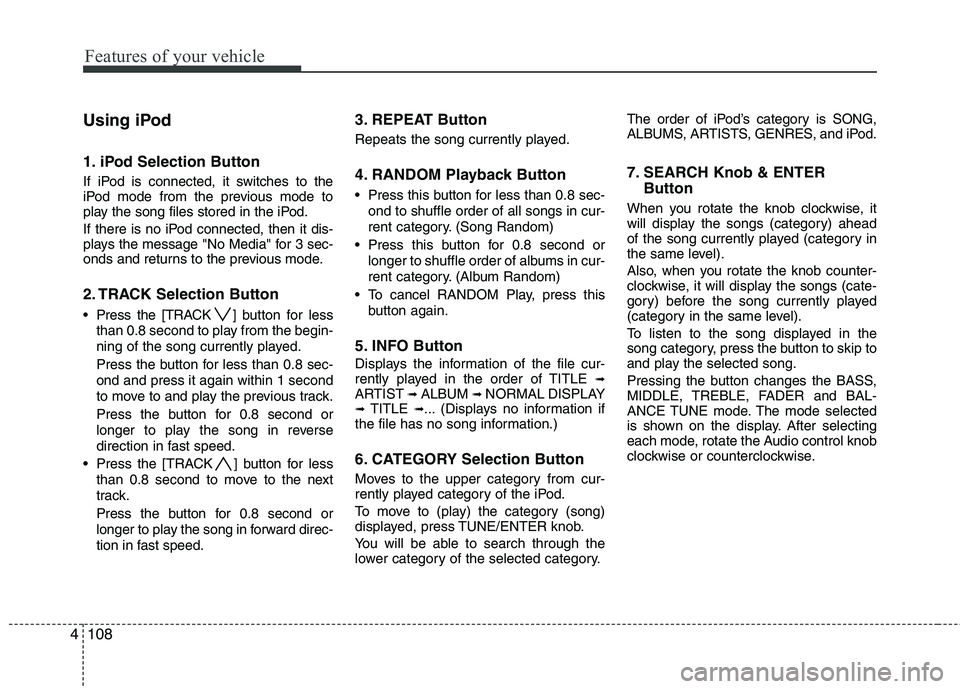
1. iPod Selection Button
If iPod is connected, it switches to the
iPod mode from the previous mode to
play the song files stored in the iPod.
If there is no iPod connected, then it dis-
plays the message "No Media" for 3 sec-
onds and returns to the previous mode.
2. TRACK Selection Button
Press the [TRACK ] but ton for less
than 0.8 second to play from the begin-
ning of the song currently played.
Press the button for less than 0.8 sec-
ond and press it again within 1 second
to move to and play the previous track.
Press the button for 0.8 second or
longer to play the song in reverse
direction in fast speed.
Press the [TRACK ] button for less than 0.8 second to move to the next
track.
Press the button for 0.8 second or
longer to play the song in forward direc-
tion in fast speed.
3. REPEAT Button
Repeats the song currently played.
4. RANDOM Playback Button
Press this button for less than 0.8 sec-ond to shuffle order of all songs in cur-
rent category. (Song Random)
Press this button for 0.8 second or longer to shuffle order of albums in cur-
rent category. (Album Random)
To cancel RANDOM Play, press this button again.
5. INFO Button
Displays the information of the file cur-
rently played in the order of TITLE ➟ARTIST ➟ALBUM ➟NORMAL DISPLAY➟TITLE ➟... (Displays no information if
the file has no song information.)
6. CATEGORY Selection Button
Moves to the upper category from cur-
rently played category of the iPod.
To move to (play) the category (song)
displayed, press TUNE/ENTER knob.
You will be able to search through the
lower category of the selected category. The order of iPod’s category is SONG,
ALBUMS, ARTISTS, GENRES, and iPod.
7. SEARCH Knob & ENTER
Button
When you rotate the knob clockwise, it
will display the songs (category) ahead
of the song currently played (category in
the same level).
Also, when you rotate the knob counter-
clockwise, it will display the songs (cate-
gory) before the song currently played
(category in the same level).
To listen to the song displayed in the
song category, press the button to skip to
and play the selected song.
Pressing the button changes the BASS,
MIDDLE, TREBLE, FADER and BAL-
ANCE TUNE mode. The mode selected
is shown on the display. After selecting
each mode, rotate the Audio control knob
clockwise or counterclockwise.
Page 192 of 382
4109
Features of your vehicle
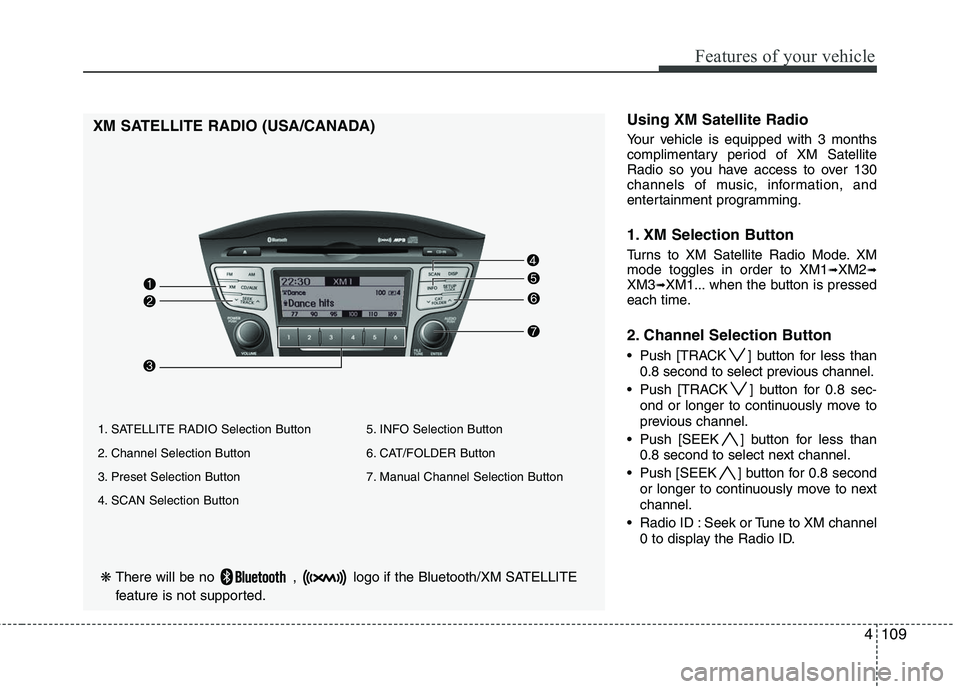
❋There will be no , logo if the Bluetooth/XM SATELLITE
feature is not supported.
XM SATELLITE RADIO (USA/CANADA)Using XM Satellite Radio
Your vehicle is equipped with 3 months
complimentary period of XM Satellite
Radio so you have access to over 130
channels of music, information, and
entertainment programming.
1. XM Selection Button
Turns to XM Satellite Radio Mode. XM
mode toggles in order to XM1➟XM2➟XM3➟XM1... when the button is pressed
each time.
2. Channel Selection Button
Push [TRACK ] button for less than
0.8 second to select previous channel.
Push [TRACK ] button for 0.8 sec- ond or longer to continuously move to
previous channel.
Push [SEEK ] button for less than 0.8 second to select next channel.
Push [SEEK ] button for 0.8 second or longer to continuously move to next
channel.
Radio ID : Seek or Tune to XM channel 0 to display the Radio ID.
1. SATELLITE RADIO Selection Button
2. Channel Selection Button
3. Preset Selection Button
4. SCAN Selection Button 5. INFO Selection Button
6. CAT/FOLDER Button
7. Manual Channel Selection Button
Page 196 of 382
4113
Features of your vehicle
■Voice Recognition Activation
in the Bluetooth System can be activat-
ed in the following conditions:
- Button Activation The voice recognition system will be
active when the button is
pressed and after the sound of a
Beep.
- Active Listening The voice recognition system will be
active for a period of time when the
Voice Recognition system has asked
for a customer response.
from zero to nine while number greater
than ten will not be recognized.
system will announce "Pardon" or No
input voice signal from microphone. (No
response)
tion mode in following cases : When
pressing the button and saying
cancel following the beep. When not
making a call and pressing the but-
ton. When voice recognition has failed 3
consecutive times. At any time if you say “help”, the sys-
tem will announce what commands are
available.
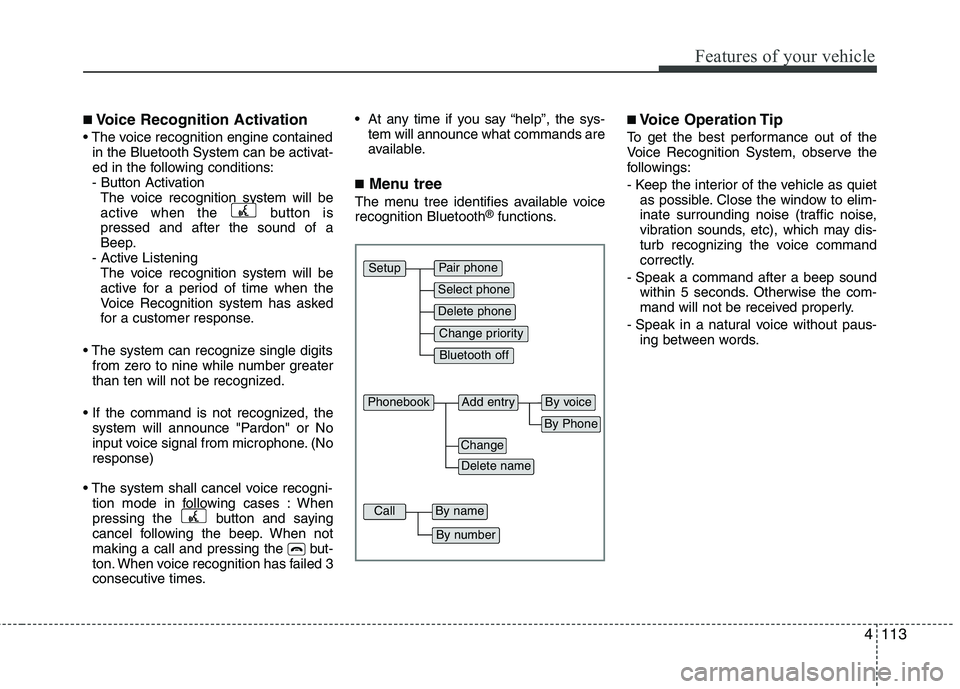
■Menu tree
The menu tree identifies available voice
recognition Bluetooth®functions.
■Voice Operation Tip
To get the best performance out of the
Voice Recognition System, observe the
followings:
- Keep the interior of the vehicle as quietas possible. Close the window to elim-
inate surrounding noise (traffic noise,
vibration sounds, etc), which may dis-
turb recognizing the voice command
correctly.
- Speak a command after a beep sound within 5 seconds. Otherwise the com-
mand will not be received properly.
- Speak in a natural voice without paus- ing between words.
Pair phone
Select phone
Change priority
Delete phone
Bluetooth off
Setup
Add entry
Phonebook
Change
Delete name
By Phone
By voice
Call
By name
By number
Page 197 of 382
Features of your vehicle
114
4
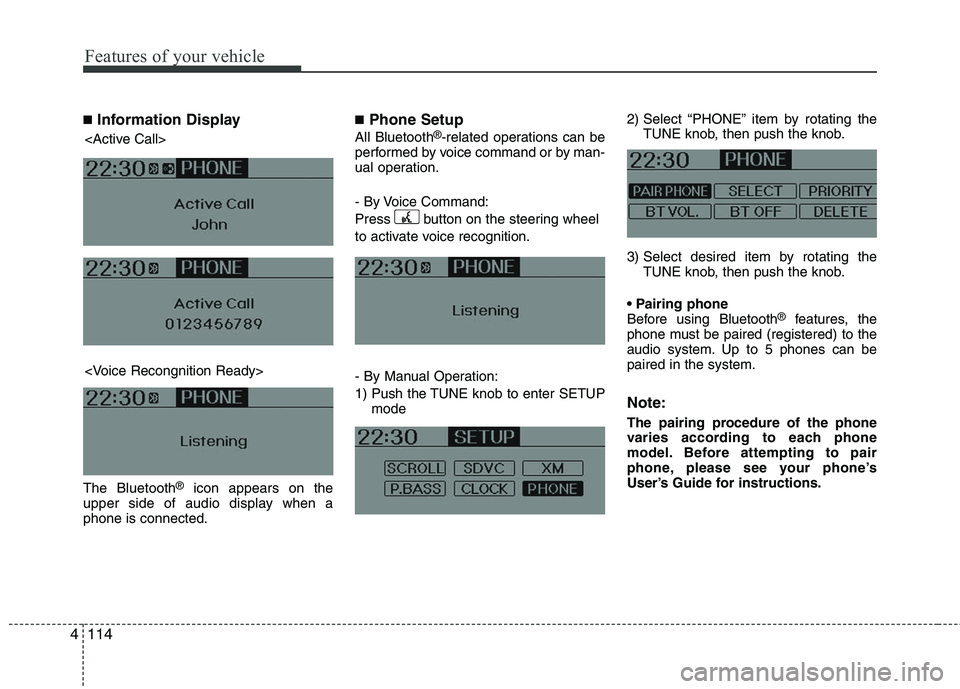
■Information Display
The Bluetooth®icon appears on the
upper side of audio display when a
phone is connected.
■Phone Setup
All Bluetooth®-related operations can be
performed by voice command or by man-
ual operation.
- By Voice Command:
Press button on the steering wheel
to activate voice recognition.
- By Manual Operation:
1) Push the TUNE knob to enter SETUP mode 2) Select “PHONE” item by rotating the
TUNE knob, then push the knob.
3) Select desired item by rotating the TUNE knob, then push the knob.
Before using Bluetooth
®features, the
phone must be paired (registered) to the
audio system. Up to 5 phones can be
paired in the system.
Note:
The pairing procedure of the phone
varies according to each phone
model. Before attempting to pair
phone, please see your phone’s
User’s Guide for instructions.
Page 198 of 382
4115
Features of your vehicle
Note:
Once pairing with the phone is com-
pleted, there is no need to pair with
that phone again unless the phone is
deleted manually from the audio sys-
tem (refer “Deleting Phone” section)
or the vehicle’s information is
removed from the phone.
1. Press button.
2. Say “Set Up”.- The system replies with availablecommands.
- To skip the information message, press again and then a beep is
heard.
3. Say “Pair Phone”
4. Say “Yes” to proceed.
5. Say the name of your phone when prompted.
- Use any name to uniquely describe your phone.
6. Bluetooth
®system will repeat the
name you stated.
7. Say "Yes" to confirm.
8. The audio displays “searching ----
passkey: 0000” and asks you to initiate
pairing procedure from the phone. 9. Search the Bluetooth
®system on your
phone .Your phone should display your
[vehicle model name] on the
Bluetooth
®device list. Then attempt
pairing on your phone
10. After Pairing is completed, your phone will start to transfer phone/con-
tact list to the audio system.
- This process may take from a few minutes to over 10 minutes depend-
ing on the phone model and number
of entries in the phone/contact list.
11. By manual operation: - Select “PAIR” in PHONE menu, thenproceed from step 5
Note:
Until the audio displays “Transfer
Complete”, Bluetooth®hands-free
feature may not be fully operational.
Note:
If the phone is paired to two or more
vehicles of the same model, i.e. both
vehicles are HMC TUCSON, some
phones may not handle Bluetooth
®
devices of that name correctly. In this
case, you may need to change the
name displayed on your phone from
TUCSON.
Refer to your phone’s User’s Guide, or
contact your cellular carrier or phone
manufacturer for instructions.