audio HYUNDAI TUCSON 2010 Owners Manual
[x] Cancel search | Manufacturer: HYUNDAI, Model Year: 2010, Model line: TUCSON, Model: HYUNDAI TUCSON 2010Pages: 382, PDF Size: 7.39 MB
Page 19 of 382
23
Your vehicle at a glance
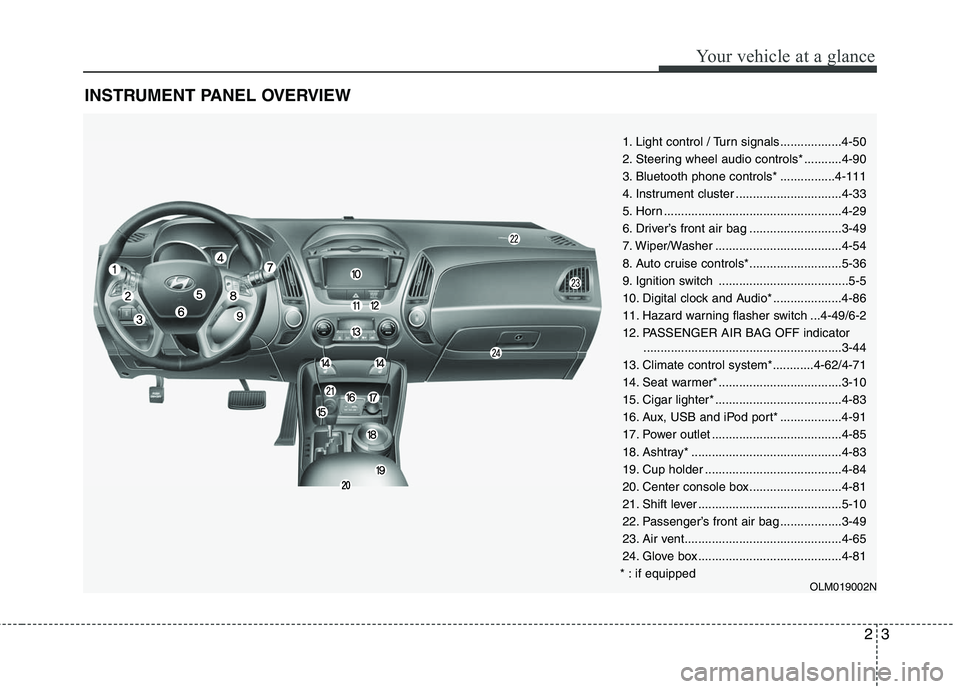
INSTRUMENT PANEL OVERVIEW
1. Light control / Turn signals..................4-50
2. Steering wheel audio controls* ...........4-90
3. Bluetooth phone controls* ................4-111
4. Instrument cluster ...............................4-33
5. Horn ....................................................4-29
6. Driver’s front air bag ...........................3-49
7. Wiper/Washer .....................................4-54
8. Auto cruise controls*...........................5-36
9. Ignition switch ......................................5-5
10. Digital clock and Audio* ....................4-86
11. Hazard warning flasher switch ...4-49/6-2
12. PASSENGER AIR BAG OFF indicator..........................................................3-44
13. Climate control system*............4-62/4-71
14. Seat warmer* ....................................3-10
15. Cigar lighter* .....................................4-83
16. Aux, USB and iPod port* ..................4-91
17. Power outlet ......................................4-85
18. Ashtray* ............................................4-83
19. Cup holder ........................................4-84
20. Center console box...........................4-81
21. Shift lever ..........................................5-10
22. Passenger’s front air bag ..................3-49
23. Air vent..............................................4-65
24. Glove box ..........................................4-81
* : if equipped
OLM019002N
Page 85 of 382
Interior features / 4-83
Exterior features / 4-89 Audio system / 4-90
Features of your vehicle4
Page 168 of 382
485
Features of your vehicle
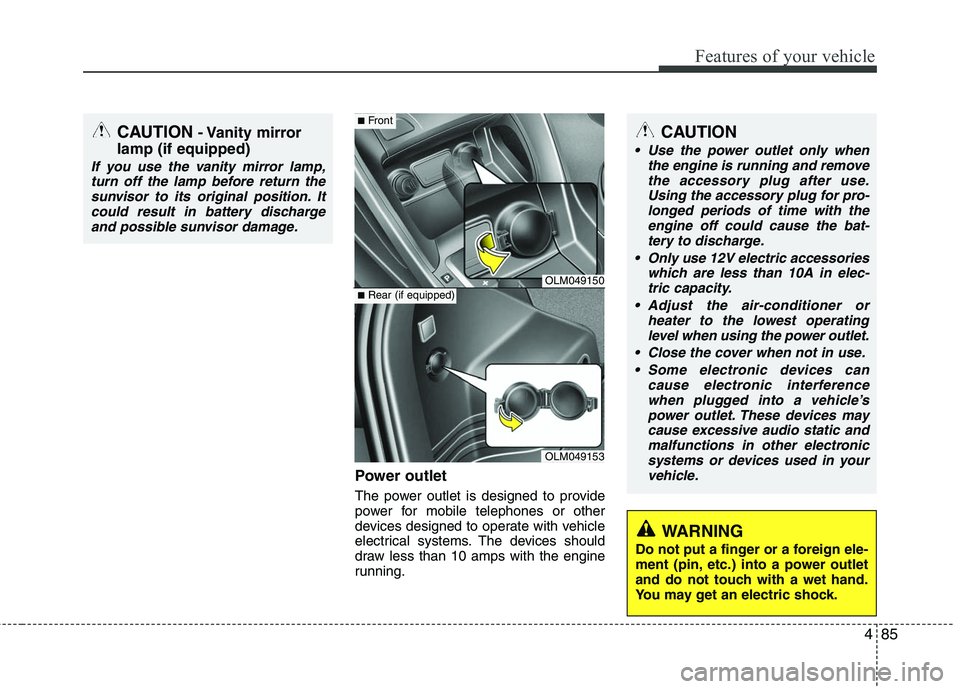
Power outlet
The power outlet is designed to provide
power for mobile telephones or other
devices designed to operate with vehicle
electrical systems. The devices should
draw less than 10 amps with the engine
running.
CAUTION- Vanity mirror
lamp (if equipped)
If you use the vanity mirror lamp,
turn off the lamp before return thesunvisor to its original position. Itcould result in battery dischargeand possible sunvisor damage.
OLM049150
OLM049153
■Front
■Rear (if equipped)
CAUTION
Use the power outlet only when the engine is running and removethe accessory plug after use. Using the accessory plug for pro-longed periods of time with theengine off could cause the bat- tery to discharge.
Only use 12V electric accessories which are less than 10A in elec-tric capacity.
Adjust the air-conditioner or heater to the lowest operatinglevel when using the power outlet.
Close the cover when not in use. Some electronic devices can cause electronic interferencewhen plugged into a vehicle’spower outlet. These devices maycause excessive audio static andmalfunctions in other electronicsystems or devices used in yourvehicle.
WARNING
Do not put a finger or a foreign ele-
ment (pin, etc.) into a power outlet
and do not touch with a wet hand.
You may get an electric shock.
Page 169 of 382
Features of your vehicle
86
4
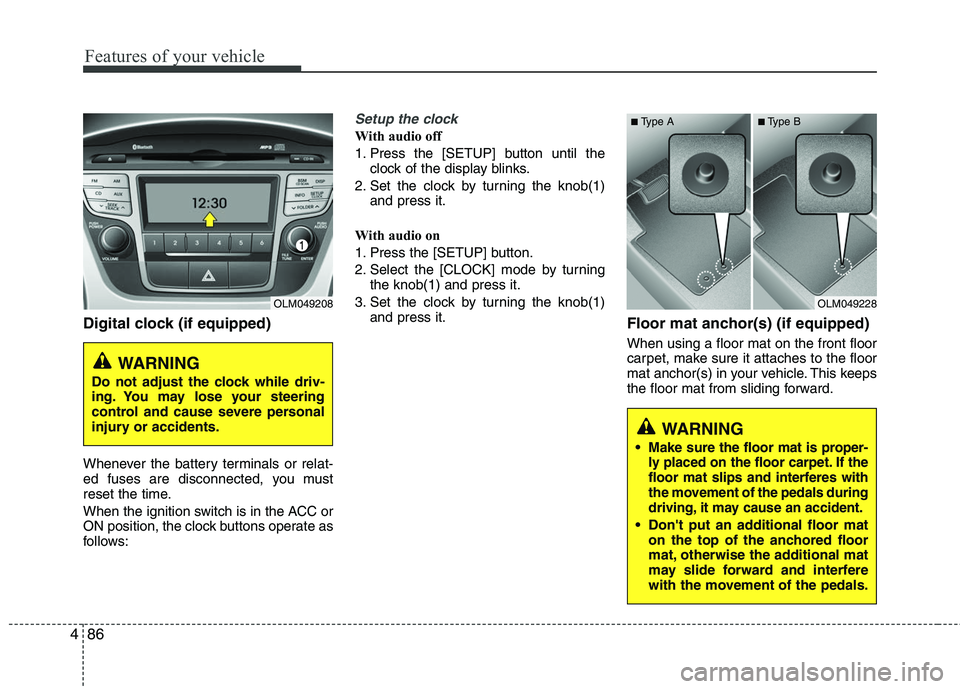
Digital clock (if equipped)
Whenever the battery terminals or relat-
ed fuses are disconnected, you must
reset the time.
When the ignition switch is in the ACC or
ON position, the clock buttons operate as
follows:
Setup the clock
With audio off
1. Press the [SETUP] button until the
clock of the display blinks.
2. Set the clock by turning the knob(1) and press it.
With audio on
1. Press the [SETUP] button.
2. Select the [CLOCK] mode by turning the knob(1) and press it.
3. Set the clock by turning the knob(1) and press it.
Floor mat anchor(s) (if equipped)
When using a floor mat on the front floor
carpet, make sure it attaches to the floor
mat anchor(s) in your vehicle. This keeps
the floor mat from sliding forward.
OLM049208
WARNING
Do not adjust the clock while driv-
ing. You may lose your steering
control and cause severe personal
injury or accidents.
OLM049228
WARNING
Make sure the floor mat is proper-
ly placed on the floor carpet. If the
floor mat slips and interferes with
the movement of the pedals during
driving, it may cause an accident.
Don't put an additional floor maton the top of the anchored floor
mat, otherwise the additional mat
may slide forward and interfere
with the movement of the pedals.
■Type A■Type B
Page 173 of 382
Features of your vehicle
90
4
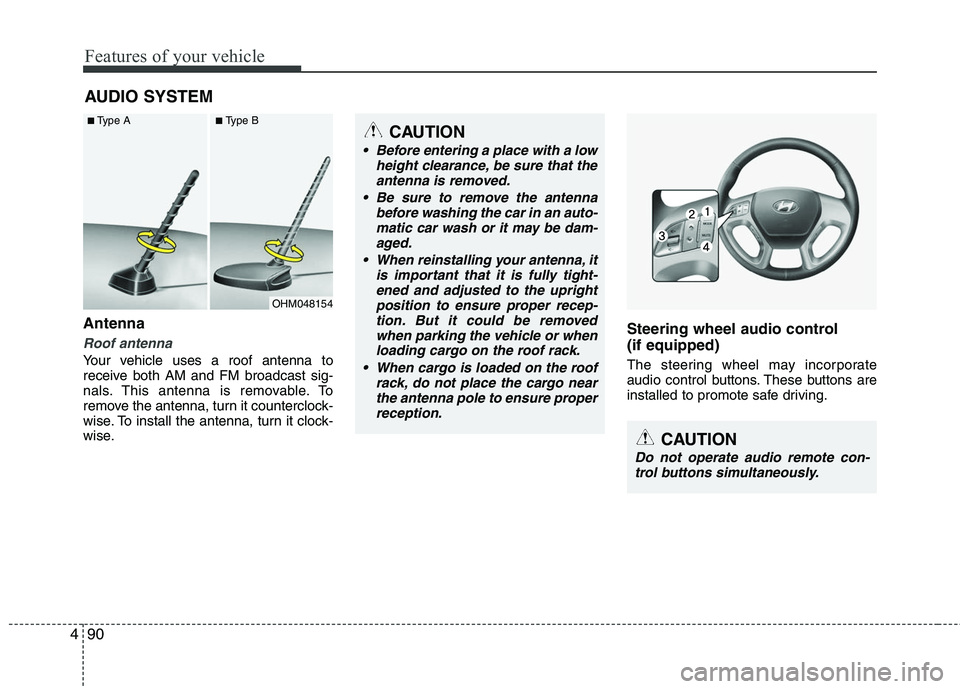
Antenna
Roof antenna
Your vehicle uses a roof antenna to
receive both AM and FM broadcast sig-
nals. This antenna is removable. To
remove the antenna, turn it counterclock-
wise. To install the antenna, turn it clock-
wise.
Steering wheel audio control
(if equipped)
The steering wheel may incorporate
audio control buttons. These buttons are
installed to promote safe driving.
AUDIO SYSTEM
OHM048154
■Type A■Type BCAUTION
• Before entering a place with a low
height clearance, be sure that theantenna is removed.
Be sure to remove the antenna before washing the car in an auto-matic car wash or it may be dam-aged.
When reinstalling your antenna, it is important that it is fully tight-ened and adjusted to the upright position to ensure proper recep-tion. But it could be removedwhen parking the vehicle or whenloading cargo on the roof rack.
When cargo is loaded on the roof rack, do not place the cargo nearthe antenna pole to ensure properreception.
CAUTION
Do not operate audio remote con-trol buttons simultaneously.
Page 174 of 382
491
Features of your vehicle
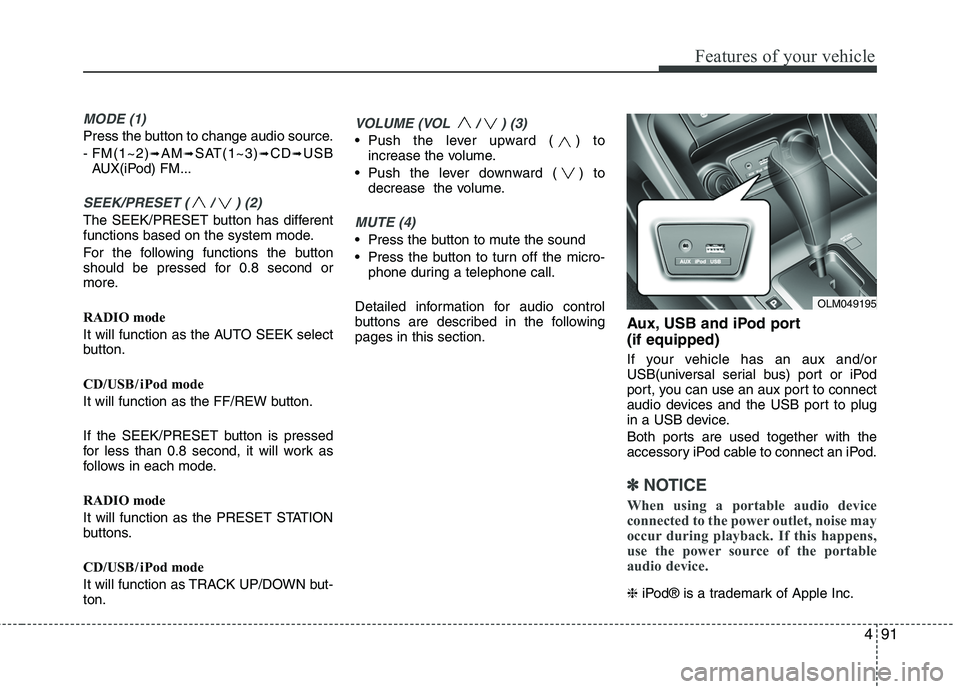
MODE (1)
Press the button to change audio source.
- FM(1~2)
➟AM➟SAT(1~3)➟CD➟USB
AUX(iPod) FM...
SEEK/PRESET ( / ) (2)
The SEEK/PRESET button has different
functions based on the system mode.
For the following functions the button
should be pressed for 0.8 second or
more.
RADIO mode
It will function as the AUTO SEEK select
button.
CD/USB/ iPod mode
It will function as the FF/REW button.
If the SEEK/PRESET button is pressed
for less than 0.8 second, it will work as
follows in each mode.
RADIO mode
It will function as the PRESET STATION
buttons.
CD/USB/ iPod mode
It will function as TRACK UP/DOWN but-
ton.
VOLUME (VOL / ) (3)
• Push the lever upward ( ) to increase the volume.
Push the lever downward ( ) to decrease the volume.
MUTE (4)
Press the button to mute the sound
Press the button to turn off the micro-phone during a telephone call.
Detailed information for audio control
buttons are described in the following
pages in this section.
Aux, USB and iPod port
(if equipped)
If your vehicle has an aux and/or
USB(universal serial bus) port or iPod
port, you can use an aux port to connect
audio devices and the USB port to plug
in a USB device.
Both ports are used together with the
accessory iPod cable to connect an iPod.
✽ ✽ NOTICE
When using a portable audio device
connected to the power outlet, noise may
occur during playback. If this happens,
use the power source of the portable
audio device.
❈ iPod® is a trademark of Apple Inc.
OLM049195
Page 175 of 382
Features of your vehicle
92
4
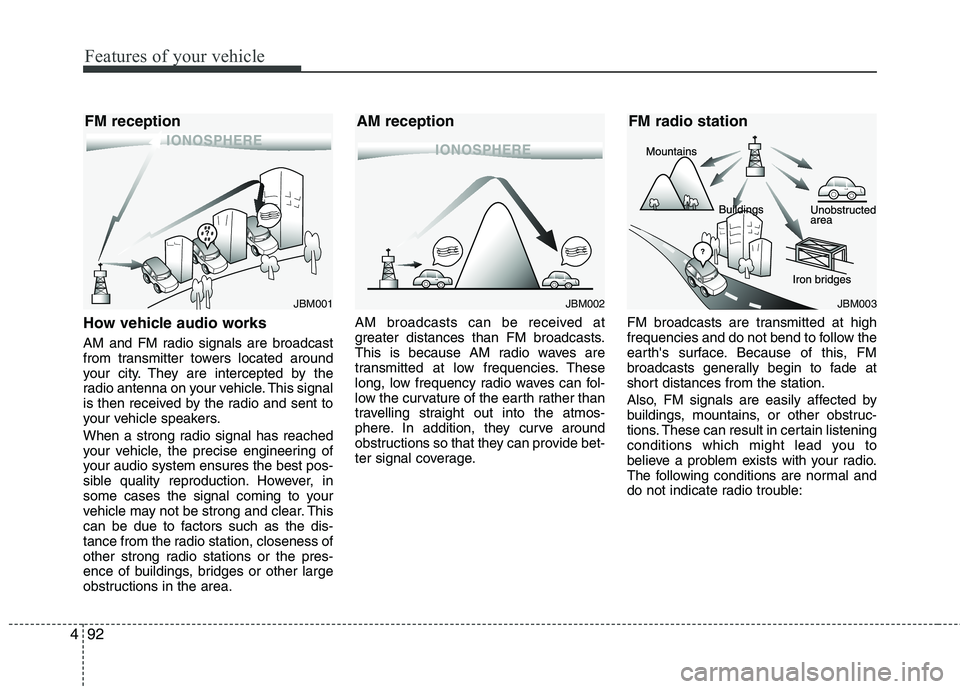
How vehicle audio works
AM and FM radio signals are broadcast
from transmitter towers located around
your city. They are intercepted by the
radio antenna on your vehicle. This signal
is then received by the radio and sent to
your vehicle speakers.
When a strong radio signal has reached
your vehicle, the precise engineering of
your audio system ensures the best pos-
sible quality reproduction. However, in
some cases the signal coming to your
vehicle may not be strong and clear. This
can be due to factors such as the dis-
tance from the radio station, closeness of
other strong radio stations or the pres-
ence of buildings, bridges or other large
obstructions in the area. AM broadcasts can be received at
greater distances than FM broadcasts.
This is because AM radio waves are
transmitted at low frequencies. These
long, low frequency radio waves can fol-
low the curvature of the earth rather than
travelling straight out into the atmos-
phere. In addition, they curve around
obstructions so that they can provide bet-
ter signal coverage.
FM broadcasts are transmitted at high
frequencies and do not bend to follow the
earth's surface. Because of this, FM
broadcasts generally begin to fade at
short distances from the station.
Also, FM signals are easily affected by
buildings, mountains, or other obstruc-
tions. These can result in certain listening
conditions which might lead you to
believe a problem exists with your radio.
The following conditions are normal and
do not indicate radio trouble:
¢¢¢¢¢¢
JBM002JBM003
AM reception FM radio station
¢¢¢
JBM001
FM reception
Page 178 of 382
495
Features of your vehicle
Using a cellular phone or a two-wayradio
When a cellular phone is used inside the
vehicle, noise may be produced from the
audio equipment. This does not mean
that something is wrong with the audio
equipment. In such a case, use the cellu-
lar phone at a place as far as possible
from the audio equipment.
Care of discs
If the temperature inside the vehicle is too high, open the vehicle windows for
ventilation before using your vehicle
audio.
It is illegal to copy and use MP3/WMA files without permission. Use CDs that
are created only by lawful means.
Do not apply volatile agents such as benzene and thinner, normal cleaners
and magnetic sprays made for ana-
logue disc onto CDs.
To prevent the disc surface from get- ting damaged. Hold and carry CDs by
the edges or the edges of the center
hole only.
Clean the disc surface with a piece of soft cloth before playback (wipe it from
the center to the outside edge).
Do not damage the disc surface or attach pieces of sticky tape or paper
onto it.
Make sure objects other than CDs are not inserted into the CD player (Do not
insert more than one CD at a time). Keep CDs in their cases after use to
protect them from scratches or dirt.
Depending on the type of CD-R/CD- RW CDs, certain CDs may not operate
normally according to manufacturing
companies or making and recording
methods. In such circumstances, if you
still continue to use those CDs, they
may cause the malfunction of your
vehicle audio system.
✽ ✽ NOTICE- Playing an
Incompatible Copy Protected
Audio CD
Some copy protected CDs, which do not
comply with the international audio CD
standards (Red Book), may not play on
your vehicle audio. Please note that if
you try to play copy protected CDs and
the CD player does not perform correct-
ly the CDs maybe defective, not the CD
player.
WARNING
Do not use a cellular phone while
driving. Stop at a safe location to
use a cellular phone.
Page 179 of 382
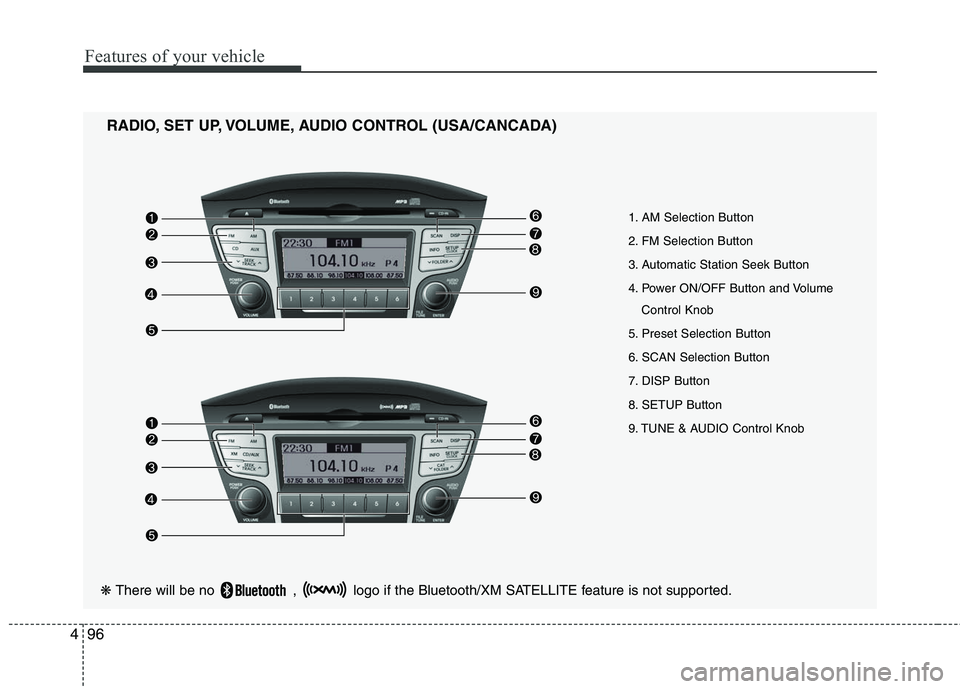
Features of your vehicle
96
4
1. AM Selection Button
2. FM Selection Button
3. Automatic Station Seek Button
4. Power ON/OFF Button and Volume
Control Knob
5. Preset Selection Button
6. SCAN Selection Button
7. DISP Button
8. SETUP Button
9. TUNE & AUDIO Control Knob
RADIO, SET UP, VOLUME, AUDIO CONTROL (USA/CANCADA)
❋ There will be no , logo if the Bluetooth/XM SATELLITE feature is not supported.
Page 180 of 382
![HYUNDAI TUCSON 2010 Owners Manual
497
Features of your vehicle
Using RADIO, SETUP, VOLUME
and AUDIO CONTROL
1. AM Selection Button
Pressing the [AM] button selects the AM
band. AM Mode is displayed on the LCD.
2. FM Selection Button](/img/35/56207/w960_56207-179.png "HYUNDAI TUCSON 2010 Owners Manual
497
Features of your vehicle
Using RADIO, SETUP, VOLUME
and AUDIO CONTROL
1. AM Selection Button
Pressing the [AM] button selects the AM
band. AM Mode is displayed on the LCD.
2. FM Selection Button")
497
Features of your vehicle
Using RADIO, SETUP, VOLUME
and AUDIO CONTROL
1. AM Selection Button
Pressing the [AM] button selects the AM
band. AM Mode is displayed on the LCD.
2. FM Selection Button Turns to FM mode and toggles FM1 and
FM2 when the button is pressed each
time.
3. Automatic Station Seek Button
When the [SEEK ] is pressed, it willautomatically tune to the next lower
station.
When the [SEEK ] is pressed, it will automatically tune to the next higher
station.
4. Power ON/OFF Button & Volume Control Knob
Turns the audio system on/off when
the ignition switch is on ACC or ON.
If the knob is turned clockwise/counter- clockwise, the volume will increase
/decrease.
5. Preset Selection Button
Press [1]~[6] buttons less than 0.8 sec-ond to play the station saved in each
button.
Press [1]~[6] b utton more than 0.8 sec-
ond or longer to save the current station
to the respective button with a beep.
6. SCAN Button
When the button is pressed, it auto- matically scans the radio stations
upwards.
The SCAN feature steps through each station, starting from the initial station,
for ten seconds.
Press the [SCAN] button again to stop the scan feature and to listen to the
currently selected channel.
7. DISP Button
Turn the LCD Display & Backlight on/off
when [DISP] button press.
8. SETUP Button
Press this Button to enter SETUP mode,
If no action is taken for 8 seconds, it will
return to previous mode.
In “SETUP” mode, rotate the TUNE knob
to move the cursor between items, and
push the TUNE knob to select.
Select whether long file names are
scrolled continuously (“ON”) or just once
(“OFF”).
Select this item to turn the SDVC(Speed
Dependent Volume Control) feature ON
or OFF. If it is turned ON, volume level is
adjusted automatically according to the
vehicle speed.
This function creates virtual sound
effects and allows adjustments to the
BASS level.
HIGH
➟MID ➟LOW ➟OFF
Select default display of XM mode.
“Category/Channel name” or “Artist/Song
Title” can be selected.