bluetooth HYUNDAI TUCSON 2012 Owners Manual
[x] Cancel search | Manufacturer: HYUNDAI, Model Year: 2012, Model line: TUCSON, Model: HYUNDAI TUCSON 2012Pages: 371, PDF Size: 5.39 MB
Page 17 of 371
23
Your vehicle at a glance
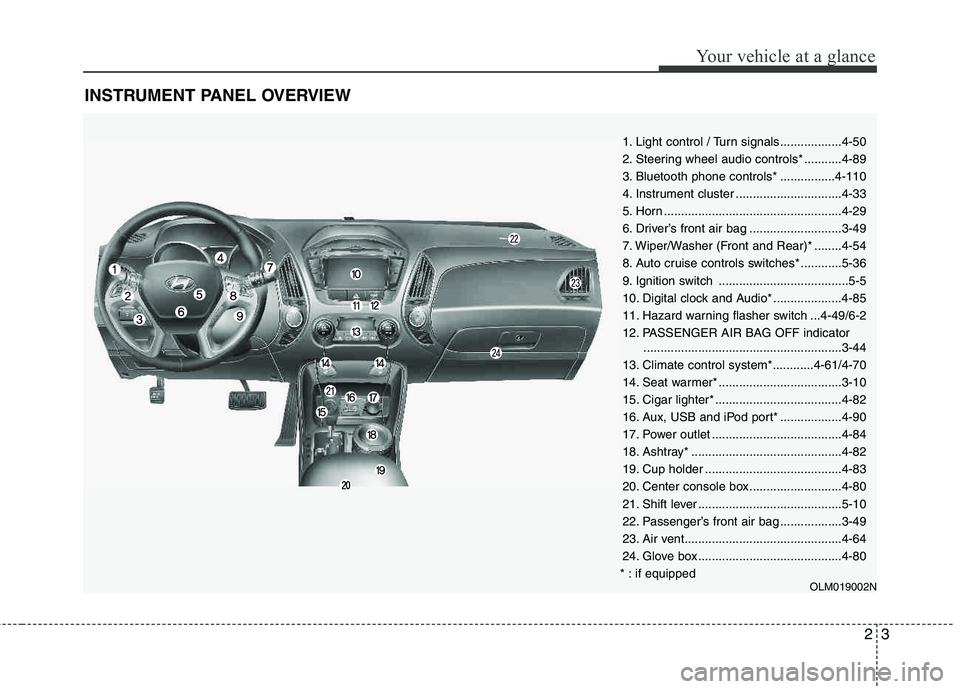
INSTRUMENT PANEL OVERVIEW
1. Light control / Turn signals..................4-50
2. Steering wheel audio controls* ...........4-89
3. Bluetooth phone controls* ................4-110
4. Instrument cluster ...............................4-33
5. Horn ....................................................4-29
6. Driver’s front air bag ...........................3-49
7. Wiper/Washer (Front and Rear)* ........4-54
8. Auto cruise controls switches* ............5-36
9. Ignition switch ......................................5-5
10. Digital clock and Audio* ....................4-85
11. Hazard warning flasher switch ...4-49/6-2
12. PASSENGER AIR BAG OFF indicator..........................................................3-44
13. Climate control system*............4-61/4-70
14. Seat warmer* ....................................3-10
15. Cigar lighter* .....................................4-82
16. Aux, USB and iPod port* ..................4-90
17. Power outlet ......................................4-84
18. Ashtray* ............................................4-82
19. Cup holder ........................................4-83
20. Center console box...........................4-80
21. Shift lever ..........................................5-10
22. Passenger’s front air bag ..................3-49
23. Air vent..............................................4-64
24. Glove box ..........................................4-80
* : if equipped
OLM019002N
Page 176 of 371
495
Features of your vehicle
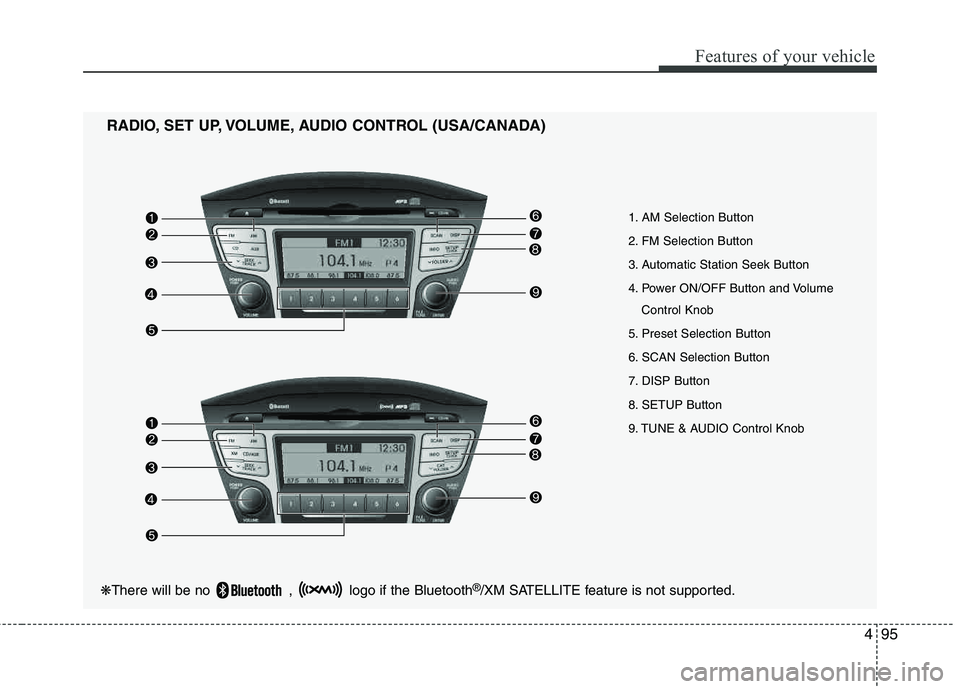
1. AM Selection Button
2. FM Selection Button
3. Automatic Station Seek Button
4. Power ON/OFF Button and VolumeControl Knob
5. Preset Selection Button
6. SCAN Selection Button
7. DISP Button
8. SETUP Button
9. TUNE & AUDIO Control Knob
RADIO, SET UP, VOLUME, AUDIO CONTROL (USA/CANADA)
❋
There will be no , logo if the Bluetooth ®
/XM SATELLITE feature is not supported.
Page 178 of 371
![HYUNDAI TUCSON 2012 Owners Manual 497
Features of your vehicle
Select this item to enter BLUETOOTH®
setup mode. Refer to “BLUETOOTH
PHONE OPERATION” section for
detailed information.
Press the [SETUP] button. Use the vol-](/img/35/56205/w960_56205-177.png "HYUNDAI TUCSON 2012 Owners Manual 497
Features of your vehicle
Select this item to enter BLUETOOTH®
setup mode. Refer to “BLUETOOTH
PHONE OPERATION” section for
detailed information.
Press the [SETUP] button. Use the vol-")
497
Features of your vehicle
Select this item to enter BLUETOOTH®
setup mode. Refer to “BLUETOOTH
PHONE OPERATION” section for
detailed information.
Press the [SETUP] button. Use the vol-
ume controller to adjust the clock in the
following order: CLOCK
ENTERhour or
minute. Adjust the hour and press the [ENTER]
button to set. Use the same method to
adjust the minute and press the [ENTER]
button to complete and exit from clock
adjustment mode.
Pressing the [SETUP] button while in
POWER OFF screen will allow the user
to make immediately adjustments to the
clock.
9. TUNE Knob & Audio Control
Knob
clock wise to increase or decrease from
current frequency.
(AM 10kHz, FM 200kHz)
Pressing the button changes the BASS,
MIDDLE, TREBLE, FADER and BAL-
ANCE TUNE mode. The mode selected
is shown on the display. After selecting
each mode, rotate the Audio control knob
clockwise or counterclockwise.
To increase the BASS, rotate the knob
clockwise, while to decrease the BASS,
rotate the knob counterclockwise.
To increase the MIDDLE, rotate the knob
clockwise, while to decrease the MID-
DLE, rotate the knob counterclockwise.
Control
To increase the TREBLE, rotate the knob
clockwise, while to decrease the TRE-
BLE, rotate the knob counterclockwise.
Turn the control knob clockwise to
emphasize rear speaker sound (front
speaker sound will be attenuated). When
the control knob is turned counterclock-
wise, front speaker sound will be empha-
sized (rear speaker sound will be attenu- ated).
Rotate the knob clockwise to emphasize
right speaker sound (left speaker sound
will be attenuated). When the control
knob is turned counter clockwise, left
speaker sound will be emphasized (right
speaker sound will be attenuated).
Page 179 of 371
Features of your vehicle
98
4
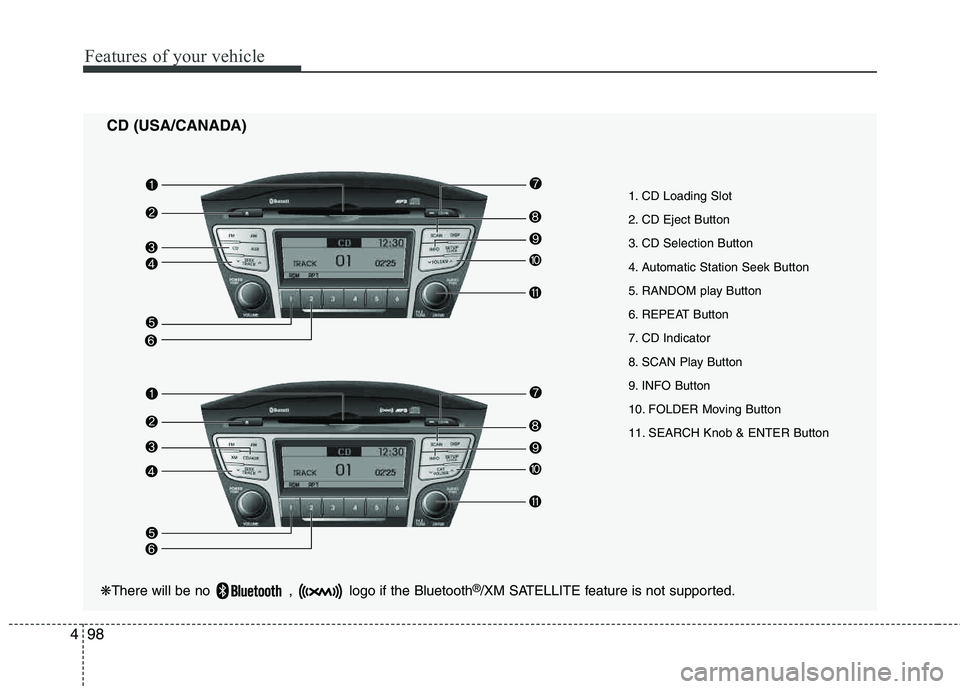
CD (USA/CANADA)
❋ There will be no , logo if the Bluetooth ®
/XM SATELLITE feature is not supported.
1. CD Loading Slot
2. CD Eject Button
3. CD Selection Button
4. Automatic Station Seek Button
5. RANDOM play Button
6. REPEAT Button
7. CD Indicator
8. SCAN Play Button
9. INFO Button
10. FOLDER Moving Button
11. SEARCH Knob & ENTER Button
Page 184 of 371
4103
Features of your vehicle
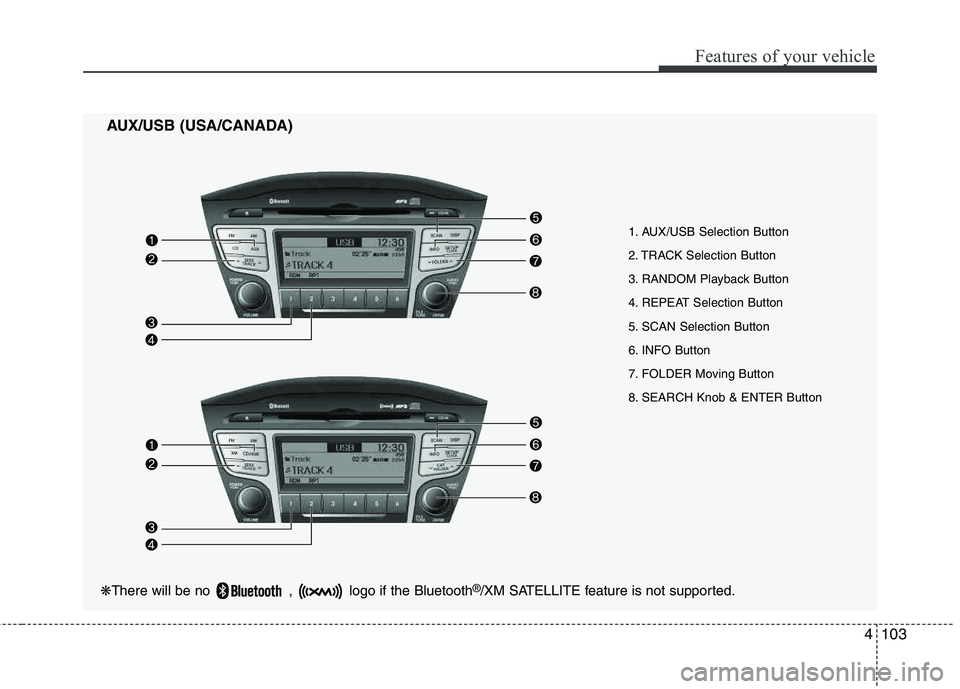
AUX/USB (USA/CANADA)
1. AUX/USB Selection Button
2. TRACK Selection Button
3. RANDOM Playback Button
4. REPEAT Selection Button
5. SCAN Selection Button
6. INFO Button
7. FOLDER Moving Button
8. SEARCH Knob & ENTER Button
❋There will be no , logo if the Bluetooth ®
/XM SATELLITE feature is not supported.
Page 186 of 371
4105
Features of your vehicle
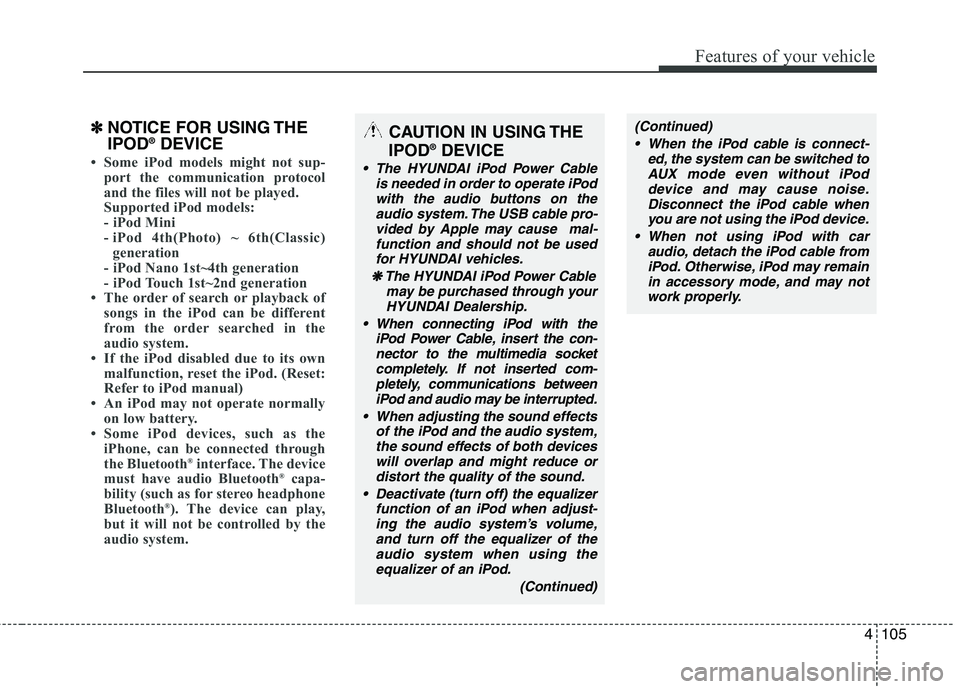
✽✽NOTICE FOR USING THE IPOD ®
DEVICE
Some iPod models might not sup-
port the communication protocol
and the files will not be played.
Supported iPod models:
- iPod Mini
- iPod 4th(Photo) ~ 6th(Classic)
generation
- iPod Nano 1st~4th generation
- iPod Touch 1st~2nd generation
The order of search or playback of
songs in the iPod can be different
from the order searched in the
audio system.
If the iPod disabled due to its own malfunction, reset the iPod. (Reset:
Refer to iPod manual)
An iPod may not operate normally on low battery.
Some iPod devices, such as the
iPhone, can be connected through
the Bluetooth ®
interface. The device
must have audio Bluetooth ®
capa-
bility (such as for stereo headphone
Bluetooth ®
). The device can play,
but it will not be controlled by the
audio system.
CAUTION IN USING THE
IPOD ®
DEVICE
The HYUNDAI iPod Power Cable
is needed in order to operate iPodwith the audio buttons on the
audio system. The USB cable pro- vided by Apple may cause mal-function and should not be used
for HYUNDAI vehicles.
❋
❋ The HYUNDAI iPod Power Cable
may be purchased through yourHYUNDAI Dealership.
When connecting iPod with the iPod Power Cable, insert the con-nector to the multimedia socket completely. If not inserted com-
pletely, communications betweeniPod and audio may be interrupted.
When adjusting the sound effects of the iPod and the audio system,the sound effects of both deviceswill overlap and might reduce ordistort the quality of the sound.
Deactivate (turn off) the equalizer function of an iPod when adjust-ing the audio system’s volume,
and turn off the equalizer of theaudio system when using theequalizer of an iPod.
(Continued)
(Continued)
When the iPod cable is connect- ed, the system can be switched toAUX mode even without iPod
device and may cause noise.Disconnect the iPod cable whenyou are not using the iPod device.
When not using iPod with car audio, detach the iPod cable fromiPod. Otherwise, iPod may remainin accessory mode, and may notwork properly.
Page 187 of 371
Features of your vehicle
106
4
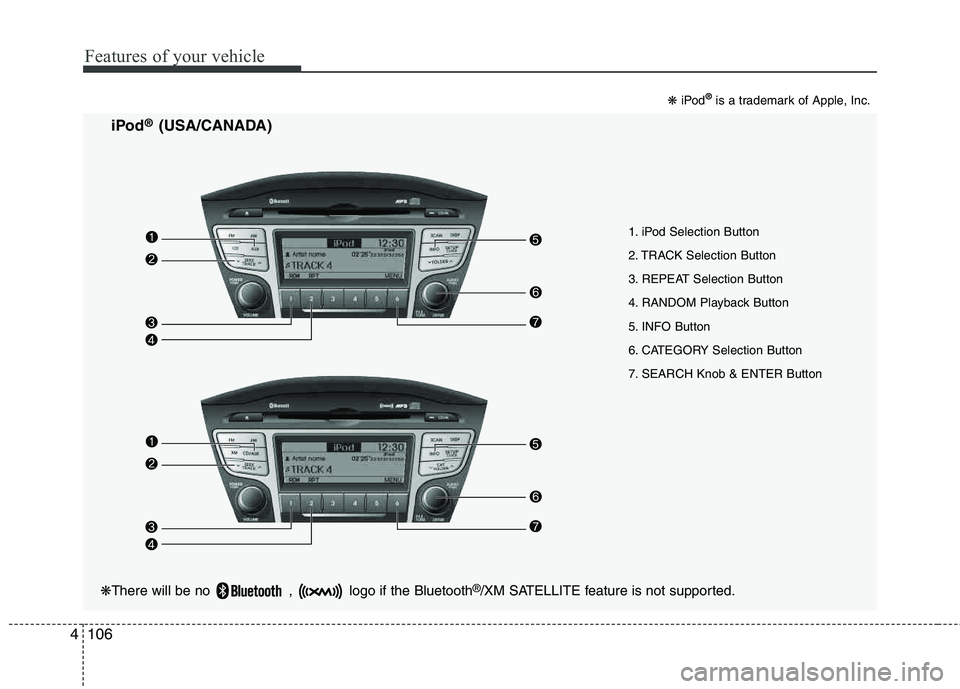
1. iPod Selection Button
2. TRACK Selection Button
3. REPEAT Selection Button
4. RANDOM Playback Button
5. INFO Button
6. CATEGORY Selection Button
7. SEARCH Knob & ENTER Button
iPod
®(USA/CANADA)
❋
iPod
®is a trademark of Apple, Inc.
❋There will be no , logo if the Bluetooth ®
/XM SATELLITE feature is not supported.
Page 189 of 371
Features of your vehicle
108
4
❋ There will be no , logo if the Bluetooth ®
/XM SATELLITE feature is not supported.
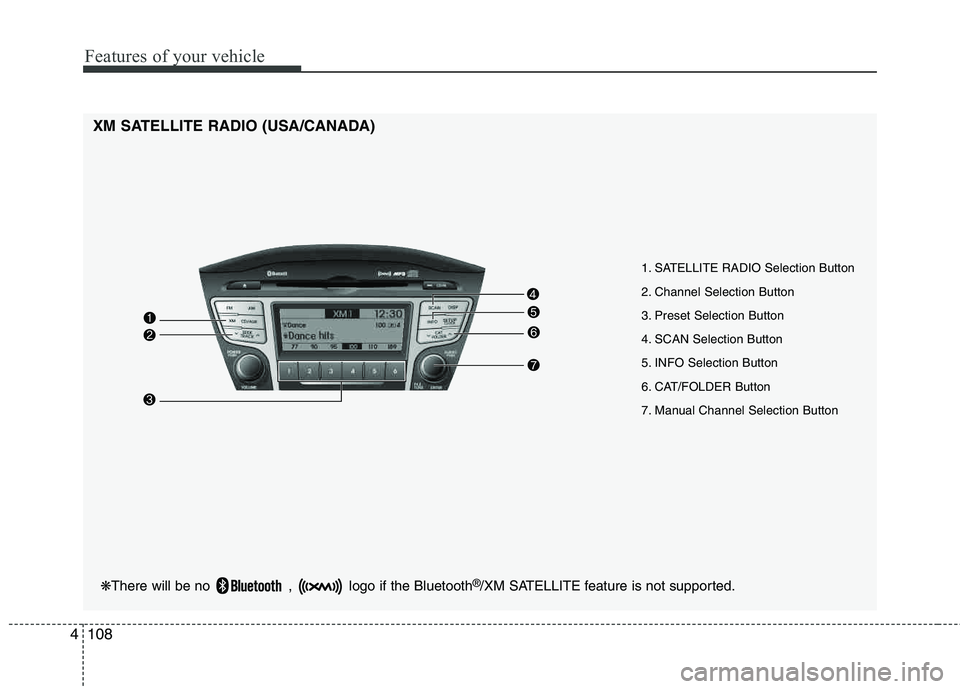
XM SATELLITE RADIO (USA/CANADA)
1. SATELLITE RADIO Selection Button
2. Channel Selection Button
3. Preset Selection Button
4. SCAN Selection Button
5. INFO Selection Button
6. CAT/FOLDER Button
7. Manual Channel Selection Button
Page 191 of 371
Features of your vehicle
110
4
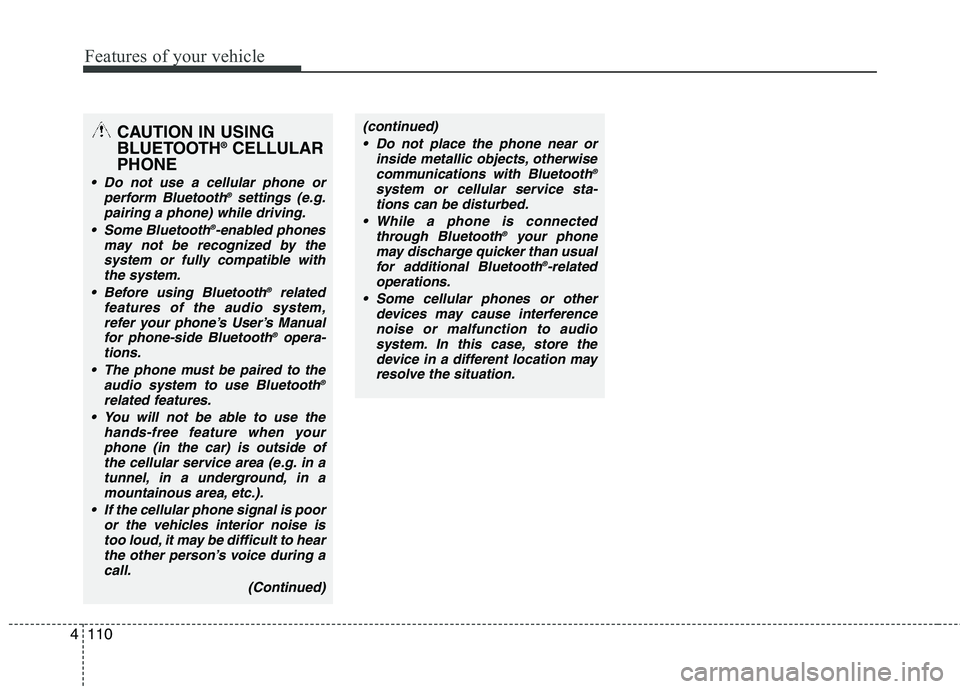
CAUTION IN USING
BLUETOOTH ®
CELLULAR
PHONE
Do not use a cellular phone or perform Bluetooth ®
settings (e.g.
pairing a phone) while driving.
Some Bluetooth ®
-enabled phones
may not be recognized by the system or fully compatible with
the system.
Before using Bluetooth ®
related
features of the audio system, refer your phone’s User’s Manualfor phone-side Bluetooth ®
opera-
tions.
The phone must be paired to the audio system to use Bluetooth ®
related features.
You will not be able to use the hands-free feature when your
phone (in the car) is outside ofthe cellular service area (e.g. in a tunnel, in a underground, in a
mountainous area, etc.).
If the cellular phone signal is poor or the vehicles interior noise istoo loud, it may be difficult to hear
the other person’s voice during a call.
(Continued)
(continued) Do not place the phone near or inside metallic objects, otherwisecommunications with Bluetooth ®
system or cellular service sta- tions can be disturbed.
While a phone is connected through Bluetooth ®
your phone
may discharge quicker than usual
for additional Bluetooth ®
-related
operations.
Some cellular phones or other devices may cause interference
noise or malfunction to audiosystem. In this case, store thedevice in a different location may
resolve the situation.
Page 192 of 371
4111
Features of your vehicle
BLUETOOTH®
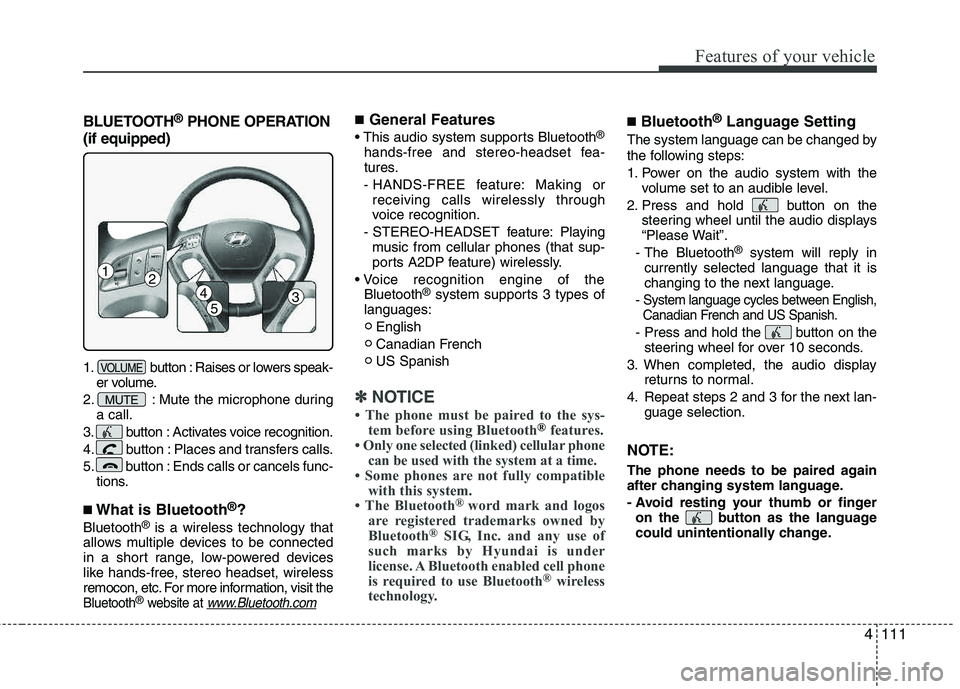
PHONE OPERATION
(if equipped)
1. button : Raises or lowers speak- er volume.
2. : Mute the microphone during a call.
3. button : Activates voice recognition.
4. button : Places and transfers calls.
5. button : Ends calls or cancels func- tions.
■What is Bluetooth ®
?
Bluetooth ®
is a wireless technology that
allows multiple devices to be connected
in a short range, low-powered devices
like hands-free, stereo headset, wireless
remocon, etc. For more information, visit
the
Bluetooth®website at www.Bluetooth.com
■ General Features
®
hands-free and stereo-headset fea-
tures.
- HANDS-FREE feature: Making or receiving calls wirelessly through
voice recognition.
- STEREO-HEADSET feature: Playing music from cellular phones (that sup-
ports A2DP feature) wirelessly.
Bluetooth ®
system supports 3 types of
languages:
English
Canadian French US Spanish
✽✽ NOTICE
The phone must be paired to the sys- tem before using Bluetooth
®features.
Only one selected (linked) cellular phone can be used with the system at a time.
Some phones are not fully compatible with this system.
The Bluetooth ®
word mark and logos
are registered trademarks owned by
Bluetooth ®
SIG, Inc. and any use of
such marks by Hyundai is under
license. A Bluetooth enabled cell phone
is required to use Bluetooth ®
wireless
technology.
■ Bluetooth ®
Language Setting
The system language can be changed by
the following steps:
1. Power on the audio system with the
volume set to an audible level.
2. Press and hold button on the steering wheel until the audio displays
“Please Wait”.
- The Bluetooth ®
system will reply in
currently selected language that it is
changing to the next language.
- System language cycles between English, Canadian French and US Spanish.
- Press and hold the button on the steering wheel for over 10 seconds.
3. When completed, the audio display returns to normal.
4. Repeat steps 2 and 3 for the next lan- guage selection.
NOTE:
The phone needs to be paired again
after changing system language.
- Avoid resting your thumb or fingeron the button as the language
could unintentionally change.
MUTE
VOLUME
12
34
5