steering wheel HYUNDAI TUCSON 2014 User Guide
[x] Cancel search | Manufacturer: HYUNDAI, Model Year: 2014, Model line: TUCSON, Model: HYUNDAI TUCSON 2014Pages: 542, PDF Size: 7.59 MB
Page 87 of 542
Convenient features of your vehicle
ACCESSING YOUR VEHICLE ..................................3-3
Remote key .......................................................................3-3
Remote key precautions..................................................3-5
Smart key ...........................................................................3-6
Smart key precautions...................................................3-10 Immobilizer System ........................................................3-11
DOOR LOCKS .......................................................3-13
Operating door locks from outside the vehicle .....3-13
Operating door locks from inside the vehicle ........3-16
Auto door lock/unlock features ................................3-18
Child-protector rear door locks .................................3-18
THEFT-ALARM SYSTEM ...................................3-19
INSTRUMENT CLUSTER ......................................3-20
Instrument Cluster Control............................................3-21
Gauges ...............................................................................3-21
Transaxle Shift Indicator ...............................................3-24
TRIP COMPUTER ..................................................3-25
Trip Modes ........................................................................3-25
Warnings and indicators................................................3-28
STEERING WHEEL ................................................3-40
Electric Power Steering (EPS) ....................................3-40
Tilt steering/Telescope steering .................................3-40
Driver selectable steering mode..................................3-41
Horn ....................................................................................3-43
MIRRORS ...............................................................3-44
Interior rearview mirrors .............................................3-44
Outside rearview mirrors .............................................3-61
WINDOWS..............................................................3-63
Power windows ..............................................................3-64
PANORAMIC SUNROOF .......................................3-67
Sunroof opening and closing ......................................3-67
Sliding the sunroof ........................................................3-68
Tilting the Sunroof ........................................................3-68
Sunroof open warming ..................................................3-70
Roller blind .......................................................................3-70
HOOD .....................................................................3-71
TAILGATE ...............................................................3-73
Emergency tailgate safety release ...........................3-74
FUEL FILLER DOOR .............................................3-76
LIGHTS ...................................................................3-79
Exterior lights .................................................................3-79
Hazard warning flasher .................................................3-84
Interior lights ....................................................................3-84
Vanity mirror lamp ..........................................................3-86
Glove box lamp ................................................................3-86
Luggage room lamp ........................................................3-86
3
Page 124 of 542
3-38
Convenient features of your vehicle
Engine coolanttemperature warning light (if equipped)
The warning light illuminates if the
temperature of the engine coolant is
above 248±5.4°F (120±3°C).
Do not continue driving with an over-
heated engine. If your vehicle over-
heats, refer to “Overheating” in chap-ter 6.
✽✽ NOTICE
If the engine coolant temperature
warning light illuminates, it indi-
cates overheating that may damage
the engine.
Electric power steer- ing (EPS) systemwarning light
This indicator light comes on after
the ignition key is turned to the ONposition and then it will go out after
the engine is started. This light also comes on when the
EPS is not functioning properly. If it
comes on while driving, have your
vehicle inspected by an authorized
HYUNDAI dealer.
Cruise indicator
(if equipped)
The indicator light illuminates when
the cruise control system is enabled.
The cruise indicator light in the
instrument cluster is illuminated
when the cruise control ON-OFF but-
ton on the steering wheel is pushed.
The indicator light turns off when the
cruise control ON-OFF button is
pushed again. For more information
about the use of cruise control, refer to
“Cruise control system” in chapter 5.
CRUISE
Page 126 of 542
3-40
Convenient features of your vehicle
SSTT EEEERR IINN GG WW HHEEEELL
Electric Power Steering (EPS)
This system assists you with steering
the vehicle.
If the engine is turned off or if the
EPS becomes inoperative, you may
still steer the vehicle, but it will
require increased steering effort.
Should you notice any change in the
effort required to steer during normal
vehicle operation, have the EPS
checked by an authorized HYUNDAI
dealer.
✽✽
NOTICE
The steering effort may be high immediately after placing the igni-
tion switch in the ON position.
This happens as the system per-
forms the EPS system diagnostics.
When the diagnostics is complet-
ed, the steering wheel will return
to its normal condition.
A click noise may be heard from the EPS relay after the ignition
switch is placed in the ON or
LOCK/OFF position.
A motor noise may be heard when the vehicle is at a stop or at a low
driving speed.
When you operate the steering wheel in low temperature, abnor-
mal noise may occur. If tempera-
ture rises, the noise will disappear.
This is a normal condition.Tilt steering/Telescope steering
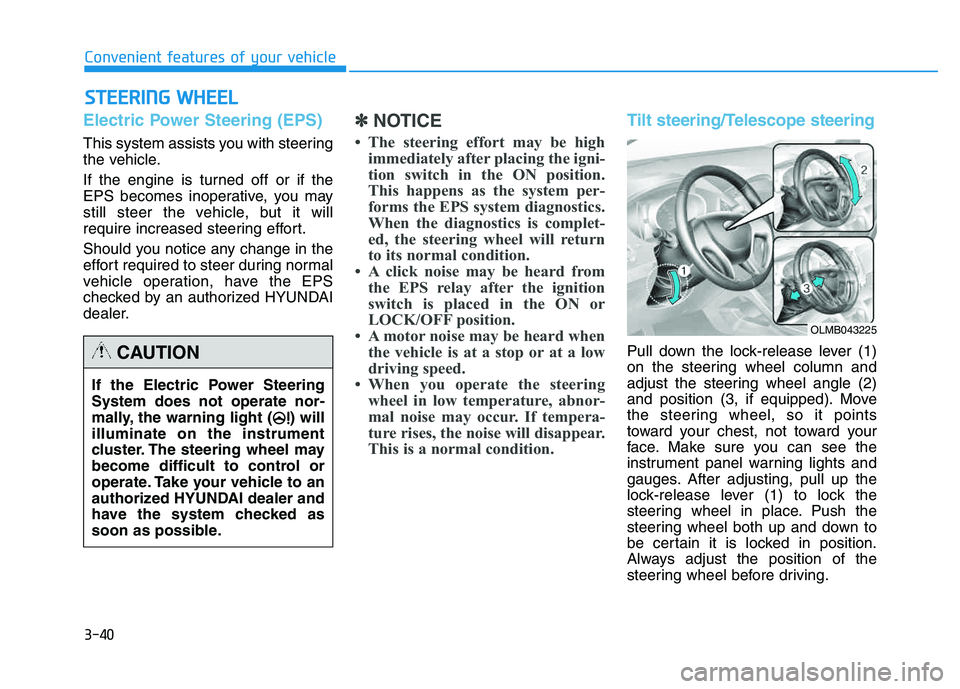
Pull down the lock-release lever (1)
on the steering wheel column and
adjust the steering wheel angle (2)
and position (3, if equipped). Move
the steering wheel, so it points
toward your chest, not toward your
face. Make sure you can see the
instrument panel warning lights and
gauges. After adjusting, pull up the
lock-release lever (1) to lock the
steering wheel in place. Push the
steering wheel both up and down to
be certain it is locked in position.
Always adjust the position of the
steering wheel before driving.
If the Electric Power Steering System does not operate nor-
mally, the warning light ( ) willilluminate on the instrument
cluster. The steering wheel may
become difficult to control or
operate. Take your vehicle to an
authorized HYUNDAI dealer and
have the system checked as
soon as possible.CAUTION
OLMB043225
Page 127 of 542
3-41
Convenient features of your vehicle
3
Driver selectable steering mode (if equipped)
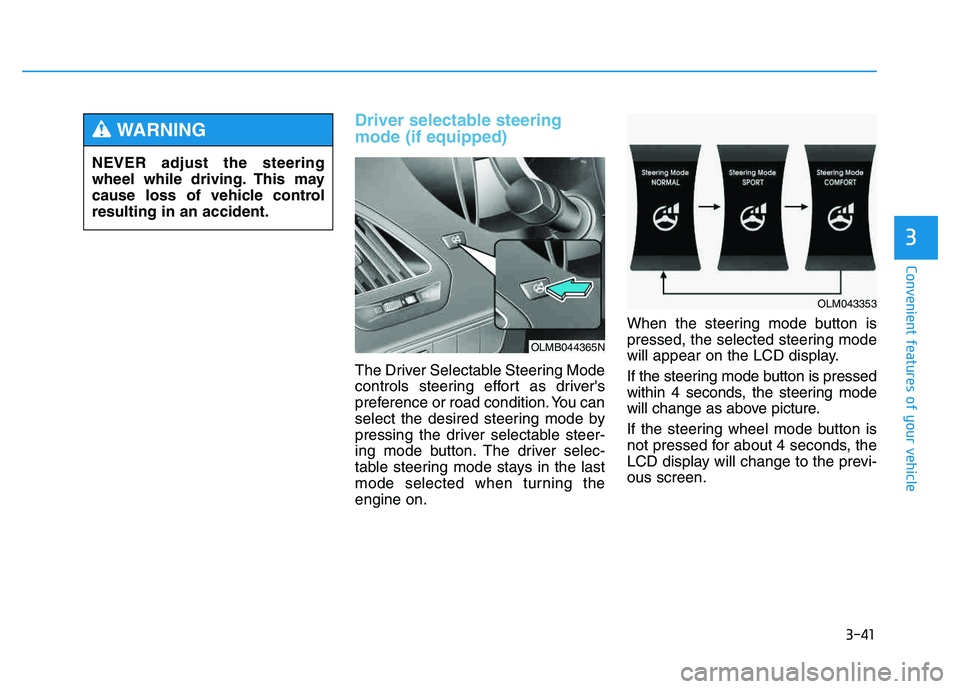
The Driver Selectable Steering Mode
controls steering effort as driver's
preference or road condition. You can
select the desired steering mode by
pressing the driver selectable steer-
ing mode button. The driver selec-
table steering mode stays in the last
mode selected when turning theengine on.When the steering mode button is
pressed, the selected steering mode
will appear on the LCD display.
If the steering mode button is pressed
within 4 seconds, the steering mode
will change as above picture.
If the steering wheel mode button is
not pressed for about 4 seconds, the
LCD display will change to the previ-ous screen.
NEVER adjust the steering
wheel while driving. This may
cause loss of vehicle controlresulting in an accident.
WARNING
OLMB044365N
OLM043353
Page 129 of 542
3-43
Convenient features of your vehicle
3
✽✽NOTICE
For your safety, if you press the
steering mode button to change the
mode while turning the steering
wheel, the LCD display will change
as you have selected, but the steering
effort will not change. The steering
effort will change to the selected
mode, when the steering wheel is
positioned to the center.Horn
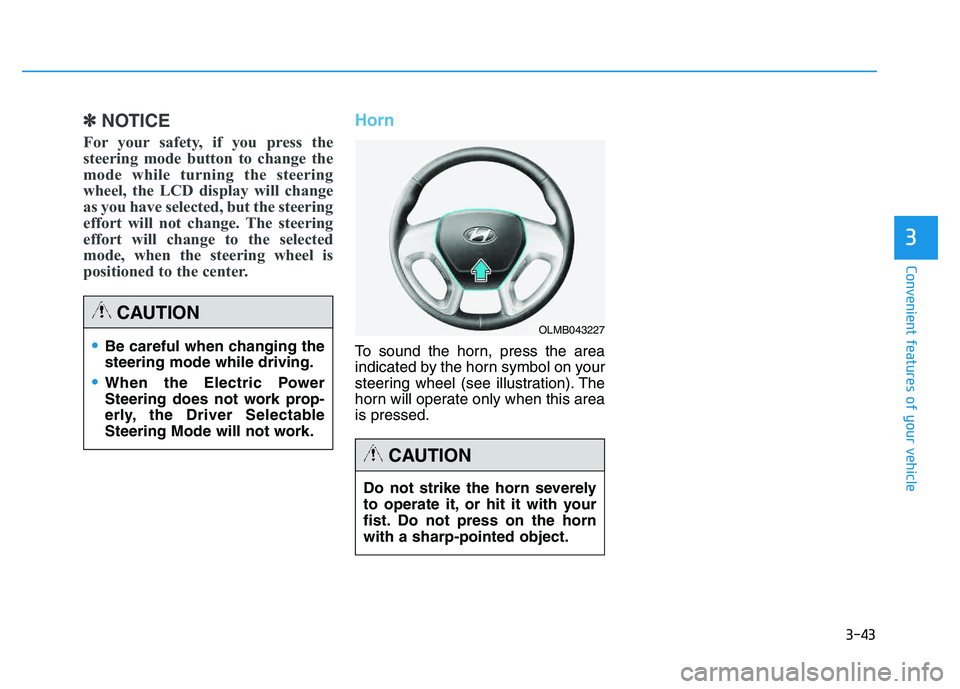
To sound the horn, press the area
indicated by the horn symbol on your
steering wheel (see illustration). The
horn will operate only when this area is pressed.Be careful when changing the steering mode while driving.
When the Electric Power
Steering does not work prop-
erly, the Driver Selectable
Steering Mode will not work.
CAUTION
Do not strike the horn severely
to operate it, or hit it with your
fist. Do not press on the hornwith a sharp-pointed object.
CAUTION
OLMB043227
Page 214 of 542
4-3
Multimedia System
Steering wheel audio control (if equipped)
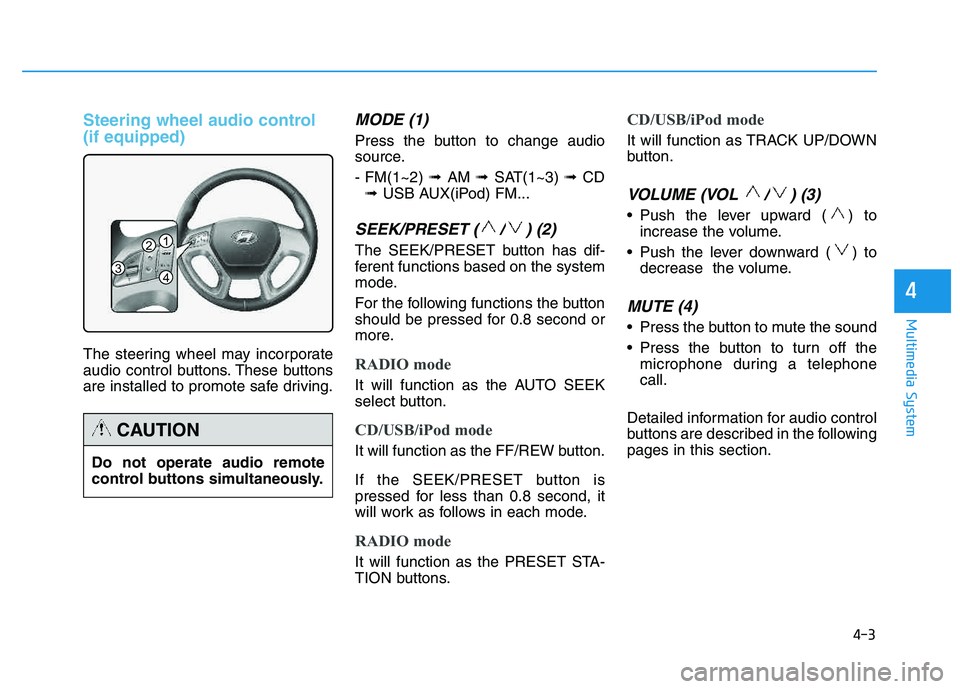
The steering wheel may incorporate
audio control buttons. These buttons
are installed to promote safe driving.
MODE (1)
Press the button to change audio
source. - FM(1~2) ➟ AM ➟ SAT(1~3) ➟ CD
➟ USB AUX(iPod) FM...
SEEK/PRESET ( / ) (2)
The SEEK/PRESET button has dif-
ferent functions based on the system
mode.
For the following functions the button
should be pressed for 0.8 second or
more.
RADIO mode
It will function as the AUTO SEEK
select button.
CD/USB/iPod mode
It will function as the FF/REW button.
If the SEEK/PRESET button is
pressed for less than 0.8 second, it
will work as follows in each mode.
RADIO mode
It will function as the PRESET STA-
TION buttons.
CD/USB/iPod mode
It will function as TRACK UP/DOWN
button.
VOLUME (VOL / ) (3)
• Push the lever upward ( ) to
increase the volume.
Push the lever downward ( ) to decrease the volume.
MUTE (4)
Press the button to mute the sound
Press the button to turn off themicrophone during a telephone call.
Detailed information for audio control
buttons are described in the followingpages in this section.
4
1
3
2
4
Do not operate audio remote
control buttons simultaneously.
CAUTION
Page 247 of 542
4-36
Multimedia System
PPHH OO NNEE
Before using the Bluetooth®Wireless
Technology phone features
Bluetooth®Wireless
Technology phone, you must first pair and connect the
Bluetooth®
Wireless Technology mobile phone.
connected, it is not possible to enter
Phone mode. Once a phone ispaired or connected, the guidance
screen will be displayed.
(IGN/ACC ON), the
Bluetooth®
Wireless Technology phone will be
automatically connected. Even if you
are outside, the
Bluetooth® Wireless
Technology phone will be automati-
cally connected once you are in the
vicinity of the vehicle. If you do not
want automatic
Bluetooth®Wireless
Technology phone connection, setthe
Bluetooth®Wireless Technology
power to OFF.
PP HH OO NNEE
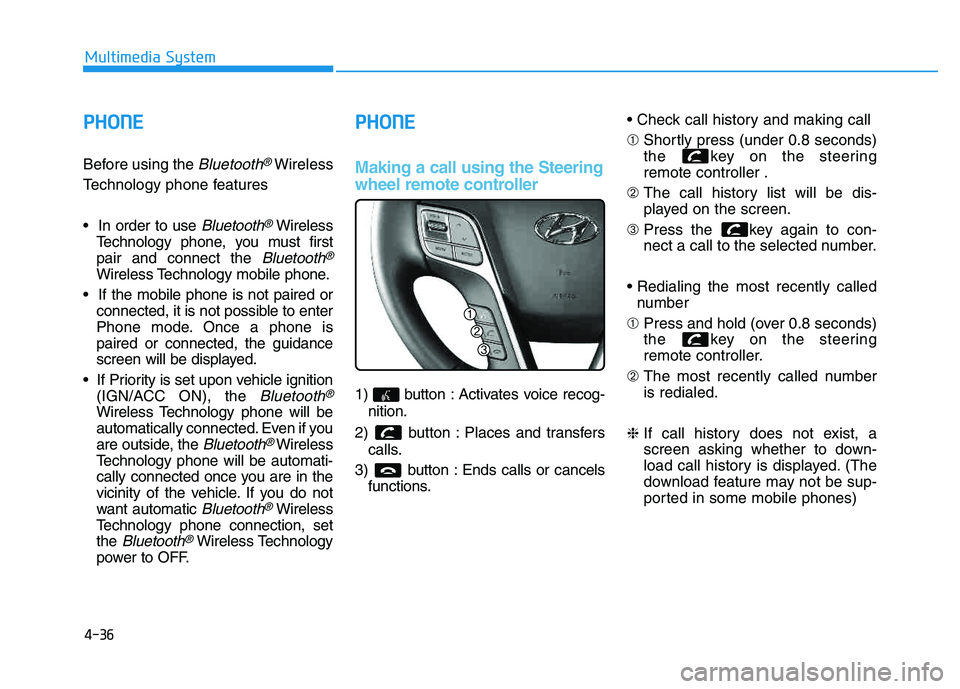
Making a call using the Steering
wheel remote controller
1) button : Activates voice recog-
nition.
2) button : Places and transfers calls.
3) button : Ends calls or cancels functions. ➀
Shortly press (under 0.8 seconds)
the key on the steeringremote controller .
➁ The call history list will be dis-
played on the screen.
➂ Press the key again to con-
nect a call to the selected number.
number
➀ Press and hold (over 0.8 seconds)
the key on the steering
remote controller.
➁ The most recently called numberis redialed.
❈ If call history does not exist, a
screen asking whether to down-
load call history is displayed. (The
download feature may not be sup-
ported in some mobile phones)
Page 250 of 542
4-39
Multimedia System
4
✽✽NOTICE
If Bluetooth ®
Wireless Technology
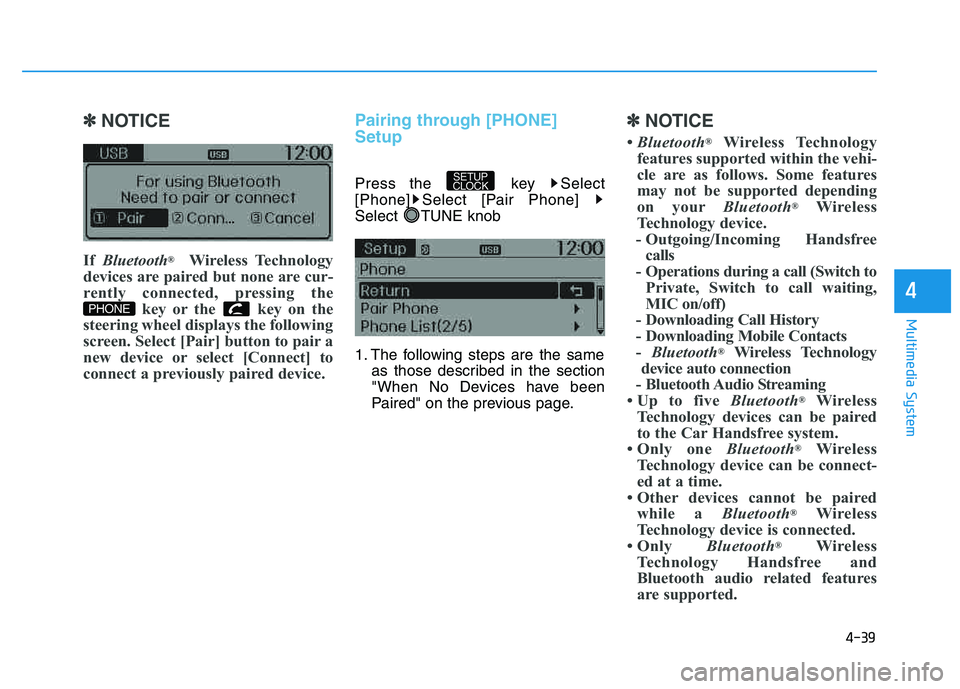
devices are paired but none are cur-
rently connected, pressing the key or the key on the
steering wheel displays the following
screen. Select [Pair] button to pair a
new device or select [Connect] to
connect a previously paired device.Pairing through [PHONE] Setup
Press the key Select
[Phone] Select [Pair Phone]
Select TUNE knob
1. The following steps are the same as those described in the section
"When No Devices have been
Paired" on the previous page.
✽✽ NOTICE
Bluetooth ®
Wireless Technology
features supported within the vehi-
cle are as follows. Some features
may not be supported depending
on your Bluetooth®
Wireless
Technology device.
- Outgoing/Incoming Handsfree calls
- Operations during a call (Switch to Private, Switch to call waiting,
MIC on/off)
- Downloading Call History
- Downloading Mobile Contacts- Bluetooth ®
Wireless Technology
device auto connection
- Bluetooth Audio Streaming
Up to five Bluetooth®
Wireless
Technology devices can be paired
to the Car Handsfree system.
Only one Bluetooth®
Wireless
Technology device can be connect-
ed at a time.
Other devices cannot be paired while a Bluetooth®
Wireless
Technology device is connected.
Only Bluetooth®
Wireless
Technology Handsfree and
Bluetooth audio related features
are supported.
SETUP
CLOCK
PHONE
Page 255 of 542
4-44
Multimedia System
UUSSIINN GG BBlluu eettoo oo tthh®®WW iirr ee llee ssss
T
T eecchh nnoo lloo ggyy
Phone Menu Screen
Phone Menus
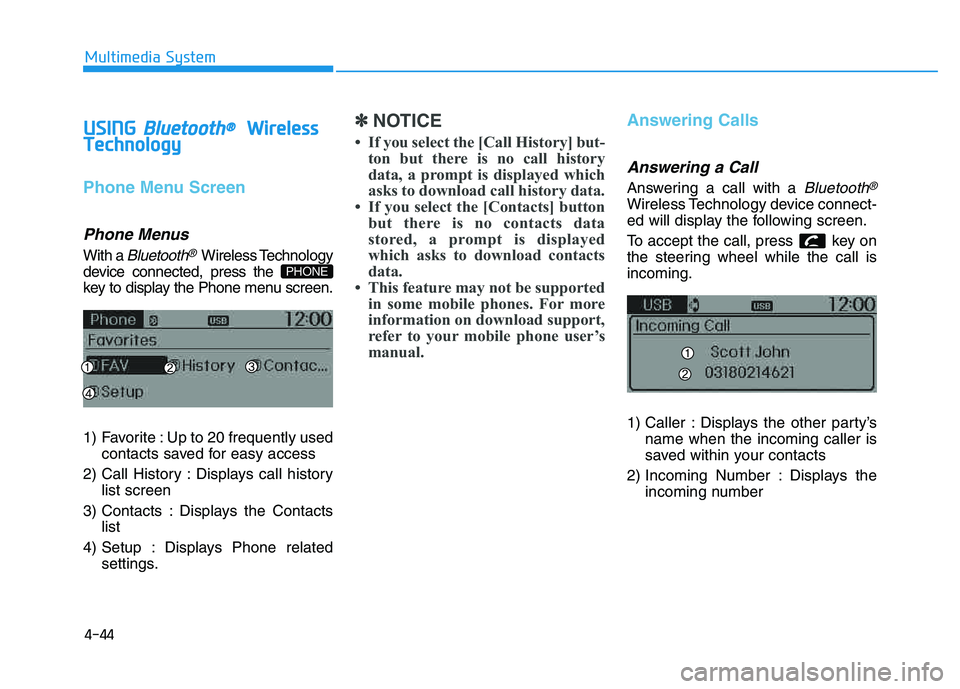
With a Bluetooth®Wireless Technology
device connected, press the
key to display the Phone menu screen.
1) Favorite : Up to 20 frequently used contacts saved for easy access
2) Call History : Displays call history list screen
3) Contacts : Displays the Contacts list
4) Setup : Displays Phone related settings.
✽✽NOTICE
If you select the [Call History] but- ton but there is no call history
data, a prompt is displayed which
asks to download call history data.
If you select the [Contacts] button but there is no contacts data
stored, a prompt is displayed
which asks to download contacts
data.
This feature may not be supported in some mobile phones. For more
information on download support,
refer to your mobile phone user’s
manual.Answering Calls
Answering a Call
Answering a call with a Bluetooth®
Wireless Technology device connect-
ed will display the following screen.
To accept the call, press key on
the steering wheel while the call isincoming.
1) Caller : Displays the other party’s name when the incoming caller is
saved within your contacts
2) Incoming Number : Displays the incoming number
PHONE
Page 261 of 542
4-50
Multimedia System
VVOO IICC EE RR EECCOO GGNN IITT IIOO NN
Using Voice Recognition
Starting Voice Recognition
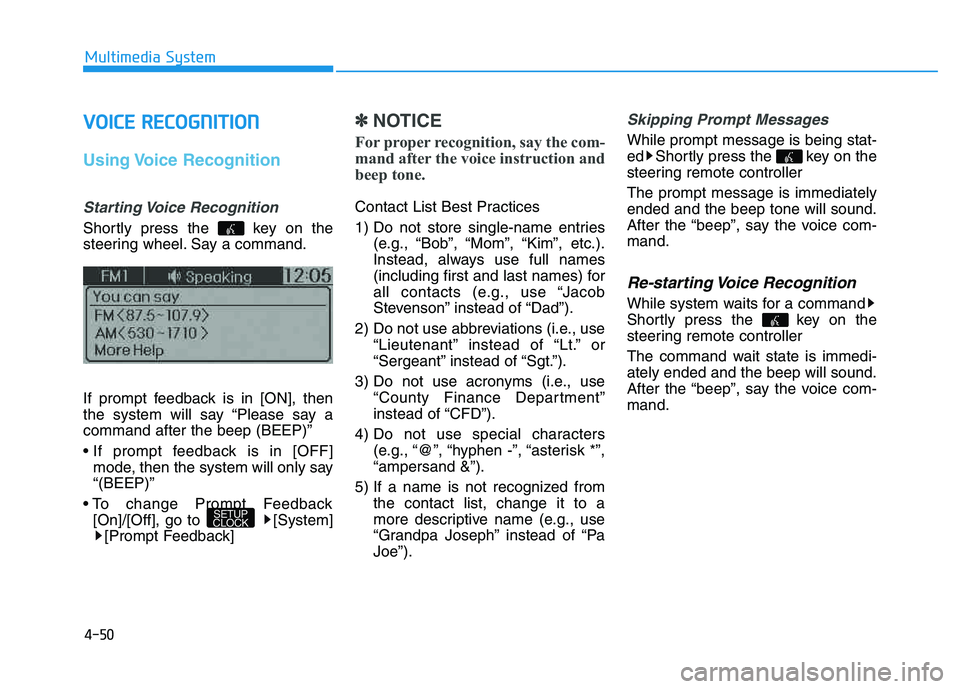
Shortly press the key on the
steering wheel. Say a command.
If prompt feedback is in [ON], then
the system will say “Please say acommand after the beep (BEEP)”
mode, then the system will only say “(BEEP)”
[On]/[Off], go to [System] [Prompt Feedback]
✽✽ NOTICE
For proper recognition, say the com-
mand after the voice instruction and
beep tone.
Contact List Best Practices
1) Do not store single-name entries (e.g., “Bob”, “Mom”, “Kim”, etc.).
Instead, always use full names
(including first and last names) for
all contacts (e.g., use “Jacob
Stevenson” instead of “Dad”).
2) Do not use abbreviations (i.e., use “Lieutenant” instead of “Lt.” or
“Sergeant” instead of “Sgt.”).
3) Do not use acronyms (i.e., use “County Finance Department”
instead of “CFD”).
4) Do not use special characters (e.g., “@”, “hyphen -”, “asterisk *”,“ampersand &”).
5) If a name is not recognized from the contact list, change it to a
more descriptive name (e.g., use
“Grandpa Joseph” instead of “PaJoe”).
Skipping Prompt Messages
While prompt message is being stat-
ed Shortly press the key on the
steering remote controller The prompt message is immediately ended and the beep tone will sound.
After the “beep”, say the voice com-mand.
Re-starting Voice Recognition
While system waits for a command
Shortly press the key on the
steering remote controller
The command wait state is immedi- ately ended and the beep will sound.
After the “beep”, say the voice com-mand.
SETUP
CLOCK