ad blue HYUNDAI TUCSON 2014 Owner's Manual
[x] Cancel search | Manufacturer: HYUNDAI, Model Year: 2014, Model line: TUCSON, Model: HYUNDAI TUCSON 2014Pages: 542, PDF Size: 7.59 MB
Page 258 of 542
4-47
Multimedia System
4
Bluetooth®Wireless
Technology Setting
The Bluetooth®word mark and logos
are registered trademarks owned by
Bluetooth SIG, Inc. and any use of
such marks is under license. Other
trademarks and trade names are
those of their respective owners. A
Bluetooth®enabled cell phone is
required to use
Bluetooth®wireless
technology.
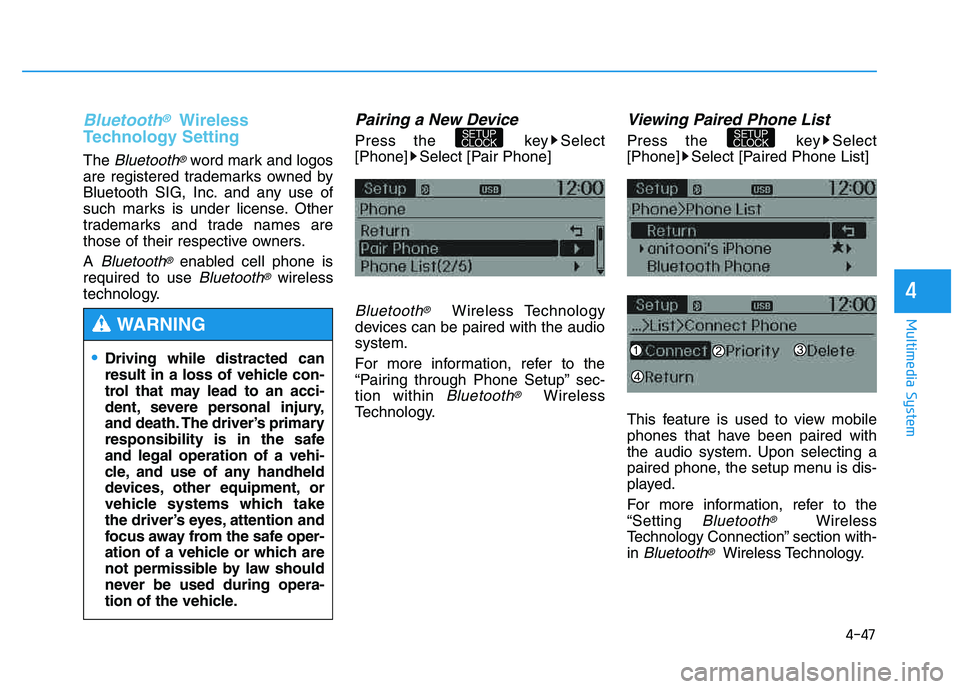
Pairing a New Device
Press the key Select
[Phone] Select [Pair Phone]
Bluetooth®Wireless Technology
devices can be paired with the audiosystem.
For more information, refer to the
“Pairing through Phone Setup” sec-tion within
Bluetooth®Wireless
Technology.
Viewing Paired Phone List
Press the key Select
[Phone] Select [Paired Phone List]
This feature is used to view mobile
phones that have been paired with
the audio system. Upon selecting a
paired phone, the setup menu is dis-
played.
For more information, refer to the “Setting
Bluetooth®Wireless
Technology Connection” section with-in
Bluetooth®Wireless Technology.
SETUP
CLOCKSETUP
CLOCK
Driving while distracted can
result in a loss of vehicle con-
trol that may lead to an acci-
dent, severe personal injury,
and death. The driver’s primary
responsibility is in the safeand legal operation of a vehi-
cle, and use of any handheld
devices, other equipment, or
vehicle systems which take
the driver’s eyes, attention and
focus away from the safe oper-
ation of a vehicle or which are
not permissible by law should
never be used during opera-
tion of the vehicle.
WARNING
Page 259 of 542
4-48
Multimedia System
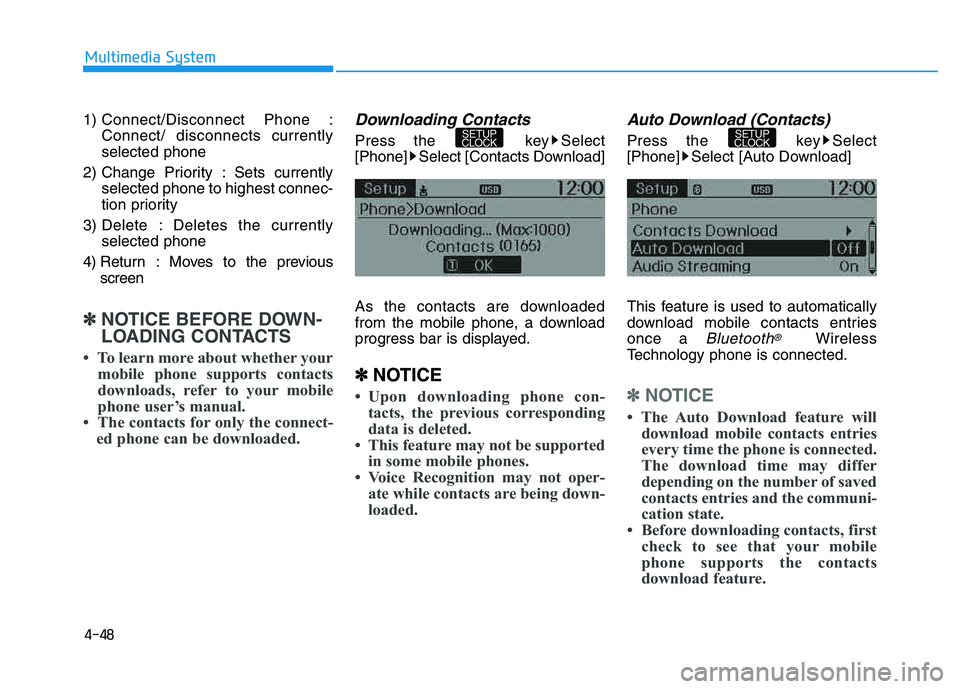
1) Connect/Disconnect Phone :Connect/ disconnects currently selected phone
2) Change Priority : Sets currently selected phone to highest connec-
tion priority
3) Delete : Deletes the currently selected phone
4) Return : Moves to the previous screen
✽✽ NOTICE BEFORE DOWN-
LOADING CONTACTS
To learn more about whether your mobile phone supports contacts
downloads, refer to your mobile
phone user’s manual.
The contacts for only the connect- ed phone can be downloaded.
Downloading Contacts
Press the key Select
[Phone] Select [Contacts Download]
As the contacts are downloaded
from the mobile phone, a download
progress bar is displayed.
✽✽ NOTICE
Upon downloading phone con-
tacts, the previous corresponding
data is deleted.
This feature may not be supported in some mobile phones.
Voice Recognition may not oper- ate while contacts are being down-
loaded.
Auto Download (Contacts)
Press the key Select
[Phone] Select [Auto Download]
This feature is used to automatically
download mobile contacts entriesonce a
Bluetooth®Wireless
Technology phone is connected.
✽✽ NOTICE
The Auto Download feature will
download mobile contacts entries
every time the phone is connected.
The download time may differ
depending on the number of saved
contacts entries and the communi-
cation state.
Before downloading contacts, first check to see that your mobile
phone supports the contacts
download feature.
SETUP
CLOCKSETUP
CLOCK
Page 260 of 542
![HYUNDAI TUCSON 2014 Owners Manual 4-49
Multimedia System
4
Audio Streaming
Press the key Select
[Phone] Select [Audio Streaming]
When Audio Streaming is turned on,
you can play music files saved in your
Bluetooth®Wireless Technolo](/img/35/56203/w960_56203-259.png "HYUNDAI TUCSON 2014 Owners Manual 4-49
Multimedia System
4
Audio Streaming
Press the key Select
[Phone] Select [Audio Streaming]
When Audio Streaming is turned on,
you can play music files saved in your
Bluetooth®Wireless Technolo")
4-49
Multimedia System
4
Audio Streaming
Press the key Select
[Phone] Select [Audio Streaming]
When Audio Streaming is turned on,
you can play music files saved in your
Bluetooth®Wireless Technology device
through the audio system.
Outgoing Volume
Press the key Select
[Phone] Select [Outgoing Volume]
Use TUNE knob to adjust the out-
going volume level.
✽✽ NOTICE
While on a call, the volume can be
changed by using the key.
Turning Bluetooth System Off
Press the key Select
[Phone] Select [Bluetooth SystemOff] Once
Bluetooth®Wireless Technology
is turned off,
Bluetooth®Wireless
Technology related features will not
be supported within the audio system.
✽✽ NOTICE
To turn Bluetooth®
Wireless
Technology back on, go to
[Phone] and select “Yes”.
SETUP
CLOCK
SETUP
CLOCK
SEEK
TRACK
SETUP
CLOCKSETUP
CLOCK
Page 264 of 542
4-53
Multimedia System
4
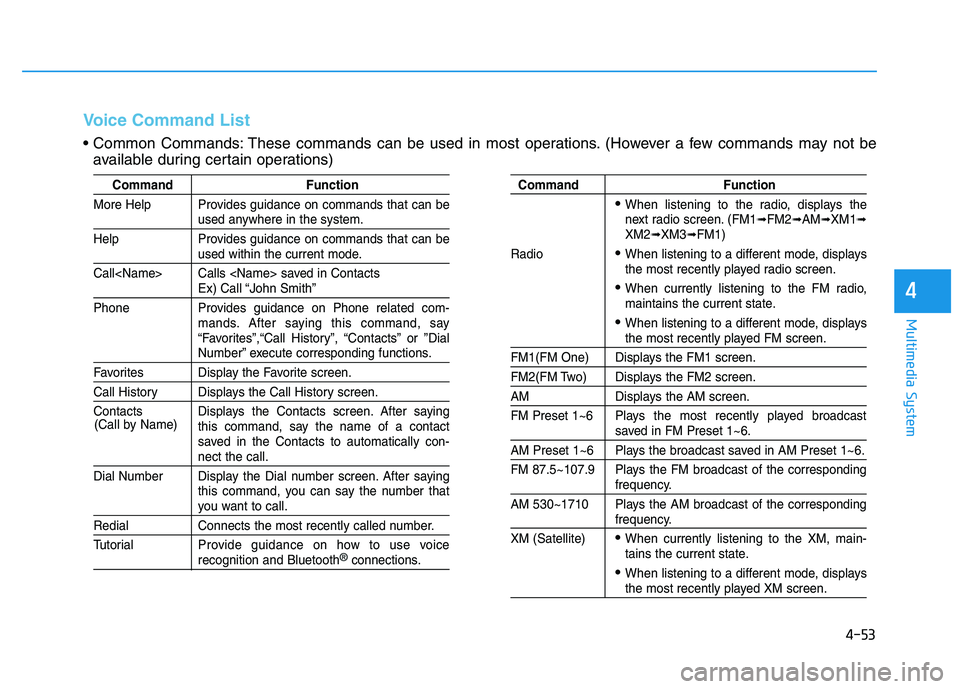
Voice Command List
Common Commands: These commands can be used in most operations. (However a few commands may not beavailable during certain operations)
Command Function
More Help Provides guidance on commands that can be
used anywhere in the system.
Help Provides guidance on commands that can be
used within the current mode.
Call
Ex) Call “John Smith”
Phone Provides guidance on Phone related com- mands. After saying this command, say
“Favorites”,“Call History”, “Contacts” or ”Dial
Number” execute corresponding functions.
Favorites Display the Favorite screen.
Call History Displays the Call History screen.
Contacts Displays the Contacts screen. After sayingthis command, say the name of a contact
saved in the Contacts to automatically con-
nect the call.
Dial Number Display the Dial number screen. After saying this command, you can say the number that
you want to call.
Redial Connects the most recently called number.
Tutorial Pro vide guidance on how to use voice
recognition and Bluetooth®connections.
Command Function
When listening to the radio, displays the
next radio screen. (FM1➟FM2➟AM➟XM1➟XM2➟XM3➟FM1)
Radio
When listening to a different mode, displays
the most recently played radio screen.
When currently listening to the FM radio,
maintains the current state.
When listening to a different mode, displaysthe most recently played FM screen.
FM1(FM One) Displays the FM1 screen.
FM2(FM Two) Displays the FM2 screen.
AM Displays the AM screen.
FM Preset 1~6 Plays the most recently played broadcast
saved in FM Preset 1~6.
AM Preset 1~6 Plays the broadcast saved in AM Preset 1~6.
FM 87.5~107.9 Plays the FM broadcast of the corresponding
frequency.
AM 530~1710 Plays the AM broadcast of the corresponding
frequency.
XM (Satellite)
When currently listening to the XM, main-
tains the current state.
When listening to a different mode, displaysthe most recently played XM screen.
(Call by Name)
Page 265 of 542
4-54
Multimedia System
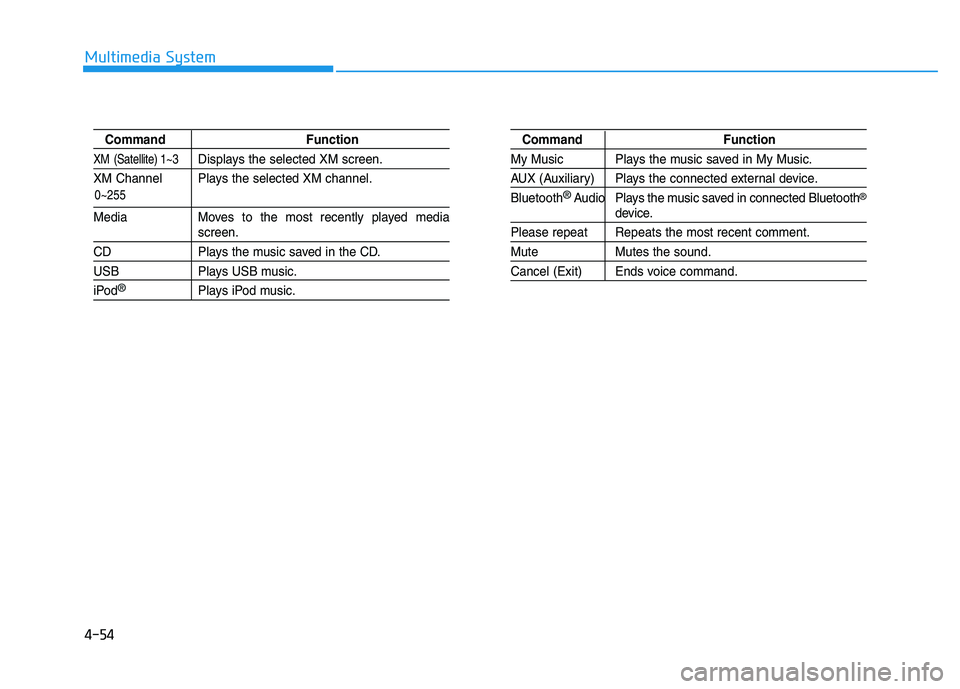
Command Function
XM (Satellite) 1~3Displays the selected XM screen.
XM Channel Plays the selected XM channel.
Media Moves to the most recently played mediascreen.
CD Plays the music saved in the CD.
USB Plays USB music.
iPod®Plays iPod music.
Command Function
My Music Plays the music saved in My Music.
AUX (Auxiliary) Plays the connected external device. Bluetooth
®Audio Plays the music saved in connected Bluetooth®
device.
Please repeat Repeats the most recent comment.
Mute Mutes the sound.
Cancel (Exit) Ends voice command.
0~255
Page 269 of 542
4-58
Multimedia System
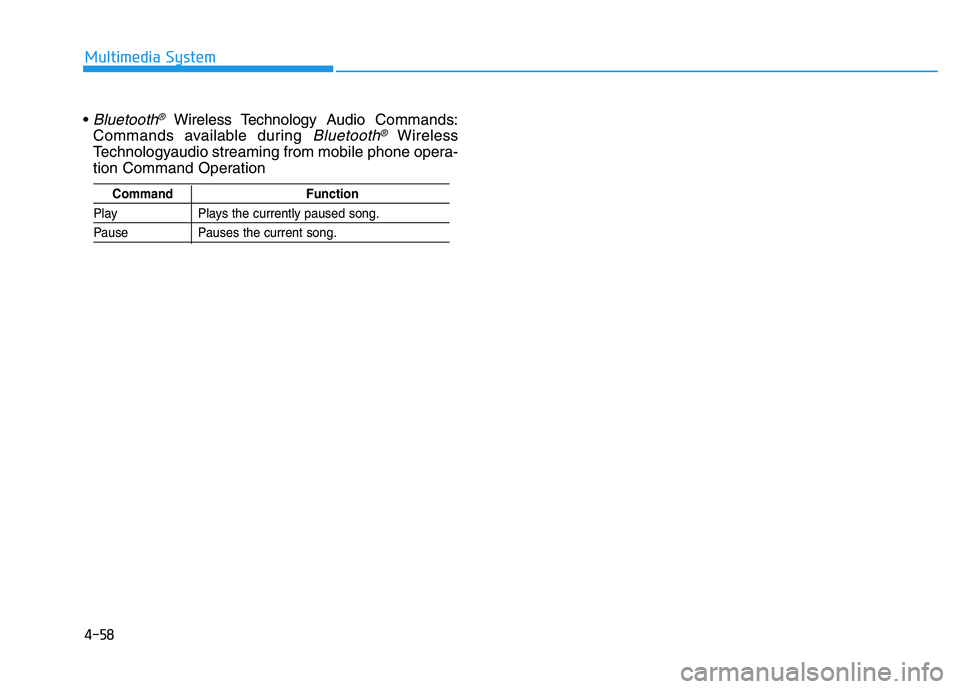
Bluetooth®Wireless Technology Audio Commands:
Commands available during
Bluetooth®Wireless
Technologyaudio streaming from mobile phone opera-
tion Command Operation
Command Function
Play Plays the currently paused song.
Pause Pauses the current song.
Page 271 of 542
4-60
Multimedia System
SSYY SSTT EEMM CC OO NNTTRR OO LLLLEE RR SS AA NN DD
F
F UU NNCCTT IIOO NNSS
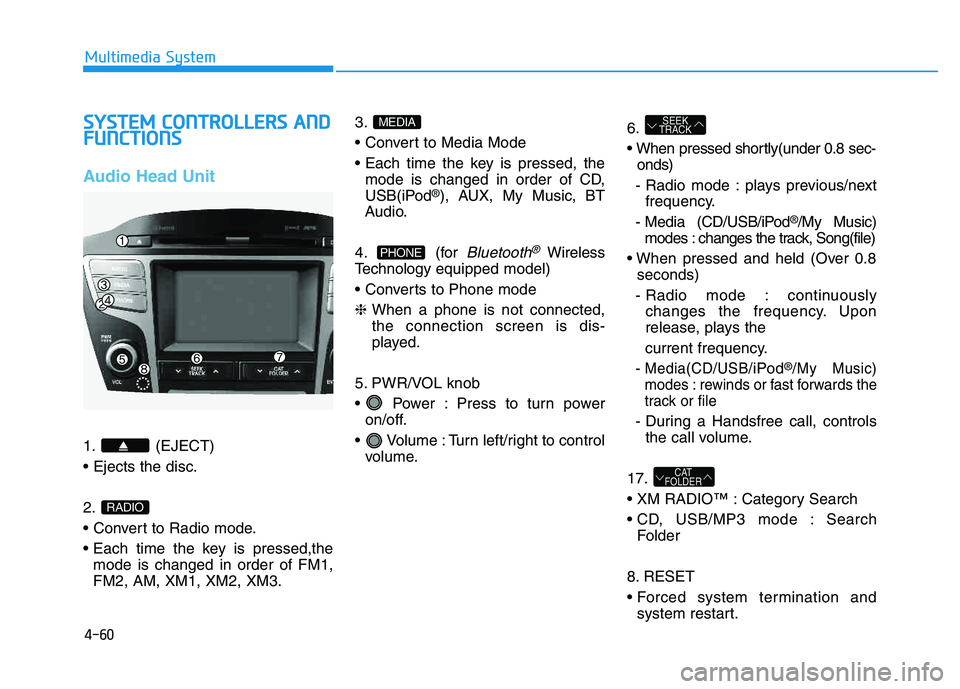
Audio Head Unit
1. (EJECT) 2.
mode is changed in order of FM1, FM2, AM, XM1, XM2, XM3. 3.
mode is changed in order of CD,
USB(iPod
®), AUX, My Music, BT
Audio.
4. (for
Bluetooth®Wireless
Technology equipped model)
❈ When a phone is not connected, the connection screen is dis-
played.
5. PWR/VOL knob
Power : Press to turn power on/off.
Volume : Turn left/right to control volume. 6.
onds)
- Radio mode : plays previous/next frequency.
- Media (CD/USB/iPod
®/My Music)
modes : changes the track, Song(file)
seconds)
- Radio mode : continuously changes the frequency. Upon
release, plays the
current frequency.
- Media(CD/USB/iPod®/My Music)
modes : rewinds or fast forwards the
track or file
- During a Handsfree call, controls the call volume.
17.
: Category Search
Search Folder
8. RESET
system restart.
CAT
FOLDER
SEEK
TRACK
PHONE
MEDIA
RADIO
Page 274 of 542
4-63
Multimedia System
4
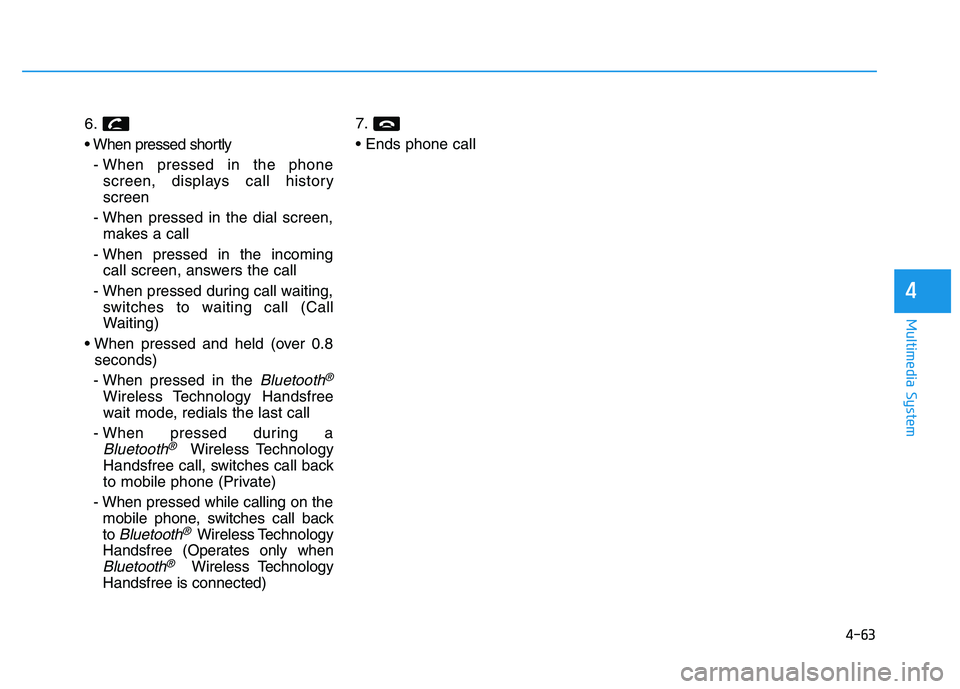
6.
- When pressed in the phone screen, displays call history screen
- When pressed in the dial screen, makes a call
- When pressed in the incoming call screen, answers the call
- When pressed during call waiting, switches to waiting call (Call
Waiting)
seconds)
- When pressed in the
Bluetooth®
Wireless Technology Handsfree
wait mode, redials the last call
- When pressed during a
Bluetooth®Wireless Technology
Handsfree call, switches call back
to mobile phone (Private)
- When pressed while calling on the mobile phone, switches call backto
Bluetooth®Wireless Technology
Handsfree (Operates only when
Bluetooth®Wireless Technology
Handsfree is connected) 7.
Page 281 of 542
![HYUNDAI TUCSON 2014 Owners Manual 4-70
Multimedia System
MMEEDD IIAA MM OODDEE
Pressing the key will change
the operating mode in order ofCD
➟USB(iPod®)➟AUX➟My Music ➟
BT Audio.
If [Mode Pop up] is turned on within
[Disp](/img/35/56203/w960_56203-280.png "HYUNDAI TUCSON 2014 Owners Manual 4-70
Multimedia System
MMEEDD IIAA MM OODDEE
Pressing the key will change
the operating mode in order ofCD
➟USB(iPod®)➟AUX➟My Music ➟
BT Audio.
If [Mode Pop up] is turned on within
[Disp")
4-70
Multimedia System
MMEEDD IIAA MM OODDEE
Pressing the key will change
the operating mode in order ofCD
➟USB(iPod®)➟AUX➟My Music ➟
BT Audio.
If [Mode Pop up] is turned on within
[Display], then pressing the
key will display the Media
Pop-up Mode screen.
Turn the TUNE knob to move the
focus. Press the knob to select.
✽✽ NOTICE
The media mode pop up screen can
be displayed only when there are two
or more media modes turned on.
Title Icon
When a Bluetooth®Wireless
Technology, iPod®, USB, or AUX
device is connected or a CD is
inserted, the corresponding mode
icon will be displayed.
Icon Title
Bluetooth®Wireless Technology
CD
iPod®
USB
AUX
MEDIA
SETUP
MEDIA
Page 295 of 542
4-84
Multimedia System
✽✽NOTICE - USING THE
iPod ®
DEVICE
iPod ®
is a registered trademark
of Apple Inc.
In order to use the iPod ®
while
operating the keys, you must use
a dedicated iPod ®
cable. (the
cable that is supplied when pur-
chasing iPod ®
/iPhone ®
prod-
ucts)
If the iPod ®
is connected to the
vehicle while it is playing, a high
pitch sound could occur for
approximately 1-2 seconds
immediately after connecting. If
possible, connect the iPod to the
vehicle with the iPod ®
stopped/paused.
During ACC ON state, connect- ing the iPod ®
through the iPod ®
cable will charge the iPod ®
through the car audio system.
When connecting with the iPod ®
cable, make sure to fully insert
the jack to prevent communica-
tion interference. (Continued)(Continued)
When the EQ features of an
external device, such as the
iPod ®
, and the audio system are
both active, EQ effects could
overlap and cause sound deteri-
oration and distortion.
Whenever possible, turn off the
EQ feature within the external
device upon use by connecting
with the audio system.
Noise may occur when an iPod ®
or AUX device is connected.
When such devices are not
being used, disconnect the
device for storage.
When the iPod ®
or AUX device
power is connected to the power
jack, playing the external device
may result in noise. In such
cases, disconnect the power con-
nection before use.
Skipping or improper operation may occur depending on the
characteristics of your iPod ®
/Phone ®
device.
(Continued) (Continued)
If your iPhone
®
is connected to
both the Bluetooth®
Wireless
Technology and USB, the sound
may not be properly played. In
your iPhone ®
, select the Dock
connector or Bluetooth®
Wireless Technology to change
the sound output (source).
iPod mode cannot be operated when the iPod ®
cannot be recog-
nized due to versions that do not
support communication proto-
cols.
For fifth generation iPod ®
Nano
devices, the iPod ®
may not be
recognized when the battery
level is low. Please charge the
iPod ®
for use.
Search/play orders shown within the iPod ®
device may differ with
the orders shown within the
audio system.
If the iPod ®
malfunctions due to
an iPod ®
device defect, reset the
iPod ®
and try again. (To learn
more, refer to your iPod®
manu-
al) (Continued)