wheel HYUNDAI TUCSON 2014 Owner's Manual
[x] Cancel search | Manufacturer: HYUNDAI, Model Year: 2014, Model line: TUCSON, Model: HYUNDAI TUCSON 2014Pages: 542, PDF Size: 7.59 MB
Page 182 of 542
3-96
Convenient features of your vehicle
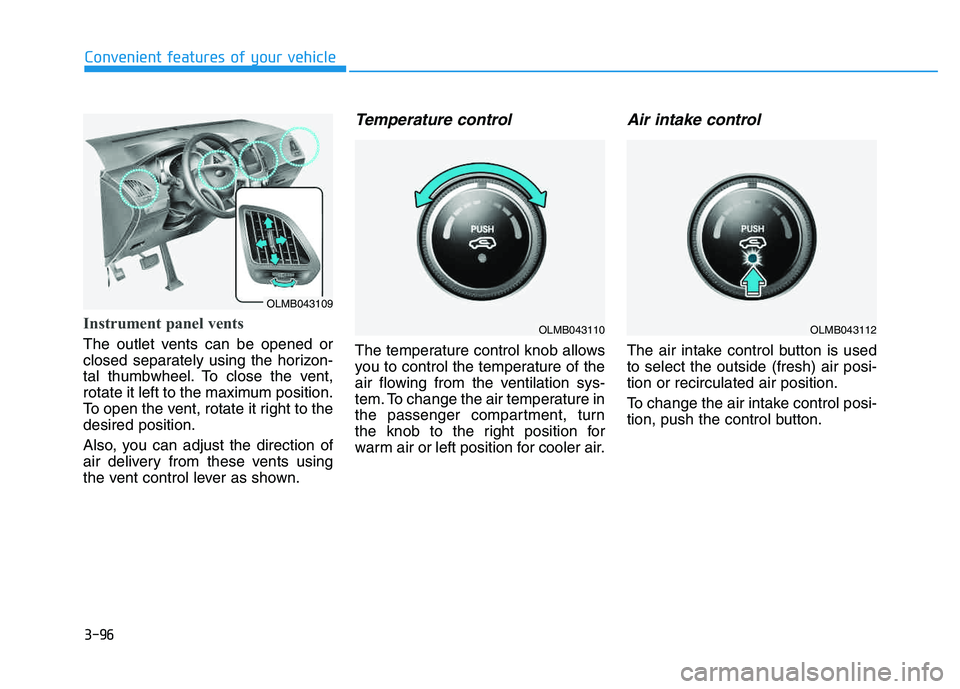
Instrument panel vents
The outlet vents can be opened or
closed separately using the horizon-
tal thumbwheel. To close the vent,
rotate it left to the maximum position.
To open the vent, rotate it right to thedesired position.
Also, you can adjust the direction of
air delivery from these vents using
the vent control lever as shown.
Temperature control
The temperature control knob allows
you to control the temperature of the
air flowing from the ventilation sys-
tem. To change the air temperature in
the passenger compartment, turn
the knob to the right position for
warm air or left position for cooler air.
Air intake control
The air intake control button is usedto select the outside (fresh) air posi-tion or recirculated air position.
To change the air intake control posi-
tion, push the control button.
OLMB043109
OLMB043110OLMB043112
Page 193 of 542
3-107
Convenient features of your vehicle
3
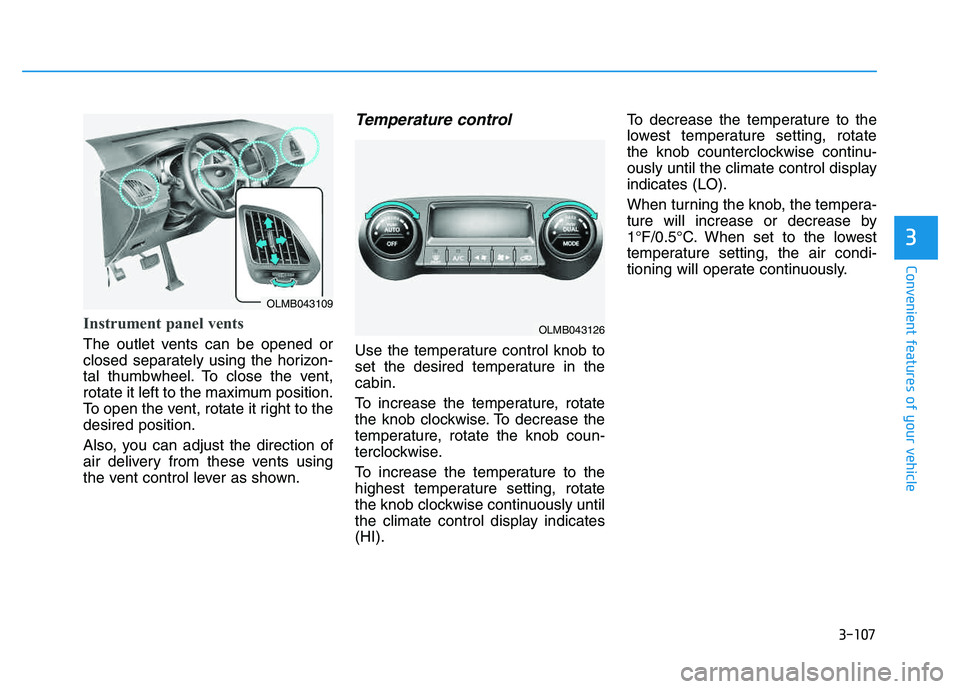
Instrument panel vents
The outlet vents can be opened or
closed separately using the horizon-
tal thumbwheel. To close the vent,
rotate it left to the maximum position.
To open the vent, rotate it right to thedesired position.
Also, you can adjust the direction of
air delivery from these vents using
the vent control lever as shown.
Temperature control
Use the temperature control knob to
set the desired temperature in thecabin.
To increase the temperature, rotate
the knob clockwise. To decrease the
temperature, rotate the knob coun-
terclockwise.
To increase the temperature to the
highest temperature setting, rotate
the knob clockwise continuously until
the climate control display indicates(HI).To decrease the temperature to the
lowest temperature setting, rotate
the knob counterclockwise continu-
ously until the climate control displayindicates (LO).
When turning the knob, the tempera-
ture will increase or decrease by
1°F/0.5°C. When set to the lowest
temperature setting, the air condi-
tioning will operate continuously.
OLMB043109
OLMB043126
Page 214 of 542
4-3
Multimedia System
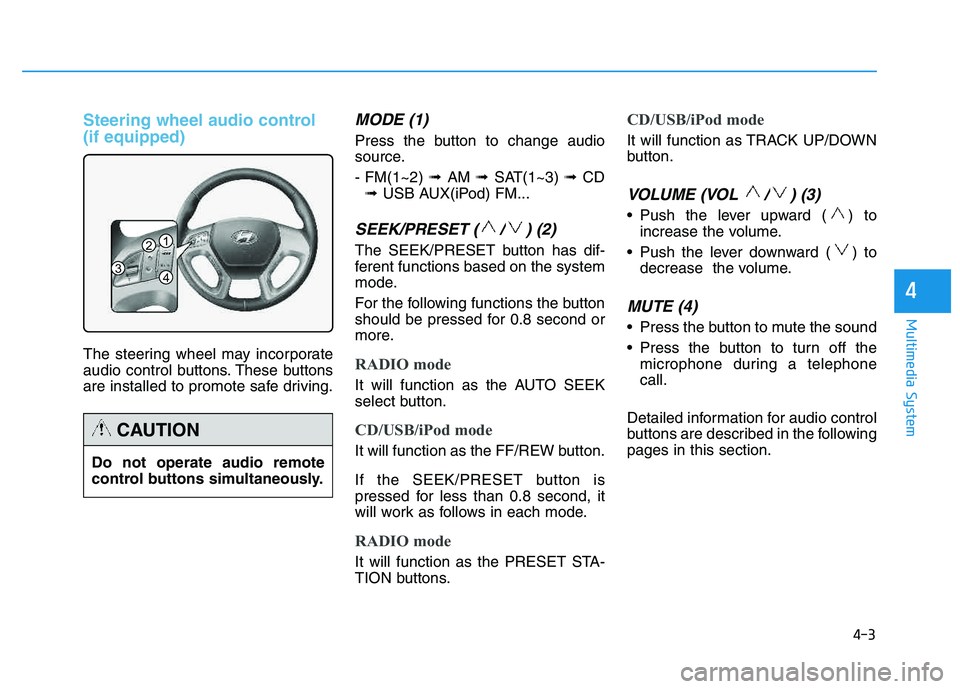
Steering wheel audio control (if equipped)
The steering wheel may incorporate
audio control buttons. These buttons
are installed to promote safe driving.
MODE (1)
Press the button to change audio
source. - FM(1~2) ➟ AM ➟ SAT(1~3) ➟ CD
➟ USB AUX(iPod) FM...
SEEK/PRESET ( / ) (2)
The SEEK/PRESET button has dif-
ferent functions based on the system
mode.
For the following functions the button
should be pressed for 0.8 second or
more.
RADIO mode
It will function as the AUTO SEEK
select button.
CD/USB/iPod mode
It will function as the FF/REW button.
If the SEEK/PRESET button is
pressed for less than 0.8 second, it
will work as follows in each mode.
RADIO mode
It will function as the PRESET STA-
TION buttons.
CD/USB/iPod mode
It will function as TRACK UP/DOWN
button.
VOLUME (VOL / ) (3)
• Push the lever upward ( ) to
increase the volume.
Push the lever downward ( ) to decrease the volume.
MUTE (4)
Press the button to mute the sound
Press the button to turn off themicrophone during a telephone call.
Detailed information for audio control
buttons are described in the followingpages in this section.
4
1
3
2
4
Do not operate audio remote
control buttons simultaneously.
CAUTION
Page 247 of 542
4-36
Multimedia System
PPHH OO NNEE
Before using the Bluetooth®Wireless
Technology phone features
Bluetooth®Wireless
Technology phone, you must first pair and connect the
Bluetooth®
Wireless Technology mobile phone.
connected, it is not possible to enter
Phone mode. Once a phone ispaired or connected, the guidance
screen will be displayed.
(IGN/ACC ON), the
Bluetooth®
Wireless Technology phone will be
automatically connected. Even if you
are outside, the
Bluetooth® Wireless
Technology phone will be automati-
cally connected once you are in the
vicinity of the vehicle. If you do not
want automatic
Bluetooth®Wireless
Technology phone connection, setthe
Bluetooth®Wireless Technology
power to OFF.
PP HH OO NNEE
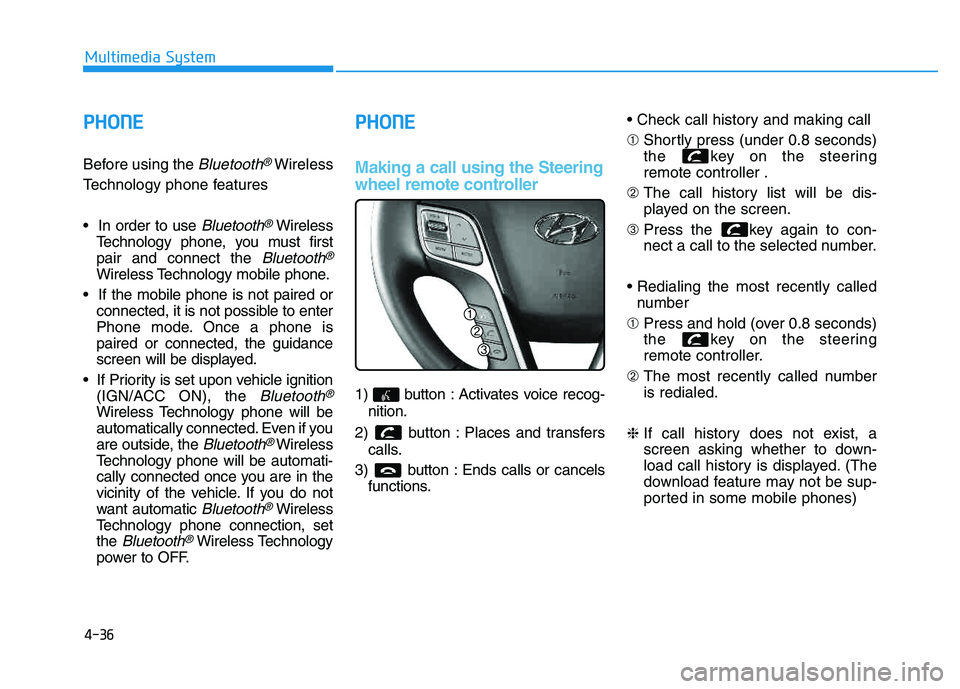
Making a call using the Steering
wheel remote controller
1) button : Activates voice recog-
nition.
2) button : Places and transfers calls.
3) button : Ends calls or cancels functions. ➀
Shortly press (under 0.8 seconds)
the key on the steeringremote controller .
➁ The call history list will be dis-
played on the screen.
➂ Press the key again to con-
nect a call to the selected number.
number
➀ Press and hold (over 0.8 seconds)
the key on the steering
remote controller.
➁ The most recently called numberis redialed.
❈ If call history does not exist, a
screen asking whether to down-
load call history is displayed. (The
download feature may not be sup-
ported in some mobile phones)
Page 250 of 542
4-39
Multimedia System
4
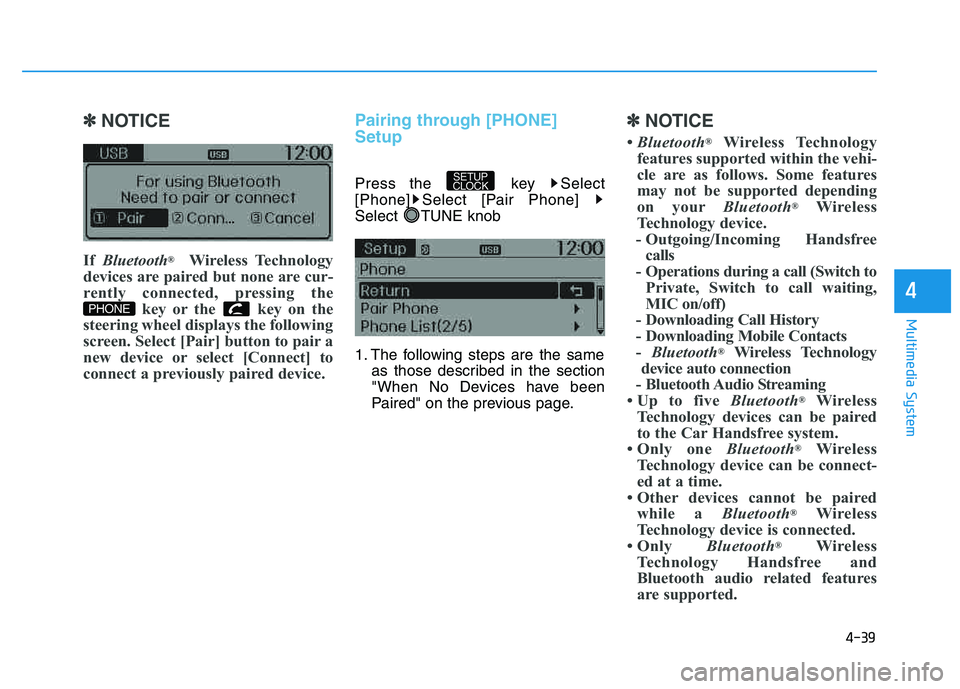
✽✽NOTICE
If Bluetooth ®
Wireless Technology
devices are paired but none are cur-
rently connected, pressing the key or the key on the
steering wheel displays the following
screen. Select [Pair] button to pair a
new device or select [Connect] to
connect a previously paired device.Pairing through [PHONE] Setup
Press the key Select
[Phone] Select [Pair Phone]
Select TUNE knob
1. The following steps are the same as those described in the section
"When No Devices have been
Paired" on the previous page.
✽✽ NOTICE
Bluetooth ®
Wireless Technology
features supported within the vehi-
cle are as follows. Some features
may not be supported depending
on your Bluetooth®
Wireless
Technology device.
- Outgoing/Incoming Handsfree calls
- Operations during a call (Switch to Private, Switch to call waiting,
MIC on/off)
- Downloading Call History
- Downloading Mobile Contacts- Bluetooth ®
Wireless Technology
device auto connection
- Bluetooth Audio Streaming
Up to five Bluetooth®
Wireless
Technology devices can be paired
to the Car Handsfree system.
Only one Bluetooth®
Wireless
Technology device can be connect-
ed at a time.
Other devices cannot be paired while a Bluetooth®
Wireless
Technology device is connected.
Only Bluetooth®
Wireless
Technology Handsfree and
Bluetooth audio related features
are supported.
SETUP
CLOCK
PHONE
Page 255 of 542
4-44
Multimedia System
UUSSIINN GG BBlluu eettoo oo tthh®®WW iirr ee llee ssss
T
T eecchh nnoo lloo ggyy
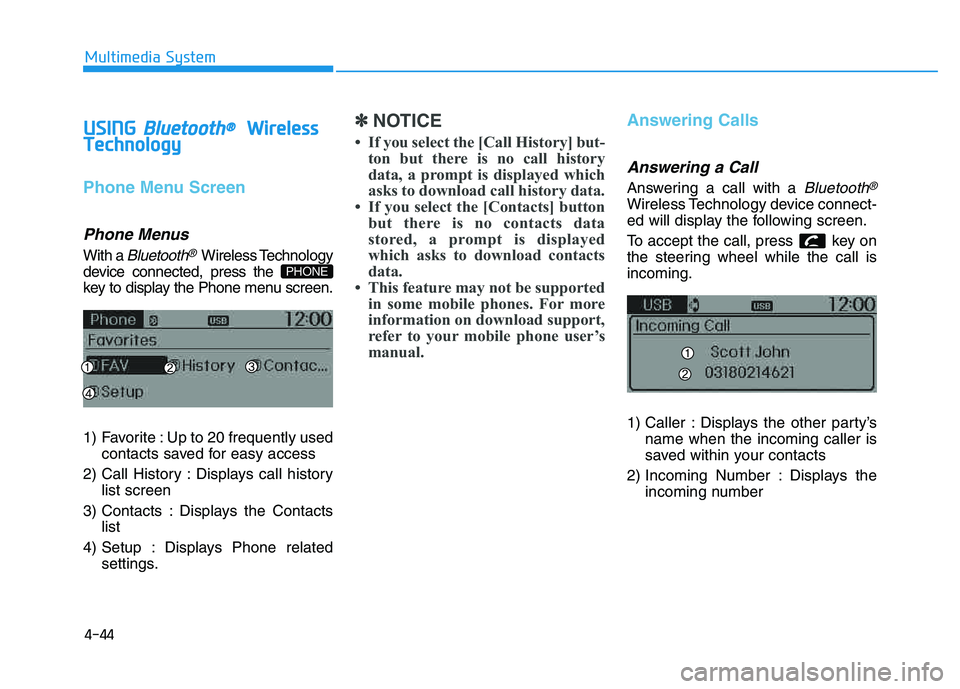
Phone Menu Screen
Phone Menus
With a Bluetooth®Wireless Technology
device connected, press the
key to display the Phone menu screen.
1) Favorite : Up to 20 frequently used contacts saved for easy access
2) Call History : Displays call history list screen
3) Contacts : Displays the Contacts list
4) Setup : Displays Phone related settings.
✽✽NOTICE
If you select the [Call History] but- ton but there is no call history
data, a prompt is displayed which
asks to download call history data.
If you select the [Contacts] button but there is no contacts data
stored, a prompt is displayed
which asks to download contacts
data.
This feature may not be supported in some mobile phones. For more
information on download support,
refer to your mobile phone user’s
manual.Answering Calls
Answering a Call
Answering a call with a Bluetooth®
Wireless Technology device connect-
ed will display the following screen.
To accept the call, press key on
the steering wheel while the call isincoming.
1) Caller : Displays the other party’s name when the incoming caller is
saved within your contacts
2) Incoming Number : Displays the incoming number
PHONE
Page 261 of 542
4-50
Multimedia System
VVOO IICC EE RR EECCOO GGNN IITT IIOO NN
Using Voice Recognition
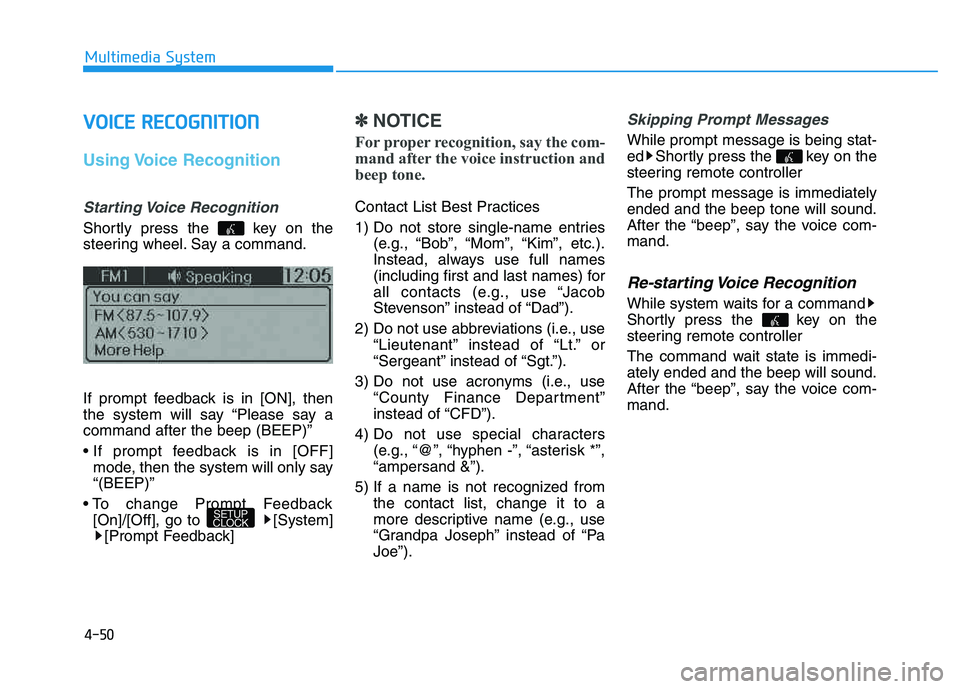
Starting Voice Recognition
Shortly press the key on the
steering wheel. Say a command.
If prompt feedback is in [ON], then
the system will say “Please say acommand after the beep (BEEP)”
mode, then the system will only say “(BEEP)”
[On]/[Off], go to [System] [Prompt Feedback]
✽✽ NOTICE
For proper recognition, say the com-
mand after the voice instruction and
beep tone.
Contact List Best Practices
1) Do not store single-name entries (e.g., “Bob”, “Mom”, “Kim”, etc.).
Instead, always use full names
(including first and last names) for
all contacts (e.g., use “Jacob
Stevenson” instead of “Dad”).
2) Do not use abbreviations (i.e., use “Lieutenant” instead of “Lt.” or
“Sergeant” instead of “Sgt.”).
3) Do not use acronyms (i.e., use “County Finance Department”
instead of “CFD”).
4) Do not use special characters (e.g., “@”, “hyphen -”, “asterisk *”,“ampersand &”).
5) If a name is not recognized from the contact list, change it to a
more descriptive name (e.g., use
“Grandpa Joseph” instead of “PaJoe”).
Skipping Prompt Messages
While prompt message is being stat-
ed Shortly press the key on the
steering remote controller The prompt message is immediately ended and the beep tone will sound.
After the “beep”, say the voice com-mand.
Re-starting Voice Recognition
While system waits for a command
Shortly press the key on the
steering remote controller
The command wait state is immedi- ately ended and the beep will sound.
After the “beep”, say the voice com-mand.
SETUP
CLOCK
Page 262 of 542
4-51
Multimedia System
4
EENN DDIINN GG VV OO IICC EE RR EECCOO GGNN IITT IIOO NN
While Voice Recognition is operating
Press and hold the key on the
steering remote controller
✽✽ NOTICE
While using voice command, pressing any steering wheel con-
trol or a different key will end
voice command.
When the system is waiting for a voice command, say “cancel” or
“end” to end voice command.
When the system is waiting for a voice command, press and hold
the key on the steering wheel
to end voice command.
Page 307 of 542
![HYUNDAI TUCSON 2014 Owners Manual 4-96
Multimedia System
[Non SSP supported device]
(SSP: Secure Simple Pairing)
4. After a few moments, a screen isdisplayed where the passkey is entered.
Hear, enter the passkey “0000” to
pair yo](/img/35/56203/w960_56203-306.png "HYUNDAI TUCSON 2014 Owners Manual 4-96
Multimedia System
[Non SSP supported device]
(SSP: Secure Simple Pairing)
4. After a few moments, a screen isdisplayed where the passkey is entered.
Hear, enter the passkey “0000” to
pair yo")
4-96
Multimedia System
[Non SSP supported device]
(SSP: Secure Simple Pairing)
4. After a few moments, a screen isdisplayed where the passkey is entered.
Hear, enter the passkey “0000” to
pair your
Bluetooth®Wireless
Technology device with the caraudio system.
[SSP supported device]
4. After a few moments, a screen is displayed 6 digits passkey.
Hear, check the passkey on your
Bluetooth®Wireless Technology
device and confirm.
5. Once pairing is complete, the fol- lowing screen is displayed.
✽✽ NOTICE
If Bluetooth ®
Wireless Technology
devices are paired but none are cur-
rently connected, pressing the key or the key on the
steering wheel displays the following
screen. Press the [Pair] button to
pair a new device or press the
[Connect] to connect a previously
paired device.Pairing through [PHONE] Setup
Press the key Select
[Phone] Select [Pair Phone]
Select TUNE knob
1. The following steps are the same as those described in the section
"When No Devices have been
Paired" on the previous page.SETUP
PHONE
Page 319 of 542
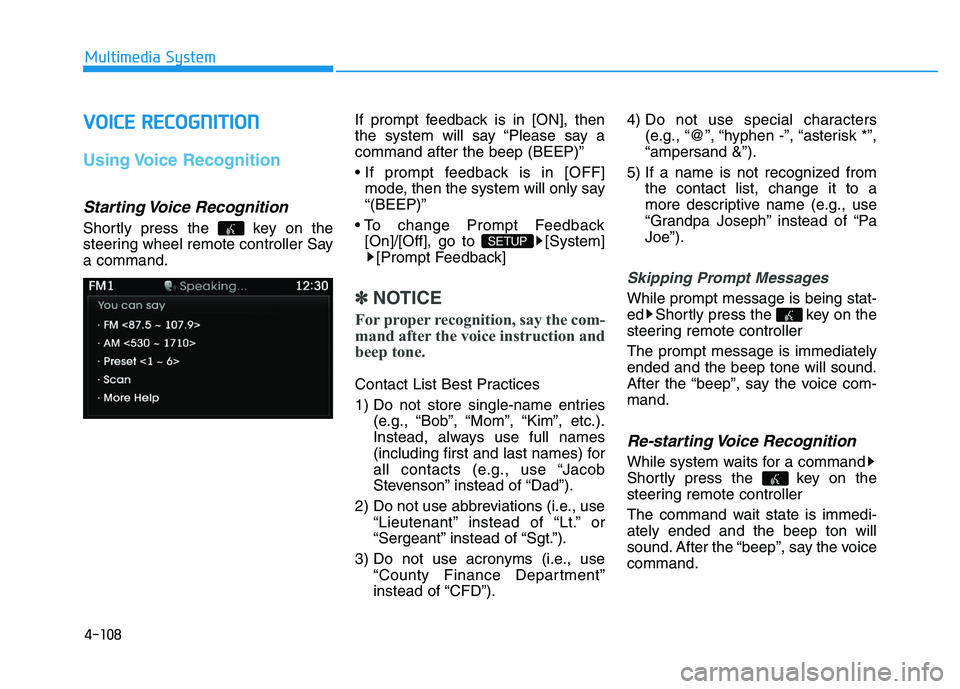
4-108
Multimedia System
VVOO IICC EE RR EECCOO GGNN IITT IIOO NN
Using Voice Recognition
Starting Voice Recognition
Shortly press the key on the
steering wheel remote controller Saya command. If prompt feedback is in [ON], then
the system will say “Please say acommand after the beep (BEEP)”
mode, then the system will only say “(BEEP)”
[On]/[Off], go to [System] [Prompt Feedback]
✽✽ NOTICE
For proper recognition, say the com-
mand after the voice instruction and
beep tone.
Contact List Best Practices
1) Do not store single-name entries (e.g., “Bob”, “Mom”, “Kim”, etc.).
Instead, always use full names
(including first and last names) for
all contacts (e.g., use “Jacob
Stevenson” instead of “Dad”).
2) Do not use abbreviations (i.e., use “Lieutenant” instead of “Lt.” or
“Sergeant” instead of “Sgt.”).
3) Do not use acronyms (i.e., use “County Finance Department”
instead of “CFD”). 4) Do not use special characters
(e.g., “@”, “hyphen -”, “asterisk *”,“ampersand &”).
5) If a name is not recognized from the contact list, change it to a
more descriptive name (e.g., use
“Grandpa Joseph” instead of “PaJoe”).
Skipping Prompt Messages
While prompt message is being stat-
ed Shortly press the key on the
steering remote controller The prompt message is immediately ended and the beep tone will sound.
After the “beep”, say the voice com-mand.
Re-starting Voice Recognition
While system waits for a command
Shortly press the key on the
steering remote controller
The command wait state is immedi- ately ended and the beep ton will
sound. After the “beep”, say the voicecommand.
SETUP