ECU HYUNDAI TUCSON 2014 Owner's Guide
[x] Cancel search | Manufacturer: HYUNDAI, Model Year: 2014, Model line: TUCSON, Model: HYUNDAI TUCSON 2014Pages: 542, PDF Size: 7.59 MB
Page 208 of 542
3-122
Convenient features of your vehicle
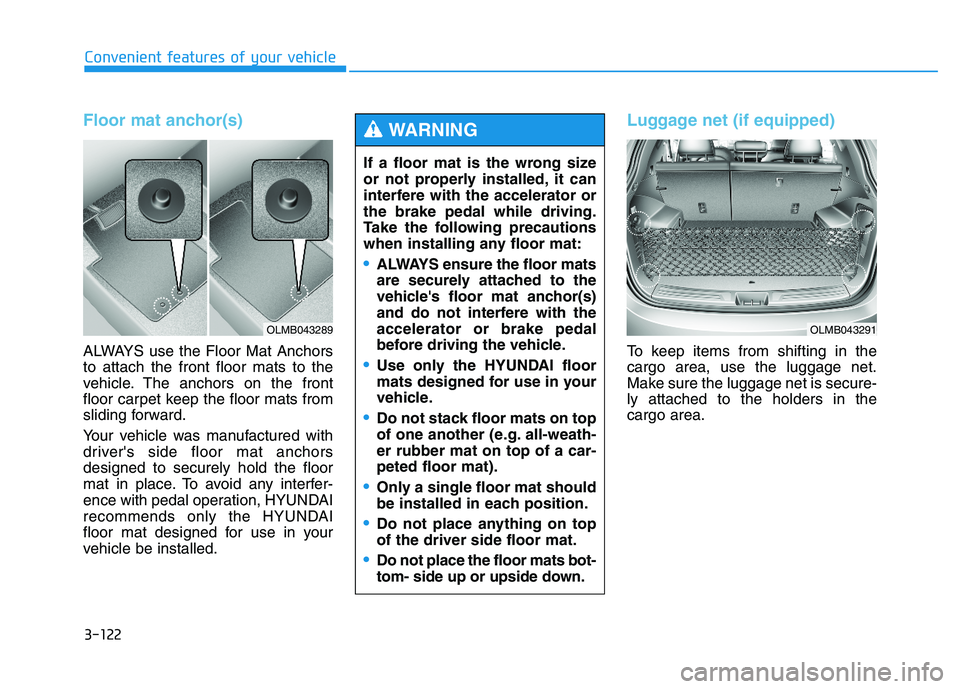
Floor mat anchor(s)
ALWAYS use the Floor Mat Anchors to attach the front floor mats to the
vehicle. The anchors on the front
floor carpet keep the floor mats from
sliding forward.
Your vehicle was manufactured with
driver's side floor mat anchorsdesigned to securely hold the floor
mat in place. To avoid any interfer-
ence with pedal operation, HYUNDAI
recommends only the HYUNDAI
floor mat designed for use in your
vehicle be installed.
Luggage net (if equipped)
To keep items from shifting in the cargo area, use the luggage net.
Make sure the luggage net is secure-ly attached to the holders in the cargo area.
If a floor mat is the wrong size
or not properly installed, it can
interfere with the accelerator orthe brake pedal while driving.
Take the following precautions
when installing any floor mat:
ALWAYS ensure the floor mats
are securely attached to the
vehicle's floor mat anchor(s)
and do not interfere with theaccelerator or brake pedal
before driving the vehicle.
Use only the HYUNDAI floor
mats designed for use in your
vehicle.
Do not stack floor mats on top
of one another (e.g. all-weath-er rubber mat on top of a car-peted floor mat).
Only a single floor mat should
be installed in each position.
Do not place anything on top of the driver side floor mat.
Do not place the floor mats bot-
tom- side up or upside down.
WARNING
OLMB043289OLMB043291
Page 209 of 542
3-123
Convenient features of your vehicle
3
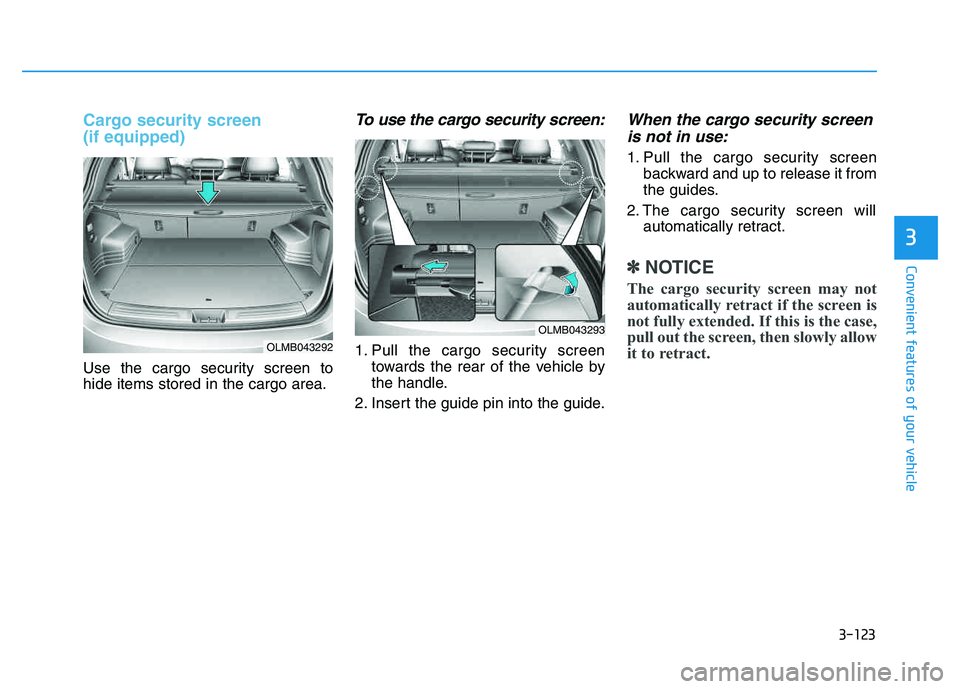
Cargo security screen (if equipped)
Use the cargo security screen to hide items stored in the cargo area.
To use the cargo security screen:
1. Pull the cargo security screentowards the rear of the vehicle by
the handle.
2. Insert the guide pin into the guide.
When the cargo security screen is not in use:
1. Pull the cargo security screen backward and up to release it from
the guides.
2. The cargo security screen will automatically retract.
✽✽ NOTICE
The cargo security screen may not
automatically retract if the screen is
not fully extended. If this is the case,
pull out the screen, then slowly allow
it to retract.
OLMB043292
OLMB043293
Page 210 of 542
3-124
Convenient features of your vehicle
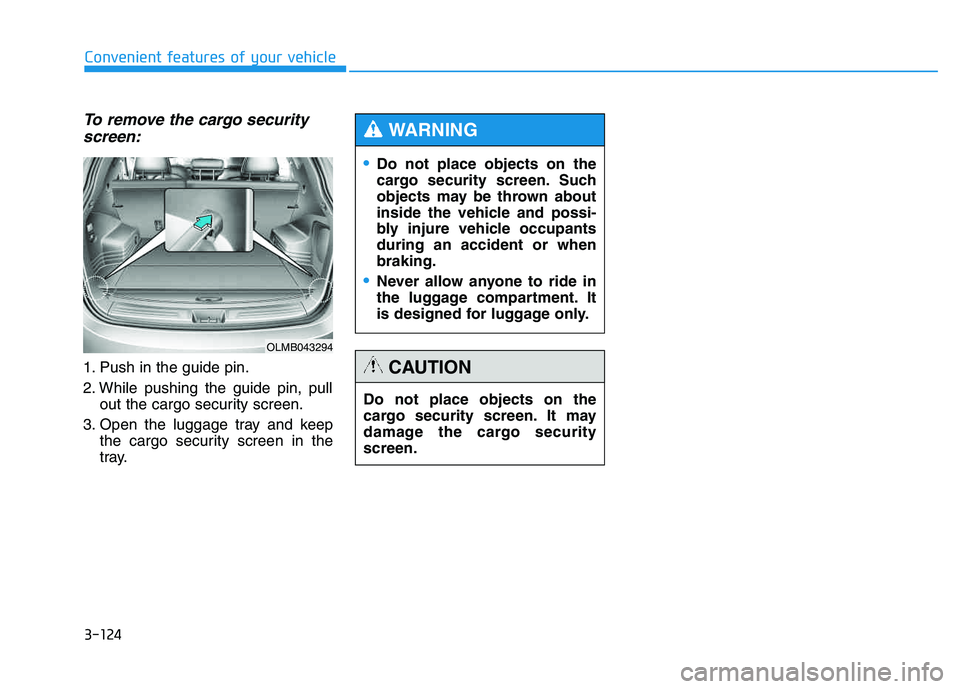
To remove the cargo securityscreen:
1. Push in the guide pin.
2. While pushing the guide pin, pull out the cargo security screen.
3. Open the luggage tray and keep the cargo security screen in the
tray.
Do not place objects on the
cargo security screen. Such
objects may be thrown about
inside the vehicle and possi-
bly injure vehicle occupantsduring an accident or whenbraking.
Never allow anyone to ride in
the luggage compartment. It
is designed for luggage only.
WARNING
Do not place objects on the
cargo security screen. It may
damage the cargo securityscreen.
CAUTION
OLMB043294
Page 211 of 542
3-125
Convenient features of your vehicle
3
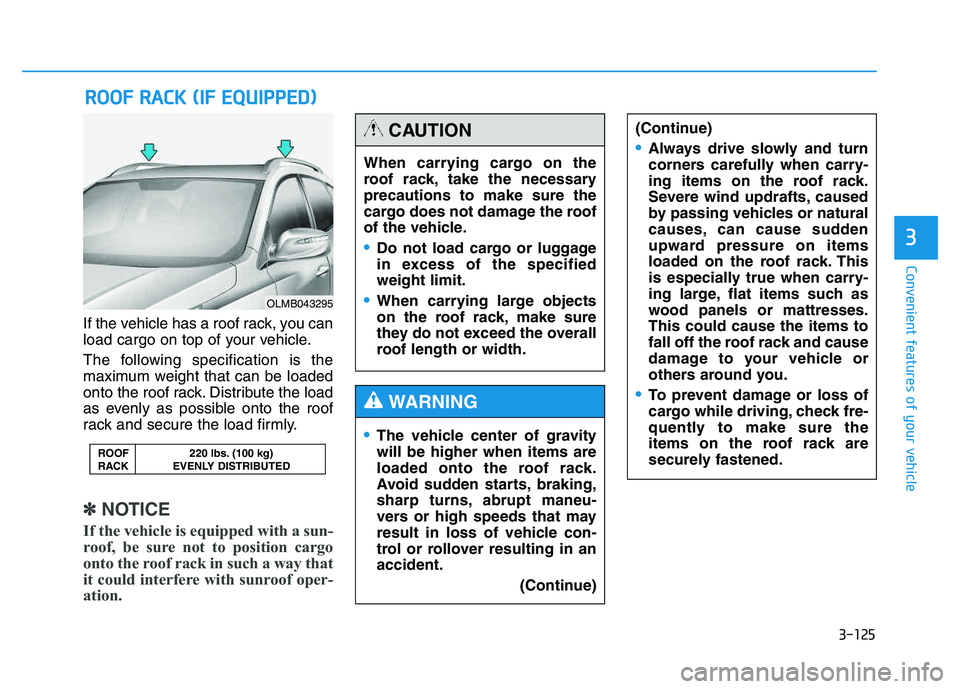
If the vehicle has a roof rack, you can
load cargo on top of your vehicle.
The following specification is the
maximum weight that can be loaded
onto the roof rack. Distribute the load
as evenly as possible onto the roof
rack and secure the load firmly.
✽✽NOTICE
If the vehicle is equipped with a sun-
roof, be sure not to position cargo
onto the roof rack in such a way that
it could interfere with sunroof oper-
ation.
RR OO OO FF RR AA CCKK (( IIFF EE QQ UUIIPP PPEEDD ))
ROOF 220 lbs. (100 kg)
RACK EVENLY DISTRIBUTED
OLMB043295
When carrying cargo on the
roof rack, take the necessaryprecautions to make sure the
cargo does not damage the roof
of the vehicle.
Do not load cargo or luggage
in excess of the specifiedweight limit.
When carrying large objects
on the roof rack, make sure
they do not exceed the overall
roof length or width.
CAUTION
The vehicle center of gravity will be higher when items are
loaded onto the roof rack.
Avoid sudden starts, braking,
sharp turns, abrupt maneu-
vers or high speeds that may
result in loss of vehicle con-
trol or rollover resulting in anaccident.
(Continue)
WARNING
(Continue)
Always drive slowly and turn
corners carefully when carry-
ing items on the roof rack.
Severe wind updrafts, caused
by passing vehicles or natural
causes, can cause sudden
upward pressure on items
loaded on the roof rack. This
is especially true when carry-
ing large, flat items such as
wood panels or mattresses.This could cause the items to
fall off the roof rack and cause
damage to your vehicle or
others around you.
To prevent damage or loss of
cargo while driving, check fre-
quently to make sure the
items on the roof rack are
securely fastened.
Page 249 of 542
4-38
Multimedia System
Pairing Key / Key
on the Steering Remote
Controller
When No Devices have been
Paired
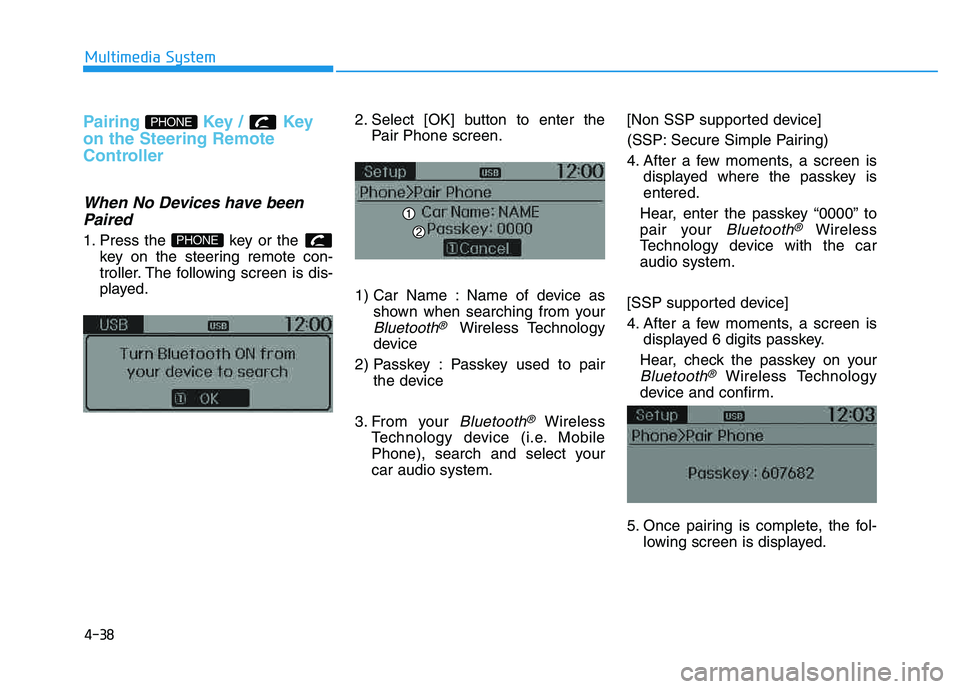
1. Press the key or the key on the steering remote con-
troller. The following screen is dis-
played. 2. Select [OK] button to enter the
Pair Phone screen.
1) Car Name : Name of device as shown when searching from your
Bluetooth®Wireless Technology
device
2) Passkey : Passkey used to pair the device
3. From your
Bluetooth®Wireless
Technology device (i.e. Mobile
Phone), search and select yourcar audio system. [Non SSP supported device]
(SSP: Secure Simple Pairing)
4. After a few moments, a screen is
displayed where the passkey is entered.
Hear, enter the passkey “0000” to
pair your
Bluetooth®Wireless
Technology device with the caraudio system.
[SSP supported device]
4. After a few moments, a screen is displayed 6 digits passkey.
Hear, check the passkey on your
Bluetooth®Wireless Technology
device and confirm.
5. Once pairing is complete, the fol- lowing screen is displayed.
PHONE
PHONE
Page 264 of 542
4-53
Multimedia System
4
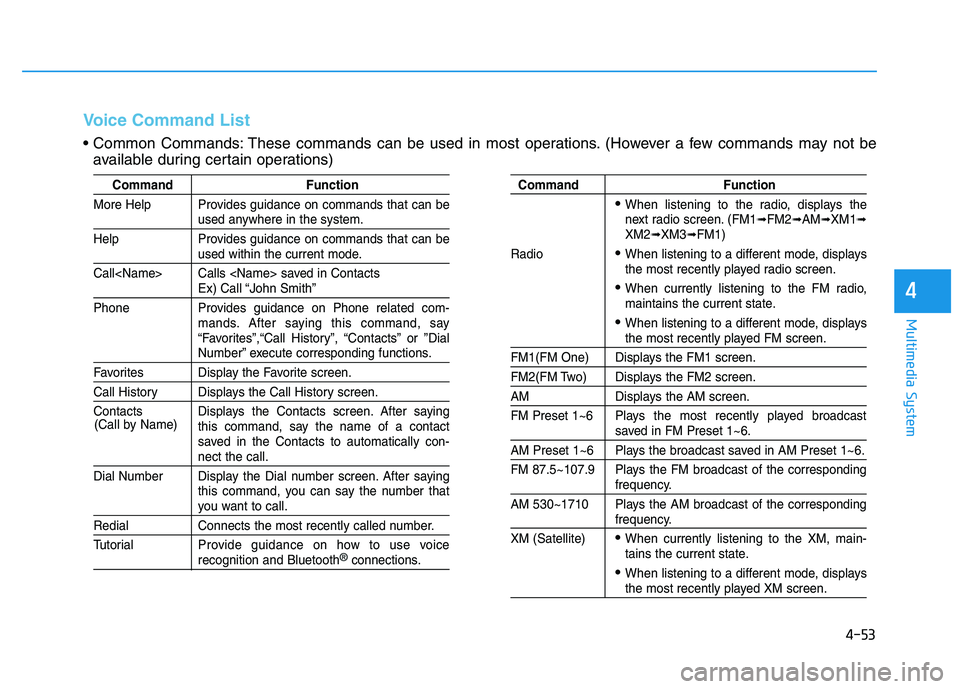
Voice Command List
Common Commands: These commands can be used in most operations. (However a few commands may not beavailable during certain operations)
Command Function
More Help Provides guidance on commands that can be
used anywhere in the system.
Help Provides guidance on commands that can be
used within the current mode.
Call
Ex) Call “John Smith”
Phone Provides guidance on Phone related com- mands. After saying this command, say
“Favorites”,“Call History”, “Contacts” or ”Dial
Number” execute corresponding functions.
Favorites Display the Favorite screen.
Call History Displays the Call History screen.
Contacts Displays the Contacts screen. After sayingthis command, say the name of a contact
saved in the Contacts to automatically con-
nect the call.
Dial Number Display the Dial number screen. After saying this command, you can say the number that
you want to call.
Redial Connects the most recently called number.
Tutorial Pro vide guidance on how to use voice
recognition and Bluetooth®connections.
Command Function
When listening to the radio, displays the
next radio screen. (FM1➟FM2➟AM➟XM1➟XM2➟XM3➟FM1)
Radio
When listening to a different mode, displays
the most recently played radio screen.
When currently listening to the FM radio,
maintains the current state.
When listening to a different mode, displaysthe most recently played FM screen.
FM1(FM One) Displays the FM1 screen.
FM2(FM Two) Displays the FM2 screen.
AM Displays the AM screen.
FM Preset 1~6 Plays the most recently played broadcast
saved in FM Preset 1~6.
AM Preset 1~6 Plays the broadcast saved in AM Preset 1~6.
FM 87.5~107.9 Plays the FM broadcast of the corresponding
frequency.
AM 530~1710 Plays the AM broadcast of the corresponding
frequency.
XM (Satellite)
When currently listening to the XM, main-
tains the current state.
When listening to a different mode, displaysthe most recently played XM screen.
(Call by Name)
Page 294 of 542
4-83
Multimedia System
4
Repeat
Press the button to repeat the
current file or folder.
Each time the button is pressed, the
feature changes in order of Repeat➟
Repeat Folder ➟Off.
Repeats the current file.
Repeats all files within the current folder.
Copying Files
Press the button to copy thecurrent file into My Music.
✽✽ NOTICE
Selecting another feature during
copying will display a pop-up asking
whether you wish to cancel copying.
To cancel, select 'Yes’.
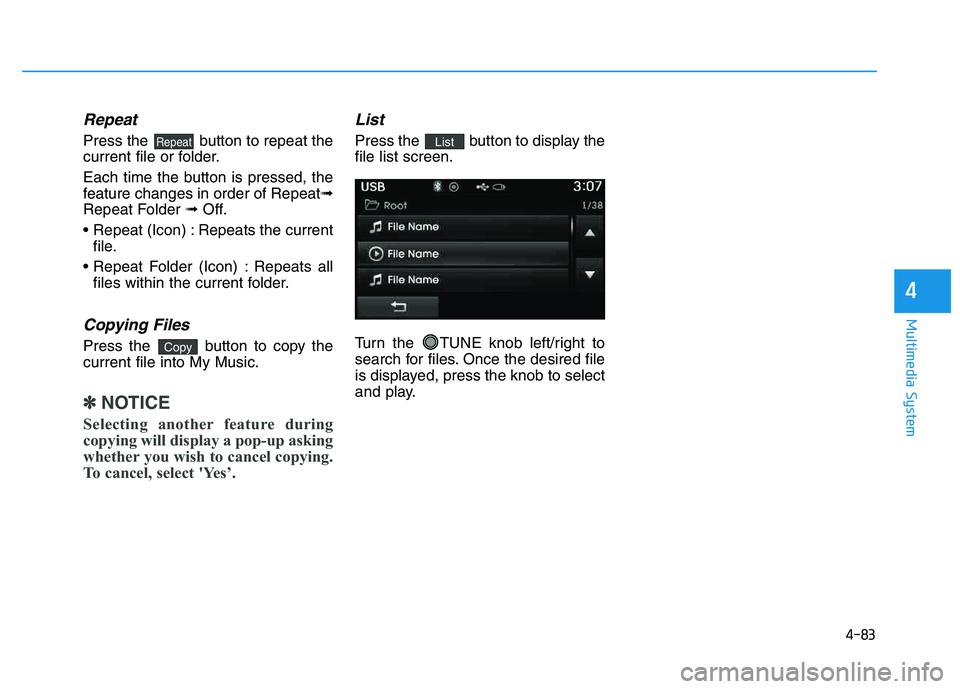
List
Press the button to display the file list screen.
Turn the TUNE knob left/right to
search for files. Once the desired file
is displayed, press the knob to select
and play.List
Copy
Repeat
Page 307 of 542
![HYUNDAI TUCSON 2014 Owners Guide 4-96
Multimedia System
[Non SSP supported device]
(SSP: Secure Simple Pairing)
4. After a few moments, a screen isdisplayed where the passkey is entered.
Hear, enter the passkey “0000” to
pair yo](/img/35/56203/w960_56203-306.png "HYUNDAI TUCSON 2014 Owners Guide 4-96
Multimedia System
[Non SSP supported device]
(SSP: Secure Simple Pairing)
4. After a few moments, a screen isdisplayed where the passkey is entered.
Hear, enter the passkey “0000” to
pair yo")
4-96
Multimedia System
[Non SSP supported device]
(SSP: Secure Simple Pairing)
4. After a few moments, a screen isdisplayed where the passkey is entered.
Hear, enter the passkey “0000” to
pair your
Bluetooth®Wireless
Technology device with the caraudio system.
[SSP supported device]
4. After a few moments, a screen is displayed 6 digits passkey.
Hear, check the passkey on your
Bluetooth®Wireless Technology
device and confirm.
5. Once pairing is complete, the fol- lowing screen is displayed.
✽✽ NOTICE
If Bluetooth ®
Wireless Technology
devices are paired but none are cur-
rently connected, pressing the key or the key on the
steering wheel displays the following
screen. Press the [Pair] button to
pair a new device or press the
[Connect] to connect a previously
paired device.Pairing through [PHONE] Setup
Press the key Select
[Phone] Select [Pair Phone]
Select TUNE knob
1. The following steps are the same as those described in the section
"When No Devices have been
Paired" on the previous page.SETUP
PHONE
Page 321 of 542
4-110
Multimedia System
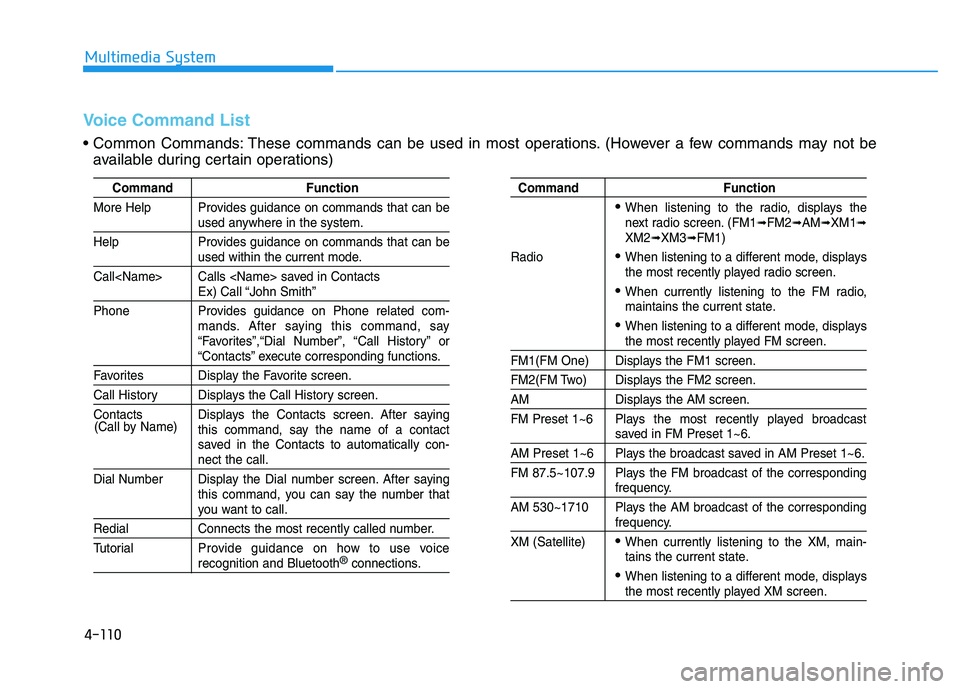
Command Function
More Help Provides guidance on commands that can be
used anywhere in the system.
Help Provides guidance on commands that can be
used within the current mode.
Call
Ex) Call “John Smith”
Phone Provides guidance on Phone related com- mands. After saying this command, say
“Favorites”,“Dial Number”, “Call History” or
“Contacts” execute corresponding functions.
Favorites Display the Favorite screen.
Call History Displays the Call History screen.
Contacts Displays the Contacts screen. After sayingthis command, say the name of a contact
saved in the Contacts to automatically con-
nect the call.
Dial Number Display the Dial number screen. After saying this command, you can say the number that
you want to call.
Redial Connects the most recently called number.
Tutorial Pro vide guidance on how to use voice
recognition and Bluetooth®connections.
Command Function
When listening to the radio, displays the
next radio screen. (FM1➟FM2➟AM➟XM1➟XM2➟XM3➟FM1)
Radio
When listening to a different mode, displays
the most recently played radio screen.
When currently listening to the FM radio,
maintains the current state.
When listening to a different mode, displaysthe most recently played FM screen.
FM1(FM One) Displays the FM1 screen.
FM2(FM Two) Displays the FM2 screen.
AM Displays the AM screen.
FM Preset 1~6 Plays the most recently played broadcast
saved in FM Preset 1~6.
AM Preset 1~6 Plays the broadcast saved in AM Preset 1~6.
FM 87.5~107.9 Plays the FM broadcast of the corresponding
frequency.
AM 530~1710 Plays the AM broadcast of the corresponding
frequency.
XM (Satellite)
When currently listening to the XM, main-
tains the current state.
When listening to a different mode, displaysthe most recently played XM screen.
(Call by Name)
Voice Command List
Common Commands: These commands can be used in most operations. (However a few commands may not be
available during certain operations)
Page 333 of 542
4-122
Multimedia System
BBlluu ee LL iinn kk ®®
Hyundai aims to offer differentiated
customer values through a ‘Connected
Car Life,’ which is to provide con-
sumers with fast and reliable IT tech-
nology. As consumers’ lifestylesbecome more and more mobile in
thanks to remarkable advances in
smart phones, tablet PCs and overall
wireless telecommunication, new
lifestyle patterns demand seamless
connection between one’s office,
home, outdoors and automobiles.
Automobile companies are now faced
with the task of shifting their paradigm
from vehicle-centered services to cus-
tomer value-centered services, with
the ultimate goal of securing global
leadership in the field of vehicle IT and
telematics. Hyundai Motor plans to achieve this
by realizing a terminal platform flexi-
ble to changes in IT technology,
cooperating with global IT compa-
nies, creating an eco-system and
providing the latest contents & serv-
ices based on an open environment.
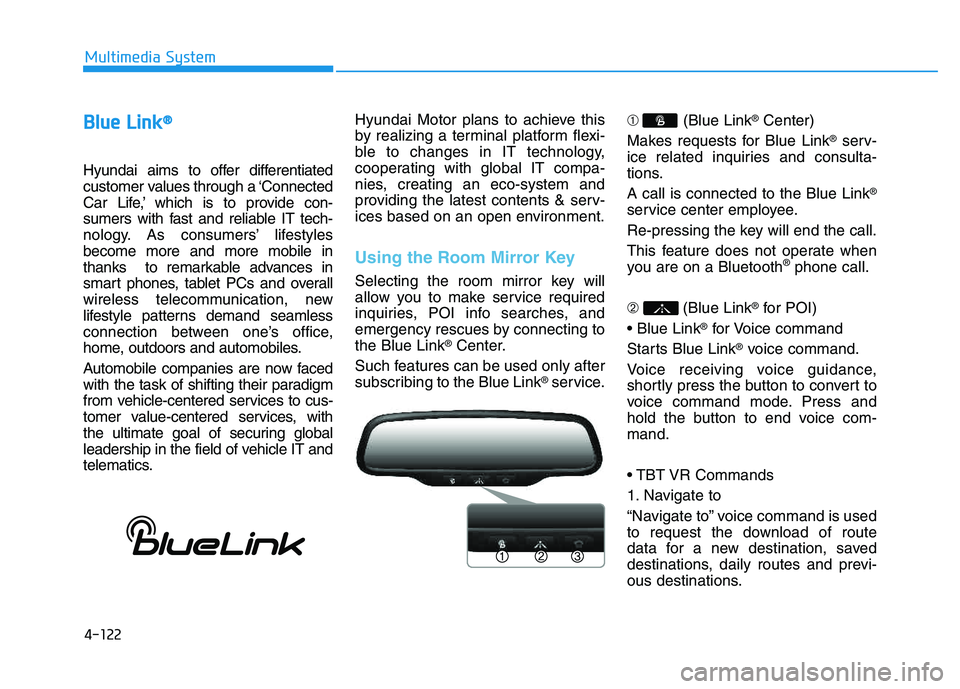
Using the Room Mirror Key
Selecting the room mirror key will
allow you to make service required
inquiries, POI info searches, and
emergency rescues by connecting tothe Blue Link
®Center.
Such features can be used only after
subscribing to the Blue Link
®service. ➀
(Blue Link
®Center)
Makes requests for Blue Link
®serv-
ice related inquiries and consulta-
tions. A call is connected to the Blue Link
®
service center employee.
Re-pressing the key will end the call.
This feature does not operate when
you are on a Bluetooth
®phone call.
➁ (Blue Link
®for POI)
®for Voice command
Starts Blue Link
®voice command.
Voice receiving voice guidance,
shortly press the button to convert to
voice command mode. Press and
hold the button to end voice com-mand.
1. Navigate to
“Navigate to” voice command is used
to request the download of route
data for a new destination, saved
destinations, daily routes and previ-
ous destinations.