ESP HYUNDAI TUCSON 2014 Owner's Guide
[x] Cancel search | Manufacturer: HYUNDAI, Model Year: 2014, Model line: TUCSON, Model: HYUNDAI TUCSON 2014Pages: 542, PDF Size: 7.59 MB
Page 273 of 542
4-62
Multimedia System
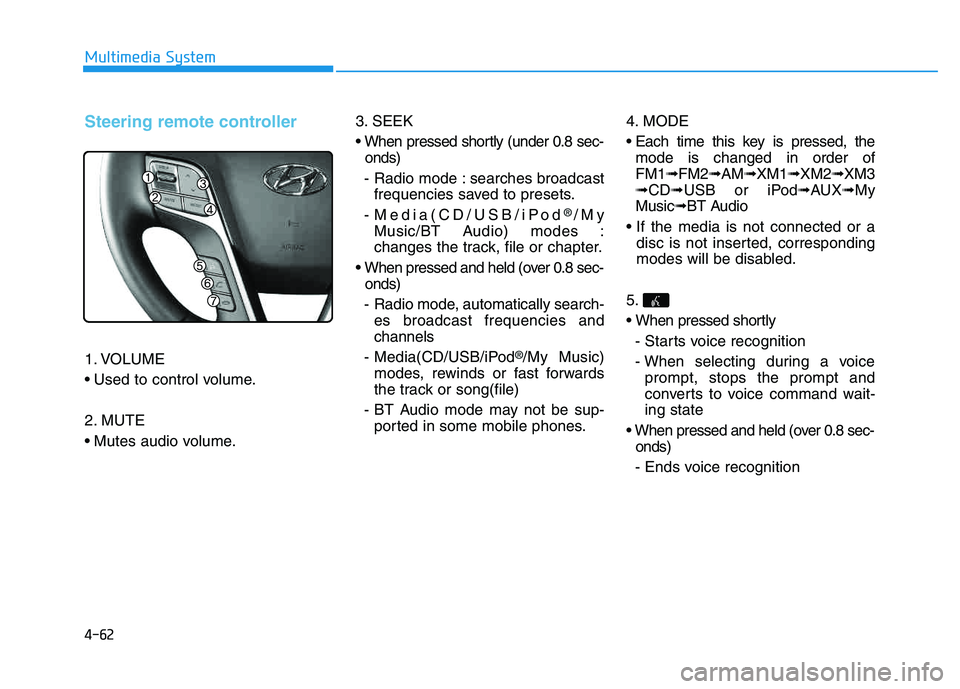
Steering remote controller
1. VOLUME
2. MUTE
3. SEEK
onds)
- Radio mode : searches broadcast frequencies saved to presets.
- Media(CD/USB/iPod
®/My
Music/BT Audio) modes :
changes the track, file or chapter.
onds)
- Radio mode, automatically search- es broadcast frequencies andchannels
- Media(CD/USB/iPod
®/My Music)
modes, rewinds or fast forwards
the track or song(file)
- BT Audio mode may not be sup- ported in some mobile phones. 4. MODE
mode is changed in order of FM1 ➟FM2 ➟AM ➟XM1 ➟XM2 ➟XM3
➟ CD ➟USB or iPod ➟AUX ➟My
Music ➟BT Audio
disc is not inserted, corresponding
modes will be disabled.
5.
- Starts voice recognition
- When selecting during a voice prompt, stops the prompt and
converts to voice command wait-ing state
onds)
- Ends voice recognition
Page 281 of 542
![HYUNDAI TUCSON 2014 Owners Guide 4-70
Multimedia System
MMEEDD IIAA MM OODDEE
Pressing the key will change
the operating mode in order ofCD
➟USB(iPod®)➟AUX➟My Music ➟
BT Audio.
If [Mode Pop up] is turned on within
[Disp](/img/35/56203/w960_56203-280.png "HYUNDAI TUCSON 2014 Owners Guide 4-70
Multimedia System
MMEEDD IIAA MM OODDEE
Pressing the key will change
the operating mode in order ofCD
➟USB(iPod®)➟AUX➟My Music ➟
BT Audio.
If [Mode Pop up] is turned on within
[Disp")
4-70
Multimedia System
MMEEDD IIAA MM OODDEE
Pressing the key will change
the operating mode in order ofCD
➟USB(iPod®)➟AUX➟My Music ➟
BT Audio.
If [Mode Pop up] is turned on within
[Display], then pressing the
key will display the Media
Pop-up Mode screen.
Turn the TUNE knob to move the
focus. Press the knob to select.
✽✽ NOTICE
The media mode pop up screen can
be displayed only when there are two
or more media modes turned on.
Title Icon
When a Bluetooth®Wireless
Technology, iPod®, USB, or AUX
device is connected or a CD is
inserted, the corresponding mode
icon will be displayed.
Icon Title
Bluetooth®Wireless Technology
CD
iPod®
USB
AUX
MEDIA
SETUP
MEDIA
Page 308 of 542
4-97
Multimedia System
4
✽✽NOTICE
Bluetooth ®
Wireless Technology
features supported within the vehi-
cle are as follows. Some features
may not be supported depending
on your Bluetooth®
Wireless
Technology device.
- Outgoing/Incoming Handsfree calls
- Operations during a call (Switch to Private, Switch to call waiting,
MIC on/off)
- Downloading Call History
- Downloading Mobile Contacts- Bluetooth ®
Wireless Technology
device auto connection
- Bluetooth Audio Streaming
Up to five Bluetooth®
Wireless
Technology devices can be paired
to the Car Handsfree system.
Only one Bluetooth®
Wireless
Technology device can be connect-
ed at a time.
Other devices cannot be paired while a Bluetooth®
Wireless
Technology device is connected.
Only Bluetooth ®
Wireless
Technology Handsfree and
Bluetooth audio related features
are supported. Normal operations are possible
only within devices that support
Handsfree or audio features, such
as a Bluetooth ®
Wireless
Technology mobile phone or a
Bluetooth audio device.
If a connected Bluetooth®
Wireless
Technology device becomes dis-
connected due to being out of com-
munication range, turning the
device OFF, or a Bluetooth®
Wireless Technology communica-
tion error, corresponding
Bluetooth ®
Wireless Technology
devices are automatically searched
and connected.
If the system becomes unstable due to communication errors between
the car Handsfree and the
Bluetooth ®
Wireless Technology
device, reset the Bluetooth®
Wireless Technology and try
again. Upon resetting Bluetooth®
Wireless Technology, the system is
restored to its factory release state. After Pairing is complete, a con-
tacts download request is sent once
to the mobile phone. As some
mobile phones may require confir-
mation upon receiving a download
request, check the mobile phone
screen.
Page 315 of 542
4-104
Multimedia System
Bluetooth®Wireless
Technology Setting
Bluetooth®Wireless Technology
The Bluetooth ®
word mark and
logos are registered trademarks
owned by Bluetooth SIG, Inc. and
any use of such marks is under
license. Other trademarks and
trade names are those of their
respective owners. A Bluetooth®
enabled cell phone is required to
use Bluetooth ®
wireless technology.
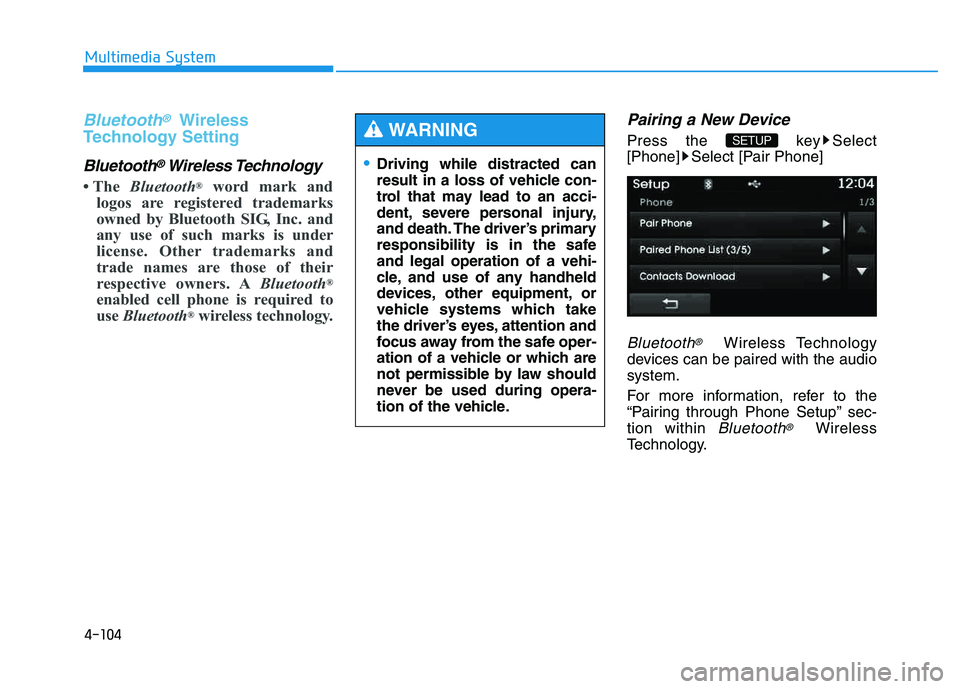
Pairing a New Device
Press the key Select
[Phone] Select [Pair Phone]
Bluetooth®Wireless Technology
devices can be paired with the audiosystem.
For more information, refer to the
“Pairing through Phone Setup” sec-tion within
Bluetooth®Wireless
Technology.
SETUP
Driving while distracted can
result in a loss of vehicle con-
trol that may lead to an acci-
dent, severe personal injury,
and death. The driver’s primary
responsibility is in the safeand legal operation of a vehi-
cle, and use of any handheld
devices, other equipment, or
vehicle systems which take
the driver’s eyes, attention and
focus away from the safe oper-
ation of a vehicle or which are
not permissible by law should
never be used during opera-
tion of the vehicle.
WARNING
Page 316 of 542
![HYUNDAI TUCSON 2014 Owners Guide 4-105
Multimedia System
4
Viewing Paired Phone List
Press the key Select
[Phone] Select [Paired Phone List]
This feature is used to view mobile
phones that have been paired with
the audio system.](/img/35/56203/w960_56203-315.png "HYUNDAI TUCSON 2014 Owners Guide 4-105
Multimedia System
4
Viewing Paired Phone List
Press the key Select
[Phone] Select [Paired Phone List]
This feature is used to view mobile
phones that have been paired with
the audio system.")
4-105
Multimedia System
4
Viewing Paired Phone List
Press the key Select
[Phone] Select [Paired Phone List]
This feature is used to view mobile
phones that have been paired with
the audio system. Upon selecting a
paired phone, the setup menu is dis-
played.
For more information, refer to the “Setting
Bluetooth®Wireless
Technology Connection” section with-in
Bluetooth®Wireless Technology.
1) : Moves to the previous screen
2) Connect/Disconnect Phone : Connect/ disconnects currently selected phone 3) Delete : Deletes the currently
selected phone
4) Change Priority : Sets currently selected phone to highest connec-
tion priority
✽✽NOTICE BEFORE DOWN-
LOADING CONTACTS
To learn more about whether your mobile phone supports contacts
downloads, refer to your mobile
phone user’s manual.
The contacts for only the connect- ed phone can be downloaded.
Downloading Contacts
Press the key Select
[Phone] Select [Contacts Download]
As the contacts are downloaded
from the mobile phone, a download
progress bar is displayed.
✽✽ NOTICE
Upon downloading phone con- tacts, the previous corresponding
data is deleted.
This feature may not be supported in some mobile phones.
Voice Recognition may not oper- ate while contacts are being down-
loaded.
SETUP SETUP
Page 321 of 542
4-110
Multimedia System
Command Function
More Help Provides guidance on commands that can be
used anywhere in the system.
Help Provides guidance on commands that can be
used within the current mode.
Call
Ex) Call “John Smith”
Phone Provides guidance on Phone related com- mands. After saying this command, say
“Favorites”,“Dial Number”, “Call History” or
“Contacts” execute corresponding functions.
Favorites Display the Favorite screen.
Call History Displays the Call History screen.
Contacts Displays the Contacts screen. After sayingthis command, say the name of a contact
saved in the Contacts to automatically con-
nect the call.
Dial Number Display the Dial number screen. After saying this command, you can say the number that
you want to call.
Redial Connects the most recently called number.
Tutorial Pro vide guidance on how to use voice
recognition and Bluetooth®connections.
Command Function
When listening to the radio, displays the
next radio screen. (FM1➟FM2➟AM➟XM1➟XM2➟XM3➟FM1)
Radio
When listening to a different mode, displays
the most recently played radio screen.
When currently listening to the FM radio,
maintains the current state.
When listening to a different mode, displaysthe most recently played FM screen.
FM1(FM One) Displays the FM1 screen.
FM2(FM Two) Displays the FM2 screen.
AM Displays the AM screen.
FM Preset 1~6 Plays the most recently played broadcast
saved in FM Preset 1~6.
AM Preset 1~6 Plays the broadcast saved in AM Preset 1~6.
FM 87.5~107.9 Plays the FM broadcast of the corresponding
frequency.
AM 530~1710 Plays the AM broadcast of the corresponding
frequency.
XM (Satellite)
When currently listening to the XM, main-
tains the current state.
When listening to a different mode, displaysthe most recently played XM screen.
(Call by Name)
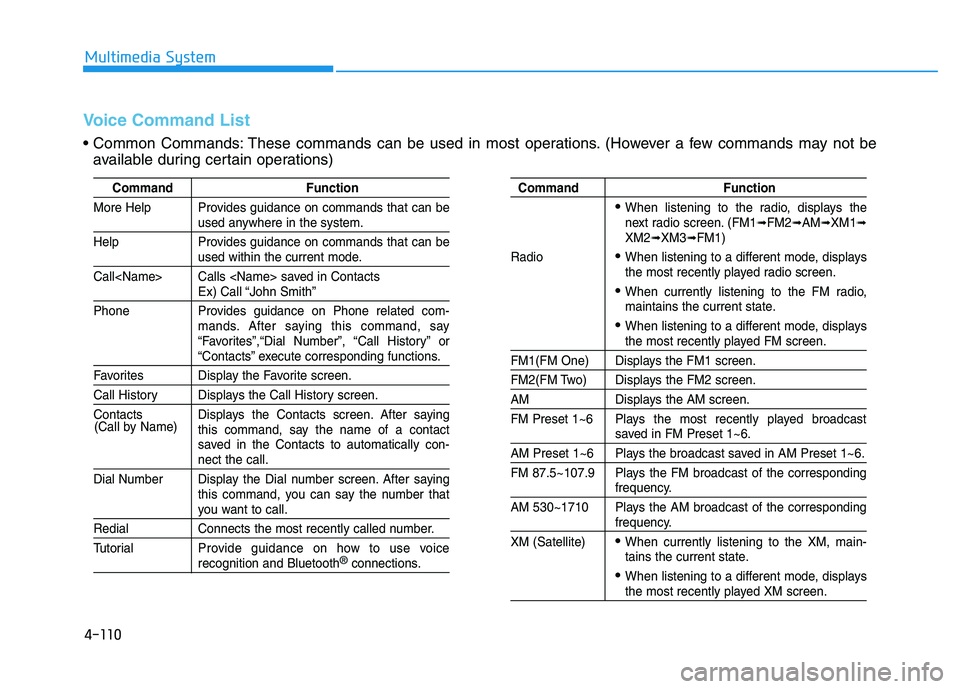
Voice Command List
Common Commands: These commands can be used in most operations. (However a few commands may not be
available during certain operations)
Page 340 of 542
5-4
Driving your vehicle
NEVER drink or take drugs and
drive. Drinking or taking drugs
and driving is dangerous and
may result in an accident and
SERIOUS INJURY or DEATH.
Drunk driving is the number
one contributor to the highway
death toll each year. Even asmall amount of alcohol will
affect your reflexes, percep-
tions and judgment. Just one
drink can reduce your ability to
respond to changing conditions
and emergencies and your reac-
tion time gets worse with each
additional drink. Driving while under the influ-
ence of drugs is as dangerous
or more dangerous than drivingunder the influence of alcohol.(Continued)
WARNING (Continued)
You are much more likely to
have a serious accident if you
drink or take drugs and drive. If
you are drinking or taking
drugs, don’t drive. Do not ridewith a driver who has beendrinking or taking drugs.Choose a designated driver orcall a taxi.
To reduce the risk of SERIOUS
INJURY or DEATH, take the fol-
lowing precautions:
ALWAYS wear your seat belt.
All passengers must be prop-
erly belted whenever the vehi-
cle is moving. For more infor-
mation, refer to “Seat Belts” in
chapter 2.
Always drive defensively.
Assume other drivers or
pedestrians may be carelessand make mistakes.
Stay focused on the task of
driving. Driver distraction cancause accidents.
Leave plenty of space
between you and the vehicle
in front of you.
WARNING
Page 350 of 542
5-14
Driving your vehicle
The indicator in the instrument clus-
ter displays the shift lever position
when the ignition switch is in the ONposition.
P (Park)
Always come to a complete stop
before shifting into P (Park).
To shift from P (Park), you must
depress firmly on the brake pedal
and make sure your foot is off the
accelerator pedal.
If you have done all of the above and
still cannot shift the lever out of P
(Park), see “Shift-Lock Release” onpage 5-17.
The shift lever must be in P (Park)
before turning the engine off.
Shifting into P (Park) while the
vehicle is in motion may
cause you to lose control of
the vehicle.
After the vehicle has stopped,
always make sure the shift
lever is in P (Park), apply the
parking brake, and turn the
engine off.
Do not use the P (Park) posi- tion in place of the parking
brake.
WARNING
To reduce the risk of serious
injury or death:
ALWAYS check the surround-
ing areas near your vehicle for
people, especially children,
before shifting a vehicle into
D (Drive) or R (Reverse).
Before leaving the driver’s
seat, always make sure the
shift lever is in the P (Park)
position, then set the parking
brake, and place the ignition
switch in the LOCK/OFF posi-
tion. Unexpected and sudden
vehicle movement can occurif these precautions are not
followed.
WARNING
Page 355 of 542
5-19
Driving your vehicle
5
Good driving practices
Never move the shift lever from P(Park) or N (Neutral) to any other
position with the accelerator pedaldepressed.
Never move the shift lever into P (Park) when the vehicle is inmotion.
Be sure the vehicle is completely
stopped before you attempt to shift
into R (Reverse) or D (Drive).
Do not move the shift lever to N (Neutral) when driving. Doing so
may result in an accident because
of a loss of engine braking and the
transaxle could be damaged.
Do not drive with your foot resting on the brake pedal. Even light, butconsistent pedal pressure can
result in the brakes overheating,
brake wear and possibly even
brake failure.
When driving in Sports mode, slow down before shifting to a lower
gear. Otherwise, the lower gear
may not be engaged if the engine
rpms are outside of the allowable
range. Always apply the parking brake
when leaving the vehicle. Do not
depend on placing the transmis-
sion in P (Park) to keep the vehicle
from moving.
Exercise extreme caution when driving on a slippery surface. Be
especially careful when braking,
accelerating or shifting gears. On a
slippery surface, an abrupt change
in vehicle speed can cause the
drive wheels to lose traction and
may cause loss of vehicle controlresulting in an accident
Optimum vehicle performance and economy is obtained by smoothlydepressing and releasing the
accelerator. To reduce the risk of SERIOUS
INJURY or DEATH:
ALWAYS wear your seatbelt.
In a collision, an unbelted
occupant is significantly more
likely to be seriously injured
or killed than a properly belt-ed occupant.
Avoid high speeds when cor- nering or turning.
Do not make quick steering
wheel movements, such as
sharp lane changes or fast,sharp turns.
The risk of rollover is greatly
increased if you lose control
of your vehicle at highwayspeeds.
Loss of control often occurs if
two or more wheels drop off
the roadway and the driver
over steers to reenter the
roadway.
(Continued)
WARNING
Page 357 of 542
5-21
Driving your vehicle
5
The All Wheel Drive (AWD) System
delivers engine power to all front
and rear wheels for maximum trac-
tion. AWD is useful when extra trac-tion is required on roads such slip-
pery, muddy, wet, or snow-covered
roads. Occasional off-road use such as
established unpaved roads and trails
are OK. It is always important that
the driver carefully reduces the
speed to a level that does not exceed
the safe operating speed for those
conditions.✽✽NOTICE
Do not drive in water if the level is higher than the bottom of the vehi-
cle.
Check your brake condition once you are out of mud or water.
Depress the brake pedal several
times as you move slowly until you
feel normal braking return.
Shorten your scheduled mainte- nance interval if you drive in off-
road conditions such as sand, mud
or water (see “Maintenance Under
Severe Usage Conditions” in chap-
ter 7).
Always wash your vehicle thor- oughly after off road use, especial-
ly the bottom of the vehicle.
Be sure to equip the vehicle with four tires of the same size and
type.
Make sure that a full time AWD vehicle is towed by a flat bed tow
truck.
AALLLL WW HHEEEE LL DD RRIIVV EE (( AA WW DD)) (( IIFF EE QQ UUIIPP PPEEDD ))
To reduce the risk of SERIOUS
INJURY or DEATH:
Do not drive in conditions that
exceed the vehicles intended
design such as challenging
off-road conditions.
Avoid high speeds when cor- nering or turning.
Do not make quick steering
wheel movements, such as
sharp lane changes or fast,sharp turns.
The risk of a rollover is great-
ly increased if you lose con-
trol of your vehicle at highwayspeeds.
Loss of control often occurs if
two or more wheels drop off
the roadway and the driver
over steers to reenter the
roadway.
In the event your vehicle
leaves the roadway, do not
steer sharply. Instead, slow
down before pulling back into
the travel lanes.
WARNING