lock HYUNDAI TUCSON 2015 Owners Manual
[x] Cancel search | Manufacturer: HYUNDAI, Model Year: 2015, Model line: TUCSON, Model: HYUNDAI TUCSON 2015Pages: 653, PDF Size: 8.45 MB
Page 369 of 653
4-158
Multimedia System
1) Connect/Disconnect Phone :Connect/ disconnects currently selected phone
2) Change Priority : Sets currently selected phone to highest connec-
tion priority
3) Delete : Deletes the currently selected phone
4) Return : Moves to the previous screen
✽✽ NOTICE BEFORE DOWN-
LOADING CONTACTS
To learn more about whether your mobile phone supports contacts
downloads, refer to your mobile
phone user’s manual.
The contacts for only the connect- ed phone can be downloaded.
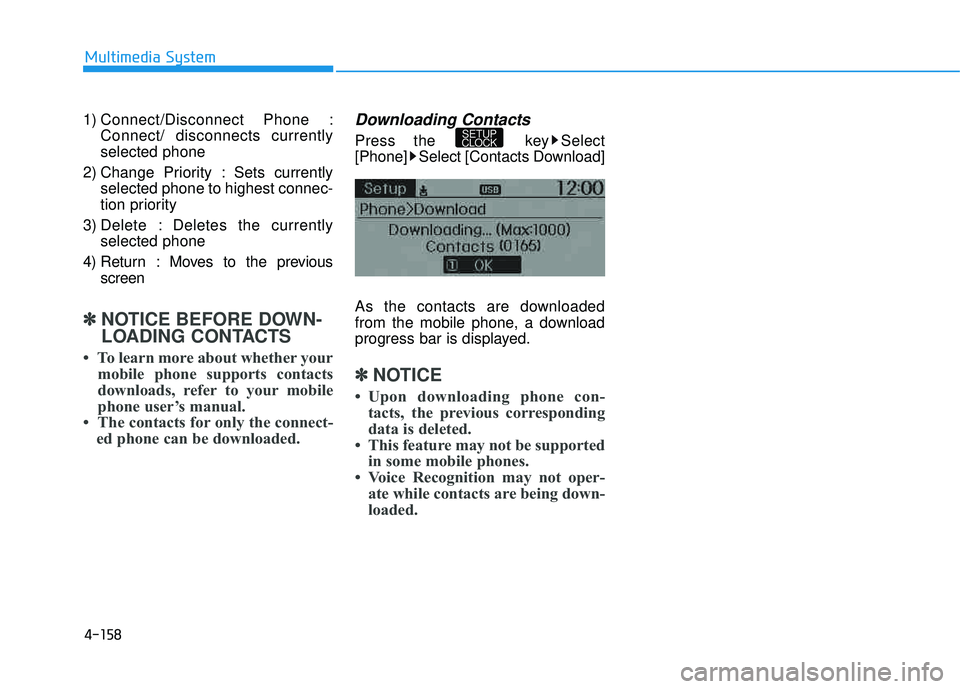
Downloading Contacts
Press the key Select
[Phone] Select [Contacts Download]
As the contacts are downloaded
from the mobile phone, a download
progress bar is displayed.
✽✽ NOTICE
Upon downloading phone con- tacts, the previous corresponding
data is deleted.
This feature may not be supported in some mobile phones.
Voice Recognition may not oper- ate while contacts are being down-
loaded.
SETUP
CLOCK
Page 370 of 653
![HYUNDAI TUCSON 2015 Owners Manual 4-159
Multimedia System
4
Outgoing Volume
Press the key Select
[Phone] Select [Outgoing Volume]
Use TUNE knob to adjust the out-
going volume level.
✽✽NOTICE
While on a call, the volume can](/img/35/56202/w960_56202-369.png "HYUNDAI TUCSON 2015 Owners Manual 4-159
Multimedia System
4
Outgoing Volume
Press the key Select
[Phone] Select [Outgoing Volume]
Use TUNE knob to adjust the out-
going volume level.
✽✽NOTICE
While on a call, the volume can")
4-159
Multimedia System
4
Outgoing Volume
Press the key Select
[Phone] Select [Outgoing Volume]
Use TUNE knob to adjust the out-
going volume level.
✽✽NOTICE
While on a call, the volume can be
changed by using the key.
Turning Bluetooth System Off
Press the key Select
[Phone] Select [Bluetooth SystemOff] Once
Bluetooth®Wireless Technology
is turned off,
Bluetooth®Wireless
Technology related features will not
be supported within the audio system.
✽✽ NOTICE
To turn Bluetooth®
Wireless
Technology back on, go to
[Phone] and select “Yes”.
SETUP
CLOCK
SETUP
CLOCK
SEEK
TRACK
SETUP
CLOCK
Page 371 of 653
4-160
Multimedia System
VVOO IICC EE RR EECCOO GGNN IITT IIOO NN
Using Voice Recognition
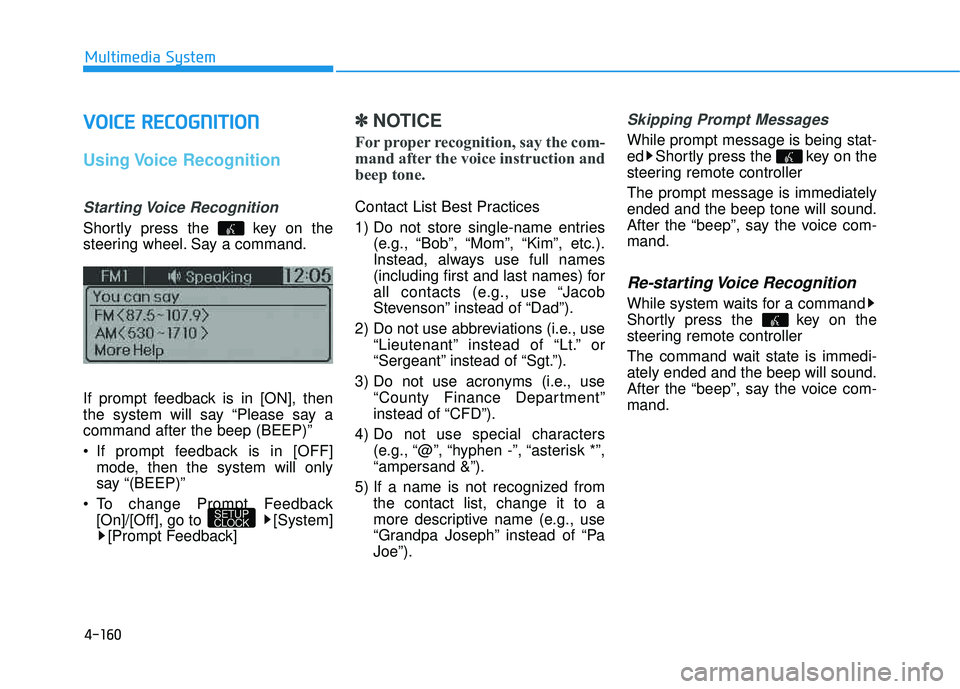
Starting Voice Recognition
Shortly press the key on the
steering wheel. Say a command.
If prompt feedback is in [ON], then
the system will say “Please say acommand after the beep (BEEP)”
If prompt feedback is in [OFF]
mode, then the system will only
say “(BEEP)”
To change Prompt Feedback [On]/[Off], go to [System][Prompt Feedback]
✽✽ NOTICE
For proper recognition, say the com-
mand after the voice instruction and
beep tone.
Contact List Best Practices
1) Do not store single-name entries (e.g., “Bob”, “Mom”, “Kim”, etc.).
Instead, always use full names
(including first and last names) for
all contacts (e.g., use “Jacob
Stevenson” instead of “Dad”).
2) Do not use abbreviations (i.e., use “Lieutenant” instead of “Lt.” or
“Sergeant” instead of “Sgt.”).
3) Do not use acronyms (i.e., use “County Finance Department”
instead of “CFD”).
4) Do not use special characters (e.g., “@”, “hyphen -”, “asterisk *”,“ampersand &”).
5) If a name is not recognized from the contact list, change it to a
more descriptive name (e.g., use
“Grandpa Joseph” instead of “PaJoe”).
Skipping Prompt Messages
While prompt message is being stat-
ed Shortly press the key on the
steering remote controller The prompt message is immediately ended and the beep tone will sound.
After the “beep”, say the voice com-mand.
Re-starting Voice Recognition
While system waits for a command
Shortly press the key on the
steering remote controller
The command wait state is immedi- ately ended and the beep will sound.
After the “beep”, say the voice com-mand.
SETUP
CLOCK
Page 382 of 653
4-171
Multimedia System
4
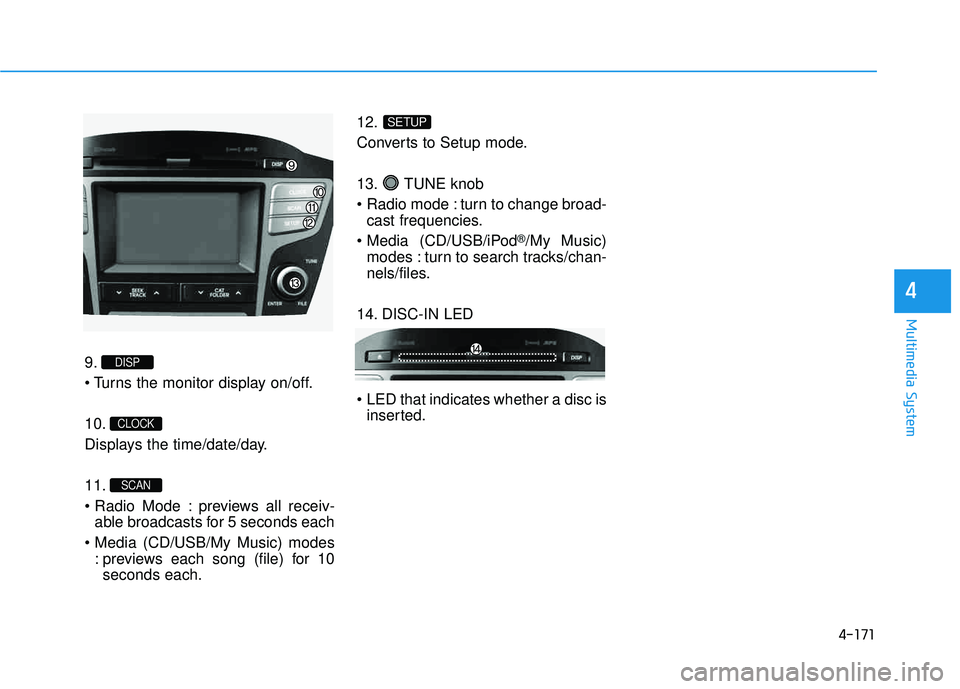
9.
10.
Displays the time/date/day. 11.
previews all receiv-able broadcasts for 5 seconds each
: previews each song (file) for 10seconds each. 12.
Converts to Setup mode.
13. TUNE knob
turn to change broad-
cast frequencies.
(CD/USB/iPod
®/My Music)
modes : turn to search tracks/chan-
nels/files.
14. DISC-IN LED
LED that indicates whether a disc is inserted.
SETUP
SCAN
CLOCK
DISP
Page 387 of 653
4-176
Multimedia System
XXMM RR AA DDIIOOTT MMMM OODDEE
Features of your vehicle
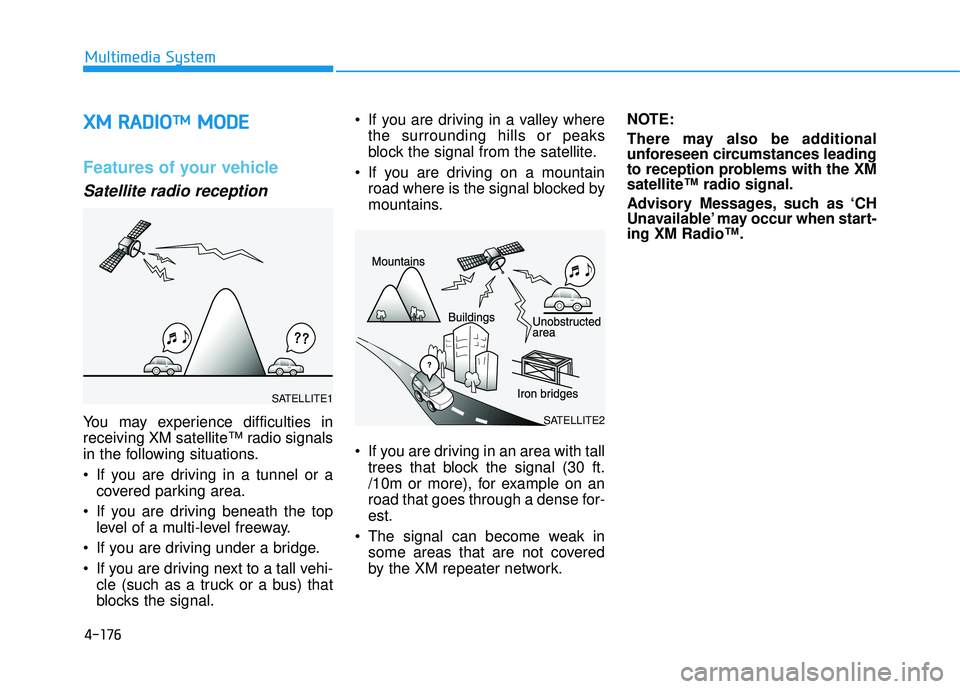
Satellite radio reception
You may experience difficulties in
receiving XM satellite™ radio signals
in the following situations.
If you are driving in a tunnel or a
covered parking area.
If you are driving beneath the top level of a multi-level freeway.
If you are driving under a bridge.
If you are driving next to a tall vehi- cle (such as a truck or a bus) that
blocks the signal. If you are driving in a valley where
the surrounding hills or peaks
block the signal from the satellite.
If you are driving on a mountain road where is the signal blocked by
mountains.
If you are driving in an area with tall trees that block the signal (30 ft.
/10m or more), for example on an
road that goes through a dense for-est.
The signal can become weak in some areas that are not covered
by the XM repeater network. NOTE:
There may also be additional
unforeseen circumstances leading
to reception problems with the XM
satellite™ radio signal.
Advisory Messages, such as ‘CH
Unavailable’ may occur when start-
ing XM Radio™.SATELLITE2
SATELLITE1
Page 400 of 653
4-189
Multimedia System
4
(Continued)
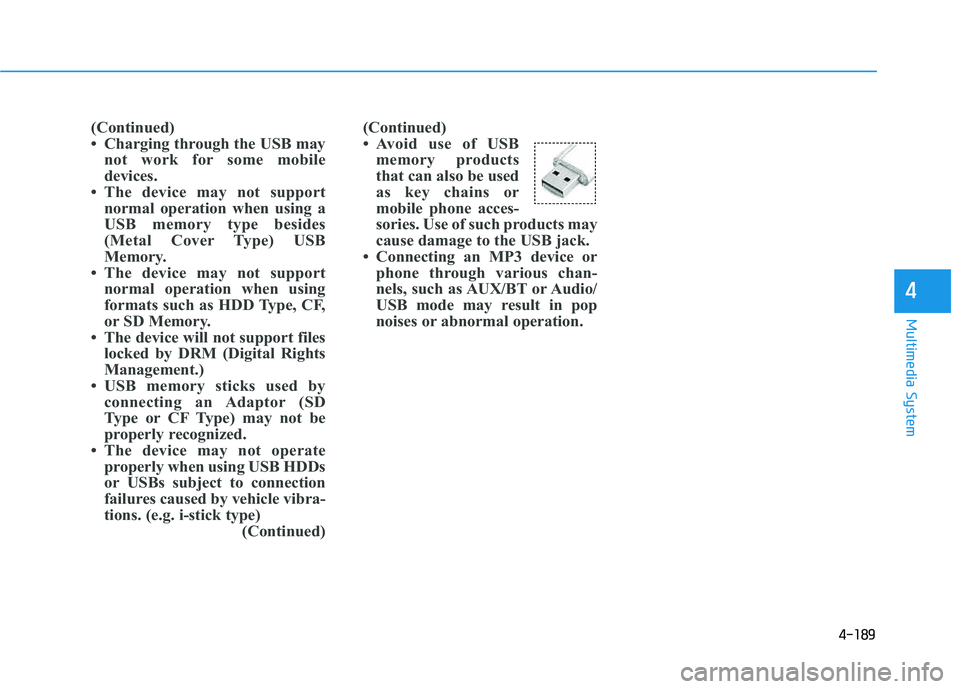
Avoid use of USBmemory products
that can also be used
as key chains or
mobile phone acces-
sories. Use of such products may
cause damage to the USB jack.
Connecting an MP3 device or phone through various chan-
nels, such as AUX/BT or Audio/
USB mode may result in pop
noises or abnormal operation.
(Continued)
Charging through the USB may
not work for some mobile
devices.
The device may not support normal operation when using a
USB memory type besides
(Metal Cover Type) USB
Memory.
The device may not support normal operation when using
formats such as HDD Type, CF,
or SD Memory.
The device will not support files locked by DRM (Digital Rights
Management.)
USB memory sticks used by connecting an Adaptor (SD
Type or CF Type) may not be
properly recognized.
The device may not operate properly when using USB HDDs
or USBs subject to connection
failures caused by vehicle vibra-
tions. (e.g. i-stick type) (Continued)
Page 436 of 653
![HYUNDAI TUCSON 2015 Owners Manual 4-225
Multimedia System
4
SSEE TT UU PP
Starting Mode
Press the key to display the Setup screen.
You can select and control options
related to [Display], [Sound],
[Clock/Calendar], [Phone] and[Syst](/img/35/56202/w960_56202-435.png "HYUNDAI TUCSON 2015 Owners Manual 4-225
Multimedia System
4
SSEE TT UU PP
Starting Mode
Press the key to display the Setup screen.
You can select and control options
related to [Display], [Sound],
[Clock/Calendar], [Phone] and[Syst")
4-225
Multimedia System
4
SSEE TT UU PP
Starting Mode
Press the key to display the Setup screen.
You can select and control options
related to [Display], [Sound],
[Clock/Calendar], [Phone] and[System].
Display Settings
Adjusting the Brightness
Press the key Select
[Display] Select [Brightness]
Use the , buttons to adjust the
screen brightness or set the
Brightness on Automatic, Daylight, or
Night mode.
Press the button to reset.
1) Automatic : Adjusts the brightness
automatically
2) Daylight : Always maintains the brightness on high
3) Night : Always maintains the
brightness on low
Pop-up Mode
Press the key Select
[Display] Select [Mode Pop up]
This feature is used to display the
Pop-up Mode screen when entering
radio and media modes.
When this feature is turned on, pressing the or key
will display the Pop-up Mode screen.
✽✽ NOTICE
The media Pop-up Mode screen can
be displayed only when two or more
media modes have been connected.
MEDIA RADIO
SETUP
Default
SETUP SETUP
Page 439 of 653
![HYUNDAI TUCSON 2015 Owners Manual 4-228
Multimedia System
Touch Screen Beep
Press the key Select
[Sound] Select [Touch Screen Beep]
This feature is used to turn the touch
screen beep on/off.
Blue Link Voice Volume
Press the key](/img/35/56202/w960_56202-438.png "HYUNDAI TUCSON 2015 Owners Manual 4-228
Multimedia System
Touch Screen Beep
Press the key Select
[Sound] Select [Touch Screen Beep]
This feature is used to turn the touch
screen beep on/off.
Blue Link Voice Volume
Press the key")
4-228
Multimedia System
Touch Screen Beep
Press the key Select
[Sound] Select [Touch Screen Beep]
This feature is used to turn the touch
screen beep on/off.
Blue Link Voice Volume
Press the key Select
[Sound] Select [Blue Link Voice Vol.]
Turn the TUNE knob to adjust the
Blue Link Voice Volume. ❈ Blue Link
®may differ depending
on the selected audio.
Clock/Calendar Setting
Clock Setting
Press the key Select
[Clock/Calendar] Select [ClockSettings]
Use the , buttons to set the
Hour, Minutes and AM/PM setting.
✽✽ NOTICE
Press and hold the key (over
0.8 seconds) to set the Clock/Calendar
screen.
CLOCK
SETUP
SETUP SETUP
Page 440 of 653
![HYUNDAI TUCSON 2015 Owners Manual 4-229
Multimedia System
4
Calendar Setting
Press the key Select
[Clock/Calendar] Select [CalendarSettings]
Use the , buttons to set the
Month, Day and Year setting.
Time Format
Press the key Se](/img/35/56202/w960_56202-439.png "HYUNDAI TUCSON 2015 Owners Manual 4-229
Multimedia System
4
Calendar Setting
Press the key Select
[Clock/Calendar] Select [CalendarSettings]
Use the , buttons to set the
Month, Day and Year setting.
Time Format
Press the key Se")
4-229
Multimedia System
4
Calendar Setting
Press the key Select
[Clock/Calendar] Select [CalendarSettings]
Use the , buttons to set the
Month, Day and Year setting.
Time Format
Press the key Select
[Clock/Calendar] Select [Time Format]
This feature is used to change the
clock format between 12hr or 24hr.
Clock Display
Press the key Select
[Clock/Calendar] Select [Clock Display
(Power off)]
This feature is used to display a clock on the screen when the audio sys-
tem is turned off.SETUP SETUP SETUP
Page 447 of 653
Driving your vehicle
BEFORE DRIVING ..................................................5-3
Before entering the vehicle ..........................................5-3
Before starting .................................................................5-3
IGNITION SWITCH .................................................5-5
Key ignition switch .........................................................5-5
Engine Start/Stop button ................................................5-8
AUTOMATIC TRANSAXLE ..................................5-13
Automatic transaxle operation ...................................5-13
Parking ...............................................................................5-18
Good driving practices ..................................................5-18
ALL WHEEL DRIVE (AWD) ..................................5-20
AWD operation ................................................................5-21
Emergency precautions .................................................5-25
BRAKING SYSTEM ..............................................5-27
Power brakes ..................................................................5-27
Disc brakes wear indicator ..........................................5-28
Parking brake ..................................................................5-28
Anti-lock Brake System (ABS) ....................................5-31
Electronic Stability Control (ESC) ................................5-34
Vehicle Stability Management (VSM).........................5-37
Hill-Start Assist Control (HAC) ...................................5-39
Downhill Brake Control (DBC) ......................................5-40
Good braking practices ................................................5-42
DRIVING ASSIST SYSTEM ...................................5-43
Active ECO system ........................................................5-43
Rear view camera ...........................................................5-44
CRUISE CONTROL SYSTEM ................................5-45
Cruise control operation................................................5-45
SPECIAL DRIVING CONDITIONS..........................5-49
Hazardous driving conditions.......................................5-49
Rocking the vehicle ....................................................5-49
Smooth cornering ...........................................................5-50
Driving at night ................................................................5-50
Driving in the rain ...........................................................5-51
Driving in flooded areas ................................................5-52
Reducing the risk of a rollover ...................................5-52
WINTER DRIVING .................................................5-53
Snow or icy conditions ..................................................5-53
Winter precautions .........................................................5-56
TRAILER TOWING.................................................5-58
If you decide to pull a trailer? .....................................5-59
Trailer towing equipment ..............................................5-61
Driving with a trailer ......................................................5-62
Maintenance when trailer towing ...............................5-65
VEHICLE LOAD LIMIT ..........................................5-66
Tire loading information label......................................5-67
5