battery HYUNDAI TUCSON 2015 User Guide
[x] Cancel search | Manufacturer: HYUNDAI, Model Year: 2015, Model line: TUCSON, Model: HYUNDAI TUCSON 2015Pages: 653, PDF Size: 8.45 MB
Page 167 of 653
3-81
Convenient features of your vehicle
3
High beam operation
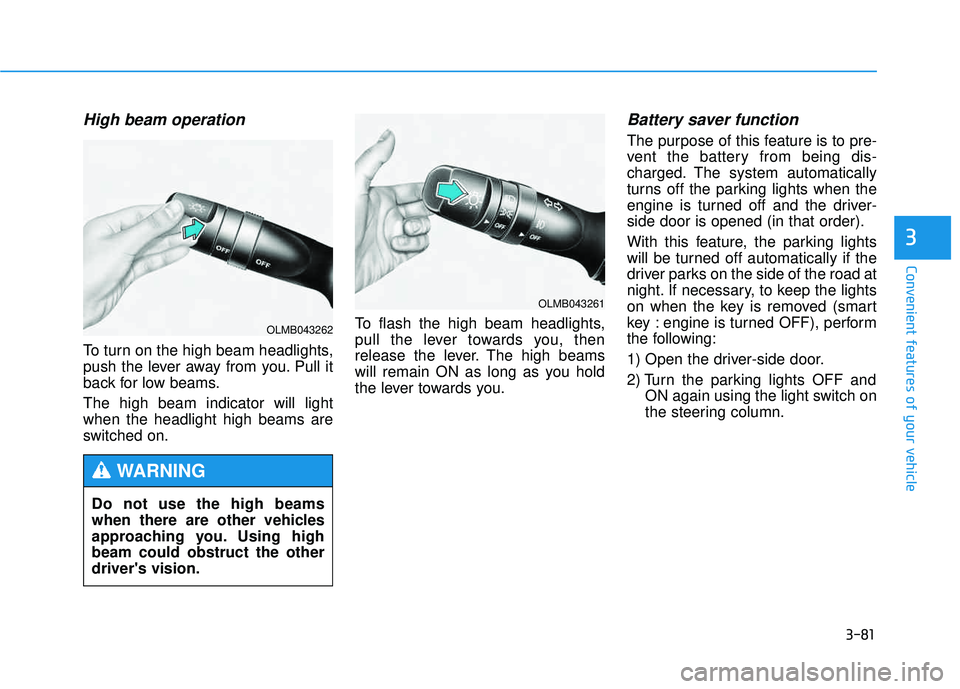
To turn on the high beam headlights,
push the lever away from you. Pull it
back for low beams. The high beam indicator will light when the headlight high beams are
switched on.To flash the high beam headlights,
pull the lever towards you, then
release the lever. The high beams
will remain ON as long as you hold
the lever towards you.
Battery saver function
The purpose of this feature is to pre-
vent the battery from being dis-
charged. The system automatically
turns off the parking lights when the
engine is turned off and the driver-side door is opened (in that order).
With this feature, the parking lights
will be turned off automatically if the
driver parks on the side of the road at
night. If necessary, to keep the lights
on when the key is removed (smart
key : engine is turned OFF), perform
the following:
1) Open the driver-side door.
2) Turn the parking lights OFF and
ON again using the light switch on
the steering column.
Do not use the high beams
when there are other vehicles
approaching you. Using highbeam could obstruct the otherdriver's vision.
WARNING
OLMB043261
OLMB043262
Page 168 of 653
3-82
Convenient features of your vehicle
Headlight escort function
If the key is removed from the ignition
switch or placed in the ACC positionor the LOCK/OFF position with theheadlights ON, the headlights (and/or
parking lights) remain on for about 5
minutes. However, if the driver’s dooris opened and closed, the headlights
are turned off after 15 seconds.
The headlights can be turned off by
pressing the LOCK button on the
remote key or smart key twice or
turning the light switch to the OFF or
AUTO position. However, if you turn
the light switch to the AUTO position
when it is dark outside, the head-
lights will not be turned off.
Headlight welcome function
When the headlight switch is in the
ON position or in the AUTO positionand all doors (and tailgate) are closed
and locked, if you press the door
unlock button on the remote transmit-
ter or smart key, the headlights will
come on for about 15 seconds.
If the headlight switch is in the AUTO position, the function can only oper-ate at night.
To turn off the headlights immediately,
do one of the following:
Press the door lock button.
Press the unlock button twice with-in 4 seconds.
Press the unlock button once more after 4 seconds.
If the driver gets out of the vehi-
cle through other doors (except
the driver’s door), the battery
saver function does not operate
and the headlight escort function
does not turn off automatically.
Therefore, it causes the battery
to be discharged. In this case,make sure to turn off the lamp
before getting out of the vehicle.CAUTION
Page 170 of 653
3-84
Convenient features of your vehicle
You can use the fog lights only when
the headlights are on low beam.
When the headlight switch is in the
AUTO position, you can also use the
fog lights when the headlights turn on
automatically. The fog lights will go
OFF when the headlights turn OFF.Hazard warning flasher
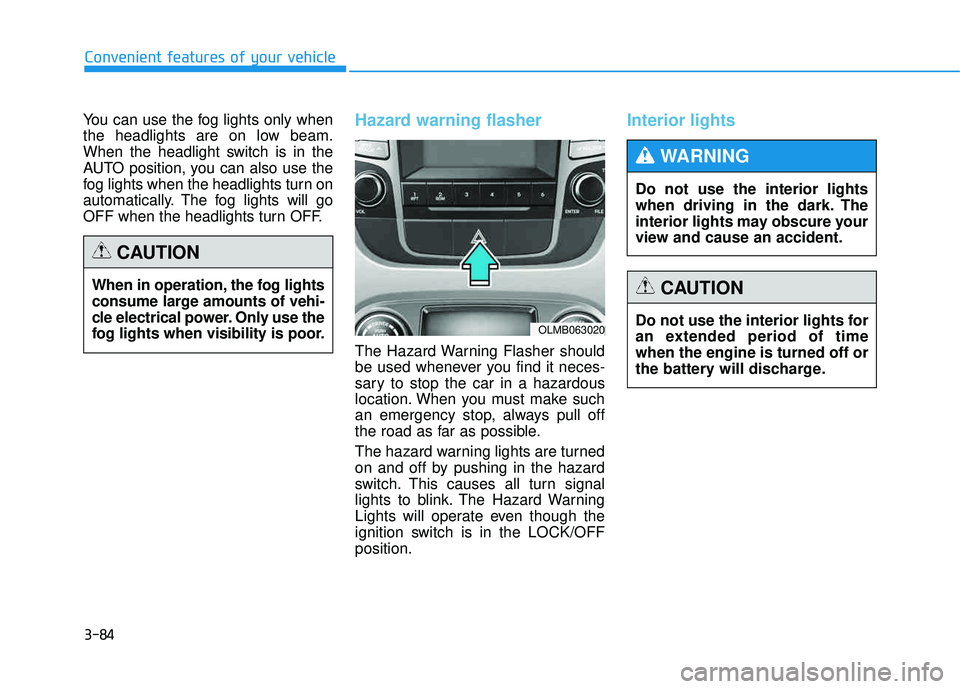
The Hazard Warning Flasher should
be used whenever you find it neces-
sary to stop the car in a hazardous
location. When you must make such
an emergency stop, always pull off
the road as far as possible.
The hazard warning lights are turned
on and off by pushing in the hazard
switch. This causes all turn signal
lights to blink. The Hazard Warning
Lights will operate even though the
ignition switch is in the LOCK/OFFposition.
Interior lights
When in operation, the fog lights
consume large amounts of vehi-
cle electrical power. Only use the
fog lights when visibility is poor.
CAUTION
OLMB063020Do not use the interior lights for
an extended period of timewhen the engine is turned off or
the battery will discharge.
CAUTION
Do not use the interior lights
when driving in the dark. The
interior lights may obscure your
view and cause an accident.
WARNING
Page 194 of 653
3-108
Convenient features of your vehicle
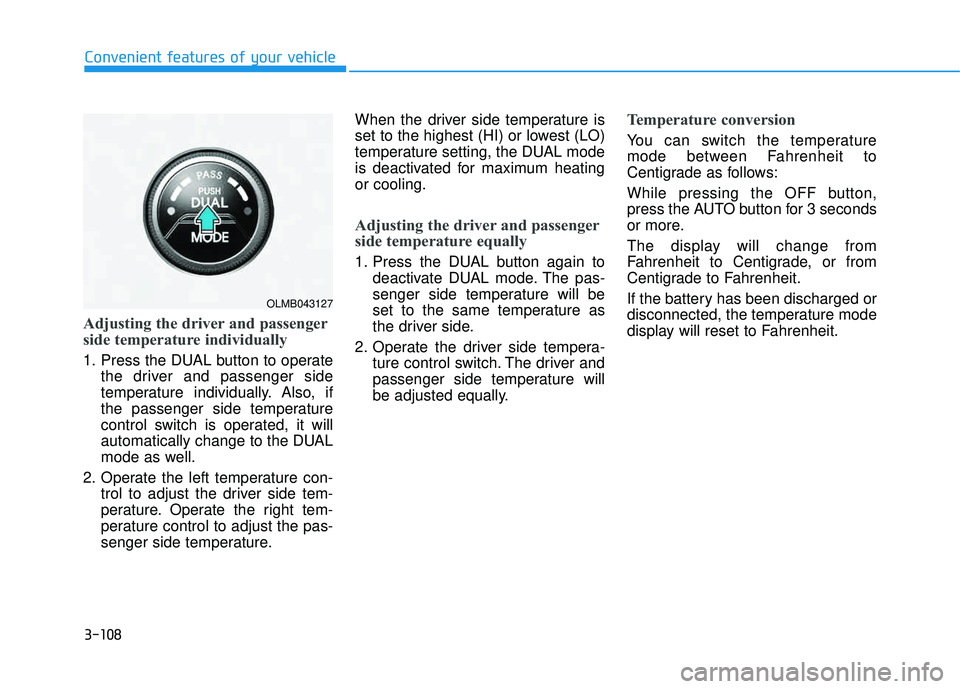
Adjusting the driver and passenger
side temperature individually
1. Press the DUAL button to operatethe driver and passenger side
temperature individually. Also, if
the passenger side temperature
control switch is operated, it will
automatically change to the DUAL
mode as well.
2. Operate the left temperature con- trol to adjust the driver side tem-
perature. Operate the right tem-
perature control to adjust the pas-
senger side temperature. When the driver side temperature is
set to the highest (HI) or lowest (LO)
temperature setting, the DUAL mode
is deactivated for maximum heatingor cooling.
Adjusting the driver and passenger
side temperature equally
1. Press the DUAL button again to
deactivate DUAL mode. The pas-
senger side temperature will be
set to the same temperature as
the driver side.
2. Operate the driver side tempera- ture control switch. The driver and
passenger side temperature will
be adjusted equally.
Temperature conversion
You can switch the temperature
mode between Fahrenheit to
Centigrade as follows:
While pressing the OFF button,
press the AUTO button for 3 seconds
or more.
The display will change from
Fahrenheit to Centigrade, or from
Centigrade to Fahrenheit.
If the battery has been discharged or
disconnected, the temperature mode
display will reset to Fahrenheit.
OLMB043127
Page 201 of 653
3-115
Convenient features of your vehicle
3
If the battery has been discharged or disconnected, the system resets to
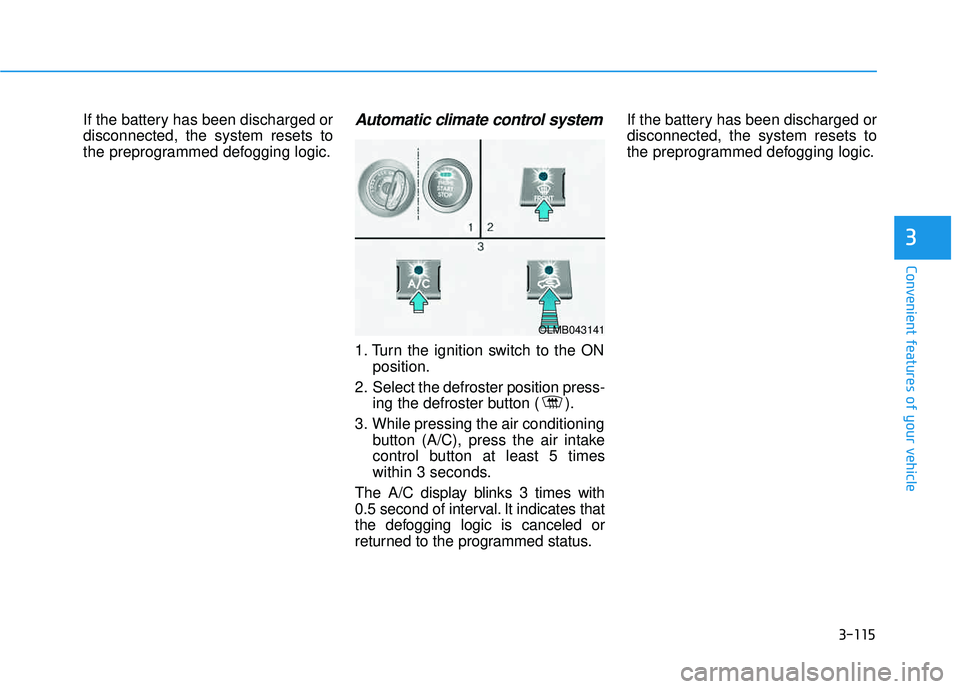
the preprogrammed defogging logic.Automatic climate control system
1. Turn the ignition switch to the ONposition.
2. Select the defroster position press- ing the defroster button ( ).
3. While pressing the air conditioning button (A/C), press the air intake
control button at least 5 times
within 3 seconds.
The A/C display blinks 3 times with
0.5 second of interval. It indicates that
the defogging logic is canceled or
returned to the programmed status. If the battery has been discharged ordisconnected, the system resets to
the preprogrammed defogging logic.
OLMB043141
Page 206 of 653
3-120
Convenient features of your vehicle
Power outlet
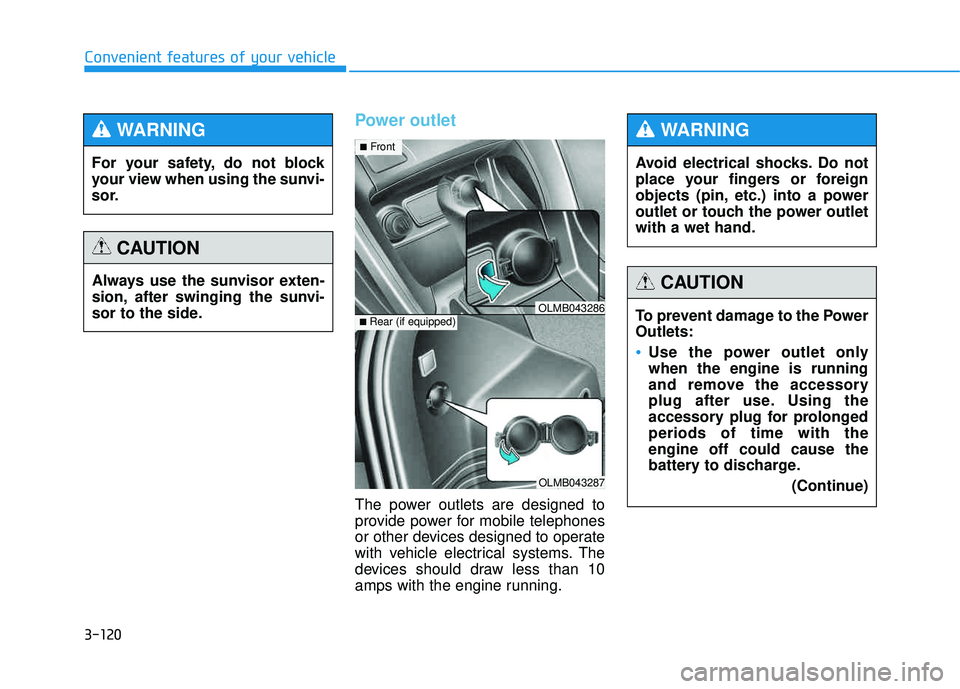
The power outlets are designed to
provide power for mobile telephones
or other devices designed to operate
with vehicle electrical systems. The
devices should draw less than 10
amps with the engine running.
OLMB043287
■Rear (if equipped)OLMB043286
■ Front
For your safety, do not block
your view when using the sunvi-
sor.
WARNING
Always use the sunvisor exten-
sion, after swinging the sunvi-
sor to the side.
CAUTION
Avoid electrical shocks. Do not
place your fingers or foreign
objects (pin, etc.) into a power
outlet or touch the power outletwith a wet hand.
WARNING
To prevent damage to the Power Outlets:
Use the power outlet only when the engine is running
and remove the accessory
plug after use. Using the
accessory plug for prolongedperiods of time with theengine off could cause the
battery to discharge.
(Continue)
CAUTION
Page 219 of 653
4-8
Multimedia System
(Continued)
Please refrain from use if the
screen is blank or no sound
can be heard as these signs
may indicate product malfunc-
tion. Continued use in suchconditions could lead to acci-
dents(fires, electric shock) or
product malfunctions.
Do not touch the antenna dur- ing thunder or lightening as
such acts may lead to light-
ning induced electric shock.
Do not stop or park in park- ing-restricted areas to operate
the product. Such acts couldlead to traffic accidents.
Use the system with the vehi-
cle ignition turned on.
Prolonged use with the igni- tion turned off could result in
battery discharge.
Do not stare at the screen
while driving. Staring at the
screen for prolonged periodsof time could lead to trafficaccidents.
Do not disassemble, assem-
ble, or modify the audio sys-
tem. Such acts could result in
accidents, fire, or electric
shock.
Using the phone while driving
may lead to a lack of attention oftraffic conditions and increasethe likelihood of accidents.
Use the phone feature after
parking the vehicle.
Heed caution not to spill water
or introduce foreign objects
into the device. Such acts
could lead to smoke, fire, or
product malfunction.(Continued)
WARNING
Operating the device while driving could lead to accidents
due to a lack of attention to
external surroundings. First
park the vehicle before operat-
ing the device.
Adjust the volume to levels that
allow the driver to hear sounds
from outside of the vehicle.
Driving in a state where exter-
nal sounds cannot be heard
may lead to accidents.
Pay attention to the volume setting when turning the
device on. A sudden output of
extreme volume upon turning
the device on could lead to
hearing impairment. (Adjust
the volume to a suitable level
before turning off the device.)(Continued)
CAUTION
Page 220 of 653
4-9
Multimedia System
4
(Continued)
Turn on the car ignition before
using this device. Do not oper-
ate the audio system for longperiods of time with the ignition
turned off as such operations
may lead to battery discharge.
Do not subject the device to
severe shock or impact. Direct
pressure onto the front side of
the monitor may cause dam-
age to the LCD or touchscreen.
When cleaning the device, make sure to turn off the
device and use a dry and
smooth cloth. Never use tough
materials, chemical cloths, or
solvents (alcohol, benzene,
thinners, etc.) as such materi-
als may damage the devicepanel or cause color/quality
deterioration.
(Continued)
(Continued)
Do not place beverages close
to the audio system. Spilling
beverages may lead to systemmalfunction.
In case of product malfunction,
please contact your place of pur-
chase or After Service center.
Placing the audio system with-
in an electromagnetic environ-
ment may result in noise inter-
ference.
Prevent caustic solutions such as perfume and cosmetic oil
from contacting the dashboard
because they may cause dam-
age or discoloration.
✽✽NOTICE - USING THE USB DEVICE
To use an external USB device, make sure the device is not con-
nected when starting up the
vehicle. Connect the device after
starting up.
If you start the engine when the USB device is connected, it may
damage the USB device. (USB
flashdrives are very sensitive to
electric shock.)
If the engine is started up or turned off while the external USB
device is connected, the external
USB device may not work.
The System may not play unau- thenticated MP3 or WMA files.
1) It can only play MP3 files with the compression rate between
8Kbps~320Kbps.
2) It can only play WMA music files with the compression rate
between 8Kbps~320Kbps.
Take precautions for static elec- tricity when connecting or dis-
connecting the external USB
device. (Continued)
Page 222 of 653
4-11
Multimedia System
4
(Continued)
Some USB flash memory readers(such as CF, SD, micro SD, etc.) or
external-HDD type devices can be
unrecognizable.
Music files protected by DRM (DIGITAL RIGHTS MANAGE-
MENT) are not recognizable.
The data in the USB memory may be lost while using this audio.
Always back up important data
on a personal storage device.
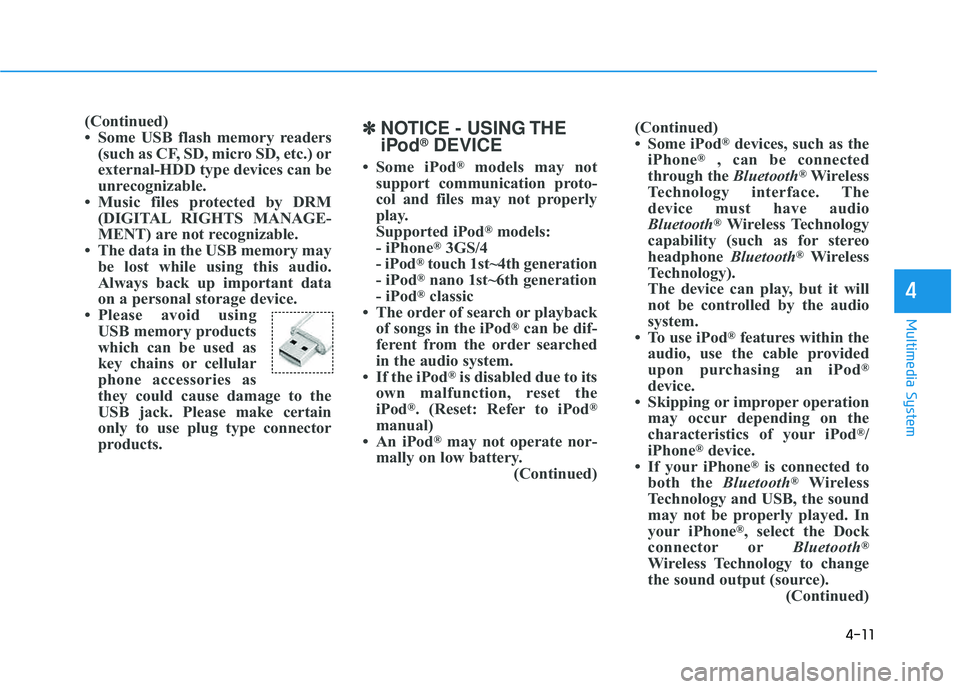
Please avoid using USB memory products
which can be used as
key chains or cellular
phone accessories as
they could cause damage to the
USB jack. Please make certain
only to use plug type connector
products.✽✽ NOTICE - USING THE
iPod ®
DEVICE
Some iPod ®
models may not
support communication proto-
col and files may not properly
play.
Supported iPod ®
models:
- iPhone ®
3GS/4
- iPod ®
touch 1st~4th generation
- iPod ®
nano 1st~6th generation
- iPod ®
classic
The order of search or playback of songs in the iPod ®
can be dif-
ferent from the order searched
in the audio system.
If the iPod ®
is disabled due to its
own malfunction, reset the
iPod ®
. (Reset: Refer to iPod ®
manual)
An iPod ®
may not operate nor-
mally on low battery. (Continued)(Continued)
Some iPod
®
devices, such as the
iPhone ®
, can be connected
through the Bluetooth®
Wireless
Technology interface. The
device must have audio
Bluetooth ®
Wireless Technology
capability (such as for stereo
headphone Bluetooth®
Wireless
Technology).
The device can play, but it will
not be controlled by the audio
system.
To use iPod ®
features within the
audio, use the cable provided
upon purchasing an iPod ®
device.
Skipping or improper operation may occur depending on the
characteristics of your iPod ®
/
iPhone ®
device.
If your iPhone ®
is connected to
both the Bluetooth®
Wireless
Technology and USB, the sound
may not be properly played. In
your iPhone ®
, select the Dock
connector or Bluetooth®
Wireless Technology to change
the sound output (source). (Continued)
Page 225 of 653
4-14
Multimedia System
(Continued)
Park the vehicle when connectingthe head unit with the mobile
phone.
Bluetooth ®
connection may
become intermittently disconnect-
ed in some mobile phones. Follow
these steps to try again.
1. Within the mobile phone, turn the Bluetooth ®
function off/on
and try again.
2. Turn the mobile phone power Off/On and try again.
3. Completely remove the mobile phone battery, reboot, and then
again.
4. Reboot the Audio System and try again.
5. Delete all paired devices, pair and try again.
Handsfree call quality and volume may differ depending on the
model of your mobile phone. ✽✽
NOTICE - USING THE
Voice Recognition
When using the voice recognition feature, only commands listed
within the user's manual are sup-
ported.
Be aware that during the opera- tion of the voice recognition sys-
tem, pressing any key other than
the key terminate voice recog-
nition mode.
For superior voice recognition performance, position the micro-
phone used for voice recognition
above the head of the driver’s seat
and maintain a proper position
when saying commands.
Within the following situations, voice recognition may not function
properly due to external sound.
- When the windows and sunroofare open
- When the wind of the cooling / heating device is strong
- When entering and passing through tunnels (Continued)(Continued)
- When driving on rugged anduneven roads
- During severe rain (heavy rains, windstorms)
Phone related voice commands can be used only when a
Bluetooth ®
Wireless Technology
device is connected.
When making calls by stating a name, the corresponding contact
must be downloaded and stored
within the audio system.
After downloading the Bluetooth®
Wireless Technology phone book,
it may take some time to convert
the phone book data into voice
information. During this time,
voice recognition may not proper-
ly operate.
Pronounce the voice commands naturally and clearly as if in a nor-
mal conversation.