ECO mode HYUNDAI TUCSON 2015 Owner's Manual
[x] Cancel search | Manufacturer: HYUNDAI, Model Year: 2015, Model line: TUCSON, Model: HYUNDAI TUCSON 2015Pages: 653, PDF Size: 8.45 MB
Page 221 of 653
4-10
Multimedia System
(Continued)
If you use devices such as a USBhub purchased separately, the
vehicle’s audio system may not
recognize the USB device. In that
case, connect the USB device
directly to the multimedia termi-
nal of the vehicle.
If the USB device is divided by logical drives, only the music files
on the highest-priority drive are
recognized by car audio.
Devices such as MP3 Player/ Cellular phone/Digital camera can
be unrecognizable by standard
USB I/F can be unrecognizable.
Charging through the USB may not be supported in some mobile
devices.
USB HDD or USB types liable to connection failures due to vehicle
vibrations are not supported.
(i-stick type)
Some non-standard USB devices (METAL COVER TYPE USB)
can be unrecognizable. (Continued)
(Continued)
An encrypted MP3 PLAYER is
not recognizable.
Depending on the condition of the external USB device, the
connected external USB device
can be unrecognizable.
When the formatted byte/sector setting of External USB device
is not either 512BYTE or
2048BYTE, then the device will
not be recognized.
Use only a USB device format- ted to FAT 12/16/32.
USB devices without USB I/F authentication may not be rec-
ognizable.
Make sure the USB connection terminal does not come in con-
tact with the human body or
other objects.
If you repeatedly connect or dis- connect the USB device in a
short period of time, it may
break the device.
You may hear a strange noise when connecting or disconnect-
ing a USB device. (Continued)(Continued)
If you disconnect the external
USB device during playback in
USB mode, the external USB
device can be damaged or may
malfunction. Therefore, discon-
nect the external USB device
when the audio is turned off or
in another mode. (e.g, Radio,
CD)
Depending on the type and capacity of the external USB
device or the type of the files
stored in the device, there is a
difference in the time taken for
recognition of the device.
Do not use the USB device for purposes other than playing
music files.
Playing videos through the USB is not supported.
Use of USB accessories such as rechargers or heaters using USB
I/F may lower performance or
cause trouble. (Continued)
Page 222 of 653
4-11
Multimedia System
4
(Continued)
Some USB flash memory readers(such as CF, SD, micro SD, etc.) or
external-HDD type devices can be
unrecognizable.
Music files protected by DRM (DIGITAL RIGHTS MANAGE-
MENT) are not recognizable.
The data in the USB memory may be lost while using this audio.
Always back up important data
on a personal storage device.
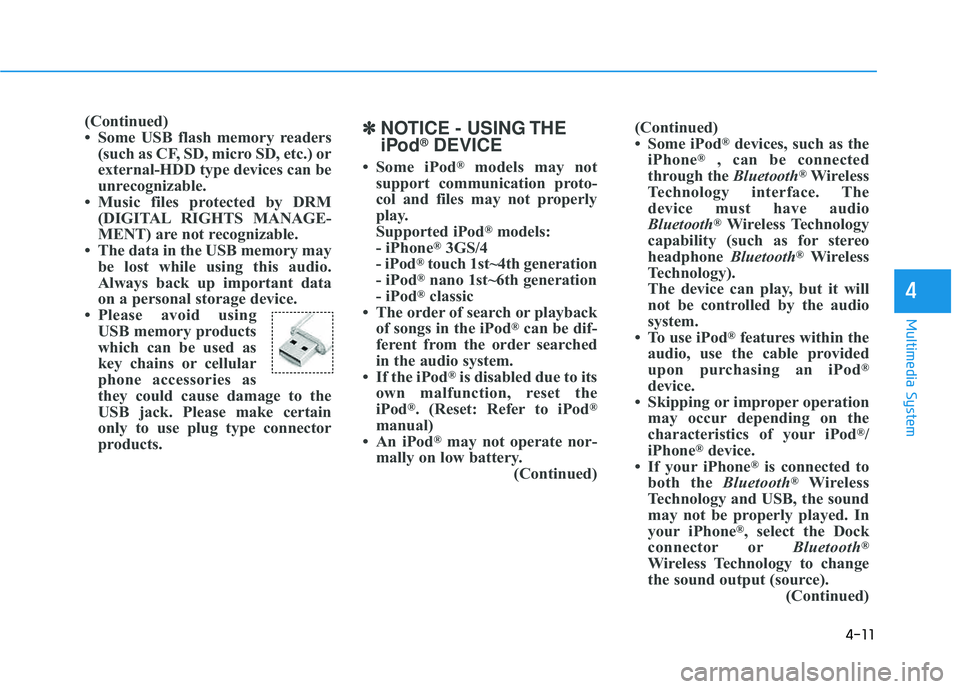
Please avoid using USB memory products
which can be used as
key chains or cellular
phone accessories as
they could cause damage to the
USB jack. Please make certain
only to use plug type connector
products.✽✽ NOTICE - USING THE
iPod ®
DEVICE
Some iPod ®
models may not
support communication proto-
col and files may not properly
play.
Supported iPod ®
models:
- iPhone ®
3GS/4
- iPod ®
touch 1st~4th generation
- iPod ®
nano 1st~6th generation
- iPod ®
classic
The order of search or playback of songs in the iPod ®
can be dif-
ferent from the order searched
in the audio system.
If the iPod ®
is disabled due to its
own malfunction, reset the
iPod ®
. (Reset: Refer to iPod ®
manual)
An iPod ®
may not operate nor-
mally on low battery. (Continued)(Continued)
Some iPod
®
devices, such as the
iPhone ®
, can be connected
through the Bluetooth®
Wireless
Technology interface. The
device must have audio
Bluetooth ®
Wireless Technology
capability (such as for stereo
headphone Bluetooth®
Wireless
Technology).
The device can play, but it will
not be controlled by the audio
system.
To use iPod ®
features within the
audio, use the cable provided
upon purchasing an iPod ®
device.
Skipping or improper operation may occur depending on the
characteristics of your iPod ®
/
iPhone ®
device.
If your iPhone ®
is connected to
both the Bluetooth®
Wireless
Technology and USB, the sound
may not be properly played. In
your iPhone ®
, select the Dock
connector or Bluetooth®
Wireless Technology to change
the sound output (source). (Continued)
Page 225 of 653
4-14
Multimedia System
(Continued)
Park the vehicle when connectingthe head unit with the mobile
phone.
Bluetooth ®
connection may
become intermittently disconnect-
ed in some mobile phones. Follow
these steps to try again.
1. Within the mobile phone, turn the Bluetooth ®
function off/on
and try again.
2. Turn the mobile phone power Off/On and try again.
3. Completely remove the mobile phone battery, reboot, and then
again.
4. Reboot the Audio System and try again.
5. Delete all paired devices, pair and try again.
Handsfree call quality and volume may differ depending on the
model of your mobile phone. ✽✽
NOTICE - USING THE
Voice Recognition
When using the voice recognition feature, only commands listed
within the user's manual are sup-
ported.
Be aware that during the opera- tion of the voice recognition sys-
tem, pressing any key other than
the key terminate voice recog-
nition mode.
For superior voice recognition performance, position the micro-
phone used for voice recognition
above the head of the driver’s seat
and maintain a proper position
when saying commands.
Within the following situations, voice recognition may not function
properly due to external sound.
- When the windows and sunroofare open
- When the wind of the cooling / heating device is strong
- When entering and passing through tunnels (Continued)(Continued)
- When driving on rugged anduneven roads
- During severe rain (heavy rains, windstorms)
Phone related voice commands can be used only when a
Bluetooth ®
Wireless Technology
device is connected.
When making calls by stating a name, the corresponding contact
must be downloaded and stored
within the audio system.
After downloading the Bluetooth®
Wireless Technology phone book,
it may take some time to convert
the phone book data into voice
information. During this time,
voice recognition may not proper-
ly operate.
Pronounce the voice commands naturally and clearly as if in a nor-
mal conversation.
Page 228 of 653
4-17
Multimedia System
4
SSYY SSTT EEMM CC OO NNTTRR OO LLLL EE RR SS AA NN DD
F
F UU NNCCTT IIOO NNSS
❈ Display and settings may differ
depending on the selected audio.
Audio Head Unit
(for XM RADIO TM
equipped model)
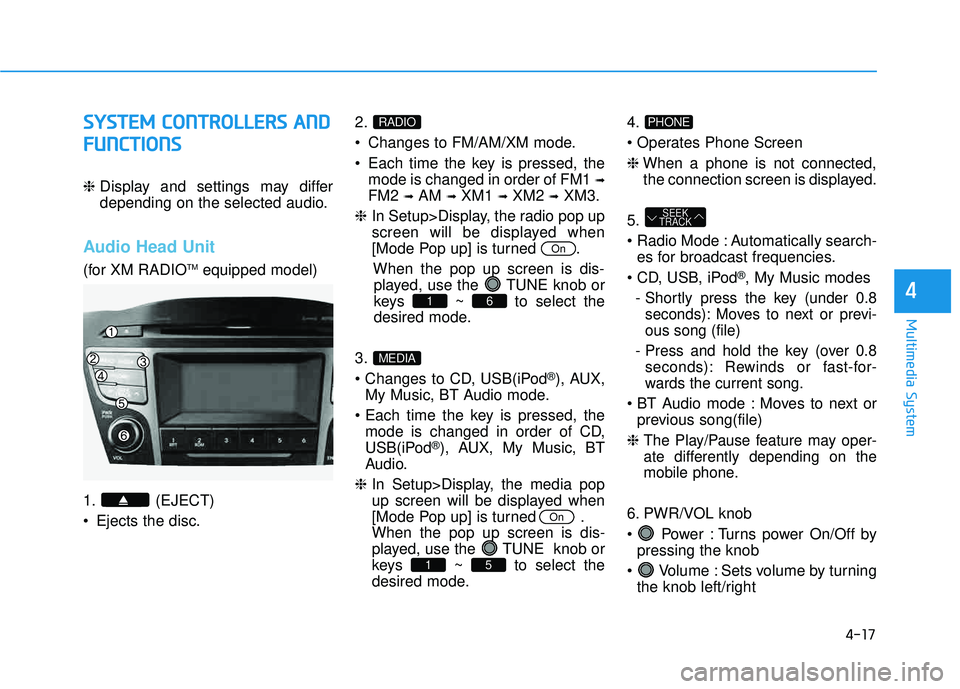
1. (EJECT)
Ejects the disc. 2.
Changes to FM/AM/XM mode.
Each time the key is pressed, the
mode is changed in order of FM1 ➟
FM2 ➟AM ➟XM1 ➟XM2 ➟XM3.
❈ In Setup>Display, the radio pop up
screen will be displayed when
[Mode Pop up] is turned .
When the pop up screen is dis-played, use the TUNE knob or
keys ~ to select the
desired mode.
3.
®), AUX,
My Music, BT Audio mode.
mode is changed in order of CD,
USB(iPod
®), AUX, My Music, BT
Audio.
❈ In Setup>Display, the media pop
up screen will be displayed when
[Mode Pop up] is turned .When the pop up screen is dis-
played, use the TUNE knob or
keys ~ to select the
desired mode. 4.
❈
When a phone is not connected,
the connection screen is displayed.
5.
Automatically search- es for broadcast frequencies.
®, My Music modes
- Shortly press the key (under 0.8 seconds): Moves to next or previ- ous song (file)
- Press and hold the key (over 0.8 seconds): Rewinds or fast-for-
wards the current song.
Moves to next or previous song(file)
❈
The Play/Pause feature may oper-
ate differently depending on the
mobile phone.
6. PWR/VOL knob
Power : Turns power On/Off by pressing the knob
Volume : Sets volume by turning the knob left/right
SEEK
TRACK
PHONE
51
On
MEDIA
61
On
RADIO
Page 229 of 653
4-18
Multimedia System
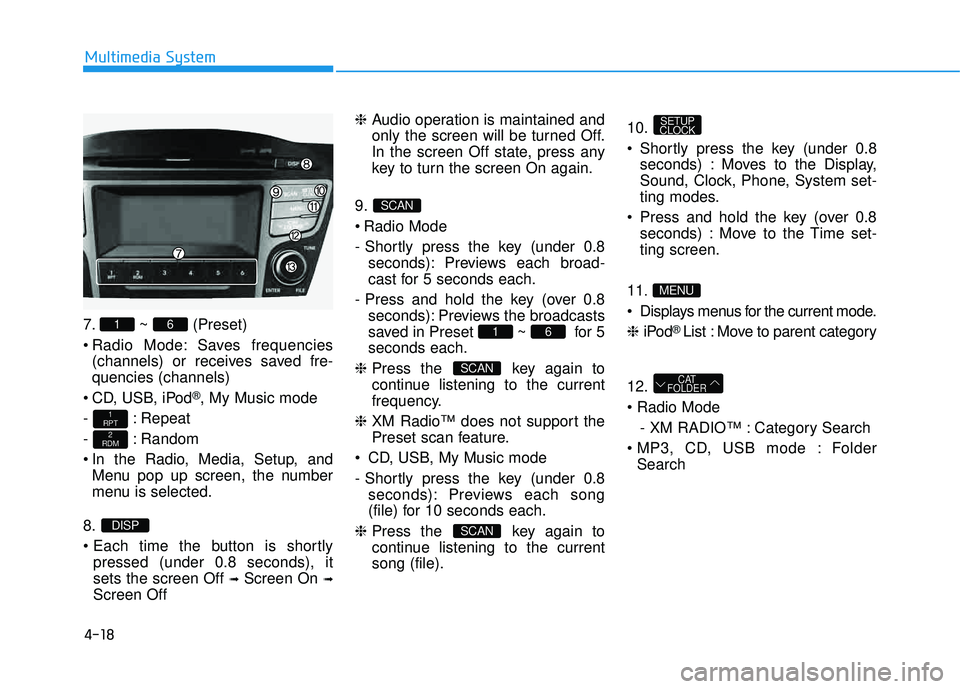
7. ~ (Preset)
Radio Mode: Saves frequencies(channels) or receives saved fre- quencies (channels)
CD, USB, iPod
®, My Music mode
- : Repeat
- : Random
In the Radio, Media, Setup, and Menu pop up screen, the number
menu is selected.
8.
pressed (under 0.8 seconds), it sets the screen Off ➟Screen On ➟
Screen Off ❈
Audio operation is maintained and
only the screen will be turned Off.
In the screen Off state, press any
key to turn the screen On again.
9.
Radio Mode
- Shortly press the key (under 0.8 seconds): Previews each broad-
cast for 5 seconds each.
- Press and hold the key (over 0.8 seconds): Previews the broadcasts
saved in Preset ~ for 5seconds each.
❈ Press the key again to
continue listening to the current
frequency.
❈ XM Radio™ does not support the
Preset scan feature.
CD, USB, My Music mode
- Shortly press the key (under 0.8 seconds): Previews each song
(file) for 10 seconds each.
❈ Press the key again to
continue listening to the currentsong (file). 10.
Shortly press the key (under 0.8
seconds) : Moves to the Display,
Sound, Clock, Phone, System set-
ting modes.
Press and hold the key (over 0.8 seconds) : Move to the Time set-ting screen.
11
.
Displays menus for the current mode. ❈ iPod
® List : Move to parent category
12.
- XM RADIO™ : Category Search
Folder Search
CAT
FOLDER
MENU
SETUP
CLOCK
SCAN
SCAN
61
SCAN
DISP
2
RDM
1
RPT
61
Page 234 of 653
![HYUNDAI TUCSON 2015 Owners Manual 4-23
Multimedia System
4
SSYY SSTT EEMM SS EE TT TT IINN GGSS
Press the key Select [System] through tune knob or
key Select menu through TUNEknob
Memory Information
Displays currently used memory](/img/35/56202/w960_56202-233.png "HYUNDAI TUCSON 2015 Owners Manual 4-23
Multimedia System
4
SSYY SSTT EEMM SS EE TT TT IINN GGSS
Press the key Select [System] through tune knob or
key Select menu through TUNEknob
Memory Information
Displays currently used memory")
4-23
Multimedia System
4
SSYY SSTT EEMM SS EE TT TT IINN GGSS
Press the key Select [System] through tune knob or
key Select menu through TUNEknob
Memory Information
Displays currently used memory and
total system memory.
Select [Memory Information] OK
The currently used memory is dis-
played on the left side while the total
system memory is displayed on the
right side.
Prompt Feedback
This feature is used to change voice
command feedback between Normal
and Expert modes.
Select [Prompt Feedback] Set
through TUNE knob
This mode is for beginner
users and provides detailed
instructions during voice command
operation. This mode is for expert users
and omits some information during
voice command operation. (When
using Expert mode, guidance
instructions can be heard through
the [Help] or [Menu] commands.
Language
This menu is used to set the display
and voice recognition language.
Select [Language] Set through TUNE knob ❈ The system will reboot after the language is changed.
❈ Language support by region
- English, Francais, Espanol
5
SETUP
CLOCK
Page 239 of 653
4-28
Multimedia System
MP3 CD, USB mode: FLD.RDM on screen
Plays all files within the current fold-
er in random order.
iPod
®mode: ALB RDM on screen
Plays all files within albums of the
current category in random order.
MP3 CD, USB, iPod mode: ALL RDMon screen
Plays all files in random order.
❈ Press the key again to turn off repeat.
Changing Song/File
While song (file) is playing key
Plays the
current song from the beginning.
❈ If the key is pressed
again within 3 second, the previ-
ous song is played.
0.8 seconds): Rewinds the song.
While song (file) is playing key
Plays the next song.
0.8 seconds): Fast forwards the song.
Scan
While song (file) is playing key
Scans all
songs from the next song for 10seconds each.
❈ Press the key again to turn
off.
❈ The SCAN function is not support-
ed in iPod
®mode.
Folder Search : MP3 CD, USB Mode
While file is playing / (Folder Up) key
While file is playing / (Folder Down) key
❈
If a folder is selected by pressing
the TUNE knob, the first file
within the selected folder will be
played.
❈ In iPod
®mode, moves to the
Parent Folder.
Searching Songs (File)
TUNEknob : Searches
for songs (files)
TUNE knob : Plays selected song (file).
FOLDER
CAT
FOLDER
FOLDER
CAT
FOLDER
SCAN
SCAN
SEEK
TRACK
SEEK
TRACK
SEEK
TRACK
2
RDM
Page 247 of 653
4-36
Multimedia System
PPHH OO NNEE
Before using the Bluetooth®Wireless
Technology phone features
Bluetooth®Wireless
Technology phone, you must first pair and connect the
Bluetooth®
Wireless Technology mobile phone.
connected, it is not possible to enter
Phone mode. Once a phone ispaired or connected, the guidance
screen will be displayed.
(IGN/ACC ON), the
Bluetooth®
Wireless Technology phone will be
automatically connected. Even if you
are outside, the
Bluetooth® Wireless
Technology phone will be automati-
cally connected once you are in the
vicinity of the vehicle. If you do not
want automatic
Bluetooth®Wireless
Technology phone connection, setthe
Bluetooth®Wireless Technology
power to OFF.
PP HH OO NNEE
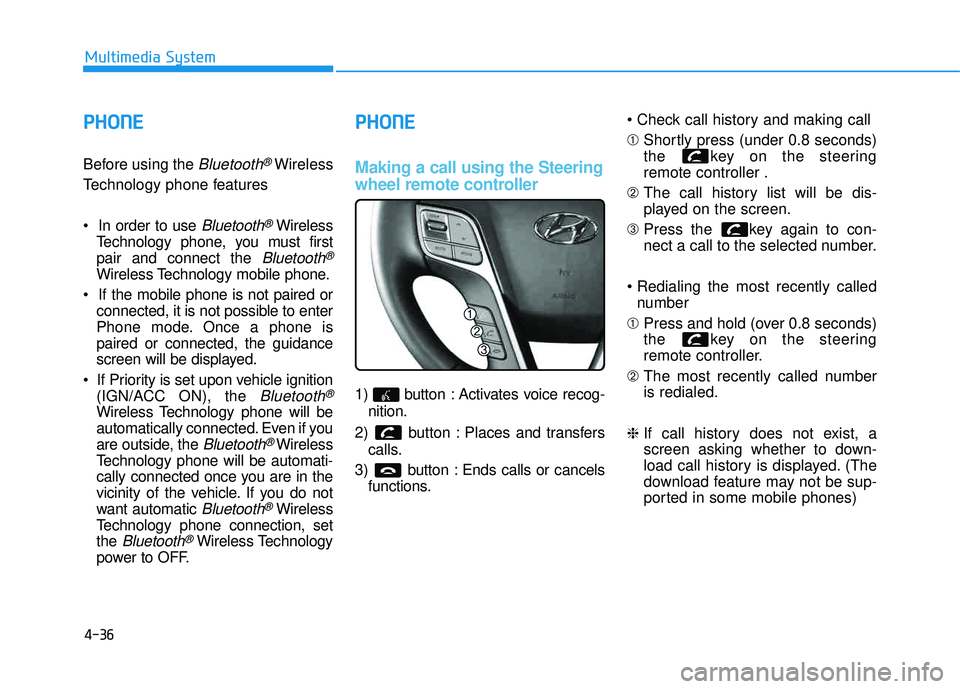
Making a call using the Steering
wheel remote controller
1) button : Activates voice recog-
nition.
2) button : Places and transfers calls.
3) button : Ends calls or cancels functions. ➀
Shortly press (under 0.8 seconds)
the key on the steeringremote controller .
➁ The call history list will be dis-
played on the screen.
➂ Press the key again to con-
nect a call to the selected number.
number
➀ Press and hold (over 0.8 seconds)
the key on the steering
remote controller.
➁ The most recently called numberis redialed.
❈ If call history does not exist, a
screen asking whether to down-
load call history is displayed. (The
download feature may not be sup-
ported in some mobile phones)
Page 261 of 653
4-50
Multimedia System
VVOO IICC EE RR EECCOO GGNN IITT IIOO NN
Using Voice Recognition
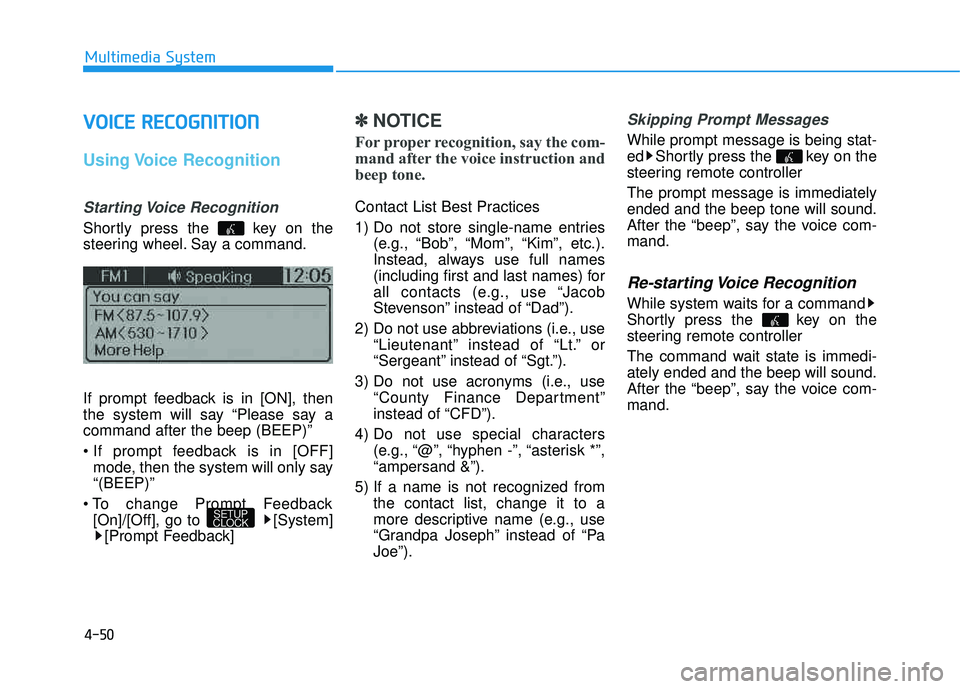
Starting Voice Recognition
Shortly press the key on the
steering wheel. Say a command.
If prompt feedback is in [ON], then
the system will say “Please say acommand after the beep (BEEP)”
mode, then the system will only say “(BEEP)”
[On]/[Off], go to [System] [Prompt Feedback]
✽✽ NOTICE
For proper recognition, say the com-
mand after the voice instruction and
beep tone.
Contact List Best Practices
1) Do not store single-name entries (e.g., “Bob”, “Mom”, “Kim”, etc.).
Instead, always use full names
(including first and last names) for
all contacts (e.g., use “Jacob
Stevenson” instead of “Dad”).
2) Do not use abbreviations (i.e., use “Lieutenant” instead of “Lt.” or
“Sergeant” instead of “Sgt.”).
3) Do not use acronyms (i.e., use “County Finance Department”
instead of “CFD”).
4) Do not use special characters (e.g., “@”, “hyphen -”, “asterisk *”,“ampersand &”).
5) If a name is not recognized from the contact list, change it to a
more descriptive name (e.g., use
“Grandpa Joseph” instead of “PaJoe”).
Skipping Prompt Messages
While prompt message is being stat-
ed Shortly press the key on the
steering remote controller The prompt message is immediately ended and the beep tone will sound.
After the “beep”, say the voice com-mand.
Re-starting Voice Recognition
While system waits for a command
Shortly press the key on the
steering remote controller
The command wait state is immedi- ately ended and the beep will sound.
After the “beep”, say the voice com-mand.
SETUP
CLOCK
Page 263 of 653
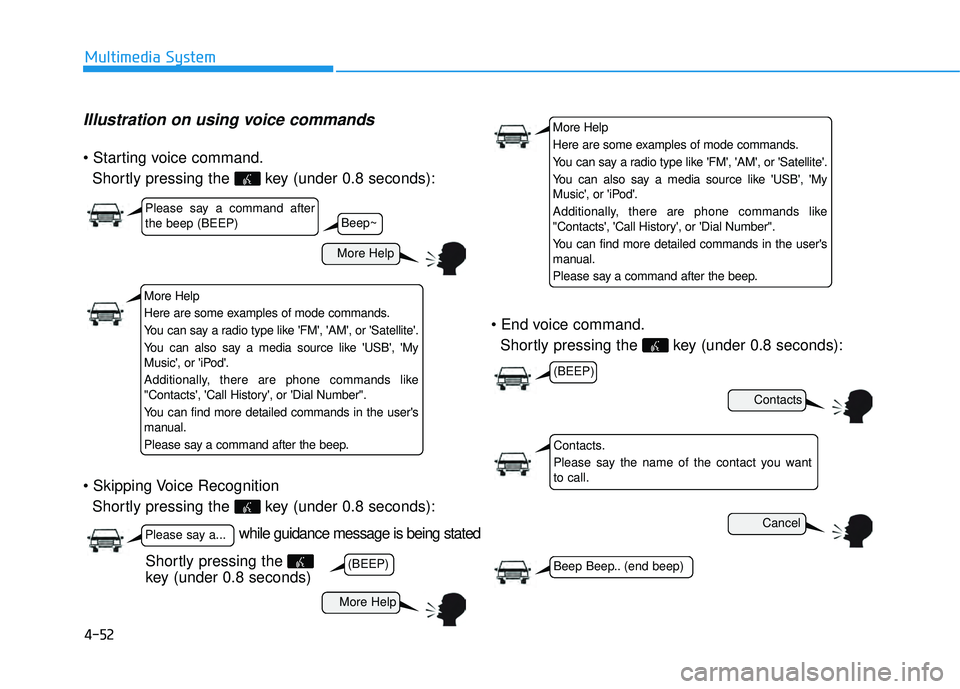
4-52
Multimedia System
Illustration on using voice commands
Shortly pressing the key (under 0.8 seconds):
Shortly pressing the key (under 0.8 seconds):
Shortly pressing the key (under 0.8 seconds):
while guidance message is being stated
More Help
Contacts
Cancel
More Help
Please say a command after the beep (BEEP)
Please say a...
Contacts.
Please say the name of the contact you want to call.
(BEEP)
(BEEP)
Beep Beep.. (end beep)
Shortly pressing the
key (under 0.8 seconds)
Beep~
More Help
Here are some examples of mode commands.
You can say a radio type like 'FM', 'AM', or 'Satellite'.
You can also say a media source like 'USB', 'My
Music', or 'iPod'.
Additionally, there are phone commands like
"Contacts', 'Call History', or 'Dial Number".
You can find more detailed commands in the user's
manual.
Please say a command after the beep.
More Help
Here are some examples of mode commands.
You can say a radio type like 'FM', 'AM', or 'Satellite'.
You can also say a media source like 'USB', 'My
Music', or 'iPod'.
Additionally, there are phone commands like
"Contacts', 'Call History', or 'Dial Number".
You can find more detailed commands in the user's
manual.
Please say a command after the beep.