display HYUNDAI TUCSON 2015 Owner's Manual
[x] Cancel search | Manufacturer: HYUNDAI, Model Year: 2015, Model line: TUCSON, Model: HYUNDAI TUCSON 2015Pages: 653, PDF Size: 8.45 MB
Page 201 of 653
3-115
Convenient features of your vehicle
3
If the battery has been discharged or disconnected, the system resets to
the preprogrammed defogging logic.Automatic climate control system
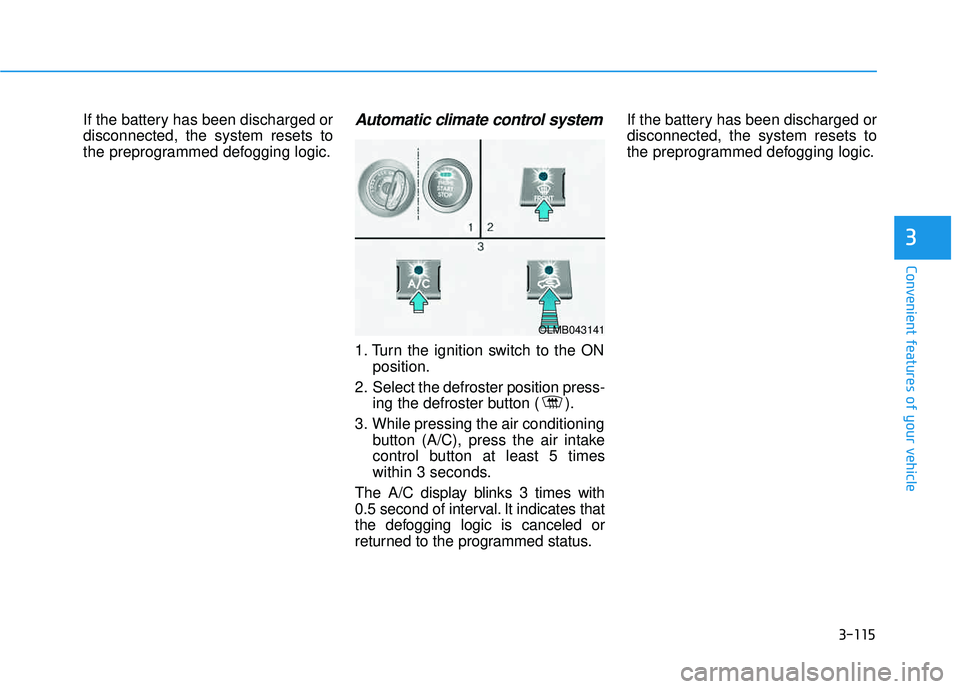
1. Turn the ignition switch to the ONposition.
2. Select the defroster position press- ing the defroster button ( ).
3. While pressing the air conditioning button (A/C), press the air intake
control button at least 5 times
within 3 seconds.
The A/C display blinks 3 times with
0.5 second of interval. It indicates that
the defogging logic is canceled or
returned to the programmed status. If the battery has been discharged ordisconnected, the system resets to
the preprogrammed defogging logic.
OLMB043141
Page 207 of 653
3-121
Convenient features of your vehicle
3
Digital clock
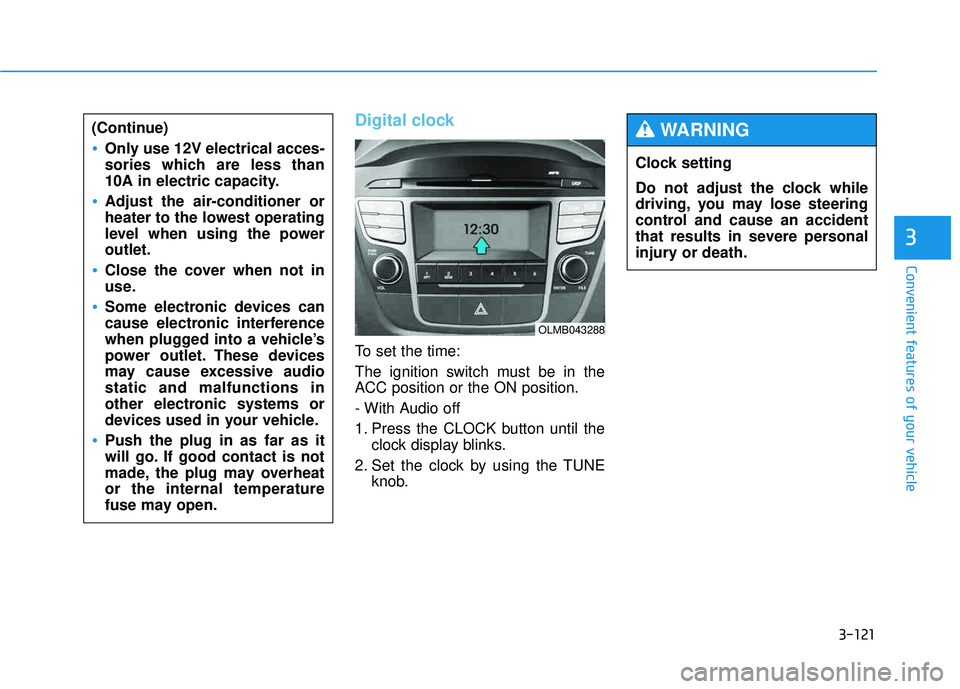
To set the time:
The ignition switch must be in the
ACC position or the ON position.
- With Audio off
1. Press the CLOCK button until theclock display blinks.
2. Set the clock by using the TUNE knob.
(Continue)
Only use 12V electrical acces-
sories which are less than
10A in electric capacity.
Adjust the air-conditioner or
heater to the lowest operating
level when using the poweroutlet.
Close the cover when not in
use.
Some electronic devices can
cause electronic interference
when plugged into a vehicle’s
power outlet. These devices
may cause excessive audiostatic and malfunctions in
other electronic systems or
devices used in your vehicle.
Push the plug in as far as it
will go. If good contact is not
made, the plug may overheator the internal temperature
fuse may open.
OLMB043288
Clock setting
Do not adjust the clock while
driving, you may lose steering
control and cause an accident
that results in severe personal
injury or death.
WARNING
Page 218 of 653
4-7
Multimedia System
4
Caring for disc
If the temperature inside the car is toohigh, open the car windows to venti-
late before using the system.
It is illegal to copy and use MP3/WMA files without permission.
Use CDs that are created only by
lawful means.
Do not apply volatile agents, such as benzene, or thinner, normal
cleaners, magnetic sprays made
for analogue disc onto CDs.
To prevent the disc surface from getting damaged, hold CDs by the
edges or the center hole only.
Clean the disc surface with a piece of soft cloth before playback (wipe it from the center to the outsideedge).
Do not damage the disc surface or attach pieces of sticky tape or
paper.
Make certain only CDs are insert- ed into the CD player (Do not insert more than one CD at a time).
Keep CDs in their cases after use to protect them from scratches or dirt. Depending on the type of CD-
R/CD-RW CDs, certain CDs may
not operate normally according to
the manufacturing companies. In
such circumstances, continued
use may cause malfunctions to
your audio system.
✽✽ NOTICE
- Playing an Incompatible
Copy Protected Audio CD
Some copy protected CDs, which do
not comply with international audio
CD standards (Red Book), may not
play on your car audio. Please note
that inabilities to properly play a
copy protected CD may indicate
that the CD is defective, not the CD
player.
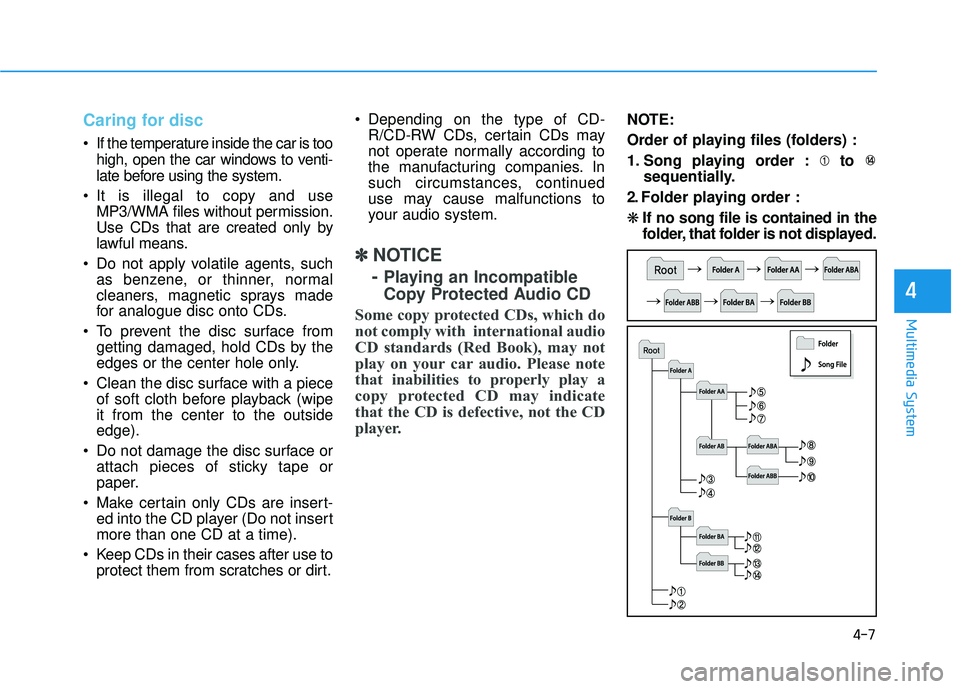
NOTE:
Order of playing files (folders) :
1. Song playing order : to sequentially.
2. Folder playing order : ❋ If no song file is contained in the
folder, that folder is not displayed.
Page 228 of 653
4-17
Multimedia System
4
SSYY SSTT EEMM CC OO NNTTRR OO LLLL EE RR SS AA NN DD
F
F UU NNCCTT IIOO NNSS
❈ Display and settings may differ
depending on the selected audio.
Audio Head Unit
(for XM RADIO TM
equipped model)
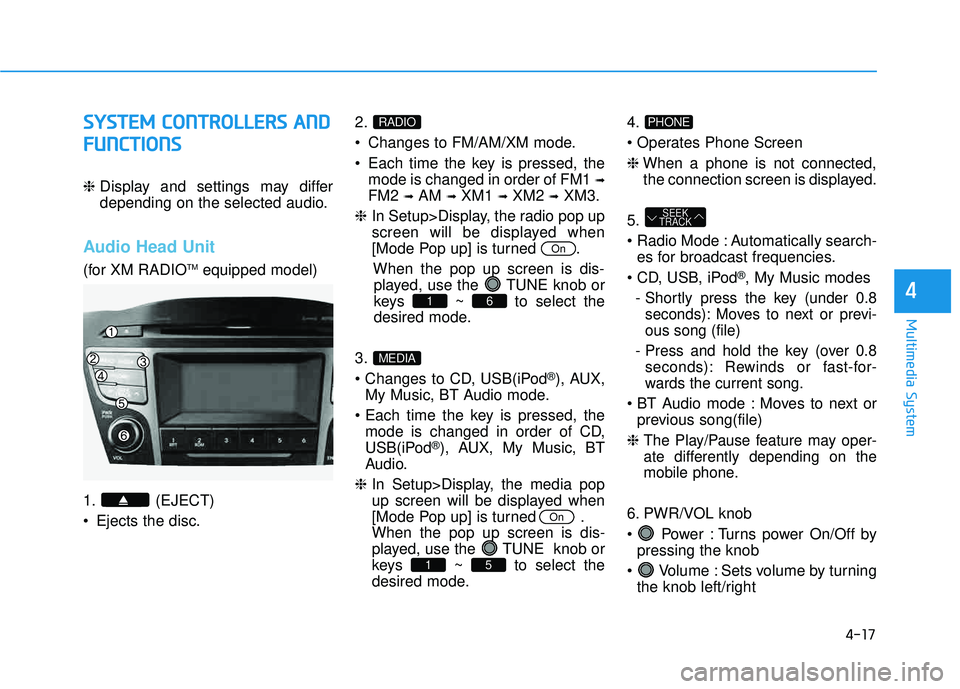
1. (EJECT)
Ejects the disc. 2.
Changes to FM/AM/XM mode.
Each time the key is pressed, the
mode is changed in order of FM1 ➟
FM2 ➟AM ➟XM1 ➟XM2 ➟XM3.
❈ In Setup>Display, the radio pop up
screen will be displayed when
[Mode Pop up] is turned .
When the pop up screen is dis-played, use the TUNE knob or
keys ~ to select the
desired mode.
3.
®), AUX,
My Music, BT Audio mode.
mode is changed in order of CD,
USB(iPod
®), AUX, My Music, BT
Audio.
❈ In Setup>Display, the media pop
up screen will be displayed when
[Mode Pop up] is turned .When the pop up screen is dis-
played, use the TUNE knob or
keys ~ to select the
desired mode. 4.
❈
When a phone is not connected,
the connection screen is displayed.
5.
Automatically search- es for broadcast frequencies.
®, My Music modes
- Shortly press the key (under 0.8 seconds): Moves to next or previ- ous song (file)
- Press and hold the key (over 0.8 seconds): Rewinds or fast-for-
wards the current song.
Moves to next or previous song(file)
❈
The Play/Pause feature may oper-
ate differently depending on the
mobile phone.
6. PWR/VOL knob
Power : Turns power On/Off by pressing the knob
Volume : Sets volume by turning the knob left/right
SEEK
TRACK
PHONE
51
On
MEDIA
61
On
RADIO
Page 229 of 653
4-18
Multimedia System
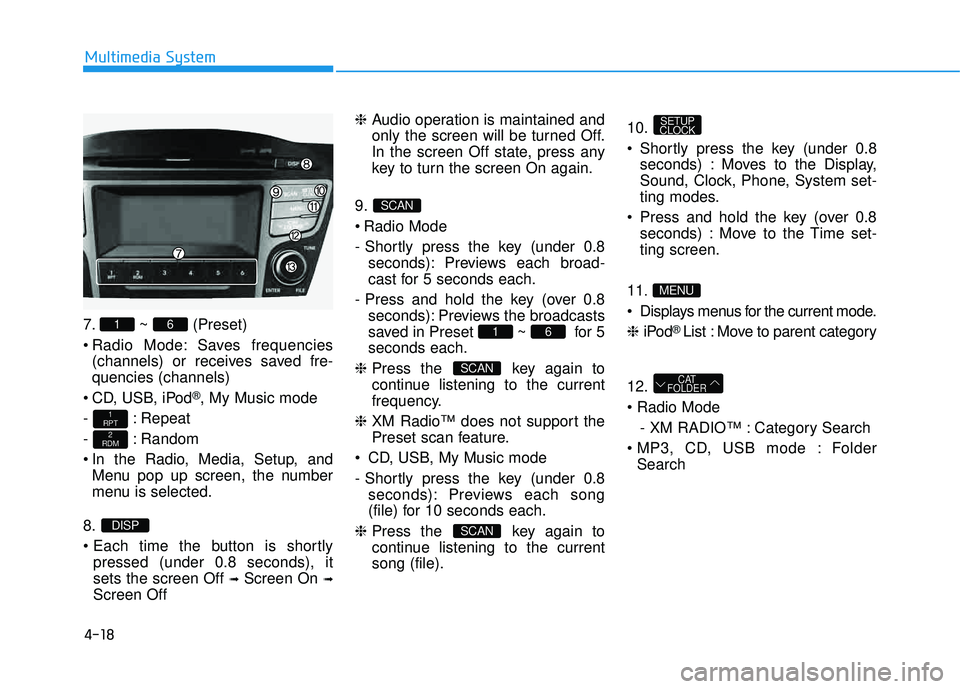
7. ~ (Preset)
Radio Mode: Saves frequencies(channels) or receives saved fre- quencies (channels)
CD, USB, iPod
®, My Music mode
- : Repeat
- : Random
In the Radio, Media, Setup, and Menu pop up screen, the number
menu is selected.
8.
pressed (under 0.8 seconds), it sets the screen Off ➟Screen On ➟
Screen Off ❈
Audio operation is maintained and
only the screen will be turned Off.
In the screen Off state, press any
key to turn the screen On again.
9.
Radio Mode
- Shortly press the key (under 0.8 seconds): Previews each broad-
cast for 5 seconds each.
- Press and hold the key (over 0.8 seconds): Previews the broadcasts
saved in Preset ~ for 5seconds each.
❈ Press the key again to
continue listening to the current
frequency.
❈ XM Radio™ does not support the
Preset scan feature.
CD, USB, My Music mode
- Shortly press the key (under 0.8 seconds): Previews each song
(file) for 10 seconds each.
❈ Press the key again to
continue listening to the currentsong (file). 10.
Shortly press the key (under 0.8
seconds) : Moves to the Display,
Sound, Clock, Phone, System set-
ting modes.
Press and hold the key (over 0.8 seconds) : Move to the Time set-ting screen.
11
.
Displays menus for the current mode. ❈ iPod
® List : Move to parent category
12.
- XM RADIO™ : Category Search
Folder Search
CAT
FOLDER
MENU
SETUP
CLOCK
SCAN
SCAN
61
SCAN
DISP
2
RDM
1
RPT
61
Page 231 of 653
![HYUNDAI TUCSON 2015 Owners Manual 4-20
Multimedia System
SSEE TT UU PP
D
D iiss pp llaa yy SS eettttiinn ggss
Press the key Select
[Display] through TUNE knob or
key Select menu through
Mode Pop up
[Mode Pop up] Changes / selec](/img/35/56202/w960_56202-230.png "HYUNDAI TUCSON 2015 Owners Manual 4-20
Multimedia System
SSEE TT UU PP
D
D iiss pp llaa yy SS eettttiinn ggss
Press the key Select
[Display] through TUNE knob or
key Select menu through
Mode Pop up
[Mode Pop up] Changes / selec")
4-20
Multimedia System
SSEE TT UU PP
D
D iiss pp llaa yy SS eettttiinn ggss
Press the key Select
[Display] through TUNE knob or
key Select menu through
Mode Pop up
[Mode Pop up] Changes / selection mode
or key to display the mode change pop up screen.
Text Scroll
[Text Scroll] Set /
Maintains scroll
: Scrolls only one (1) time.
Media Display
When playing an MP3 file, select the
desired display info from ‘Folder/File’
or ‘Album/Artist/Song’.
SS oouunn dd SS eettttiinn ggss
Press the key Select [Sound]
through TUNE knob or key
Select menu through 2
RDM
SETUP
CLOCK
Off
On
OffOn
MEDIA
RADIO
OffOn
1
RPT
SETUP
CLOCK
TUNE knob
TUNE knob
Page 233 of 653
![HYUNDAI TUCSON 2015 Owners Manual 4-22
Multimedia System
CClloo cckk SS eetttt iinn ggss
Press the key Select [Clock]
through TUNE knob or key
Select menu through TUNE knob
Clock Settings
This menu is used to set the time.
Se](/img/35/56202/w960_56202-232.png "HYUNDAI TUCSON 2015 Owners Manual 4-22
Multimedia System
CClloo cckk SS eetttt iinn ggss
Press the key Select [Clock]
through TUNE knob or key
Select menu through TUNE knob
Clock Settings
This menu is used to set the time.
Se")
4-22
Multimedia System
CClloo cckk SS eetttt iinn ggss
Press the key Select [Clock]
through TUNE knob or key
Select menu through TUNE knob
Clock Settings
This menu is used to set the time.
Select [Clock Settings] Set through
TUNEknob Press TUNEknob
❈ Adjust the number currently in
focus to set the [hour] and press
the tune knob to set the [minute].
Calendar Settings
This menu is used to set the date.
Select [Calendar Settings]] Set through TUNE knob Press
TUNE knob ❈
Adjust the number currently in
focus to make the settings and
press the tune knob to move to the
next setting. (Set in order of
Year/Month/Day)
Time Format
This function is used to set the 12/24
hour time format of the audio system.
Select [Time Format] Set 12Hr / 24Hr through
TUNEknob
Clock Display when Power is OFF
Select [Clock Disp.(Pwr Off)] Set
/ through TUNE knob
: Displays time/date on screen
Turn off.
Off
On
OffOn
3
SETUP
CLOCK
Page 234 of 653
![HYUNDAI TUCSON 2015 Owners Manual 4-23
Multimedia System
4
SSYY SSTT EEMM SS EE TT TT IINN GGSS
Press the key Select [System] through tune knob or
key Select menu through TUNEknob
Memory Information
Displays currently used memory](/img/35/56202/w960_56202-233.png "HYUNDAI TUCSON 2015 Owners Manual 4-23
Multimedia System
4
SSYY SSTT EEMM SS EE TT TT IINN GGSS
Press the key Select [System] through tune knob or
key Select menu through TUNEknob
Memory Information
Displays currently used memory")
4-23
Multimedia System
4
SSYY SSTT EEMM SS EE TT TT IINN GGSS
Press the key Select [System] through tune knob or
key Select menu through TUNEknob
Memory Information
Displays currently used memory and
total system memory.
Select [Memory Information] OK
The currently used memory is dis-
played on the left side while the total
system memory is displayed on the
right side.
Prompt Feedback
This feature is used to change voice
command feedback between Normal
and Expert modes.
Select [Prompt Feedback] Set
through TUNE knob
This mode is for beginner
users and provides detailed
instructions during voice command
operation. This mode is for expert users
and omits some information during
voice command operation. (When
using Expert mode, guidance
instructions can be heard through
the [Help] or [Menu] commands.
Language
This menu is used to set the display
and voice recognition language.
Select [Language] Set through TUNE knob ❈ The system will reboot after the language is changed.
❈ Language support by region
- English, Francais, Espanol
5
SETUP
CLOCK
Page 236 of 653
4-25
Multimedia System
4
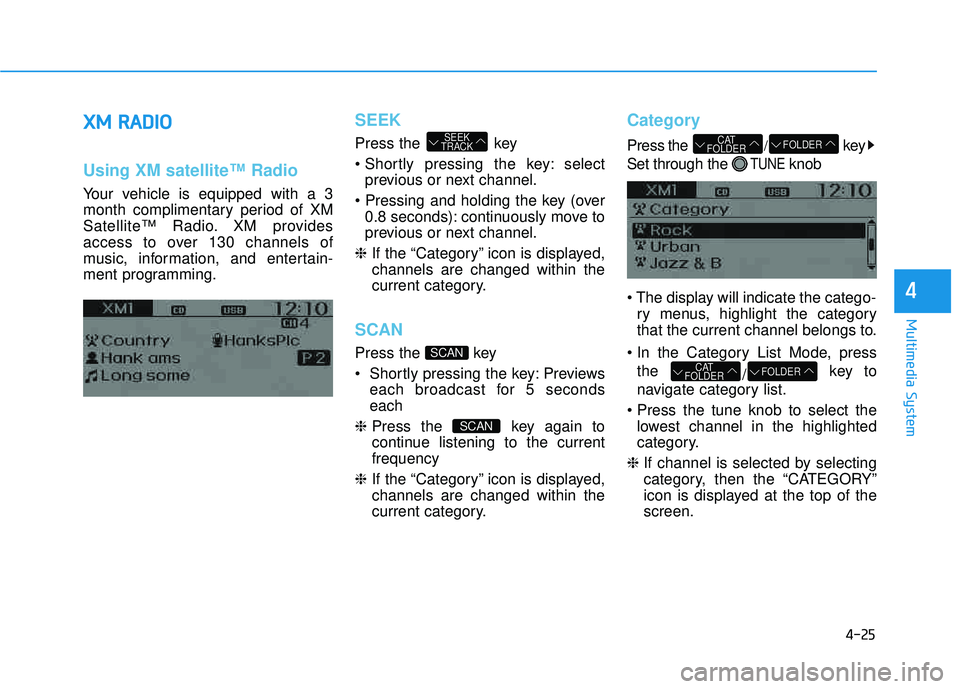
XXMM RR AA DDIIOO
Using XM satellite™ Radio
Your vehicle is equipped with a 3
month complimentary period of XM
Satellite™ Radio. XM provides
access to over 130 channels of
music, information, and entertain-
ment programming.
SEEK
Press the key
select
previous or next channel.
0.8 seconds): continuously move to
previous or next channel.
❈ If the “Category” icon is displayed,channels are changed within the
current category.
SCAN
Press the key
Previews
each broadcast for 5 seconds each
❈ Press the key again to
continue listening to the currentfrequency
❈ If the “Category” icon is displayed,channels are changed within the
current category.
Category
Press the /key
Set through the
TUNEknob
ry menus, highlight the category
that the current channel belongs to.
the /key to
navigate category list.
lowest channel in the highlighted
category.
❈ If channel is selected by selecting
category, then the “CATEGORY”
icon is displayed at the top of thescreen.
FOLDERCAT
FOLDER
FOLDERCAT
FOLDER
SCAN
SCAN
SEEK
TRACK
Page 237 of 653
4-26
Multimedia System
Preset
Press the ~ key
Plays the frequency saved in the correspon-
ding key.
0.8 seconds): Pressing and holding
the desired key from ~
will save the current broadcast to
the selected key and sound a
BEEP.
Tune
Rotate TUNE knob : Changes thechannel number or scrolls category list.
TUNE knob : Selects the menu.
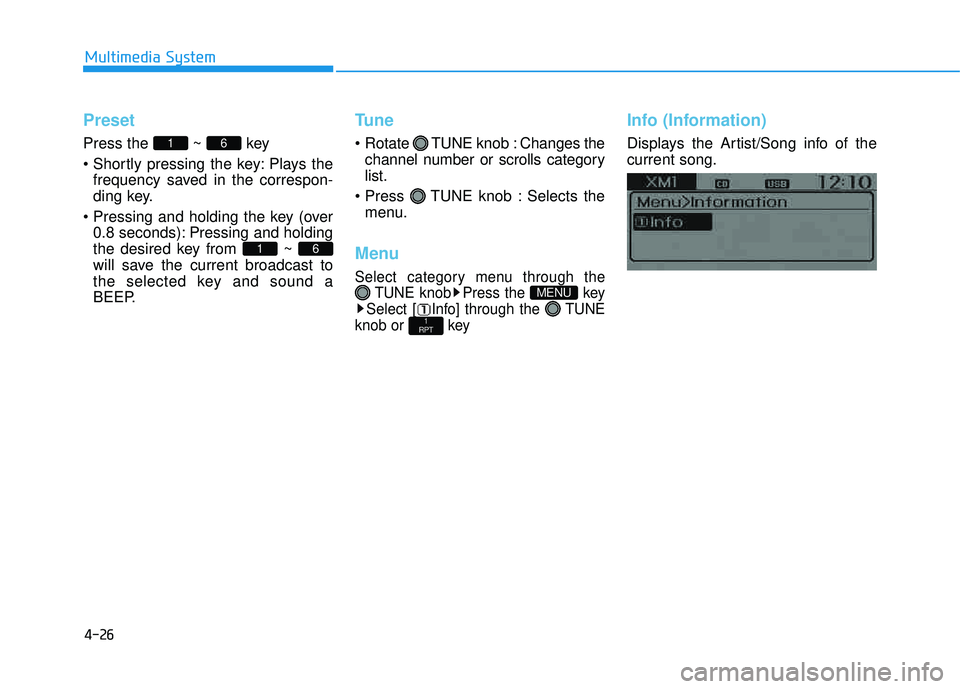
Menu
Select category menu through the TUNE knob Press the key
Select [ Info] through the TUNE
knob or key
Info (Information)
Displays the Artist/Song info of the current song.
1
RPT
MENU
61
61