phone HYUNDAI TUCSON 2015 Repair Manual
[x] Cancel search | Manufacturer: HYUNDAI, Model Year: 2015, Model line: TUCSON, Model: HYUNDAI TUCSON 2015Pages: 653, PDF Size: 8.45 MB
Page 321 of 653
4-110
Multimedia System
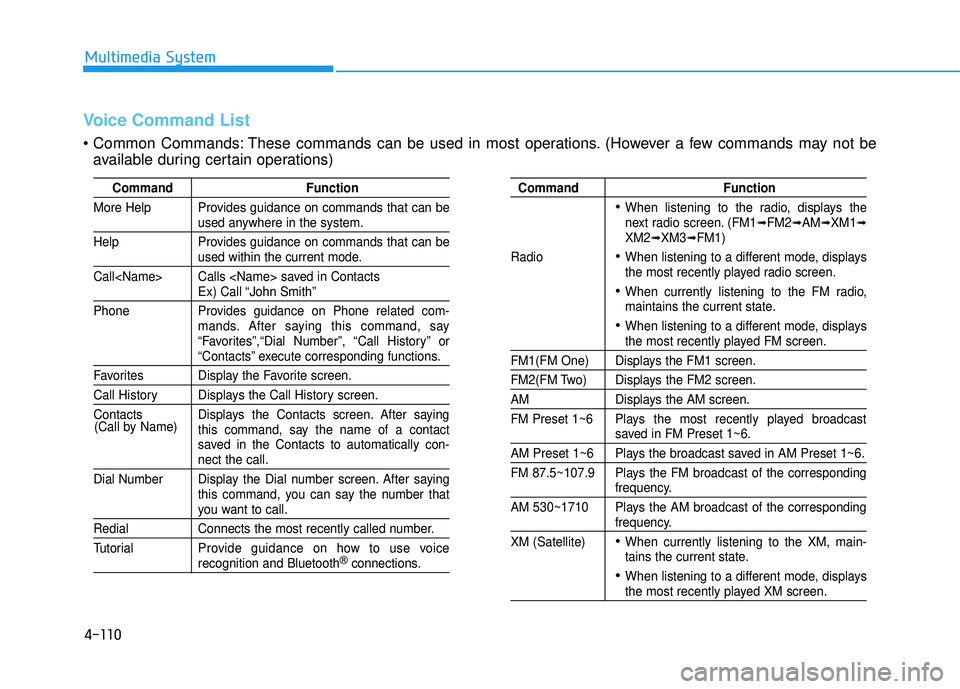
Command Function
More Help Provides guidance on commands that can be
used anywhere in the system.
Help Provides guidance on commands that can be
used within the current mode.
Call
Ex) Call “John Smith”
Phone Provides guidance on Phone related com- mands. After saying this command, say
“Favorites”,“Dial Number”, “Call History” or
“Contacts” execute corresponding functions.
Favorites Display the Favorite screen.
Call History Displays the Call History screen.
Contacts Displays the Contacts screen. After sayingthis command, say the name of a contact
saved in the Contacts to automatically con-
nect the call.
Dial Number Display the Dial number screen. After saying this command, you can say the number that
you want to call.
Redial Connects the most recently called number.
Tutorial Pro vide guidance on how to use voice
recognition and Bluetooth®connections.
Command Function
When listening to the radio, displays the
next radio screen. (FM1➟FM2➟AM➟XM1➟XM2➟XM3➟FM1)
Radio
When listening to a different mode, displays
the most recently played radio screen.
When currently listening to the FM radio,
maintains the current state.
When listening to a different mode, displaysthe most recently played FM screen.
FM1(FM One) Displays the FM1 screen.
FM2(FM Two) Displays the FM2 screen.
AM Displays the AM screen.
FM Preset 1~6 Plays the most recently played broadcast
saved in FM Preset 1~6.
AM Preset 1~6 Plays the broadcast saved in AM Preset 1~6.
FM 87.5~107.9 Plays the FM broadcast of the corresponding
frequency.
AM 530~1710 Plays the AM broadcast of the corresponding
frequency.
XM (Satellite)
When currently listening to the XM, main-
tains the current state.
When listening to a different mode, displaysthe most recently played XM screen.
(Call by Name)
Voice Command List
Common Commands: These commands can be used in most operations. (However a few commands may not be
available during certain operations)
Page 326 of 653
![HYUNDAI TUCSON 2015 Repair Manual 4-115
Multimedia System
4
SSEE TT UU PP
Starting Mode
Press the key to display the Setup screen.
You can select and control options
related to [Display], [Sound],
[Clock/Calendar], [Phone] and[Syst](/img/35/56202/w960_56202-325.png "HYUNDAI TUCSON 2015 Repair Manual 4-115
Multimedia System
4
SSEE TT UU PP
Starting Mode
Press the key to display the Setup screen.
You can select and control options
related to [Display], [Sound],
[Clock/Calendar], [Phone] and[Syst")
4-115
Multimedia System
4
SSEE TT UU PP
Starting Mode
Press the key to display the Setup screen.
You can select and control options
related to [Display], [Sound],
[Clock/Calendar], [Phone] and[System].
Display Settings
Adjusting the Brightness
Press the key Select
[Display] Select [Brightness]
Use the , buttons to adjust the
screen brightness or set the
Brightness on Automatic, Daylight, or
Night mode.
Press the button to reset.
1) Automatic : Adjusts the brightness
automatically
2) Daylight : Always maintains the brightness on high
3) Night : Always maintains the
brightness on low
Pop-up Mode
Press the key Select
[Display] Select [Mode Pop up]
This feature is used to display the
Pop-up Mode screen when entering
radio and media modes.
When this feature is turned on, pressing the or key
will display the Pop-up Mode screen.
✽✽ NOTICE
The media Pop-up Mode screen can
be displayed only when two or more
media modes have been connected.
MEDIA RADIO
SETUP
Default
SETUP SETUP
Page 333 of 653
4-122
Multimedia System
BBlluu ee LL iinn kk ®®
Hyundai aims to offer differentiated
customer values through a ‘Connected
Car Life,’ which is to provide con-
sumers with fast and reliable IT tech-
nology. As consumers’ lifestylesbecome more and more mobile in
thanks to remarkable advances in
smart phones, tablet PCs and overall
wireless telecommunication, new
lifestyle patterns demand seamless
connection between one’s office,
home, outdoors and automobiles.
Automobile companies are now faced
with the task of shifting their paradigm
from vehicle-centered services to cus-
tomer value-centered services, with
the ultimate goal of securing global
leadership in the field of vehicle IT and
telematics. Hyundai Motor plans to achieve this
by realizing a terminal platform flexi-
ble to changes in IT technology,
cooperating with global IT compa-
nies, creating an eco-system and
providing the latest contents & serv-
ices based on an open environment.
Using the Room Mirror Key
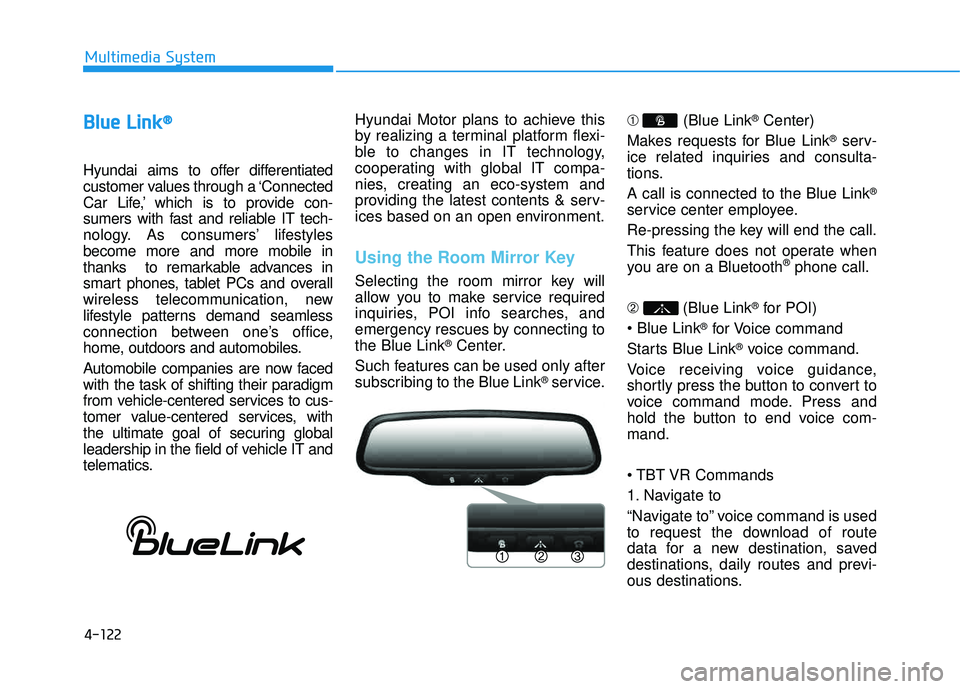
Selecting the room mirror key will
allow you to make service required
inquiries, POI info searches, and
emergency rescues by connecting tothe Blue Link
®Center.
Such features can be used only after
subscribing to the Blue Link
®service. ➀
(Blue Link
®Center)
Makes requests for Blue Link
®serv-
ice related inquiries and consulta-
tions. A call is connected to the Blue Link
®
service center employee.
Re-pressing the key will end the call.
This feature does not operate when
you are on a Bluetooth
®phone call.
➁ (Blue Link
®for POI)
®for Voice command
Starts Blue Link
®voice command.
Voice receiving voice guidance,
shortly press the button to convert to
voice command mode. Press and
hold the button to end voice com-mand.
Commands
1. Navigate to
“Navigate to” voice command is used
to request the download of route
data for a new destination, saved
destinations, daily routes and previ-
ous destinations.
Page 334 of 653
4-123
Multimedia System
4
2. Save Destination
“Save Destination” VR command is
used to assign a voice tag to the last
downloaded destination and store it
in a destination directory.
NOTE:
The Turn by Turn(TBT) feature sup-
ports the store of ten(10) destina-
tions in the TBT destinations
directory.
3. Route Preview
“Route Preview” VR command allows
the user to preview the route instruc-
tions (upcoming maneuver instruc-
tions) at any time during the route
guidance.
4. Destinations List
“Destinations List” VR command
allows the user to preview and deletethe stored destinations with their
associated voice tags in the Turn by
Turn destinations directory.5. Voice Guidance
“Voice Guidance” VR command allows
the user to mute/unmute the Turn by
Turn(TBT) direction announcements.
6. Suspend Route
“Suspend Route” VR command
allows the user to suspend and
pause Turn by Turn(TBT) route guid-
ance while in the guidance mode.
7. Resume Route
“Resume Route” VR command
allows the user to resume Turn by
Turn(TBT) route guidance. ➂
(Blue Link
®for SOS)
In the case of an emergency,
requests for help to the Blue Link
®
center. Call is connected to the Blue Link
®
emergency rescue center. Re-press-
ing the key will end the call. If already on a Bluetooth
®phone call,
the call will end to connect you to the Blue Link
®Emergency Rescue Center.
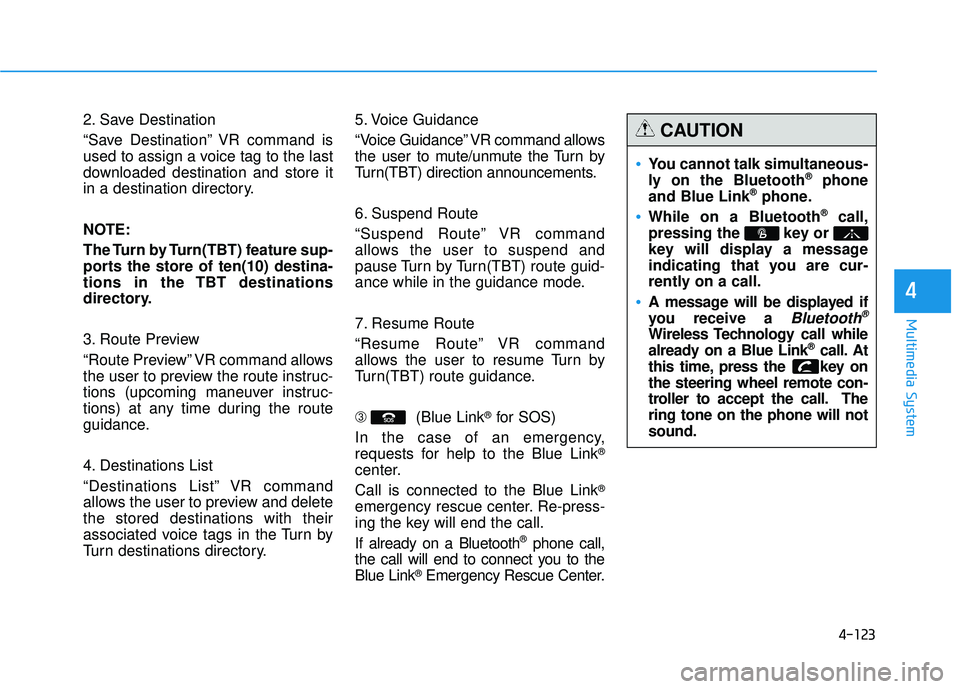
You cannot talk simultaneous-
ly on the Bluetooth®phone
and Blue Link®phone.
While on a Bluetooth®call,
pressing the key or
key will display a message
indicating that you are cur-
rently on a call.
A message will be displayed if
you receive a
Bluetooth®
Wireless Technology call while
already on a Blue Link®call. At
this time, press the key onthe steering wheel remote con-
troller to accept the call. Thering tone on the phone will notsound.
CAUTION
Page 338 of 653
4-127
Multimedia System
4
SSYY SSTT EEMM CC OO NNTTRR OO LLLL EE RR SS AA NN DD
F
F UU NNCCTT IIOO NNSS
❈ Display and settings may differ
depending on the selected audio.
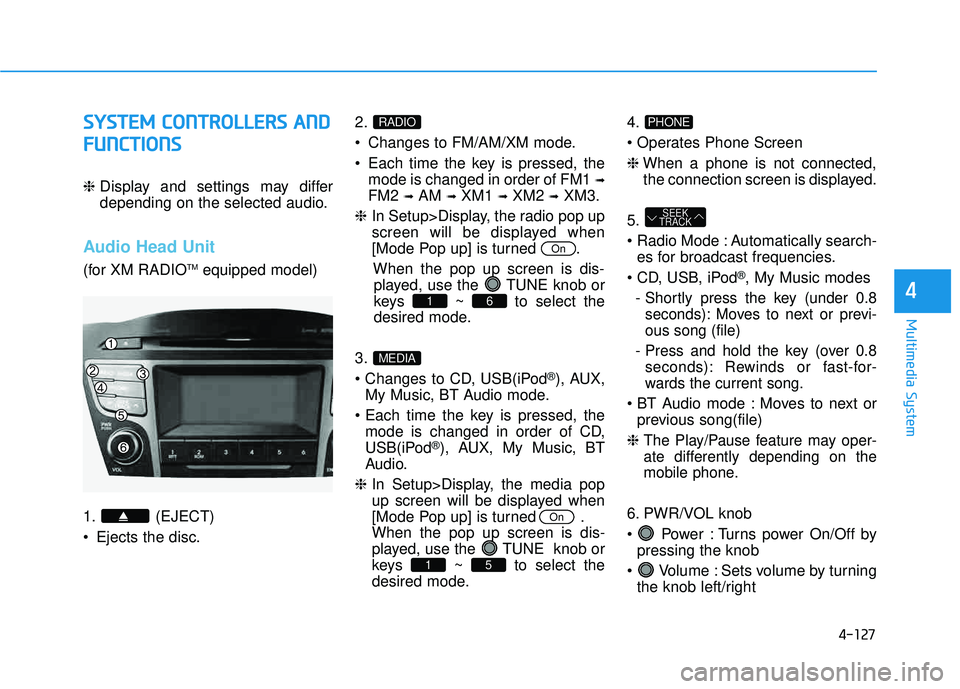
Audio Head Unit
(for XM RADIO TM
equipped model)
1. (EJECT)
• Ejects the disc. 2.
Changes to FM/AM/XM mode.
Each time the key is pressed, the
mode is changed in order of FM1 ➟
FM2 ➟AM ➟XM1 ➟XM2 ➟XM3.
❈ In Setup>Display, the radio pop up
screen will be displayed when
[Mode Pop up] is turned .
When the pop up screen is dis-played, use the TUNE knob or
keys ~ to select the
desired mode.
3.
®), AUX,
My Music, BT Audio mode.
mode is changed in order of CD,
USB(iPod
®), AUX, My Music, BT
Audio.
❈ In Setup>Display, the media pop
up screen will be displayed when
[Mode Pop up] is turned .When the pop up screen is dis-
played, use the TUNE knob or
keys ~ to select the
desired mode. 4.
❈
When a phone is not connected,
the connection screen is displayed.
5.
Automatically search- es for broadcast frequencies.
®, My Music modes
- Shortly press the key (under 0.8 seconds): Moves to next or previ- ous song (file)
- Press and hold the key (over 0.8 seconds): Rewinds or fast-for-
wards the current song.
Moves to next or previous song(file)
❈
The Play/Pause feature may oper-
ate differently depending on the
mobile phone.
6. PWR/VOL knob
Power : Turns power On/Off by pressing the knob
Volume : Sets volume by turning the knob left/right
SEEK
TRACK
PHONE
51
On
MEDIA
61
On
RADIO
Page 339 of 653
4-128
Multimedia System
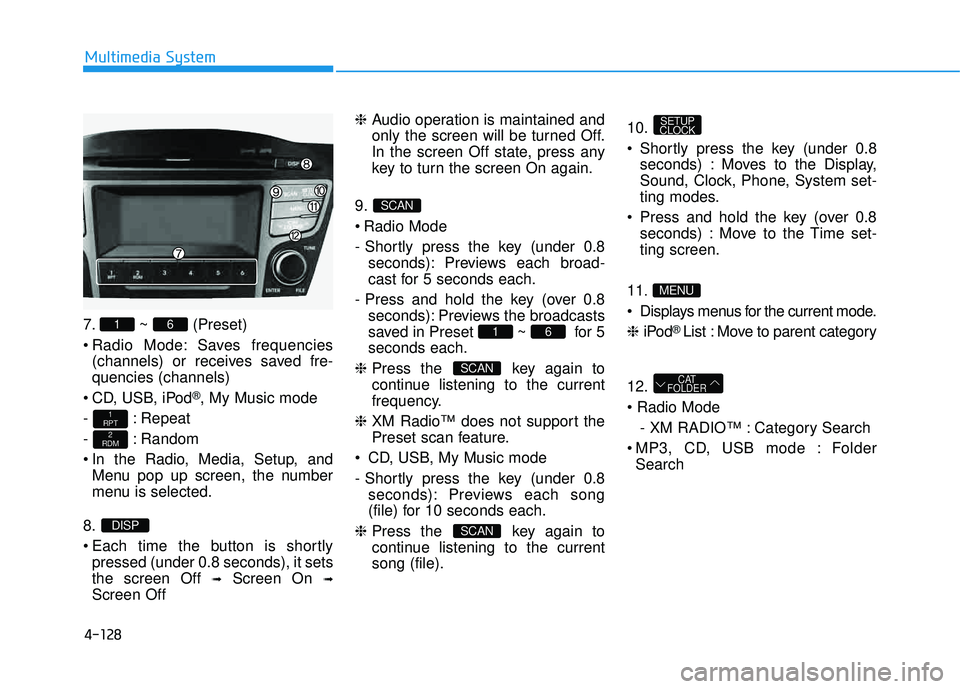
7. ~ (Preset)
Radio Mode: Saves frequencies(channels) or receives saved fre- quencies (channels)
CD, USB, iPod
®, My Music mode
- : Repeat
- : Random
In the Radio, Media, Setup, and Menu pop up screen, the number
menu is selected.
8.
Each time the button is shortly pressed (under 0.8 seconds), it sets the screen Off ➟Screen On ➟
Screen Off ❈
Audio operation is maintained and
only the screen will be turned Off.
In the screen Off state, press any
key to turn the screen On again.
9.
Radio Mode
- Shortly press the key (under 0.8 seconds): Previews each broad-
cast for 5 seconds each.
- Press and hold the key (over 0.8 seconds): Previews the broadcasts
saved in Preset ~ for 5seconds each.
❈ Press the key again to
continue listening to the current
frequency.
❈ XM Radio™ does not support the
Preset scan feature.
CD, USB, My Music mode
- Shortly press the key (under 0.8 seconds): Previews each song
(file) for 10 seconds each.
❈ Press the key again to
continue listening to the currentsong (file). 10.
Shortly press the key (under 0.8
seconds) : Moves to the Display,
Sound, Clock, Phone, System set-
ting modes.
Press and hold the key (over 0.8 seconds) : Move to the Time set-ting screen.
11
.
Displays menus for the current mode. ❈ iPod
® List : Move to parent category
12.
- XM RADIO™ : Category Search
MP3, CD, USB mode : Folder Search
CAT
FOLDER
MENU
SETUP
CLOCK
SCAN
SCAN
61
SCAN
DISP
2
RDM
1
RPT
61
Page 355 of 653
4-144
Multimedia System
Bluetooth®Wireless Technology
AUDIO
What is Bluetooth®Wireless
Technology
?
Bluetooth®Wireless Technology allows
devices to be connected in a short dis-
tance, including hands-free devices,
stereo headsets, wireless remote con-
trollers, etc. For more information, visit
the Bluetooth®Wireless Technology
website at www.Bluetooth.com
Before using Bluetooth®Wireless
Technology audio features
Bluetooth®Wireless Technology
audio may not be supported depending on the compatibility of
your
Bluetooth®Wireless
Technology mobile phone.
In order to use
Bluetooth®Wireless
Technology audio, you must first
pair and connect the
Bluetooth®
Wireless Technology mobile phone.
The
Bluetooth®word mark and
logos are registered trademarks
owned by
Bluetooth®SIG, Inc. and
any use of such marks is under
license. Other trademarks and
trade names are those of their
respective owners. A
Bluetooth®
enabled cell phone is required touse
Bluetooth®Wireless
Technology. Bluetooth®Wireless Technology
audio can be used only when the
[Audio Streaming] of Phone is
turned .
❈ Setting
Bluetooth®Wireless
Technology Audio Streaming :
Press the key Select[Phone] through the tune knob or key Select [Audio
Streaming] through the TUNE
knob Set / .
OffOn
4
SETUP
On
Driving while distracted can
result in a loss of vehicle con-
trol that may lead to an acci-
dent, severe personal injury,
and death. The driver’s primary
responsibility is in the safeand legal operation of a vehi-
cle, and use of any handheld
devices, other equipment, or
vehicle systems which take
the driver’s eyes, attention and
focus away from the safe oper-
ation of a vehicle or which are
not permissible by law should
never be used during opera-
tion of the vehicle.
WARNING
Page 356 of 653
4-145
Multimedia System
4
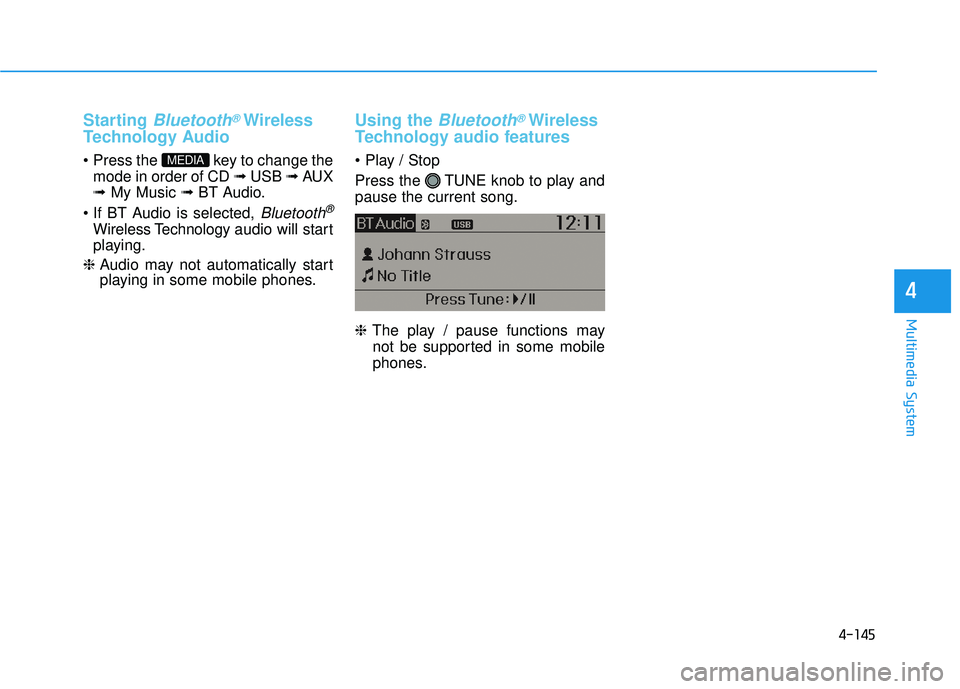
Starting Bluetooth®Wireless
Technology Audio
key to change the mode in order of CD ➟ USB ➟ AUX
➟ My Music ➟ BT Audio.
Bluetooth®
Wireless Technology audio will start
playing.
❈ Audio may not automatically start
playing in some mobile phones.
Using the Bluetooth®Wireless
Technology audio features
Press the TUNE knob to play and pause the current song. ❈ The play / pause functions may
not be supported in some mobile
phones.MEDIA
Page 357 of 653
4-146
Multimedia System
PPHH OO NNEE
Before using the Bluetooth®Wireless
Technology phone features
Bluetooth®Wireless
Technology phone, you must first pair and connect the
Bluetooth®
Wireless Technology mobile phone.
connected, it is not possible to enter
Phone mode. Once a phone ispaired or connected, the guidance
screen will be displayed.
(IGN/ACC ON), the
Bluetooth®
Wireless Technology phone will be
automatically connected. Even if you
are outside, the
Bluetooth® Wireless
Technology phone will be automati-
cally connected once you are in the
vicinity of the vehicle. If you do not
want automatic
Bluetooth®Wireless
Technology phone connection, setthe
Bluetooth®Wireless Technology
power to OFF.
PP HH OO NNEE
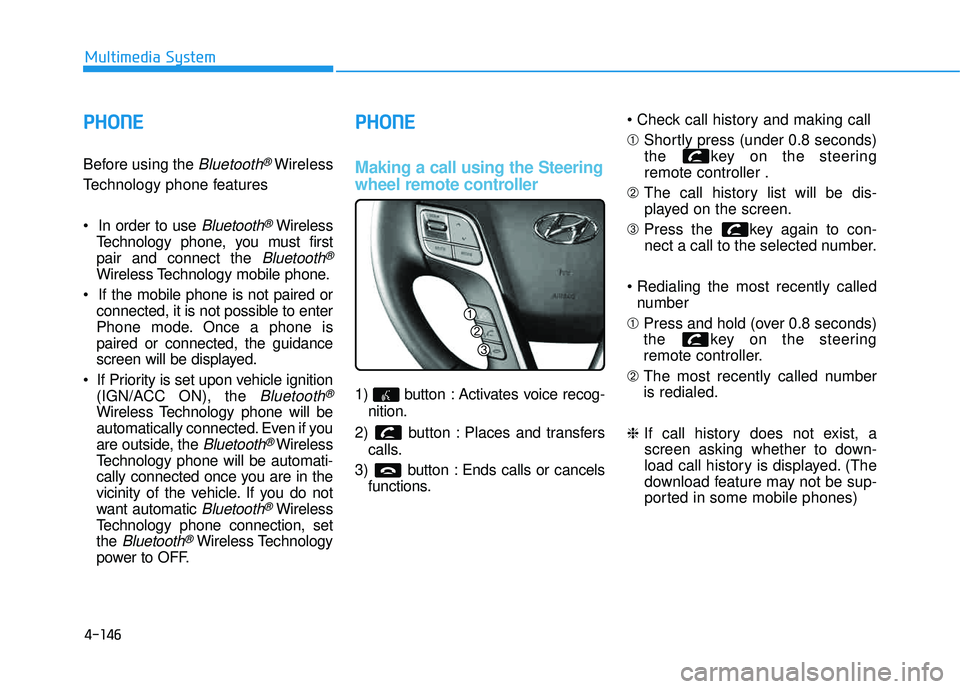
Making a call using the Steering
wheel remote controller
1) button : Activates voice recog-
nition.
2) button : Places and transfers calls.
3) button : Ends calls or cancels functions. ➀
Shortly press (under 0.8 seconds)
the key on the steering remote controller .
➁ The call history list will be dis-
played on the screen.
➂ Press the key again to con-
nect a call to the selected number.
number
➀ Press and hold (over 0.8 seconds)
the key on the steering
remote controller.
➁ The most recently called numberis redialed.
❈ If call history does not exist, a
screen asking whether to down-
load call history is displayed. (The
download feature may not be sup-
ported in some mobile phones)
Page 358 of 653
4-147
Multimedia System
4
Pairing a Bluetooth®Wireless
Technology Device
What is Bluetooth®Wireless
Technology Pairing?
Pairing refers to the process of syn-
chronizing your
Bluetooth®Wireless
Technology phone or device with the
car audio system for connection.
Pairing is necessary to connect anduse the
Bluetooth®Wireless
Technology feature.
Driving while distracted can
result in a loss of vehicle con-
trol that may lead to an acci-
dent, severe personal injury,
and death. The driver’s primary
responsibility is in the safeand legal operation of a vehi-
cle, and use of any handheld
devices, other equipment, or
vehicle systems which take
the driver’s eyes, attention and
focus away from the safe oper-
ation of a vehicle or which are
not permissible by law should
never be used during opera-
tion of the vehicle.
WARNING