Lcd display mode Hyundai Tucson 2019 User Guide
[x] Cancel search | Manufacturer: HYUNDAI, Model Year: 2019, Model line: Tucson, Model: Hyundai Tucson 2019Pages: 546, PDF Size: 61.38 MB
Page 183 of 546
3-92
Convenient features of your vehicle
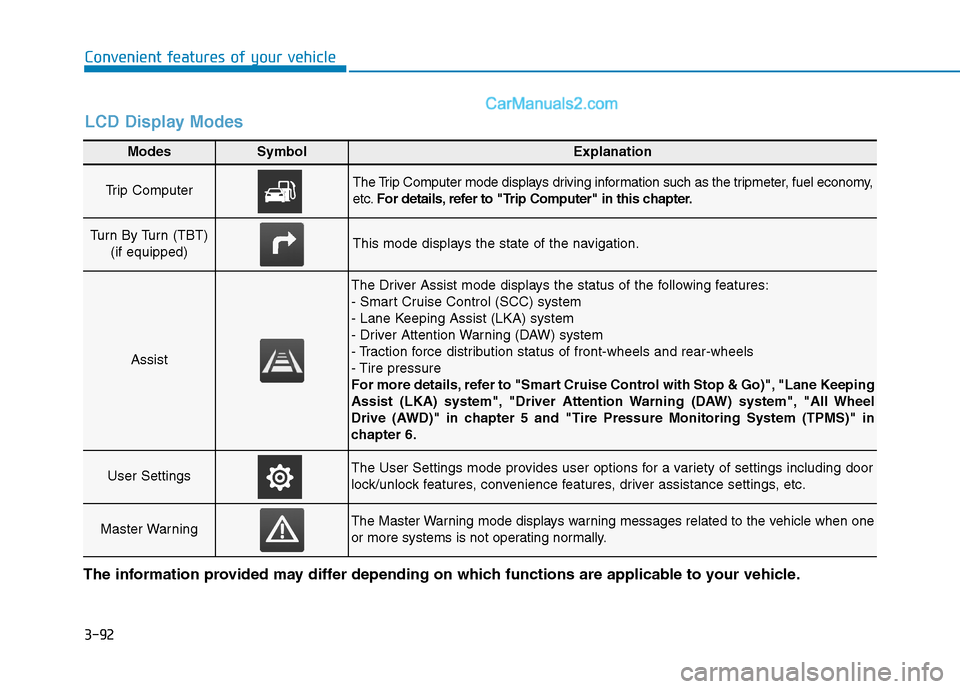
Modes SymbolExplanation
Trip Computer The Trip Computer mode displays driving information such as the tripmeter, fuel economy,
etc.For details, refer to "Trip Computer" in this chapter.
Turn By Turn (TBT)
(if equipped)This mode displays the state of the navigation.
Assist
The Driver Assist mode displays the status of the following features:
- Smart Cruise Control (SCC) system
- Lane Keeping Assist (LKA) system
- Driver Attention Warning (DAW) system
- Traction force distribution status of front-wheels and rear-wheels
- Tire pressure
For more details, refer to "Smart Cruise Control with Stop & Go)", "Lane Keeping
Assist (LKA) system", "Driver Attention Warning (DAW) system", "All Wheel
Drive (AWD)" in chapter 5 and "Tire Pressure Monitoring System (TPMS)" in
chapter 6.
User SettingsThe User Settings mode provides user options for a variety of settings including door
lock/unlock features, convenience features, driver assistance settings, etc.
Master WarningThe Master Warning mode displays warning messages related to the vehicle when one
or more systems is not operating normally.
The information provided may differ depending on which functions are applicable to your vehicle.
LCD Display Modes
Page 191 of 546
3-100
Convenient features of your vehicle
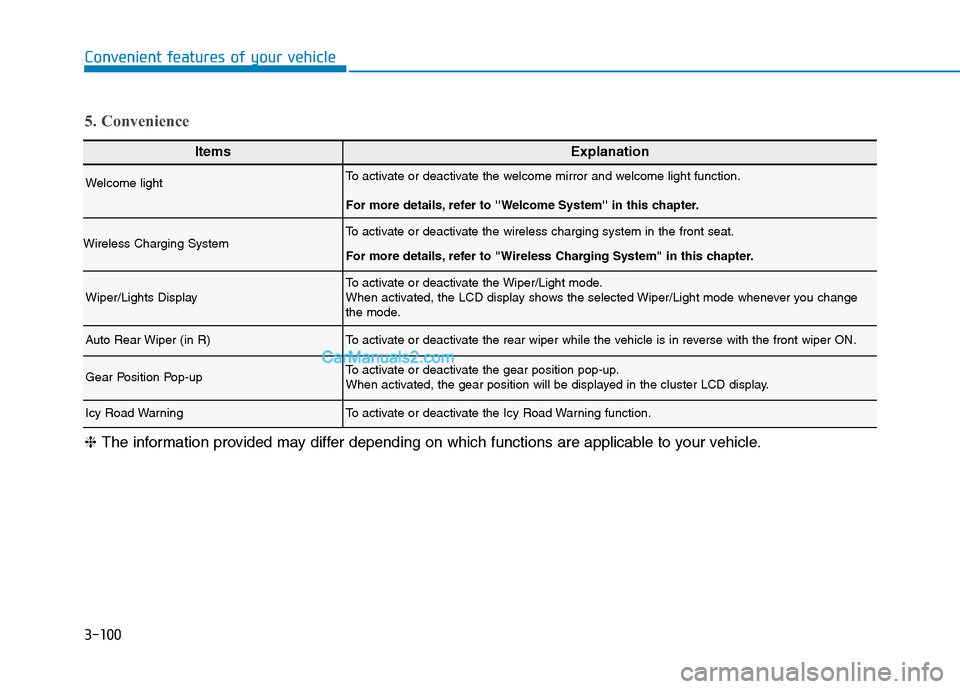
ItemsExplanation
Welcome lightTo activate or deactivate the welcome mirror and welcome light function.
For more details, refer to ''Welcome System'' in this chapter.
Wireless Charging SystemTo activate or deactivate the wireless charging system in the front seat.
For more details, refer to "Wireless Charging System" in this chapter.
Wiper/Lights DisplayTo activate or deactivate the Wiper/Light mode.
When activated, the LCD display shows the selected Wiper/Light mode whenever you change
the mode.
Auto Rear Wiper (in R)To activate or deactivate the rear wiper while the vehicle is in reverse with the front wiper ON.
Gear Position Pop-upTo activate or deactivate the gear position pop-up.
When activated, the gear position will be displayed in the cluster LCD display.
Icy Road WarningTo activate or deactivate the Icy Road Warning function.
5. Convenience
❈The information provided may differ depending on which functions are applicable to your vehicle.
Page 195 of 546
3-104
Convenient features of your vehicle
Average fuel economy/
Instant fuel economy
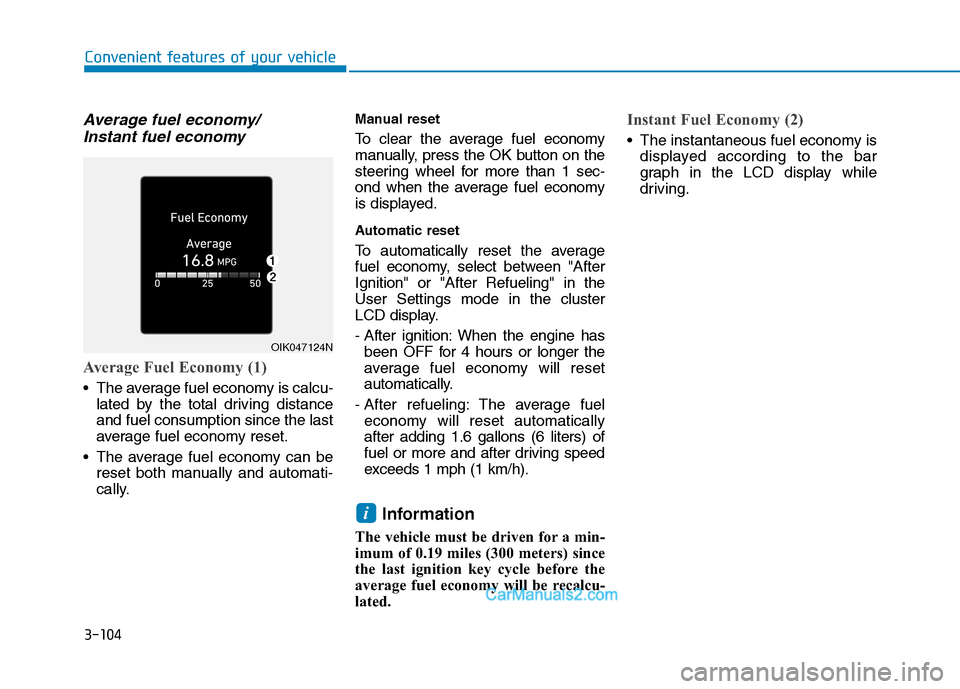
Average Fuel Economy (1)
The average fuel economy is calcu-
lated by the total driving distance
and fuel consumption since the last
average fuel economy reset.
The average fuel economy can be
reset both manually and automati-
cally.
Manual reset
To clear the average fuel economy
manually, press the OK button on the
steering wheel for more than 1 sec-
ond when the average fuel economy
is displayed.
Automatic reset
To automatically reset the average
fuel economy, select between "After
Ignition" or "After Refueling" in the
User Settings mode in the cluster
LCD display.
- After ignition: When the engine has
been OFF for 4 hours or longer the
average fuel economy will reset
automatically.
- After refueling: The average fuel
economy will reset automatically
after adding 1.6 gallons (6 liters) of
fuel or more and after driving speed
exceeds 1 mph (1 km/h).
Information
The vehicle must be driven for a min-
imum of 0.19 miles (300 meters) since
the last ignition key cycle before the
average fuel economy will be recalcu-
lated.
Instant Fuel Economy (2)
The instantaneous fuel economy is
displayed according to the bar
graph in the LCD display while
driving.
i
OIK047124N
Page 204 of 546
3-113
Convenient features of your vehicle
3
Turn signals and lane change
signals
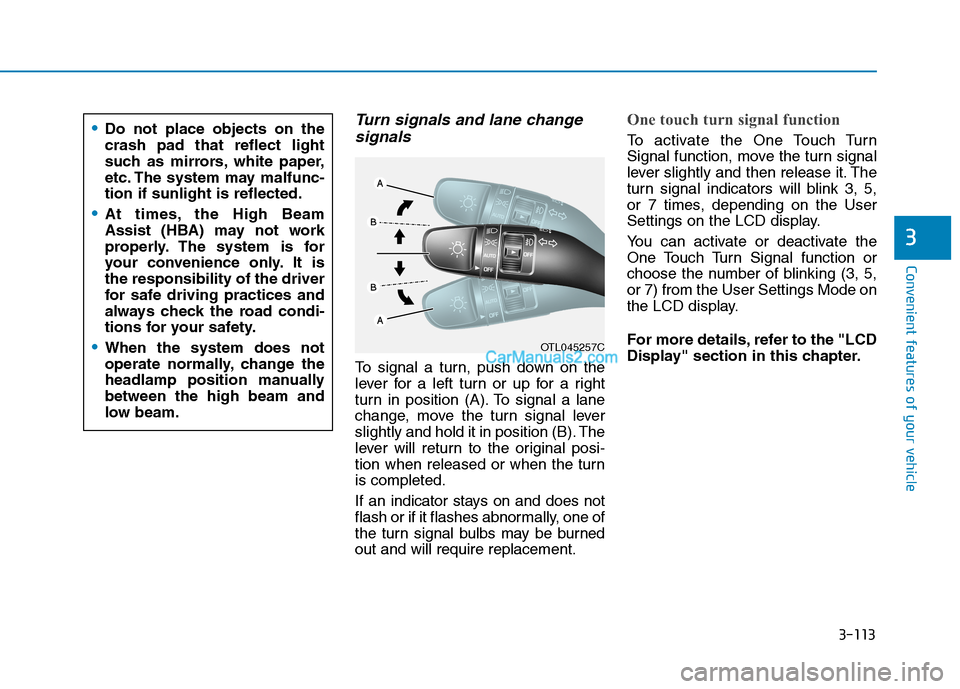
To signal a turn, push down on the
lever for a left turn or up for a right
turn in position (A). To signal a lane
change, move the turn signal lever
slightly and hold it in position (B). The
lever will return to the original posi-
tion when released or when the turn
is completed.
If an indicator stays on and does not
flash or if it flashes abnormally, one of
the turn signal bulbs may be burned
out and will require replacement.
One touch turn signal function
To activate the One Touch Turn
Signal function, move the turn signal
lever slightly and then release it. The
turn signal indicators will blink 3, 5,
or 7 times, depending on the User
Settings on the LCD display.
You can activate or deactivate the
One Touch Turn Signal function or
choose the number of blinking (3, 5,
or 7) from the User Settings Mode on
the LCD display.
For more details, refer to the "LCD
Display" section in this chapter.
OTL045257C
Do not place objects on the
crash pad that reflect light
such as mirrors, white paper,
etc. The system may malfunc-
tion if sunlight is reflected.
At times, the High Beam
Assist (HBA) may not work
properly. The system is for
your convenience only. It is
the responsibility of the driver
for safe driving practices and
always check the road condi-
tions for your safety.
When the system does not
operate normally, change the
headlamp position manually
between the high beam and
low beam.
Page 206 of 546
3-115
Convenient features of your vehicle
3
Headlamp delay function
If the key is removed from the ignition
switch or placed in the ACC position
or the LOCK/OFF position with the
headlamps ON, the headlamps
(and/or parking lamps) remain on for
about 5 minutes. However, if the dri-
ver's door is opened and closed, the
headlights are turned off after 15
seconds. Also, with the engine off if
the driver's door is opened and
closed, the headlamps (and/or park-
ing lamps) are turned off after 15
seconds.
The headlamps (and/or parking
lamps) can be turned off by pressing
the lock button on the remote key or
smart key twice or turning the light
switch to the OFF or AUTO position.
However, if you turn the light switch
to the AUTO position when it is dark
outside, the headlamps will not be
turned off.You can activate or deactivate the
Headlamp Delay function from the
User Settings Mode on the LCD dis-
play.
For more details, refer to the "LCD
Display" section in this chapter.
If the driver gets out of the vehicle
through other doors (except dri-
ver’s door), the battery saver func-
tion does not operate and the
headlamp delay function does not
turn off automatically. Therefore, It
causes the battery to be dis-
charged. In this case, make sure
to turn off the headlamp switch
before getting out of the vehicle.
Welcome System (if equipped)
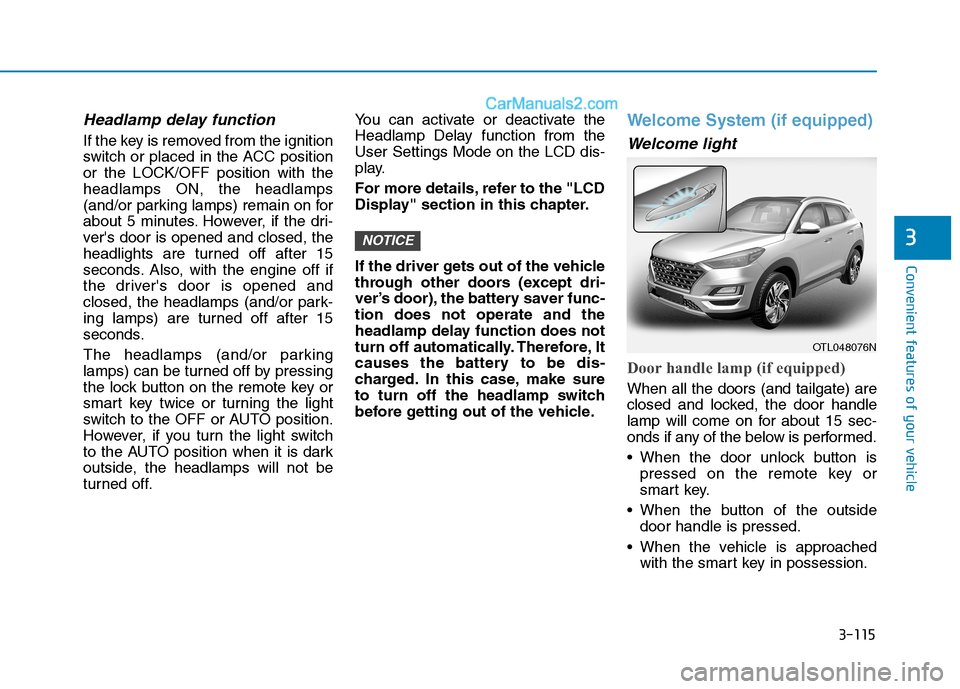
Welcome light
Door handle lamp (if equipped)
When all the doors (and tailgate) are
closed and locked, the door handle
lamp will come on for about 15 sec-
onds if any of the below is performed.
When the door unlock button is
pressed on the remote key or
smart key.
When the button of the outside
door handle is pressed.
When the vehicle is approached
with the smart key in possession.
NOTICE
OTL048076N
Page 207 of 546
3-116
Convenient features of your vehicle
Headlamp and Parking lamp
When the headlamp (lamp switch in
the headlamp or AUTO position) is
on and all doors (and tailgate) are
locked and closed, the parking lamp
and headlamp will come on for 15
seconds when the door unlock but-
ton is pressed on the remote key or
smart key.
At this time, if you press the door lock
or unlock button, the parking lamp
and headlamp will turn off immedi-
ately.
You can activate or deactivate the
Welcome Light from the User
Settings Mode on the LCD display.
For more details, refer to the "LCD
Display" section in this chapter.
Interior lamp
When the interior lamp switch is in
the DOOR position and all doors (and
tailgate) are closed and locked, the
room lamp will come on for 30 sec-
onds if any of the below is performed.
When the door unlock button is
pressed on the remote key or
smart key.
When the button of the outside
door handle is pressed.
At this time, if you press the door lock
or unlock button on the remote key or
smart keythe room lamp will turn off
immediately.
Interior Lights
Do not use the interior lights for
extended periods when the engine
is turned off or the battery will dis-
charge.
NOTICE
Do not use the interior lights
when driving in the dark. The inte-
rior lights may obscure your view
and cause an accident.
WARNING
Page 234 of 546
3-143
Convenient features of your vehicle
3
Adjusting the driver and passenger
side temperature equally
Press the "SYNC" button to oper-
ate the driver and passenger side
temperature equally.
The passenger side temperature
will be set to the same temperature
as the driver side temperature.
Turn the left temperature control
knob. The driver and passenger
side temperature will be adjusted
equally.
Adjusting the driver and passenger
side temperature individually
Press the "SYNC" button again to
operate the driver and passenger
side temperature individually. The
button indicator will turn off.
Temperature conversion
If the battery has been discharged or
disconnected, the temperature mode
display will reset to Fahrenheit.
To change the temperature unit from
°F to °C or °C to °F:
- On the instrument cluster, go to
User Settings ➝Other ➝
Temperature Unit.
- Press the AUTO button while press-
ing the OFF button on the climate
control unit for 3 seconds.
The temperature unit on both the
cluster LCD display and climate con-
trol screen will change.
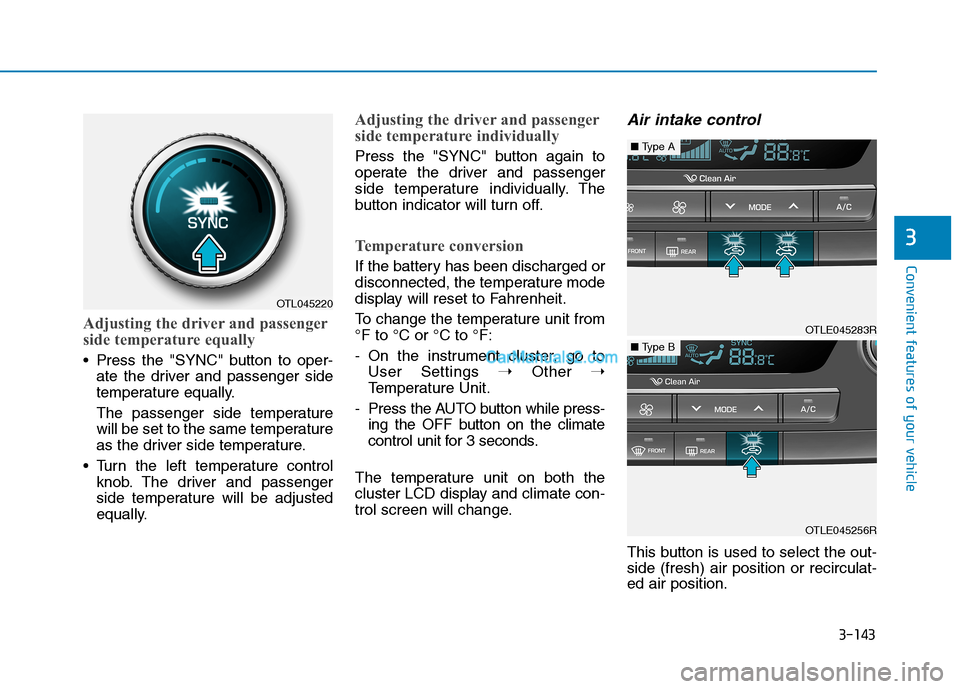
Air intake control
This button is used to select the out-
side (fresh) air position or recirculat-
ed air position.
OTL045220
OTLE045283R
■Type A
OTLE045256R
■Type B
Page 254 of 546
3-163
Convenient features of your vehicle
3
To charge a cellular phone
The wireless cellular phone charging
system charges only the Qi-enabled
cellular phones ( ). Read the label
on the cellular phone accessory
cover or visit your cellular phone
manufacturer's website to check
whether your cellular phone supports
the Qi technology.
The wireless charging process starts
when you put a Qi-enabled cellular
phone on the wireless charging unit.
1. Remove other items, including the
smart key, from the wireless
charging unit. If not, the wireless
charging process may be inter-
rupted. Place the cellular phone
on the center of the charging pad
().
2. The indicator light is orange when
the cellular phone is charging. The
indicator light turns green when
phone charging is complete.
3. You can turn ON or OFF the wire-
less charging function in the user
settings mode on the instrument
cluster. For further information,
refer to the "LCD Display Modes"
in this chapter.If your cellular phone is not charging:
- Slightly change the position of the
cellular phone on the charging
pad.
- Make sure the indicator light is
orange.
The indicator light will blink orange
for 10 seconds if there is a malfunc-
tion in the wireless charging system.
In this case, temporarily stop the
charging process, and re-attempt to
charge your cellular phone again.
The system warns you with a mes-
sage on the LCD display if the cellu-
lar phone is still on the wireless
charging unit after the engine is
turned OFF and the front door is
opened.
Information
For some manufacturer's cellular
phones, the system may not warn you
even though the cellular phone is left
on the wireless charging unit. This is
due to the particular characteristic of
the cellular phone and not a malfunc-
tion of the wireless charging. The wireless cellular phone
charging system may not sup-
port certain cellular phones,
which are not verified for the Qi
specification ( ).
When placing your cellular
phone on the charging mat,
position the phone in the middle
of the mat for optimal charging
performance. If your cell phone
is off to the side, the charging
rate may be less and in some
cases the cell phone may experi-
ence higher heat conduction.
In some cases, the wireless
charging may stop temporarily
when the Remote Key or Smart
Key is used, either when starting
the vehicle or locking/unlocking
the doors, etc.
When charging certain cellular
phones, the charging indicator
may not change to green when
the cell phone is fully charged.
NOTICE
i
Page 329 of 546
5-63
Driving your vehicle
5
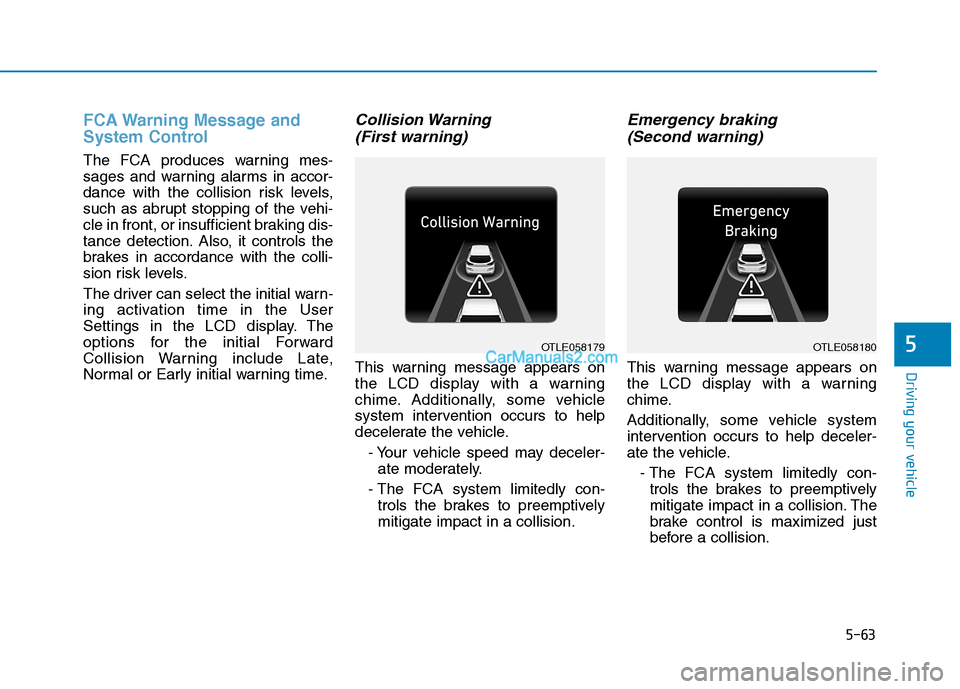
FCA Warning Message and
System Control
The FCA produces warning mes-
sages and warning alarms in accor-
dance with the collision risk levels,
such as abrupt stopping of the vehi-
cle in front, or insufficient braking dis-
tance detection. Also, it controls the
brakes in accordance with the colli-
sion risk levels.
The driver can select the initial warn-
ing activation time in the User
Settings in the LCD display. The
options for the initial Forward
Collision Warning include Late,
Normal or Early initial warning time.
Collision Warning
(First warning)
This warning message appears on
the LCD display with a warning
chime. Additionally, some vehicle
system intervention occurs to help
decelerate the vehicle.
- Your vehicle speed may deceler-
ate moderately.
- The FCA system limitedly con-
trols the brakes to preemptively
mitigate impact in a collision.
Emergency braking
(Second warning)
This warning message appears on
the LCD display with a warning
chime.
Additionally, some vehicle system
intervention occurs to help deceler-
ate the vehicle.
- The FCA system limitedly con-
trols the brakes to preemptively
mitigate impact in a collision. The
brake control is maximized just
before a collision.
OTLE058179OTLE058180
Page 342 of 546
5-76
Driving your vehicle
FCA Warning Message and
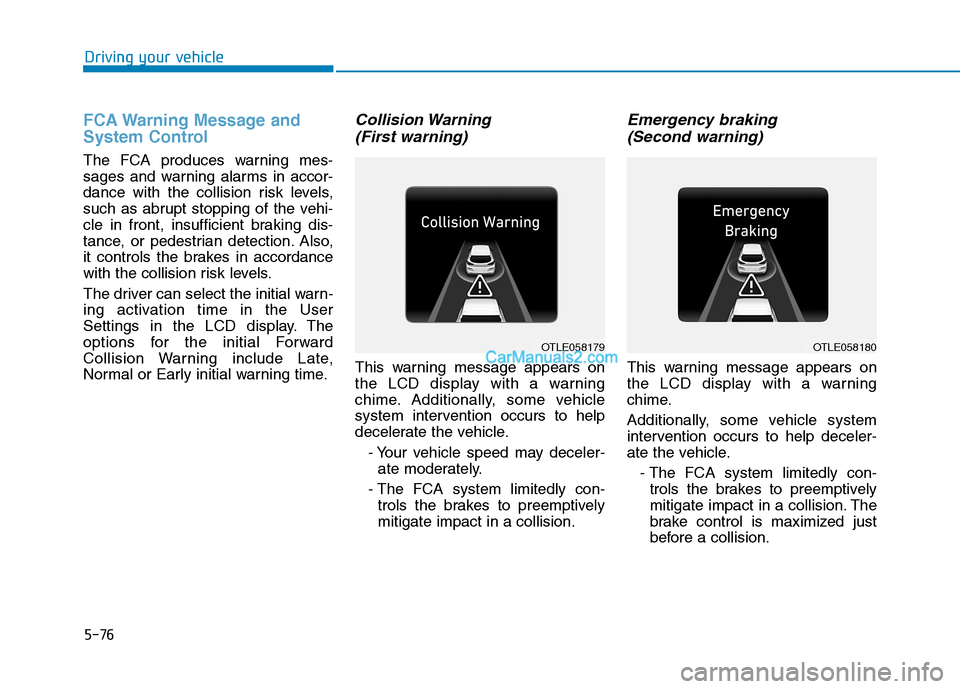
System Control
The FCA produces warning mes-
sages and warning alarms in accor-
dance with the collision risk levels,
such as abrupt stopping of the vehi-
cle in front, insufficient braking dis-
tance, or pedestrian detection. Also,
it controls the brakes in accordance
with the collision risk levels.
The driver can select the initial warn-
ing activation time in the User
Settings in the LCD display. The
options for the initial Forward
Collision Warning include Late,
Normal or Early initial warning time.
Collision Warning
(First warning)
This warning message appears on
the LCD display with a warning
chime. Additionally, some vehicle
system intervention occurs to help
decelerate the vehicle.
- Your vehicle speed may deceler-
ate moderately.
- The FCA system limitedly con-
trols the brakes to preemptively
mitigate impact in a collision.
Emergency braking
(Second warning)
This warning message appears on
the LCD display with a warning
chime.
Additionally, some vehicle system
intervention occurs to help deceler-
ate the vehicle.
- The FCA system limitedly con-
trols the brakes to preemptively
mitigate impact in a collision. The
brake control is maximized just
before a collision.
OTLE058179OTLE058180