Lift HYUNDAI TUCSON 2022 User Guide
[x] Cancel search | Manufacturer: HYUNDAI, Model Year: 2022, Model line: TUCSON, Model: HYUNDAI TUCSON 2022Pages: 638, PDF Size: 82.3 MB
Page 148 of 638
Convenient features
5-4
Remote key (if equipped)
OPD046001
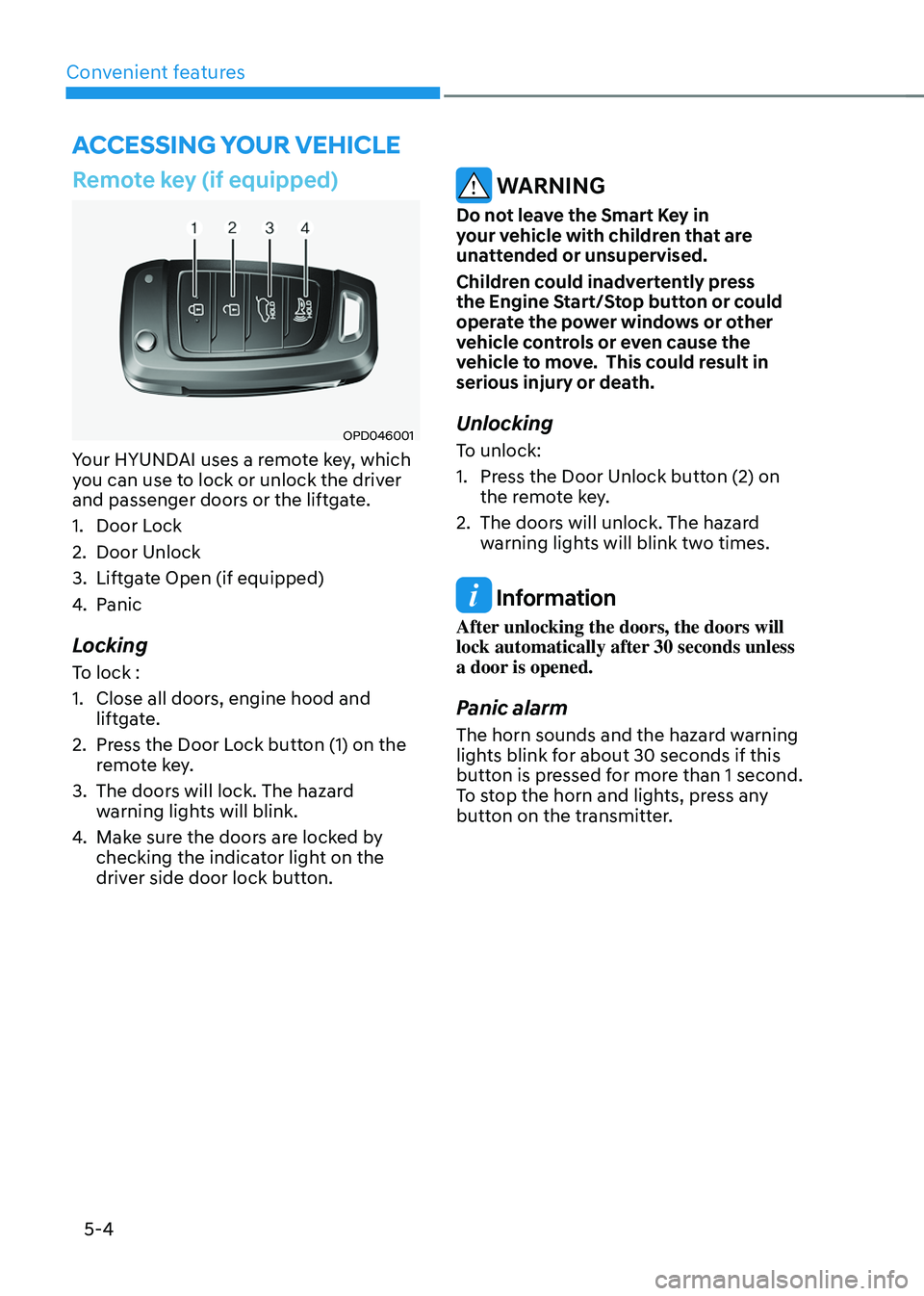
Your HYUNDAI uses a remote key, which
you can use to lock or unlock the driver
and passenger doors or the liftgate.
1. Door Lock
2. Door Unlock
3. Liftgate Open (if equipped)
4. Panic
Locking
To lock :
1. Close all doors, engine hood and
liftgate.
2. Press the Door Lock button (1) on the
remote key.
3. The doors will lock. The hazard
warning lights will blink.
4. Make sure the doors are locked by
checking the indicator light on the
driver side door lock button.
WARNING
Do not leave the Smart Key in
your vehicle with children that are
unattended or unsupervised.
Children could inadvertently press
the Engine Start/Stop button or could
operate the power windows or other
vehicle controls or even cause the
vehicle to move. This could result in
serious injury or death.
Unlocking
To unlock:
1. Press the Door Unlock button (2) on
the remote key.
2. The doors will unlock. The hazard
warning lights will blink two times.
Information
After unlocking the doors, the doors will
lock automatically after 30 seconds unless
a door is opened.
Panic alarm
The horn sounds and the hazard warning
lights blink for about 30 seconds if this
button is pressed for more than 1 second.
To stop the horn and lights, press any
button on the transmitter.
ACCESSING YOUR VEHICLE
Page 151 of 638
05
5 -7
Smart key (if equipped)
„„Type A
OTM050003
„„Type B
OTM050004
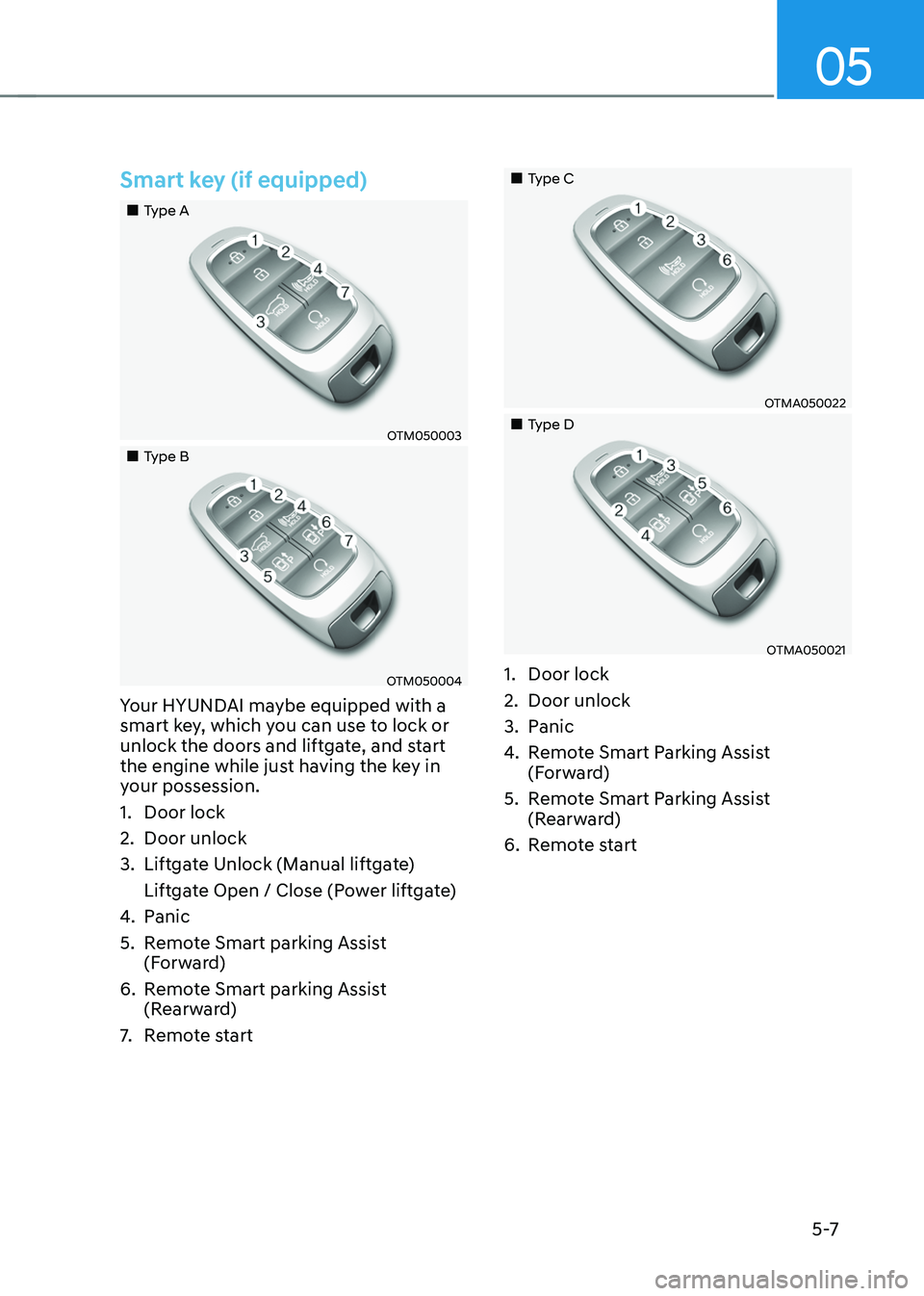
Your HYUNDAI maybe equipped with a
smart key, which you can use to lock or
unlock the doors and liftgate, and start
the engine while just having the key in
your possession.
1. Door lock
2. Door unlock
3. Liftgate Unlock (Manual liftgate)
Liftgate Open / Close (Power liftgate)
4. Panic
5. Remote Smart parking Assist
(Forward)
6. Remote Smart parking Assist
(Rearward)
7. Remote start
„„Type C
OTMA050022
„„Type D
OTMA050021
1. Door lock
2. Door unlock
3. Panic
4. Remote Smart Parking Assist
(Forward)
5. Remote Smart Parking Assist
(Rearward)
6. Remote start
Page 152 of 638
Convenient features
5-8
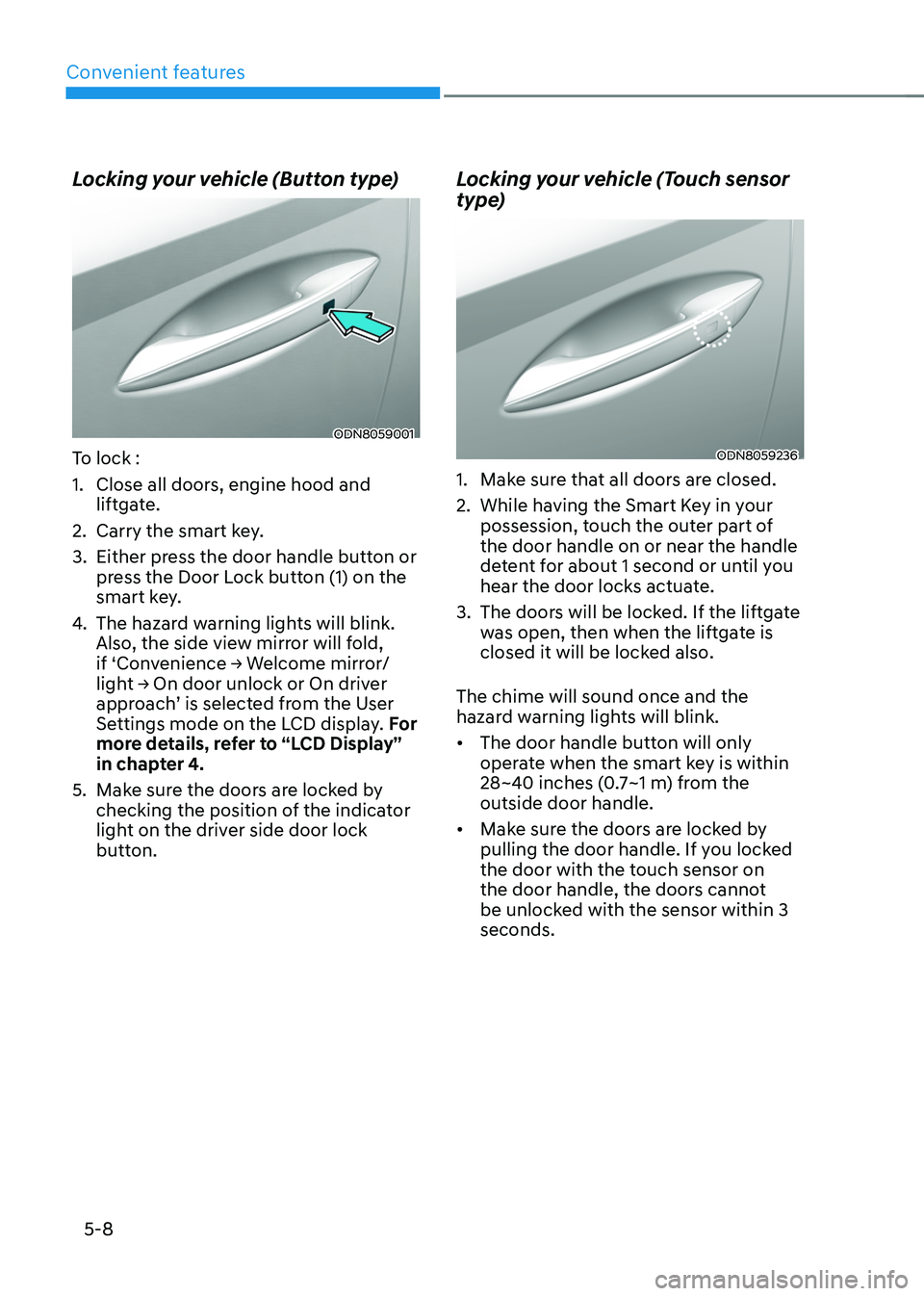
Locking your vehicle (Button type)
ODN8059001
To lock :
1. Close all doors, engine hood and
liftgate.
2. Carry the smart key.
3. Either press the door handle button or
press the Door Lock button (1) on the
smart key.
4. The hazard warning lights will blink.
Also, the side view mirror will fold,
if ‘Convenience → Welcome mirror/light → On door unlock or On driver approach’ is selected from the User
Settings mode on the LCD display. For
more details, refer to “LCD Display”
in chapter 4.
5. Make sure the doors are locked by
checking the position of the indicator
light on the driver side door lock
button.
Locking your vehicle (Touch sensor
type)
ODN8059236
1. Make sure that all doors are closed.
2. While having the Smart Key in your
possession, touch the outer part of
the door handle on or near the handle
detent for about 1 second or until you
hear the door locks actuate.
3. The doors will be locked. If the liftgate
was open, then when the liftgate is
closed it will be locked also.
The chime will sound once and the
hazard warning lights will blink.
• The door handle button will only
operate when the smart key is within
28~40 inches (0.7~1 m) from the
outside door handle.
• Make sure the doors are locked by
pulling the door handle. If you locked
the door with the touch sensor on
the door handle, the doors cannot
be unlocked with the sensor within 3
seconds.
Page 153 of 638
05
5-9
Note that if you press the outside door
handle to lock the doors using the touch
sensor, the doors will not lock under the
following circumstances:
• The Smart Key is in the vehicle
• The Engine Start/Stop button is in the
ACC or ON position
• Any of the doors are open (except for
the liftgate)
If this occurs, then a chime will sound
for about 3 seconds. Check the vehicle
before attempting to lock the car again.
CAUTION
Before you leave your vehicle with the
Smart Key, verify that your vehicle is
locked. When using the touch sensor
on the front door handle, listen to hear
that the lock has actuated, and then
pull the handle within 3 seconds to
confirm the doors are locked.
(if it has been longer than 3 seconds,
verify the doors are locked by pressing
the lock button on the Smart Key. You
will hear a single beep.)
WARNING
Do not leave the Smart Key in
your vehicle with children that are
unattended or unsupervised.
Children could inadvertently press
the Engine Start/Stop button or could
operate the power windows or other
vehicle controls or even cause the
vehicle to move. This could result in
serious injury or death.
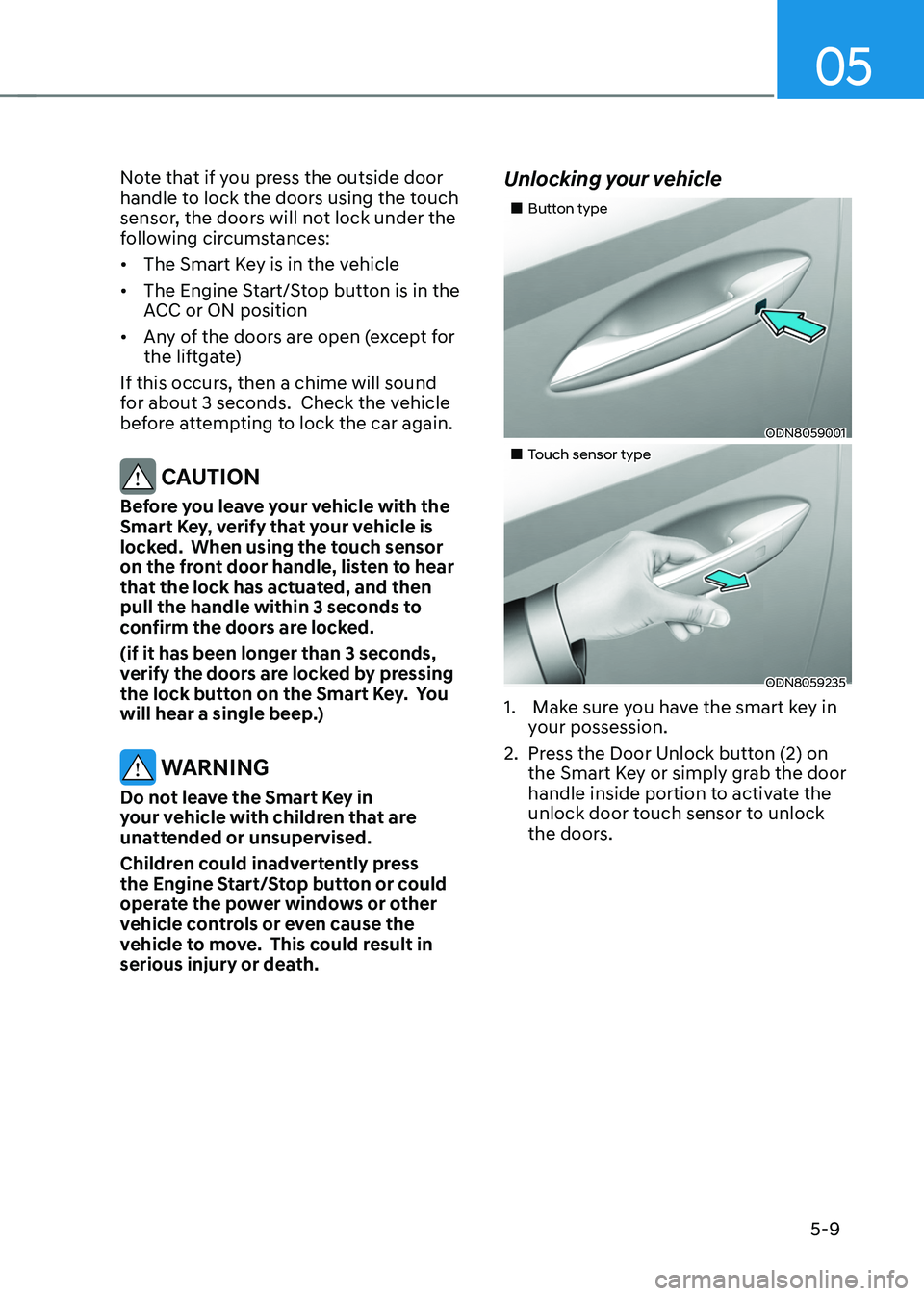
Unlocking your vehicle
„„Button type
ODN8059001
„„Touch sensor type
ODN8059235
1. Make sure you have the smart key in
your possession.
2. Press the Door Unlock button (2) on
the Smart Key or simply grab the door
handle inside portion to activate the
unlock door touch sensor to unlock
the doors.
Page 154 of 638
Convenient features
5-10
3. If you unlock the doors using the
passenger side door handle, all the
doors will unlock. If you unlock the
doors using the driver side door
handle, either the driver side door
will unlock or all the doors will unlock
depending on the setting for the Two
Press Unlock feature. Refer to User
Settings to change the Driver Door
unlock mode.• The door handle button will only
operate when the smart key is
within 28~40 inches (0.7~1 m) from
the outside door handle.
• If you do not open the door after
unlocking within 30 seconds, it will
return to the lock mode.
• If you unlocked the door with the
door handle, the doors cannot be
locked with the sensor within 2
seconds.
To prevent unintentional door lock or
unlock:
Press the lock button on the smart key
and immediately press the unlock button
along with the lock button for more than
4 seconds. The hazard warning lights will
blink four times. At this time, the doors
will not lock or unlock even though the
touch sensor is touched on the outside
door handle.
To deactivate the function, press the
door lock or unlock button on the smart
key. Opening or Unlocking the Liftgate
To open the liftgate:
1. If your vehicle has a Smart Key, make
sure you have the Smart Key in your
possession.
2. Press either the liftgate open/close
button on the vehicle or press and
hold the liftgate open button on
the smart key for more than one
second. The hazard warning lights
will blink twice and the liftgate will be
unlocked. Pull up on the liftgate to
open. If your vehicle is equipped with
power liftgate then the liftgate will
automatically open.
Remotely starting vehicle
(if equipped)
You can start the vehicle using the
Remote Start button on the smart key.
To start the vehicle remotely:
1. Before you can use remote start your
vehicle, the door lock button must be
pressed. Press the door lock button
on the Smart Key. You must be within
about 32 feet (10m) from your vehicle.
2. Press and hold the remote start
button on your Smart Key. You must
press the button within 4 seconds
from when you pressed the door lock
button to activate the remote start.
3. The hazard warning lights will blink
and the engine will start.
4. To turn off the remote start function,
press the Remote Start button once.
Page 155 of 638
05
5-11
Information
• The vehicle must be in P (Park) for the
remote start function to start.
• The engine turns off if you get on the
vehicle without a registered smart key.
• The engine turns off if you do not get
on the vehicle within 10 minutes after
remotely starting the vehicle.
• The Remote Start button may not
operate if the smart key is not within 32
feet (10 m).
• The vehicle will not remotely start if the
engine hood or liftgate is opened.
• Do not idle the engine for a long period.
Remote Smart Parking Assist
Feature (if equipped)
Some models are equipped with Remote
Smart Parking Assist Feature. With the
Smart Key, the vehicle can be moved
forward or backward remotely to enter or
exit a tight parking space.
For more details, refer to “Remote
Smart Parking Assist (RSPA)” section in
chapter 7.
Panic alarm
The horn sounds and the hazard warning
lights blink for about 30 seconds if this
button is pressed for more than 1 second
To stop the horn and lights, press any
button on the transmitter.
Push Button Start/Stop (if equipped)
Some models are equipped with a push
button start instead of a key cylinder.
You can leave your Smart Key in your
pocket or purse when you start your
vehicle.
For more details, refer to the “Engine
Start/Stop Button” section in chapter 6.
Information
If the smart key is not moved for some
time, the detection function for smart key
operation will pause. Lift the smart key to
activate the detection again.
NOTICE
To prevent damaging the smart key:
• Keep the smart key in a cool,
dry place to avoid damage or
malfunction. Exposure to moisture
or high temperature may cause
the internal circuit of the smart key
to malfunction which may not be
covered under warranty.
• Avoid dropping or throwing the
smart key.
• Protect the smart key from extreme
temperatures.
Page 165 of 638
05
5-21
Remote Start with Digital Key
• Using the Hyundai Digital Key app
on your phone, press the Door Lock
button and then press the Remote
Start button (buttons must be pressed
within about 4 seconds). If all the
doors of your vehicle are closed
(including the hood and the liftgate),
the engine will be automatically
started.
Note that when the remote start
feature is activated, the hazard
warning lights will blink two times
and a chime will sound before engine
startup. Also note the following:
• The climate control system will come
on using the same settings from when
you last used the vehicle
• To turn off the engine, press the
Remote Engine Stop button within the
Hyundai Digital Key app.
• The engine will remain running for
approximately 10 minutes, and then
engine will automatically shut OFF.
• To keep the engine running, access
the vehicle and place the smartphone
on the wireless charging pad
(authentication pad) while the engine
is still in remote engine-ON mode.
For more information, refer to the Engine
Start/Stop button in chapter 6. Vehicle information Display
The digital key application displays
the vehicle information such as
driving or door conditions through the
communication with the vehicle.
•
How to check : Select the vehicle
what you want to check and touch
the vehicle image, then vehicle
information display page will be
shown.
• Contents : accumulated odometer,
latest fuel economy, driving range,
fuel remaining, tire pressure, doors
lock/unlock status and last data
updated time.
ÃNote that displayed vehicle data may
be slightly different from the current
vehicle condition
ÃFor more information, please refer to
the ‘Tutorial’ on your Digital key app.
Page 170 of 638
![HYUNDAI TUCSON 2022 User Guide Convenient features
5-26
ONX4050002
[1] : Door handle authentication pad,
[2]: NFC Antenna
NFC door lock/unlock
To unlock your vehicle using the NFC
card key, touch the card key near the
door han](/img/35/41173/w960_41173-169.png "HYUNDAI TUCSON 2022 User Guide Convenient features
5-26
ONX4050002
[1] : Door handle authentication pad,
[2]: NFC Antenna
NFC door lock/unlock
To unlock your vehicle using the NFC
card key, touch the card key near the
door han")
Convenient features
5-26
ONX4050002
[1] : Door handle authentication pad,
[2]: NFC Antenna
NFC door lock/unlock
To unlock your vehicle using the NFC
card key, touch the card key near the
door handle NFC touch sensor of either
the driver side or passenger side door.
Hold the card key near the touch sensor
area for about 2 seconds. You will hear
the doors lock or unlock.
If you unlock your vehicle from the
passenger side door handle, then all the
doors will unlock. If you unlock your
vehicle from the driver side door handle,
then either the driver door only or all
the doors will unlock depending on the
setting of the Two Press Unlock feature.
Refer to User Settings to change the
Driver Door unlock mode.
To lock your vehicle using the NFC card
key, touch the card key near the door
handle NFC touch sensor of either the
driver side or passenger side door.
Before you leave your vehicle, verify
that your vehicle is locked. When using
your NFC card key on the front door
handle, listen to hear that the door lock
has actuated, and then pull the handle
within 3 seconds to confirm the doors
are locked.
Inoperable condition
When using the NFC card key to lock or
unlock your vehicle, be sure to touch
the card key near the center of the door
handle to enable the sensor to activate.
Note that you must take the card out of
your wallet or purse to use the card key
correctly. If the card key is not touching
the door handle sensor or is in close
proximity to other NFC-enabled cards, it
may not work.
Note that if you attempt to use the
NFC card key to lock the doors, the
doors will not lock under the following
circumstances:
•
The Smart Key is in the vehicle
• The Engine Start/Stop button is in the
ACC or ON position
• Any of the doors are open (except for
the liftgate)
If this occurs, then a chime will sound
for about 3 seconds. Check the vehicle
before attempting to lock the car again.
If you have difficulty locking or unlocking
the vehicle using the NFC card key,
remove the card key away from the door
handle sensor for a few seconds (card
key must be more than 4 inches away)
and then retry.
If the card key is damaged or bent, the
sensor on the door handle may not
properly detect the card key. If this
occurs contact your authorized Hyundai
dealer for a card key replacement.
Be careful not to damage the card
key or expose the card key to extreme
temperatures or direct sunlight for long
periods of time.
Note that when the doors have been
unlocked using the NFC digital card key,
the Lock/Unlock switch on the driver
door may not be immediately available.
(If you attempt to lock the doors using
the driver door lock switch, the doors will
lock and then immediately unlock when
you close the door.)
Page 180 of 638
Convenient features
5-36
This system helps to protect your vehicle
and valuables. The horn will sound and
the hazard warning lights will blink
continuously if any of the following
occur:
-A door is opened without using the
smart key.
-The liftgate is opened without using
the smart key.
-The engine hood is opened.
The alarm continues for 30 seconds, then
the system resets. To turn off the alarm,
unlock the doors with the smart key.
The Theft Alarm System automatically
sets 30 seconds after you lock the
doors and the liftgate. For the system to
activate, you must lock the doors and
the liftgate from outside the vehicle with
the smart key or by touching the touch
sensor on the outside of the door handle
with the smart key in your possession.
The hazard warning lights will blink and
the chime will sound once to indicate the
system is armed.
Once the security system is set, opening
any door, the liftgate, or the hood
without using the smart key will cause
the alarm to activate.
The Theft Alarm System will not set if the
hood, the liftgate, or any door is not fully
closed. If the system will not set, check
the hood, the liftgate, or the doors are
fully closed.
Do not attempt to alter this system or
add other devices to it.
Information
• Do not lock the doors until all
passengers have left the vehicle. If the
remaining passenger leaves the vehicle
when the system is armed, the alarm
will be activated.
• If the vehicle is not disarmed with the
smart key, open the doors by using the
mechanical key and start the engine by
directly pressing the Engine Start/Stop
button with the smart key.
• If the system is disarmed by unlocking
the vehicle, but neither a door or the
liftgate is opened within 30 seconds, the
doors will relock and the system will
rearm automatically.
Information
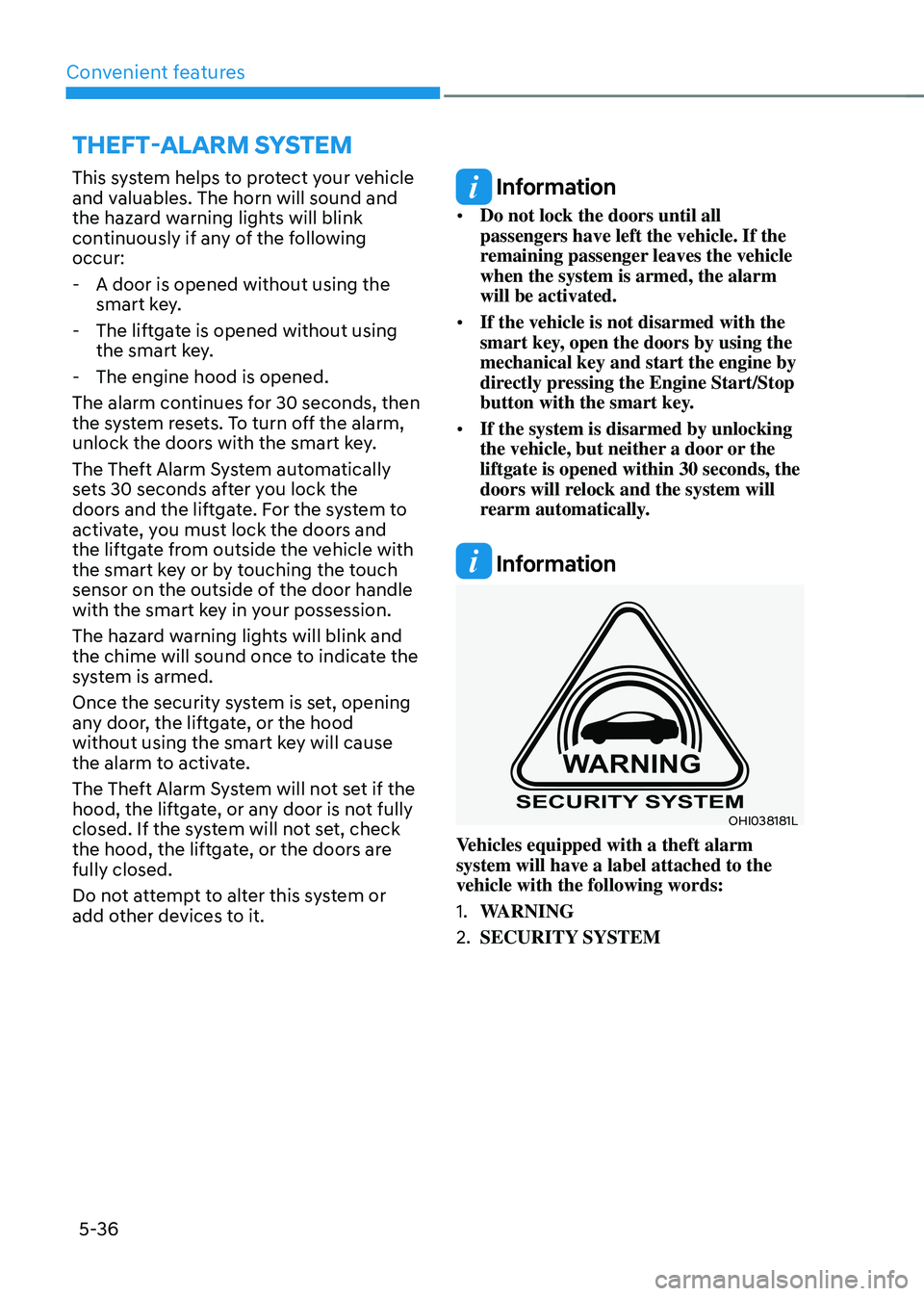
OHI038181L
Vehicles equipped with a theft alarm
system will have a label attached to the
vehicle with the following words:
1. WARNING
2. SECURITY SYSTEM
THEFT-ALARM SYSTEM
Page 200 of 638
Convenient features
5-56
Power windows
The ignition switch must be in the ON
position to be able to raise or lower
the windows. Each door has a Power
Window switch to control that door’s
window. The driver has a Power Window
Lock switch which can block the
operation of passenger windows. The
power windows will operate for about
3 minutes after the ignition is turned
OFF or if the ignition is placed in the
ACC position, as long as the front doors
remain closed.
If the front doors are opened, battery
power is turned OFF and the Power
Windows will not operate.
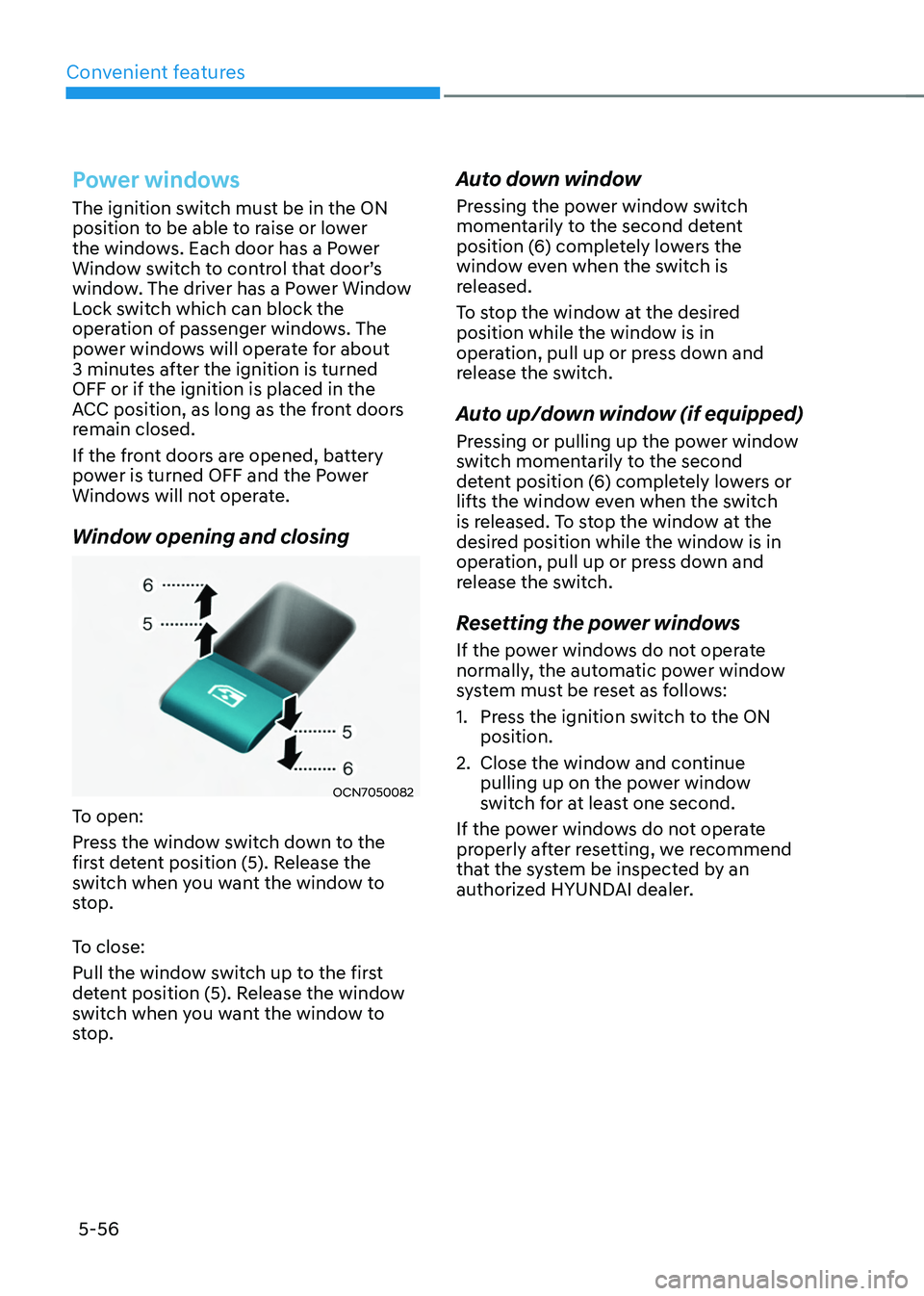
Window opening and closing
OCN7050082
To open:
Press the window switch down to the
first detent position (5). Release the
switch when you want the window to
stop.
To close:
Pull the window switch up to the first
detent position (5). Release the window
switch when you want the window to
stop.
Auto down window
Pressing the power window switch
momentarily to the second detent
position (6) completely lowers the
window even when the switch is
released.
To stop the window at the desired
position while the window is in
operation, pull up or press down and
release the switch.
Auto up/down window (if equipped)
Pressing or pulling up the power window
switch momentarily to the second
detent position (6) completely lowers or
lifts the window even when the switch
is released. To stop the window at the
desired position while the window is in
operation, pull up or press down and
release the switch.
Resetting the power windows
If the power windows do not operate
normally, the automatic power window
system must be reset as follows:
1. Press the ignition switch to the ON
position.
2. Close the window and continue
pulling up on the power window
switch for at least one second.
If the power windows do not operate
properly after resetting, we recommend
that the system be inspected by an
authorized HYUNDAI dealer.