menu HYUNDAI TUCSON 2022 User Guide
[x] Cancel search | Manufacturer: HYUNDAI, Model Year: 2022, Model line: TUCSON, Model: HYUNDAI TUCSON 2022Pages: 638, PDF Size: 82.3 MB
Page 144 of 638
Instrument cluster
4-46
ONX4E040028
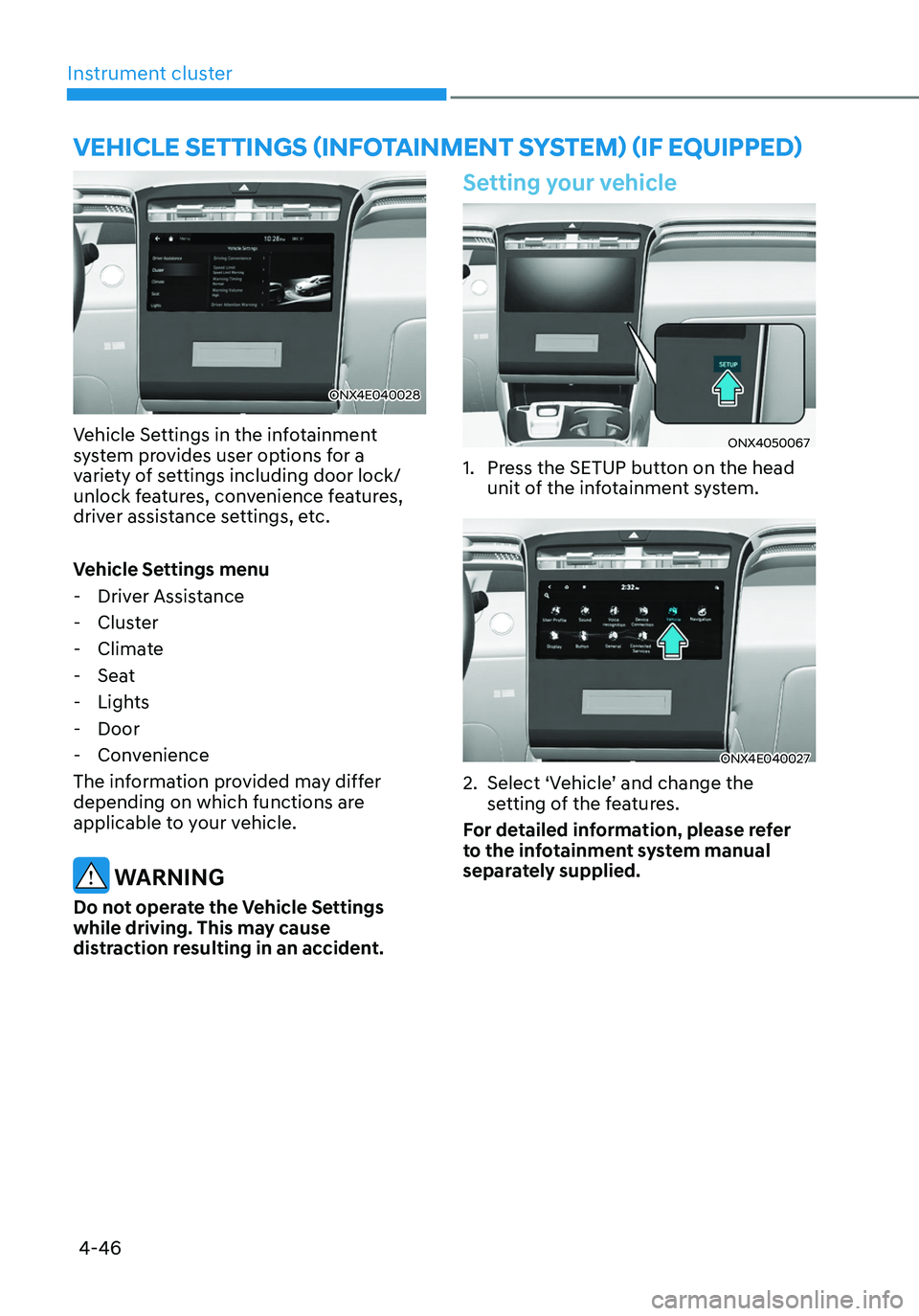
Vehicle Settings in the infotainment
system provides user options for a
variety of settings including door lock/
unlock features, convenience features,
driver assistance settings, etc.
Vehicle Settings menu
-Driver Assistance
-Cluster
-Climate
-Seat
-Lights
-Door
-Convenience
The information provided may differ
depending on which functions are
applicable to your vehicle.
WARNING
Do not operate the Vehicle Settings
while driving. This may cause
distraction resulting in an accident.
Setting your vehicle
ONX4050067
1. Press the SETUP button on the head
unit of the infotainment system.
ONX4E040027
2. Select ‘Vehicle’ and change the
setting of the features.
For detailed information, please refer
to the infotainment system manual
separately supplied.
VEHICLE SETTINGS (INFOTAINMENT SYSTEM) (IF EQUIPPED)
Page 159 of 638
05
5-15
Hyundai Digital Key
(if equipped)
Digital Key Application
To use Hyundai Digital Key mobile app,
you should install the Hyundai Digital
Key application on your Android phone.
Search ‘Hyundai digital key’ in the
Google Play Store and download the app.
Please refer to the detailed manual of the
digital key app. The option can be found
under the following app menu:
Menu → Application Info → Tutorial
Please review the contents of the manual
before using the app.
ÃThis service is only available for
Android smartphones. Please confirm
supported/compatible devices on our
website.
WARNING
Delete Digital Key Settings When
Purchasing a Used Vehicle
If any of the digital key (smartphone key
or card key) is already registered when
you press ON button after unlocking
the doors, the message ‘Digital key(s)
active’ appears on the instrument
cluster once. If you sell your vehicle
or purchase a used Hyundai vehicle
equipped with the Digital Key feature,
you should confirm the message and
delete the registered smartphone key
and card key. For more information,
please contact the Hyundai Customer
Care Center. If the card key does not
work properly, please delete the card
key and register the smartphone key
and re-register the card key.
For vehicle maintenance
If you need to have your Digital Key
System repaired or replaced please
ensure your Smartphone Key is still
active. You may have to pair your phone
again.
In the case, re-initialize your Digital Keys
using the Hyundai Digital Key mobile app.
Digital key (smartphone) NFC
function
You can use the smartphone Digital Key
feature once Near Field Communication
(NFC) setting has been enabled on your
phone.
To enable NFC, go to Settings on your
smart phone.
In addition, your smart phone screen
should be unlocked when using the
Digital Key feature.
ÃTo enable the user settings for NFC on
your smart phone, go to the Settings
app on your phone. For further
assistance, refer to your smart phone
manual.
Page 160 of 638
Convenient features
5-16
Digital key (smartphone)
ODN8A059129
ODN8A059240
Hyundai Digital Key (Smartphone)
Pairing
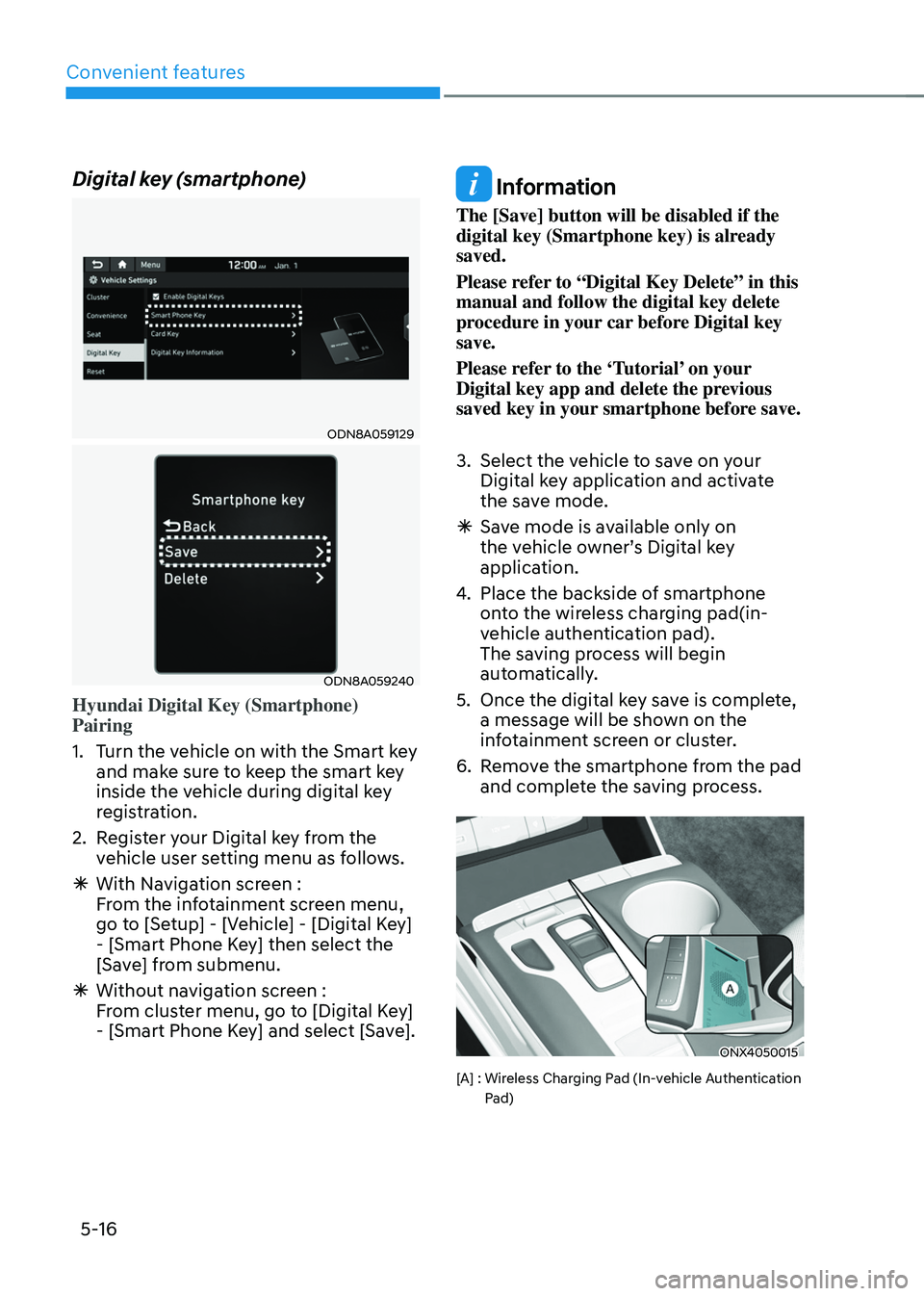
1. Turn the vehicle on with the Smart key
and make sure to keep the smart key
inside the vehicle during digital key
registration.
2. Register your Digital key from the
vehicle user setting menu as follows.
ÃWith Navigation screen :
From the infotainment screen menu,
go to [Setup] - [Vehicle] - [Digital Key]
- [Smart Phone Key] then select the
[Save] from submenu.
ÃWithout navigation screen :
From cluster menu, go to [Digital Key]
- [Smart Phone Key] and select [Save].
Information
The [Save] button will be disabled if the
digital key (Smartphone key) is already
saved.
Please refer to “Digital Key Delete” in this
manual and follow the digital key delete
procedure in your car before Digital key
save.
Please refer to the ‘Tutorial’ on your
Digital key app and delete the previous
saved key in your smartphone before save.
3. Select the vehicle to save on your
Digital key application and activate
the save mode.
ÃSave mode is available only on
the vehicle owner’s Digital key
application.
4. Place the backside of smartphone
onto the wireless charging pad(in-
vehicle authentication pad).
The saving process will begin
automatically.
5. Once the digital key save is complete,
a message will be shown on the
infotainment screen or cluster.
6. Remove the smartphone from the pad
and complete the saving process.
ONX4050015
[A] : Wireless Charging Pad (In-vehicle Authentication Pad)
Page 161 of 638
05
5-17
ODN8A059129
ODN8A059130
Hyundai Digital Key (Smartphone Key)
Deletion
1. Turn the vehicle on with the Smart
key and make sure to keep the smart
key inside the vehicle during delete
process.
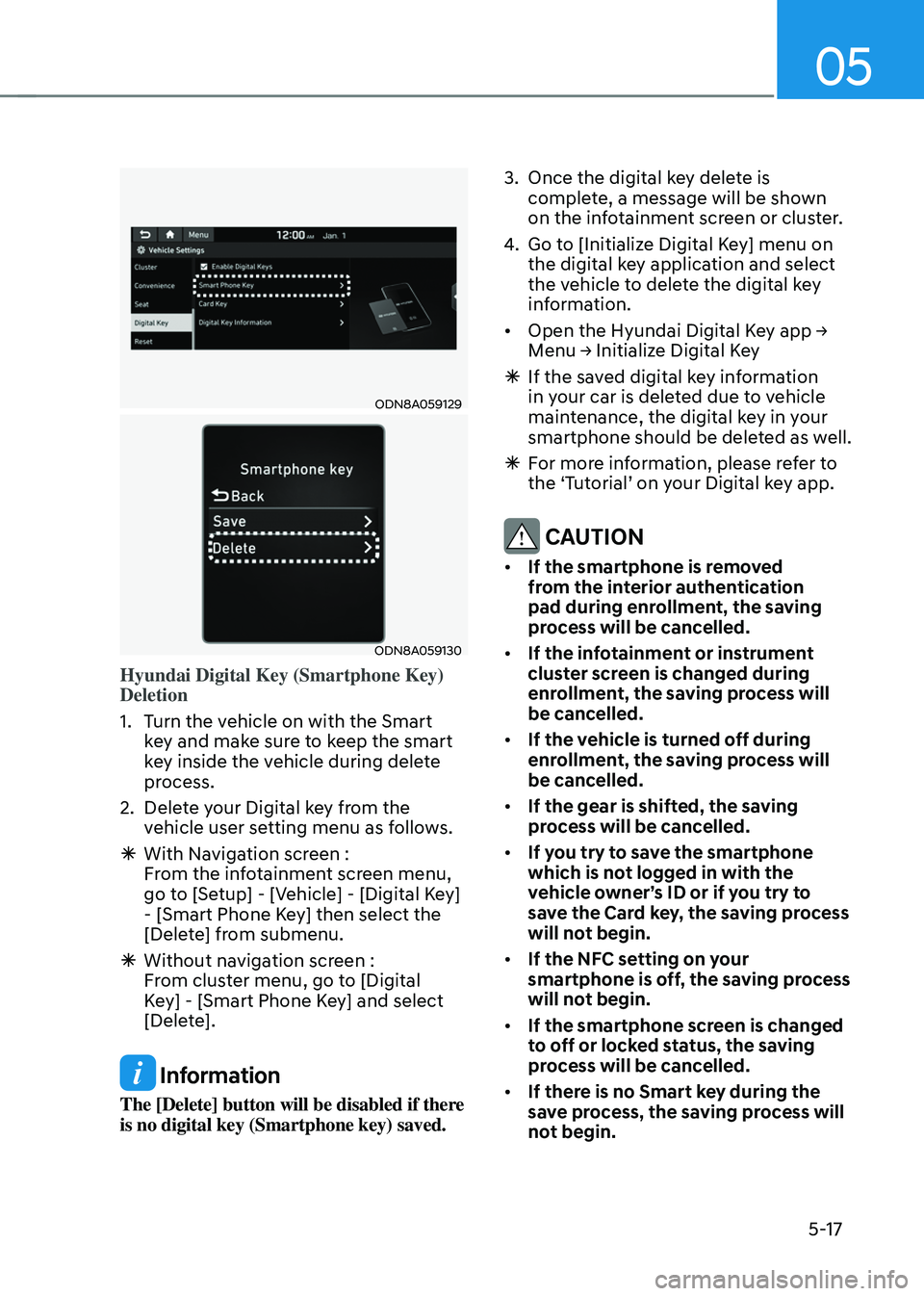
2. Delete your Digital key from the
vehicle user setting menu as follows.
ÃWith Navigation screen :
From the infotainment screen menu,
go to [Setup] - [Vehicle] - [Digital Key]
- [Smart Phone Key] then select the
[Delete] from submenu.
ÃWithout navigation screen :
From cluster menu, go to [Digital
Key] - [Smart Phone Key] and select
[Delete].
Information
The [Delete] button will be disabled if there
is no digital key (Smartphone key) saved.
3. Once the digital key delete is
complete, a message will be shown
on the infotainment screen or cluster.
4. Go to [Initialize Digital Key] menu on
the digital key application and select
the vehicle to delete the digital key
information.
•
Open the Hyundai Digital Key app → Menu → Initialize Digital Key
à If the saved digital key information
in your car is deleted due to vehicle
maintenance, the digital key in your
smartphone should be deleted as well.
ÃFor more information, please refer to
the ‘Tutorial’ on your Digital key app.
CAUTION
• If the smartphone is removed
from the interior authentication
pad during enrollment, the saving
process will be cancelled.
• If the infotainment or instrument
cluster screen is changed during
enrollment, the saving process will
be cancelled.
• If the vehicle is turned off during
enrollment, the saving process will
be cancelled.
• If the gear is shifted, the saving
process will be cancelled.
• If you try to save the smartphone
which is not logged in with the
vehicle owner’s ID or if you try to
save the Card key, the saving process
will not begin.
• If the NFC setting on your
smartphone is off, the saving process
will not begin.
• If the smartphone screen is changed
to off or locked status, the saving
process will be cancelled.
• If there is no Smart key during the
save process, the saving process will
not begin.
Page 166 of 638
Convenient features
5-22
Smartphone change/App deletion
If you change your smartphone or delete
the Hyundai Digital Key App, please refer
to the following to set up your Digital
Key:
Smartphone Change/ Reset
If you change or reset the smartphone,
the registered digital key in your previous
smartphone may not be used. Please
refer to following procedure to use the
digital key.
1. Install the digital key application and
log in.
2. If you are the owner, retry the Digital
key save process.
3. If you are the sharer, need to re-share
the key from owner.
App delete & reinstall/ Delete App data
You can re-download the digital key
from server in these cases as follow
procedure.
1. Reinstall the application and log in.
2. Input the PIN number for user
verification.
3. If PIN is correct, digital key data
will be re-downloaded to your
smartphone and you can use it
without any further registration or
sharing.
Smartphone operability with Digital Key
The digital key application may not
be available to old type smartphones.
Please check the available smartphone
models with your dealer. NFC antenna
position on the smartphone can be
confirmed on each smartphone’s manual
or contact to customer service center of
the smartphone manufacture.
CAUTION
• Do not leave the registered digital
key (smartphone) and card key in
your vehicle. Please carry around
your keys all the times.
• If you happen to lose your digital
key (smartphone) or card key
registered as a main user’s key, you
should immediately delete the key
on the vehicle’s key menu. For more
information, refer to the Digital Key
Deletion in this chapter.
• If you registered your digital key
(smartphone) or card key in the
vehicle, a message appears on the
instrument cluster and let you know
the key is registered.
(Message: Digital key(s) active.)
• If you buy a used vehicle, you should
confirm the message and delete the
registered smartphone key and card
key. In this case, you should carry
your smart key.
• If you keep place the NFC card
of the digital key on the interior
authentication pad (wireless
charger) while driving, it may cause a
malfunction of the NFC card.
• You should remove your NFC card
of the digital key on the interior
authentication pad after turning on
the engine.
• Hyundai digital key app may not
work properly when the NFC or
Bluetooth communication between
smartphone and car is not good.
• If the remote control operation
is executed where the mobile
connection is weak, Bluetooth
connection is poor due to lots of
Bluetooth devices or there is an
object such as metal or concrete, it
might be delayed or the operable
distance might decrease. Especially,
you should not cover the smartphone
with your hand or place other
devices which can cause frequency
interference. It may result in poor
performance.
Page 168 of 638
Convenient features
5-24
Digital key (Card key)
ODN8A059243
ODN8A059131
Digital key (Card key) save
1. Install Hyundai digital key app in
main user’s smartphone and register
the digital key (smartphone). Please
refer to the registration method of the
digital key (smartphone).
2. Using the [Pair Card Key] menu on
the digital key application, you can
activate the Card Key registration
mode.
ÃNFC authentication : enter the NFC
authentication menu and contact
the smartphone on the outside door
handle.
ÃBluetooth authentication : enter the
Bluetooth authentication menu and
press the [OK] button for activation.
If you activate the registration mode,
you should complete the Card saving
process within 5 minutes.
ÃIf yo u have not registered the digital
key (smartphone), please register the
digital key (card key) with two smart
keys.
3. Register the NFC card key on the
User’s Settings menu after turning on
the vehicle.
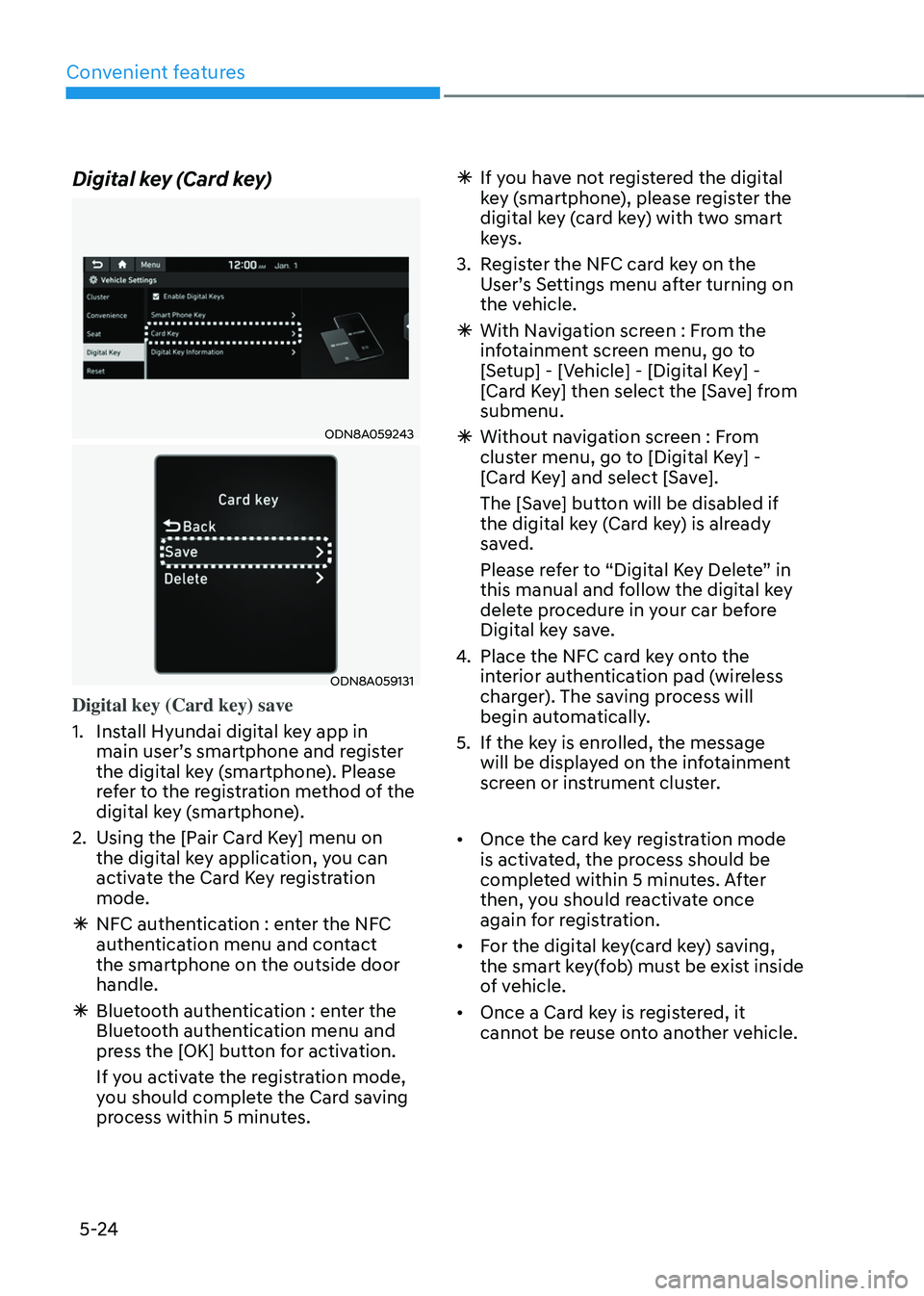
à With Navigation screen : From the
infotainment screen menu, go to
[Setup] - [Vehicle] - [Digital Key] -
[Card Key] then select the [Save] from
submenu.
ÃWithout navigation screen : From
cluster menu, go to [Digital Key] -
[Card Key] and select [Save].
The [Save] button will be disabled if
the digital key (Card key) is already
saved.
Please refer to “Digital Key Delete” in
this manual and follow the digital key
delete procedure in your car before
Digital key save.
4. Place the NFC card key onto the
interior authentication pad (wireless
charger). The saving process will
begin automatically.
5. If the key is enrolled, the message
will be displayed on the infotainment
screen or instrument cluster.
• Once the card key registration mode
is activated, the process should be
completed within 5 minutes. After
then, you should reactivate once
again for registration.
• For the digital key(card key) saving,
the smart key(fob) must be exist inside
of vehicle.
• Once a Card key is registered, it
cannot be reuse onto another vehicle.
Page 169 of 638
05
5-25
ODN8A059243
ODN8A059132
Digital key (Card key) deletion
Note that the remote Smart Key must be
in your possession and inside the vehicle
in order to delete the Digital Key Card.
1. Access the vehicle using the Smart
Key.
2. Start the vehicle and then access
the Digital Key Card Key functions in
the User Settings menu in either the
LCD display or from the Navigation
infotainment screen (on some
models.)
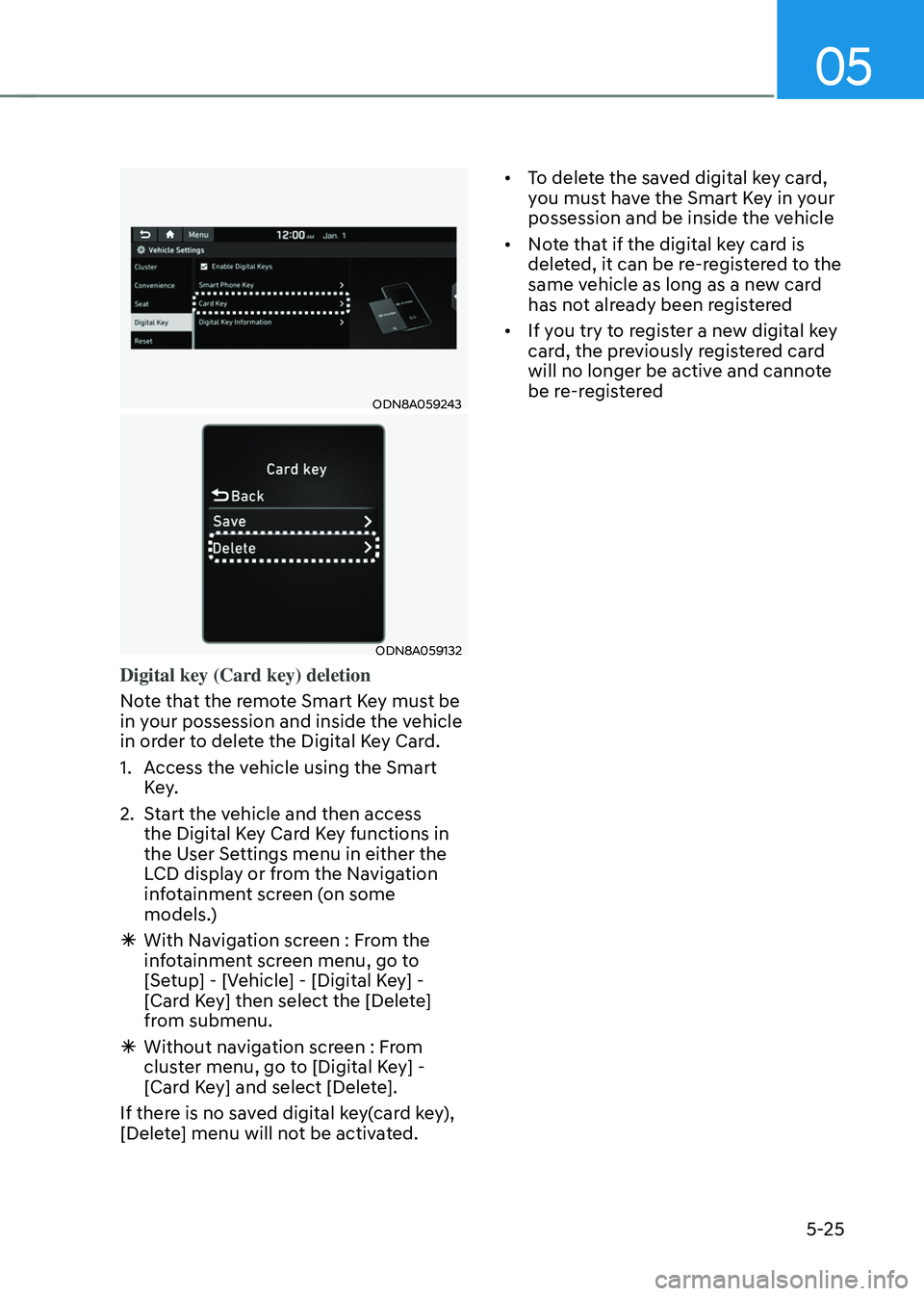
ÃWith Navigation screen : From the
infotainment screen menu, go to
[Setup] - [Vehicle] - [Digital Key] -
[Card Key] then select the [Delete]
from submenu.
ÃWithout navigation screen : From
cluster menu, go to [Digital Key] -
[Card Key] and select [Delete].
If there is no saved digital key(card key),
[Delete] menu will not be activated. •
To delete the saved digital key card,
you must have the Smart Key in your
possession and be inside the vehicle
• Note that if the digital key card is
deleted, it can be re-registered to the
same vehicle as long as a new card
has not already been registered
• If you try to register a new digital key
card, the previously registered card
will no longer be active and cannote
be re-registered
Page 171 of 638
05
5-27
Start-up with Card key
After placing your registered card key
onto the interior authentication pad
(wireless charger), step on the brake and
press the Engine Start/Stop button.
WARNING
• If you do not place the digital key
(card key) onto the center of the
interior authentication pad (wireless
charger) exactly, the card key may
not be recognized. If the engine is
not turned on, adjust and place the
key again.
• If you overlap and use the key
with NFC-enabled cards such as
transportation card or credit card,
the card key may not be recognized.
• If the digital key (card key) does not
work, please detach the key around
4 inches (0.1 m) from the handle
authentication pad and retry to
contact.
• The card key may be damaged due to
impact. It would not work properly if
the key is damaged. You should buy a
new card and register again.
For more information, refer to the
Engine Start/Stop button in chapter 6.
„„Type A
ODN8A059133
„„Type B
ODN8A059247
Digital key application/cancellation
If you do not want to use the digital key
(smartphone and card key), you can
disable the function temporarily. You
should have the smart key when you
change the settings
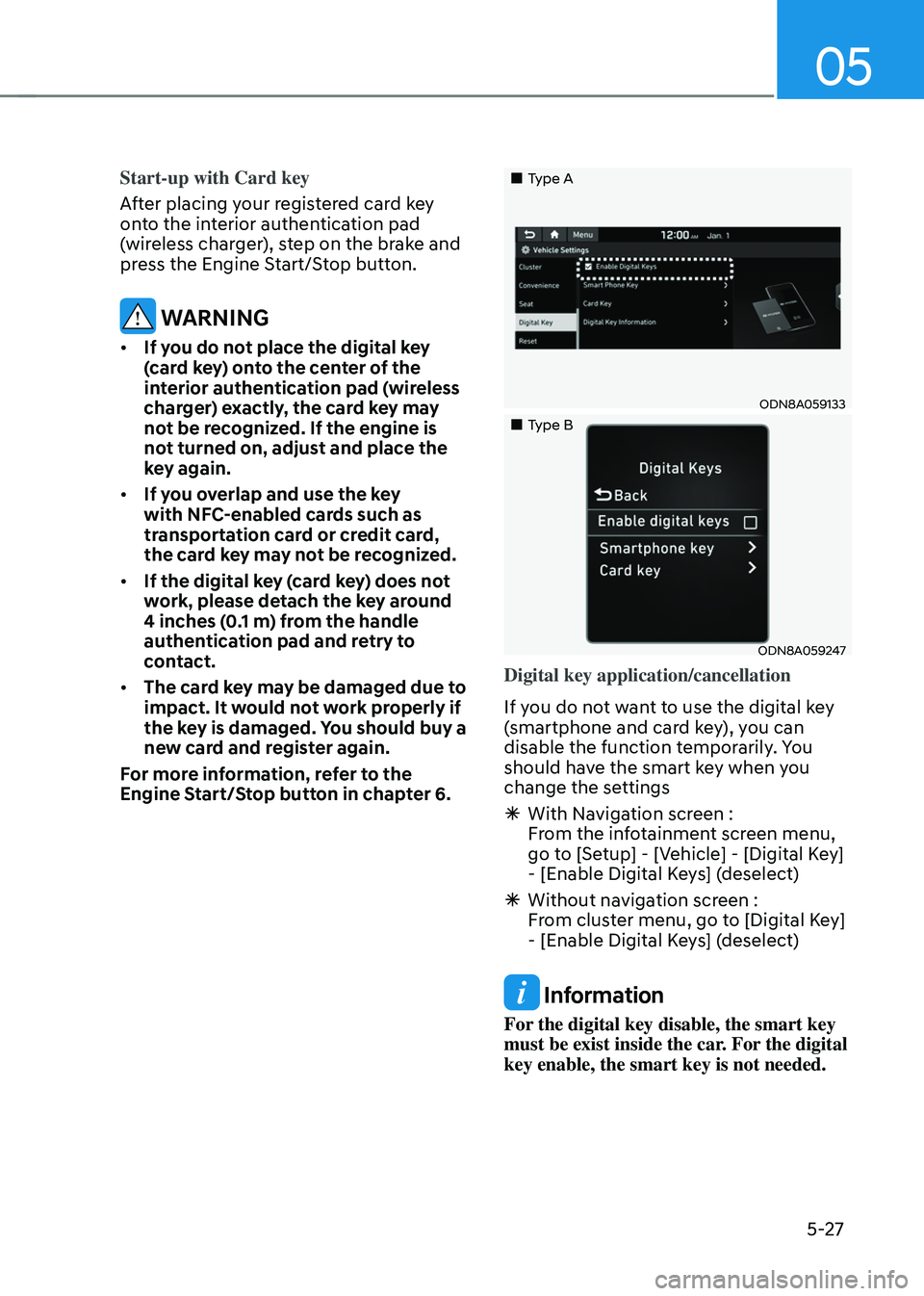
à With Navigation screen :
From the infotainment screen menu,
go to [Setup] - [Vehicle] - [Digital Key]
- [Enable Digital Keys] (deselect)
ÃWithout navigation screen :
From cluster menu, go to [Digital Key]
- [Enable Digital Keys] (deselect)
Information
For the digital key disable, the smart key
must be exist inside the car. For the digital
key enable, the smart key is not needed.
Page 172 of 638
Convenient features
5-28
CAUTION
If you uncheck Enable digital keys, it is
impossible to lock or unlock the doors
or start up the vehicle with digital keys
such as smartphone and card key. If
you check Enable digital keys again, the
registered digital keys(smartphone and
card key) are available. Even though
you stop the digital key function, the
registered keys (smartphone and card
key) are not deleted.
Personalized profile and vehicle
settings
You have the ability to set the registered
digital key with one of two personalized
profiles. Then, when you use the digital
card key or the Digital Key App, the
vehicle will be set to the user-defined
personalized profile (which includes
such items as driver settings, audio
preferences, etc.).
There are two profile connections and
personalization settings available for
Driver 1 and Driver 2.Profile link/unlinked
Profile link
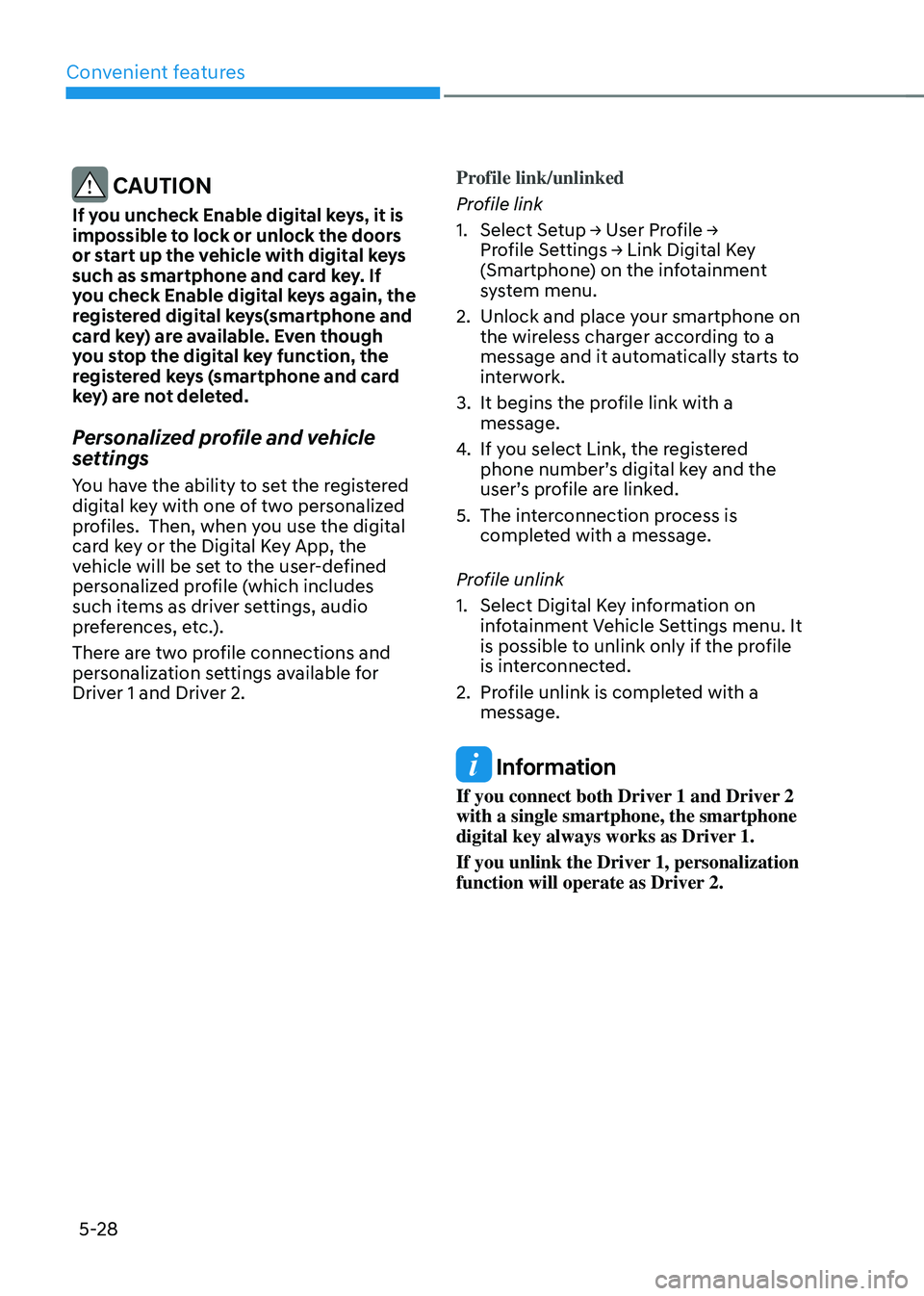
1. Select Setup → User Profile → Profile Settings → Link Digital Key (Smartphone) on the infotainment
system menu.
2. Unlock and place your smartphone on the wireless charger according to a
message and it automatically starts to
interwork.
3. It begins the pro
file link with a message.
4. If you select Link, the registered phone number’s digital key and the
user’s profile are linked.
5. The interconnection process is completed with a message.
Profile unlink
1. Select Digital Ke y information on infotainment Vehicle Settings menu. It
is possible to unlink only if the profile
is interconnected.
2. Profile unlink is completed with a message.
Information
If you connect both Driver 1 and Driver 2
with a single smartphone, the smartphone
digital key always works as Driver 1.
If you unlink the Driver 1, personalization
function will operate as Driver 2.
Page 173 of 638
05
5-29
PRECAUTION for vehicle profile link and
unlink
When you link or unlink the profile of
digital key, you should be careful of the
following.
• Profile link is possible to use with the
digital key. (Infotainment Vehicle
Settings Mode → Digital Key → Enable Digital Keys)
• Profile link information remains even
when you set the digital key function
disable.
• Only the smart phone with digital key
app enables you to link your profile.
(Impossible to link with NFC card)
• Profile link works only when the
smart phone and the digital key are
registered to the vehicle. The smart
phone with another vehicle’s digital
key cannot link profile.
• If you remove the smart phone
from the wireless charger before
completing the profile link, it does not
work.
• To unlink the profile, the smart phone
does not need to be on the wireless
charger. Vehicle personalization operation
The personalization function linked with
digital key works as following conditions:
•
Contact the driver’s door handle with
the profile linked smart phone to lock
or unlock the doors (Personalization
does not operate when locking or
unlocking the front passenger door.)
• Remote door unlock with the profile
linked smartphone digital key app.
The profile linked with digital key can be
changed manually in the infotainment
system setup screen.
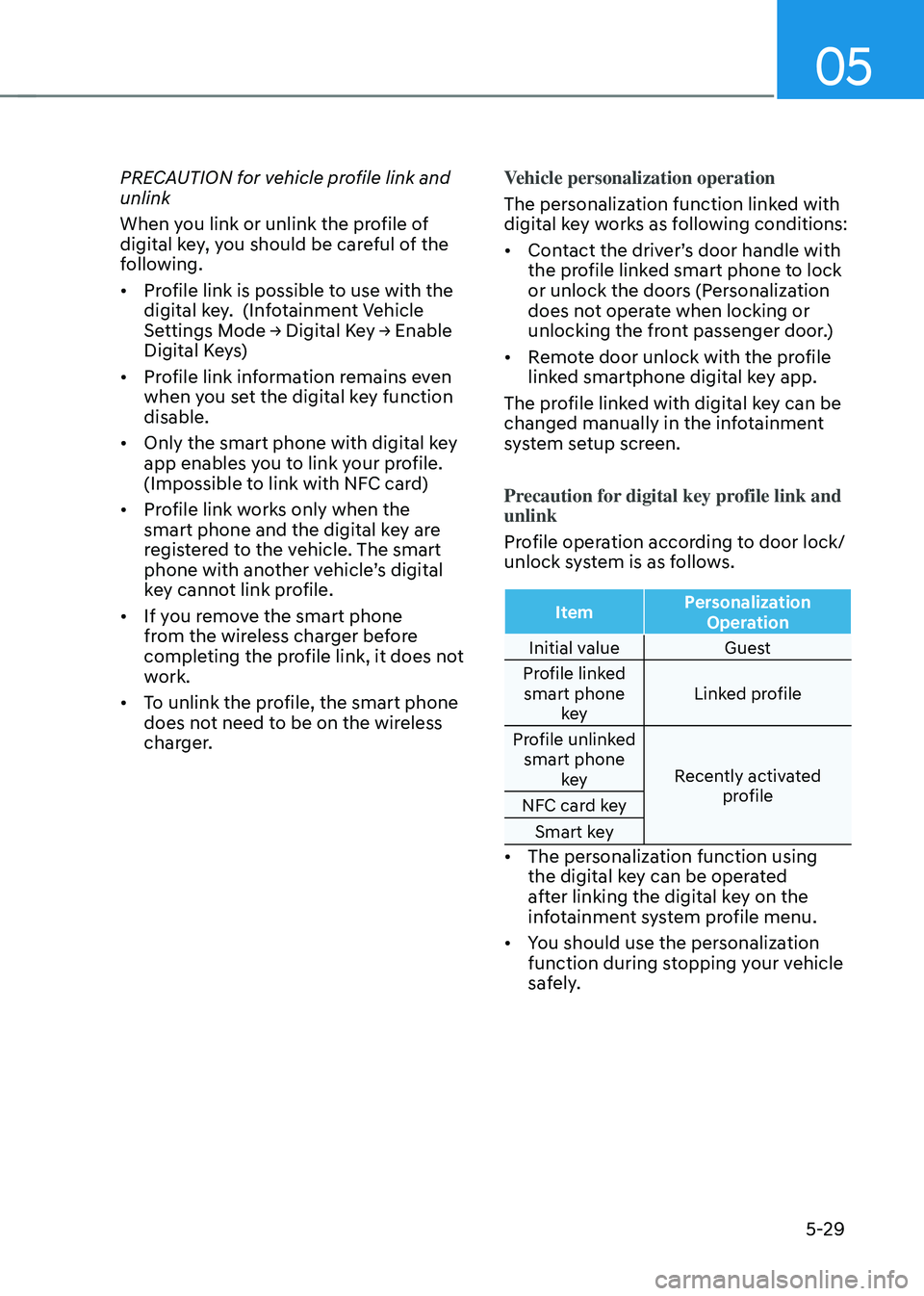
Precaution for digital key profile link and
unlink
Profile operation according to door lock/
unlock system is as follows.
Item Personalization
Operation
Initial value Guest
Profile linked smart phone key Linked profile
Profile unlinked smart phone key Recently activated
profile
NFC card key
Smart key
• The personalization function using
the digital key can be operated
after linking the digital key on the
infotainment system profile menu.
• You should use the personalization
function during stopping your vehicle
safely.