warning HYUNDAI TUCSON 2023 Owners Manual
[x] Cancel search | Manufacturer: HYUNDAI, Model Year: 2023, Model line: TUCSON, Model: HYUNDAI TUCSON 2023Pages: 638, PDF Size: 26.51 MB
Page 155 of 638

05
5-11
Information
• The vehicle must be in P (Park) for the
remote start function to start.
• The engine turns off if you get on the
vehicle without a registered smart key.
• The engine turns off if you do not get
on the vehicle within 10 minutes after
remotely starting the vehicle.
• The Remote Start button may not
operate if the smart key is not within 32
feet (10 m).
• The vehicle will not remotely start if the
engine hood or liftgate is opened.
• Do not idle the engine for a long period.
Remote Smart Parking Assist
Feature (if equipped)
Some models are equipped with Remote
Smart Parking Assist Feature. With the
Smart Key, the vehicle can be moved
forward or backward remotely to enter or
exit a tight parking space.
For more details, refer to “Remote
Smart Parking Assist (RSPA)” section in
chapter 7.
Panic alarm
The horn sounds and the hazard warning
lights blink for about 30 seconds if this
button is pressed for more than 1 second
To stop the horn and lights, press any
button on the transmitter.
Push Button Start/Stop (if equipped)
Some models are equipped with a push
button start instead of a key cylinder.
You can leave your Smart Key in your
pocket or purse when you start your
vehicle.
For more details, refer to the “Engine
Start/Stop Button” section in chapter 6.
Information
If the smart key is not moved for some
time, the detection function for smart key
operation will pause. Lift the smart key to
activate the detection again.
NOTICE
To prevent damaging the smart key:
• Keep the smart key in a cool,
dry place to avoid damage or
malfunction. Exposure to moisture
or high temperature may cause
the internal circuit of the smart key
to malfunction which may not be
covered under warranty.
• Avoid dropping or throwing the
smart key.
• Protect the smart key from extreme
temperatures.
Page 158 of 638
Convenient features
5-14
Immobilizer system
The immobilizer system helps protect
your vehicle from theft. If an improperly
coded key (or other device) is used, the
engine’s fuel system is disabled.
When the Engine Start/Stop button
is pressed to the ON position, the
immobilizer system indicator should
come on briefly, then go off. If the
indicator starts to blink, the system does
not recognize the coding of the key.
Press the Engine Start/Stop button to
the OFF position, then press the Engine
Start/Stop button to the ON position
again.
The system may not recognize your
key’s coding if another immobilizer key
or other metal object (i.e., key chain) is
near the key. The engine may not start
because the metal may interrupt the
transponder signal from transmitting
normally.
If the system repeatedly does not
recognize the coding of the key, it is
recommended that you contact your
HYUNDAI dealer.
Do not attempt to alter this system
or add other devices to it. Electrical
problems could result that may make
your vehicle inoperable. WARNING
In order to prevent theft of your
vehicle, do not leave spare keys
anywhere in your vehicle. Your
immobilizer password is a customer
unique password and should be kept
confidential.
NOTICE
The transponder in your key is an
important part of the immobilizer
system. It is designed to give years
of trouble-free service, however you
should avoid exposure to moisture,
static electricity and rough handling.
Immobilizer system malfunction could
occur.
Information
This device complies with Part 15 of the
FCC rules.
Operation is subject to the following three
conditions:
1. This device may not cause harmful
interference.
2. This device must accept any
interference received, including
interference that may cause undesired
operation.
3. Changes or modifications not expressly
approved by the party responsible
for compliance could void the user’s
authority to operate the device.
Page 159 of 638
05
5-15
Hyundai Digital Key
(if equipped)
Digital Key Application
To use Hyundai Digital Key mobile app,
you should install the Hyundai Digital
Key application on your Android phone.
Search ‘Hyundai digital key’ in the
Google Play Store and download the app.
Please refer to the detailed manual of the
digital key app. The option can be found
under the following app menu:
Menu → Application Info → Tutorial
Please review the contents of the manual
before using the app.
ÃThis service is only available for
Android smartphones. Please confirm
supported/compatible devices on our
website.
WARNING
Delete Digital Key Settings When
Purchasing a Used Vehicle
If any of the digital key (smartphone key
or card key) is already registered when
you press ON button after unlocking
the doors, the message ‘Digital key(s)
active’ appears on the instrument
cluster once. If you sell your vehicle
or purchase a used Hyundai vehicle
equipped with the Digital Key feature,
you should confirm the message and
delete the registered smartphone key
and card key. For more information,
please contact the Hyundai Customer
Care Center. If the card key does not
work properly, please delete the card
key and register the smartphone key
and re-register the card key.
For vehicle maintenance
If you need to have your Digital Key
System repaired or replaced please
ensure your Smartphone Key is still
active. You may have to pair your phone
again.
In the case, re-initialize your Digital Keys
using the Hyundai Digital Key mobile app.
Digital key (smartphone) NFC
function
You can use the smartphone Digital Key
feature once Near Field Communication
(NFC) setting has been enabled on your
phone.
To enable NFC, go to Settings on your
smart phone.
In addition, your smart phone screen
should be unlocked when using the
Digital Key feature.
ÃTo enable the user settings for NFC on
your smart phone, go to the Settings
app on your phone. For further
assistance, refer to your smart phone
manual.
Page 164 of 638
Convenient features
5-20
Remote Control with Digital Key
To use the remote control function with
your android smartphone, Bluetooth
must be turned on.
Remote Control Connection with Digital
Key
1. Open the Hyundai digital key
application on your smart phone.
Select your vehicle within the App.
2. Approach with the activated
smartphone app to your vehicle
and you can check whether the
connection is available. If it enables
your smartphone to connect, connect
with your vehicle by pressing the
connect button. The remote control
function is activated after completing
the process.
Remote Control Operation with Digital
Key
You can execute the remote control
operation including door lock/unlock,
panic on/off, remote start / remote
stop and trunk opening. The icon for
each function will be highlighted and
alarm/vibration also provided when the
operation is performed.
Note that you cannot lock your vehicle
using the Hyundai digital key app if any
of the following occurs:
• The POWER button is in ACC or ON
position.
• Any doors are open.
When the smartphone and the vehicle
are connected by the Bluetooth function
but the remote control command
cannot be received over 5 minutes, the
remote control connection is cancelled
automatically.
CAUTION
• If metallic window tint was applied
to your vehicle, it may cause
bad Bluetooth connection or
performance degradation of the
digital key.
• If multiple users operate the remote
control function simultaneously, the
connection between the digital key
and the vehicle might result in failed
commands. Please connect and
operate the remote control function
only the necessary user.
• When using the remote control
operation, the driver (the remote
control user) should leave the vehicle
after confirming the door lock (the
chime sounds once and the hazard
warning lights blink).
• The remote functions of the Digital
Key app enables the vehicle to be
controlled from a set distance. If
the digital key or the vehicle goes
beyond the operable distance, the
remote control function might be
disconnected or cancelled.
• If the digital key (smartphone) is
connected with the vehicle for the
remote control, the driver with the
key goes far away from the vehicle,
the function might not work.
• If the remote control operation
is executed where the mobile
connection is weak, Bluetooth
connection is poor due to several
Bluetooth devices or there is an
object such as metal or concrete, it
might be delayed or the operable
distance might decrease. You should
not cover the smartphone with your
hand or place other devices which
can cause frequency interference. It
may result in poor performance.
• If the remote control function is not
available, please use NFC function to
lock or unlock the doors.
Page 165 of 638
05
5-21
Remote Start with Digital Key
• Using the Hyundai Digital Key app
on your phone, press the Door Lock
button and then press the Remote
Start button (buttons must be pressed
within about 4 seconds). If all the
doors of your vehicle are closed
(including the hood and the liftgate),
the engine will be automatically
started.
Note that when the remote start
feature is activated, the hazard
warning lights will blink two times
and a chime will sound before engine
startup. Also note the following:
• The climate control system will come
on using the same settings from when
you last used the vehicle
• To turn off the engine, press the
Remote Engine Stop button within the
Hyundai Digital Key app.
• The engine will remain running for
approximately 10 minutes, and then
engine will automatically shut OFF.
• To keep the engine running, access
the vehicle and place the smartphone
on the wireless charging pad
(authentication pad) while the engine
is still in remote engine-ON mode.
For more information, refer to the Engine
Start/Stop button in chapter 6. Vehicle information Display
The digital key application displays
the vehicle information such as
driving or door conditions through the
communication with the vehicle.
•
How to check : Select the vehicle
what you want to check and touch
the vehicle image, then vehicle
information display page will be
shown.
• Contents : accumulated odometer,
latest fuel economy, driving range,
fuel remaining, tire pressure, doors
lock/unlock status and last data
updated time.
ÃNote that displayed vehicle data may
be slightly different from the current
vehicle condition
ÃFor more information, please refer to
the ‘Tutorial’ on your Digital key app.
Page 171 of 638
05
5-27
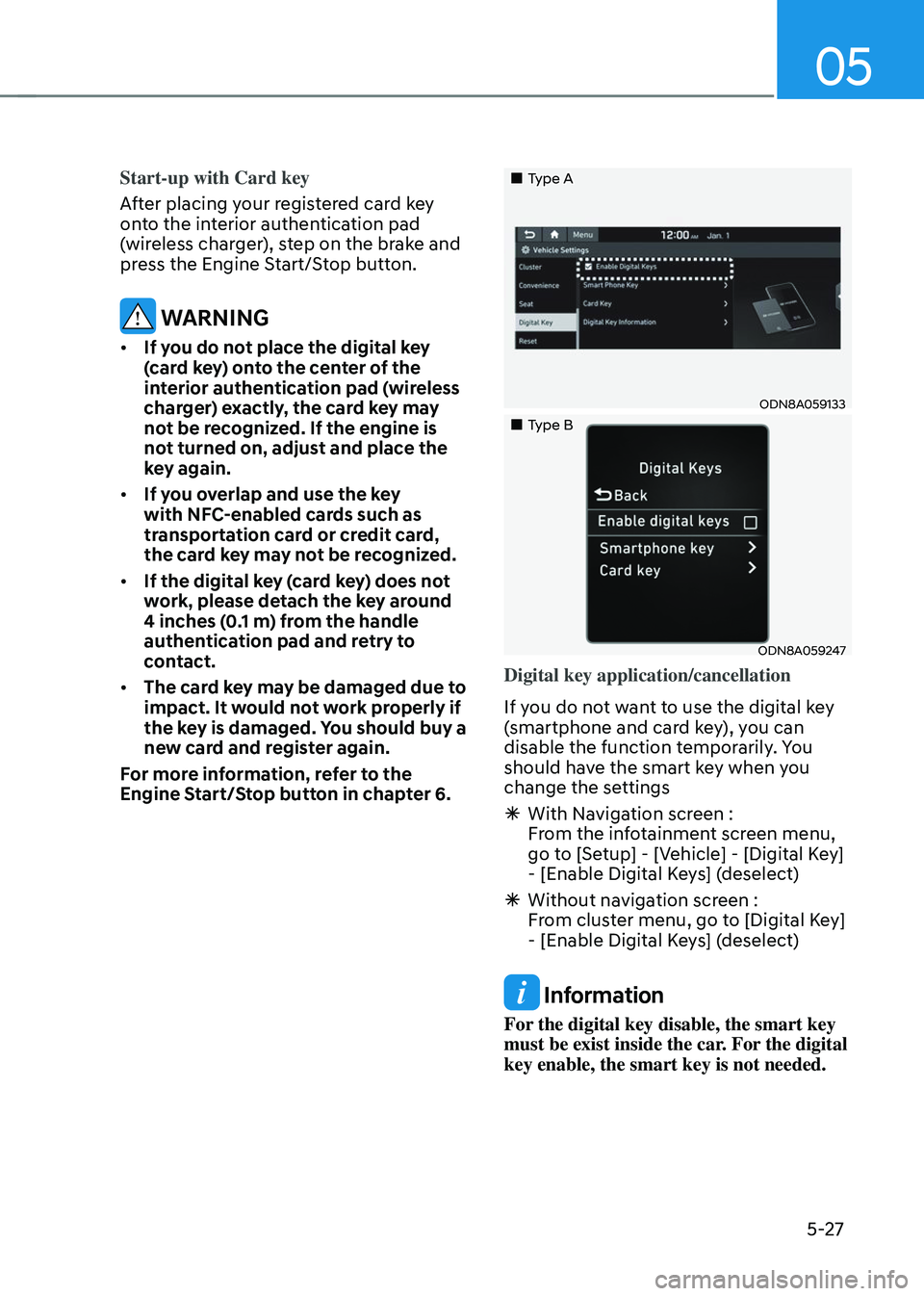
Start-up with Card key
After placing your registered card key
onto the interior authentication pad
(wireless charger), step on the brake and
press the Engine Start/Stop button.
WARNING
• If you do not place the digital key
(card key) onto the center of the
interior authentication pad (wireless
charger) exactly, the card key may
not be recognized. If the engine is
not turned on, adjust and place the
key again.
• If you overlap and use the key
with NFC-enabled cards such as
transportation card or credit card,
the card key may not be recognized.
• If the digital key (card key) does not
work, please detach the key around
4 inches (0.1 m) from the handle
authentication pad and retry to
contact.
• The card key may be damaged due to
impact. It would not work properly if
the key is damaged. You should buy a
new card and register again.
For more information, refer to the
Engine Start/Stop button in chapter 6.
„„Type A
ODN8A059133
„„Type B
ODN8A059247
Digital key application/cancellation
If you do not want to use the digital key
(smartphone and card key), you can
disable the function temporarily. You
should have the smart key when you
change the settings
à With Navigation screen :
From the infotainment screen menu,
go to [Setup] - [Vehicle] - [Digital Key]
- [Enable Digital Keys] (deselect)
ÃWithout navigation screen :
From cluster menu, go to [Digital Key]
- [Enable Digital Keys] (deselect)
Information
For the digital key disable, the smart key
must be exist inside the car. For the digital
key enable, the smart key is not needed.
Page 178 of 638
Convenient features
5-34
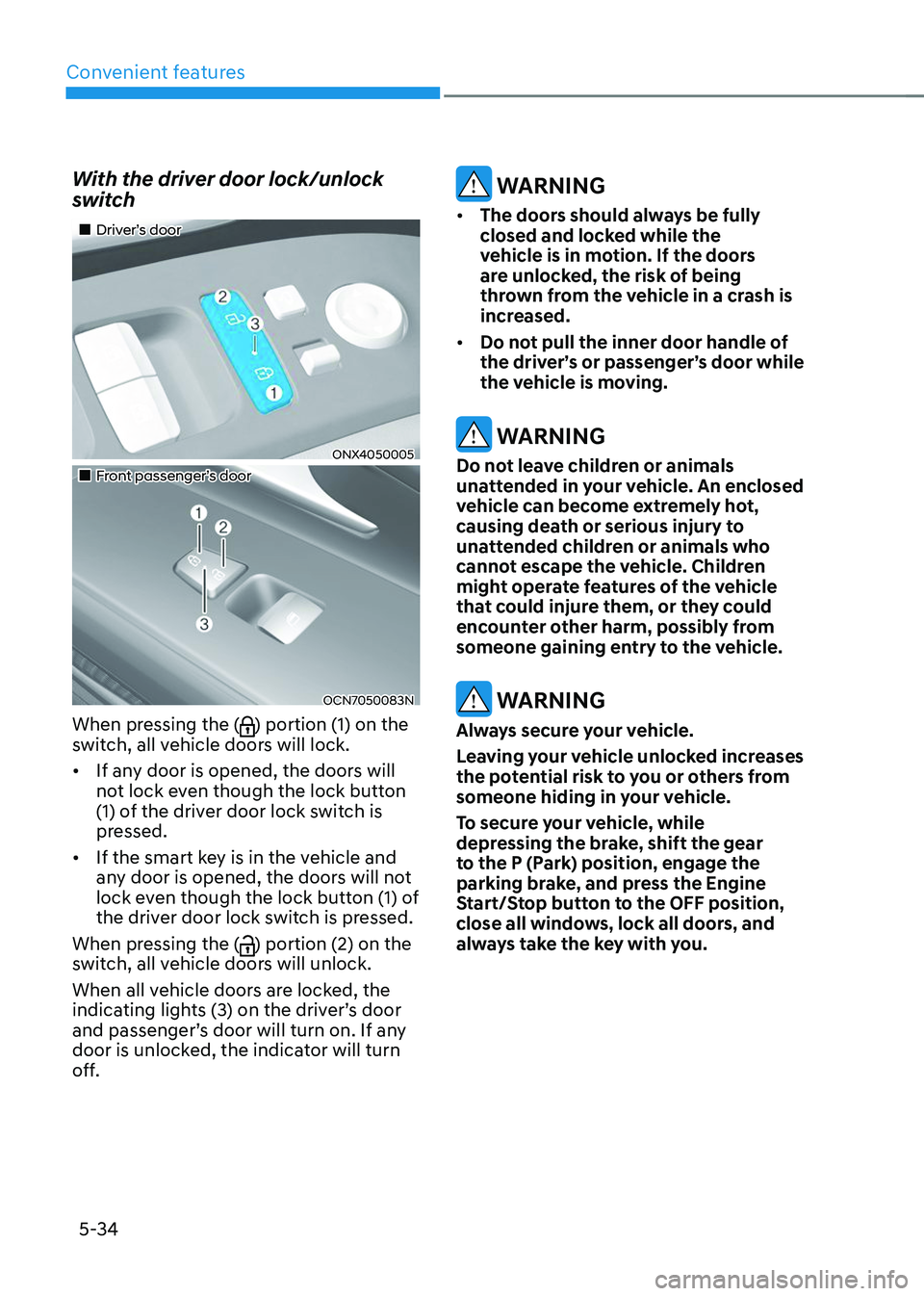
With the driver door lock/unlock
switch
„„Driver’s door
ONX4050005
„„Front passenger’s door
OCN7050083N
When pressing the () portion (1) on the
switch, all vehicle doors will lock.
• If any door is opened, the doors will
not lock even though the lock button
(1) of the driver door lock switch is
pressed.
• If the smart key is in the vehicle and
any door is opened, the doors will not
lock even though the lock button (1) of
the driver door lock switch is pressed.
When pressing the (
) portion (2) on the
switch, all vehicle doors will unlock.
When all vehicle doors are locked, the
indicating lights (3) on the driver’s door
and passenger’s door will turn on. If any
door is unlocked, the indicator will turn
off.
WARNING
• The doors should always be fully
closed and locked while the
vehicle is in motion. If the doors
are unlocked, the risk of being
thrown from the vehicle in a crash is
increased.
• Do not pull the inner door handle of
the driver’s or passenger’s door while
the vehicle is moving.
WARNING
Do not leave children or animals
unattended in your vehicle. An enclosed
vehicle can become extremely hot,
causing death or serious injury to
unattended children or animals who
cannot escape the vehicle. Children
might operate features of the vehicle
that could injure them, or they could
encounter other harm, possibly from
someone gaining entry to the vehicle.
WARNING
Always secure your vehicle.
Leaving your vehicle unlocked increases
the potential risk to you or others from
someone hiding in your vehicle.
To secure your vehicle, while
depressing the brake, shift the gear
to the P (Park) position, engage the
parking brake, and press the Engine
Start/Stop button to the OFF position,
close all windows, lock all doors, and
always take the key with you.
Page 179 of 638
05
5-35
CAUTION
Opening a door when something is
approaching may cause damage or
injury. Be careful when opening doors
and watch for vehicles, motorcycles,
bicycles or pedestrians approaching the
vehicle in the path of the door.
WARNING
If you stay in the vehicle for a long time
while the weather is very hot or cold,
there are risks of injuries or danger to
life. Do not lock the vehicle from the
outside when someone is in the vehicle.
Auto door lock/unlock features
Impact sensing door unlock system
All doors will be automatically unlocked
when an impact causes the air bags to
deploy.
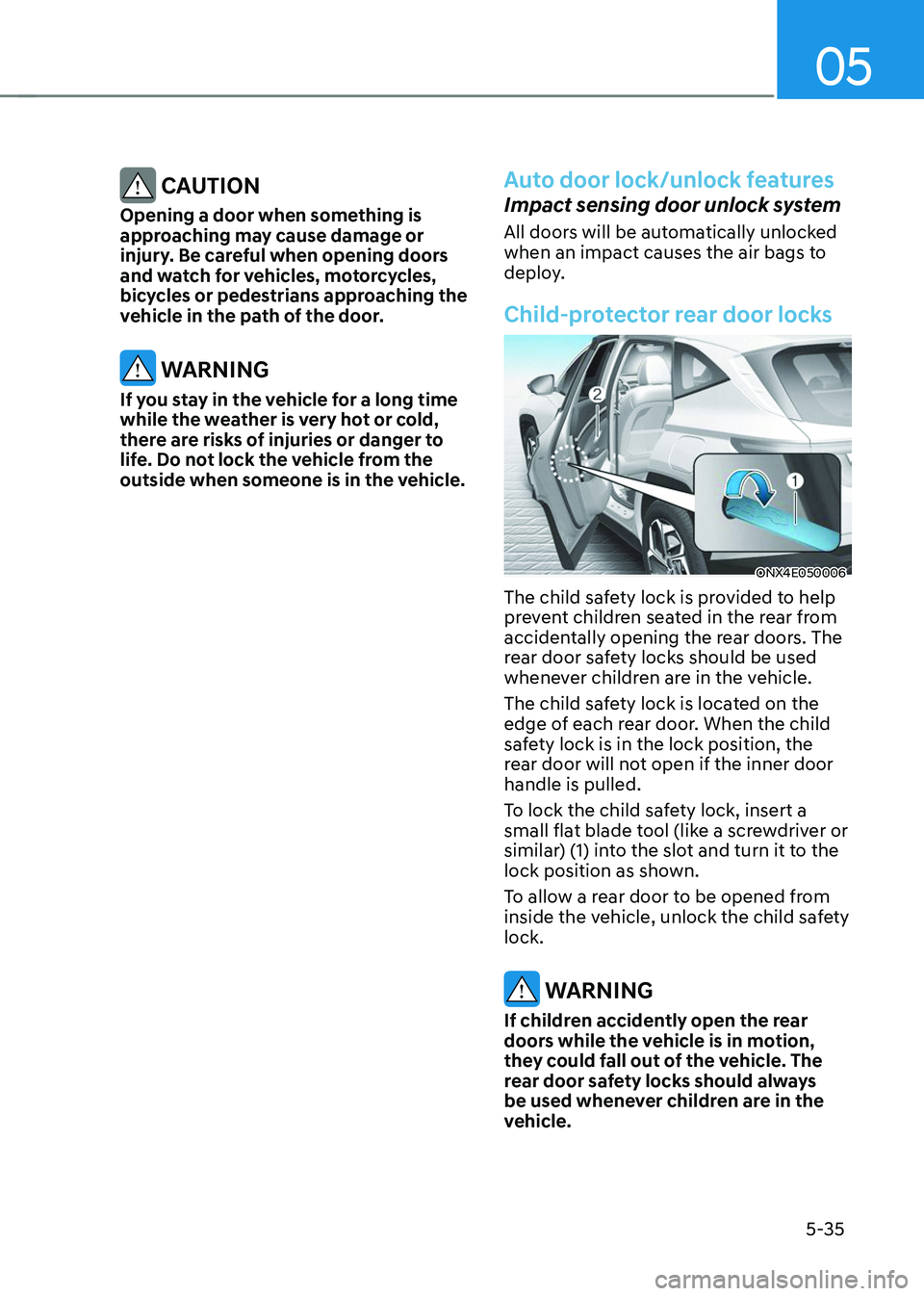
Child-protector rear door locks
ONX4E050006
The child safety lock is provided to help
prevent children seated in the rear from
accidentally opening the rear doors. The
rear door safety locks should be used
whenever children are in the vehicle.
The child safety lock is located on the
edge of each rear door. When the child
safety lock is in the lock position, the
rear door will not open if the inner door
handle is pulled.
To lock the child safety lock, insert a
small flat blade tool (like a screwdriver or
similar) (1) into the slot and turn it to the
lock position as shown.
To allow a rear door to be opened from
inside the vehicle, unlock the child safety
lock.
WARNING
If children accidently open the rear
doors while the vehicle is in motion,
they could fall out of the vehicle. The
rear door safety locks should always
be used whenever children are in the
vehicle.
Page 180 of 638
Convenient features
5-36
This system helps to protect your vehicle
and valuables. The horn will sound and
the hazard warning lights will blink
continuously if any of the following
occur:
-A door is opened without using the
smart key.
-The liftgate is opened without using
the smart key.
-The engine hood is opened.
The alarm continues for 30 seconds, then
the system resets. To turn off the alarm,
unlock the doors with the smart key.
The Theft Alarm System automatically
sets 30 seconds after you lock the
doors and the liftgate. For the system to
activate, you must lock the doors and
the liftgate from outside the vehicle with
the smart key or by touching the touch
sensor on the outside of the door handle
with the smart key in your possession.
The hazard warning lights will blink and
the chime will sound once to indicate the
system is armed.
Once the security system is set, opening
any door, the liftgate, or the hood
without using the smart key will cause
the alarm to activate.
The Theft Alarm System will not set if the
hood, the liftgate, or any door is not fully
closed. If the system will not set, check
the hood, the liftgate, or the doors are
fully closed.
Do not attempt to alter this system or
add other devices to it.
Information
• Do not lock the doors until all
passengers have left the vehicle. If the
remaining passenger leaves the vehicle
when the system is armed, the alarm
will be activated.
• If the vehicle is not disarmed with the
smart key, open the doors by using the
mechanical key and start the engine by
directly pressing the Engine Start/Stop
button with the smart key.
• If the system is disarmed by unlocking
the vehicle, but neither a door or the
liftgate is opened within 30 seconds, the
doors will relock and the system will
rearm automatically.
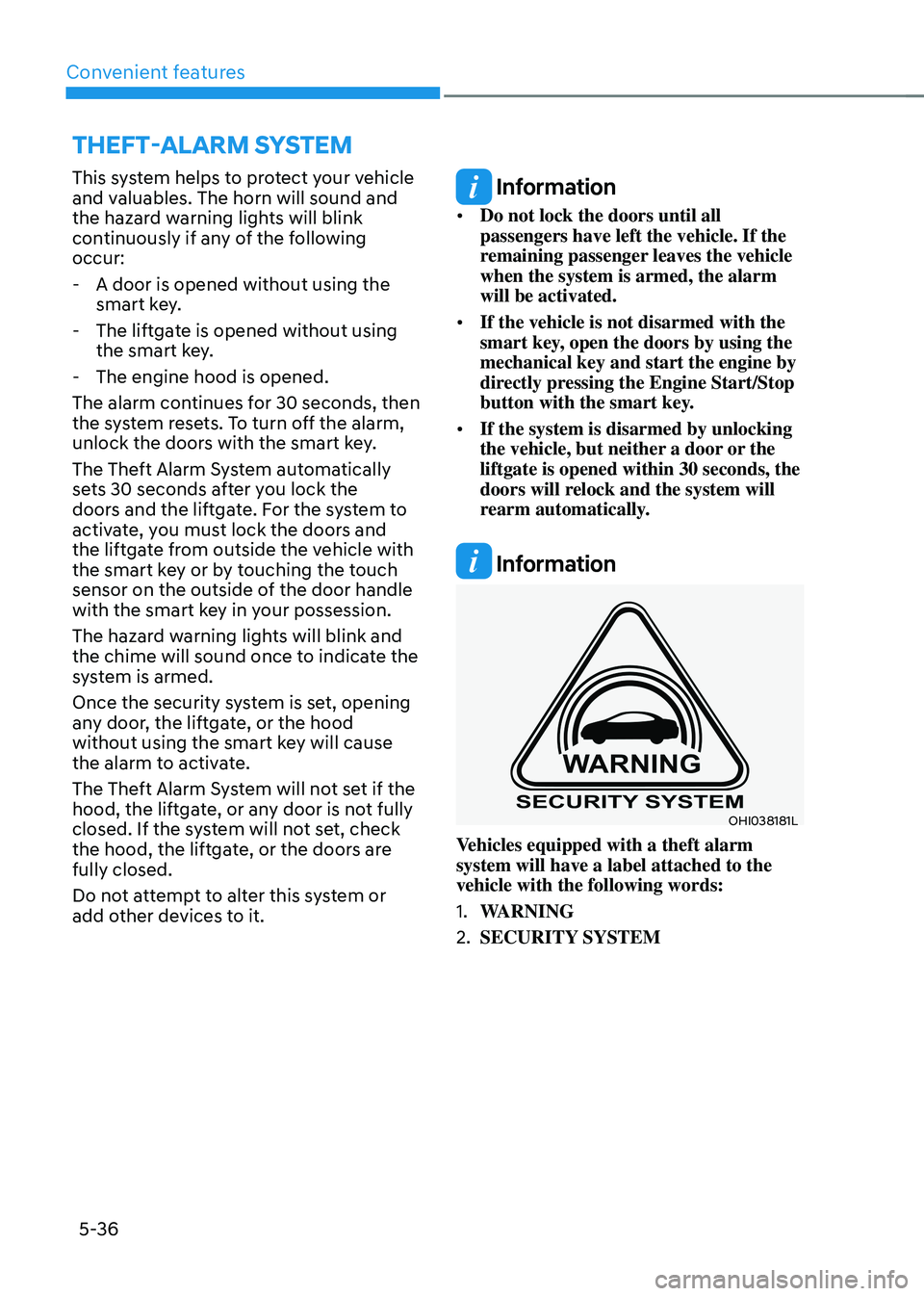
Information
OHI038181L
Vehicles equipped with a theft alarm
system will have a label attached to the
vehicle with the following words:
1. WARNING
2. SECURITY SYSTEM
THEFT-ALARM SYSTEM
Page 181 of 638
05
5-37
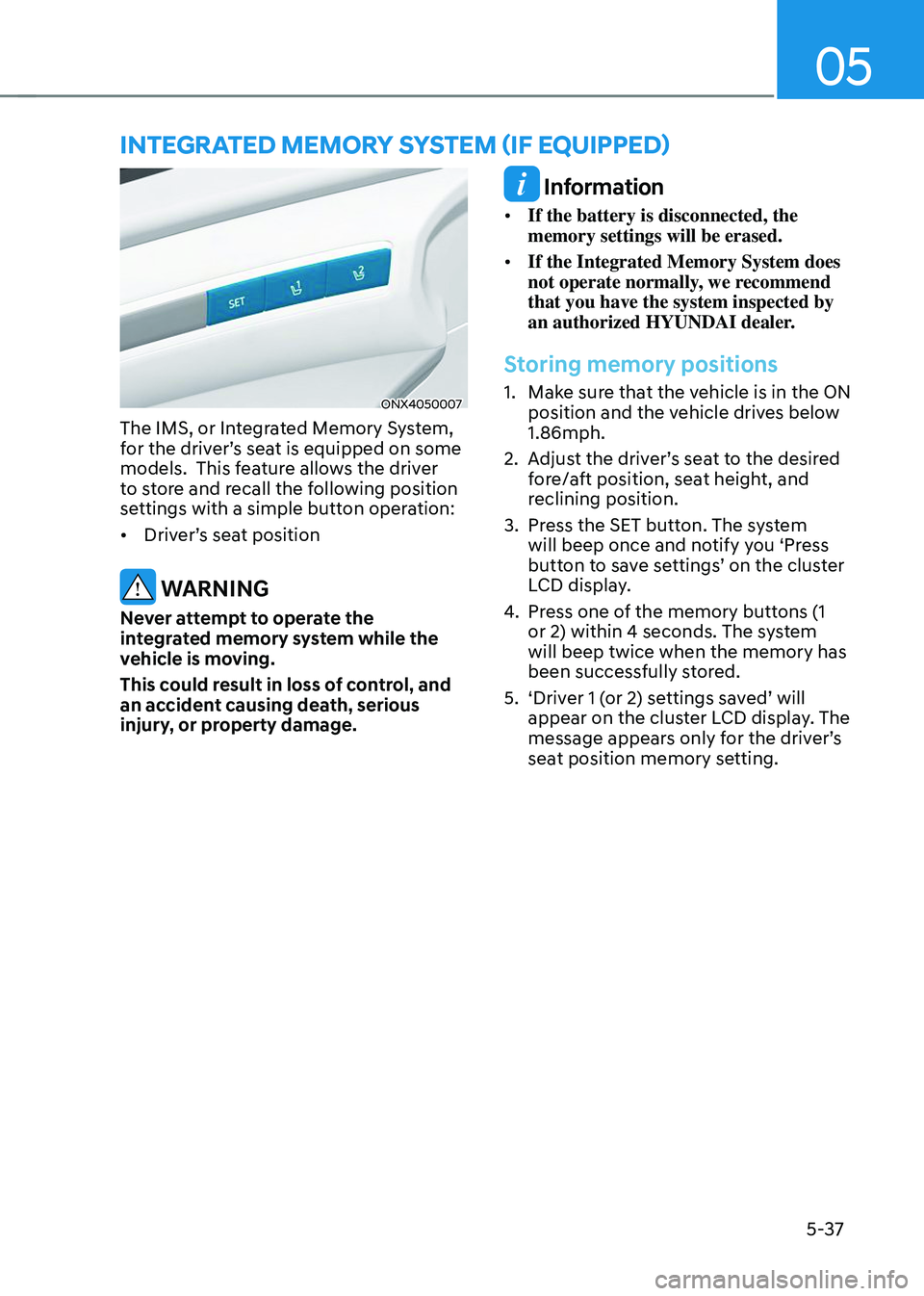
ONX4050007
The IMS, or Integrated Memory System,
for the driver’s seat is equipped on some
models. This feature allows the driver
to store and recall the following position
settings with a simple button operation:
• Driver’s seat position
WARNING
Never attempt to operate the
integrated memory system while the
vehicle is moving.
This could result in loss of control, and
an accident causing death, serious
injury, or property damage.
Information
• If the battery is disconnected, the
memory settings will be erased.
• If the Integrated Memory System does
not operate normally, we recommend
that you have the system inspected by
an authorized HYUNDAI dealer.
Storing memory positions
1. Make sure that the vehicle is in the ON
position and the vehicle drives below
1.86mph.
2. Adjust the driver’s seat to the desired
fore/aft position, seat height, and
reclining position.
3. Press the SET button. The system
will beep once and notify you ‘Press
button to save settings’ on the cluster
LCD display.
4. Press one of the memory buttons (1
or 2) within 4 seconds. The system
will beep twice when the memory has
been successfully stored.
5. ‘Driver 1 (or 2) settings saved’ will
appear on the cluster LCD display. The
message appears only for the driver’s
seat position memory setting.
INTEGRATED MEMORY SYSTEM (IF EQUIPPED)