Traffic HYUNDAI TUCSON 2023 Owner's Manual
[x] Cancel search | Manufacturer: HYUNDAI, Model Year: 2023, Model line: TUCSON, Model: HYUNDAI TUCSON 2023Pages: 638, PDF Size: 26.51 MB
Page 374 of 638
07
7-11
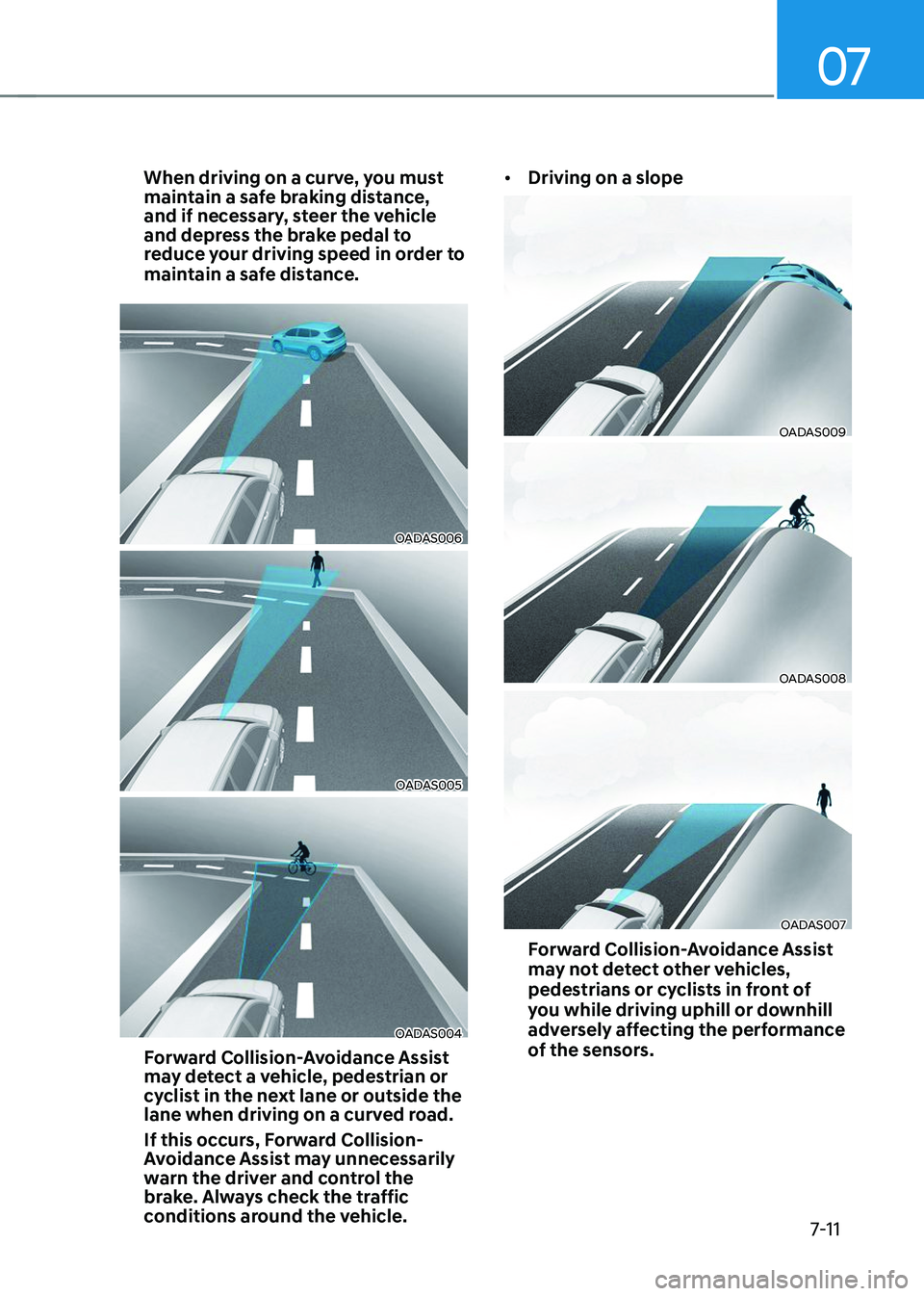
When driving on a curve, you must
maintain a safe braking distance,
and if necessary, steer the vehicle
and depress the brake pedal to
reduce your driving speed in order to
maintain a safe distance.
OADAS006
OADAS005
OADAS004
Forward Collision-Avoidance Assist
may detect a vehicle, pedestrian or
cyclist in the next lane or outside the
lane when driving on a curved road.
If this occurs, Forward Collision-
Avoidance Assist may unnecessarily
warn the driver and control the
brake. Always check the traffic
conditions around the vehicle.•
Driving on a slope
OADAS009
OADAS008
OADAS007
Forward Collision-Avoidance Assist
may not detect other vehicles,
pedestrians or cyclists in front of
you while driving uphill or downhill
adversely affecting the performance
of the sensors.
Page 381 of 638
Driver assistance system
7-18
OTM070140N
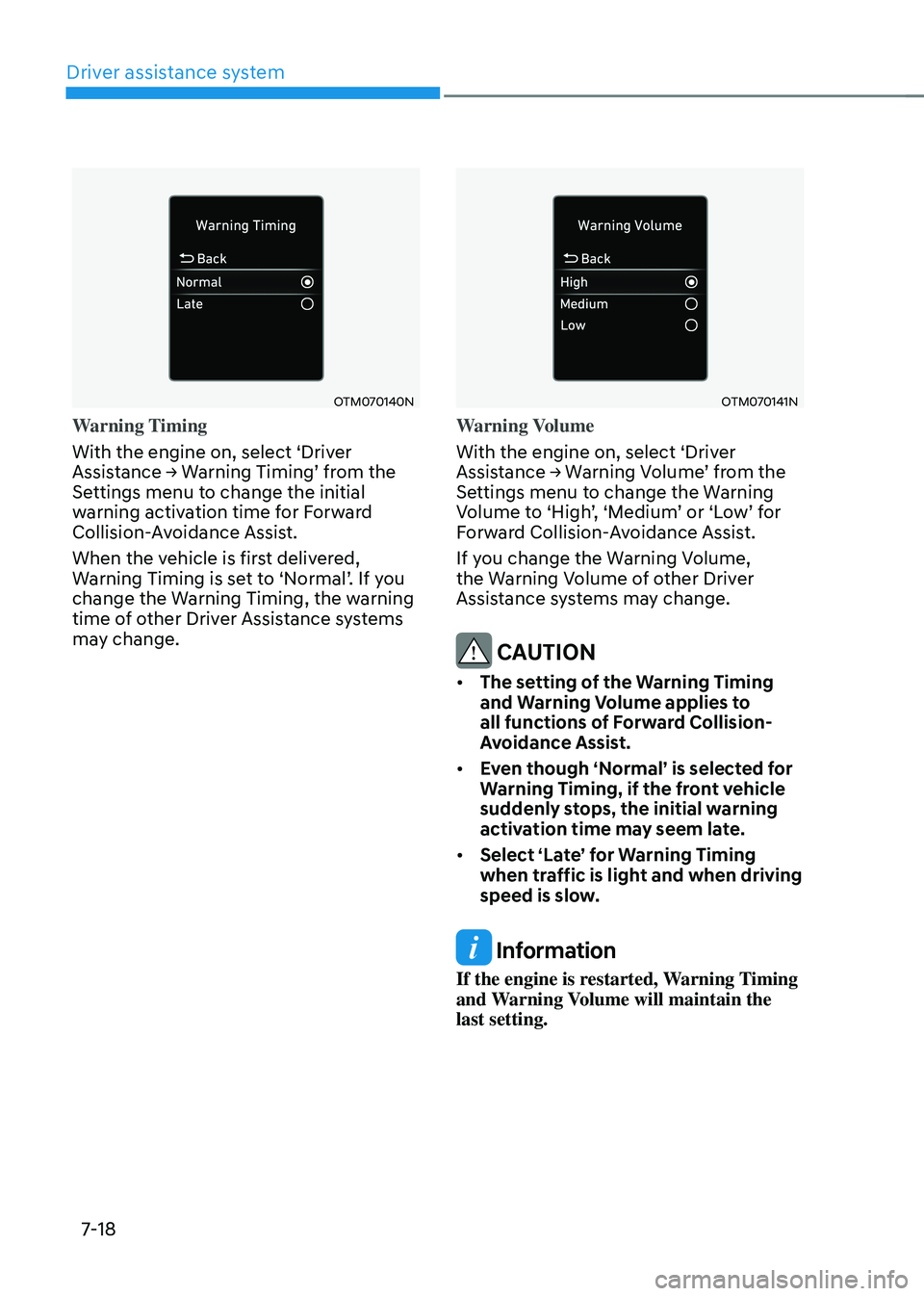
Warning Timing
With the engine on, select ‘Driver
Assistance → Warning Timing’ from the Settings menu to change the initial
warning activation time for Forward
Collision-Avoidance Assist.
When the vehicle is first delivered,
Warning Timing is set to ‘Normal’. If you change the Warning Timing, the warning
time of other Driver Assistance systems
may change.
OTM070141N
Warning Volume
With the engine on, select ‘Driver
Assistance → Warning Volume’ from the Settings menu to change the Warning Volume to ‘High’, ‘Medium’ or ‘Low’ for Forward Collision-Avoidance Assist.
If you change the Warning Volume,
the Warning Volume of other Driver
Assistance systems may change.
CAUTION
• The setting of the Warning Timing
and Warning Volume applies to
all functions of Forward Collision-
Avoidance Assist.
• Even though ‘Normal’ is selected for
Warning Timing, if the front vehicle
suddenly stops, the initial warning
activation time may seem late.
• Select ‘Late’ for Warning Timing
when traffic is light and when driving
speed is slow.
Information
If the engine is restarted, Warning Timing
and Warning Volume will maintain the
last setting.
Page 389 of 638
Driver assistance system
7-26
• The pedestrian or cyclist is not
fully detected, for example, if the
pedestrian is leaning over or is not
fully walking upright
• The pedestrian or cyclist is wearing
clothing or equipment that makes it
difficult to detect as a pedestrian or
cyclist
OADAS044
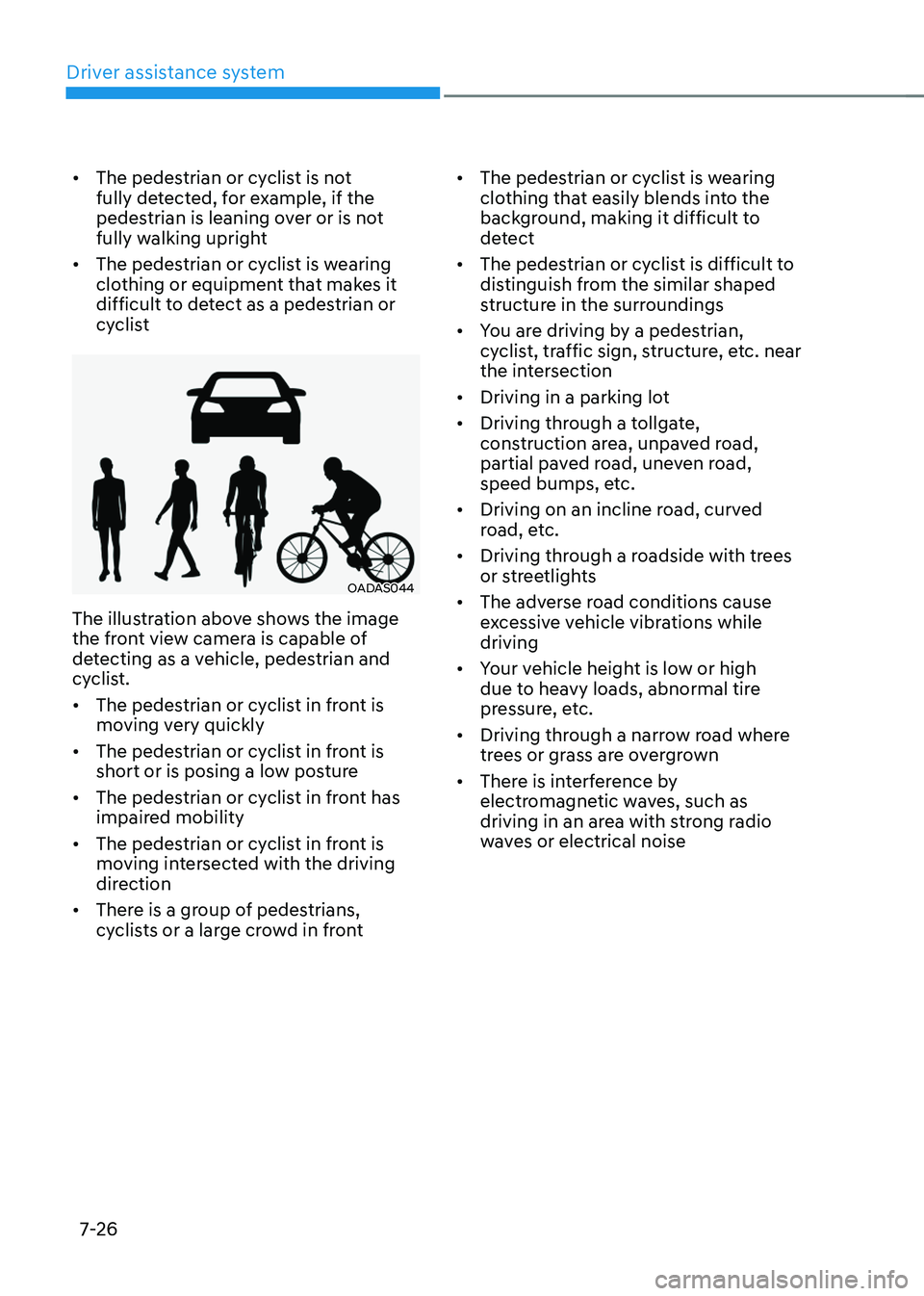
The illustration above shows the image
the front view camera is capable of
detecting as a vehicle, pedestrian and
cyclist.
• The pedestrian or cyclist in front is
moving very quickly
• The pedestrian or cyclist in front is
short or is posing a low posture
• The pedestrian or cyclist in front has
impaired mobility
• The pedestrian or cyclist in front is
moving intersected with the driving
direction
• There is a group of pedestrians,
cyclists or a large crowd in front •
The pedestrian or cyclist is wearing
clothing that easily blends into the
background, making it difficult to
detect
• The pedestrian or cyclist is difficult to
distinguish from the similar shaped
structure in the surroundings
• You are driving by a pedestrian,
cyclist, traffic sign, structure, etc. near
the intersection
• Driving in a parking lot
• Driving through a tollgate,
construction area, unpaved road,
partial paved road, uneven road,
speed bumps, etc.
• Driving on an incline road, curved
road, etc.
• Driving through a roadside with trees
or streetlights
• The adverse road conditions cause
excessive vehicle vibrations while
driving
• Your vehicle height is low or high
due to heavy loads, abnormal tire
pressure, etc.
• Driving through a narrow road where
trees or grass are overgrown
• There is interference by
electromagnetic waves, such as
driving in an area with strong radio
waves or electrical noise
Page 390 of 638
07
7-27
WARNING
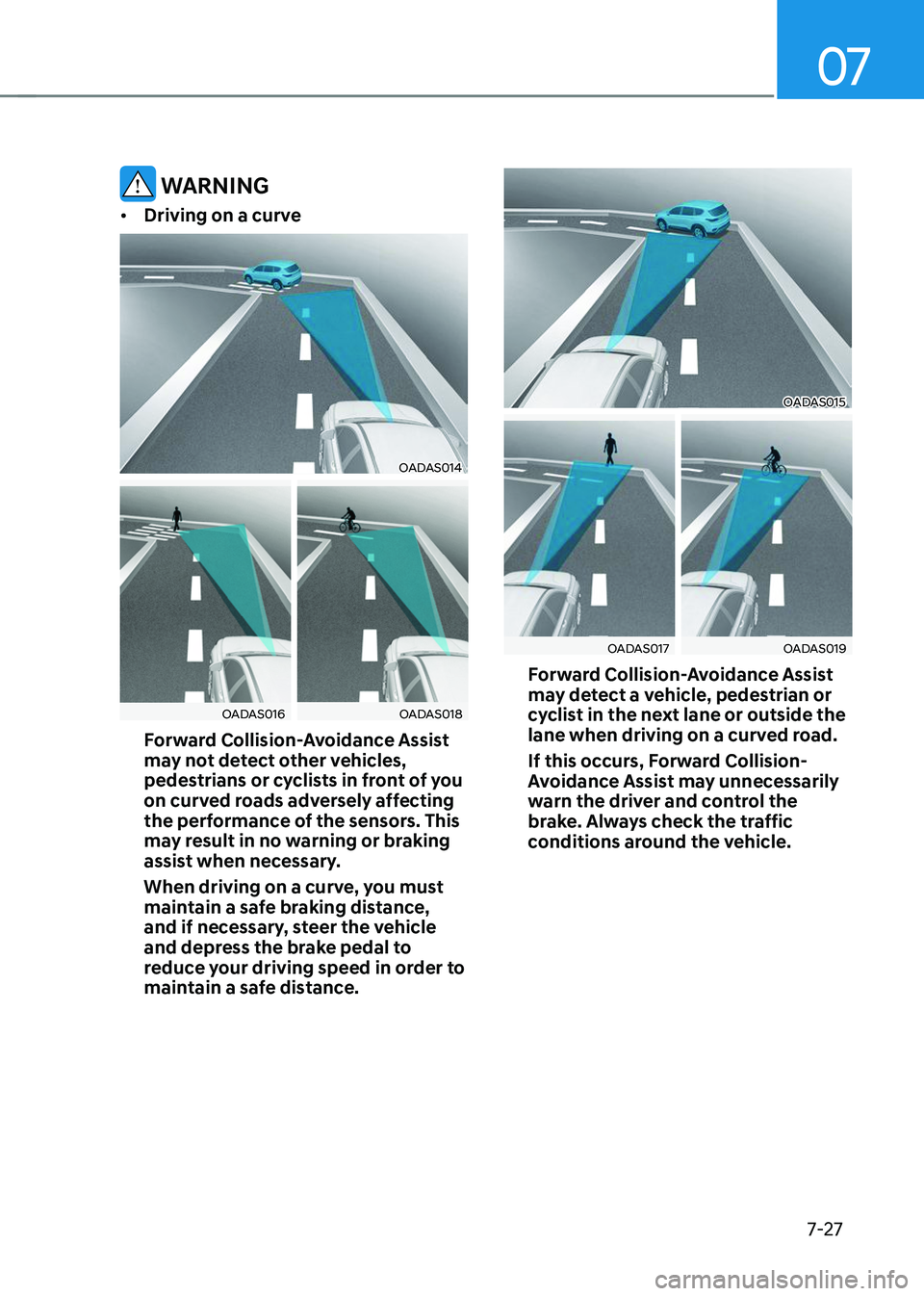
• Driving on a curve
OADAS014
OADAS016OADAS018
Forward Collision-Avoidance Assist
may not detect other vehicles,
pedestrians or cyclists in front of you
on curved roads adversely affecting
the performance of the sensors. This
may result in no warning or braking
assist when necessary.
When driving on a curve, you must
maintain a safe braking distance,
and if necessary, steer the vehicle
and depress the brake pedal to
reduce your driving speed in order to
maintain a safe distance.
OADAS015
OADAS017OADAS019
Forward Collision-Avoidance Assist
may detect a vehicle, pedestrian or
cyclist in the next lane or outside the
lane when driving on a curved road.
If this occurs, Forward Collision-
Avoidance Assist may unnecessarily
warn the driver and control the
brake. Always check the traffic
conditions around the vehicle.
Page 404 of 638
07
7-41
OTM070141N
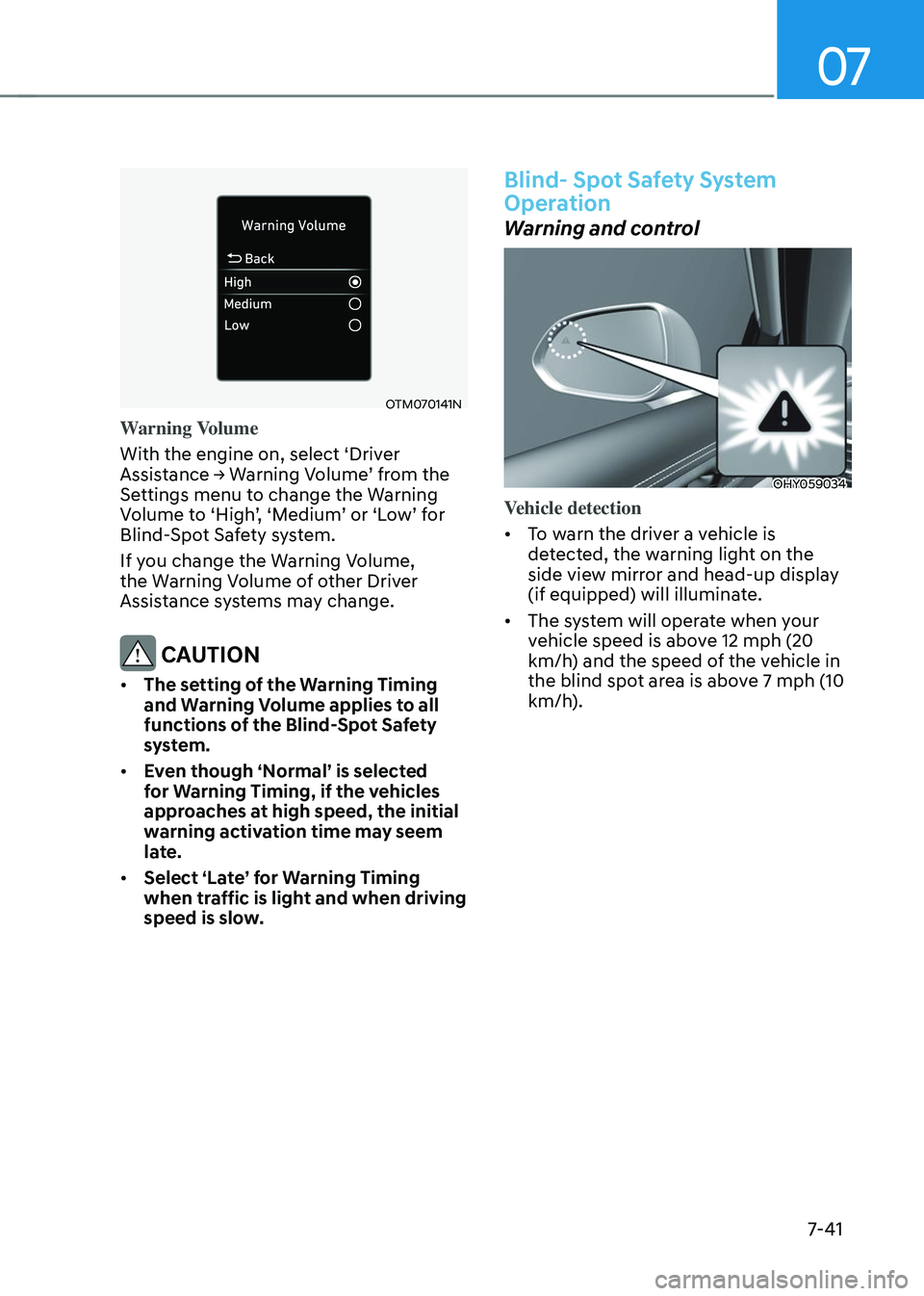
Warning Volume
With the engine on, select ‘Driver
Assistance → Warning Volume’ from the Settings menu to change the Warning Volume to ‘High’, ‘Medium’ or ‘Low’ for Blind-Spot Safety system.
If you change the Warning Volume,
the Warning Volume of other Driver
Assistance systems may change.
CAUTION
• The setting of the Warning Timing
and Warning Volume applies to all
functions of the Blind-Spot Safety
system.
• Even though ‘Normal’ is selected
for Warning Timing, if the vehicles
approaches at high speed, the initial
warning activation time may seem
late.
• Select ‘Late’ for Warning Timing
when traffic is light and when driving
speed is slow.
Blind- Spot Safety System
Operation
Warning and control
OHY059034
Vehicle detection
• To warn the driver a vehicle is
detected, the warning light on the
side view mirror and head-up display
(if equipped) will illuminate.
• The system will operate when your
vehicle speed is above 12 mph (20
km/h) and the speed of the vehicle in
the blind spot area is above 7 mph (10
km/h).
Page 416 of 638
07
7-53
OTM070141N
Warning Volume
With the engine on, select ‘Driver
Assistance → Warning Volume’ from the Settings menu to change the Warning Volume to ‘High’, ‘Medium’ or ‘Low’ for Safe Exit Warning.
If you change the Warning Volume,
the Warning Volume of other Driver
Assistance systems may change.
CAUTION
• The setting of the Warning Timing
and Warning Volume applies to all
functions of the Safe Exit Warning.
• Even though ‘Normal’ is selected
for Warning Timing, if the vehicles
approaches at high speed from the
rear, the initial warning activation
time may seem late.
• Select ‘Late’ for Warning Timing
when traffic is light and when driving
speed is slow.
Safe Exit Warning Operation
Safe Exit warning
ONX4E070020
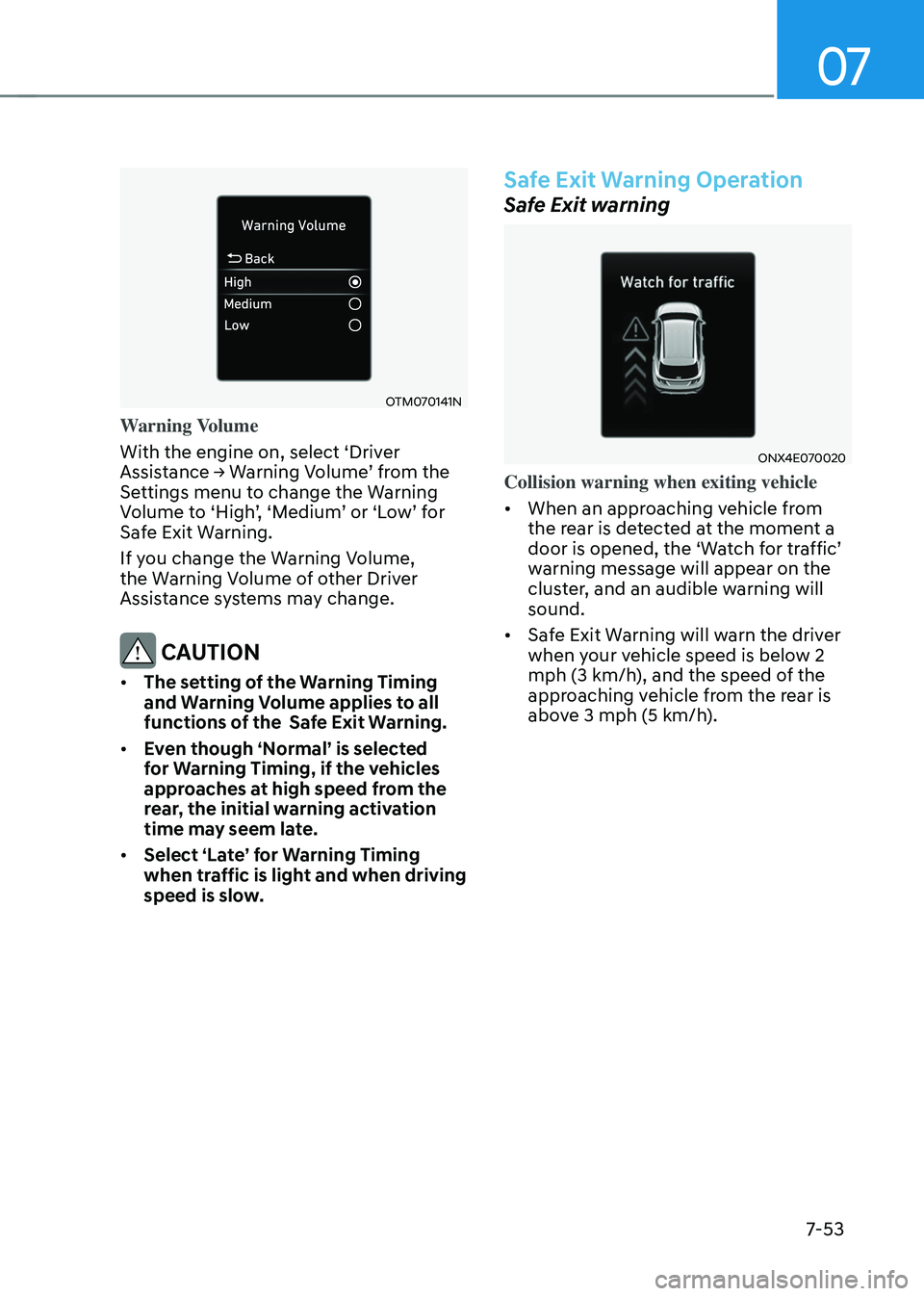
Collision warning when exiting vehicle
• When an approaching vehicle from
the rear is detected at the moment a
door is opened, the ‘Watch for traffic’ warning message will appear on the
cluster, and an audible warning will
sound.
• Safe Exit Warning will warn the driver
when your vehicle speed is below 2
mph (3 km/h), and the speed of the
approaching vehicle from the rear is
above 3 mph (5 km/h).
Page 439 of 638
Driver assistance system
7-76
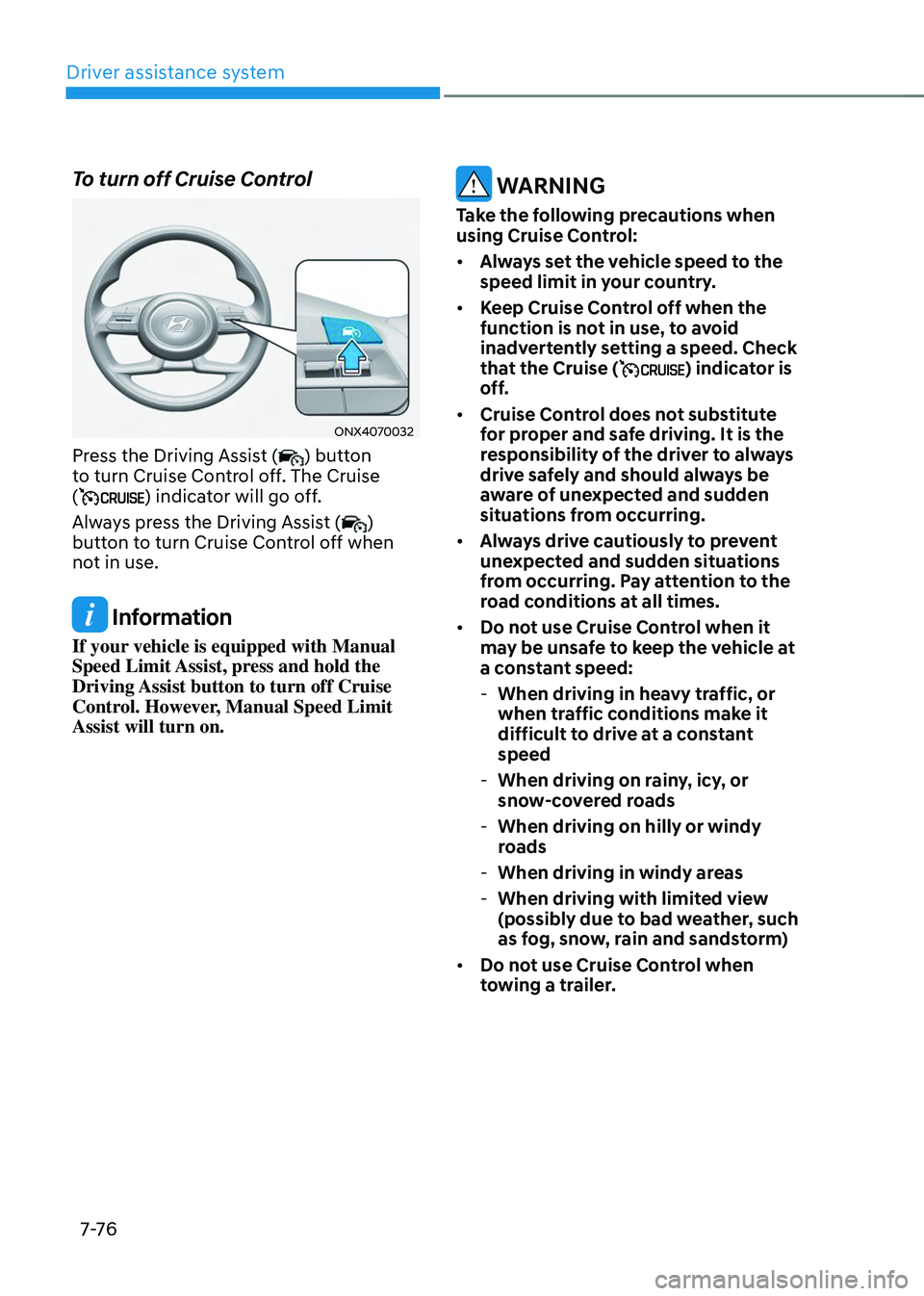
To turn off Cruise Control
ONX4070032
Press the Driving Assist () button
to turn Cruise Control off. The Cruise
(
) indicator will go off.
Always press the Driving Assist (
)
button to turn Cruise Control off when
not in use.
Information
If your vehicle is equipped with Manual
Speed Limit Assist, press and hold the
Driving Assist button to turn off Cruise
Control. However, Manual Speed Limit
Assist will turn on.
WARNING
Take the following precautions when
using Cruise Control:
• Always set the vehicle speed to the
speed limit in your country.
• Keep Cruise Control off when the
function is not in use, to avoid
inadvertently setting a speed. Check
that the Cruise (
) indicator is
off.
• Cruise Control does not substitute
for proper and safe driving. It is the
responsibility of the driver to always
drive safely and should always be
aware of unexpected and sudden
situations from occurring.
• Always drive cautiously to prevent
unexpected and sudden situations
from occurring. Pay attention to the
road conditions at all times.
• Do not use Cruise Control when it
may be unsafe to keep the vehicle at
a constant speed:
-When driving in heavy traffic, or
when traffic conditions make it
difficult to drive at a constant
speed
-When driving on rainy, icy, or
snow-covered roads
-When driving on hilly or windy
roads
-When driving in windy areas
-When driving with limited view
(possibly due to bad weather, such
as fog, snow, rain and sandstorm)
• Do not use Cruise Control when
towing a trailer.
Page 448 of 638

07
7-85
Smart Cruise Control conditions not
satisfied
OTM070112N
If the Driving Assist button, + switch, - switch or switch is pushed when Smart Cruise Control’s operating conditions are not satisfied, the ‘Smart Cruise Control conditions not met’ will appear on the cluster, and an audible
warning will sound.
In traffic situation
OTM070114L
In traffic, your vehicle will stop if the
vehicle ahead of you stops. Also, if the
vehicle ahead of you starts moving, your
vehicle will start as well. In addition, after
the vehicle has stopped and a certain
time have passed, the ‘Use switch or
pedal to accelerate’ message will appear on the cluster. Depress the accelerator
pedal or push the + switch, - switch or
switch to start driving.
WARNING
While the message is displayed on the
cluster, if there is no vehicle in front or
the vehicle is far away from you, and
the + switch, – switch or
switch is pushed, Smart Cruise Control will
automatically cancel and EPB will be
applied. However, if the accelerator
pedal is depressed, EPB will not be
applied even though the function is
canceled. Always pay attention to the
road condition ahead.
Page 450 of 638
07
7-87
WARNING
Take the following precautions when
using Smart Cruise Control:
• Smart Cruise Control does not
substitute for proper and safe
driving. It is the responsibility of the
driver to always check the speed and
distance to the vehicle ahead.
• Smart Cruise Control may not
recognize unexpected and sudden
situations or complex driving
situations, so always pay attention to
driving conditions and control your
vehicle speed.
• Keep Smart Cruise Control off when
the function is not in use to avoid
inadvertently setting a speed.
• Do not open the door or leave the
vehicle when Smart Cruise Control
is operating, even if the vehicle is
stopped.
• Always be aware of the selected
speed and vehicle distance.
• Keep a safe distance according to
road conditions and vehicle speed.
If the vehicle distance is too close
during high-speed driving, a serious
collision may result.
• When maintaining distance with
the vehicle ahead, if the front
vehicle disappears, Smart Cruise
Control may suddenly accelerate to
the set speed. Always be aware of
unexpected and sudden situations
from occurring.
• Vehicle speed may decrease on an
upward slope and increase on a
downward slope.
• Always be aware of situations such
as when a vehicle cuts in suddenly.
• When you are towing a trailer or
another vehicle, we recommend that
Smart Cruise Control is turned off
due to safety reasons.
• Turn off Smart Cruise Control when
your vehicle is being towed. •
Smart Cruise Control may not
operate normally if interfered by
strong electromagnetic waves.
• Smart Cruise Control may not
detect an obstacle in front and lead
to a collision. Always look ahead
cautiously to prevent unexpected
and sudden situations from
occurring.
• Vehicles moving in front of you with
a frequent lane change may cause
a delay in Smart Cruise Control
reaction or may cause Smart Cruise
Control to react to a vehicle actually
in an adjacent lane. Always drive
cautiously to prevent unexpected
and sudden situations from
occurring.
• Always be aware of the surroundings
and drive safely, even though a
warning message does not appear or
an audible warning does not sound.
• If any other system’s warning
message is displayed or warning
sound is generated, Smart Cruise
Control warning message may not
be displayed and warning sound may
not be generated.
• You may not hear the warning sound
of Forward Collision-Avoidance
Assist if the surrounding is noisy.
• The vehicle manufacturer is not
responsible for any traffic violation
or accidents caused by the driver.
• Always set the vehicle speed to the
speed limit in your country.
Information
• Smart Cruise Control may not operate
for 15 seconds after the vehicle is
started or the front view camera or
front radar is initialized.
• You may hear a sound when the brake
is controlled by Smart Cruise Control.
Page 457 of 638
Driver assistance system7-94
NAVIGATION-BASED SMART CRUISE CONTROL (NSCC)
(IF EQUIPPED)
Navigation-based Smart Cruise Control
will help drive at a safe speed according
to the road conditions when driving on
highways (or motorways) by using road
information from the navigation system
while Smart Cruise Control is operating.
Information
• Navigation-based Smart Cruise Control
is available only on controlled access
road of certain highways.
ÃControlled access road indicates
roads with limited entrances and
exits that allow uninterrupted high
speed traffic flow. Only passenger
cars and motorcycles are allowed on
controlled access roads.
• Additional highways may be expanded
by future navigation updates.
Information
Navigation-based Smart Cruise Control
operates on main roads of highways (or
motorways), and does not operate on
interchanges or junctions.
Highway Curve Zone Auto Slowdown
If vehicle speed is high, Highway Curve
Zone Auto Slowdown function will
temporarily decelerate your vehicle
or limit acceleration to help you drive
safely on a curve based on the curve
information from the navigation.
Highway Set Speed Auto Change
Highway Set Speed Auto Change
function automatically changes Smart
Cruise Control set speed based on
the speed limit information from the
navigation.
Navigation-based Smart Cruise
Control Settings
Setting features
OTM070192N
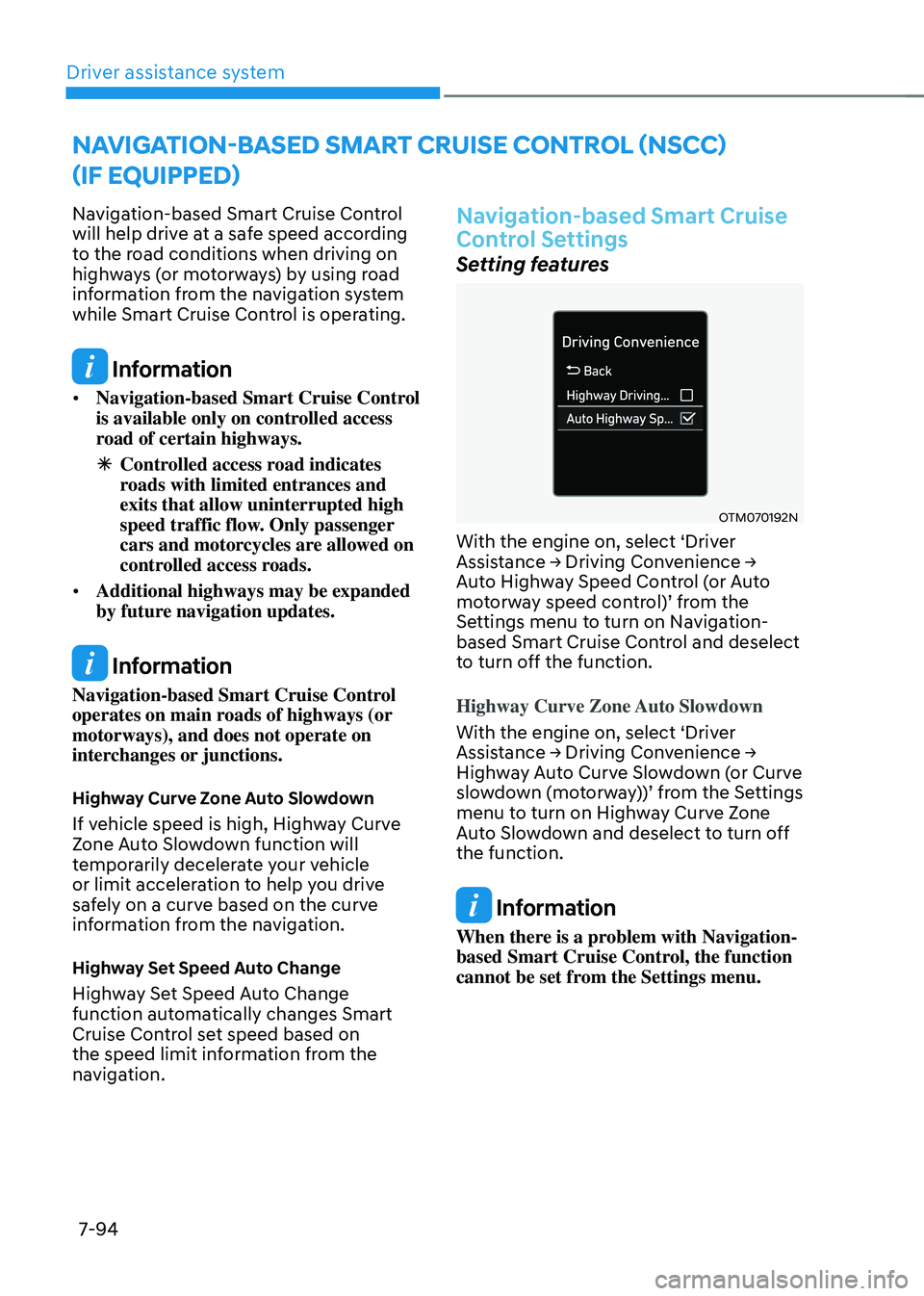
With the engine on, select ‘Driver Assistance → Driving Convenience → Auto Highway Speed Control (or Auto motorway speed control)’ from the Settings menu to turn on Navigation-
based Smart Cruise Control and deselect
to turn off the function.
Highway Curve Zone Auto Slowdown
With the engine on, select ‘Driver
Assistance → Driving Convenience → Highway Auto Curve Slowdown (or Curve slowdown (motorway))’ from the Settings menu to turn on Highway Curve Zone
Auto Slowdown and deselect to turn off
the function.
Information
When there is a problem with Navigation-
based Smart Cruise Control, the function
cannot be set from the Settings menu.