settings HYUNDAI TUCSON 2023 Repair Manual
[x] Cancel search | Manufacturer: HYUNDAI, Model Year: 2023, Model line: TUCSON, Model: HYUNDAI TUCSON 2023Pages: 638, PDF Size: 26.51 MB
Page 416 of 638
07
7-53
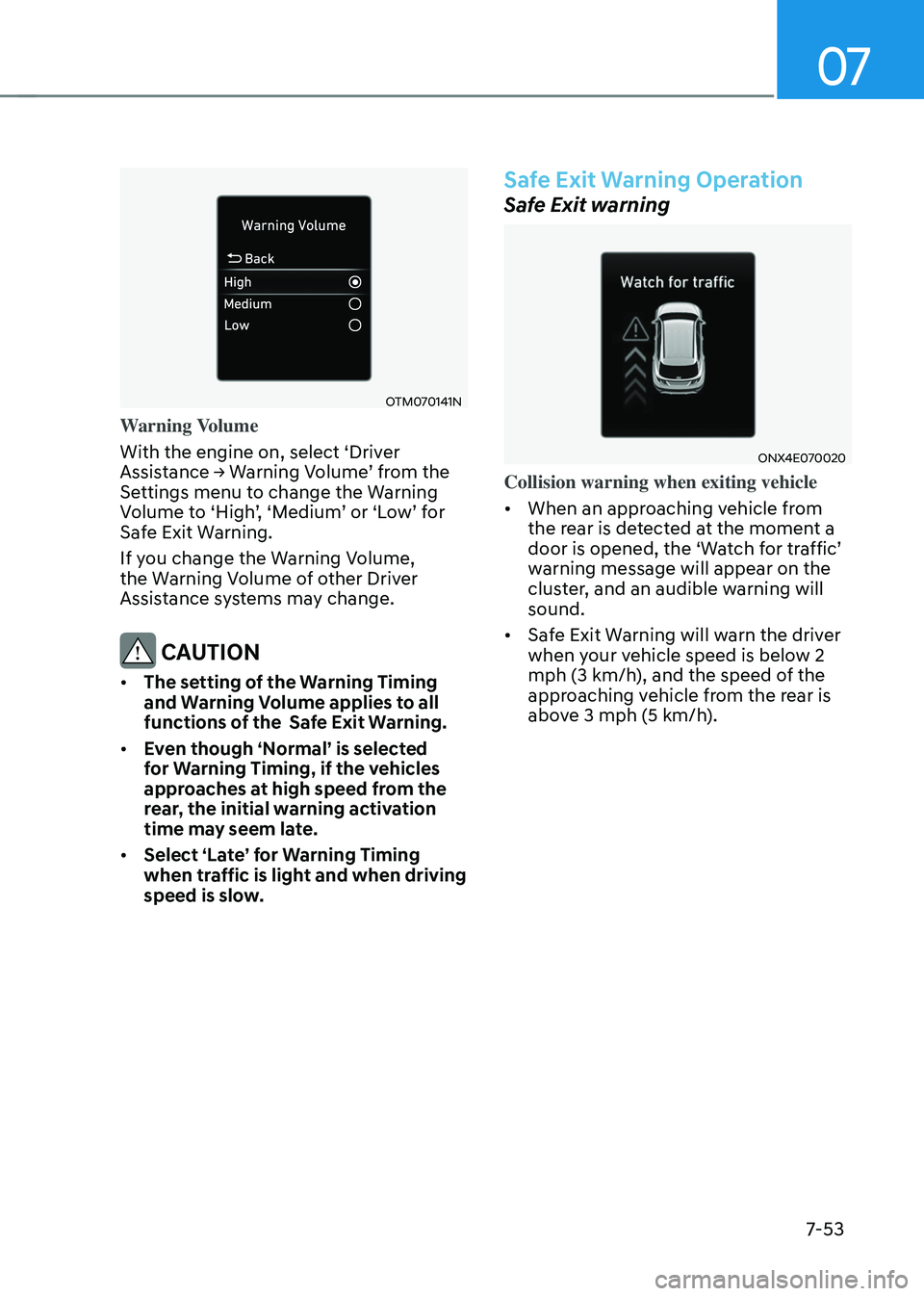
OTM070141N
Warning Volume
With the engine on, select ‘Driver
Assistance → Warning Volume’ from the Settings menu to change the Warning Volume to ‘High’, ‘Medium’ or ‘Low’ for Safe Exit Warning.
If you change the Warning Volume,
the Warning Volume of other Driver
Assistance systems may change.
CAUTION
• The setting of the Warning Timing
and Warning Volume applies to all
functions of the Safe Exit Warning.
• Even though ‘Normal’ is selected
for Warning Timing, if the vehicles
approaches at high speed from the
rear, the initial warning activation
time may seem late.
• Select ‘Late’ for Warning Timing
when traffic is light and when driving
speed is slow.
Safe Exit Warning Operation
Safe Exit warning
ONX4E070020
Collision warning when exiting vehicle
• When an approaching vehicle from
the rear is detected at the moment a
door is opened, the ‘Watch for traffic’ warning message will appear on the
cluster, and an audible warning will
sound.
• Safe Exit Warning will warn the driver
when your vehicle speed is below 2
mph (3 km/h), and the speed of the
approaching vehicle from the rear is
above 3 mph (5 km/h).
Page 417 of 638
Driver assistance system
7-54
WARNING
Take the following precautions when
using Safe Exit Warning:
• For your safety, change the Settings
after parking the vehicle at a safe
location.
• If any other function’s warning
message is displayed or audible
warning is generated, Safe Exit
Warning's warning message may not
be displayed and audible warning
may not be generated.
• You may not hear the warning
sound of Safe Exit Warning if the
surrounding is noisy.
• Safe Exit Warning does not operate
in all situations or cannot prevent all
collisions.
• Safe Exit Warning may warn the
driver late or may not warn the driver
depending on the road and driving
conditions. Always check vehicle
surroundings. •
The driver and passengers are
responsible for accidents that occurs
while exiting the vehicle. Always
check the surroundings before you
exit the vehicle.
• Never deliberately operate Safe
Exit Warning. Doing so may lead to
serious injury or death.
• Safe Exit Warning does not operate
if there is a problem with Blind-Spot
Safety system. The warning message
of Blind-Spot Safety system will
appear when:
-Blind-Spot Safety system sensor or
the sensor surrounding is polluted
or covered
-Blind-Spot Safety system fails to
warn passengers or falsely warn
passengers
Information
After the engine is turned off, Safe Exit
Warning operates approximately for 3
minutes, but turns off immediately if the
doors are locked.
Page 423 of 638
Driver assistance system7-60
INTELLIGENT SPEED LIMIT ASSIST (ISLA) (IF EQUIPPED)
Intelligent Speed Limit Assist uses
information from the detected road sign
and navigation system to inform the
driver of the speed limit and additional
information of the current road. Also,
Intelligent Speed Limit Assist helps the
driver to maintain within the speed limit
of the road.
CAUTION
Intelligent Speed Limit Assist may not
operate properly if the function is used
in other countries.
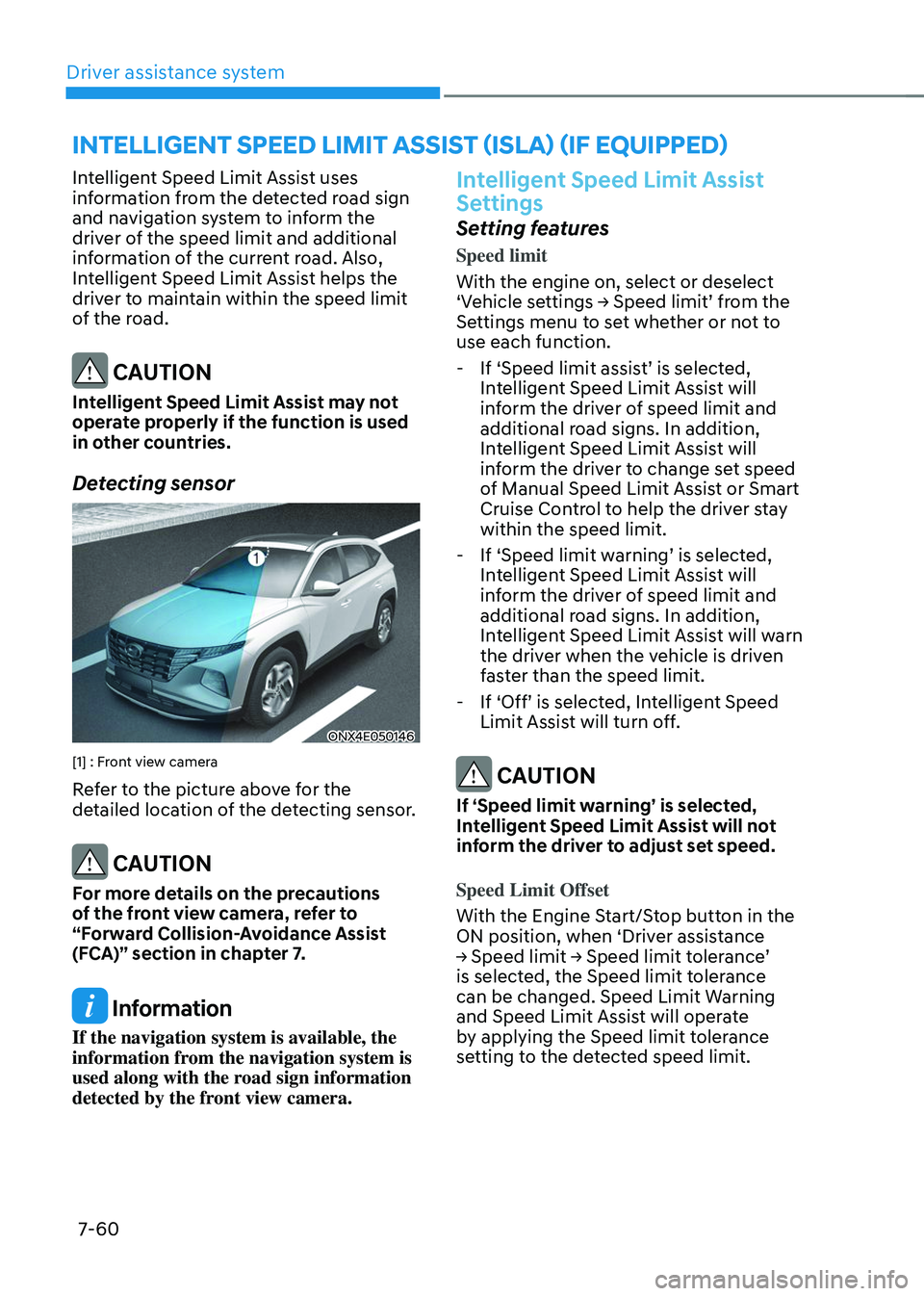
Detecting sensor
ONX4E050146
[1] : Front view camera
Refer to the picture above for the
detailed location of the detecting sensor.
CAUTION
For more details on the precautions
of the front view camera, refer to
“Forward Collision-Avoidance Assist
(FCA)” section in chapter 7.
Information
If the navigation system is available, the
information from the navigation system is
used along with the road sign information
detected by the front view camera.
Intelligent Speed Limit Assist
Settings
Setting features
Speed limit
With the engine on, select or deselect
‘Vehicle settings → Speed limit’ from the Settings menu to set whether or not to
use each function.
-If ‘Speed limit assist’ is selected, Intelligent Speed Limit Assist will
inform the driver of speed limit and
additional road signs. In addition,
Intelligent Speed Limit Assist will
inform the driver to change set speed
of Manual Speed Limit Assist or Smart
Cruise Control to help the driver stay
within the speed limit.
-If ‘Speed limit warning’ is selected, Intelligent Speed Limit Assist will
inform the driver of speed limit and
additional road signs. In addition,
Intelligent Speed Limit Assist will warn
the driver when the vehicle is driven
faster than the speed limit.
-If ‘Off’ is selected, Intelligent Speed Limit Assist will turn off.
CAUTION
If ‘Speed limit warning’ is selected,
Intelligent Speed Limit Assist will not
inform the driver to adjust set speed.
Speed Limit Offset
With the Engine Start/Stop button in the
ON position, when ‘Driver assistance
→ Speed limit → Speed limit tolerance’ is selected, the Speed limit tolerance
can be changed. Speed Limit Warning
and Speed Limit Assist will operate
by applying the Speed limit tolerance
setting to the detected speed limit.
Page 424 of 638
07
7-61
WARNING
• For your safety, change the Settings
after parking the vehicle at a safe
location.
• Speed Limit Assist function operates
based on the Speed limit tolerance
setting added to the speed limit. If
you want to change the set speed
according to the speed limit, adjust
the offset to ‘0’.
• Speed Limit Warning function warns
the driver when driving speed
exceeds the speed at which the set
Speed limit tolerance is added to
speed limit. If you want Speed limit
warning to warn you immediately
when the driving speed exceeds the
speed limit, adjust the offset to ‘0’.
• Navigation-based Smart Cruise
Control (NSCC) function does not
reflect Speed Limit Tolerance set-up.
Intelligent Speed Limit Assist
Operation
Warning and control
Intelligent Speed Limit Assist will warn
and control the vehicle by ‘Displaying
speed limit’, ‘Warning overspeed’ and ‘Changing set speed’.
Information
Intelligent Speed Limit Assist warning and
control are described based on the Offset
adjust to '0'. For details on Offset setting,
refer to the “Intelligent Speed Limit Assist
Settings”.
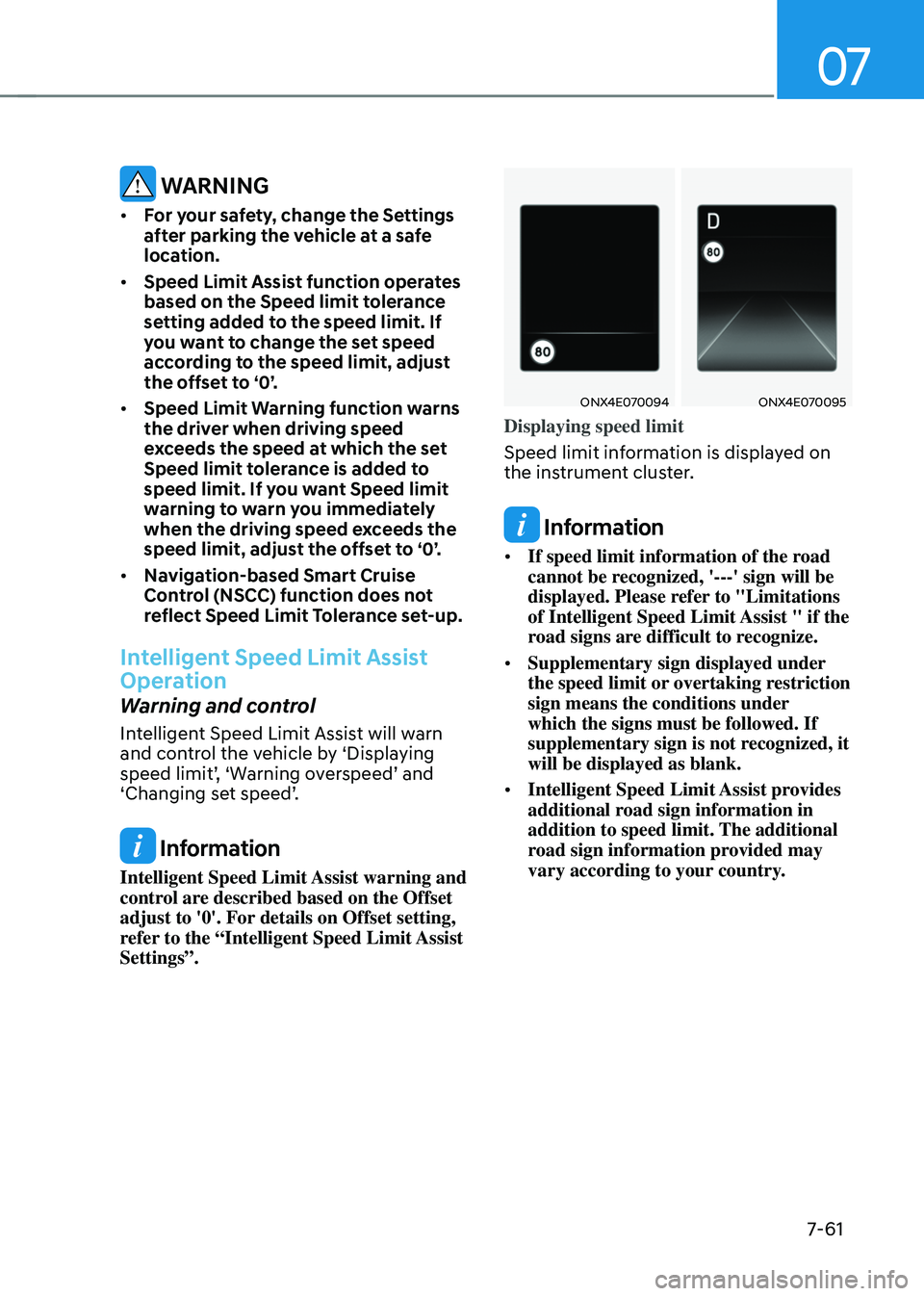
ONX4E070094ONX4E070095
Displaying speed limit
Speed limit information is displayed on
the instrument cluster.
Information
• If speed limit information of the road
cannot be recognized, '---' sign will be
displayed. Please refer to "Limitations
of Intelligent Speed Limit Assist " if the
road signs are difficult to recognize.
• Supplementary sign displayed under
the speed limit or overtaking restriction
sign means the conditions under
which the signs must be followed. If
supplementary sign is not recognized, it
will be displayed as blank.
• Intelligent Speed Limit Assist provides
additional road sign information in
addition to speed limit. The additional
road sign information provided may
vary according to your country.
Page 428 of 638
07
7-65
DRIVER ATTENTION WARNING (DAW)
Basic function
Driver Attention Warning will help
determine the driver's attention level by
analyzing driving pattern, driving time,
etc. while vehicle is being driven. Driver
Attention Warning will recommend a
break when the driver’s attention level falls below a certain level.
Leading Vehicle Departure Alert
function
Leading Vehicle Departure Alert function
will inform the driver when a detected
vehicle in front departs from a stop.
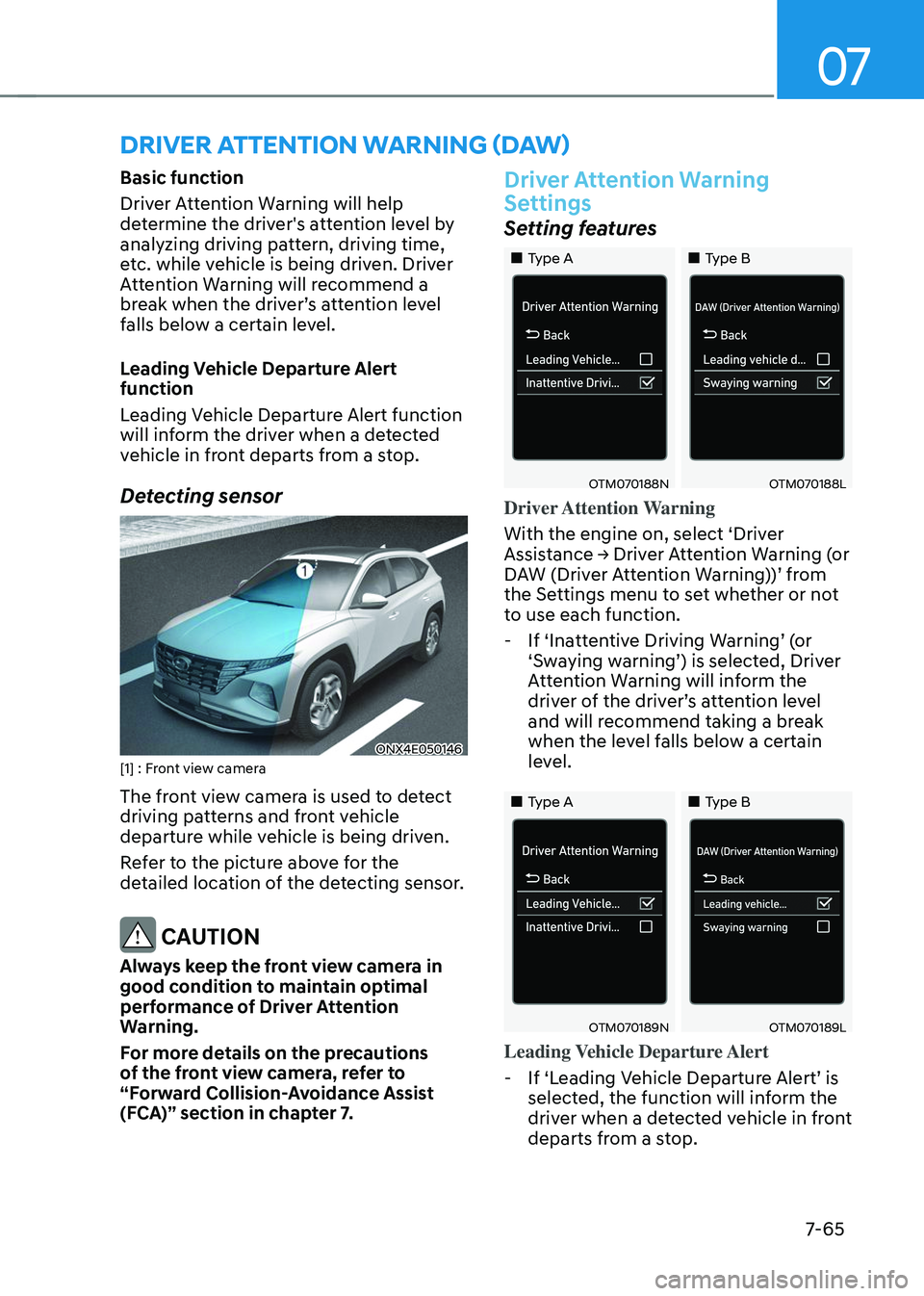
Detecting sensor
ONX4E050146[1] : Front view camera
The front view camera is used to detect
driving patterns and front vehicle
departure while vehicle is being driven.
Refer to the picture above for the
detailed location of the detecting sensor.
CAUTION
Always keep the front view camera in
good condition to maintain optimal
performance of Driver Attention
Warning.
For more details on the precautions
of the front view camera, refer to
“Forward Collision-Avoidance Assist
(FCA)” section in chapter 7.
Driver Attention Warning
Settings
Setting features
„„Type A„„Type B
OTM070188NOTM070188L
Driver Attention Warning
With the engine on, select ‘Driver
Assistance → Driver Attention Warning (or DAW (Driver Attention Warning))’ from the Settings menu to set whether or not
to use each function.
-If ‘Inattentive Driving Warning’ (or ‘Swaying warning’) is selected, Driver Attention Warning will inform the driver of the driver’s attention level and will recommend taking a break
when the level falls below a certain
level.
„„Type A„„Type B
OTM070189NOTM070189L
Leading Vehicle Departure Alert
-If ‘Leading Vehicle Departure Alert’ is selected, the function will inform the
driver when a detected vehicle in front
departs from a stop.
Page 429 of 638
Driver assistance system
7-66
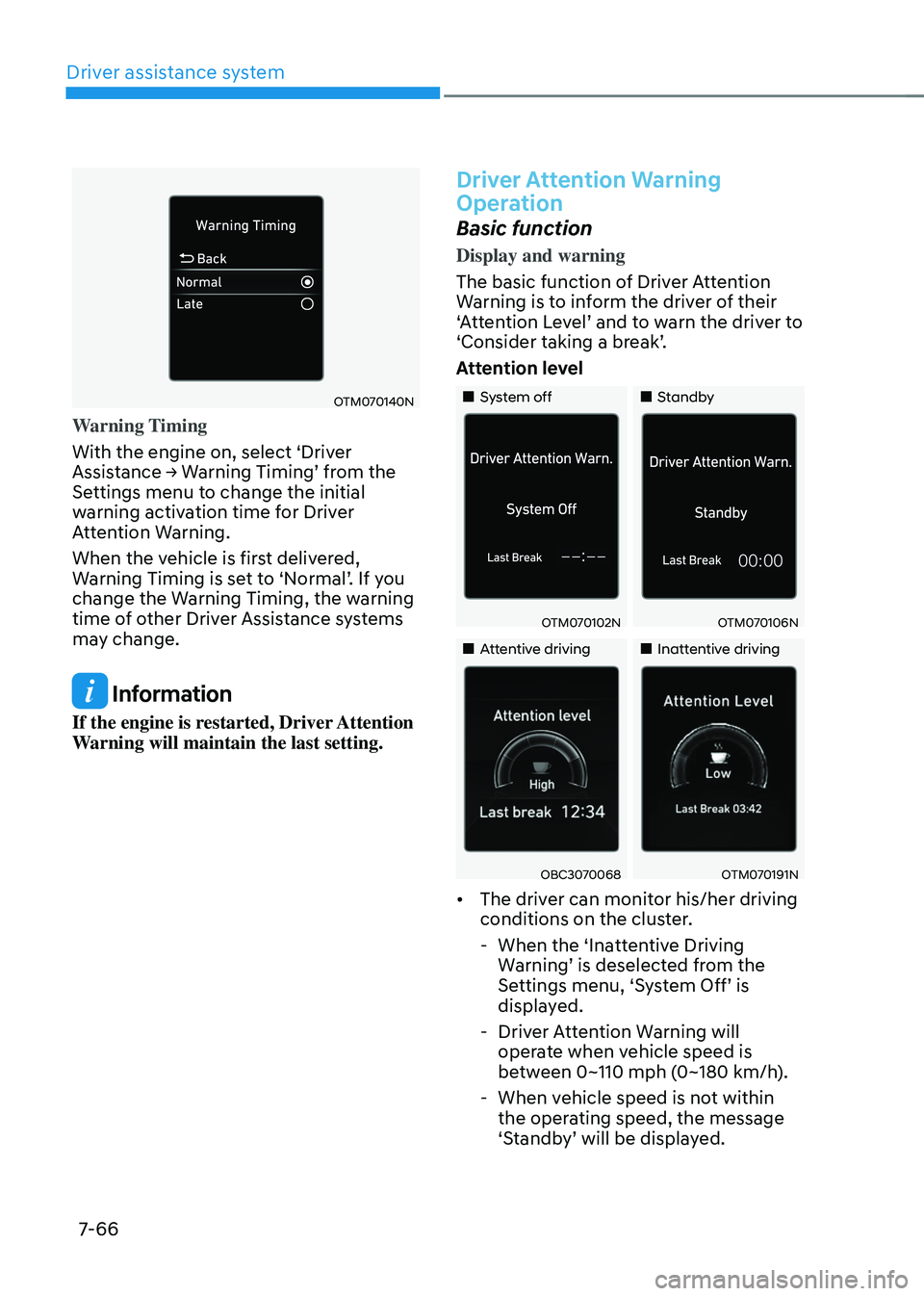
OTM070140N
Warning Timing
With the engine on, select ‘Driver
Assistance → Warning Timing’ from the Settings menu to change the initial
warning activation time for Driver
Attention Warning.
When the vehicle is first delivered,
Warning Timing is set to ‘Normal’. If you change the Warning Timing, the warning
time of other Driver Assistance systems
may change.
Information
If the engine is restarted, Driver Attention
Warning will maintain the last setting.
Driver Attention Warning
Operation
Basic function
Display and warning
The basic function of Driver Attention
Warning is to inform the driver of their
‘Attention Level’ and to warn the driver to ‘Consider taking a break’.
Attention level
„„System off„„Standby
OTM070102NOTM070106N
„„Attentive driving„„Inattentive driving
OBC3070068OTM070191N
• The driver can monitor his/her driving
conditions on the cluster.
-When the ‘Inattentive Driving Warning’ is deselected from the Settings menu, ‘System Off’ is displayed.
-Driver Attention Warning will
operate when vehicle speed is
between 0~110 mph (0~180 km/h).
-When vehicle speed is not within
the operating speed, the message
‘Standby’ will be displayed.
Page 430 of 638
07
7-67
• The driver’s attention lev el is display ed on the scale of 1 to 5. The lower the
level is, the more inattentive the driver
is.
• The level decreases when the driver
does not take a break for a certain
period of time.
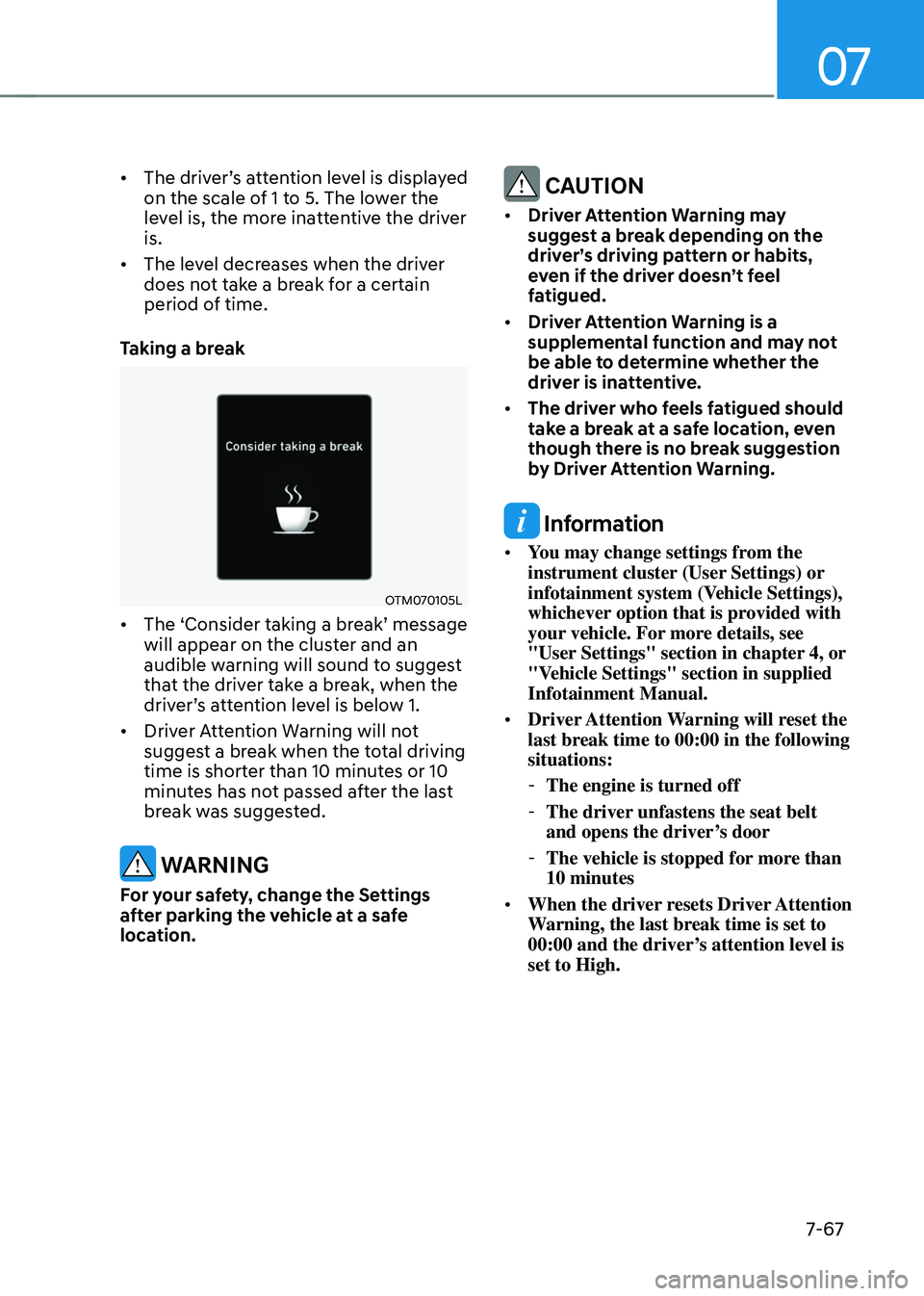
Taking a break
OTM070105L
• The ‘Consider taking a break’ message will appear on the cluster and an
audible warning will sound to suggest
that the driver take a break, when the
driver’s attention level is below 1.
• Driver Attention Warning will not
suggest a break when the total driving
time is shorter than 10 minutes or 10
minutes has not passed after the last
break was suggested.
WARNING
For your safety, change the Settings
after parking the vehicle at a safe
location.
CAUTION
• Driver Attention Warning may
suggest a break depending on the
driver’s driving pattern or habits,
even if the driver doesn’t feel
fatigued.
• Driver Attention Warning is a
supplemental function and may not
be able to determine whether the
driver is inattentive.
• The driver who feels fatigued should
take a break at a safe location, even
though there is no break suggestion
by Driver Attention Warning.
Information
• You may change settings from the
instrument cluster (User Settings) or
infotainment system (Vehicle Settings),
whichever option that is provided with
your vehicle. For more details, see
"User Settings" section in chapter 4, or
"Vehicle Settings" section in supplied
Infotainment Manual.
• Driver Attention Warning will reset the
last break time to 00:00 in the following
situations:
-The engine is turned off
-The driver unfastens the seat belt
and opens the driver’s door
-The vehicle is stopped for more than
10 minutes
• When the driver resets Driver Attention
Warning, the last break time is set to
00:00 and the driver’s attention level is
set to High.
Page 434 of 638
07
7-7 1
BLIND-SPOT VIEW MONITOR (BVM) (IF EQUIPPED)
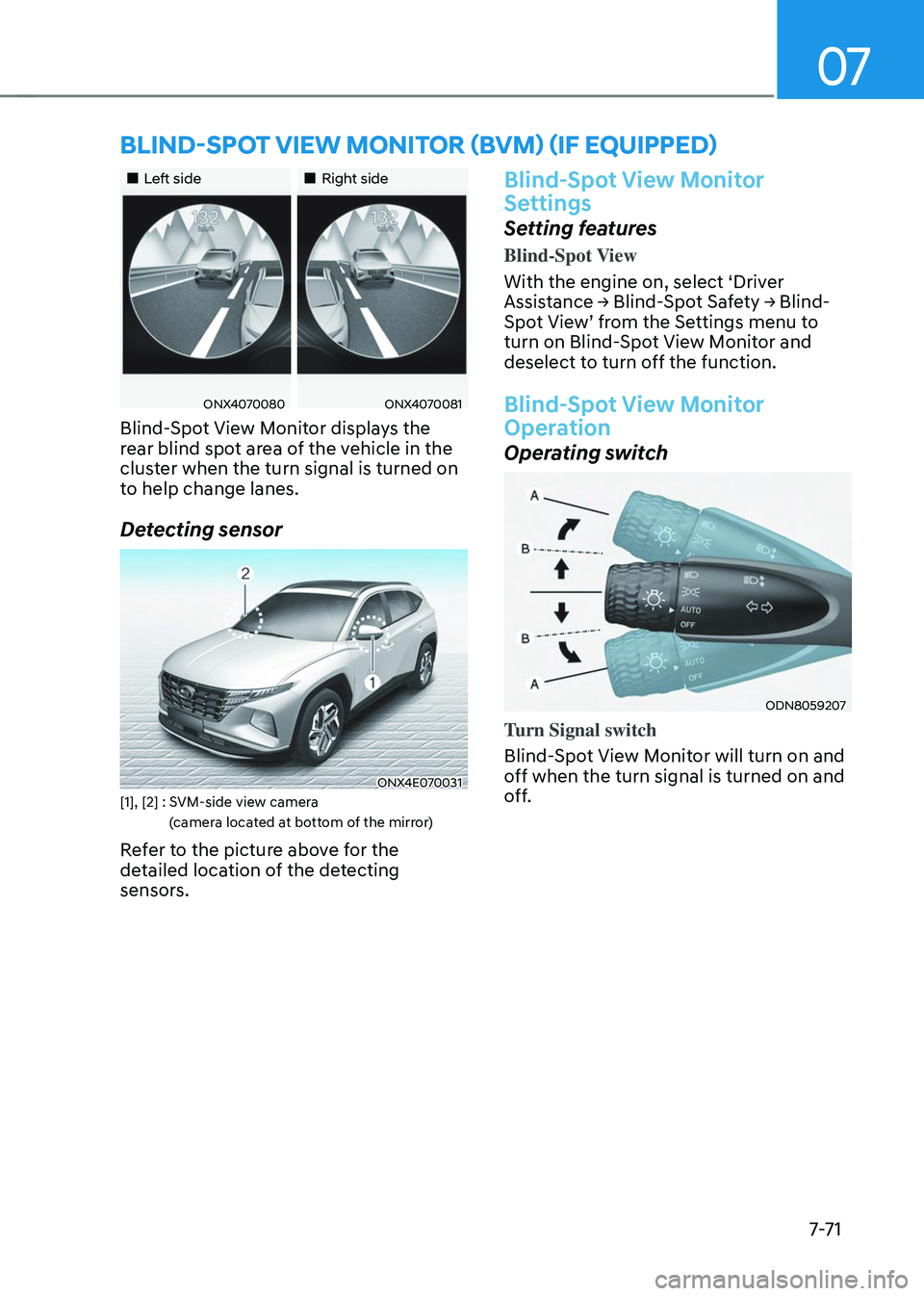
„„Left side„„Right side
ONX4070080ONX4070081
Blind-Spot View Monitor displays the
rear blind spot area of the vehicle in the
cluster when the turn signal is turned on
to help change lanes.
Detecting sensor
ONX4E070031[1], [2] : SVM-side view camera
(camera located at bottom of the mirror)
Refer to the picture above for the
detailed location of the detecting
sensors.
Blind-Spot View Monitor
Settings
Setting features
Blind-Spot View
With the engine on, select ‘Driver
Assistance → Blind-Spot Safety → Blind-Spot View’ from the Settings menu to turn on Blind-Spot View Monitor and
deselect to turn off the function.
Blind-Spot View Monitor
Operation
Operating switch
ODN8059207
Turn Signal switch
Blind-Spot View Monitor will turn on and
off when the turn signal is turned on and
off.
Page 441 of 638
Driver assistance system
7-7 8
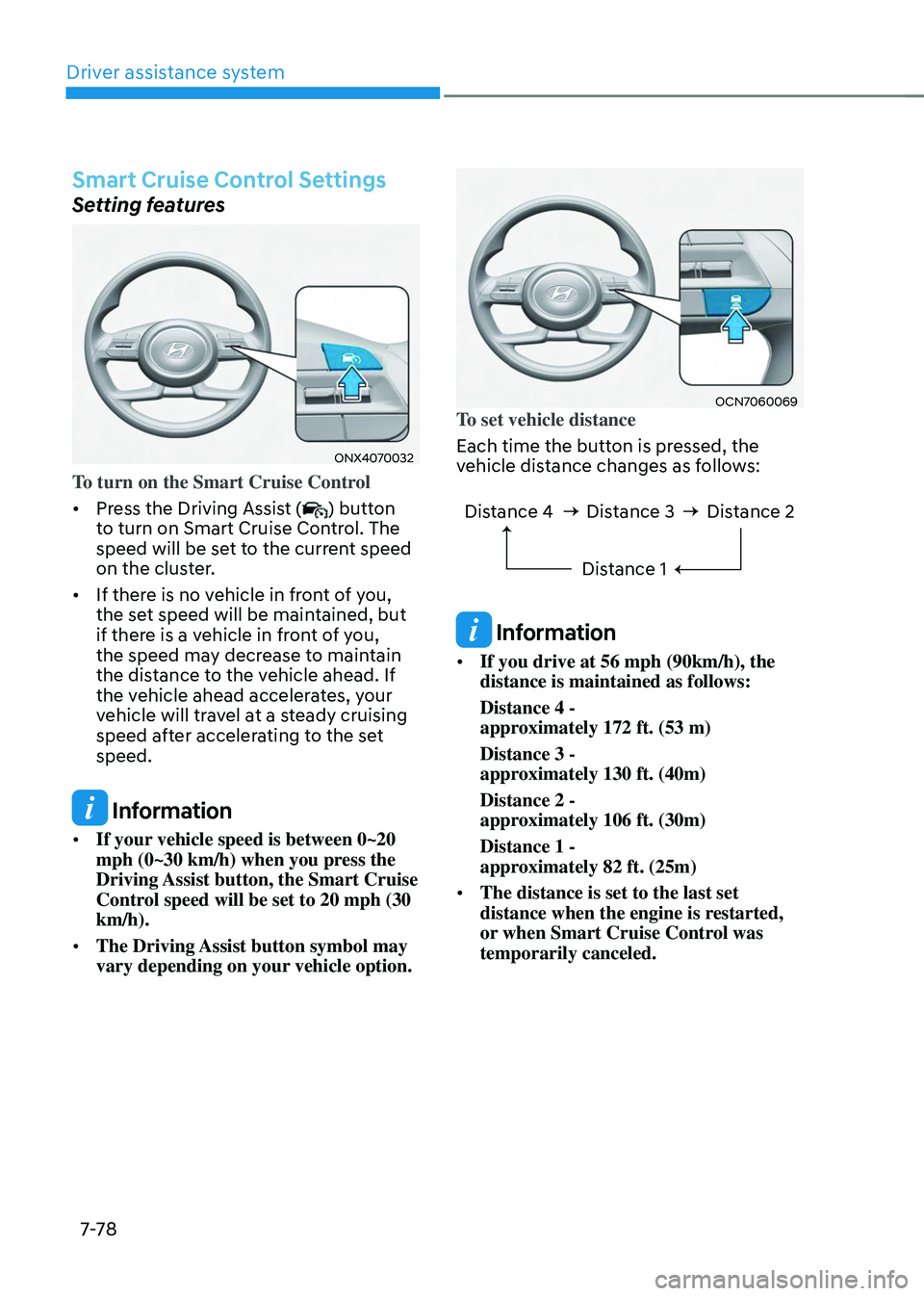
Smart Cruise Control Settings
Setting features
ONX4070032
To turn on the Smart Cruise Control
• Press the Driving Assist (
) button
to turn on Smart Cruise Control. The
speed will be set to the current speed
on the cluster.
• If there is no vehicle in front of you,
the set speed will be maintained, but
if there is a vehicle in front of you,
the speed may decrease to maintain
the distance to the vehicle ahead. If
the vehicle ahead accelerates, your
vehicle will travel at a steady cruising
speed after accelerating to the set
speed.
Information
• If your vehicle speed is between 0~20
mph (0~30 km/h) when you press the
Driving Assist button, the Smart Cruise
Control speed will be set to 20 mph (30
km/h).
• The Driving Assist button symbol may
vary depending on your vehicle option.
OCN7060069To set vehicle distance
Each time the button is pressed, the
vehicle distance changes as follows:
Distance 4 Distance 3
Distance 1Distance 2
Information
• If you drive at 56 mph (90km/h), the
distance is maintained as follows:
Distance 4 -
approximately 172 ft. (53 m)
Distance 3 -
approximately 130 ft. (40m)
Distance 2 -
approximately 106 ft. (30m)
Distance 1 -
approximately 82 ft. (25m)
• The distance is set to the last set
distance when the engine is restarted,
or when Smart Cruise Control was
temporarily canceled.
Page 444 of 638
07
7-81
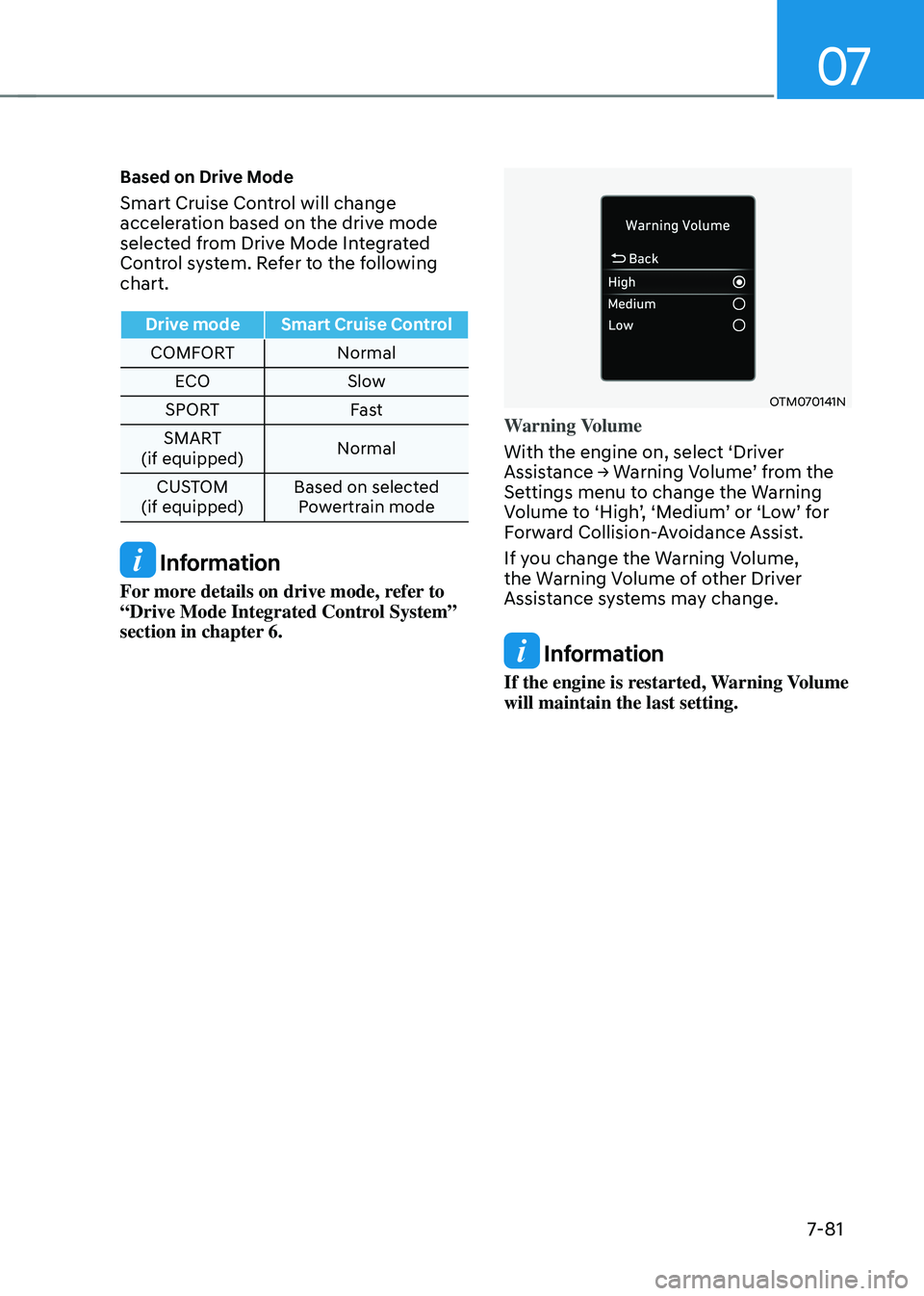
Based on Drive Mode
Smart Cruise Control will change
acceleration based on the drive mode
selected from Drive Mode Integrated
Control system. Refer to the following
chart.
Drive modeSmart Cruise Control
COMFORT Normal
ECO Slow
SPORT Fast
SMART
(if equipped) Normal
CUSTOM
(if equipped) Based on selected
Powertrain mode
Information
For more details on drive mode, refer to
“Drive Mode Integrated Control System”
section in chapter 6.
OTM070141N
Warning Volume
With the engine on, select ‘Driver
Assistance → Warning Volume’ from the Settings menu to change the Warning Volume to ‘High’, ‘Medium’ or ‘Low’ for Forward Collision-Avoidance Assist.
If you change the Warning Volume,
the Warning Volume of other Driver
Assistance systems may change.
Information
If the engine is restarted, Warning Volume
will maintain the last setting.