buttons HYUNDAI TUCSON LIMITED 2017 User Guide
[x] Cancel search | Manufacturer: HYUNDAI, Model Year: 2017, Model line: TUCSON LIMITED, Model: HYUNDAI TUCSON LIMITED 2017Pages: 642, PDF Size: 9.78 MB
Page 162 of 642
3-64
Convenient features of your vehicle
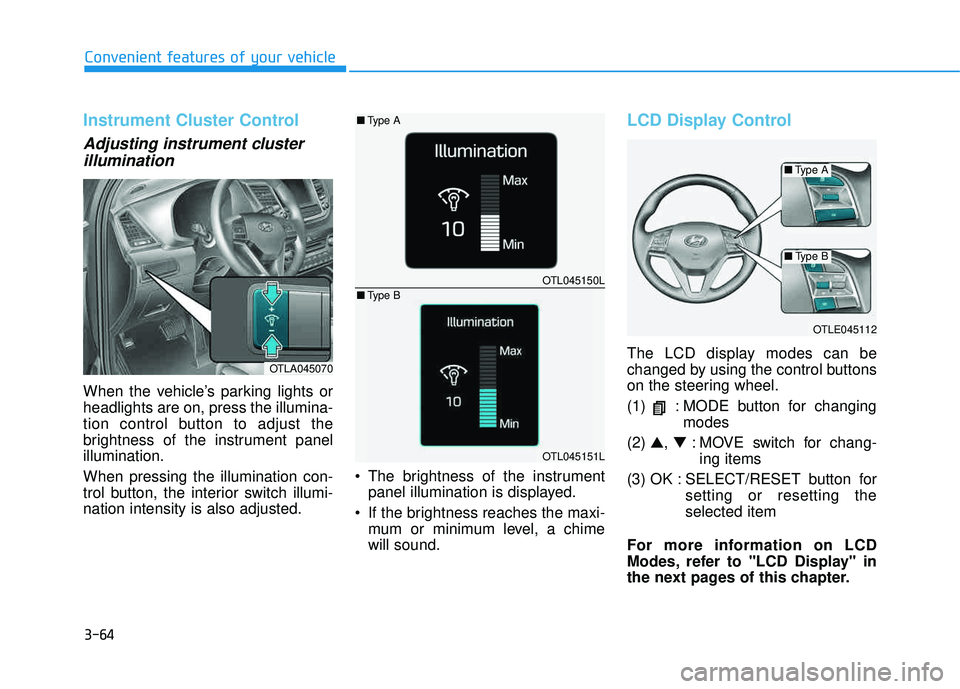
Instrument Cluster Control
Adjusting instrument clusterillumination
When the vehicle’s parking lights or headlights are on, press the illumina-
tion control button to adjust the
brightness of the instrument panelillumination. When pressing the illumination con-
trol button, the interior switch illumi-nation intensity is also adjusted. The brightness of the instrument
panel illumination is displayed.
If the brightness reaches the maxi- mum or minimum level, a chimewill sound.
LCD Display Control
The LCD display modes can be
changed by using the control buttons
on the steering wheel.
(1) : MODE button for changing modes
(2) ▲, ▼ : MOVE switch for chang-
ing items
(3) OK : SELECT/RESET button for setting or resetting the selected item
For more information on LCD
Modes, refer to "LCD Display" in
the next pages of this chapter.OTLA045070
OTLE045112
OTL045150L
OTL045151L
■ Type A
■Type A
■Type B
■ Type B
Page 225 of 642
3-127
Convenient features of your vehicle
3
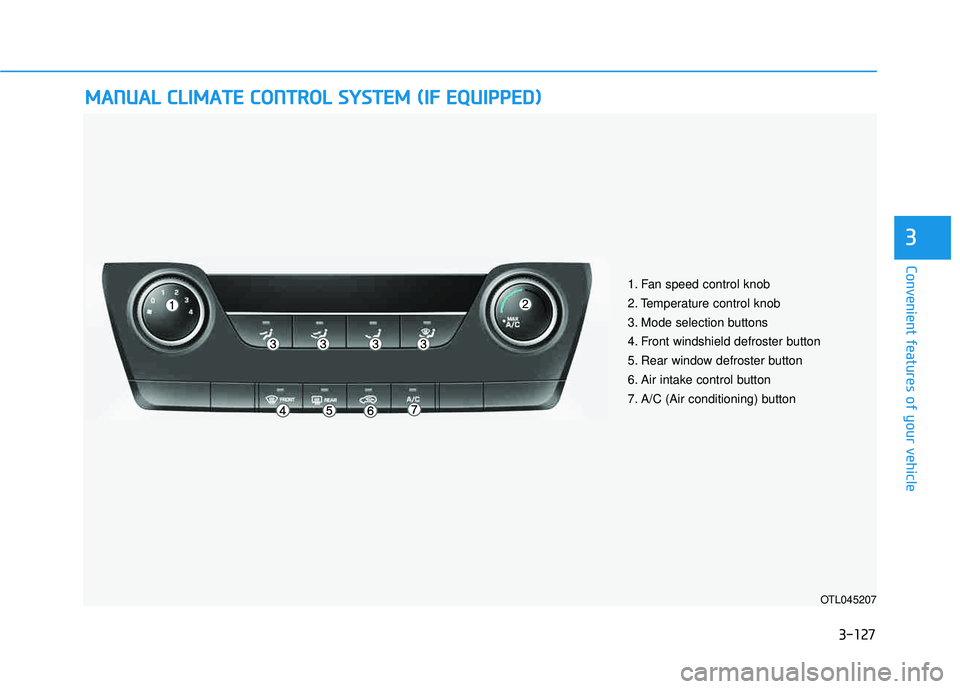
MMAANN UU AALL CC LLIIMM AATTEE CC OO NNTTRR OO LL SS YY SSTT EEMM (( IIFF EE QQ UUIIPP PPEEDD ))
OTL045207
1. Fan speed control knob
2. Temperature control knob
3. Mode selection buttons
4. Front windshield defroster button
5. Rear window defroster button
6. Air intake control button
7. A/C (Air conditioning) button
Page 237 of 642
3-139
Convenient features of your vehicle
3
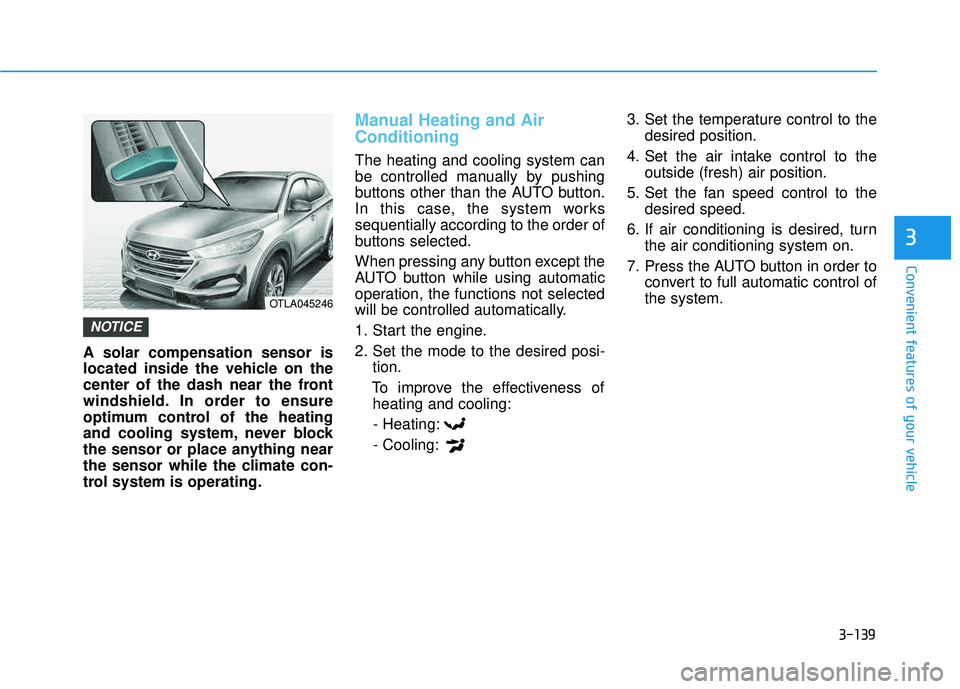
A solar compensation sensor is
located inside the vehicle on the
center of the dash near the front
windshield. In order to ensure
optimum control of the heating
and cooling system, never block
the sensor or place anything near
the sensor while the climate con-
trol system is operating.
Manual Heating and Air Conditioning
The heating and cooling system can
be controlled manually by pushing
buttons other than the AUTO button.
In this case, the system workssequentially according to the order of
buttons selected.
When pressing any button except the
AUTO button while using automatic
operation, the functions not selected
will be controlled automatically.
1. Start the engine.
2. Set the mode to the desired posi-tion.
To improve the effectiveness of heating and cooling:
- Heating:- Cooling: 3. Set the temperature control to the
desired position.
4. Set the air intake control to the outside (fresh) air position.
5. Set the fan speed control to the desired speed.
6. If air conditioning is desired, turn the air conditioning system on.
7. Press the AUTO button in order to convert to full automatic control of the system.
NOTICE
OTLA045246
Page 243 of 642
3-145
Convenient features of your vehicle
3
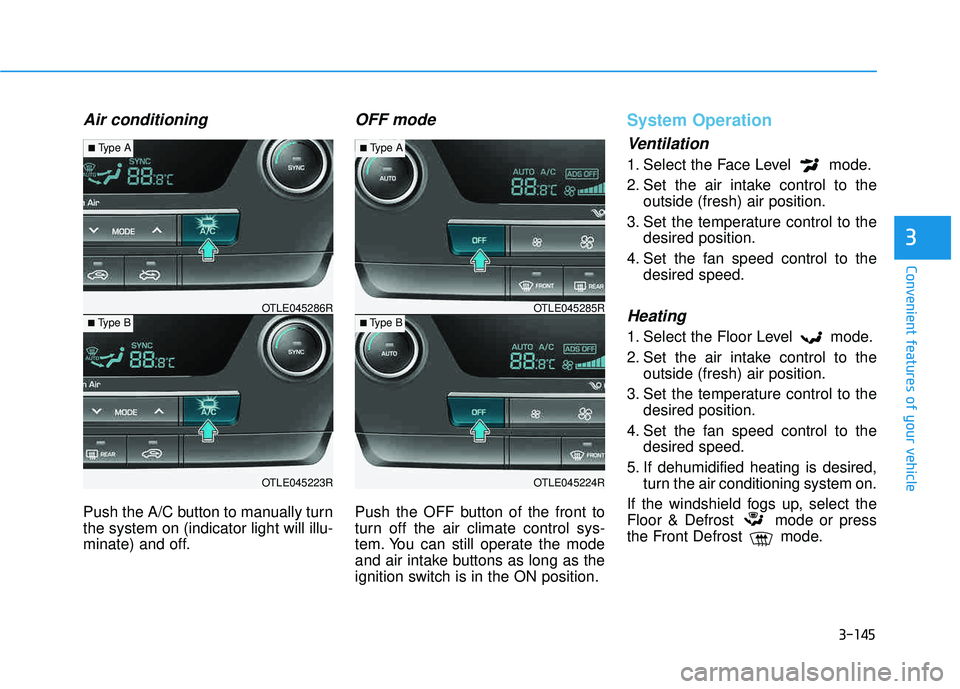
Air conditioning
Push the A/C button to manually turn the system on (indicator light will illu-
minate) and off.
OFF mode
Push the OFF button of the front to
turn off the air climate control sys-
tem. You can still operate the mode
and air intake buttons as long as the
ignition switch is in the ON position.
System Operation
Ventilation
1. Select the Face Level mode.
2. Set the air intake control to theoutside (fresh) air position.
3. Set the temperature control to the desired position.
4. Set the fan speed control to the desired speed.
Heating
1. Select the Floor Level mode.
2. Set the air intake control to theoutside (fresh) air position.
3. Set the temperature control to the desired position.
4. Set the fan speed control to the desired speed.
5. If dehumidified heating is desired, turn the air conditioning system on.
If the windshield fogs up, select the
Floor & Defrost mode or press
the Front Defrost mode.
OTLE045223R
■ Type B OTLE045286R
■
Type A
OTLE045224R
■Type B OTLE045285R
■
Type A
Page 266 of 642
4-3
Multimedia System
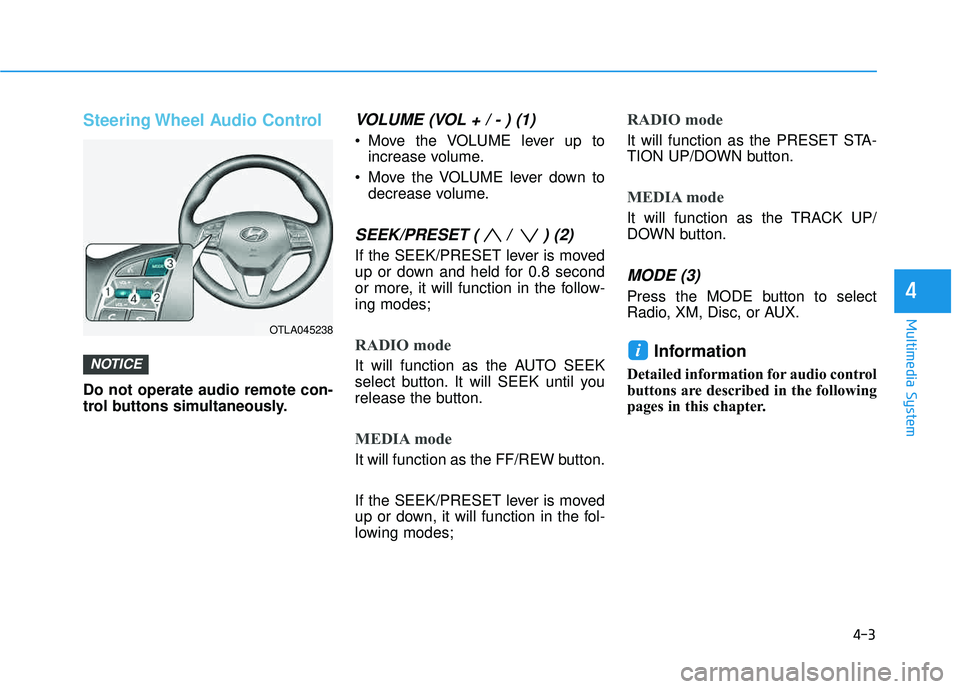
Steering Wheel Audio Control
Do not operate audio remote con-
trol buttons simultaneously.
VOLUME (VOL + / - ) (1)
Move the VOLUME lever up toincrease volume.
Move the VOLUME lever down to decrease volume.
SEEK/PRESET ( / ) (2)
If the SEEK/PRESET lever is moved
up or down and held for 0.8 second
or more, it will function in the follow-ing modes;
RADIO mode
It will function as the AUTO SEEK
select button. It will SEEK until you
release the button.
MEDIA mode
It will function as the FF/REW button.
If the SEEK/PRESET lever is moved
up or down, it will function in the fol-
lowing modes;
RADIO mode
It will function as the PRESET STA-
TION UP/DOWN button.
MEDIA mode
It will function as the TRACK UP/
DOWN button.
MODE (3)
Press the MODE button to select
Radio, XM, Disc, or AUX.
Information
Detailed information for audio control
buttons are described in the following
pages in this chapter.
iNOTICE
4
OTLA045238
Page 285 of 642
4-22
Multimedia System
RRaadd iioo MM ooddee
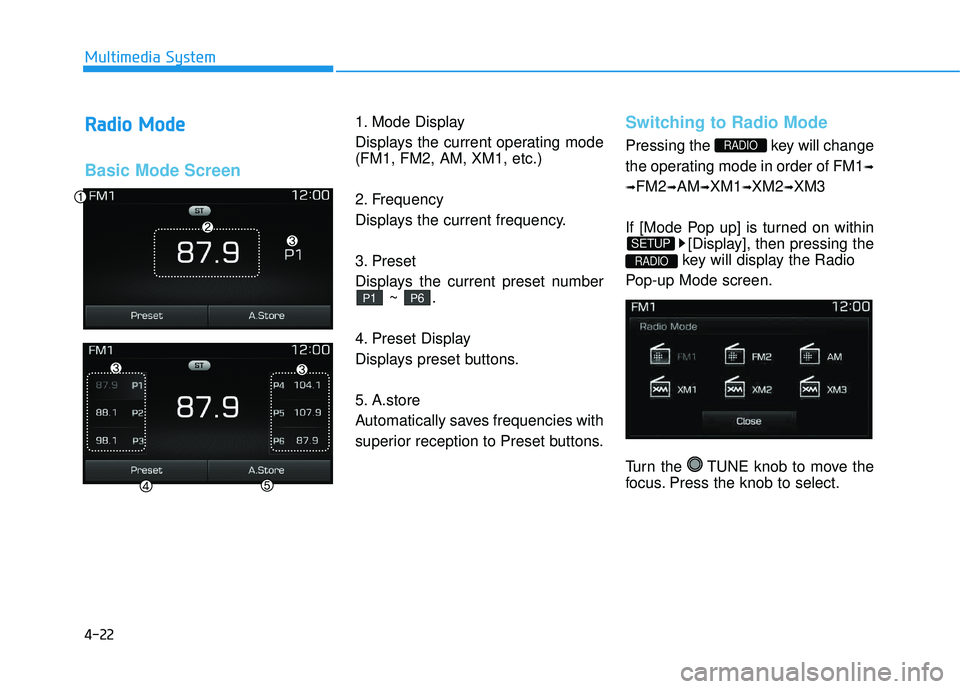
Basic Mode Screen
1. Mode Display
Displays the current operating mode (FM1, FM2, AM, XM1, etc.)
2. Frequency
Displays the current frequency.
3. Preset
Displays the current preset number
~ .
4. Preset Display
Displays preset buttons.
5. A.store
Automatically saves frequencies with
superior reception to Preset buttons.Switching to Radio Mode
Pressing the key will change
the operating mode in order of FM1 ➟
➟ FM2
➟AM ➟XM1 ➟XM2 ➟XM3
If [Mode Pop up] is turned on within [Display], then pressing the
key will display the Radio
Pop-up Mode screen.
Turn the TUNE knob to move the
focus. Press the knob to select.
RADIO
SETUP
RADIO
P6P1
Page 286 of 642
4-23
Multimedia System
4
Searching Radio Frequencies
Using Seek
Press the , key to
play the previous/next frequency.
Using TUNE
Turn the TUNE knob to select the
desired frequency.
Using Radio Mode
Selecting Presets/Saving
Presets
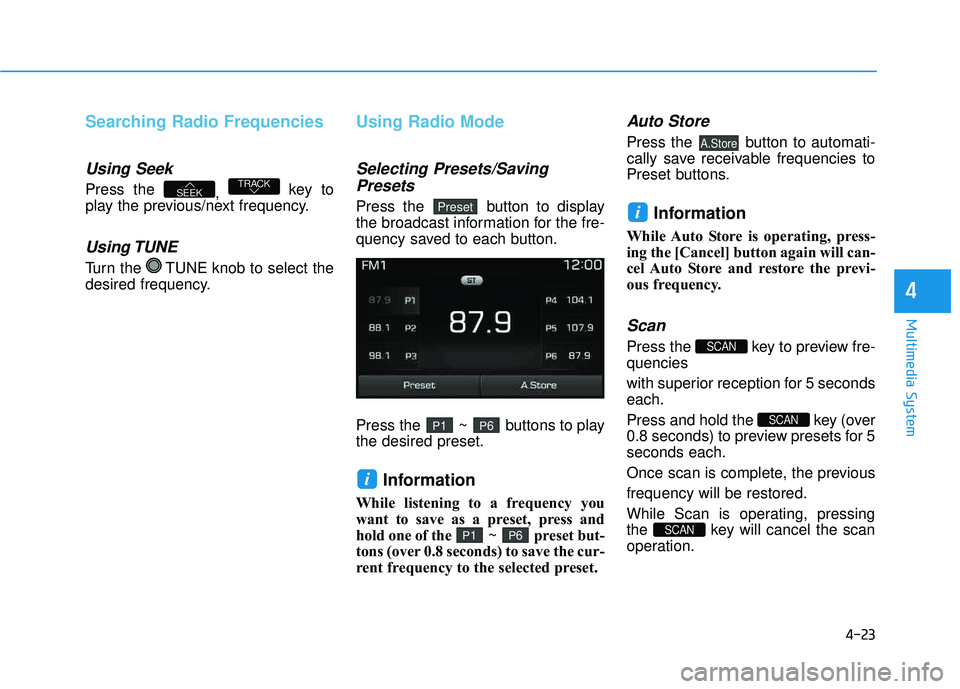
Press the button to display
the broadcast information for the fre-
quency saved to each button.
Press the ~ buttons to play the desired preset.
Information
While listening to a frequency you
want to save as a preset, press and
hold one of the ~ preset but-
tons (over 0.8 seconds) to save the cur-
rent frequency to the selected preset.
Auto Store
Press the button to automati-
cally save receivable frequencies to
Preset buttons.
Information
While Auto Store is operating, press-
ing the [Cancel] button again will can-
cel Auto Store and restore the previ-
ous frequency.
Scan
Press the key to preview fre-quencies
with superior reception for 5 seconds each.
Press and hold the key (over
0.8 seconds) to preview presets for 5seconds each.
Once scan is complete, the previous frequency will be restored.
While Scan is operating, pressing
the key will cancel the scan
operation.
SCAN
SCAN
SCAN
i
A.Store
P6P1
i
P6P1
Preset
TRACKSEEK
Page 291 of 642
4-28
Multimedia System
Selecting Presets/SavingPresets
Press the button to display
the broadcast information for the
channel saved to each button.
Press the ~ buttons to play the desired preset.
Information
While listening to a channel you want
to save as a preset, press and hold one
of the ~ preset buttons to
save the current channel to the select-
ed preset
MM eedd iiaa MM ooddee
Pressing the key will change
the operating mode in order of CD
➟
USB(iPod®) ➟ AUX ➟ My Music ➟BT
Audio.
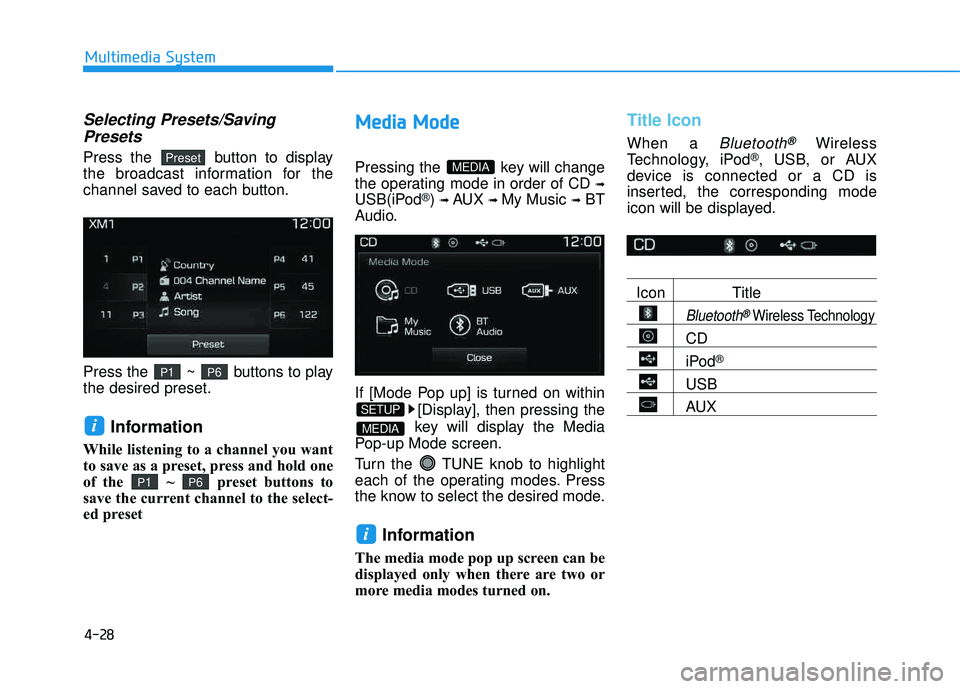
If [Mode Pop up] is turned on within
[Display], then pressing the
key will display the Media
Pop-up Mode screen.
Turn the TUNE knob to highlight
each of the operating modes. Press
the know to select the desired mode.
Information
The media mode pop up screen can be
displayed only when there are two or
more media modes turned on.
Title Icon
When a Bluetooth®Wireless
Technology, iPod®, USB, or AUX
device is connected or a CD is
inserted, the corresponding mode
icon will be displayed.
Icon Title
Bluetooth®Wireless Technology
CD
iPod®
USB
AUX
i
MEDIA
SETUP
MEDIA
P6P1
i
P6P1
Preset
Page 305 of 642
4-42
Multimedia System
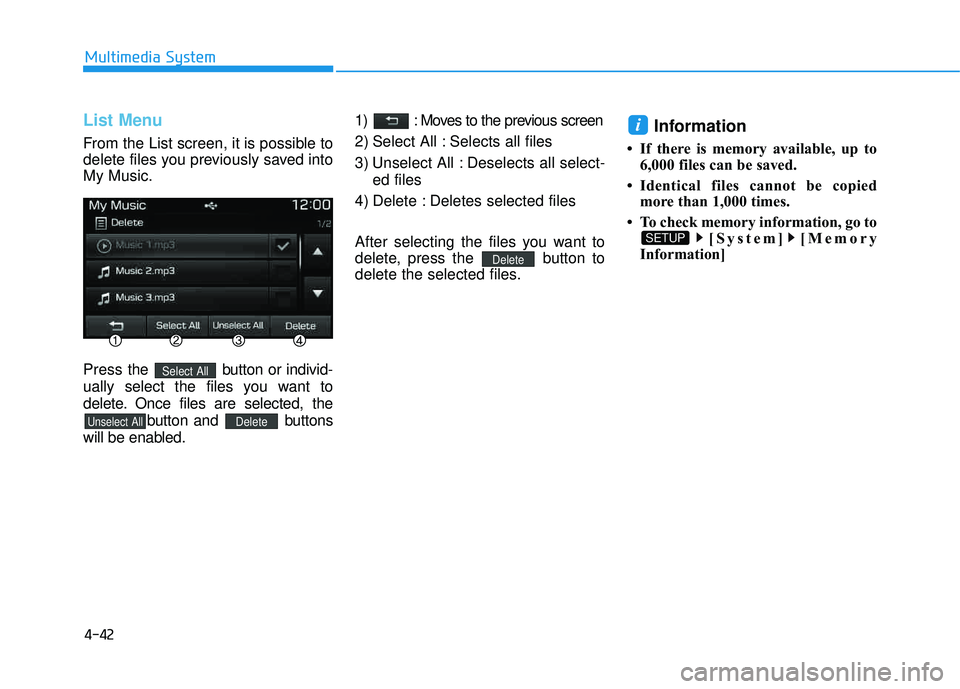
List Menu
From the List screen, it is possible to
delete files you previously saved intoMy Music. Press the button or individ-
ually select the files you want to
delete. Once files are selected, the
button and buttons
will be enabled. 1) : Moves to the previous screen
2) Select All : Selects all files
3) Unselect All : Deselects all select-
ed files
4) Delete : Deletes selected files
After selecting the files you want to
delete, press the button to
delete the selected files.
Information
If there is memory available, up to 6,000 files can be saved.
Identical files cannot be copied more than 1,000 times.
To check memory information, go to [System] [Memory
Information]
SETUP
i
Delete
DeleteUnselect All
Select All
Page 319 of 642
4-56
Multimedia System
Information- Before down-
loading contacts
Only contacts within connected phones can be downloaded. Also
check to see that your mobile phone
supports the download feature.
To learn more about whether your mobile phone supports contacts
downloads, refer to your mobile
phone user’s manual.
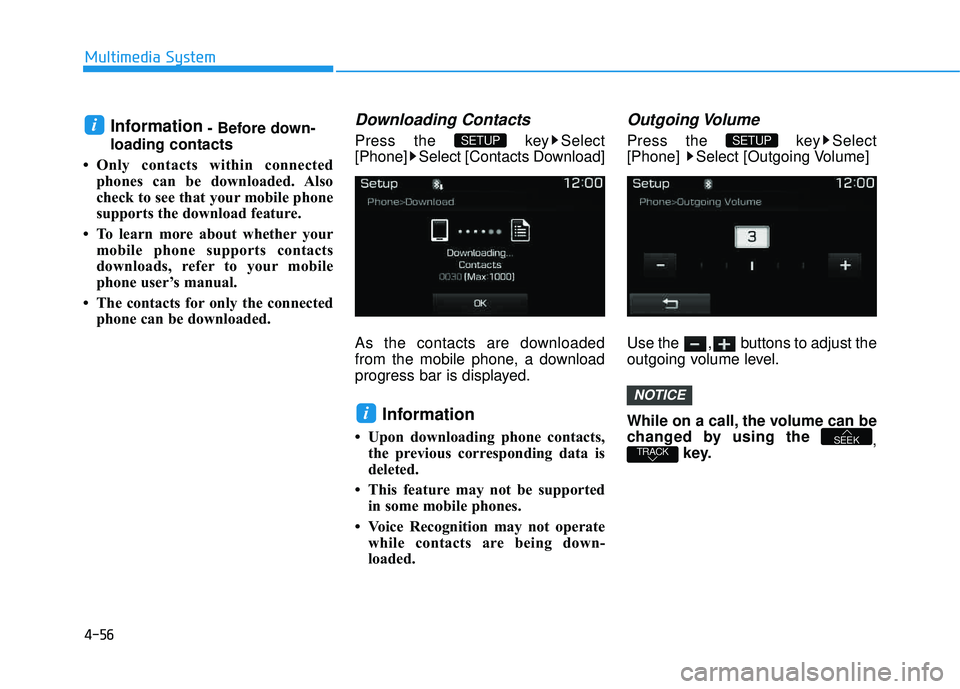
The contacts for only the connected phone can be downloaded.Downloading Contacts
Press the key Select
[Phone] Select [Contacts Download]
As the contacts are downloaded
from the mobile phone, a download
progress bar is displayed.
Information
Upon downloading phone contacts, the previous corresponding data is
deleted.
This feature may not be supported in some mobile phones.
Voice Recognition may not operate while contacts are being down-
loaded.
Outgoing Volume
Press the key Select
[Phone] Select [Outgoing Volume]
Use the , buttons to adjust the
outgoing volume level.
While on a call, the volume can be
changed by using the ,
key.
TRACKSEEK
NOTICE
SETUP
i
SETUP i