ECO mode HYUNDAI VERACRUZ 2009 Owner's Manual
[x] Cancel search | Manufacturer: HYUNDAI, Model Year: 2009, Model line: VERACRUZ, Model: HYUNDAI VERACRUZ 2009Pages: 425, PDF Size: 7.96 MB
Page 217 of 425
Features of your vehicle136 4
CAUTION - Using USB
device
To use an external USB device,
make sure the device is not
mounted when starting up the
vehicle and mount the device
after starting up.
If you start the vehicle when the
USB device is mounted, it may
damage the USB device. (USB is
not ESA)
If the vehicle is started up or
turned off while the external USB
device is connected, the external
USB device may not work.
It may not play inauthentic MP3 or
WMA files.
1) It can only play MP3 files with
the compression rate between
8Kbps~320Kbps.
2) It can only play WMA music
files with the compression rate
between 8Kbps~320Kbps.
Take cautions for static electricity
when mounting or dismounting
the external USB device.
An encoded MP3 PLAYER is not
recognizable.
(Continued)
(Continued)
Depending on the condition of
the external USB device, the con-
nected external USB device can
be unrecognizable.
When the formatted byte/sector
setting of External USB devices is
not either 512BYTE or 2048BYTE,
then the device will not be recog-
nized.
Use only a USB device formatted
to FAT 12/16/32.
USB devices without USB IF
authentication may not be recog-
nizable.
Make sure the USB connection
terminal does not come in contact
with a human body or any object.
If you repeat mounting or dis-
mounting USB device in a short
period of time, it may break the
device.
You might hear a strange noise
when mounting or dismounting a
USB device.
(Continued)
(Continued)
If you dismount the external USB
device during playback in USB
mode, the external USB device can
be damaged or malfunction.
Therefore, mount the external USB
device when the engine is turned
off or in another mode.
Depending on the type and capac-
ity of the external USB device or
the type of the files stored in the
device, there is a difference in the
time taken for recognition of the
device, but this is not an indicator
of trouble and you only have to
wait.
Do not use the USB device for other
purposes than playing music files.
Use of USB accessories such as
recharger or heater using USB I/F
may lower performance or cause
trouble.
If you use devices such as a USB
hub you purchased separately,
the vehicle’s audio system may
not recognize the USB device.
Connect the USB device directly
to the multimedia terminal of the
vehicle.
(Continued)
procarmanuals.com
Page 222 of 425
4141
Features of your vehicle
1. INFO Selection ButtonDisplays the information of the file cur-
rently played in the order of FILE NAME➟ TITLE
➟ ARTIST
➟ ALBUM
➟ FOLD-
ER
➟ TOTAL FILE
➟ NORMAL DISPLAY
➟ FILE NAME
➟... (Displays no informa-
tion if the file has no song information.)
2. TRACK Moving Button ] button for less
than 0.8 second to play from the begin-
ning of the song currently played. Press
the button for less than 0.8 second and
press it again within 1 seconds to move
and play the previous track.
] button for less
than 0.8 second to move to the next-
track.3. RANDOM Playback ButtonPress this button for less than 0.8 second
to activate 'RDM' mode and more than
0.8 second to activate 'ALL RDM' mode.
Only files in a folder are played
back in a random sequence.
All files in a USB memory
are played back in the random
sequence.
4. REPEAT ButtonPress this button for less than 0.8 second
to activate 'RPT' mode and more than
0.8 second to activate 'FLD RPT' mode.
Only a file is repeatedly played
back.
Only files in a folder are
repeatedly played back.5. USB Selection ButtonIf USB is connected, it switches to the
USB mode from the other mode to play
the song files stored in the USB.
If no CD and auxiliary device is not con-
nected, it displays "No Media" for 3 sec-
onds and returns to the previous mode.6. FOLDER Moving Button ], [PTY ] button sub
folder of the current folder and displays
the first song in the folder.
Press TUNE/ENTER knob to move to
the folder displayed. It will play the first
song in the folder.
], [FLDR ] button main
folder and displays the first song in the
folder.
Press TUNE/ENTER knob to move to
the folder displayed.
7. SEARCH Knob & ENTER
ButtonTurn this button clockwise to display the
songs next to the currently played song.
Turn the button counterclockwise to dis-
play the songs before the currently
played song.
Press the button to skip and play the
selected song.8. SCAN Selection ButtonPlays 10 seconds of each song in the
USB device.
Press the button once again to cancel
scanning.9. Fast Search ButtonPush [FF] button for 0.8 second or longer
to initiate high speed sound search of
current song.
Push [REW] button for 0.8 second or
longer to initiate reverse direction high
speed sound search of current song.10. MUTE ButtonPress [MUTE] to stop sound and “Audio
Mute” is displayed on the LCD.
procarmanuals.com
Page 226 of 425
4145
Features of your vehicle
Using an iPod when the exclusive cable is
connected to the multiple terminal inside
the consol on the right hand side of the
driver's seat.
When the iPod is connected, the 'iPod'
icon will be displayed on the top left cor-
ner of the display screen.1. INFO Selection ButtonDisplays the information of the file cur-
rently played in the order of TITLE
➟
ARTIST
➟ ALBUM
➟ NORMAL DISPLAY
➟ TITLE
➟... (Displays no information if
the file has no song information.)
2. TRACK Moving Button ] button for less
than 0.8 second to play from the begin-
ning of the song currently played. Press
the button for less than 0.8 second and
press it again within 1 seconds to move
and play the previous track.
] button for less
than 0.8 second to move to the next
track.
3. RANDOM Playback ButtonPress the button for less than 0.8 second
to activate or deactivate the random play-
back of the songs within the current cat-
egory. Press the button for longer than
0.8 second to randomly play all songs in
the entire album of the iPod.
Press the button once again to cancel
the mode.4. REPEAT ButtonRepeats the song currently played.5. iPod Selection ButtonIf iPod is connected, it switches to the
iPod mode from the CD mode to play the
song files stored in the iPod. If no CD and
auxiliary device is not connected, it dis-
plays "No Media" for 3 seconds and
returns to the previous mode.6. CATEGORY Selection ButtonMoves to the upper category from cur-
rentlyplayed category of the iPod.
To move to the category displayed, press
SEARCH/ENTER Button. You will be able
to search through the lower category of
the selected category.
The order of iPod's category is SONG,
ALBUMS, ARTISTS, GENRES, and iPod.
7. SEARCH Knob & ENTER
ButtonWhen you turn the button clockwise, it
will display the songs(category) next to
the song currently played(category in the
same level).
Also, when you turn the button counter-
clockwise, it will display the songs(cate-
gory) before the song currently played
(category in the same level).
If you want to listen to the song displayed
in the song category, press the button,
then it will skip to the selected song and
play.8. Fast Search Button
longer to initiate high speed sound
search of current song.
longer to initiate reverse direction high
speed sound search of current song.9. MUTE ButtonPress [MUTE] button to stop sound and
“Audio Mute” is displayed on the LCD.
procarmanuals.com
Page 231 of 425
Features of your vehicle150 41. XM Selection ButtonTurns to XM Satellite Radio Mode. XM
mode toggles in order to XM1
➟ XM2
➟
XM3
➟
XM1... when the button is
pressed each time.
2. INFO ButtonDisplays the information of the current
channel in the order of Artist/Song title
➟
Category/Channel name
➟ Current Play
Channel
➟
Artist/Song title
➟
Category/
Channel name... when the button is
pressed each time. If it can not display
the whole text information, rotate the
tune button to see the next page.
3. Automatic Channel Selection
Button ] button for less than
0.8 second to select previous channel.
] button for less than 0.8
second to select next channel.
Seek or Tune to XM channel
0 to display the Radio ID.4. SCAN ButtonPress to hear a brief sampling of all
channels.
To cancel the scan mode, press the but-
ton once again.
5. CATEGORY Search Button Push [FLDR ] button to search previ-
ous category.
] button to search next
category. To listen to the displayed cat-
egory, press the TUNE/ENTER knob. To
scan channel in displayed category,
press the scan button.
To search channel in displayed category,
press seek buttons or turn the tune but-
ton clockwise/counterclockwise.(CATE-
GORY icon will be turned on in Category
mode)6. Manual Channel Selection
KnobWhile listening to XM broadcast, rotate
this control to the right or left to search
other channels while listening to current
channel. (Turn to the right to searchhigh-
er channels and left, lower channels.)7. Preset ButtonPush [1]~[6] buttons less than 0.8 sec-
ond to play the channel saved in each
button. Push Preset button for 0.8 sec-
ond or longer to save current channel to
the respective button with a beep.
8. MUTE ButtonPress [MUTE] button to stop sound and
“Audio Mute” is displayed on the LCD.
procarmanuals.com
Page 233 of 425
![HYUNDAI VERACRUZ 2009 Owners Manual Features of your vehicle152 4In case RSE is loaded DVD disc and con-
nected auxiliary device at RSE unit that
is located the rear seat.1. TRACK UP/DOWN Button ] button for less than
0.8 second to play](/img/35/57924/w960_57924-232.png "HYUNDAI VERACRUZ 2009 Owners Manual Features of your vehicle152 4In case RSE is loaded DVD disc and con-
nected auxiliary device at RSE unit that
is located the rear seat.1. TRACK UP/DOWN Button ] button for less than
0.8 second to play")
Features of your vehicle152 4In case RSE is loaded DVD disc and con-
nected auxiliary device at RSE unit that
is located the rear seat.1. TRACK UP/DOWN Button ] button for less than
0.8 second to play from the beginning
of current song.
] button for less than
0.8 second and press again within 1
seconds to play the previous song.
] button for 0.8 or
longer to initiate reverse direction high
speed sound search of current song.
] button for less than 0.8
second to play the next song.
] button for 0.8 or longer
to initiate high speed sound search of
current song.2. RSE Selection ButtonWhen you press this button, the system
will switch to RSE mode and you will be
able to listen to the source played in the
RSE unit. (If RSE unit has no disc, can
not select)
3. RSE Hold and RSE Power OffIf you press and hold this button for less
than 0.8 second, the LED of the button
will light and RSE unit will be locked. If
you press and hold this button for more
than 0.8 second, RSE unit will be turned
off with a beep and [RSE] will disappear
from LCD.4. Folder Moving Button ], button child folder of
the current folder and displays the first
song in the folder.
] button parent folder
and displays the first song in the folder.
CAUTION - Using RSE
device
When listening to the CD on the
Audio H/UNIT in RSE, the mode can-
not be converted to USB on the
Audio H/UNIT and will be dis-
played on the LCD.
procarmanuals.com
Page 235 of 425
Features of your vehicle154 4
✽
✽
NOTICEThe RSE requires a few seconds of set
up time after the ignition switch is
turned ON or to ACC mode.Your RSE system is already set up and
ready for use, and can be turned on by
pushing the POWER/VOLUMEknob on
the RSE control panel or the POWER
ON/OFFbutton on the remote
controller. The vehicle's ignition must be
turned on or in accessory power mode.
The RSE system can also be turned OFF
by the Audio Unit.
ComponentsYour RSE consists of several compo-
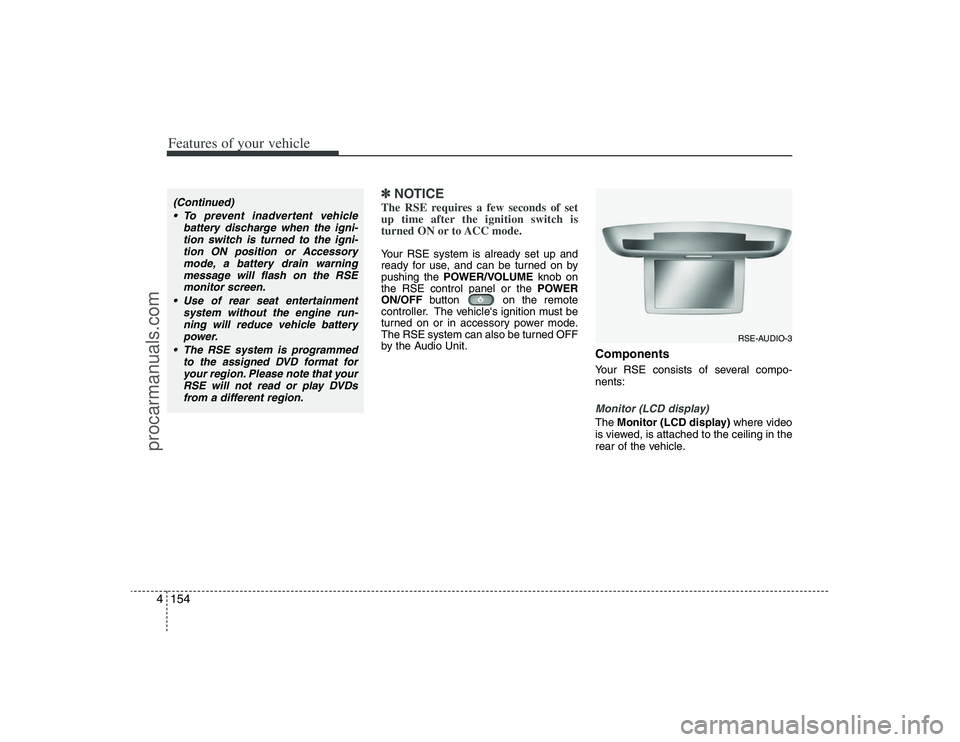
nents:Monitor (LCD display)The Monitor (LCD display)where video
is viewed, is attached to the ceiling in the
rear of the vehicle.
(Continued)
To prevent inadvertent vehicle
battery discharge when the igni-
tion switch is turned to the igni-
tion ON position or Accessory
mode, a battery drain warning
message will flash on the RSE
monitor screen.
Use of rear seat entertainment
system without the engine run-
ning will reduce vehicle battery
power.
The RSE system is programmed
to the assigned DVD format for
your region. Please note that your
RSE will not read or play DVDs
from a different region.
RSE-AUDIO-3
procarmanuals.com
Page 242 of 425
4161
Features of your vehicle
1. ON/OFF and Speaker VolumePress the POWER/VOLUMEknob to
turn the RSE on or off.
Rotate the knob to adjust the speaker
volume. Note that changing the volume
by using the POWER/VOLUMEknob
affects only the vehicle speakers. The
wireless headset volume is not affected.
See the "Headphones" section of this
manual for more information.2. RSE DisplayThis RSE control panel display indicates
the current selected source, mode of
operation in the current disc, and other
information. It will display FRONT to indi-
cate that the selected source is the front
vehicle radio and REAR to indicate that
the RSE player is the current source.
The display will indicate DISC IN when a
disc is in loaded the RSE player.
3. MENU Button DVD can be controlled, and any special
programming or features accessed, by
using the DVD menu. To access the
menu while playing a DVD, press the
MENU button. Press the button a second
time to exit the menu and return to the
DVD program at the point it was being
viewed.
While viewing the menu, press the
NEXTbutton to move the cursor up and
the PREVbutton to move the cursor
down the menu. Press the FF >button
to move the cursor to the right, and the
< REWbutton to move the cursor to the
left.
❇For more details, see the "DVD -
Menu" section of this manual.
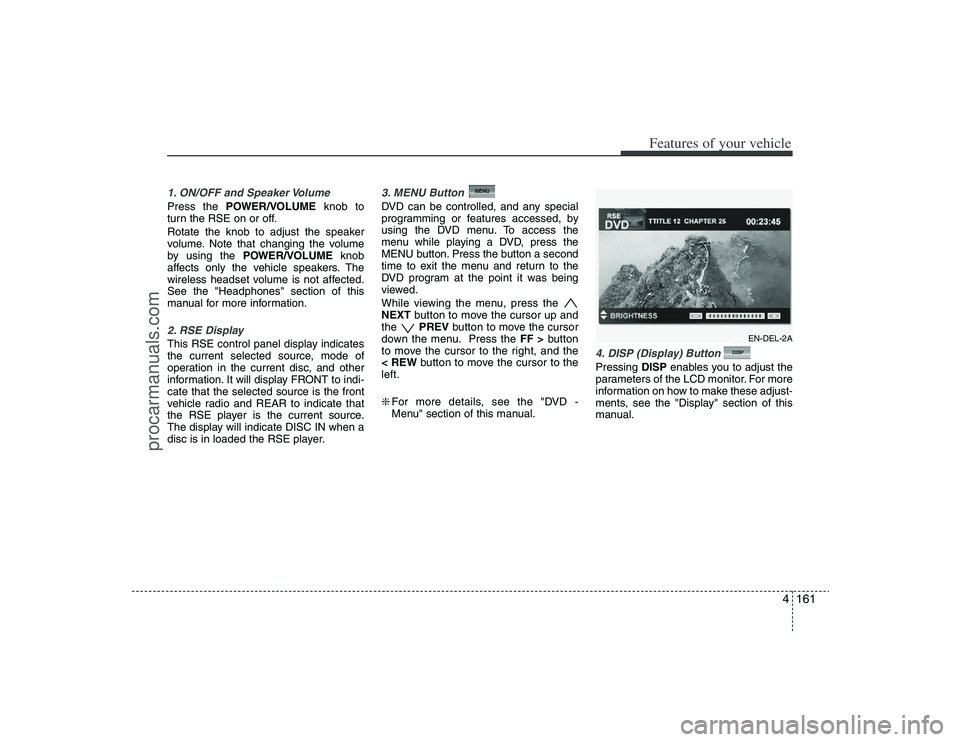
4. DISP (Display) Button Pressing DISPenables you to adjust the
parameters of the LCD monitor. For more
information on how to make these adjust-
ments, see the "Display" section of this
manual.
EN-DEL-2A
procarmanuals.com
Page 243 of 425
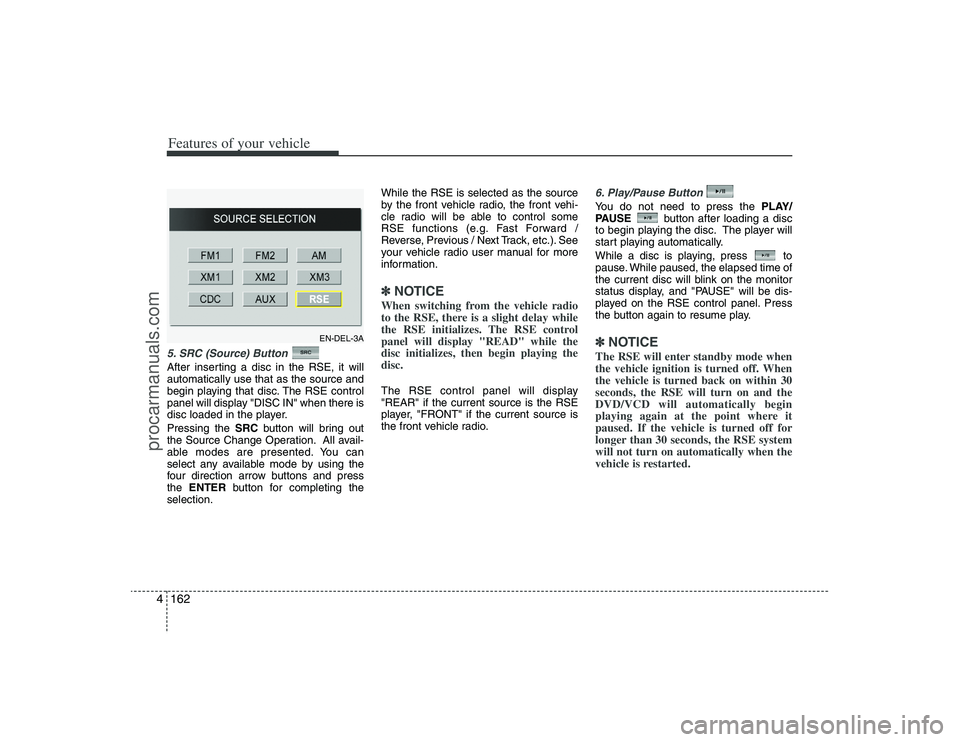
Features of your vehicle162 45. SRC (Source) Button After inserting a disc in the RSE, it will
automatically use that as the source and
begin playing that disc. The RSE control
panel will display "DISC IN" when there is
disc loaded in the player.
Pressing the SRCbutton will bring out
the Source Change Operation. All avail-
able modes are presented. You can
select any available mode by using the
four direction arrow buttons and press
the ENTERbutton for completing the
selection.While the RSE is selected as the source
by the front vehicle radio, the front vehi-
cle radio will be able to control some
RSE functions (e.g. Fast Forward /
Reverse, Previous / Next Track, etc.). See
your vehicle radio user manual for more
information.
✽ ✽
NOTICEWhen switching from the vehicle radio
to the RSE, there is a slight delay while
the RSE initializes. The RSE control
panel will display "READ" while the
disc initializes, then begin playing the
disc. The RSE control panel will display
"REAR" if the current source is the RSE
player, "FRONT" if the current source is
the front vehicle radio.
6. Play/Pause ButtonYou do not need to press the PLAY/
PAUSEbutton after loading a disc
to begin playing the disc. The player will
start playing automatically.
While a disc is playing, press to
pause. While paused, the elapsed time of
the current disc will blink on the monitor
status display, and "PAUSE" will be dis-
played on the RSE control panel. Press
the button again to resume play.✽ ✽
NOTICEThe RSE will enter standby mode when
the vehicle ignition is turned off. When
the vehicle is turned back on within 30
seconds, the RSE will turn on and the
DVD/VCD will automatically begin
playing again at the point where it
paused. If the vehicle is turned off for
longer than 30 seconds, the RSE system
will not turn on automatically when the
vehicle is restarted.
EN-DEL-3A
procarmanuals.com
Page 246 of 425
4165
Features of your vehicle
Play/Pause ButtonYou do not need to press the
PLAY/PAUSEbutton after loading a disc
to begin playing the disc. The player will
start playing automatically.
While a disc is playing, press PLAY/
PAUSEto pause. While paused, the
elapsed time of the current disc will blink
on the monitor status display, and
"PAUSE" will be displayed on the RSE
control panel. Press the button again to
resume play.✽ ✽
NOTICEThe RSE will enter standby mode when
the vehicle ignition is turned off. When
the vehicle is turned back on within 30
seconds, the RSE will turn on and the
CD will automatically begin playing
again at the point where it paused. If the
vehicle is turned off for longer than 30
seconds, the RSE system will not turn on
automatically when the vehicle is
restarted.
Fast Forward/ReversePress and hold the FF >or < REWbut-
ton and the player will fast forward or
reverse at 32 times the normal speed.
Release the FWD >or < REWbutton to
return to normal speed play.Previous/Next ChapterWhile a DVD/VCD is playing, press the
NEXTbutton to skip to the next chapter.
Press the PREVbutton to jump to
the beginning of the current chapter.
Press PREVagain to go move
through earlier chapters. Press the but-
ton repeatedly to move quickly through
chapters.✽ ✽
NOTICESome VCDs do not have track informa-
tion. If the VCD has no chapter infor-
mation, pressing either of these buttons
will restart the VCD.
While pressing the NEXTor
PREVbuttons, the Status Display, includ-
ing the current medium (DVD or VCD),
chapter and title information is displayed.
It will automatically disappear after five
seconds.✽ ✽
NOTICESome DVDs do not permit chapter nav-
igation. Instead of using the PREV /
NEXTbuttons, you can also enter the
chapter number using the numbers on
the remote controller. While a DVD/VCD
is playing, press the number button(s)
that correspond to the desired chapter
and press ENTER.
procarmanuals.com
Page 250 of 425
4169
Features of your vehicle
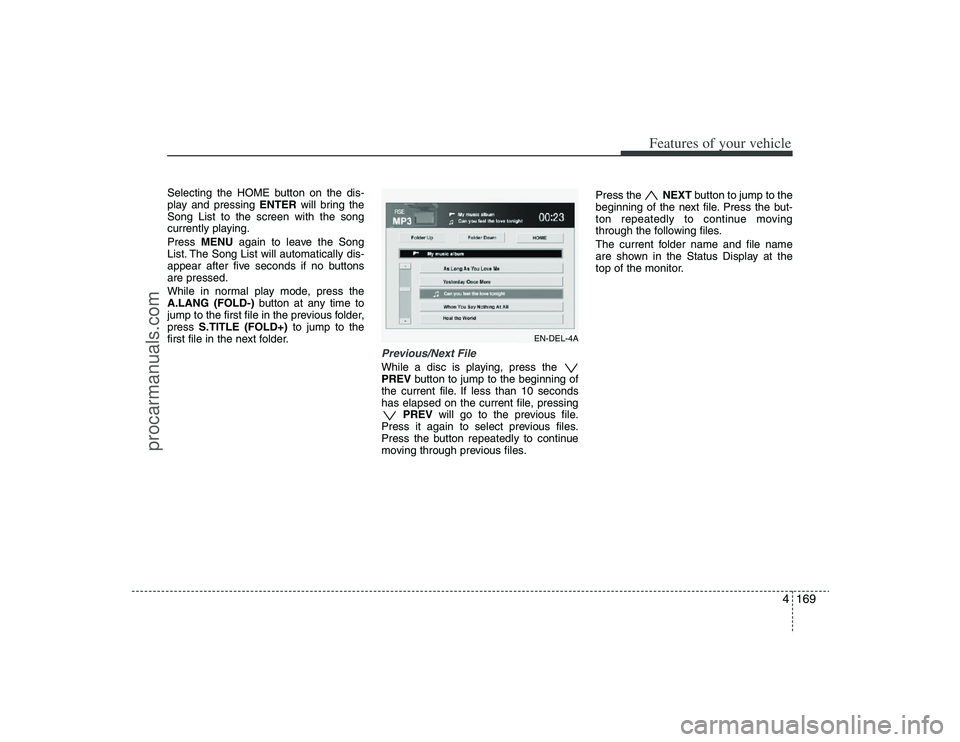
Selecting the HOME button on the dis-
play and pressing ENTERwill bring the
Song List to the screen with the song
currently playing.
Press MENUagain to leave the Song
List. The Song List will automatically dis-
appear after five seconds if no buttons
are pressed.
While in normal play mode, press the
A.LANG (FOLD-)button at any time to
jump to the first file in the previous folder,
press S.TITLE (FOLD+)to jump to the
first file in the next folder.
Previous/Next FileWhile a disc is playing, press the
PREVbutton to jump to the beginning of
the current file. If less than 10 seconds
has elapsed on the current file, pressing
PREVwill go to the previous file.
Press it again to select previous files.
Press the button repeatedly to continue
moving through previous files.Press the NEXTbutton to jump to the
beginning of the next file. Press the but-
ton repeatedly to continue moving
through the following files.
The current folder name and file name
are shown in the Status Display at the
top of the monitor.
EN-DEL-4A
procarmanuals.com