display HYUNDAI VERACRUZ 2009 Owner's Guide
[x] Cancel search | Manufacturer: HYUNDAI, Model Year: 2009, Model line: VERACRUZ, Model: HYUNDAI VERACRUZ 2009Pages: 425, PDF Size: 7.96 MB
Page 243 of 425
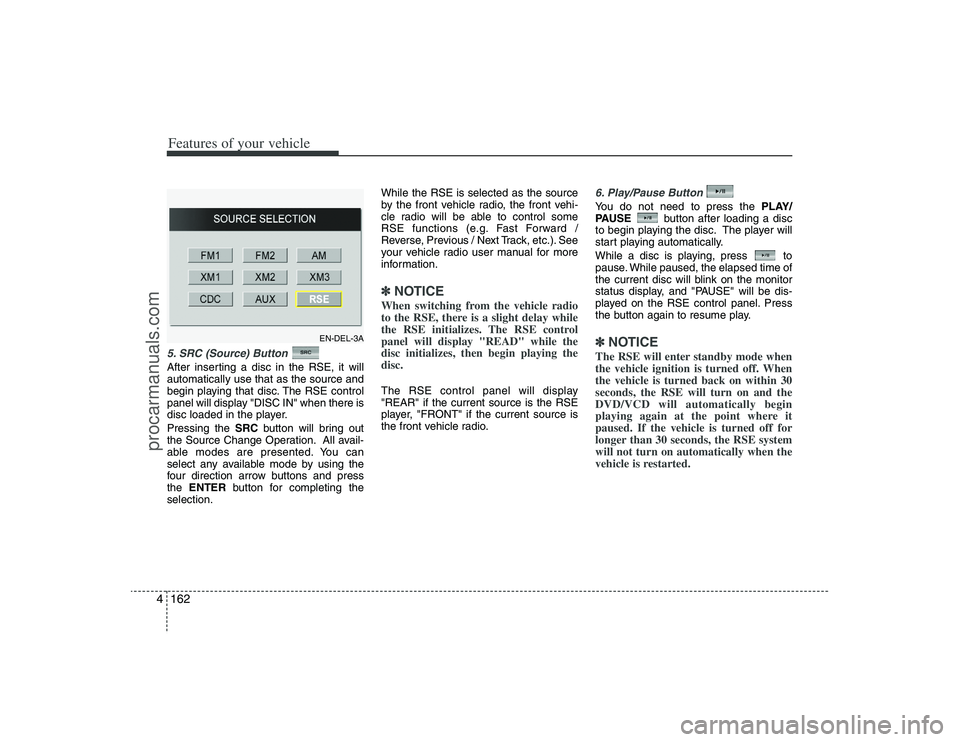
Features of your vehicle162 45. SRC (Source) Button After inserting a disc in the RSE, it will
automatically use that as the source and
begin playing that disc. The RSE control
panel will display "DISC IN" when there is
disc loaded in the player.
Pressing the SRCbutton will bring out
the Source Change Operation. All avail-
able modes are presented. You can
select any available mode by using the
four direction arrow buttons and press
the ENTERbutton for completing the
selection.While the RSE is selected as the source
by the front vehicle radio, the front vehi-
cle radio will be able to control some
RSE functions (e.g. Fast Forward /
Reverse, Previous / Next Track, etc.). See
your vehicle radio user manual for more
information.
✽ ✽
NOTICEWhen switching from the vehicle radio
to the RSE, there is a slight delay while
the RSE initializes. The RSE control
panel will display "READ" while the
disc initializes, then begin playing the
disc. The RSE control panel will display
"REAR" if the current source is the RSE
player, "FRONT" if the current source is
the front vehicle radio.
6. Play/Pause ButtonYou do not need to press the PLAY/
PAUSEbutton after loading a disc
to begin playing the disc. The player will
start playing automatically.
While a disc is playing, press to
pause. While paused, the elapsed time of
the current disc will blink on the monitor
status display, and "PAUSE" will be dis-
played on the RSE control panel. Press
the button again to resume play.✽ ✽
NOTICEThe RSE will enter standby mode when
the vehicle ignition is turned off. When
the vehicle is turned back on within 30
seconds, the RSE will turn on and the
DVD/VCD will automatically begin
playing again at the point where it
paused. If the vehicle is turned off for
longer than 30 seconds, the RSE system
will not turn on automatically when the
vehicle is restarted.
EN-DEL-3A
procarmanuals.com
Page 244 of 425
4163
Features of your vehicle
7 - 11 Next / Prev (Next/Previous)
and < REW/FF > (Rewind/Fast
Forward) and ENTER ButtonsThe NEXT/ PREVand
buttons provide a variety of functions,
depending on the media currently being
played in the RSE or the source selected.
For some of the functions, you will use
these buttons to navigate to the desired
location or option, then press the ENTER
button in the center to confirm your
selection.
For specific information about using
these buttons, see the appropriate sec-
tion for the various media types in this
manual.
DVD/VCD Player OperationDisc/Format CompatibilityYour RSE player accepts and plays all
DVDs in 4:3 (normal) and 16:9
(widescreen) video formats. With DVDs
that offer multiple formats, the default for-
mat is 16:9 and will stay that way unless
changed by the user. See "Adjusting the
Monitor" to learn how to adjust the for-
mat.
The DVD player has the capability to play
DVD-Video, DVD-R, DVD-RW, CD-DA,
CD-R, CD-RW, VCD and Video-CD.
The DVD player was factory programmed
with a region code for the assigned mar-
ket or country. If a DVD is inserted for a
region code that doesn't match with the
player, an error message will be shown
on the overhead monitor and the RSE
control panel display.
✽ ✽
NOTICEBecause there is no universal standard
for DVD/VCD programming, your disc
may behave differently. Some DVDs
may present warning messages about
unauthorized duplication, some will go
directly to a menu, some may have dif-
ferent on-disc menu and start playing
the movie immediately, and some may
be unreadable or damaged and an error
message will be shown on the monitor.✽ ✽
NOTICEWhile the player will accept DVD ROM
and CD ROM discs, the RSE cannot
play discs in these formats.
procarmanuals.com
Page 246 of 425
4165
Features of your vehicle
Play/Pause ButtonYou do not need to press the
PLAY/PAUSEbutton after loading a disc
to begin playing the disc. The player will
start playing automatically.
While a disc is playing, press PLAY/
PAUSEto pause. While paused, the
elapsed time of the current disc will blink
on the monitor status display, and
"PAUSE" will be displayed on the RSE
control panel. Press the button again to
resume play.✽ ✽
NOTICEThe RSE will enter standby mode when
the vehicle ignition is turned off. When
the vehicle is turned back on within 30
seconds, the RSE will turn on and the
CD will automatically begin playing
again at the point where it paused. If the
vehicle is turned off for longer than 30
seconds, the RSE system will not turn on
automatically when the vehicle is
restarted.
Fast Forward/ReversePress and hold the FF >or < REWbut-
ton and the player will fast forward or
reverse at 32 times the normal speed.
Release the FWD >or < REWbutton to
return to normal speed play.Previous/Next ChapterWhile a DVD/VCD is playing, press the
NEXTbutton to skip to the next chapter.
Press the PREVbutton to jump to
the beginning of the current chapter.
Press PREVagain to go move
through earlier chapters. Press the but-
ton repeatedly to move quickly through
chapters.✽ ✽
NOTICESome VCDs do not have track informa-
tion. If the VCD has no chapter infor-
mation, pressing either of these buttons
will restart the VCD.
While pressing the NEXTor
PREVbuttons, the Status Display, includ-
ing the current medium (DVD or VCD),
chapter and title information is displayed.
It will automatically disappear after five
seconds.✽ ✽
NOTICESome DVDs do not permit chapter nav-
igation. Instead of using the PREV /
NEXTbuttons, you can also enter the
chapter number using the numbers on
the remote controller. While a DVD/VCD
is playing, press the number button(s)
that correspond to the desired chapter
and press ENTER.
procarmanuals.com
Page 248 of 425
4167
Features of your vehicle
Volume Control You can adjust the volume of the audio
heard in the vehicle speakers from the
RSE control panel or the remote control.
From the RSE control panel, rotate the
POWER/VOLUMEknob. From the
remote control, press "VOL +" to
increase and "VOL -" to decrease the
volume.
Adjusting the volume in this way will not
adjust the wireless headphone volume.
To adjust the headphones, roll the VOL
control wheel.Play/Pause When a CD is inserted, the RSE will
automatically begin playing the first track.
Press the PLAY/PAUSEbutton to
pause the CD. Press the button again to
resume play. While paused, the elapsed
time in the status display at the top of the
monitor will blink. The RSE control will
display "PAUSE."
When the player reaches the end of the
disc, the player will automatically return
to the first track and continue playing.
Fast Forward / ReversePress and hold the FF >or < REWbut-
ton and the player will fast forward or
reverse at 10 times the normal speed.
Release the button to return to normal
speed play.
The audio is muted while the player fast
forwards or fast reverses.Previous/Next TrackWhile a CD is playing, press the
PREVbutton to jump to the beginning of
the current track. If less than 10 seconds
has elapsed on the current track, press-
ing PREVwill go to the previous
track. Press the button repeatedly to con-
tinue moving through previous tracks.
Press the NEXTbutton to jump to the
beginning of the next track. Press the
button repeatedly to continue moving
through the following tracks.
Instead of using the PREV /
NEXTbuttons, you can also enter the
track number using the numbers on the
remote control. While a CD is playing,
press the number button(s) that corre-
spond to the desired track and press
ENTER.
The current track number is shown in the
Status Display at the top of the monitor.
StopThe CD will automatically stop when any
other source (e.g. the vehicle radio or an
external game) is selected. When you
switch back to the CD, it will begin play-
ing at the point where it stopped.
While a CD is playing, you can stop the
CD by pressing the POWER ON/OFF
button on the remote control or the
POWER/VOLUMEknob on the RSE
control panel. When the RSE is turned on
again, it will automatically begin playing
the CD at the point where it was stopped.
Turning the vehicle off, or selecting a dif-
ferent RSE Source, will also stop playing
the CD.EjectPress the EJECTbutton to eject the
CD. Discs can be ejected even when the
unit is not turned on.✽ ✽
NOTICEThe player has an Auto-Reload Disc
Protection feature to protect discs from
accidental damage. If a disc is not
removed within 12 seconds after being
ejected, it will be pulled back into the
player. This is to protect the disc from
accidental damage.
procarmanuals.com
Page 249 of 425
Features of your vehicle168 4Using the MP3 PlayerMost RSE functions work the same for
audio CDs and MP3 discs. The major dif-
ference is that audio CDs are organized
by "tracks," while MP3 discs are organ-
ized using folders and files. Therefore,
the navigation functions are somewhat
different for MP3 discs. If the discs
including CD and MP3 file, the system
only will play the CD track, not the MP3
data file.✽ ✽
NOTICEWhile the player will accept DVD ROM
and CD ROM discs, the RSE cannot
play discs in these formats.
Pause/Play When an MP3 disc is inserted, the RSE
will automatically begin playing the first
file in the disc. Press the PLAY/PAUSE
button to pause the file. Press the
button again to resume play. While
paused, the elapsed time in the status
display at the top of the monitor will blink.
The RSE control panel will display
"PAUSE."
At the end of the disc, the player will
automatically return to the first file and
continue playing.Fast Forward/ReversePress and hold the FF >or < REWbut-
ton and the player will fast forward or
reverse at 10 times the normal speed.
Release the button to return to normal
speed play.
The audio is muted while the player fast
forwards or fast reverses.
Song List : Navigating Folders and
FilesMP3 discs are organized by named fold-
ers, with each folder containing a collec-
tion of named music files. You can quick-
ly navigate through the folders and files
using the Song List function.
Press the MENUbutton on the RSE con-
trol panel or remote control to display the
song list. The focused song will be high-
lighted. And the music note icon appears
to left of the song currently playing.
To navigate through the folders, press
the < REWor FF >button to highlight the
FOLDER UP, FOLDER DOWN,or
HOMEbuttons on the monitor, the press
ENTERto move up or down the folders.
Press ENTERrepeatedly to move
through all the folders.
When you reach the desired folder, press
the PREVor NEXTbuttons to
scroll through the list of files in that folder
and press ENTERto select the desired
file. The player will switch to the selected
folder and begin playing the desired file.
procarmanuals.com
Page 250 of 425
4169
Features of your vehicle
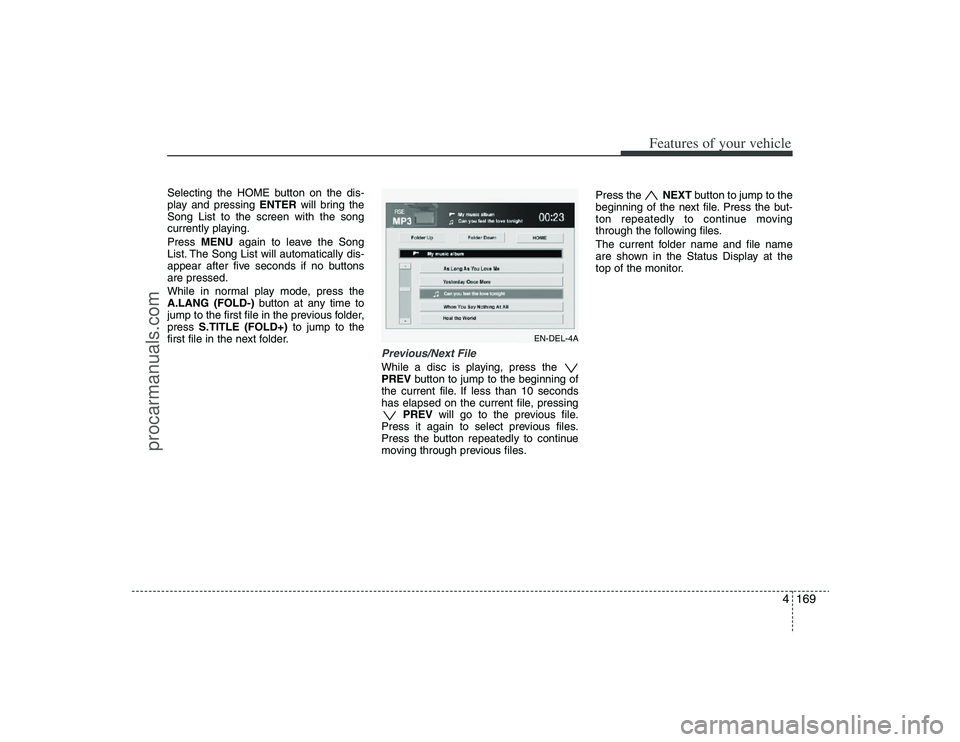
Selecting the HOME button on the dis-
play and pressing ENTERwill bring the
Song List to the screen with the song
currently playing.
Press MENUagain to leave the Song
List. The Song List will automatically dis-
appear after five seconds if no buttons
are pressed.
While in normal play mode, press the
A.LANG (FOLD-)button at any time to
jump to the first file in the previous folder,
press S.TITLE (FOLD+)to jump to the
first file in the next folder.
Previous/Next FileWhile a disc is playing, press the
PREVbutton to jump to the beginning of
the current file. If less than 10 seconds
has elapsed on the current file, pressing
PREVwill go to the previous file.
Press it again to select previous files.
Press the button repeatedly to continue
moving through previous files.Press the NEXTbutton to jump to the
beginning of the next file. Press the but-
ton repeatedly to continue moving
through the following files.
The current folder name and file name
are shown in the Status Display at the
top of the monitor.
EN-DEL-4A
procarmanuals.com
Page 251 of 425
Features of your vehicle170 4StopThe disc will automatically stop when any
other source (e.g. the vehicle radio or an
external game) is selected. When you
switch back to the disc, it will begin play-
ing at the point where it stopped.
While a disc is playing, you can stop the
disc by pressing the POWER ON/OFF
button on the remote control or the
POWER/VOLUMEknob on the RSE
control panel. When the RSE is turned on
again, it will automatically begin playing
the disc at the point where it was
stopped.
Turning the vehicle off, or selecting a dif-
ferent RSE Source, will also stop playing
the disc. When the vehicle is turned on
again, or the disc is again selected as the
source, the disc will begin playing at the
point where it was stopped. The player
will automatically resume play at the
point where it was stopped unless the
disc is ejected.
✽ ✽
NOTICEThe player has an Auto-Reload Disc
Protection feature to protect discs from
accidental damage. If a disc is not
removed within 12 seconds after being
ejected, it will be pulled back into the
player. This is to protect the disc from
accidental damage.EjectPress the EJECTbutton to eject the
disc. Discs can be ejected even when the
unit is not turned on.
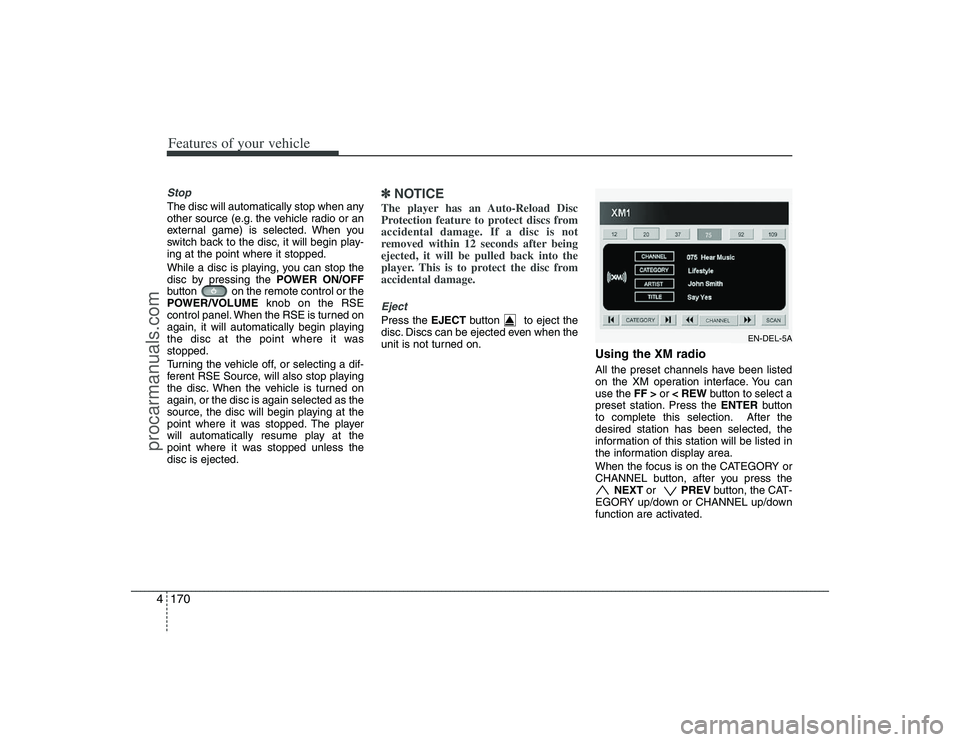
Using the XM radioAll the preset channels have been listed
on the XM operation interface. You can
use the FF >or < REWbutton to select a
preset station. Press the ENTERbutton
to complete this selection. After the
desired station has been selected, the
information of this station will be listed in
the information display area.
When the focus is on the CATEGORY or
CHANNEL button, after you press the
NEXT or PREV button, the CAT-
EGORY up/down or CHANNEL up/down
function are activated.
EN-DEL-5A
procarmanuals.com
Page 252 of 425
4171
Features of your vehicle
In addition, if you press the ENTERbut-
ton when the focus is on the CATEGORY
or CHANNEL button, after you press and
hold the NEXT or PREV button,
the Fast Tune function is activated. Fast
Tune makes it easy for you to search for
a favorite channel. After you find a
favorite channel, press the ENTERbut-
ton to complete this selection.
When the CATEGORY button is high-
lighted, moving the focus to CHANNEL
button and using the NEXTor
PREV button also will allow you to select
the next channel and previous channel in
the same category. If you put the focus
on the SCANbutton not the CHANNEL
button, after pressing the ENTERbutton,
the SCANcategory function also can be
activated.
Listening to the Vehicle RadioTo control the vehicle radio from the RSE
control panel or remote control, press the
SOURCEbutton on the remote control or
the SRC button on the RSE control
panel, then select the desired play mode
on the source change operation. Finally,
press the ENTERbutton to complete the
selection.
The RSE monitor status display and the
RSE control panel will indicate the
selected source.
Tuning a StationWhile the vehicle radio is the current
source, press the NEXTor PREV
button on the RSE control panel or
remote control once to search up or
down for the next available station. When
the tuner finds a station it will stop at the
station and start to play.
Press the NEXTor PREV button
to seek up or down through all radio sta-
tions. When the radio finds a station, it
will stop and play that station.
Press the FF >or < REWbutton to man-
ually tune up or down one channel. Press
and hold the FF >or < REW button to
continue tuning up or down.
Pressing a number on the remote control
keypad will tune to the corresponding
preset station. For example, if 89.7 has
been stored as preset 1 (CH1), then
pressing the 1 button on the keypad will
tune to that station.
procarmanuals.com
Page 253 of 425
Features of your vehicle172 4AM, FM1 and FM2 SelectionWhile the vehicle radio is the current
source, press the MODEbutton to cycle
through each of the available radio
bands, AM, FM1, FM2 and other avail-
able radio modes.
All of the RSE control panel and remote
control navigation functions can be used
to control the front radio when the vehicle
front radio is also playing the same radio
mode.
Viewing Front CD and MP3
Programs The RSE can be used to control discs
that are loaded and playing in the vehicle
radio. To control these discs, you must
first select the vehicle radio as the
source. Press the SOURCEbutton on
the remote control, or the SRCbutton on
the RSE control panel, Meanwhile, the
Source Change UI will bring out. Use the
four direction arrow buttons to select the
source of vehicle radio. And press the
ENTERbutton for completing the selec-
tion.
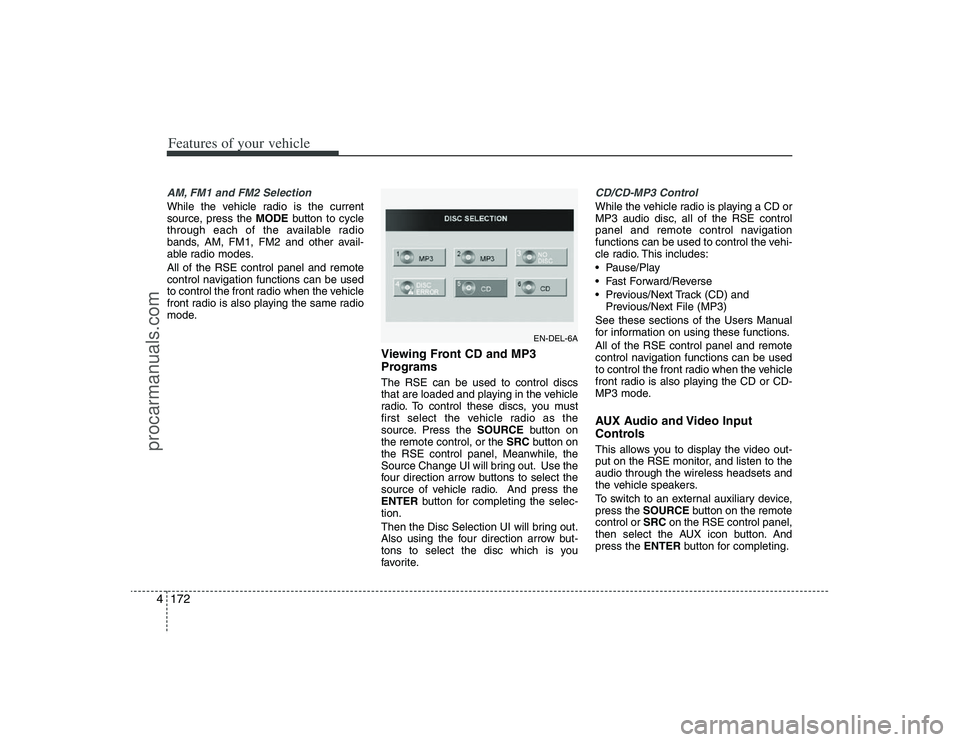
Then the Disc Selection UI will bring out.
Also using the four direction arrow but-
tons to select the disc which is you
favorite.
CD/CD-MP3 ControlWhile the vehicle radio is playing a CD or
MP3 audio disc, all of the RSE control
panel and remote control navigation
functions can be used to control the vehi-
cle radio. This includes:
Pause/Play
Fast Forward/Reverse
Previous/Next Track (CD) and
Previous/Next File (MP3)
See these sections of the Users Manual
for information on using these functions.
All of the RSE control panel and remote
control navigation functions can be used
to control the front radio when the vehicle
front radio is also playing the CD or CD-
MP3 mode.AUX Audio and Video Input
ControlsThis allows you to display the video out-
put on the RSE monitor, and listen to the
audio through the wireless headsets and
the vehicle speakers.
To switch to an external auxiliary device,
press the SOURCEbutton on the remote
control or SRCon the RSE control panel,
then select the AUX icon button. And
press the ENTERbutton for completing.
EN-DEL-6A
procarmanuals.com
Page 255 of 425
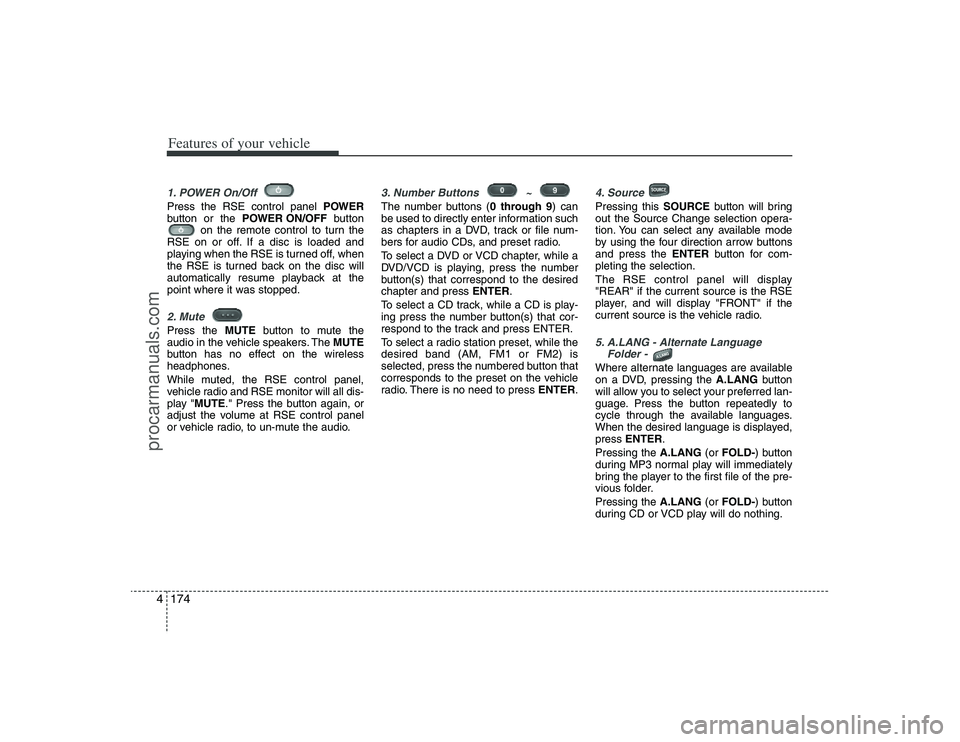
Features of your vehicle174 41. POWER On/Off Press the RSE control panel POWER
button or the POWER ON/OFFbutton
on the remote control to turn the
RSE on or off. If a disc is loaded and
playing when the RSE is turned off, when
the RSE is turned back on the disc will
automatically resume playback at the
point where it was stopped.2. Mute Press the MUTEbutton to mute the
audio in the vehicle speakers. The MUTE
button has no effect on the wireless
headphones.
While muted, the RSE control panel,
vehicle radio and RSE monitor will all dis-
play "MUTE." Press the button again, or
adjust the volume at RSE control panel
or vehicle radio, to un-mute the audio.
3. Number Buttons ~ The number buttons (0 through 9) can
be used to directly enter information such
as chapters in a DVD, track or file num-
bers for audio CDs, and preset radio.
To select a DVD or VCD chapter, while a
DVD/VCD is playing, press the number
button(s) that correspond to the desired
chapter and press ENTER.
To select a CD track, while a CD is play-
ing press the number button(s) that cor-
respond to the track and press ENTER.
To select a radio station preset, while the
desired band (AM, FM1 or FM2) is
selected, press the numbered button that
corresponds to the preset on the vehicle
radio. There is no need to press ENTER.
4. SourcePressing this SOURCEbutton will bring
out the Source Change selection opera-
tion. You can select any available mode
by using the four direction arrow buttons
and press the ENTERbutton for com-
pleting the selection.
The RSE control panel will display
"REAR" if the current source is the RSE
player, and will display "FRONT" if the
current source is the vehicle radio.5. A.LANG - Alternate Language
Folder - Where alternate languages are available
on a DVD, pressing the A.LANGbutton
will allow you to select your preferred lan-
guage. Press the button repeatedly to
cycle through the available languages.
When the desired language is displayed,
press ENTER.
Pressing the A.LANG(or FOLD-) button
during MP3 normal play will immediately
bring the player to the first file of the pre-
vious folder.
Pressing the A.LANG(or FOLD-) button
during CD or VCD play will do nothing.
procarmanuals.com