reset HYUNDAI VERACRUZ 2010 Owner's Manual
[x] Cancel search | Manufacturer: HYUNDAI, Model Year: 2010, Model line: VERACRUZ, Model: HYUNDAI VERACRUZ 2010Pages: 425, PDF Size: 8.65 MB
Page 229 of 425
4147
Features of your vehicle
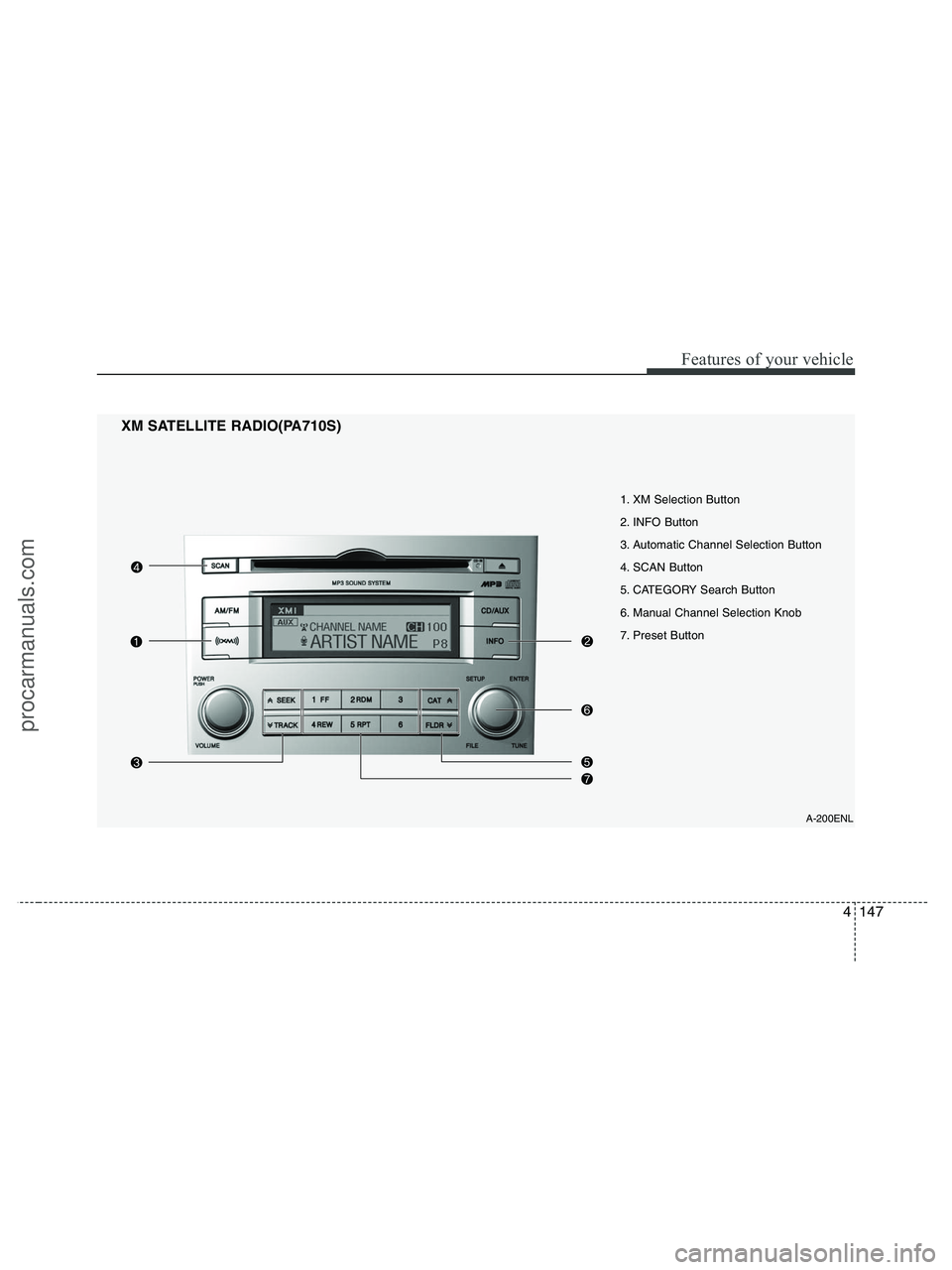
1. XM Selection Button
2. INFO Button
3. Automatic Channel Selection Button
4. SCAN Button
5. CATEGORY Search Button
6. Manual Channel Selection Knob
7. Preset Button
XM SATELLITE RADIO(PA710S)
A-200ENL
procarmanuals.com
Page 230 of 425
Features of your vehicle
148 4
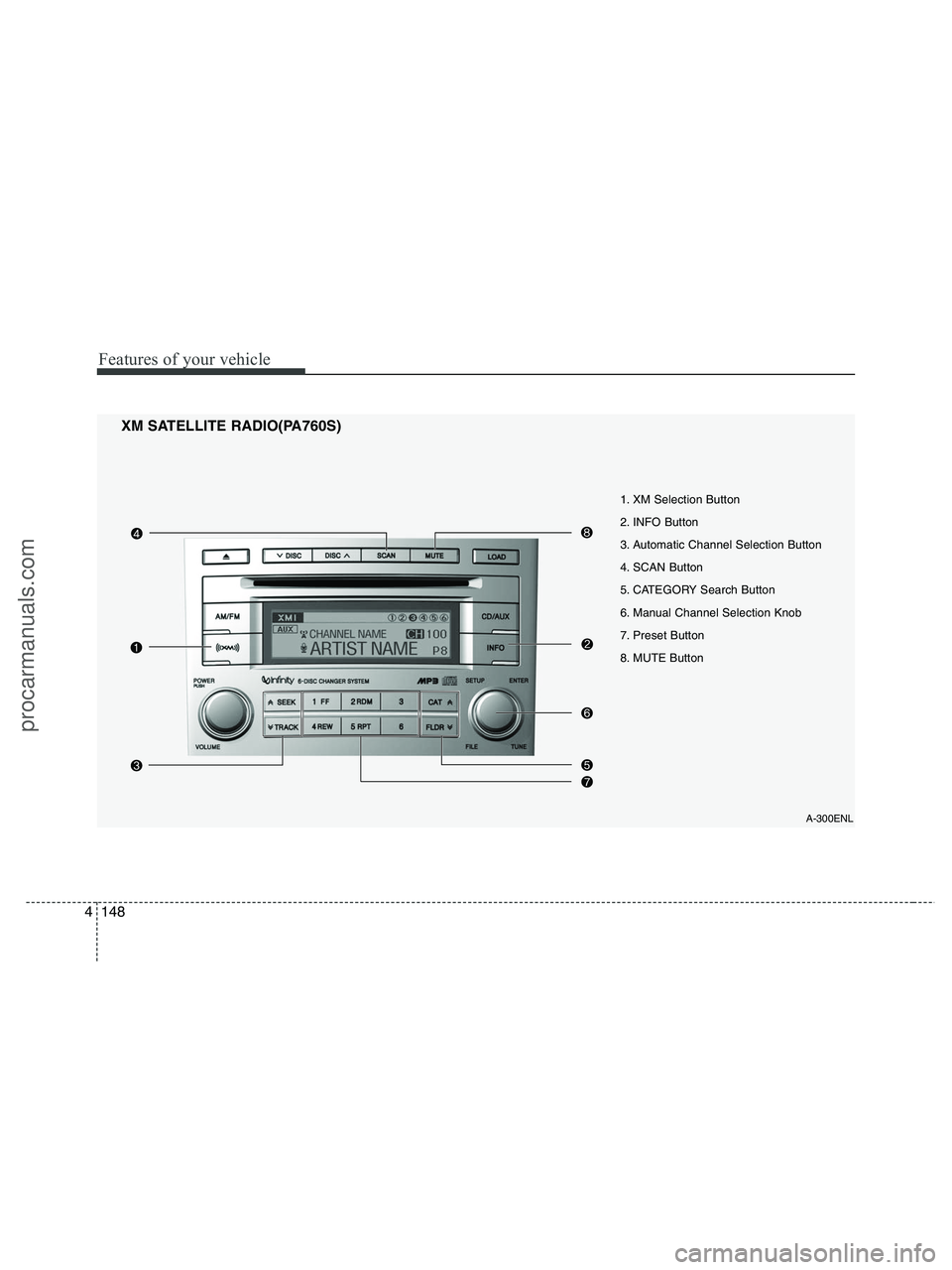
XM SATELLITE RADIO(PA760S)
A-300ENL
1. XM Selection Button
2. INFO Button
3. Automatic Channel Selection Button
4. SCAN Button
5. CATEGORY Search Button
6. Manual Channel Selection Knob
7. Preset Button
8. MUTE Button
procarmanuals.com
Page 231 of 425
4149
Features of your vehicle
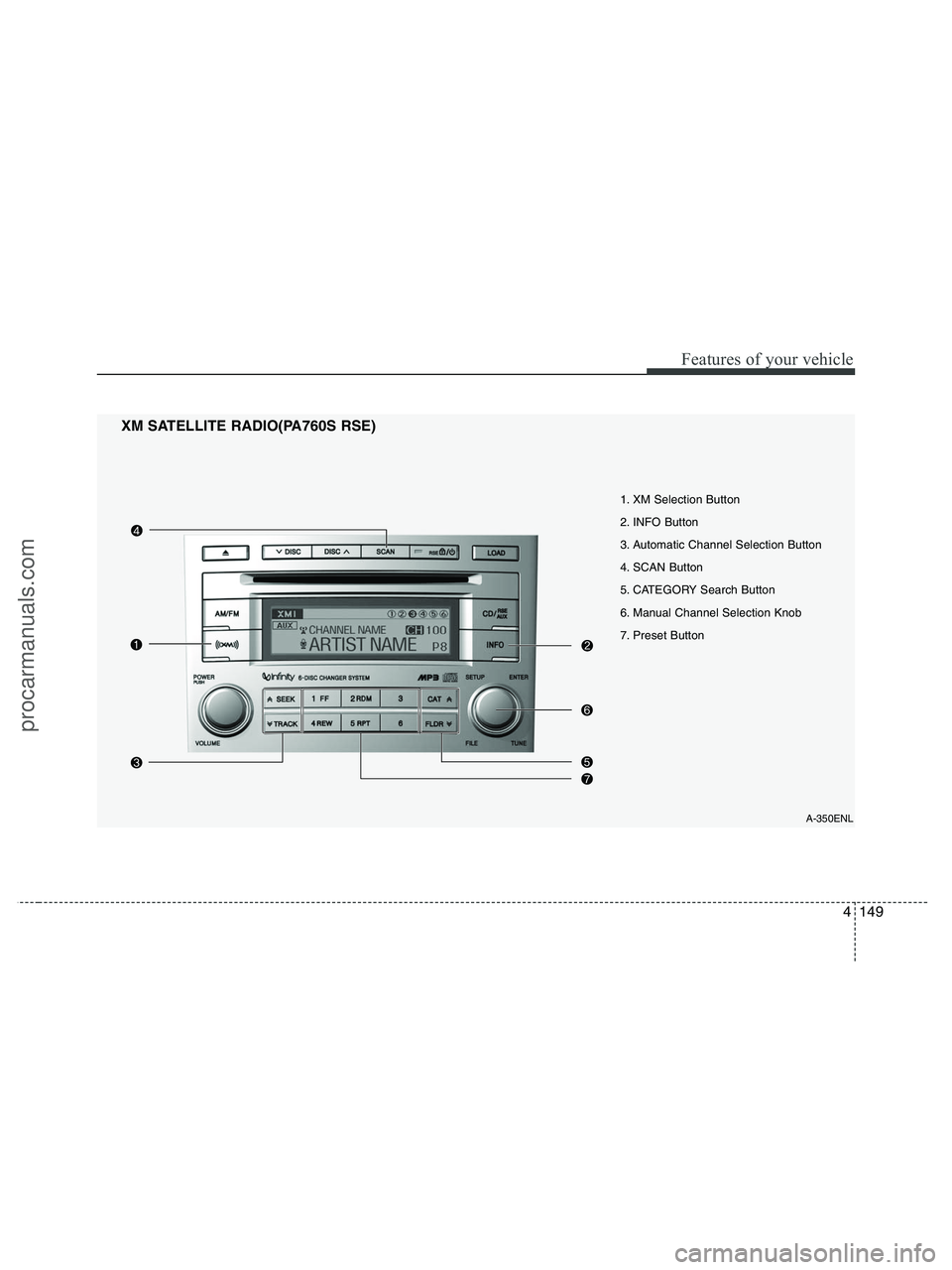
XM SATELLITE RADIO(PA760S RSE)
A-350ENL
1. XM Selection Button
2. INFO Button
3. Automatic Channel Selection Button
4. SCAN Button
5. CATEGORY Search Button
6. Manual Channel Selection Knob
7. Preset Button
procarmanuals.com
Page 232 of 425
Features of your vehicle
150 4
1. XM Selection Button
Turns to XM Satellite Radio Mode. XM
mode toggles in order to XM1 ➟ XM2 ➟XM3 ➟ XM1... when the button is
pressed each time.
2. INFO Button
Displays the information of the current
channel in the order of Artist/Song title ➟Category/Channel name ➟ Current Play
Channel ➟ Artist/Song title ➟ Category/
Channel name... when the button is
pressed each time. If it can not display
the whole text information, rotate the
tune button to see the next page.
3. Automatic Channel Selection
Button
] button for less than
0.8 second to select previous channel.
] button for less than 0.8
second to select next channel.
Seek or Tune to XM channel
0 to display the Radio ID.
4. SCAN Button
Press to hear a brief sampling of all
channels.
To cancel the scan mode, press the but-
ton once again.
5. CATEGORY Search Button
Push [FLDR ] button to search previ-
ous category.
] button to search next
category. To listen to the displayed cat-
egory, press the TUNE/ENTER knob. To
scan channel in displayed category,
press the scan button.
To search channel in displayed category,
press seek buttons or turn the tune but-
ton clockwise/counterclockwise.(CATE-
GORY icon will be turned on in Category
mode)
6. Manual Channel Selection
Knob
While listening to XM broadcast, rotate
this control to the right or left to search
other channels while listening to current
channel. (Turn to the right to searchhigh-
er channels and left, lower channels.)
7. Preset Button
Push [1]~[6] buttons less than 0.8 sec-
ond to play the channel saved in each
button. Push Preset button for 0.8 sec-
ond or longer to save current channel to
the respective button with a beep.
8. MUTE Button
Press [MUTE] button to stop sound and
“Audio Mute” is displayed on the LCD.
procarmanuals.com
Page 252 of 425
Features of your vehicle
170 4
Stop
The disc will automatically stop when any
other source (e.g. the vehicle radio or an
external game) is selected. When you
switch back to the disc, it will begin play-
ing at the point where it stopped.
While a disc is playing, you can stop the
disc by pressing the POWER ON/OFF
button on the remote control or the
POWER/VOLUMEknob on the RSE
control panel. When the RSE is turned on
again, it will automatically begin playing
the disc at the point where it was
stopped.
Turning the vehicle off, or selecting a dif-
ferent RSE Source, will also stop playing
the disc. When the vehicle is turned on
again, or the disc is again selected as the
source, the disc will begin playing at the
point where it was stopped. The player
will automatically resume play at the
point where it was stopped unless the
disc is ejected.✽ ✽
NOTICE
The player has an Auto-Reload Disc
Protection feature to protect discs from
accidental damage. If a disc is not
removed within 12 seconds after being
ejected, it will be pulled back into the
player. This is to protect the disc from
accidental damage.
Eject
Press the EJECTbutton to eject the
disc. Discs can be ejected even when the
unit is not turned on.
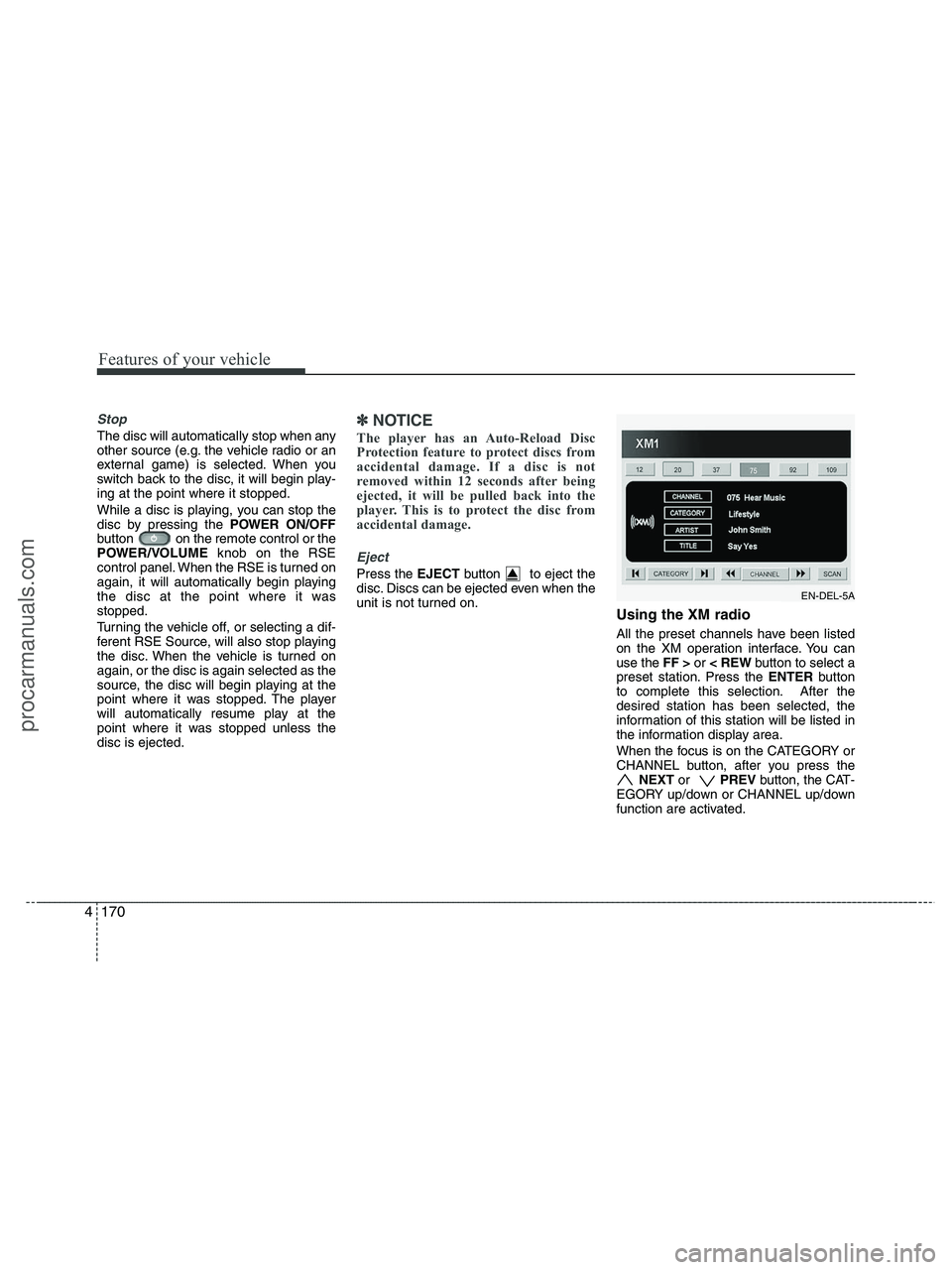
Using the XM radio
All the preset channels have been listed
on the XM operation interface. You can
use the FF >or < REWbutton to select a
preset station. Press the ENTERbutton
to complete this selection. After the
desired station has been selected, the
information of this station will be listed in
the information display area.
When the focus is on the CATEGORY or
CHANNEL button, after you press the
NEXT or PREV button, the CAT-
EGORY up/down or CHANNEL up/down
function are activated.
EN-DEL-5A
procarmanuals.com
Page 253 of 425
4171
Features of your vehicle
In addition, if you press the ENTERbut-
ton when the focus is on the CATEGORY
or CHANNEL button, after you press and
hold the NEXT or PREV button,
the Fast Tune function is activated. Fast
Tune makes it easy for you to search for
a favorite channel. After you find a
favorite channel, press the ENTERbut-
ton to complete this selection.
When the CATEGORY button is high-
lighted, moving the focus to CHANNEL
button and using the NEXTor
PREV button also will allow you to select
the next channel and previous channel in
the same category. If you put the focus
on the SCANbutton not the CHANNEL
button, after pressing the ENTERbutton,
the SCANcategory function also can be
activated.Listening to the Vehicle Radio
To control the vehicle radio from the RSE
control panel or remote control, press the
SOURCEbutton on the remote control or
the SRC button on the RSE control
panel, then select the desired play mode
on the source change operation. Finally,
press the ENTERbutton to complete the
selection.
The RSE monitor status display and the
RSE control panel will indicate the
selected source.
Tuning a Station
While the vehicle radio is the current
source, press the NEXTor PREV
button on the RSE control panel or
remote control once to search up or
down for the next available station. When
the tuner finds a station it will stop at the
station and start to play.
Press the NEXTor PREV button
to seek up or down through all radio sta-
tions. When the radio finds a station, it
will stop and play that station.
Press the FF >or < REWbutton to man-
ually tune up or down one channel. Press
and hold the FF >or < REW button to
continue tuning up or down.
Pressing a number on the remote control
keypad will tune to the corresponding
preset station. For example, if 89.7 has
been stored as preset 1 (CH1), then
pressing the 1 button on the keypad will
tune to that station.
procarmanuals.com
Page 256 of 425
Features of your vehicle
174 4
1. POWER On/Off
Press the RSE control panel POWER
button or the POWER ON/OFFbutton
on the remote control to turn the
RSE on or off. If a disc is loaded and
playing when the RSE is turned off, when
the RSE is turned back on the disc will
automatically resume playback at the
point where it was stopped.
2. Mute
Press the MUTEbutton to mute the
audio in the vehicle speakers. The MUTE
button has no effect on the wireless
headphones.
While muted, the RSE control panel,
vehicle radio and RSE monitor will all dis-
play "MUTE." Press the button again, or
adjust the volume at RSE control panel
or vehicle radio, to un-mute the audio.
3. Number Buttons ~
The number buttons (0 through 9) can
be used to directly enter information such
as chapters in a DVD, track or file num-
bers for audio CDs, and preset radio.
To select a DVD or VCD chapter, while a
DVD/VCD is playing, press the number
button(s) that correspond to the desired
chapter and press ENTER.
To select a CD track, while a CD is play-
ing press the number button(s) that cor-
respond to the track and press ENTER.
To select a radio station preset, while the
desired band (AM, FM1 or FM2) is
selected, press the numbered button that
corresponds to the preset on the vehicle
radio. There is no need to press ENTER.
4. Source
Pressing this SOURCEbutton will bring
out the Source Change selection opera-
tion. You can select any available mode
by using the four direction arrow buttons
and press the ENTERbutton for com-
pleting the selection.
The RSE control panel will display
"REAR" if the current source is the RSE
player, and will display "FRONT" if the
current source is the vehicle radio.
5. A.LANG - Alternate Language
Folder -
Where alternate languages are available
on a DVD, pressing the A.LANGbutton
will allow you to select your preferred lan-
guage. Press the button repeatedly to
cycle through the available languages.
When the desired language is displayed,
press ENTER.
Pressing the A.LANG(or FOLD-) button
during MP3 normal play will immediately
bring the player to the first file of the pre-
vious folder.
Pressing the A.LANG(or FOLD-) button
during CD or VCD play will do nothing.
procarmanuals.com
Page 258 of 425
Features of your vehicle
176 4
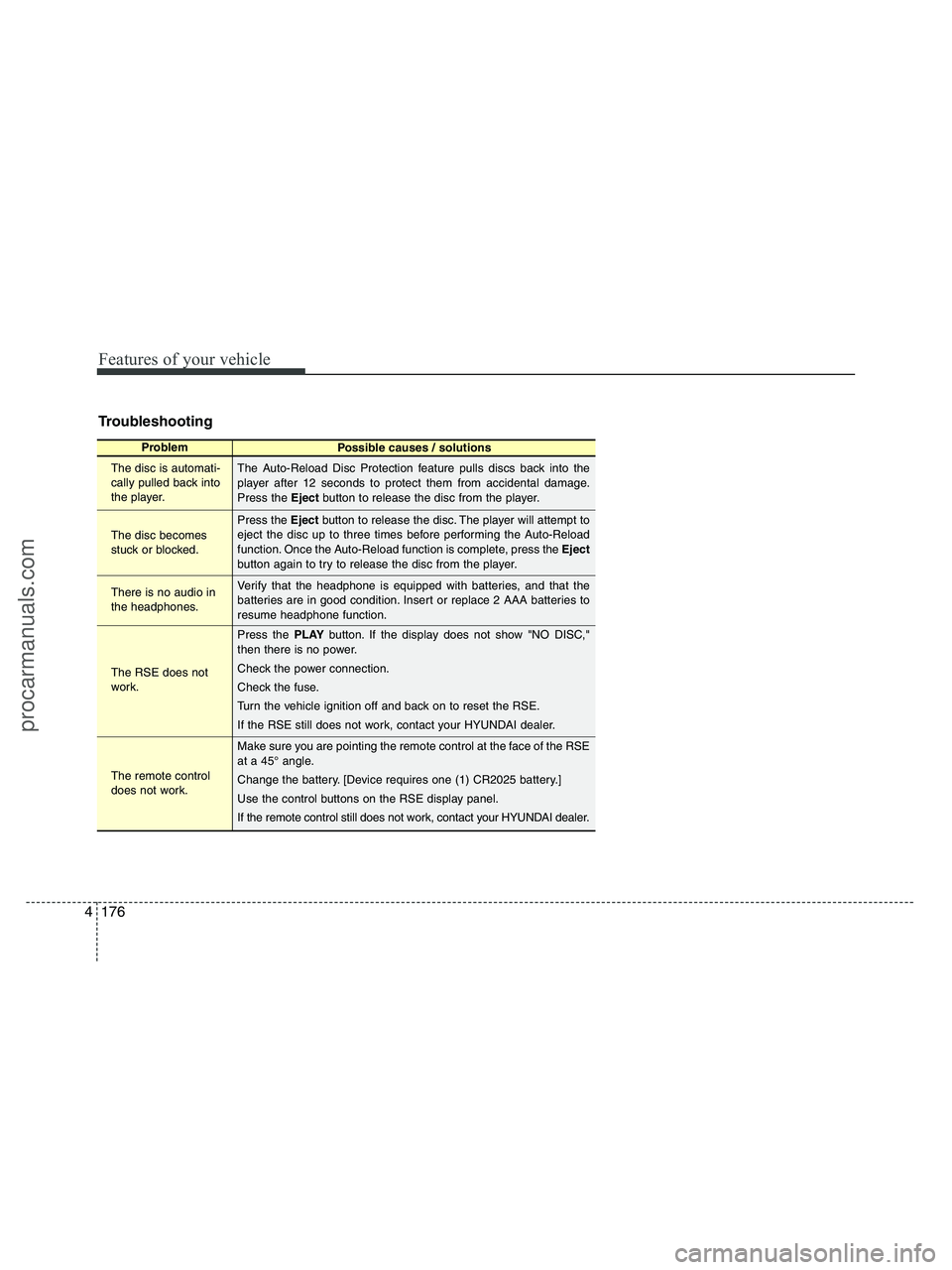
Troubleshooting
Problem
Possible causes / solutions
The disc is automati-
cally pulled back into
the player.
The disc becomes
stuck or blocked.
There is no audio in
the headphones.
The RSE does not
work.
The remote control
does not work.The Auto-Reload Disc Protection feature pulls discs back into the
player after 12 seconds to protect them from accidental damage.
Press the Ejectbutton to release the disc from the player.
Press the Ejectbutton to release the disc. The player will attempt to
eject the disc up to three times before performing the Auto-Reload
function. Once the Auto-Reload function is complete, press the Eject
button again to try to release the disc from the player.
Verify that the headphone is equipped with batteries, and that the
batteries are in good condition. Insert or replace 2 AAA batteries to
resume headphone function.
Press the PLAYbutton. If the display does not show "NO DISC,"
then there is no power.
Check the power connection.
Check the fuse.
Turn the vehicle ignition off and back on to reset the RSE.
If the RSE still does not work, contact your HYUNDAI dealer.
Make sure you are pointing the remote control at the face of the RSE
at a 45° angle.
Change the battery. [Device requires one (1) CR2025 battery.]
Use the control buttons on the RSE display panel.
If the remote control still does not work, contact your HYUNDAI dealer.
procarmanuals.com
Page 292 of 425
Driving your vehicle
34 5
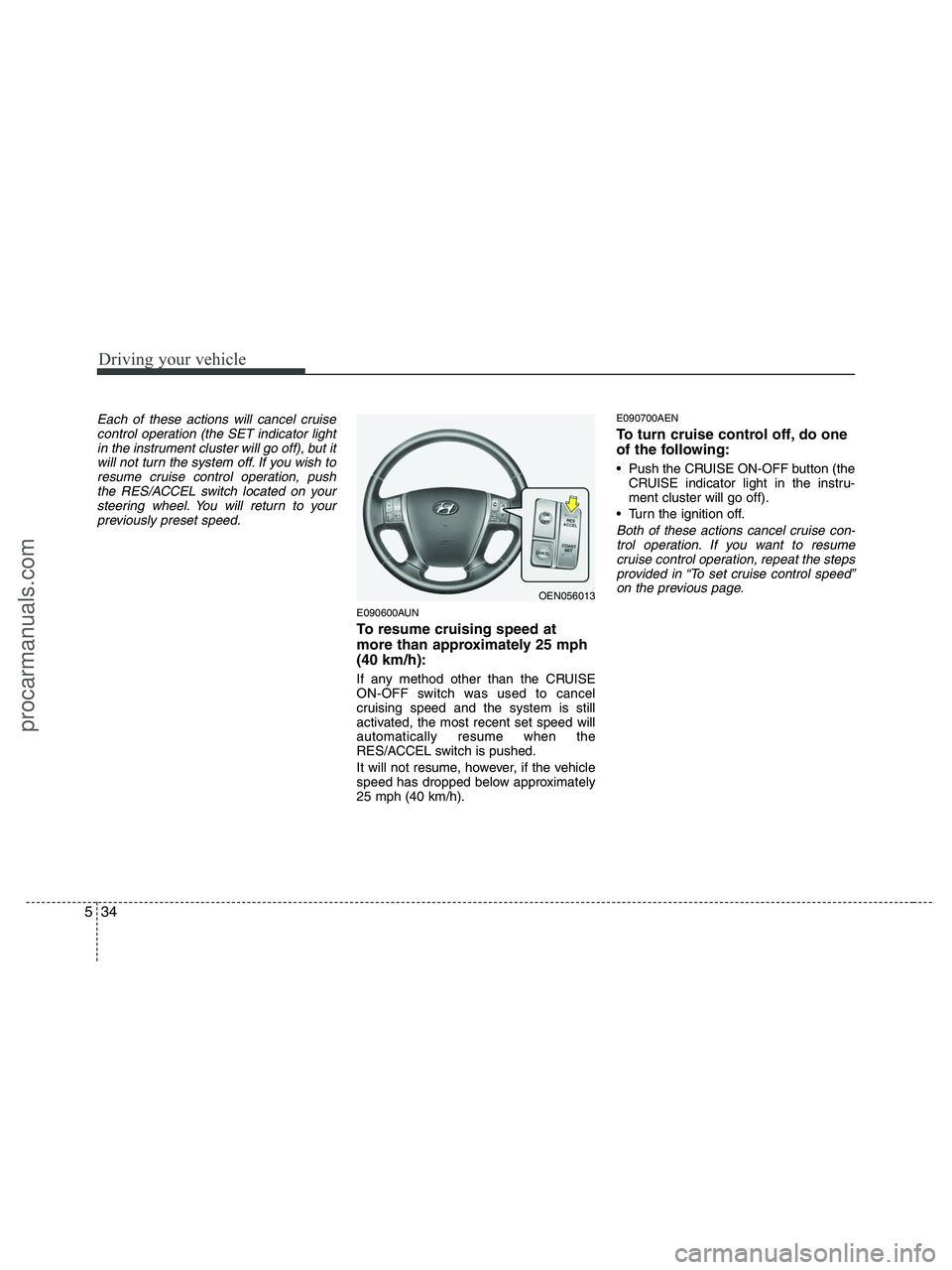
Each of these actions will cancel cruise
control operation (the SET indicator light
in the instrument cluster will go off), but it
will not turn the system off. If you wish to
resume cruise control operation, push
the RES/ACCEL switch located on your
steering wheel. You will return to your
previously preset speed.
E090600AUN
To resume cruising speed at
more than approximately 25 mph
(40 km/h):
If any method other than the CRUISE
ON-OFF switch was used to cancel
cruising speed and the system is still
activated, the most recent set speed will
automatically resume when the
RES/ACCEL switch is pushed.
It will not resume, however, if the vehicle
speed has dropped below approximately
25 mph (40 km/h).
E090700AEN
To turn cruise control off, do one
of the following:
Push the CRUISE ON-OFF button (the
CRUISE indicator light in the instru-
ment cluster will go off).
Turn the ignition off.
Both of these actions cancel cruise con-
trol operation. If you want to resume
cruise control operation, repeat the steps
provided in “To set cruise control speed”
on the previous page.
OEN056013
procarmanuals.com
Page 370 of 425
729
Maintenance
G190400AEN
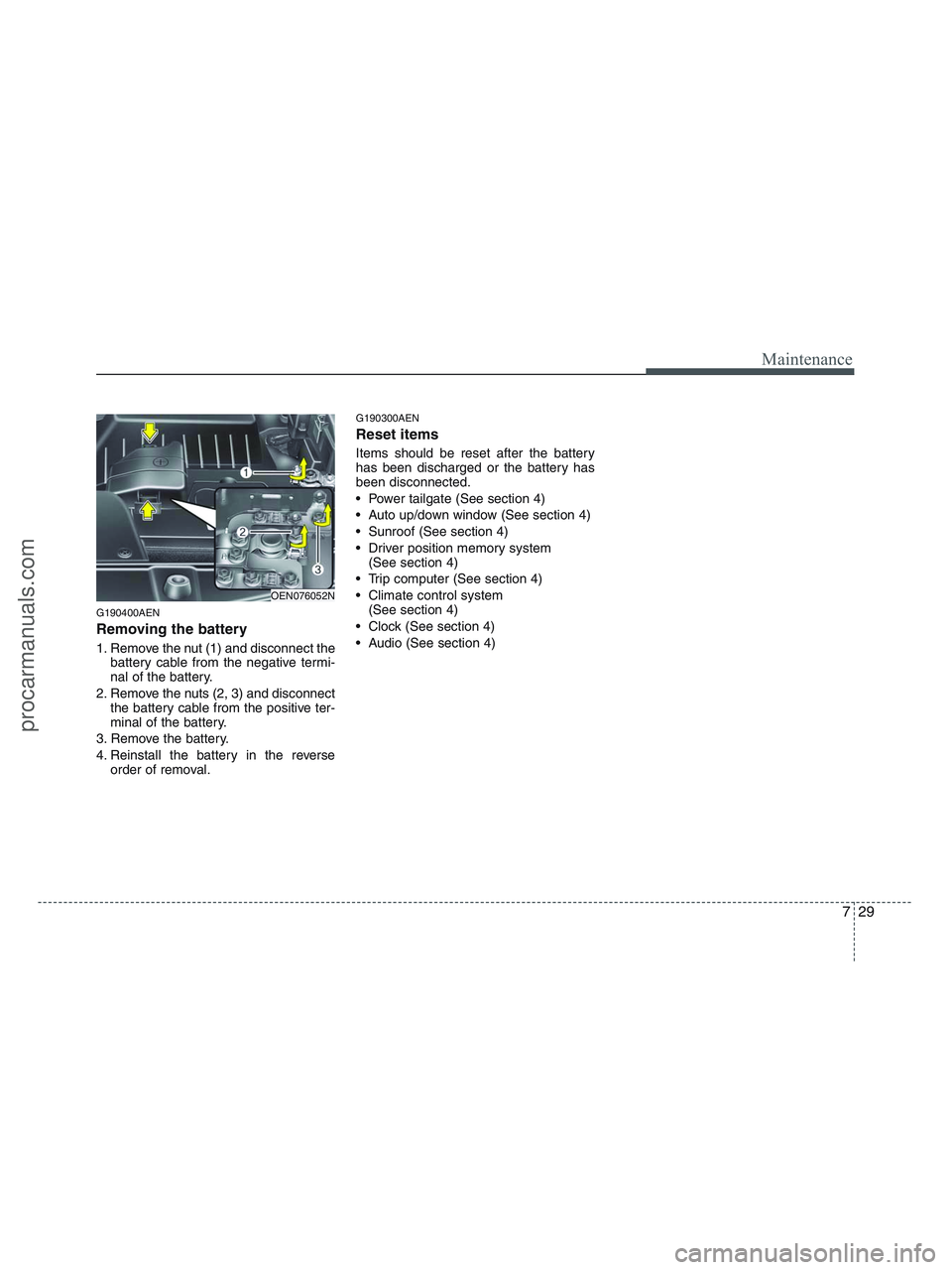
Removing the battery
1. Remove the nut (1) and disconnect the
battery cable from the negative termi-
nal of the battery.
2. Remove the nuts (2, 3) and disconnect
the battery cable from the positive ter-
minal of the battery.
3. Remove the battery.
4. Reinstall the battery in the reverse
order of removal.
G190300AEN
Reset items
Items should be reset after the battery
has been discharged or the battery has
been disconnected.
Power tailgate (See section 4)
Auto up/down window (See section 4)
Sunroof (See section 4)
Driver position memory system
(See section 4)
Trip computer (See section 4)
Climate control system
(See section 4)
Clock (See section 4)
Audio (See section 4)
OEN076052N
procarmanuals.com