AUX HYUNDAI VERACRUZ 2012 Owners Manual
[x] Cancel search | Manufacturer: HYUNDAI, Model Year: 2012, Model line: VERACRUZ, Model: HYUNDAI VERACRUZ 2012Pages: 429, PDF Size: 7.11 MB
Page 206 of 429
Features of your vehicle
122
4
D300600AEN-EU
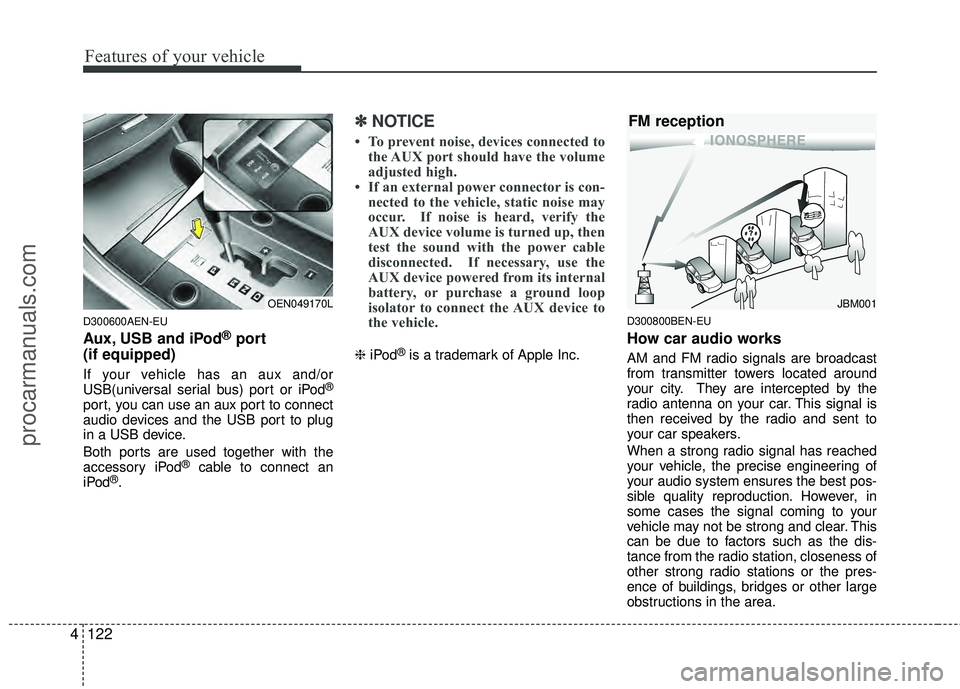
Aux, USB and iPod®port
(if equipped)
If your vehicle has an aux and/or
USB(universal serial bus) port or iPod®
port, you can use an aux port to connect
audio devices and the USB port to plug
in a USB device.
Both ports are used together with the
accessory iPod
®cable to connect an
iPod®.
✽ ✽ NOTICE
• To prevent noise, devices connected to
the AUX port should have the volume
adjusted high.
• If an external power connector is con- nected to the vehicle, static noise may
occur. If noise is heard, verify the
AUX device volume is turned up, then
test the sound with the power cable
disconnected. If necessary, use the
AUX device powered from its internal
battery, or purchase a ground loop
isolator to connect the AUX device to
the vehicle.
❈ iPod®is a trademark of Apple Inc.
D300800BEN-EU
How car audio works
AM and FM radio signals are broadcast
from transmitter towers located around
your city. They are intercepted by the
radio antenna on your car. This signal is
then received by the radio and sent to
your car speakers.
When a strong radio signal has reached
your vehicle, the precise engineering of
your audio system ensures the best pos-
sible quality reproduction. However, in
some cases the signal coming to your
vehicle may not be strong and clear. This
can be due to factors such as the dis-
tance from the radio station, closeness of
other strong radio stations or the pres-
ence of buildings, bridges or other large
obstructions in the area.
OEN049170LJBM001
FM reception
procarmanuals.com
Page 215 of 429
4131
Features of your vehicle
A-200ENL
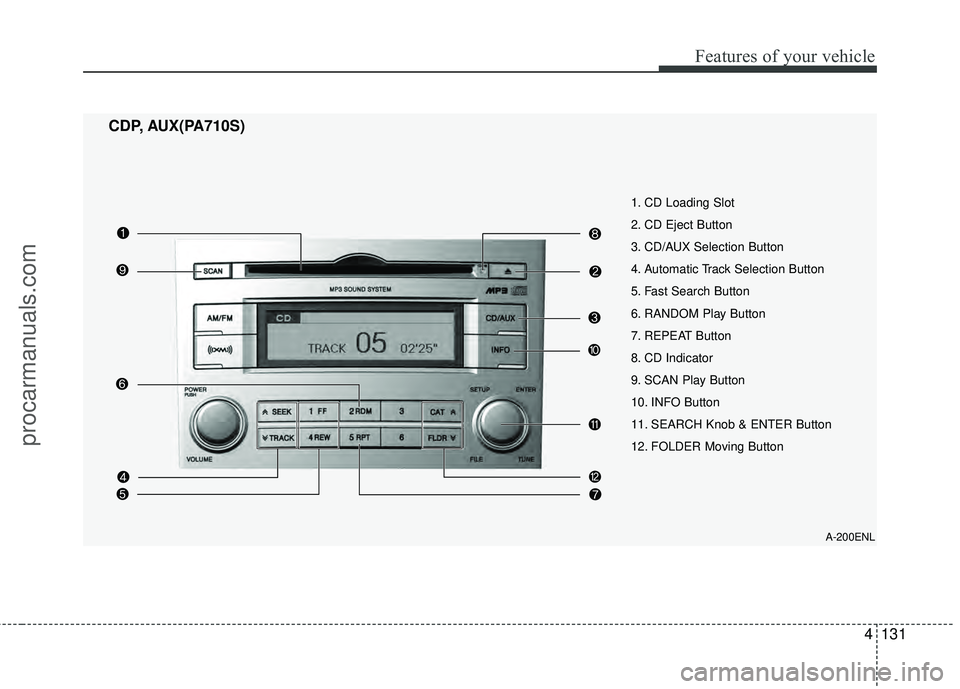
1. CD Loading Slot
2. CD Eject Button
3. CD/AUX Selection Button
4. Automatic Track Selection Button
5. Fast Search Button
6. RANDOM Play Button
7. REPEAT Button
8. CD Indicator
9. SCAN Play Button
10. INFO Button
11. SEARCH Knob & ENTER Button
12. FOLDER Moving Button
CDP, AUX(PA710S)
procarmanuals.com
Page 216 of 429
Features of your vehicle
132
4
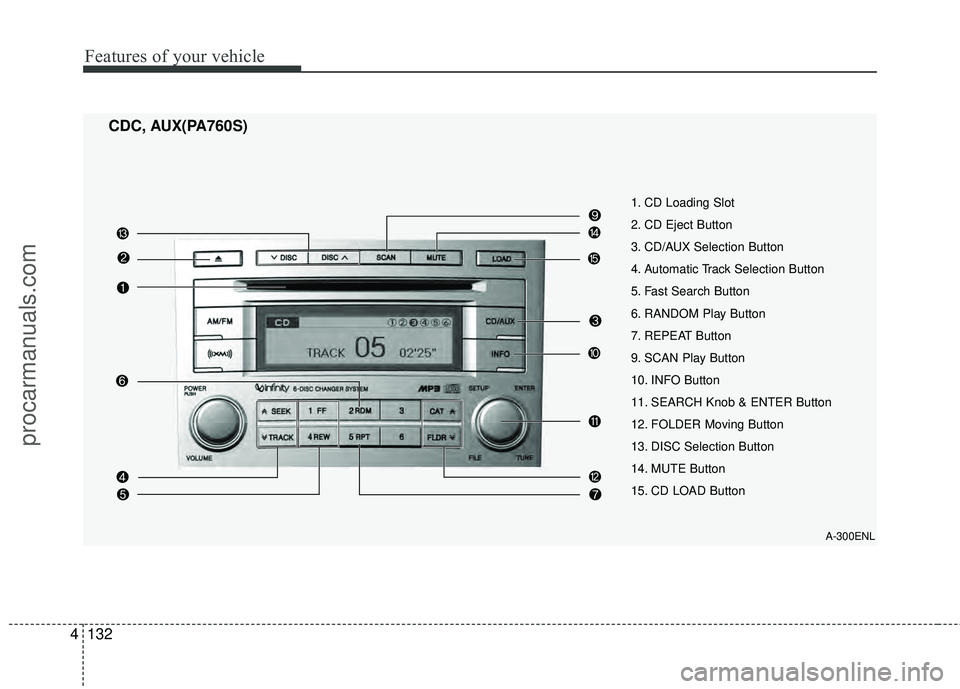
CDC, AUX(PA760S)
A-300ENL
1. CD Loading Slot
2. CD Eject Button
3. CD/AUX Selection Button
4. Automatic Track Selection Button
5. Fast Search Button
6. RANDOM Play Button
7. REPEAT Button
9. SCAN Play Button
10. INFO Button
11. SEARCH Knob & ENTER Button
12. FOLDER Moving Button
13. DISC Selection Button
14. MUTE Button
15. CD LOAD Button
procarmanuals.com
Page 217 of 429
4133
Features of your vehicle
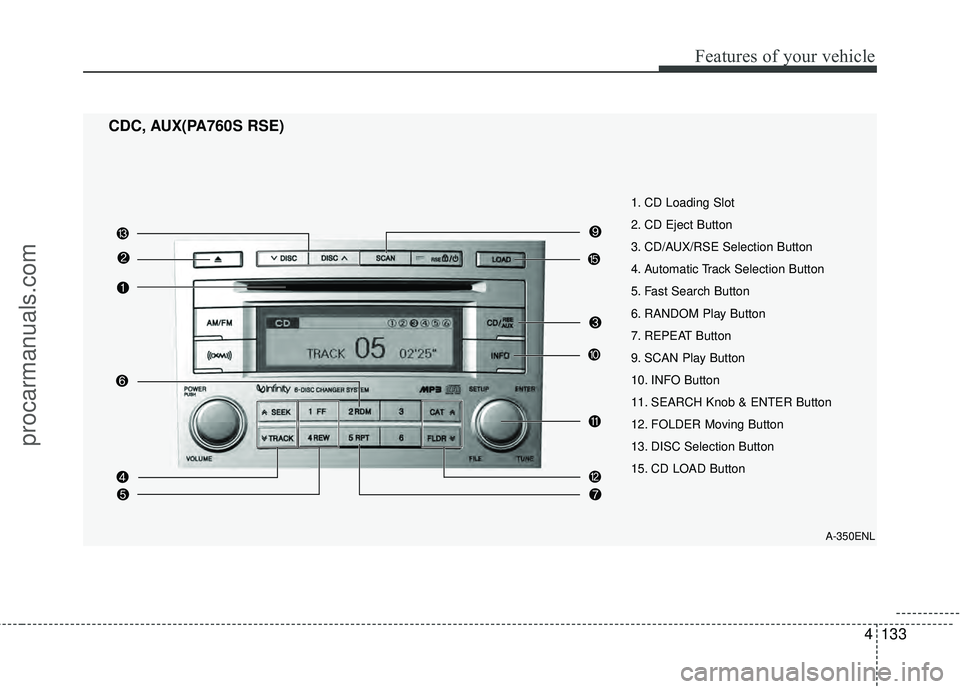
CDC, AUX(PA760S RSE)
A-350ENL
1. CD Loading Slot
2. CD Eject Button
3. CD/AUX/RSE Selection Button
4. Automatic Track Selection Button
5. Fast Search Button
6. RANDOM Play Button
7. REPEAT Button
9. SCAN Play Button
10. INFO Button
11. SEARCH Knob & ENTER Button
12. FOLDER Moving Button
13. DISC Selection Button
15. CD LOAD Button
procarmanuals.com
Page 218 of 429
Features of your vehicle
134
4
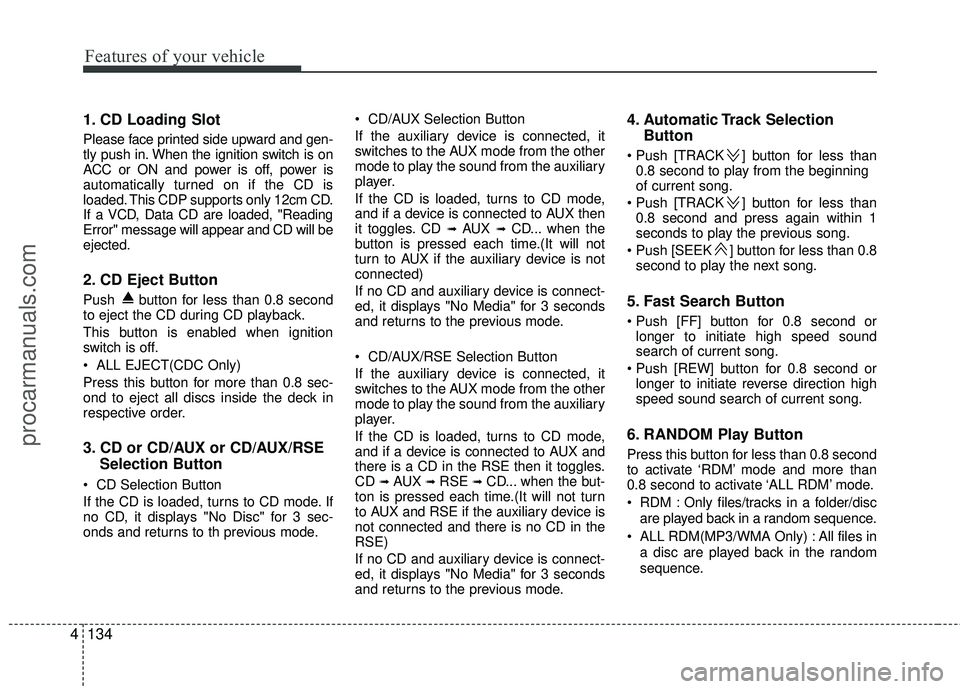
1. CD Loading Slot
Please face printed side upward and gen-
tly push in. When the ignition switch is on
ACC or ON and power is off, power is
automatically turned on if the CD is
loaded. This CDP supports only 12cm CD.
If a VCD, Data CD are loaded, "Reading
Error" message will appear and CD will be
ejected.
2. CD Eject Button
Push button for less than 0.8 second
to eject the CD during CD playback.
This button is enabled when ignition
switch is off.
ALL EJECT(CDC Only)
Press this button for more than 0.8 sec-
ond to eject all discs inside the deck in
respective order.
3. CD or CD/AUX or CD/AUX/RSE
Selection Button
CD Selection Button
If the CD is loaded, turns to CD mode. If
no CD, it displays "No Disc" for 3 sec-
onds and returns to th previous mode. CD/AUX Selection Button
If the auxiliary device is connected, it
switches to the AUX mode from the other
mode to play the sound from the auxiliary
player.
If the CD is loaded, turns to CD mode,
and if a device is connected to AUX then
it toggles. CD
➟ AUX ➟ CD... when the
button is pressed each time.(It will not
turn to AUX if the auxiliary device is not
connected)
If no CD and auxiliary device is connect-
ed, it displays "No Media" for 3 seconds
and returns to the previous mode.
CD/AUX/RSE Selection Button
If the auxiliary device is connected, it
switches to the AUX mode from the other
mode to play the sound from the auxiliary
player.
If the CD is loaded, turns to CD mode,
and if a device is connected to AUX and
there is a CD in the RSE then it toggles.
CD
➟ AUX ➟ RSE ➟ CD... when the but-
ton is pressed each time.(It will not turn
to AUX and RSE if the auxiliary device is
not connected and there is no CD in the
RSE)
If no CD and auxiliary device is connect-
ed, it displays "No Media" for 3 seconds
and returns to the previous mode.
4. Automatic Track Selection Button
] button for less than
0.8 second to play from the beginning
of current song.
] button for less than 0.8 second and press again within 1
seconds to play the previous song.
] button for less than 0.8 second to play the next song.
5. Fast Search Button
longer to initiate high speed sound
search of current song.
longer to initiate reverse direction high
speed sound search of current song.
6. RANDOM Play Button
Press this button for less than 0.8 second
to activate ‘RDM’ mode and more than
0.8 second to activate ‘ALL RDM’ mode.
RDM : Only files/tracks in a folder/disc
are played back in a random sequence.
ALL RDM(MP3/WMA Only) : All files in a disc are played back in the random
sequence.
procarmanuals.com
Page 225 of 429
4141
Features of your vehicle
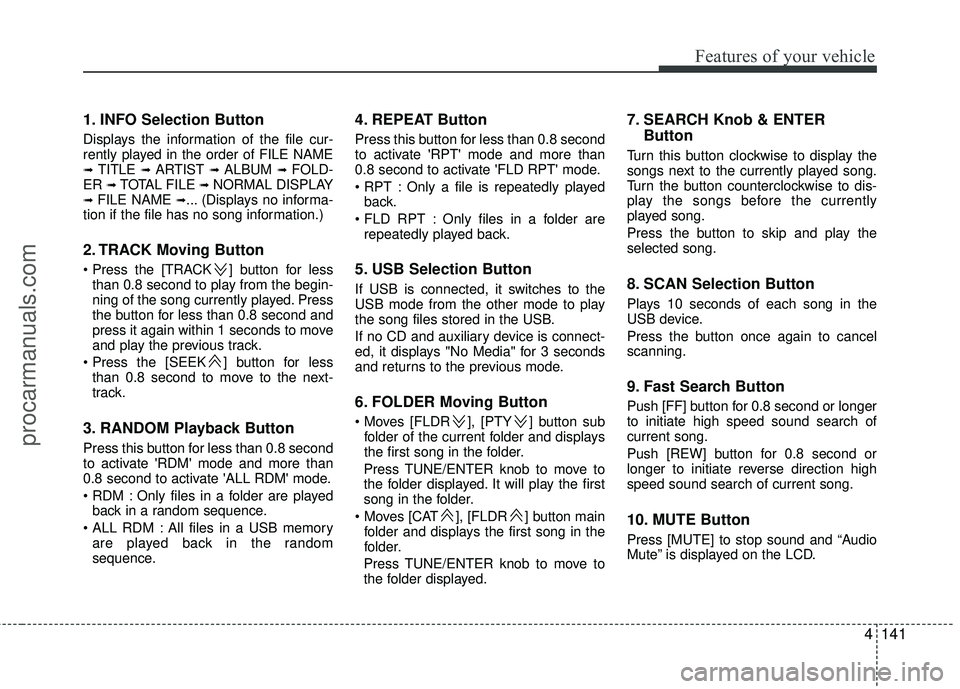
1. INFO Selection Button
Displays the information of the file cur-
rently played in the order of FILE NAME
➟ TITLE ➟ ARTIST ➟ ALBUM ➟ FOLD-
ER ➟ TOTAL FILE ➟ NORMAL DISPLAY➟ FILE NAME ➟... (Displays no informa-
tion if the file has no song information.)
2. TRACK Moving Button
] button for less than 0.8 second to play from the begin-
ning of the song currently played. Press
the button for less than 0.8 second and
press it again within 1 seconds to move
and play the previous track.
] button for less than 0.8 second to move to the next-
track.
3. RANDOM Playback Button
Press this button for less than 0.8 second
to activate 'RDM' mode and more than
0.8 second to activate 'ALL RDM' mode.
Only files in a folder are playedback in a random sequence.
All files in a USB memory are played back in the random
sequence.
4. REPEAT Button
Press this button for less than 0.8 second
to activate 'RPT' mode and more than
0.8 second to activate 'FLD RPT' mode.
Only a file is repeatedly playedback.
Only files in a folder are repeatedly played back.
5. USB Selection Button
If USB is connected, it switches to the
USB mode from the other mode to play
the song files stored in the USB.
If no CD and auxiliary device is connect-
ed, it displays "No Media" for 3 seconds
and returns to the previous mode.
6. FOLDER Moving Button
], [PTY ] button subfolder of the current folder and displays
the first song in the folder.
Press TUNE/ENTER knob to move to
the folder displayed. It will play the first
song in the folder.
], [FLDR ] button main folder and displays the first song in the
folder.
Press TUNE/ENTER knob to move to
the folder displayed.
7. SEARCH Knob & ENTER Button
Turn this button clockwise to display the
songs next to the currently played song.
Turn the button counterclockwise to dis-
play the songs before the currently
played song.
Press the button to skip and play the
selected song.
8. SCAN Selection Button
Plays 10 seconds of each song in the
USB device.
Press the button once again to cancel
scanning.
9. Fast Search Button
Push [FF] button for 0.8 second or longer
to initiate high speed sound search of
current song.
Push [REW] button for 0.8 second or
longer to initiate reverse direction high
speed sound search of current song.
10. MUTE Button
Press [MUTE] to stop sound and “Audio
Mute” is displayed on the LCD.
procarmanuals.com
Page 229 of 429
4145
Features of your vehicle
Using an iPod®when the exclusive cable
is connected to the multiple terminal
inside the consol on the right hand side of
the driver's seat.
When the iPod
®is connected, the 'iPod®'
icon will be displayed on the top left cor-
ner of the display screen.
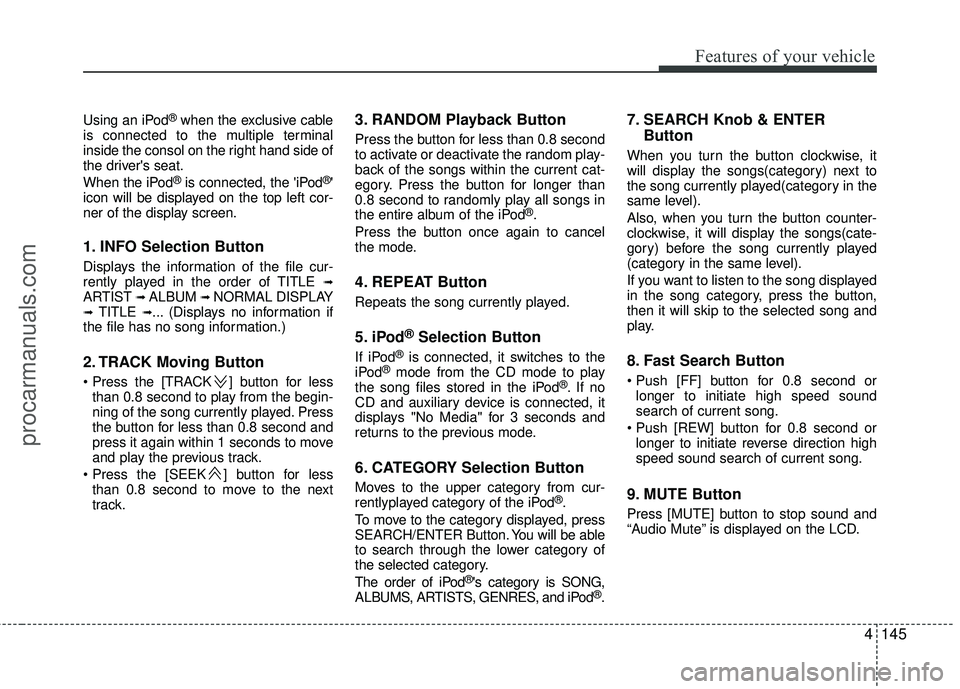
1. INFO Selection Button
Displays the information of the file cur-
rently played in the order of TITLE ➟ARTIST ➟ ALBUM ➟ NORMAL DISPLAY➟ TITLE ➟... (Displays no information if
the file has no song information.)
2. TRACK Moving Button
] button for less than 0.8 second to play from the begin-
ning of the song currently played. Press
the button for less than 0.8 second and
press it again within 1 seconds to move
and play the previous track.
] button for less than 0.8 second to move to the next
track.
3. RANDOM Playback Button
Press the button for less than 0.8 second
to activate or deactivate the random play-
back of the songs within the current cat-
egory. Press the button for longer than
0.8 second to randomly play all songs in
the entire album of the iPod
®.
Press the button once again to cancel
the mode.
4. REPEAT Button
Repeats the song currently played.
5. iPod®Selection Button
If iPod®is connected, it switches to the
iPod®mode from the CD mode to play
the song files stored in the iPod®. If no
CD and auxiliary device is connected, it
displays "No Media" for 3 seconds and
returns to the previous mode.
6. CATEGORY Selection Button
Moves to the upper category from cur-
rentlyplayed category of the iPod®.
To move to the category displayed, press
SEARCH/ENTER Button. You will be able
to search through the lower category of
the selected category.
The order of iPod
®'s category is SONG,
ALBUMS, ARTISTS, GENRES, and iPod®.
7. SEARCH Knob & ENTER Button
When you turn the button clockwise, it
will display the songs(category) next to
the song currently played(category in the
same level).
Also, when you turn the button counter-
clockwise, it will display the songs(cate-
gory) before the song currently played
(category in the same level).
If you want to listen to the song displayed
in the song category, press the button,
then it will skip to the selected song and
play.
8. Fast Search Button
longer to initiate high speed sound
search of current song.
longer to initiate reverse direction high
speed sound search of current song.
9. MUTE Button
Press [MUTE] button to stop sound and
“Audio Mute” is displayed on the LCD.
procarmanuals.com
Page 230 of 429
Features of your vehicle
146
4
✽
✽
NOTICE - Using the iPod®
device
• Some iPod®models might not support
the communication protocol and the
files will not be played. (iPod
®models
supported: Mini, 4G, Photo, Nano, 5G)
• The order of search or playback of songs in the iPod
®can be different
from the order searched in the audio
system.
• If the iPod
®crashes due to its own
trouble, reset the iPod®. (Reset: Refer
to iPod®manual)
• An iPod®may not operate normally
on low battery.
CAUTION IN USING THE
iPod®DEVICE
You need the power cable exclu-
sive for an iPod®in order to oper-
ate the iPod®with the buttons on
the audio system. The PC cable provided by Apple may cause amalfunction and should not beused in the vehicle.
When connecting the device with the iPod
®cable, push in the jack
fully.
When adjusting the sound effects of the iPod
®and the audio sys-
tem, the sound effects of both devices may overlap and distortthe quality of the sound.
Deactivate (turn off) the equalizer function of the iPod
®when adjust-
ing the audio system's volume, and turn off the equalizer of theaudio system when using the equalizer of the iPod
®.
(Continued)
(Continued) When the iPod®cable is connect-
ed, the system can be switched to the AUX mode even without theiPod
®device and may cause
noise. Disconnect the iPod®cable
when not using the iPod®device.
When the iPod®is not used with
the audio system, the iPod®cable
should be removed from the iPod®.
procarmanuals.com
Page 236 of 429
![HYUNDAI VERACRUZ 2012 Owners Manual Features of your vehicle
152
4
In case RSE is loaded DVD disc and con-
nected auxiliary device at RSE unit that
is located the rear seat.
1. TRACK UP/DOWN Button
] button for less than
0.8 second to](/img/35/57927/w960_57927-235.png "HYUNDAI VERACRUZ 2012 Owners Manual Features of your vehicle
152
4
In case RSE is loaded DVD disc and con-
nected auxiliary device at RSE unit that
is located the rear seat.
1. TRACK UP/DOWN Button
] button for less than
0.8 second to")
Features of your vehicle
152
4
In case RSE is loaded DVD disc and con-
nected auxiliary device at RSE unit that
is located the rear seat.
1. TRACK UP/DOWN Button
] button for less than
0.8 second to play from the beginning
of current song.
] button for less than 0.8 second and press again within 1
seconds to play the previous song.
] button for 0.8 or longer to initiate reverse direction high
speed sound search of current song.
] button for less than 0.8 second to play the next song.
] button for 0.8 or longer to initiate high speed sound search of
current song.
2. RSE Selection Button
When you press this button, the system
will switch to RSE mode and you will be
able to listen to the source played in the
RSE unit. (If RSE unit has no disc, can
not select)
3. RSE Hold and RSE Power Off
If you press and hold this button for less
than 0.8 second, the LED of the button
will light and RSE unit will be locked. If
you press and hold this button for more
than 0.8 second, RSE unit will be turned
off with a beep and [RSE] will disappear
from LCD.
4. Folder Moving Button
], button child folder ofthe current folder and displays the first
song in the folder.
] button parent folder and displays the first song in the folder.
CAUTION - Using RSE device
When listening to the CD on the
Audio H/UNIT in RSE, the mode can-not be converted to USB on theAudio H/UNIT and will be dis-played on the LCD.
procarmanuals.com
Page 237 of 429
4153
Features of your vehicle
D320000AEN
Important Safety Information
It is always important to operate your
vehicle in a safe manner and to avoid dis-
traction while driving. This manual pro-
vides information that will help you safely
operate your Rear Seat Entertainment
System (RSE). Please read it completely
before using the system.
This device complies with part 15 of
the FCC rules.
Operation is subject to the following two
conditions:
1. This device may not cause harmfulinterference, and
2. This device must accept any interfer- ence received, including interference
that may cause undesired operation.
Welcome
The Rear Seat Entertainment System is
a compact, built-in, easy-to-use enter-
tainment system designed to provide
family fun while you are on the road.
Enjoy great quality sound from the vehi-
cle speakers, or have a private, quiet lis-
tening with the wireless headphones.
The overhead display unit is mounted to
the ceiling in the rear passenger area of
the vehicle, allowing rear-seat passen-
gers to play DVD movies, video CDs or
music CDs. Users may also plug in a
game platform or VHS player into an aux-
iliary input to show the programs through
the RSE display. The RSE can also
access to the vehicle's front radio pro-
grams.
System Overview
Connections / Setup
Your Rear Seat Entertainment system
will play DVD movies, video CDs, music
CDs or music MP3 discs and Mix CD
(Regarding Mix CD, only the CD track
can be played by system.), and is
designed to make your time on the road
more enjoyable. Please follow these
instructions carefully to get the most out
of your RSE.
REAR SEAT ENTERTAINMENT SYSTEM (RSE) (IF EQUIPPED)
CAUTION
Avoid having food or drinks near, in or on the RSE, the wirelessheadphones or the remote con-troller.
Direct sunlight may interfere with the headphone's operation andperformance.
Normal RSE operation cannot be guaranteed with unofficiallyduplicated discs.
(Continued)
WARNING
Changes or modifications not
expressly approved by the party
responsible for compliance could
void the user's authority to operate
the equipment.
procarmanuals.com