change time INFINITI JX 2013 User Guide
[x] Cancel search | Manufacturer: INFINITI, Model Year: 2013, Model line: JX, Model: INFINITI JX 2013Pages: 554, PDF Size: 5.48 MB
Page 197 of 554
Auto Interior Illumination:Select to turn on or
turn off the illumination of the interior lights when
any door is unlocked.
Light Sensitivity: Select to adjust the sensitivity
of the automatic headlights higher (right) or lower
(left) .
Light Off Delay: Select to change the duration
of the automatic headlight off timer from 0-, 30-,
45-, 60-, 90-, 120-, 150- and 180-second peri-
ods.
Selective Door Unlock: When this item is
turned on, only the driver’s door is unlocked first
after the door unlock operation. When the door
handle request switch on the driver’s or front
passenger’s side door is pushed to be unlocked,
only the corresponding door is unlocked first. All
the doors can be unlocked if the door unlock
operation is performed again within 1 minute.
When this item is turned to off, all the doors will
be unlocked after the door unlock operation is
performed once.
Intelligent Key Lock / Unlock: Select to turn
on or turn off the door lock/unlock function by
pushing the door handle request switch. Lift Steering Wheel on Exit (if so equipped):
Select to turn on or turn off the steering wheel
moving upward for easy exit when the ignition
switch is in the OFF position and the driver’s door
is opened. After getting into the vehicle and
pushing the ignition switch to the ACC position,
the steering wheel moves to the previous posi-
tion.
Slide Driver Seat Back on Exit (if so
equipped):
Select to turn on or turn off the
driver’s seat moving backward for easy exit when
the ignition switch is in the OFF position and the
driver’s door is opened. After getting into the
vehicle and pushing the ignition switch to the
ACC position, the driver’s seat moves to the
previous position.
Return All Settings to Default: Select to
change all the comfort and convenience systems
to their default settings.
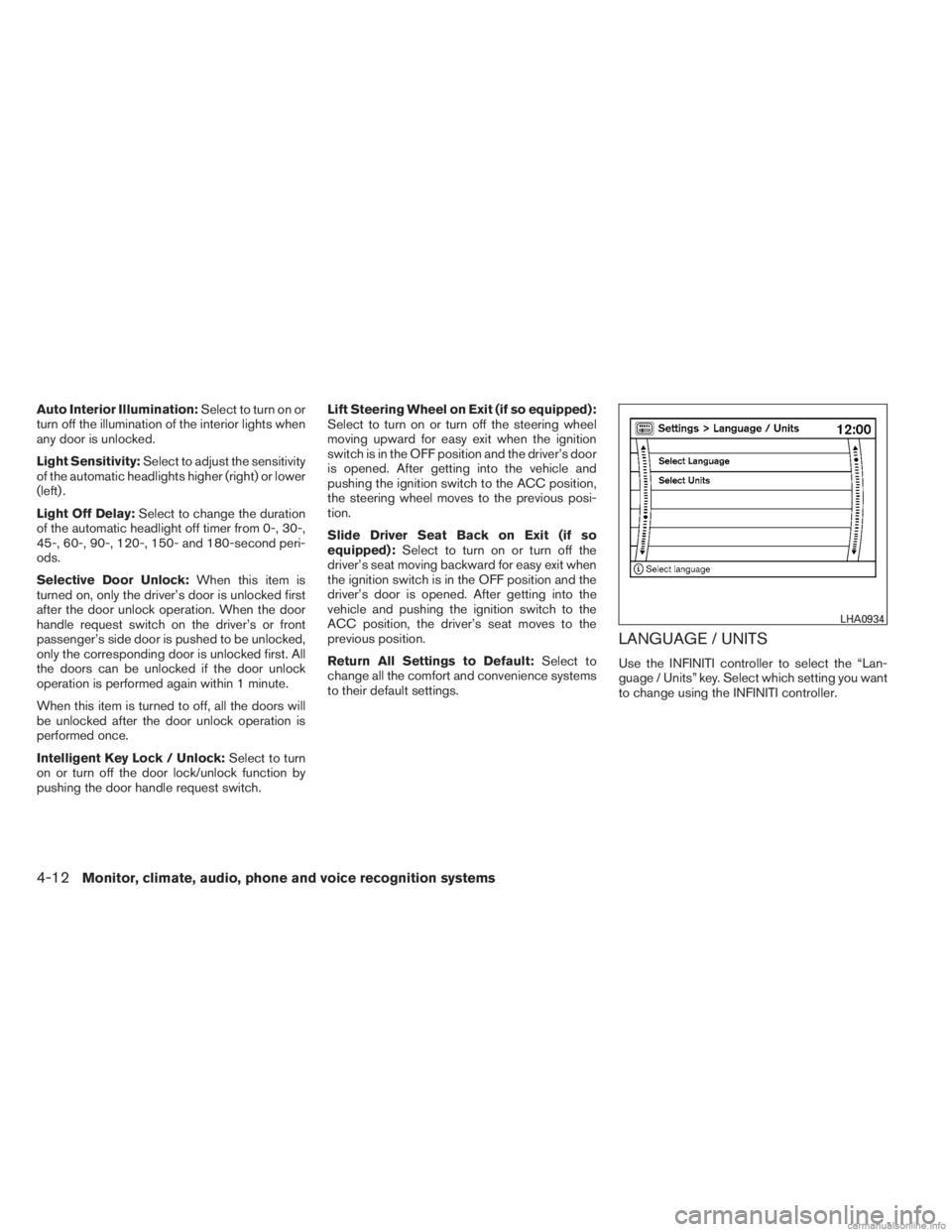
LANGUAGE / UNITS
Use the INFINITI controller to select the “Lan-
guage / Units” key. Select which setting you want
to change using the INFINITI controller.
LHA0934
4-12Monitor, climate, audio, phone and voice recognition systems
Page 210 of 554
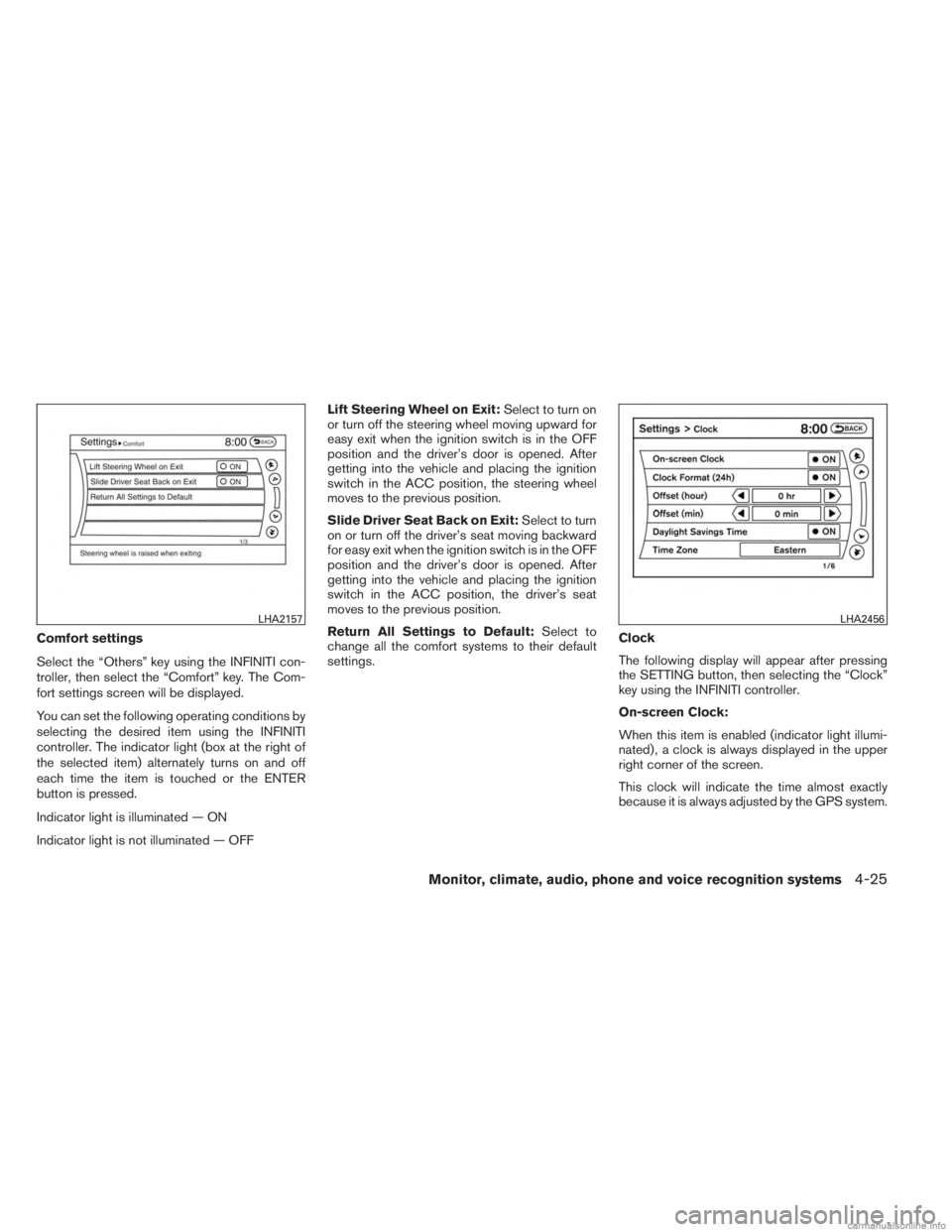
Comfort settings
Select the “Others” key using the INFINITI con-
troller, then select the “Comfort” key. The Com-
fort settings screen will be displayed.
You can set the following operating conditions by
selecting the desired item using the INFINITI
controller. The indicator light (box at the right of
the selected item) alternately turns on and off
each time the item is touched or the ENTER
button is pressed.
Indicator light is illuminated — ON
Indicator light is not illuminated — OFFLift Steering Wheel on Exit:
Select to turn on
or turn off the steering wheel moving upward for
easy exit when the ignition switch is in the OFF
position and the driver’s door is opened. After
getting into the vehicle and placing the ignition
switch in the ACC position, the steering wheel
moves to the previous position.
Slide Driver Seat Back on Exit: Select to turn
on or turn off the driver’s seat moving backward
for easy exit when the ignition switch is in the OFF
position and the driver’s door is opened. After
getting into the vehicle and placing the ignition
switch in the ACC position, the driver’s seat
moves to the previous position.
Return All Settings to Default: Select to
change all the comfort systems to their default
settings. Clock
The following display will appear after pressing
the SETTING button, then selecting the “Clock”
key using the INFINITI controller.
On-screen Clock:
When this item is enabled (indicator light illumi-
nated) , a clock is always displayed in the upper
right corner of the screen.
This clock will indicate the time almost exactly
because it is always adjusted by the GPS system.
LHA2157LHA2456
Monitor, climate, audio, phone and voice recognition systems4-25
Page 211 of 554
Clock Format (24h):
When this item is enabled (indicator light illumi-
nated) , the clock format will change from the
default 12-hour display to a 24-hour display.
Offset (hour):
Adjust the time by increasing or decreasing the
hours.
Offset (minute):
Adjust the time by increasing or decreasing the
minutes.
Daylight Savings Time:
When this item is enabled (indicator light illumi-
nated) , daylight savings time is on. To turn off the
daylight savings time, touch the “ON” key; the
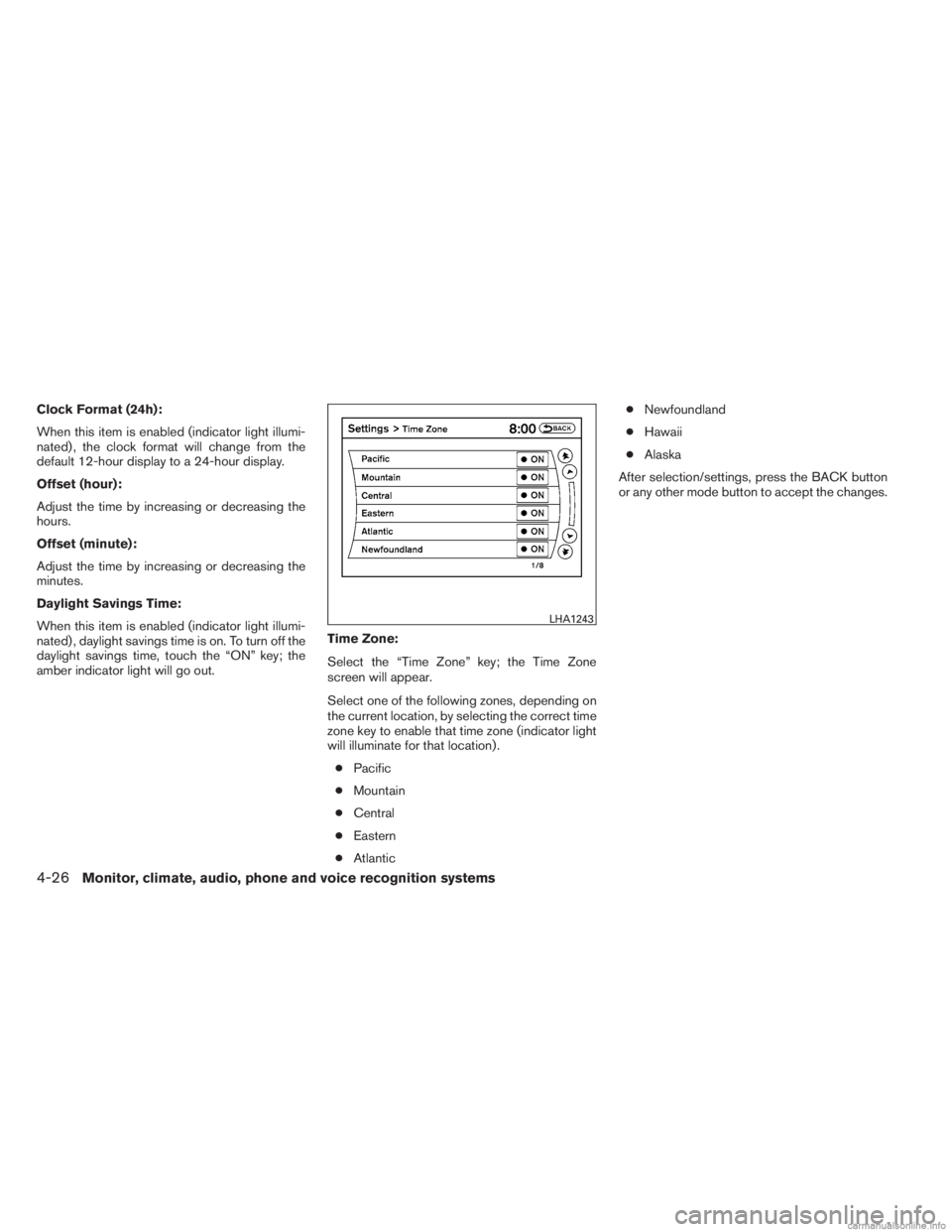
amber indicator light will go out.Time Zone:
Select the “Time Zone” key; the Time Zone
screen will appear.
Select one of the following zones, depending on
the current location, by selecting the correct time
zone key to enable that time zone (indicator light
will illuminate for that location) .
● Pacific
● Mountain
● Central
● Eastern
● Atlantic ●
Newfoundland
● Hawaii
● Alaska
After selection/settings, press the BACK button
or any other mode button to accept the changes.
LHA1243
4-26Monitor, climate, audio, phone and voice recognition systems
Page 214 of 554
Select the “Full Screen Display” key and press
the ENTER button to view a full screen version of
the image.
Image requirements:● Image type: JPEG
● File extensions: *.jpg, *.jpeg
● Maximum resolution: 2048 x 1536
● Maximum size: 2 MB
● Colors: 32,768 (15-bit)
● Maximum file name length: 253 bytes (dis-
play only shows first 8 characters)
● Maximum folders: 500
● Maximum images per folder: 1024
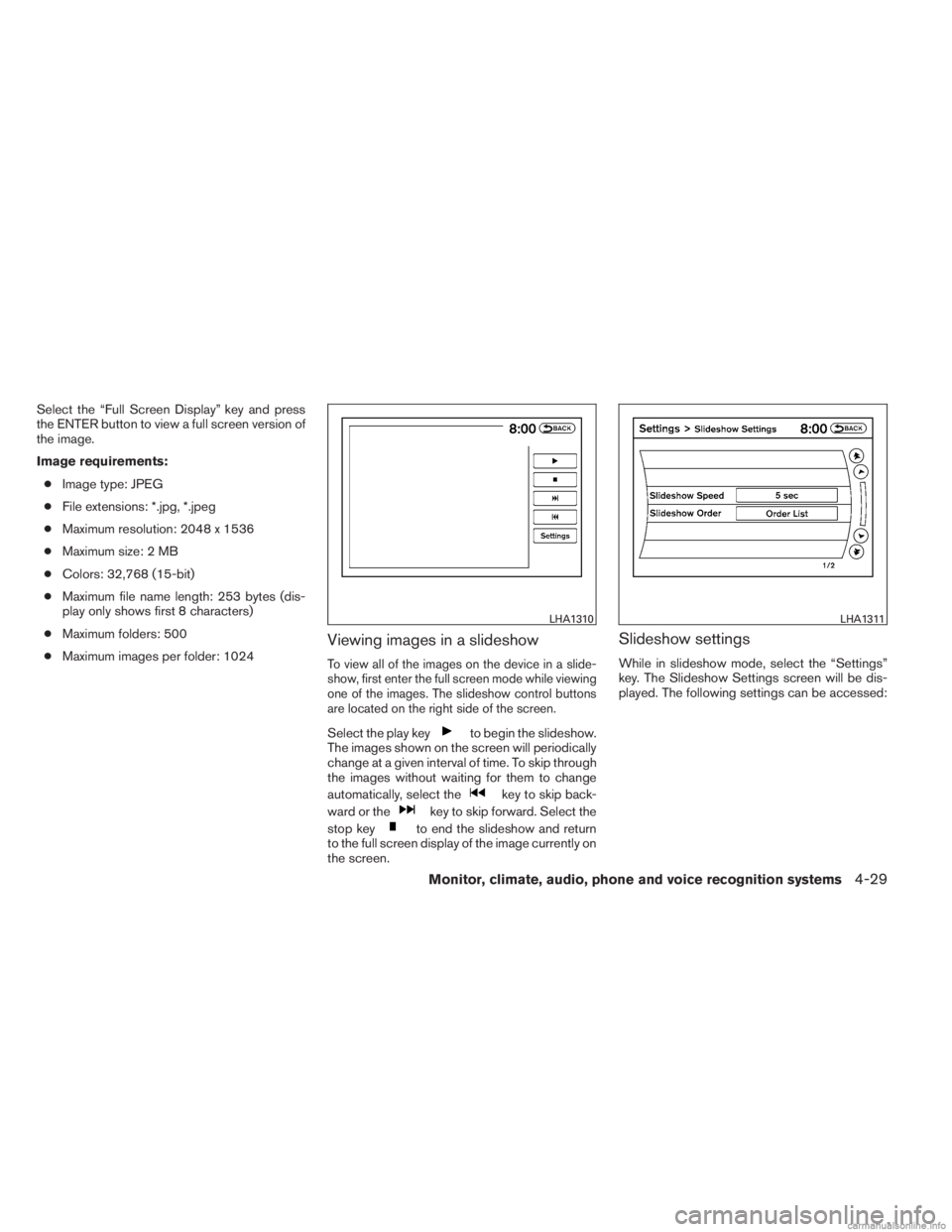
Viewing images in a slideshow
To view all of the images on the device in a slide-
show, first enter the full screen mode while viewing
one of the images. The slideshow control buttons
are located on the right side of the screen.
Select the play keyto begin the slideshow.
The images shown on the screen will periodically
change at a given interval of time. To skip through
the images without waiting for them to change
automatically, select the
key to skip back-
ward or the
key to skip forward. Select the
stop key
to end the slideshow and return
to the full screen display of the image currently on
the screen.
Slideshow settings
While in slideshow mode, select the “Settings”
key. The Slideshow Settings screen will be dis-
played. The following settings can be accessed:
LHA1310LHA1311
Monitor, climate, audio, phone and voice recognition systems4-29
Page 215 of 554
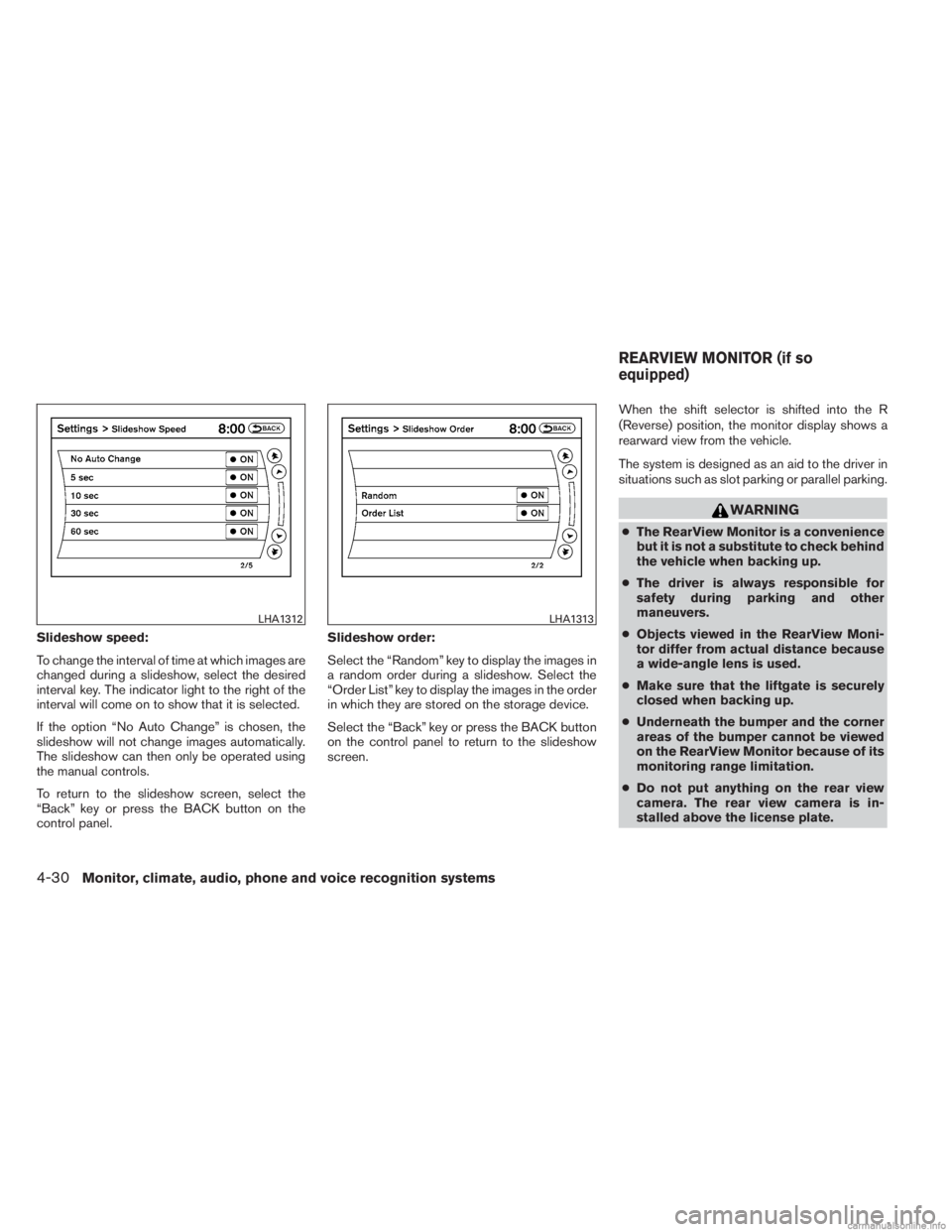
Slideshow speed:
To change the interval of time at which images are
changed during a slideshow, select the desired
interval key. The indicator light to the right of the
interval will come on to show that it is selected.
If the option “No Auto Change” is chosen, the
slideshow will not change images automatically.
The slideshow can then only be operated using
the manual controls.
To return to the slideshow screen, select the
“Back” key or press the BACK button on the
control panel.Slideshow order:
Select the “Random” key to display the images in
a random order during a slideshow. Select the
“Order List” key to display the images in the order
in which they are stored on the storage device.
Select the “Back” key or press the BACK button
on the control panel to return to the slideshow
screen.When the shift selector is shifted into the R
(Reverse) position, the monitor display shows a
rearward view from the vehicle.
The system is designed as an aid to the driver in
situations such as slot parking or parallel parking.
WARNING
●
The RearView Monitor is a convenience
but it is not a substitute to check behind
the vehicle when backing up.
● The driver is always responsible for
safety during parking and other
maneuvers.
● Objects viewed in the RearView Moni-
tor differ from actual distance because
a wide-angle lens is used.
● Make sure that the liftgate is securely
closed when backing up.
● Underneath the bumper and the corner
areas of the bumper cannot be viewed
on the RearView Monitor because of its
monitoring range limitation.
● Do not put anything on the rear view
camera. The rear view camera is in-
stalled above the license plate.
LHA1312LHA1313
REARVIEW MONITOR (if so
equipped)
4-30Monitor, climate, audio, phone and voice recognition systems
Page 234 of 554
●When the ignition switch is placed in the
OFF position and then back to the ON posi-
tion.
To set the MOD system so that it remains off at all
times, use the camera settings menu. See
“Around View Monitor settings” in this section for
more information.
WARNING
● Do not use the MOD system when tow-
ing a trailer. The system may not func-
tion properly.
● Excessive noise (for example, audio
system volume or open vehicle window)
will interfere with the chime sound, and
it may not be heard.
● The MOD system performance will be
limited according to environmental
conditions and surrounding objects
such as:
– When there is low contrast between background and the moving objects.
– When there is blinking source of light.
– When strong light such as another vehicle’s headlight or sunlight is
present. – When camera orientation is not in its
usual position, such as when mirror
is folded.
– When there is dirt, water drops or snow on the camera lens.
– When the position of the moving ob- jects in the display is not changed.
● The MOD system might detect some-
thing like flowing water droplets on the
camera lens, white smoke from the
muffler, moving shadows, etc.
● The MOD system may not function
properly depending on the speed, direc-
tion, distance or shape of the moving
objects.
● If your vehicle sustains damage to the
parts where the camera is installed,
leaving it misaligned or bent, the sens-
ing zone may be altered and the MOD
system may not detect objects properly.
Camera maintenance
If dirt, rain or snow accumulates on the camera,
the MOD system may not operate properly. Clean
the camera.
HOW TO ADJUST THE SCREEN
VIEW
To adjust the Display ON/OFF, Brightness, Tint,
Color, Contrast and Black Level of the Around
View Monitor, press the SETTING button with the
Around View Monitor on, select the item key and
adjust the level using the INFINITI controller.
Do not adjust the Brightness, Tint, Color, Con-
trast and Black Level of the Around View Monitor
while the vehicle is moving. Make sure the park-
ing brake is firmly applied.
Monitor, climate, audio, phone and voice recognition systems4-49
Page 243 of 554
Ion control:
This unit generates highly concentrated Plasma-
cluster™ ions into the air blown from the vents
and reduces odor absorbed into the interior trim.
When the air conditioner is turned on, the system
generates Plasmacluster™ ions automatically.
The amount of Plasmacluster™ ions increases
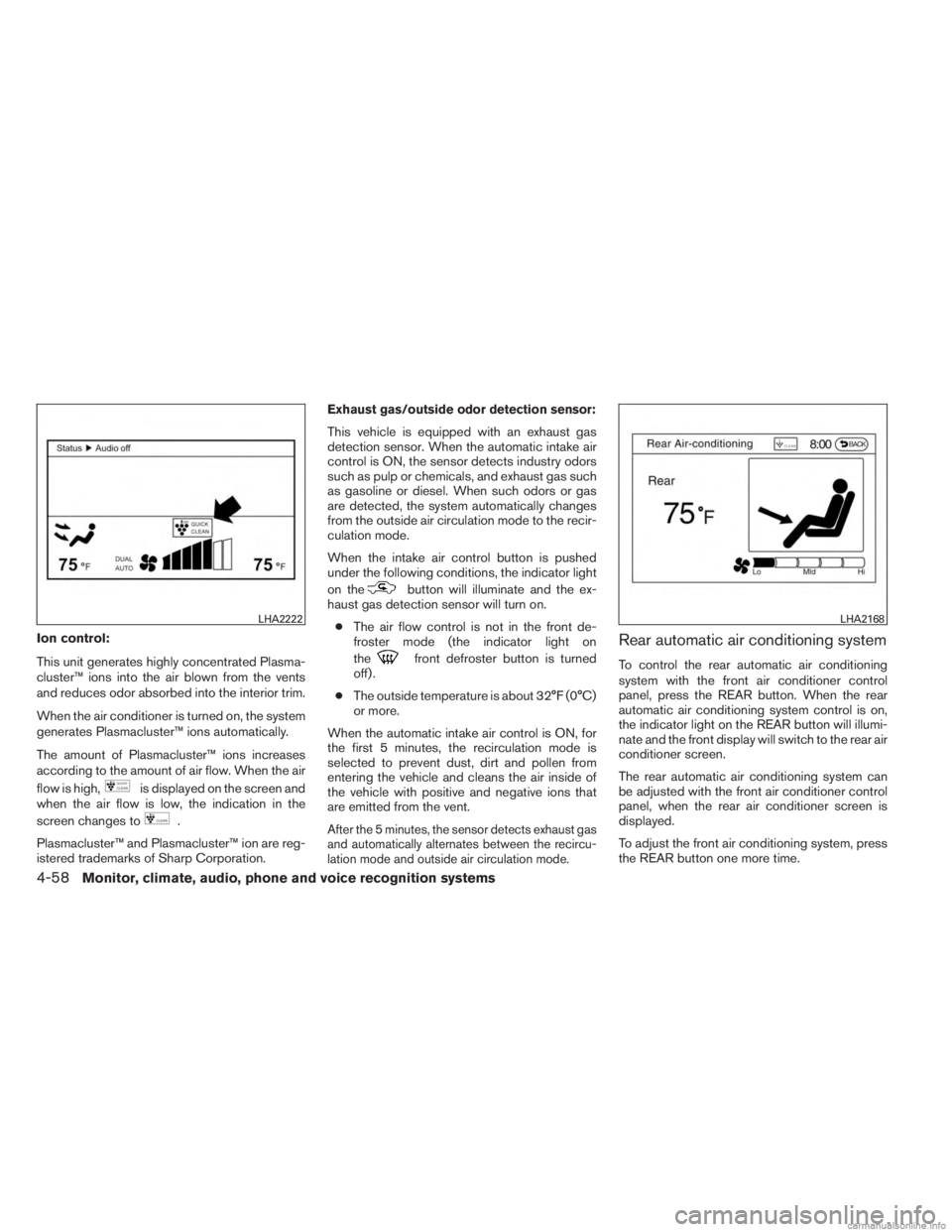
according to the amount of air flow. When the air
flow is high,
is displayed on the screen and
when the air flow is low, the indication in the
screen changes to
.
Plasmacluster™ and Plasmacluster™ ion are reg-
istered trademarks of Sharp Corporation.
Exhaust gas/outside odor detection sensor:
This vehicle is equipped with an exhaust gas
detection sensor. When the automatic intake air
control is ON, the sensor detects industry odors
such as pulp or chemicals, and exhaust gas such
as gasoline or diesel. When such odors or gas
are detected, the system automatically changes
from the outside air circulation mode to the recir-
culation mode.
When the intake air control button is pushed
under the following conditions, the indicator light
on the
button will illuminate and the ex-
haust gas detection sensor will turn on.
● The air flow control is not in the front de-
froster mode (the indicator light on
the
front defroster button is turned
off) .
● The outside temperature is about 32°F (0°C)
or more.
When the automatic intake air control is ON, for
the first 5 minutes, the recirculation mode is
selected to prevent dust, dirt and pollen from
entering the vehicle and cleans the air inside of
the vehicle with positive and negative ions that
are emitted from the vent.
After the 5 minutes, the sensor detects exhaust gas
and automatically alternates between the recircu-
lation mode and outside air circulation mode.
Rear automatic air conditioning system
To control the rear automatic air conditioning
system with the front air conditioner control
panel, press the REAR button. When the rear
automatic air conditioning system control is on,
the indicator light on the REAR button will illumi-
nate and the front display will switch to the rear air
conditioner screen.
The rear automatic air conditioning system can
be adjusted with the front air conditioner control
panel, when the rear air conditioner screen is
displayed.
To adjust the front air conditioning system, press
the REAR button one more time.
LHA2222LHA2168
4-58Monitor, climate, audio, phone and voice recognition systems
Page 246 of 554
RADIO
Place the ignition switch in the ACC or ON
position and press the VOL (volume)/ON·OFF
(power) knob to turn the radio on. If you listen to
the radio with the engine not running, the ignition
switch should be placed in the ACC position.
Radio reception is affected by station signal
strength, distance from radio transmitter, build-
ings, bridges, mountains and other external influ-
ences. Intermittent changes in reception quality
normally are caused by these external influences.
Using a cellular phone in or near the ve-
hicle may influence radio reception quality.
Radio reception
Your INFINITI radio system is equipped with
state-of-the-art electronic circuits to enhance ra-
dio reception. These circuits are designed to
extend reception range, and to enhance the qual-
ity of that reception.
However, there are some general characteristics
of both FM and AM radio signals that can affect
radio reception quality in a moving vehicle, even
when the finest equipment is used. These char-
acteristics are completely normal in a given re-
ception area, and do not indicate any malfunction
in your INFINITI radio system.Reception conditions will constantly change be-
cause of vehicle movement. Buildings, terrain,
signal distance and interference from other ve-
hicles can work against ideal reception. De-
scribed below are some of the factors that can
affect your radio reception.
Some cellular phones or other devices may
cause interference or a buzzing noise to come
from the audio system speakers. Storing the de-
vice in a different location may reduce or elimi-
nate the noise.
FM RADIO RECEPTION
Range: FM range is normally limited to 25 – 30 mi
(40 – 48 km) , with monaural (single channel) FM
having slightly more range than stereo FM. Exter-
nal influences may sometimes interfere with FM
station reception even if the FM station is within
25 mi (40 km) . The strength of the FM signal is
directly related to the distance between the
transmitter and receiver. FM signals follow a line-
of-sight path, exhibiting many of the same char-
acteristics as light. For example, they will reflect
off objects.
Fade and drift: As your vehicle moves away from
a station transmitter, the signals will tend to fade
and/or drift.
Static and flutter: During signal interference from
buildings, large hills or due to antenna position
(usually in conjunction with increased distance
from the station transmitter) , static or flutter can
be heard. This can be reduced by adjusting the
treble control to reduce treble response.
Multipath reception: Because of the reflective
characteristics of FM signals, direct and reflected
signals reach the receiver at the same time. The
signals may cancel each other, resulting in mo-
mentary flutter or loss of sound.
AM RADIO RECEPTION
AM signals, because of their low frequency, can
bend around objects and skip along the ground.
In addition, the signals can be bounced off the
ionosphere and bent back to earth. Because of
these characteristics, AM signals are also sub-
ject to interference as they travel from transmitter
to receiver.
Fading: Occurs while the vehicle is passing
through freeway underpasses or in areas with
many tall buildings. It can also occur for several
seconds during ionospheric turbulence even in
areas where no obstacles exist.
Static: Caused by thunderstorms, electrical
power lines, electric signs and even traffic lights.
AUDIO SYSTEM
Monitor, climate, audio, phone and voice recognition systems4-61
Page 247 of 554
SATELLITE RADIO RECEPTION (if so
equipped)
When the satellite radio is used for the first time
or the battery has been replaced, the satellite
radio may not work properly. This is not a mal-
function. Wait more than 10 minutes with satellite
radio ON and the vehicle outside of any metal or
large building for satellite radio to receive all of
the necessary data.
The satellite radio mode will be skipped unless an
optional satellite receiver and antenna are in-
stalled and a SiriusXM Satellite Radio service
subscription is active. Satellite radio is not avail-
able in Alaska, Hawaii and Guam.
Satellite radio performance may be affected if
cargo carried on the roof blocks the satellite radio
signal.
If possible, do not put cargo over the satellite
antenna.
A build up of ice on the satellite radio antenna can
affect satellite radio performance. Remove the
ice to restore satellite radio reception.
XM® is a registered trademark of SiriusXM Sat-
ellite Radio, Inc.
AUDIO OPERATION PRECAUTIONSCompact disc (CD) player (models
without Navigation System)
CAUTION
●
Do not force a compact disc into the CD
insert slot. This could damage the CD
and/or CD changer/player.
● Trying to load a CD with the CD door
closed could damage the CD and/or CD
changer.
● Only one CD can be loaded into the CD
player at a time.
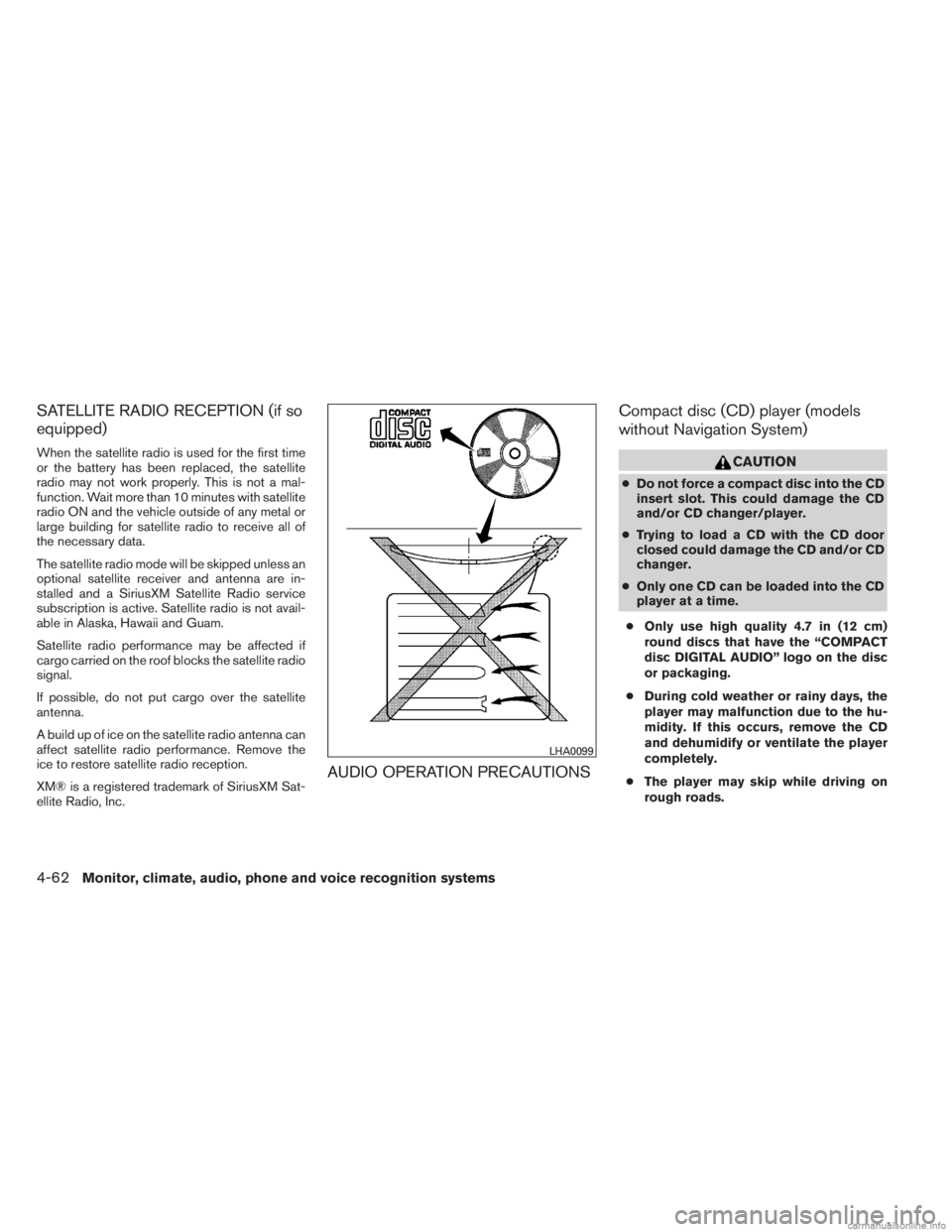
● Only use high quality 4.7 in (12 cm)
round discs that have the “COMPACT
disc DIGITAL AUDIO” logo on the disc
or packaging.
● During cold weather or rainy days, the
player may malfunction due to the hu-
midity. If this occurs, remove the CD
and dehumidify or ventilate the player
completely.
● The player may skip while driving on
rough roads.
LHA0099
4-62Monitor, climate, audio, phone and voice recognition systems
Page 271 of 554
DIGITAL VERSATILE DISC (DVD)
PLAYER OPERATION (models with
Navigation System)
Precautions
Start the engine when using the DVD entertain-
ment system.
Movies will not be shown on the front display
while the vehicle is in any drive position to reduce
driver distraction. Audio is available when a movie
is played. To view movies on the front display,
stop the vehicle in a safe location, move the shift
selector to the P (Park) position and apply the
parking brake.
WARNING
●The driver must not attempt to operate
the DVD system or wear the head-
phones while the vehicle is in motion so
that full attention may be given to ve-
hicle operation.
● Do not attempt to modify the system to
display a movie on the front screen
while the vehicle is being driven. Doing
so may distract the driver and may
cause a collision and serious personal
injury or death.
CAUTION
●Only operate the DVD while the vehicle
engine is running. Operating the DVD
for extended periods of time with the
engine OFF can discharge the vehicle
battery.
● Do not allow the system to get wet.
Excessive moisture such as spilled liq-
uids may cause the system to
malfunction.
● While playing VIDEO-CD media, this
DVD player does not guarantee com-
plete functionality of all VIDEO-CD
formats.
Display settings
To adjust the front display mode, press the SET-
TING button while the DVD is playing. Select the
“Others” key with the INFINITI controller or with
the touchscreen, then select the “Display” key.
To adjust the display ON/OFF, brightness, tint,
color and contrast, select the “Display Adjust-
ment” key with the INFINITI controller or with the
touchscreen and then select the key of the set-
ting you wish to adjust. After the desired changes
have been made, press the BACK button to save
the settings.
Playing a DVD
DISC-AUX button
Park the vehicle in a safe location for the front
seat occupants to operate the DVD drive while
watching the images.
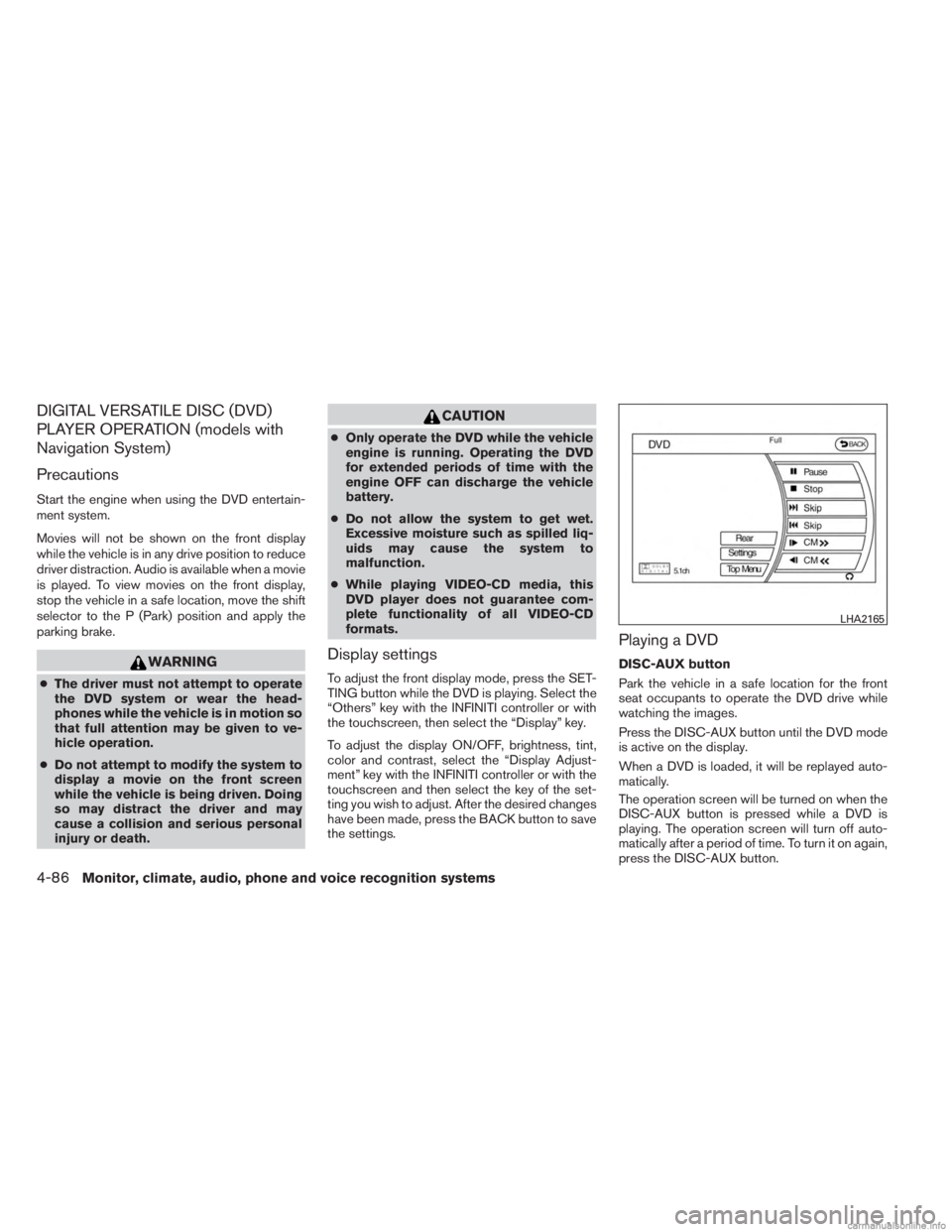
Press the DISC-AUX button until the DVD mode
is active on the display.
When a DVD is loaded, it will be replayed auto-
matically.
The operation screen will be turned on when the
DISC-AUX button is pressed while a DVD is
playing. The operation screen will turn off auto-
matically after a period of time. To turn it on again,
press the DISC-AUX button.
LHA2165
4-86Monitor, climate, audio, phone and voice recognition systems