climate control INFINITI M 2012 Owner's Manual
[x] Cancel search | Manufacturer: INFINITI, Model Year: 2012, Model line: M, Model: INFINITI M 2012Pages: 522, PDF Size: 3.8 MB
Page 182 of 522

Vehicle information display
1. Push the INFO button on the controlpanel.
2. Select an item from the INFO menu.
3. After viewing or adjusting the informa- tion on the following screens, push the
BACK button to return to the INFO
menu.
See the separate Navigation System Own-
er’ s Manual for the following items:
. Where am I?
. Traffic Info
. Weather Info
. Map Update
. Navigation Version
When the ignition switch is in the ON
position, the “Navigation Version ”key is
displayed after selecting the “Others ”key.
SAA2479
Models with navigation system
SAA2480
Models with navigation system
JVH0056M
Models without navigation system
JVH0057M
Models without navigation system
Monitor, climate, audio, phone and voice recognition systems4-11
Page 183 of 522
4-12Monitor, climate, audio, phone and voice recognition systems
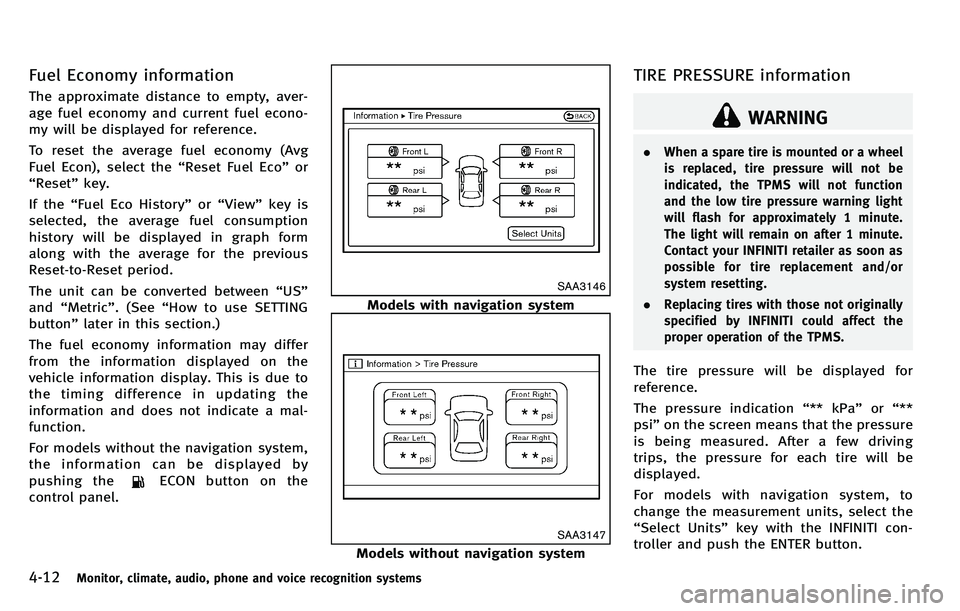
Fuel Economy information
The approximate distance to empty, aver-
age fuel economy and current fuel econo-
my will be displayed for reference.
To reset the average fuel economy (Avg
Fuel Econ), select the“Reset Fuel Eco ”or
“ Reset ”key.
If the “Fuel Eco History” or“View ”key is
selected, the average fuel consumption
history will be displayed in graph form
along with the average for the previous
Reset-to-Reset period.
The unit can be converted between “US ”
and “Metric ”. (See “How to use SETTING
button ”later in this section.)
The fuel economy information may differ
from the information displayed on the
vehicle information display. This is due to
the timing difference in updating the
information and does not indicate a mal-
function.
For models without the navigation system,
the information can be displayed by
pushing the
ECON button on the
control panel.
SAA3146
Models with navigation system
SAA3147
Models without navigation system
TIRE PRESSURE information
WARNING
. When a spare tire is mounted or a wheel
is replaced, tire pressure will not be
indicated, the TPMS will not function
and the low tire pressure warning light
will flash for approximately 1 minute.
The light will remain on after 1 minute.
Contact your INFINITI retailer as soon as
possible for tire replacement and/or
system resetting.
. Replacing tires with those not originally
specified by INFINITI could affect the
proper operation of the TPMS.
The tire pressure will be displayed for
reference.
The pressure indication “** kPa” or“**
psi ”on the screen means that the pressure
is being measured. After a few driving
trips, the pressure for each tire will be
displayed.
For models with navigation system, to
change the measurement units, select the
“ Select Units ”key with the INFINITI con-
troller and push the ENTER button.
Page 188 of 522

Audio settings
The display as illustrated will appear when
pushing the SETTING button and selecting
the“Audio ”key.
Bass/Treble/Balance/Fade:
To adjust the speaker tone quality and
sound balance, select the “Bass ”, “Treble” ,
“ Balance ”or “Fade” key and adjust it with
the INFINITI controller.
Theseitemscanalsobeadjustedby
pushing and turning the AUDIO knob.
Speed Sensitive Vol. (if so equipped):
The audio system’ s volume is increased
with the vehicle speed. Select the “Speed
Sensitive Vol.” key and adjust the effect
level with the INFINITI controller. The Speed
Sensitive Volume function is turned off
when the level is set to OFF. Increasing the
value will cause the volume to increase
faster with vehicle speed.
Precision Phased Audio (if so equipped):
When this item is turned to ON, super high
pitch sound and super low pitch sound are
emphasized and midrange sound is played
naturally. BOSE
®Centerpoint®(if so equipped):
When this item is turned to ON, an exciting
surround sound effect is generated from a
traditional stereo recording.
BOSE
®AudioPilot®(if so equipped):
When this item is turned to ON, Audio-
Pilot
®2 Noise Compensation Technology
monitors noise in the passenger compart-
ment with a microphone and compensates
for any unpleasant noise.
Surround Effect (if so equipped):
To adjust the surround sound volume,
select “Surround Effect ”key and adjust it
with the INFINITI controller.
DivX
®Registration Code (models with
navigation system):
The registration code for a device that is
used to download DivX
®files will be
displayed on the screen. If a disc is loaded
or a USB memory is connected to the audio
system, this function will not be activated.
Display Album Cover Art (models with
navigation system):
When this item is turned to ON, the album
cover image is displayed when playing
iPod
®or MP3 music files through a CD,
DVD or USB memory. When the image is not properly embedded in the file or
device, the image will not be displayed.
Phone settings (models with navi-
gation system)
For details of the
“Phone” settings, see
“ Bluetooth®Hands-Free Phone System
(models with navigation system) ”later in
this section.
Bluetooth®settings (models with
navigation system)
For details of the “Bluetooth®” settings,
see “Bluetooth®Hands-Free Phone System
(models with navigation system) ”later in
this section or “Bluetooth
®streaming
audio (models with navigation system) ”
later in this section.
Monitor, climate, audio, phone and voice recognition systems4-17
Page 189 of 522
4-18Monitor, climate, audio, phone and voice recognition systems
SAA2554
Volume and Beeps settings (models
with navigation system)
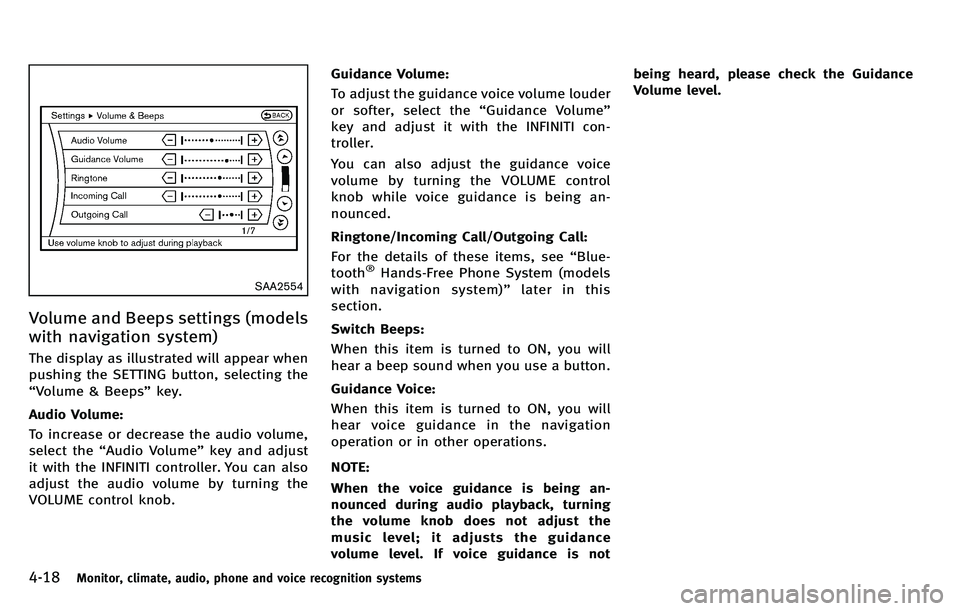
The display as illustrated will appear when
pushing the SETTING button, selecting the
“Volume & Beeps” key.
Audio Volume:
To increase or decrease the audio volume,
select the “Audio Volume ”key and adjust
it with the INFINITI controller. You can also
adjust the audio volume by turning the
VOLUME control knob. Guidance Volume:
To adjust the guidance voice volume louder
or softer, select the
“Guidance Volume ”
key and adjust it with the INFINITI con-
troller.
You can also adjust the guidance voice
volume by turning the VOLUME control
knob while voice guidance is being an-
nounced.
Ringtone/Incoming Call/Outgoing Call:
For the details of these items, see “Blue-
tooth
®Hands-Free Phone System (models
with navigation system)” later in this
section.
Switch Beeps:
When this item is turned to ON, you will
hear a beep sound when you use a button.
Guidance Voice:
When this item is turned to ON, you will
hear voice guidance in the navigation
operation or in other operations.
NOTE:
When the voice guidance is being an-
nounced during audio playback, turning
the volume knob does not adjust the
music level; it adjusts the guidance
volume level. If voice guidance is not being heard, please check the Guidance
Volume level.
Page 190 of 522
SAA2605
Button Beeps settings (models
without navigation system)
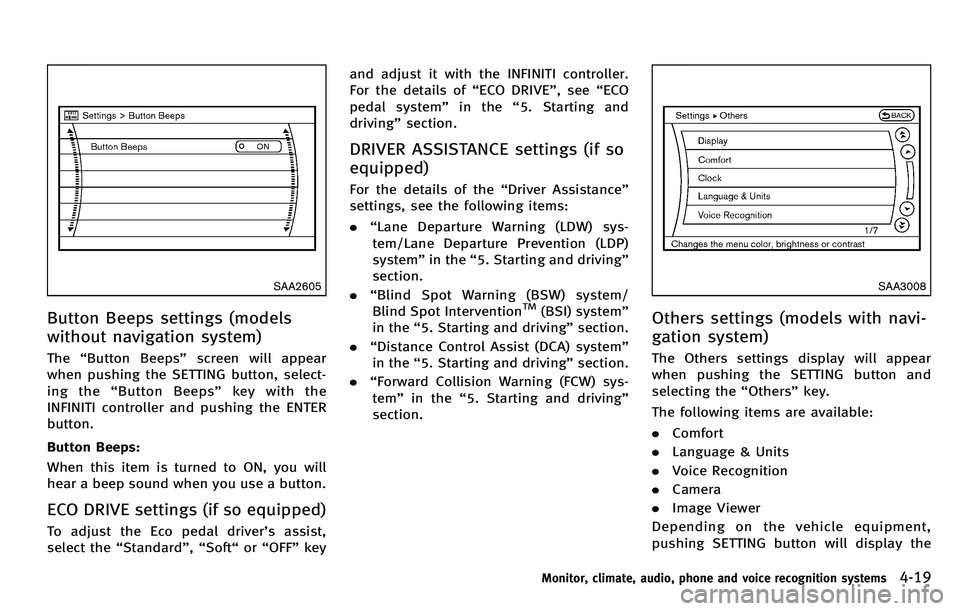
The“Button Beeps” screen will appear
when pushing the SETTING button, select-
ing the “Button Beeps ”keywiththe
INFINITI controller and pushing the ENTER
button.
Button Beeps:
When this item is turned to ON, you will
hear a beep sound when you use a button.
ECO DRIVE settings (if so equipped)
To adjust the Eco pedal driver ’s assist,
select the “Standard ”, “Soft “or “OFF ”key and adjust it with the INFINITI controller.
For the details of
“ECO DRIVE ”, see “ECO
pedal system ”in the “5. Starting and
driving ”section.
DRIVER ASSISTANCE settings (if so
equipped)
For the details of the “Driver Assistance ”
settings, see the following items:
. “Lane Departure Warning (LDW) sys-
tem/Lane Departure Prevention (LDP)
system” in the“5. Starting and driving ”
section.
. “Blind Spot Warning (BSW) system/
Blind Spot Intervention
TM(BSI) system ”
in the “5. Starting and driving ”section.
. “Distance Control Assist (DCA) system ”
in the “5. Starting and driving ”section.
. “Forward Collision Warning (FCW) sys-
tem ”in the “5. Starting and driving ”
section.
SAA3008
Others settings (models with navi-
gation system)
The Others settings display will appear
when pushing the SETTING button and
selecting the “Others ”key.
The following items are available:
. Comfort
. Language & Units
. Voice Recognition
. Camera
. Image Viewer
Depending on the vehicle equipment,
pushing SETTING button will display the
Monitor, climate, audio, phone and voice recognition systems4-19
Page 191 of 522
4-20Monitor, climate, audio, phone and voice recognition systems
following items.
.Display
. Clock
SAA2486
Display settings (models with na-
vigation system)
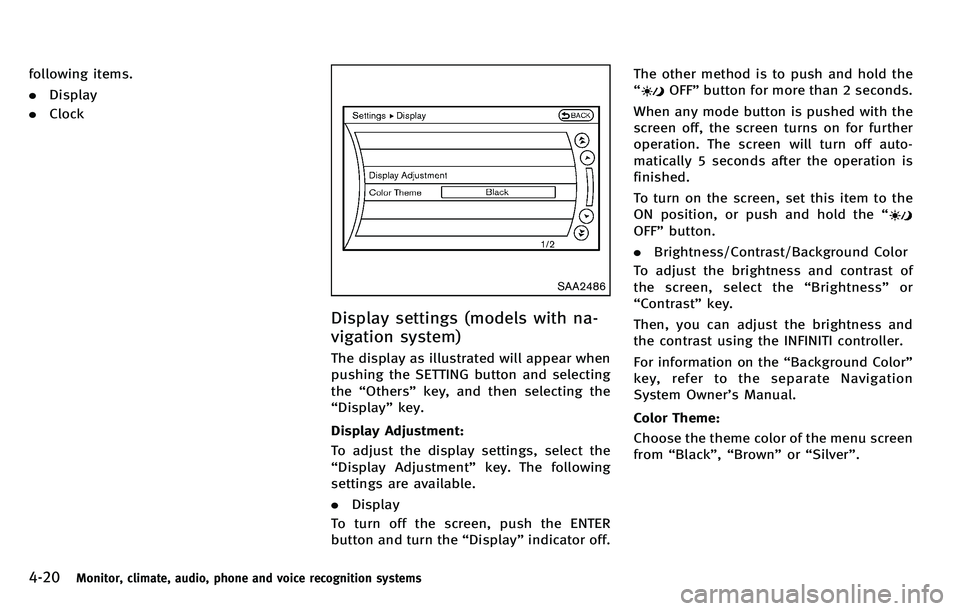
The display as illustrated will appear when
pushing the SETTING button and selecting
the “Others ”key, and then selecting the
“ Display ”key.
Display Adjustment:
To adjust the display settings, select the
“ Display Adjustment ”key. The following
settings are available.
. Display
To turn off the screen, push the ENTER
button and turn the “Display ”indicator off. The other method is to push and hold the
“
OFF
”button for more than 2 seconds.
When any mode button is pushed with the
screen off, the screen turns on for further
operation. The screen will turn off auto-
matically 5 seconds after the operation is
finished.
To turn on the screen, set this item to the
ON position, or push and hold the “
OFF”button.
. Brightness/Contrast/Background Color
To adjust the brightness and contrast of
the screen, select the “Brightness ”or
“ Contrast” key.
Then, you can adjust the brightness and
the contrast using the INFINITI controller.
For information on the “Background Color ”
key, refer to the separate Navigation
System Owner ’s Manual.
Color Theme:
Choose the theme color of the menu screen
from “Black ”, “Brown ”or “Silver” .
Page 192 of 522
SAA2115
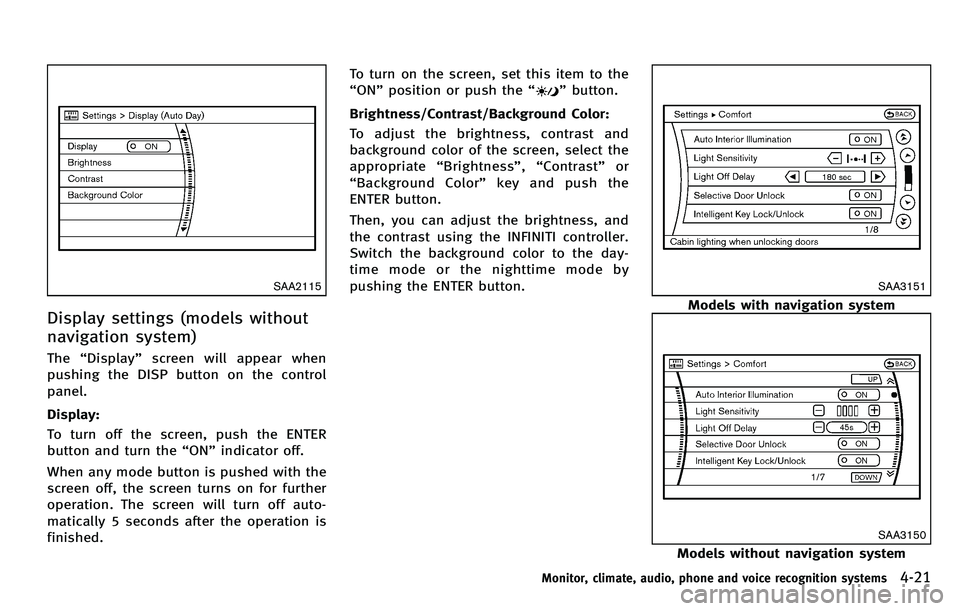
Display settings (models without
navigation system)
The“Display ”screen will appear when
pushing the DISP button on the control
panel.
Display:
To turn off the screen, push the ENTER
button and turn the “ON ”indicator off.
When any mode button is pushed with the
screen off, the screen turns on for further
operation. The screen will turn off auto-
matically 5 seconds after the operation is
finished. To turn on the screen, set this item to the
“
ON ”position or push the “
”button.
Brightness/Contrast/Background Color:
To adjust the brightness, contrast and
background color of the screen, select the
appropriate “Brightness ”, “Contrast ”or
“ Background Color ”key and push the
ENTER button.
Then, you can adjust the brightness, and
the contrast using the INFINITI controller.
Switch the background color to the day-
time mode or the nighttime mode by
pushing the ENTER button.
SAA3151
Models with navigation system
SAA3150
Models without navigation system
Monitor, climate, audio, phone and voice recognition systems4-21
Page 195 of 522

4-24Monitor, climate, audio, phone and voice recognition systems
Language & Units settings
The Language & Units settings display will
appear when pushing the SETTING button,
selecting the“Language & Units ”key with
the INFINITI controller and pushing the
ENTER button.
For models with the navigation system,
select the “Others ”key to show the
“ Language & Units ”key.
Select Language:
Select the “Select Language ”key. Choose
“ English ”, “Français ”or “Español ”for your
favorite display appearance.
If you select the “Français ”key, the French
language will be displayed, so please use
the French Owner ’s Manual. To obtain a
French Owner ’s Manual, see “Owner ’s
Manual/Service Manual order information ”
in the “9. Technical and consumer informa-
tion ”section.
Select Units:
Select the “Select Units ”key. Choose “US ”
(Mile, 8F, MPG) or “Metric ”(km, 8C, L/100
km) for your favorite display appearance.
Select Units (Tire Pressure):
Choose the “Select Units (Tire Pressure) ”
key and push the ENTER button. From the following display, select
“kPa” or“psi ”.
When the ignition switch is in the ACC
position, the “Select Units (Tire Pressure) ”
key is not displayed.
Voice Recognition settings (models
with navigation system)
For details about the “Voice Recognition ”
settings, see “INFINITI Voice Recognition
system (models with navigation system) ”
later in this section.
Camera settings
The “CAMERA ”screen will appear when
selecting the “Camera ”key with the
INFINITI controller and pushing the ENTER
button.
For the details about the camera system
operation, see “Rearview monitor ”later in
this section.SAA2491
Image Viewer (models with naviga-
tion system)
The image files in the USB memory will be
displayed. To display the Image Viewer,
push the SETTING button, select the
“ Other ”key and then select the “Image
Viewer ”key. The image of the selected file
is displayed on the right side of the screen.
When a number of folders are included in
the USB memory, select a folder from the
list to display the file list.
Images will not be shown on the display
while the vehicle is in any drive position to
reduce driver distraction. To view images,
Page 196 of 522

stop the vehicle in a safe location and
apply the parking brake.
SAA2492
Full Screen Display:
The full screen display will appear when
selecting the“Full Screen Display” key.
To operate the Image Viewer or to change
the settings, select the desired key using
the INFINITI controller.
.
(Start)
Select the “
”key to start playing
the slideshow.
.
(Stop)
Select the “
”key to stop the
slideshow.
.
(Next)
Select the “
”key to display the next file.
.
(Previous)
Select the “
”key to display the
previous file.
Setting the Image Viewer:
The Image Viewer setting display will
appear when selecting the “Settings ”key
on the full screen display. The following
settings are available for the full screen
display.
. Slideshow Speed
Select the “Slideshow Speed ”key.
From the following display, select the
changing time from 5, 10, 30, 60
seconds or “No Auto Change ”.
. Slideshow Order
Select the “Slideshow Order” key. From
the following display, select “Random ”
or “Order List ”. For “Order List ”, the
image order is the order of the files as
stored on the USB memory.
Operating tips:
. Only files that meet the following
conditions will be displayed.
— Image type: JPEG
— File Extensions: *.jpg, *jpeg
Monitor, climate, audio, phone and voice recognition systems4-25
Page 203 of 522
4-32Monitor, climate, audio, phone and voice recognition systems
PREDICTIVE COURSE LINE SETTINGS
To turn ON or OFF the predictive course line
display, push the SETTING button, select
the“Camera ”key and push the ENTER
button.
. Predictive Course Lines
When this item is turned to ON, the
predicted course lines will be displayed
on the monitor when the selector/shift
lever is in the “R ” (Reverse) position.
HOW TO ADJUST SCREEN
To adjust the Display ON/OFF, Brightness,
Tint, Color, Contrast and Black Level of the
RearView monitor, push the SETTING but-
ton with the RearView monitor on, select
the “Display ”key on the screen and select
the item key and adjust the level using the
INFINITI controller.
Do not adjust the Brightness, Tint, Color,
Contrast and Black Level of the RearView
monitor while the vehicle is moving. Make
sure the parking brake is firmly applied
and the engine is not running.
The display of the predicted course lines
can be set to ON or OFF. For details, see
“ Camera settings ”earlier in this section.
OPERATING TIPS
. When the selector lever is shifted to the
“ R ” (Reverse) position, the monitor
screen automatically changes to the
RearView monitor mode.
. It may take some time until the Rear-
View monitor is displayed after the
selector lever has been shifted to “R ”
from another position or to another
position from “R ”. Objects may be
distorted momentarily until the Rear-
View monitor screen is displayed com-
pletely.
. When the temperature is extremely high
or low, the screen may not clearly
display objects. This is not a malfunc-
tion.
. When strong light directly enters the
camera, objects may not be displayed
clearly. This is not a malfunction.
. Vertical lines may be seen in objects on
the screen. This is due to strong
reflected light from the bumper. This
is not a malfunction.
. The screen may flicker under fluores-
cent light. This is not a malfunction.
. The colors of objects on the RearView
monitor may differ somewhat from
those of the actual object. .
Objects on the monitor may not be clear
in a dark place or at night. This is not a
malfunction.
. If dirt, rain or snow attaches to the
camera, the RearView monitor may not
clearly display objects. Clean the cam-
era.
. Do not use alcohol, benzine or thinner
to clean the camera. This will cause
discoloration. To clean the camera,
wipe with a cloth dampened with
diluted mild cleaning agent and then
wipe with a dry cloth.
. Do not damage the camera as the
monitor screen may be adversely af-
fected.
. Do not use wax on the camera window.
Wipe off any wax with a clean cloth
dampened with mild detergent diluted
with water.