buttons INFINITI M 2013 User Guide
[x] Cancel search | Manufacturer: INFINITI, Model Year: 2013, Model line: M, Model: INFINITI M 2013Pages: 522, PDF Size: 3.72 MB
Page 156 of 522
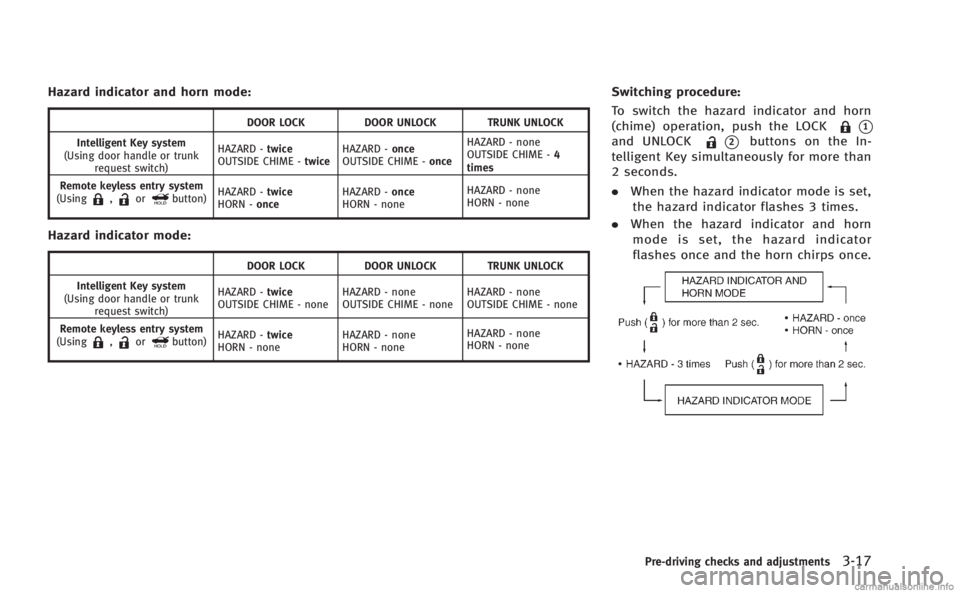
Hazard indicator and horn mode:
DOOR LOCKDOOR UNLOCK TRUNK UNLOCK
Intelligent Key system
(Using door handle or trunk request switch) HAZARD -
twice
OUTSIDE CHIME - twiceHAZARD -
once
OUTSIDE CHIME - onceHAZARD - none
OUTSIDE CHIME -
4
times
Remote keyless entry system
(Using
,orbutton) HAZARD -
twice
HORN - once HAZARD -
once
HORN - none HAZARD - none
HORN - none
Hazard indicator mode:
DOOR LOCK
DOOR UNLOCK TRUNK UNLOCK
Intelligent Key system
(Using door handle or trunk request switch) HAZARD -
twice
OUTSIDE CHIME - none HAZARD - none
OUTSIDE CHIME - noneHAZARD - none
OUTSIDE CHIME - none
Remote keyless entry system
(Using
,orbutton) HAZARD -
twice
HORN - none HAZARD - none
HORN - noneHAZARD - none
HORN - none
Switching procedure:
To switch the hazard indicator and horn
(chime) operation, push the LOCK
*1
and UNLOCK*2buttons on the In-
telligent Key simultaneously for more than
2 seconds.
. When the hazard indicator mode is set,
the hazard indicator flashes 3 times.
. When the hazard indicator and horn
mode is set, the hazard indicator
flashes once and the horn chirps once.
Pre-driving checks and adjustments3-17
Page 173 of 522

Car phone or CB radio....................................... 4-86
Bluetooth®Hands-Free Phone System
(models with navigation system)........................ 4-86
Regulatory information .................................. 4-88
Voice commands ........................................... 4-88
Control buttons ............................................. 4-88
Connecting procedure.................................... 4-89
Phone selection............................................. 4-89
Vehicle phonebook ........................................ 4-89
Making a call ................................................ 4-92
Receiving a call ............................................. 4-93
During a call ................................................. 4-94
Phone setting ................................................ 4-94
Troubleshooting guide ................................... 4-96
Bluetooth
®Hands-Free Phone System
(models without navigation system)................... 4-97
Regulatory information .................................. 4-98
Control buttons ............................................. 4-99 Voice recognition system ............................. 4-99
Pairing procedure ...................................... 4-104
Phonebook registration .............................. 4-105
Making a call ............................................. 4-106
Receiving a call.......................................... 4-106
During a call .............................................. 4-106
Phone settings........................................... 4-107
Voice adaptation mode .............................. 4-110
INFINITI Voice Recognition system
(models with navigation system) ..................... 4-111 INFINITI Voice Recognition
standard mode .......................................... 4-112
Using the system ....................................... 4-115
INFINITI Voice Recognition alternate
command mode ......................................... 4-124
Using the system ....................................... 4-133
Troubleshooting guide ............................... 4-139
Page 175 of 522

4-4Monitor, climate, audio, phone and voice recognition systems
SAA2953
Models with navigation system
1. “DISP” display setting button (P.4-10)
2, 5, 6. For navigation system control buttons
(Refer to the separate Navigation
System Owner’s Manual.) 3.
“INFO” vehicle and navigation infor-
mation button (P.4-10)
4. “SETTING” button (P.4-16)
7. INFINITI controller (P.4-6)
8. “STATUS” status display button
(P.4-10) 9.
“
OFF” brightness control and
display ON/OFF button (P.4-10)
CENTER MULTI-FUNCTION CONTROL PANEL
Page 235 of 522
4-64Monitor, climate, audio, phone and voice recognition systems
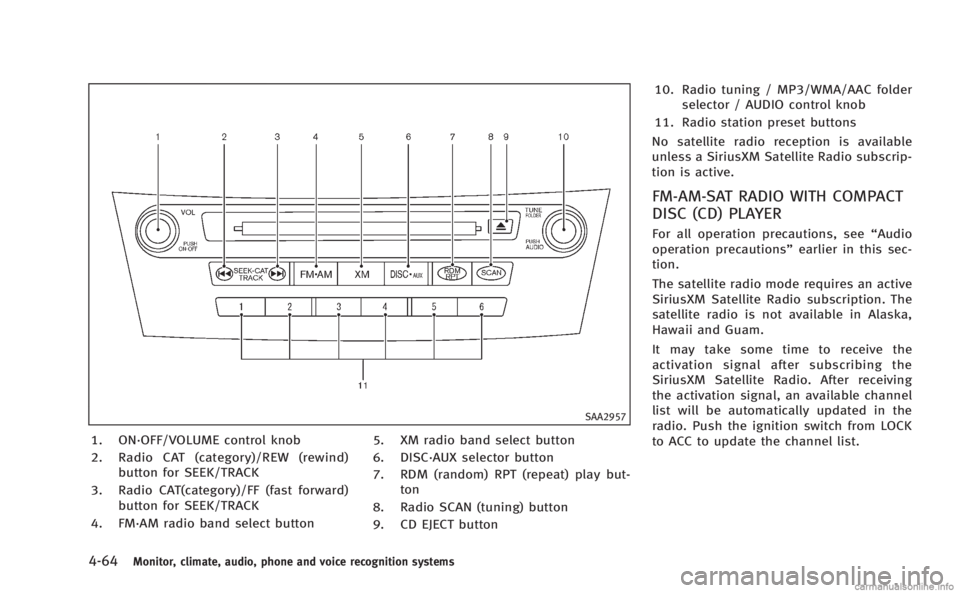
SAA2957
1. ON·OFF/VOLUME control knob
2. Radio CAT (category)/REW (rewind)button for SEEK/TRACK
3. Radio CAT(category)/FF (fast forward) button for SEEK/TRACK
4. FM·AM radio band select button 5. XM radio band select button
6. DISC·AUX selector button
7. RDM (random) RPT (repeat) play but-
ton
8. Radio SCAN (tuning) button
9. CD EJECT button 10. Radio tuning / MP3/WMA/AAC folder
selector / AUDIO control knob
11. Radio station preset buttons
No satellite radio reception is available
unless a SiriusXM Satellite Radio subscrip-
tion is active.
FM-AM-SAT RADIO WITH COMPACT
DISC (CD) PLAYER
For all operation precautions, see “Audio
operation precautions” earlier in this sec-
tion.
The satellite radio mode requires an active
SiriusXM Satellite Radio subscription. The
satellite radio is not available in Alaska,
Hawaii and Guam.
It may take some time to receive the
activation signal after subscribing the
SiriusXM Satellite Radio. After receiving
the activation signal, an available channel
list will be automatically updated in the
radio. Push the ignition switch from LOCK
to ACC to update the channel list.
Page 237 of 522
4-66Monitor, climate, audio, phone and voice recognition systems
.For SiriusXM Satellite Radio
Turn the radio TUNE knob to seek
channels from all of the categories
when any category is not selected.
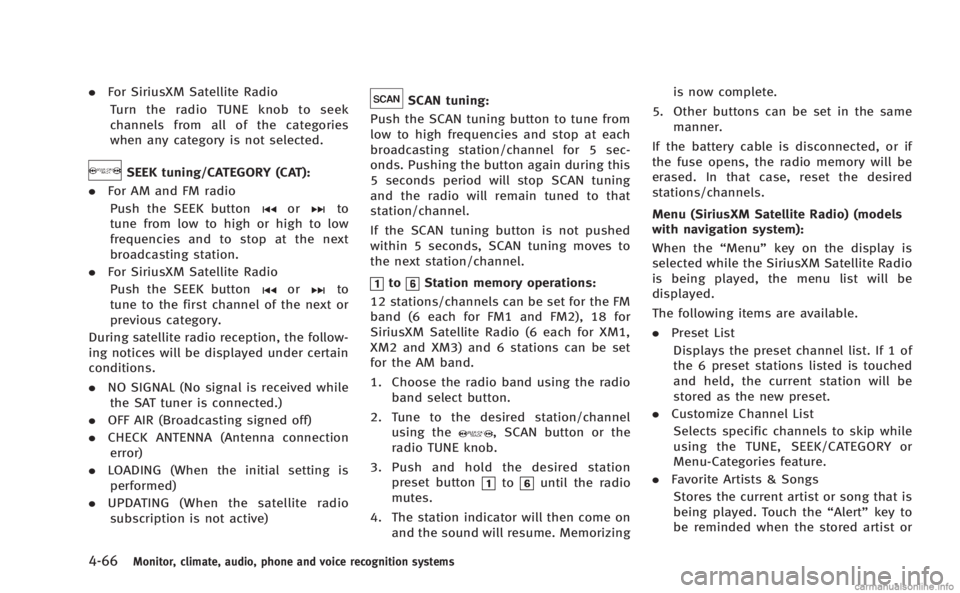
SEEK tuning/CATEGORY (CAT):
. For AM and FM radio
Push the SEEK button
orto
tune from low to high or high to low
frequencies and to stop at the next
broadcasting station.
. For SiriusXM Satellite Radio
Push the SEEK button
orto
tune to the first channel of the next or
previous category.
During satellite radio reception, the follow-
ing notices will be displayed under certain
conditions.
. NO SIGNAL (No signal is received while
the SAT tuner is connected.)
. OFF AIR (Broadcasting signed off)
. CHECK ANTENNA (Antenna connection
error)
. LOADING (When the initial setting is
performed)
. UPDATING (When the satellite radio
subscription is not active)
SCAN tuning:
Push the SCAN tuning button to tune from
low to high frequencies and stop at each
broadcasting station/channel for 5 sec-
onds. Pushing the button again during this
5 seconds period will stop SCAN tuning
and the radio will remain tuned to that
station/channel.
If the SCAN tuning button is not pushed
within 5 seconds, SCAN tuning moves to
the next station/channel.
toStation memory operations:
12 stations/channels can be set for the FM
band (6 each for FM1 and FM2), 18 for
SiriusXM Satellite Radio (6 each for XM1,
XM2 and XM3) and 6 stations can be set
for the AM band.
1. Choose the radio band using the radio band select button.
2. Tune to the desired station/channel using the
, SCAN button or the
radio TUNE knob.
3. Push and hold the desired station preset button
tountil the radio
mutes.
4. The station indicator will then come on and the sound will resume. Memorizing is now complete.
5. Other buttons can be set in the same manner.
If the battery cable is disconnected, or if
the fuse opens, the radio memory will be
erased. In that case, reset the desired
stations/channels.
Menu (SiriusXM Satellite Radio) (models
with navigation system):
When the “Menu”key on the display is
selected while the SiriusXM Satellite Radio
is being played, the menu list will be
displayed.
The following items are available.
. Preset List
Displays the preset channel list. If 1 of
the 6 preset stations listed is touched
and held, the current station will be
stored as the new preset.
. Customize Channel List
Selects specific channels to skip while
using the TUNE, SEEK/CATEGORY or
Menu-Categories feature.
. Favorite Artists & Songs
Stores the current artist or song that is
being played. Touch the “Alert”key to
be reminded when the stored artist or
Page 253 of 522
4-82Monitor, climate, audio, phone and voice recognition systems
Compatibility
The following models are available:
Models with navigation system:
.Fifth generation iPod
®(version 1.2.3 or
later)
. iPod Classic
®(version 1.1.1 or later)
. First generation iPod touch®(version
2.0.0 or later)
. Second generation iPod touch
®(firm-
ware version 1.2.3 or later)
. First generation iPod nano
®(firmware
version 1.3.1 or later)
. Second generation iPod nano
®(firm-
ware version 1.1.3 or later)
. Third generation iPod nano
®(firmware
version 1.1 or later)
. Fourth generation iPod nano
®(firmware
version 1.0.2 or later)
Models without navigation system:
. Fifth generation iPod
®(firmware ver-
sion 1.3)
. First generation iPod Classic
®(firmware
version 1.1.2 PC)
. Second generation iPod Classic
®(firm-
ware version 2.0 PC)
. First generation iPod touch
®(firmware
version 2.1) .
Second generation iPod touch
®(firm-
ware version 2.1.1)
. First generation iPod nano
®(firmware
version 1.3.1)
. Second generation iPod nano
®(firm-
ware version 1.1.3)
. Third generation iPod nano
®(firmware
version 1.1 PC)
. Third generation iPhone
®(firmware
version 2.1)
Make sure that the iPod
®version is
updated.
Audio main operation
Push the ignition switch to the ACC or ON
position. Then, push the DISC·AUX button
repeatedly to switch to the iPod
®mode.
If the system has been turned off while the
iPod
®was playing, pushing the ON·OFF
button will start the iPod®.
PLAY:
When the DISC·AUX button is pushed with
the system off and the iPod
®connected,
the system will turn on. If another audio
source is playing and the iPod
®is con-
nected, push the DISC·AUX button repeat-
edly until the center display changes to the
iPod
®mode. Interface:
The interface for iPod
®operation shown on
the vehicle center display is similar to the
iPod
®interface. Use the INFINITI controller
and the ENTER or BACK button to play the
iPod
®with your favorite settings.
The following items can be chosen from the
menu list screen. For further information
about each item, see the iPod
®Owner’s
Manual.
. Now Playing
. Playlists
. Artists
. Albums
. Songs
. Podcasts
. Genres
. Composers
. Audiobooks
. Shuffle Songs
. Play Mode
The following buttons shown on the screen
are also available:
.
: returns to the previous screen.
.
: plays/pauses the music selected.
Page 259 of 522
4-88Monitor, climate, audio, phone and voice recognition systems
.Keep the interior of the vehicle as quiet
as possible to hear the caller ’s voice
clearly as well as to minimize its
echoes.
. If reception between callers is unclear,
adjusting the incoming or outgoing call
volume may improve the clarity.
REGULATORY INFORMATION
FCC Regulatory information
. CAUTION: To maintain compliance with
FCC’s RF exposure guidelines, use only
the supplied antenna. Unauthorized
antenna, modification, or attachments
could damage the transmitter and may
violate FCC regulations.
. Operation is subject to the following
two conditions:
1) this device may not cause interfer- ence and
2) this device must accept any inter- ference, including interference that
may cause undesired operation of
the device
IC Regulatory information
.Operation is subject to the following
two conditions: (1) this device may not
cause interference, and (2) this device must accept any interference, including
interference that may cause undesired
operation of the device.
. This Class B digital apparatus meets all
requirements of the Canadian Interfer-
ence-Causing Equipment Regulations.
Bluetooth trademark:
Bluetooth®is a trademark
owned by Bluetooth SIG, Inc.,
and licensed to Clarion Co., Ltd.
VOICE COMMANDS
You can use voice commands to operate
various Bluetooth®Hands-Free Phone Sys-
tem features using the INFINITI Voice
Recognition system.
For more details, see “INFINITI Voice
Recognition system (models with naviga-
tion system)” later in this section; page
4-111.
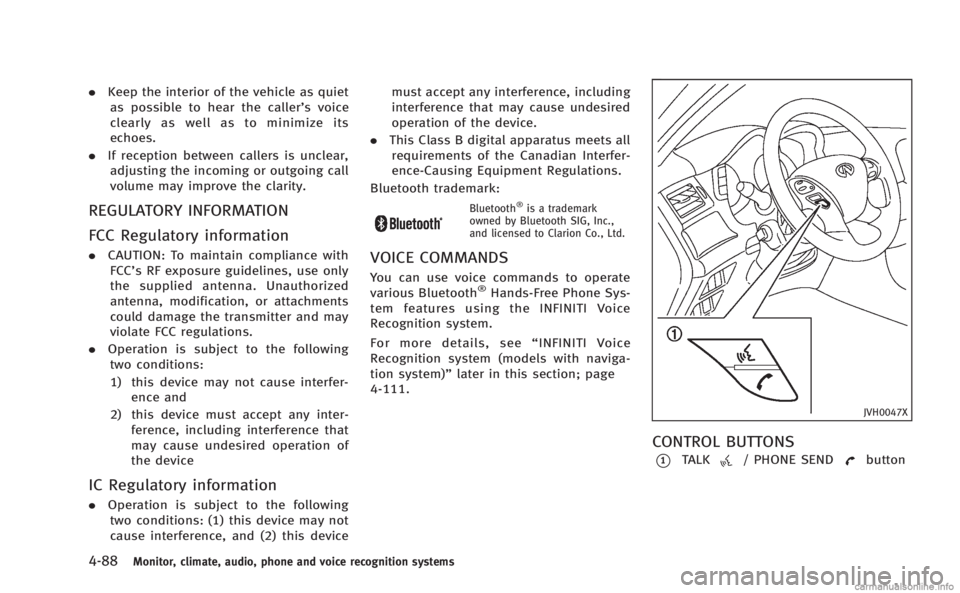
JVH0047X
CONTROL BUTTONS
*1TALK/ PHONE SENDbutton
Page 270 of 522
Bluetooth trademark:
Bluetooth®is a trademark
owned by Bluetooth SIG, Inc.,
and licensed to Visteon Cor-
poration.
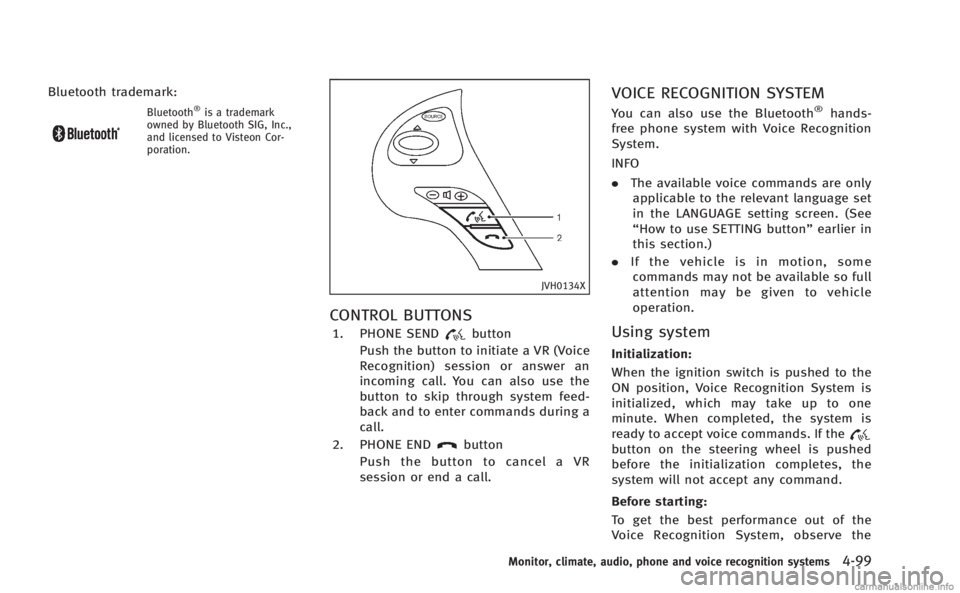
JVH0134X
CONTROL BUTTONS
1. PHONE SENDbutton
Push the button to initiate a VR (Voice
Recognition) session or answer an
incoming call. You can also use the
button to skip through system feed-
back and to enter commands during a
call.
2. PHONE END
button
Push the button to cancel a VR
session or end a call.
VOICE RECOGNITION SYSTEM
You can also use the Bluetooth®hands-
free phone system with Voice Recognition
System.
INFO
. The available voice commands are only
applicable to the relevant language set
in the LANGUAGE setting screen. (See
“How to use SETTING button” earlier in
this section.)
. If the vehicle is in motion, some
commands may not be available so full
attention may be given to vehicle
operation.
Using system
Initialization:
When the ignition switch is pushed to the
ON position, Voice Recognition System is
initialized, which may take up to one
minute. When completed, the system is
ready to accept voice commands. If the
button on the steering wheel is pushed
before the initialization completes, the
system will not accept any command.
Before starting:
To get the best performance out of the
Voice Recognition System, observe the
Monitor, climate, audio, phone and voice recognition systems4-99
Page 272 of 522
command recognition mode.
4. The system acknowledges the com- mand and announces the next set of
available commands.
5. After the tone sounds, speak the phone number.
6. When you have finished speaking the phone number, the system repeats it
back and announces the available
commands.
7. After system responds, speak “Dial”
and the system dials the spoken
numbers.
Operating tips:
. Voice commands cannot be accepted
when the icon is
.
. If the command is not recognized, the
system announces, “Please say again”.
Repeat the command in a clear voice.
. Push the
button or the BACK button
once to return to the previous screen.
. If you want to cancel the command,
push the
switch. The message
“ Voice input is canceled” will be
announced. If you want to adjust the
volume of the system feedback, push
the volume control buttons [+] or [−]on
the steering wheel or use the audio system volume knob while the system
is making an announcement.
How to speak commands:
The Voice Recognition System requires a
certain way to speak voice commands.
Speak normally and clearly in the direction
of the microphone (located in front of the
RearView mirror). Every digit of the number
must be spoken individually and in a
normal manner. The hands-free mode will
work best when the telephone number is
spoken in blocks of three to five digits.
After each spoken block is terminated, the
system will repeat the three to five digits
and wait for you to speak the next digit or
block of digits required for the telephone
number.
See “List of voice commands” later in this
section for the appropriate commands that
can be spoken for the hands-free mode
system.
Example:
In order to initiate a call, speak “Phone-
book”.
INFO
. If you are controlling the telephone
system by voice command for the first
time or do not know the appropriate voice command, speak
“Help” . The
system announces the available com-
mands.
. When you speak numbers, you can
speak both “zero”or“oh” for“0”.
Personal vocabulary (voicetags): Voice Recognition System is equipped with
the function called “voicetags”, which can
be associated with the phone number and
name in the phonebook. Using the voice
tag will automatically generate a speed
dial to the registered number.
See “Phonebook registration” earlier in
this section.
You can call the identified number using
the following command: “Dial”followed by
the voice tag.
Dialling a name with a voice tag:
It is possible to call up a name via a voice
tag instead of a number, provided the
name and number of your correspondent
has been previously stored in the phone-
book.
Dial via a voice tag, according to the
following procedure.
1. Push the
button.
Monitor, climate, audio, phone and voice recognition systems4-101
Page 287 of 522

4-116Monitor, climate, audio, phone and voice recognition systems
SAA2535
2. A list of commands appears on thescreen, and the system announces,
“Would you like to access Phone,
Navigation, Information, Audio or
Help?”.
3. After the tone sounds and the icon on the screen changes from
to,
speak a command.
Selecting the “Practice”key will start
the practice mode. See “Let’s Practice”
earlier in this section.
4. Continue to follow the voice menu prompts and speak after the tone
sounds until your desired operation is
completed. Selecting the
“Help”key can display
the detailed information of the each
command.
Operating tips:
. Say a command after the tone.
. Commands that are available are al-
ways shown on the display and spoken
through voice menu prompts. Com-
mands other than those that are dis-
played are not accepted. Please follow
the prompts given by the system.
. If the command is not recognized, the
system announces, “Please say again”.
Repeat the command in a clear voice.
. Push the BACK button once to return to
the previous screen.
. To exit the voice recognition system,
push and hold the TALK
switch. The
message, “Voice canceled” will be
announced.
. To skip the voice guidance function and
give the command immediately, press
the TALK
switch to interrupt the
system. Remember to speak after the
tone.
. If you want to adjust the volume of the
system feedback, push the volume
control buttons [+] or [− ] on thesteering switch or use the audio system
volume knob while the system is
making an announcement.
How to speak numbers:
INFINITI Voice Recognition requires a cer-
tain way to speak numbers when giving
voice commands. Refer to the following
examples.
General rule
Only single digits 0 (zero) to 9 can be used.
(For example, if you would like to say 500,
“five zero zero” can be used, but “five
hundred” cannot.)
Examples
. 1-800-662-6200
—“ One eight zero zero six six two six
two zero zero”
Improving Recognition of Phone numbers
You can improve the recognition of phone
numbers by saying the phone number in
three groups of numbers. For example,
when you try to call 800-662-6200, say
“eight zero zero” first, and the system will
then ask you for the next three digits. Then,
say “six six two”. After recognition, the
system will then ask for the last four digits.
Say, “six two zero zero”. Using this method