reset INFINITI M-HEV 2013 User Guide
[x] Cancel search | Manufacturer: INFINITI, Model Year: 2013, Model line: M-HEV, Model: INFINITI M-HEV 2013Pages: 530, PDF Size: 3.71 MB
Page 178 of 530

CAUTION
.If fuel is spilled on the vehicle body,
flush it away with water to avoid paint
damage.
. Insert the cap straight into the fuel-filler
tube, then tighten until the fuel-filler cap
a single click is heard. Failure to tighten
the fuel-filler cap properly may cause the
malfunction indicator light (MIL) to
illuminate. If thelight illuminates
because the fuel-filler cap is loose or
missing, tighten or install the cap and
continue to drive the vehicle. The
light should turn off after a few driving
trips. If thelight does not turn off
after a few driving trips, have the vehicle
inspected by an INFINITI retailer.
. The LOOSE FUEL CAP warning will appear
if the fuel-filler cap is not properly
tightened. It may take a few driving
trips for the message to be displayed.
Failure to tighten the fuel-filler cap
properly after the LOOSE FUEL CAP
warning appears may cause the
Malfunction Indicator Light (MIL) to
illuminate.
JVP0046X
To remove the fuel-filler cap:
1. Turn the fuel-filler cap counterclockwise
to remove.
2. Put the fuel-filler cap on the cap holder
*Awhile refueling.
To install the fuel-filler cap:
1. Insert the fuel-filler cap straight into the fuel-filler tube.
2. Turn the fuel-filler cap clockwise until a single click is heard.
SPA2832
Loose fuel cap warning
The LOOSE FUEL CAP warning appears on
the dot matrix liquid crystal display when
the fuel-filler cap is not tightened correctly
after the vehicle has been refueled. It may
take a few driving trips for the warning to
be displayed. To turn off the warning,
perform the following steps:
1. Remove and install the fuel-filler cap assoon as possible. (See “Fuel-filler cap”
earlier in this section.)
2. Tighten the fuel-filler cap until it clicks.
3. Push the reset switch
*Aon the right
side of the combination meter for about
Pre-driving checks and adjustments3-23
Page 186 of 530

indicator light will stay on for approxi-
mately 5 seconds.
. If the 12-volt battery cable is discon-
nected, or if the fuse opens, the
memory will be canceled. In this case,
reset the desired position using the
previous procedure.
. If optional Intelligent Keys are added to
your vehicle, the memory storage pro-
cedure to switch 1 or 2 and linking
Intelligent Key procedure to a stored
memory position should be performed
again for each Intelligent Key. For
additional Intelligent Key information,
see “Keys” earlier in this section.
Selecting the memorized position
1. Move the selector lever to the P (Park)
position.
2. Use one of the following methods to move the driver’ s seat, the outside
mirrors and the steering wheel.
.Push the ignition switch to the ON position and push the memory
switch (1 or 2) fully for at least 1
second.
.Within 45 seconds of opening thedriver’ s door, push the memory
switch (1 or 2) fully for at least 1 second.
The driver’s seat, steering column
and outside mirrors will move to the
memorized position with the indica-
tor light flashing, and then the light
will stay on for approximately 5
seconds.
SETTING MEMORY FUNCTION
The status of the following settings can be
linked to the Intelligent Key and the
memorized settings can be available for
each Intelligent Key.
. Climate control system
. Navigation system (if so equipped)
. Audio system
To use the memory function, lock the doors
with the Intelligent Key that is linked to the
settings.
To enable the memorized settings:
1. Carry the Intelligent Key that is linked to the settings, and unlock the doors by
pushing the driver’s door handle re-
quest switch or UNLOCK
button on
the Intelligent Key.
2. Push the ignition switch to the “ON”
position. “Connection with the key has
been done” will be displayed on the
screen and the memorized settings are available (only when a new Intelligent
Key is used).
SYSTEM OPERATION
The automatic drive positioner system will
not work or will stop operating under the
following conditions:
.
When the vehicle speed is above 4 MPH
(7 km/h).
. When the adjusting switch for the
driver’s seat and steering column is
turned on while the automatic drive
positioner is operating.
. When the memory switch 1 or 2 is not
pushed for at least 1 second.
. When the seat, steering column and
outside mirrors have already been
moved to the memorized position.
. When no position is stored in the
memory switch.
. When the INFINITI Direct Response
Hybrid
TMSystem is started while mov-
ing the automatic drive positioner.
. When the selector lever is moved from
the P (Park) position to any other
position. (However, it will not be
canceled if the switch is pushed while
the seat and steering column are
returning to the previous positions
Pre-driving checks and adjustments3-31
Page 199 of 530
4-12Monitor, climate, audio, phone and voice recognition systems
Fuel Economy information
The approximate distance to empty, aver-
age fuel economy and current fuel econo-
my will be displayed for reference.
To reset the average fuel economy (Avg
Fuel Econ), select the“Reset Fuel Eco”or
“Reset” key.
If the “Fuel Eco History” or“View” key is
selected, the average fuel consumption
history will be displayed in graph form
along with the average for the previous
Reset-to-Reset period.
The unit can be converted between “US”
and “Metric”. (See “How to use SETTING
button” later in this section.)
The fuel economy information may differ
from the information displayed on the
vehicle information display. This is due to
the timing difference in updating the
information and does not indicate a mal-
function.
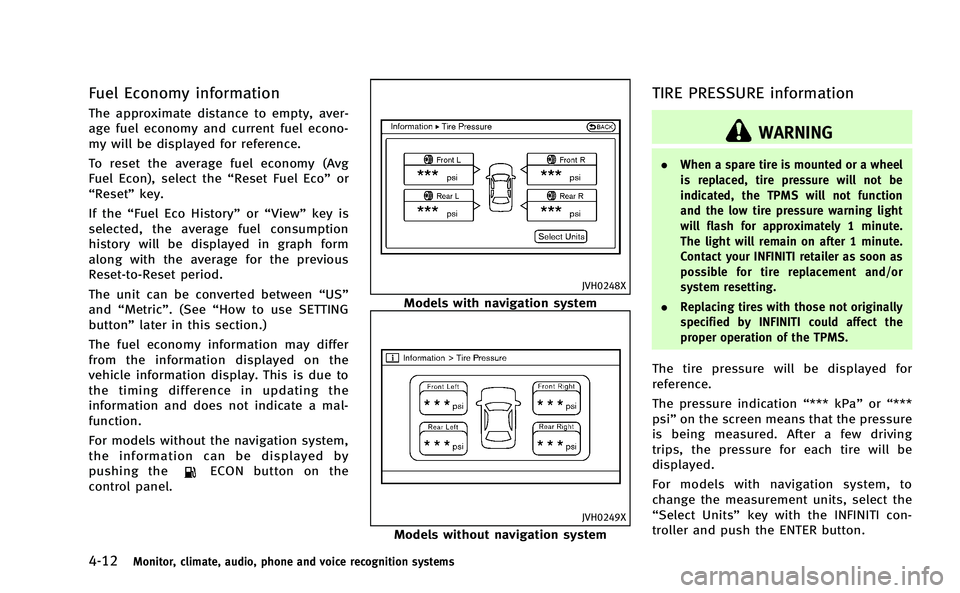
For models without the navigation system,
the information can be displayed by
pushing the
ECON button on the
control panel.
JVH0248X
Models with navigation system
JVH0249X
Models without navigation system
TIRE PRESSURE information
WARNING
. When a spare tire is mounted or a wheel
is replaced, tire pressure will not be
indicated, the TPMS will not function
and the low tire pressure warning light
will flash for approximately 1 minute.
The light will remain on after 1 minute.
Contact your INFINITI retailer as soon as
possible for tire replacement and/or
system resetting.
. Replacing tires with those not originally
specified by INFINITI could affect the
proper operation of the TPMS.
The tire pressure will be displayed for
reference.
The pressure indication “*** kPa”or“***
psi ”on the screen means that the pressure
is being measured. After a few driving
trips, the pressure for each tire will be
displayed.
For models with navigation system, to
change the measurement units, select the
“Select Units” key with the INFINITI con-
troller and push the ENTER button.
Page 200 of 530
The unit can be converted in the LANGUAGE
& UNITS settings display. (See“How to use
SETTING button” later in this section for
details.)
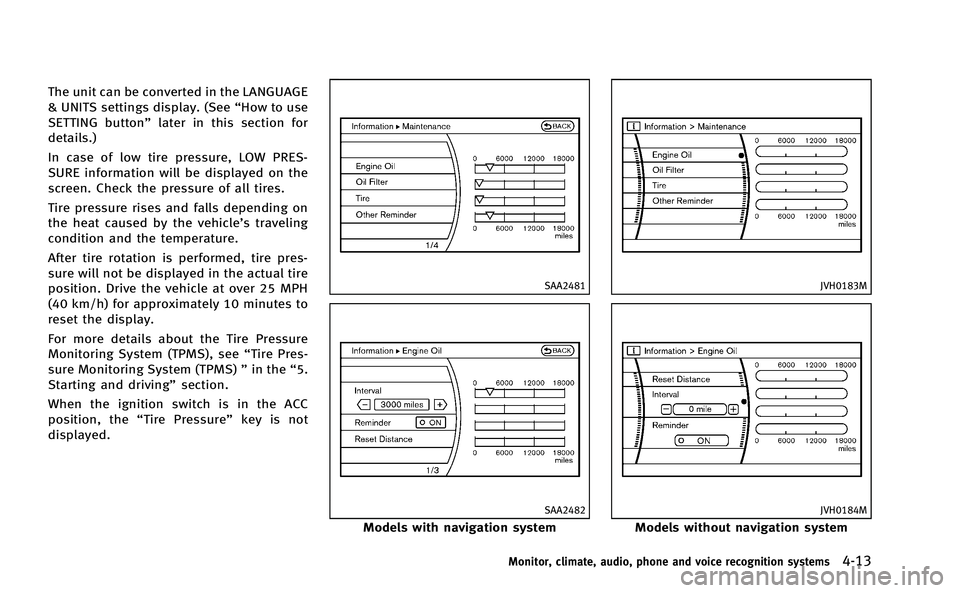
In case of low tire pressure, LOW PRES-
SURE information will be displayed on the
screen. Check the pressure of all tires.
Tire pressure rises and falls depending on
the heat caused by the vehicle’s traveling
condition and the temperature.
After tire rotation is performed, tire pres-
sure will not be displayed in the actual tire
position. Drive the vehicle at over 25 MPH
(40 km/h) for approximately 10 minutes to
reset the display.
For more details about the Tire Pressure
Monitoring System (TPMS), see “Tire Pres-
sure Monitoring System (TPMS) ”in the “5.
Starting and driving” section.
When the ignition switch is in the ACC
position, the “Tire Pressure” key is not
displayed.
SAA2481
SAA2482
Models with navigation system
JVH0183M
JVH0184M
Models without navigation system
Monitor, climate, audio, phone and voice recognition systems4-13
Page 201 of 530

4-14Monitor, climate, audio, phone and voice recognition systems
Maintenance information
The maintenance intervals can be dis-
played for the engine oil, oil filter, tire
and other reminders.
To set a maintenance interval, select a
preferred item from the list.
You can also set to display a message to
remind you that the maintenance needs to
be performed.
For models with the navigation system,
select the“Others” key to show the
“Maintenance” key.
The following example shows how to set
the engine oil maintenance information.
Use the same steps to set the other
maintenance information.
1. Set the interval (mileage) of the main- tenance schedule. To determine the
recommended maintenance interval,
refer to your “INFINITI Service and
Maintenance Guide”.
2. To display the reminder automatically when the desired distance is reached,
select the “Reminder” key.
3. Reset the driving distance to the new maintenance schedule. 4. To return to the previous screen, push
the BACK button.
The unit can be converted between “US”
and “Metric”. (See “How to use SETTING
button” later in this section.)
SAA3003
Models with navigation system
SAA1611
Models without navigation system
Page 202 of 530
The Reminder will be automatically dis-
played when the specified distance has
been driven and every time the ignition
switch is pushed to the ACC or ON position.
The reminder will not appear while driving.
Select the“OK”key to hide the reminder
for the rest of the current drive.
To stop the reminder from appearing,
perform one of the following actions:
. Select the “Reset Distance” key.
. Deactivate the “Reminder”.
. Increase the “Interval”distance to be
more than the current distance being
tracked.
JVH0273M
Others information (models with
navigation system)
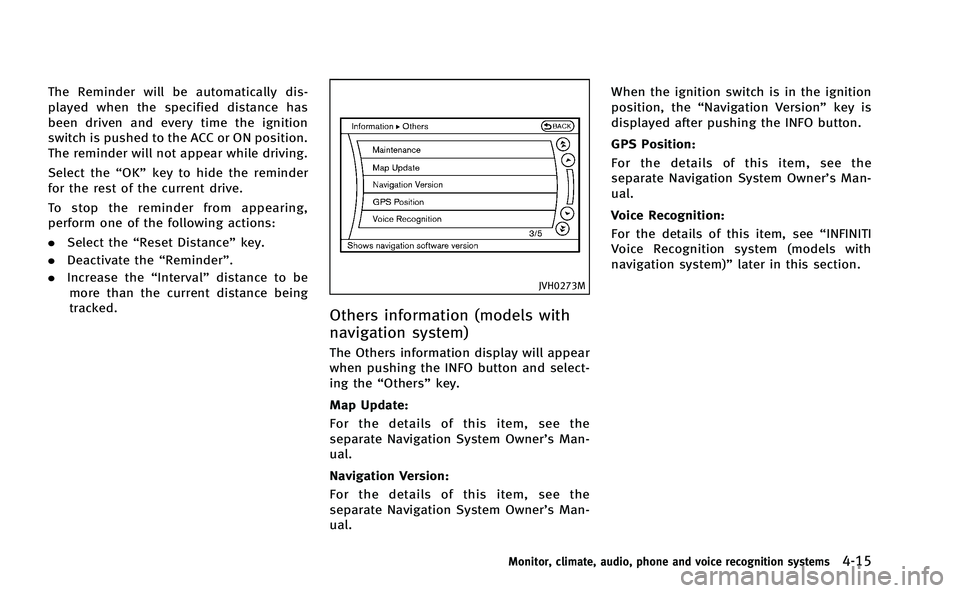
The Others information display will appear
when pushing the INFO button and select-
ing the “Others” key.
Map Update:
For the details of this item, see the
separate Navigation System Owner’s Man-
ual.
Navigation Version:
For the details of this item, see the
separate Navigation System Owner’s Man-
ual. When the ignition switch is in the ignition
position, the
“Navigation Version” key is
displayed after pushing the INFO button.
GPS Position:
For the details of this item, see the
separate Navigation System Owner’s Man-
ual.
Voice Recognition:
For the details of this item, see “INFINITI
Voice Recognition system (models with
navigation system)” later in this section.
Monitor, climate, audio, phone and voice recognition systems4-15
Page 243 of 530

4-56Monitor, climate, audio, phone and voice recognition systems
USB player completely.
. Do not connect a USB device if a
connector, cable or USB port is wet.
Allow the connector, cable, and USB
port to dry completely before connect-
ing the USB device. (Wait for 24 hours
or more until it is dry.) If the connector
and USB port are exposed to fluids
other than water, evaporative residue
may cause a short circuit between the
connector pins and USB port. In this
case, replace the cable and USB port.
Otherwise damage to the USB device
and a loss of function may occur.
. If the cable is damaged (insulation cut,
connectors cracked, contamination
such as liquids, dust, dirt, etc. in the
connectors), do not use the cable.
Replace the cable with a new one.
. Do not put a USB device in a location
where static electricity occurs, electrical
noise is generated or hot air from the
air conditioner blows directly on it.
Doing so may cause the data stored on
the USB device to be corrupted.
. Be careful not to do the following or the
cable could be damaged and a loss of
function may occur. —
Bend the cable excessively (40 mm
(1.6 in) radius minimum).
— Twist the cable excessively (more
than 180 degrees).
— Pull or drop the cable.
— Hit or press the USB port or USB
device with hands, feet, or objects.
— Store objects with sharp edges in
the storage area where the cable is
stored.
— Leave the USB device and attached
devices in the vehicle compartment.
When not in use for extended
periods of time, store the cable
and USB device in a clean, dust free
environment at room temperature
and without direct sun exposure.
— Use the cable for any other purposes
than its intended use in the vehicle.
Notes for iPod
®use:
. iPod®is a trademark of Apple Inc.,
registered in the U.S. and other coun-
tries.
. Improperly plugging in the iPod
®may
cause a checkmark to be displayed on
and off (flickering). Always make sure
that the iPod
®is connected properly. .
An iPod nano
®(1st Generation) may
remain in fast forward or rewind mode
if it is connected during a seek opera-
tion. In this case, please manually reset
the iPod
®.
. An iPod nano®(2nd Generation) will
continue to fast-forward or rewind if it
is disconnected during a seek opera-
tion.
. An incorrect song title may appear when
the Play Mode is changed while using
an iPod nano
®(2nd Generation)
. Audiobooks may not play in the same
order as they appear on an iPod
®.
. Large video files cause slow responses
in an iPod
®. The vehicle center display
may momentarily black out, but will
soon recover.
. If an iPod
®automatically selects large
video files while in the shuffle mode,
the vehicle center display may momen-
tarily black out, but will soon recover.
Compressed Audio Files (MP3/
WMA/AAC)
Explanation of terms:
. MP3 —MP3 is short for Moving Pictures
Experts Group Audio Layer 3. MP3 is
the most well known compressed
Page 252 of 530
SAA2957
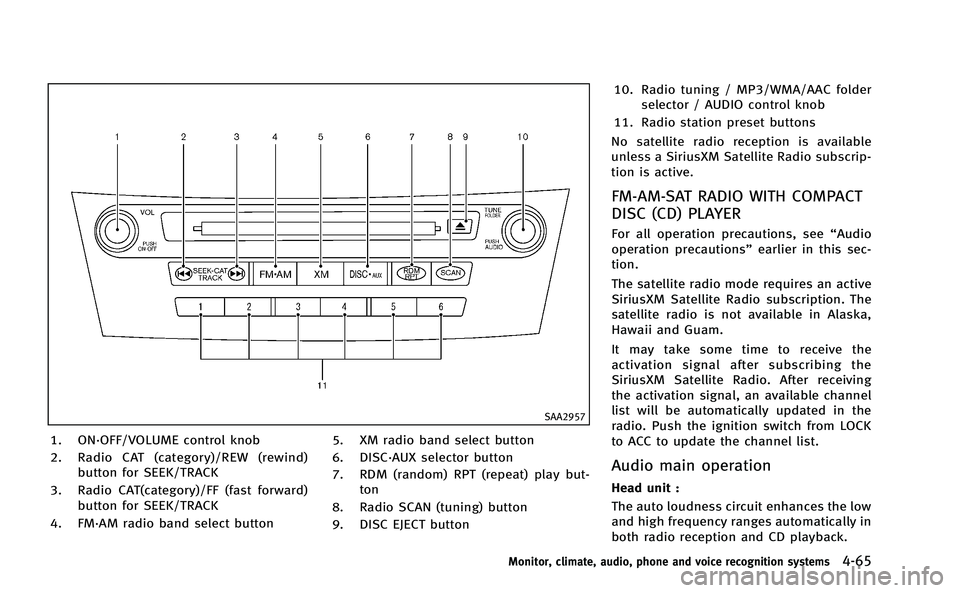
1. ON·OFF/VOLUME control knob
2. Radio CAT (category)/REW (rewind)button for SEEK/TRACK
3. Radio CAT(category)/FF (fast forward) button for SEEK/TRACK
4. FM·AM radio band select button 5. XM radio band select button
6. DISC·AUX selector button
7. RDM (random) RPT (repeat) play but-
ton
8. Radio SCAN (tuning) button
9. DISC EJECT button 10. Radio tuning / MP3/WMA/AAC folder
selector / AUDIO control knob
11. Radio station preset buttons
No satellite radio reception is available
unless a SiriusXM Satellite Radio subscrip-
tion is active.
FM-AM-SAT RADIO WITH COMPACT
DISC (CD) PLAYER
For all operation precautions, see “Audio
operation precautions” earlier in this sec-
tion.
The satellite radio mode requires an active
SiriusXM Satellite Radio subscription. The
satellite radio is not available in Alaska,
Hawaii and Guam.
It may take some time to receive the
activation signal after subscribing the
SiriusXM Satellite Radio. After receiving
the activation signal, an available channel
list will be automatically updated in the
radio. Push the ignition switch from LOCK
to ACC to update the channel list.
Audio main operation
Head unit :
The auto loudness circuit enhances the low
and high frequency ranges automatically in
both radio reception and CD playback.
Monitor, climate, audio, phone and voice recognition systems4-65
Page 254 of 530
SEEK tuning/CATEGORY (CAT):
. For AM and FM radio
Push the SEEK button
orto
tune from low to high or high to low
frequencies and to stop at the next
broadcasting station.
. SiriusXM Satellite Radio
Push the SEEK button
orto
tune to the first channel of the next or
previous category.
During satellite radio reception, the follow-
ing notices will be displayed under certain
conditions.
. NO SIGNAL (No signal is received while
the SAT tuner is connected.)
. OFF AIR (Broadcasting signed off)
. CHECK ANTENNA (Antenna connection
error)
. LOADING (When the initial setting is
performed)
. UPDATING (When the satellite radio
subscription is not active)
SCAN tuning:
Push the SCAN tuning button to tune from
low to high frequencies and stop at each
broadcasting station/channel for 5 sec- onds. Pushing the button again during this
5 seconds period will stop SCAN tuning
and the radio will remain tuned to that
station/channel.
If the SCAN tuning button is not pushed
within 5 seconds, SCAN tuning moves to
the next station/channel.
toStation memory operations:
12 stations/channels can be set for the FM
band (6 each for FM1 and FM2), 18 for
SiriusXM Satellite Radio (6 each for XM1,
XM2 and XM3) and 6 stations can be set
for the AM band.
1. Choose the radio band using the radio band select button.
2. Tune to the desired station/channel using the
, SCAN button or the
radio TUNE knob.
3. Push and hold the desired station preset button
tountil the radio
mutes.
4. The station indicator will then come on and the sound will resume. Memorizing
is now complete.
5. Other buttons can be set in the same manner.
If the 12-volt battery cable is disconnected, or if the fuse opens, the radio memory will
be erased. In that case, reset the desired
stations/channels.
Menu (SiriusXM Satellite Radio) (models
with navigation system):
When the
“Menu”key on the display is
selected while the SiriusXM Satellite Radio
is being played, the menu list will be
displayed.
The following items are available.
. Preset List
Displays the preset channel list. If 1 of
the 6 preset stations listed is touched
and held, the current station will be
stored as the new preset.
. Customize Channel List
Selects specific channels to skip while
using the TUNE, SEEK/CATEGORY or
Menu-Categories feature.
. Favorite Artists & Songs
Stores the current artist or song that is
being played. Touch the “Alert”key to
be reminded when the stored artist or
song is playing on a station while
listening to SiriusXM Satellite Radio.
. Categories
Selecting a category will go to the first
channel in that category as defined by
Monitor, climate, audio, phone and voice recognition systems4-67
Page 272 of 530
trial use.
. A new disc may be rough on the inner
and outer edges. Remove the rough
edges by rubbing the inner and outer
edges with the side of a pen or pencil
as illustrated.
USB memory
. Never touch the terminal portion of the
USB memory.
. Do not place heavy objects on the USB
memory.
. Do not store the USB memory in highly
humid locations.
. Do not expose the USB memory to
direct sunlight.
. Do not spill any liquids on the USB
memory.
Refer to the USB memory Owner’s Manual
for the details.
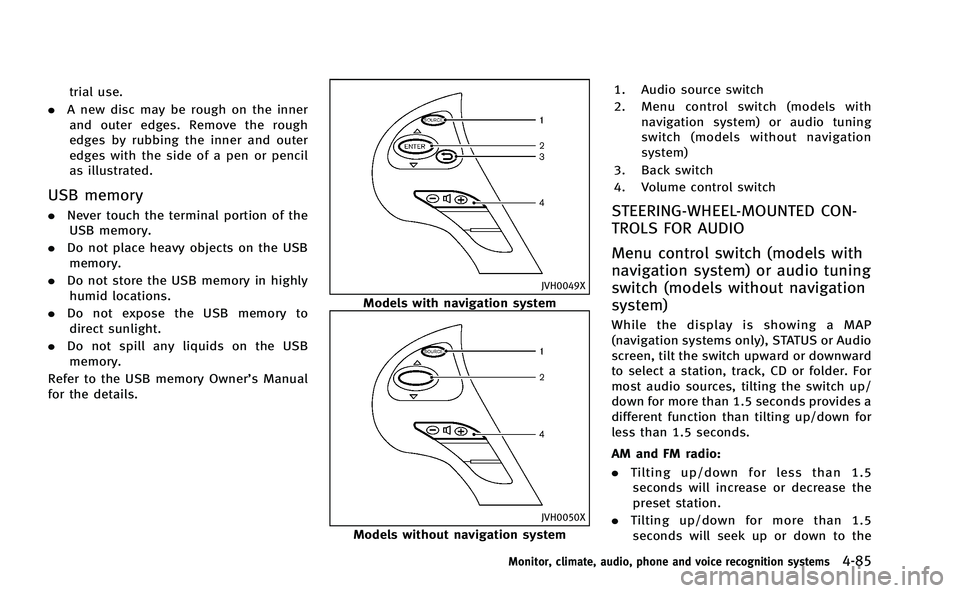
JVH0049X
Models with navigation system
JVH0050X
Models without navigation system 1. Audio source switch
2. Menu control switch (models with
navigation system) or audio tuning
switch (models without navigation
system)
3. Back switch
4. Volume control switch
STEERING-WHEEL-MOUNTED CON-
TROLS FOR AUDIO
Menu control switch (models with
navigation system) or audio tuning
switch (models without navigation
system)
While the display is showing a MAP
(navigation systems only), STATUS or Audio
screen, tilt the switch upward or downward
to select a station, track, CD or folder. For
most audio sources, tilting the switch up/
down for more than 1.5 seconds provides a
different function than tilting up/down for
less than 1.5 seconds.
AM and FM radio:
. Tilting up/down for less than 1.5
seconds will increase or decrease the
preset station.
. Tilting up/down for more than 1.5
seconds will seek up or down to the
Monitor, climate, audio, phone and voice recognition systems4-85