INFINITI Q50 2018 Infiniti Intouch
Q50 2018
INFINITI
INFINITI
https://www.carmanualsonline.info/img/42/34989/w960_34989-0.png
INFINITI Q50 2018 Infiniti Intouch
Page 187 of 292
![INFINITI Q50 2018 Infiniti Intouch Narrow down conditions:
.[Sort]:
— [By Distance]: Shows a list of facilities that are near
the current vehicle location.
— [By Name]: Shows a list of facilities sorted alpha-
betically by name ord](/img/42/34989/w960_34989-186.png "INFINITI Q50 2018 Infiniti Intouch Narrow down conditions:
.[Sort]:
— [By Distance]: Shows a list of facilities that are near
the current vehicle location.
— [By Name]: Shows a list of facilities sorted alpha-
betically by name ord")
Narrow down conditions:
.[Sort]:
— [By Distance]: Shows a list of facilities that are near
the current vehicle location.
— [By Name]: Shows a list of facilities sorted alpha-
betically by name order.
.[By Category]:Display the list that summarizes the
entered names into categories. Select
the category to narrow down the
search.
.[City/Area]:
— [Within a City]: Input the city to narrow down the
target city.
— [Near Destination]: When the destination is set, this
indicates a list of facilities around
the destination.
— [Show Along Route]: The system displays the facilities
located along the route.
INFO:
.Touch [] in the list screen to display
the detailed information about the
POI that is selected on the upper
display.
.Touch [Call] on the upper display to make a call to the facility.
6. Whole route map is displayed the upper display. Touch [Start] to start route
guidance.
INFO:
. If [Space] is touched and a keyword is
inputted, a search will be possible after
entering two or more words.
. After setting a destination, the location
of the destination can be adjusted and
the location can be stored in the Stored
Locations, etc.
“Procedures after setting route”
(page 9-28)
Searching from the landmark cate-
gory
1. Push
Page 188 of 292
![INFINITI Q50 2018 Infiniti Intouch 9. Navigation (if so equipped)
.[Spell Name]:Enter the facilities name to narrow
down the search.
.[City/Area]:
— [Within a City]: Input the city to narrow down the
target city.
— [Near Destinatio](/img/42/34989/w960_34989-187.png "INFINITI Q50 2018 Infiniti Intouch 9. Navigation (if so equipped)
.[Spell Name]:Enter the facilities name to narrow
down the search.
.[City/Area]:
— [Within a City]: Input the city to narrow down the
target city.
— [Near Destinatio")
9. Navigation (if so equipped)
.[Spell Name]:Enter the facilities name to narrow
down the search.
.[City/Area]:
— [Within a City]: Input the city to narrow down the
target city.
— [Near Destination]: When the destination is set, this
indicates a list of facilities around
the destination.
— [Show Along Route]: The system displays the facilities
located along the route.
5. Touch the preferred destination facility from the list.
Touch [Start] to start route guidance.
INFO:
. After setting a destination, the location
of the destination can be adjusted.
“Procedures after setting route”
(page 9-28)
. If the nearest POI cannot be searched, a
message asking whether to search from
an extended area will be displayed. When [Yes] is selected, the system starts to
search for POI in a wider area.
SETTING HOME AS DESTINA-
TION
The home location can be set as the
destination if the home location is stored in
advance. This function is especially useful
when searching for a route to return to the
home location.
1. Push
Page 189 of 292
![INFINITI Q50 2018 Infiniti Intouch 8. Touch a street as the second street fromthe list. An intersection list screen is
displayed.
INFO:
Touch [Map] to display intersection at
the center of the map on the upper
display.
9. Touch interse](/img/42/34989/w960_34989-188.png "INFINITI Q50 2018 Infiniti Intouch 8. Touch a street as the second street fromthe list. An intersection list screen is
displayed.
INFO:
Touch [Map] to display intersection at
the center of the map on the upper
display.
9. Touch interse")
8. Touch a street as the second street fromthe list. An intersection list screen is
displayed.
INFO:
Touch [Map] to display intersection at
the center of the map on the upper
display.
9. Touch intersection from the list.
10. The selected destination is displayed at the center of the map on the upper
display. Touch [Start] to start route
guidance.
FINDING NEARBY PLACE
A facility located near the current vehicle
location or another location that you move
to by scrolling the map can be set as the
destination. This allows you to set the
destination to a facility located near the
current vehicle location or another location
that you move to by scrolling the map.
1. Push
Page 190 of 292
![INFINITI Q50 2018 Infiniti Intouch 9. Navigation (if so equipped)
INFO:
.Touch [Update List] to update the listinformation.
.Touch [Details] to preview the routeon the upper display.
.Touchto display facility informa-
tion.
4. The sele](/img/42/34989/w960_34989-189.png "INFINITI Q50 2018 Infiniti Intouch 9. Navigation (if so equipped)
INFO:
.Touch [Update List] to update the listinformation.
.Touch [Details] to preview the routeon the upper display.
.Touchto display facility informa-
tion.
4. The sele")
9. Navigation (if so equipped)
INFO:
.Touch [Update List] to update the listinformation.
.Touch [Details] to preview the routeon the upper display.
.Touchto display facility informa-
tion.
4. The selected route plan is displayed. Touch [Start] after confirming the loca-
tion of the displayed destination.
INFO:
. Journey Planner is an Infiniti InTouch
TM
Services feature. Subscription is required
to use the Infiniti InTouchTMServices.
. Journey Planner cannot be used if [De-
cline] is touched on the Start-up Screen.
. Refer to the INFINITI Owner’s Portal
Website for how to set the destination
using Journey Planner.
SEARCHING FROM HISTORY
A previous destination can be set as the
destination.
Up to 100 previous destinations will be
automatically stored. If the number of pre-
vious destinations exceeds 100, the oldest
one will be replaced by the newest one.
1. Push
Page 191 of 292
![INFINITI Q50 2018 Infiniti Intouch INFO:
Touch [Sort] and touch [By Distance] to
sort the list by the nearest distance.
Touch [By Road No.] to sort by the road
no.
7. Touch [Start] to start route guidance.
SETTING CITY CENTER
It is pos](/img/42/34989/w960_34989-190.png "INFINITI Q50 2018 Infiniti Intouch INFO:
Touch [Sort] and touch [By Distance] to
sort the list by the nearest distance.
Touch [By Road No.] to sort by the road
no.
7. Touch [Start] to start route guidance.
SETTING CITY CENTER
It is pos")
INFO:
Touch [Sort] and touch [By Distance] to
sort the list by the nearest distance.
Touch [By Road No.] to sort by the road
no.
7. Touch [Start] to start route guidance.
SETTING CITY CENTER
It is possible to set the center of a specified
city as a destination.
1. Push
Page 192 of 292
9. Navigation (if so equipped)
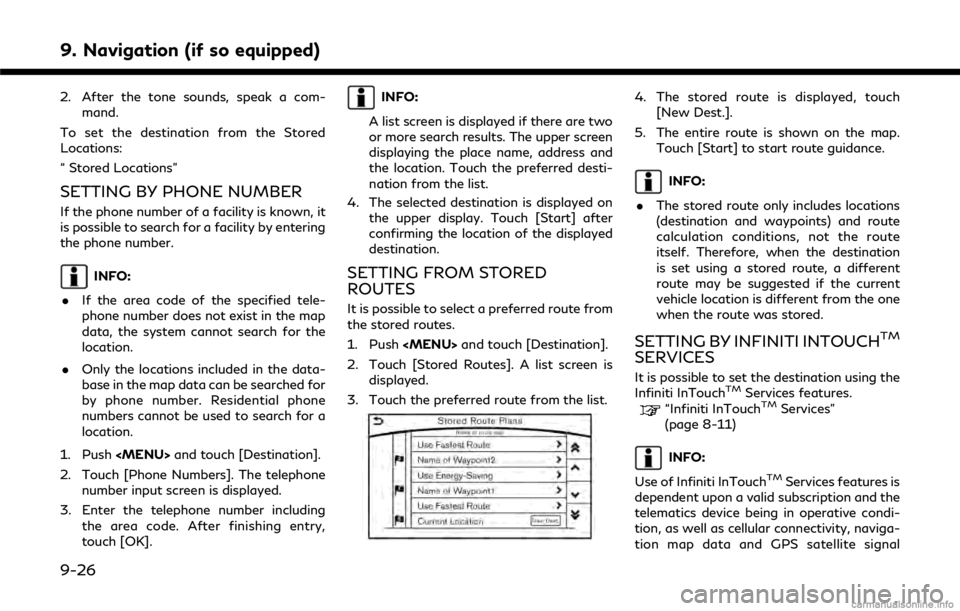
2. After the tone sounds, speak a com-mand.
To set the destination from the Stored
Locations:
“ Stored Locations”
SETTING BY PHONE NUMBER
If the phone number of a facility is known, it
is possible to search for a facility by entering
the phone number.
INFO:
. If the area code of the specified tele-
phone number does not exist in the map
data, the system cannot search for the
location.
. Only the locations included in the data-
base in the map data can be searched for
by phone number. Residential phone
numbers cannot be used to search for a
location.
1. Push
Page 193 of 292
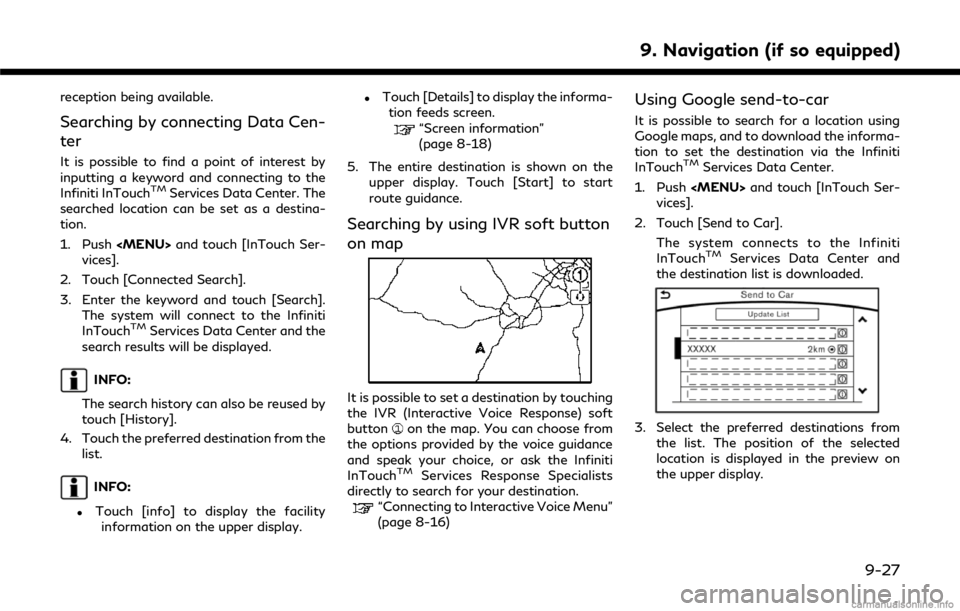
reception being available.
Searching by connecting Data Cen-
ter
It is possible to find a point of interest by
inputting a keyword and connecting to the
Infiniti InTouch
TMServices Data Center. The
searched location can be set as a destina-
tion.
1. Push
Page 194 of 292
![INFINITI Q50 2018 Infiniti Intouch 9. Navigation (if so equipped)
INFO:
Select [Update List] to update the list
information.
4. The selected destination is displayed. Touch [Start] to start route guidance.
INFO:
Refer to the INFINITI O](/img/42/34989/w960_34989-193.png "INFINITI Q50 2018 Infiniti Intouch 9. Navigation (if so equipped)
INFO:
Select [Update List] to update the list
information.
4. The selected destination is displayed. Touch [Start] to start route guidance.
INFO:
Refer to the INFINITI O")
9. Navigation (if so equipped)
INFO:
Select [Update List] to update the list
information.
4. The selected destination is displayed. Touch [Start] to start route guidance.
INFO:
Refer to the INFINITI Owner’s Portal Web-
site for the destination setting using Google
send to car.
Using Destination Send to Car
Destination Send-to-Vehicle enables you to
search for destinations from a point of
interest (POI) database accessed within the
Infiniti InTouch
TMServices website.
1. Push
Page 195 of 292
![INFINITI Q50 2018 Infiniti Intouch Available items after setting route. [Start]:
Starts route guidance to the selected
destination.
INFO:
If no operations have been performed on the
system for several seconds, [Start] is auto-
maticall](/img/42/34989/w960_34989-194.png "INFINITI Q50 2018 Infiniti Intouch Available items after setting route. [Start]:
Starts route guidance to the selected
destination.
INFO:
If no operations have been performed on the
system for several seconds, [Start] is auto-
maticall")
Available items after setting route. [Start]:
Starts route guidance to the selected
destination.
INFO:
If no operations have been performed on the
system for several seconds, [Start] is auto-
matically selected, and the system starts
route guidance. When the vehicle is being
driven, [Start] is automatically selected and
the system will start the route guidance
function. . [Show Loc. Map]:
Display destination on the upper display.
. [Add Waypoint]:
Allows you to edit the route by adding a
destination or waypoint.
— If a waypoint is added, three alter- native routes cannot be selected.
— If a destination is added, the prior destination becomes a waypoint.
— It is possible to edit or add a destina- tion or waypoints to the route that is
already set.
“Editing route” (page 9-36) .
[Move Loc.]
The location of the destination or way-
point can be adjusted by moving the
cross pointer across the map on the
upper display.
“Moving location of destination”
(page 9-29)
. Available route conditions:
— [Fastest Route] : Prioritizes the shortest time.
— [Energy-Saving] : Energy-Saving route.
— [Shortest Distance] : Prioritizes the shortest distance.
INFO:
. The three routes may not always be
different.
. When using waypoints, you can change
the route between each waypoint.
. [Turn List]:
Display the turn list.
Moving location of destination
The location of the destination can be
adjusted by moving the cross pointer across
the map.
1. After setting destination, touch [Move
Loc.].
2. Touch map screen on the upper display. A map screen with the destination
located on the map center is displayed.
3. Adjust the location by moving the cross pointer across the map and touch [OK].
The location of the destination is mod-
ified.
INFO:
. The screen for adjusting the location also
changes when the map screen displayed
on the right side of the screen is touched.
. The map scale can be changed by
touching [
].
9. Navigation (if so equipped)
9-29
Page 201 of 292
![INFINITI Q50 2018 Infiniti Intouch Showing freeway exit information:
When [Show FWY Exit] is set to ON and the
route includes a freeway or toll road, all exits
along the route which have exit information
will be shown in the turn list.](/img/42/34989/w960_34989-200.png "INFINITI Q50 2018 Infiniti Intouch Showing freeway exit information:
When [Show FWY Exit] is set to ON and the
route includes a freeway or toll road, all exits
along the route which have exit information
will be shown in the turn list.")
Showing freeway exit information:
When [Show FWY Exit] is set to ON and the
route includes a freeway or toll road, all exits
along the route which have exit information
will be shown in the turn list. The exit
information is shown as icons.
Selecting a waypoint from the exit infor-
mation list:
When exit information is displayed on the
turn list, a waypoint to a facility located near
the freeway exit can be set as a waypoint.
The facility categories that are not shown
with an icon cannot be selected.
1. Touch the exit where the exit informa-tion icon is displayed. The category list
screen is displayed.
2. Touch the landmark category. The list screen for showing facilities located near
the freeway exit is displayed.
INFO:
The facility categories that are not
shown with an icon cannot be selected.
3. Touch the preferred facility for the waypoint.
4. The waypoint is set, and the route search is performed.
“Procedures after setting route”
(page 9-28)
GUIDANCE SCREEN SETTINGS
The guidance screen can be displayed at all
times even when the vehicle is located away
from the guide point. Various types of
screens can be set.
“Display View Bar” (page 2-12)
CANCELING ROUTE
It is possible to delete a destination and all
waypoints that have already been set.
1. Push