radio INFINITI Q50 2018 Infiniti Intouch
[x] Cancel search | Manufacturer: INFINITI, Model Year: 2018, Model line: Q50, Model: INFINITI Q50 2018Pages: 292, PDF Size: 1.45 MB
Page 62 of 292
![INFINITI Q50 2018 Infiniti Intouch 4. Audio system
registered conditions is on the radio. To tune
to the respective channel, touch [Listen to be
consistent]. The alert can be ignored by
touching [Cancel].
“Radio controls” (page 4-1](/img/42/34989/w960_34989-61.png "INFINITI Q50 2018 Infiniti Intouch 4. Audio system
registered conditions is on the radio. To tune
to the respective channel, touch [Listen to be
consistent]. The alert can be ignored by
touching [Cancel].
“Radio controls” (page 4-1")
4. Audio system
registered conditions is on the radio. To tune
to the respective channel, touch [Listen to be
consistent]. The alert can be ignored by
touching [Cancel].
“Radio controls” (page 4-16)
INFO:
Satellite Radio: . The satellite mode requires an active
SiriusXM Satellite Radio subscription.
The Satellite service is available only to
those at least 18 and older in the 48
contiguous United States and DC.
. It may take some time to receive the
activation signal after the initiation of
the SiriusXM Satellite Radio subscrip-
tion. After receiving the activation signal,
an available channel list will automati-
cally be updated in the radio. Push the
ignition switch from LOCK to ACC to
update the SiriusXM channel list.
Radio controls
Touch [Control] on the AM, FM or SXM
screen to display the control screen.
The following items are available.
4-16
Page 63 of 292
![INFINITI Q50 2018 Infiniti Intouch FM/AM:
[Station List]Touch to display the available station list.
While listening to FM radio, Auto Update is not performed.
[Scan] Touch to scan tune the stations.
“Radio operation” (page 4-15)
[](/img/42/34989/w960_34989-62.png "INFINITI Q50 2018 Infiniti Intouch FM/AM:
[Station List]Touch to display the available station list.
While listening to FM radio, Auto Update is not performed.
[Scan] Touch to scan tune the stations.
“Radio operation” (page 4-15)
[")
FM/AM:
[Station List]Touch to display the available station list.
While listening to FM radio, Auto Update is not performed.
[Scan] Touch to scan tune the stations.
“Radio operation” (page 4-15)
[HD Radio Mode] When this item is turned on, the analog and digital reception switches automatically. When this item is
turned off, the reception is fixed in the analog mode.
[HD Radio Info] Touch to display the HD Radio information such as name of song, artist and album.
This item is available when [RDS Info] is not active.
[Tag]
(HD Radio broadcasts only) Touch to register the tag information for iTunes Tagging. If an iPod® is plugged in after the registration, the
tag information can be stored in an iPod® and be used to purchase the songs via iTunes.
[RDS Info] (FM only) Touch to display the RDS information.
This item is available when [HD Radio Info] is not active.
SXM:
[Categories] Touch to display the category list.
[Direct Tune] Touch to display the keypad to enter the frequency and directly tune to the channel.
“Radio operation” (page 4-15)
[Scan] Touch to scan tune the channels.
“Radio operation” (page 4-15)
[Instant Replay] Up to 30 minutes of the broadcast of the channel that has been tuned in to can be replayed. Touch to select from [
], [], [], [], [] and [].
[Tag] Touch to register the tag information for iTunes Tagging. If an iPod® is plugged in after the registration, the tag information can be stored in an iPod® and be used to
purchase the songs via iTunes.
4. Audio system
4-17
Page 73 of 292
![INFINITI Q50 2018 Infiniti Intouch the song at the ordinary speed.
Changing play mode:
Touch [Shuffle] or [Repeat] from the iPod®
menu to select the play mode.
Skipping songs:
Push<SEEK·CAT·TRACK> or tilt up/down
<
/OK> briefly to s](/img/42/34989/w960_34989-72.png "INFINITI Q50 2018 Infiniti Intouch the song at the ordinary speed.
Changing play mode:
Touch [Shuffle] or [Repeat] from the iPod®
menu to select the play mode.
Skipping songs:
Push<SEEK·CAT·TRACK> or tilt up/down
<
/OK> briefly to s")
the song at the ordinary speed.
Changing play mode:
Touch [Shuffle] or [Repeat] from the iPod®
menu to select the play mode.
Skipping songs:
Push
<
/OK> briefly to skip to the next or the
previous song.
INFO:
. Even when iPod® or iPhone® are in-
serted into both of the two USB con-
nectors, the system recognizes only one
of the connected iPod® or iPhone® at a
time.
. Only one the two connected USB devices
can be operated by the Voice Recogni-
tion system.
BLUETOOTH® STREAMING
AUDIO
Your vehicle is equipped with Bluetooth®
Streaming Audio.
If you have a compatible Bluetooth® device
with streaming audio (A2DP profile), you
can set up a wireless connection between
your Bluetooth® device and the in-vehicle
audio system. This connection allows you to
listen to the audio from the Bluetooth®
device using your vehicle speakers. It also
may allow basic control of the device for
playing and skipping audio files using the
AVRCP Bluetooth® profile. Not all Blue-
tooth® devices have the same level of
controls for AVRCP. Please consult the
manual for your Bluetooth® device for more
details.
Wireless LAN (Wi-Fi) and the Bluetooth®
functions share the same frequency band
(2.4 GHz). Using the Bluetooth® and the
wireless LAN functions at the same time
may slow down or disconnect the commu-
nication and cause undesired noise. It is
recommended that you turn off the wireless
LAN (Wi-Fi) when using the Bluetooth®
functions.
Regulatory information
FCC Regulatory information:
FCC ID: HYQDNNS086
NOTE
This device compiles with part 15 of the FCC
Rules. Operation is subject to the following
two conditions: (1) This device may not
cause harmful interference, and (2) this
device must accept any interference re-
ceived, including interference that may
cause undesired operation.
FCC WARNING
Changes or modifications not expressly
approved by the party responsible for com-
pliance could void the user’s authority to
operate the equipment.
CAUTION: Radio Frequency Radiation Ex-
posure
This equipment complies with FCC radiation
exposure limits set forth for uncontrolled
environment and meets the FCC radio
frequency (RF) Exposure Guidelines. This
equipment has very low levels of RF energy
that it deemed to comply without maximum
permissive exposure evaluation (MPE). But it
is desirable that it should be installed and
operated with at least 20 cm and more
4. Audio system
4-27
Page 74 of 292

4. Audio system
between the radiator and person’s body.
Co-location:This transmitter must not be
co-located or operated in conjunction with
any other antenna or transmitter.
IC Regulatory information:
The antenna cannot be removed (and chan-
ged) by user.
NOTE
This device complies with Industry Canada
license-exempt RSS standard(s). Operation
is subject to the following two conditions: (1)
This device may not cause interference, and
(2) this device must accept any interference,
including interference that may cause un-
desired operation of the device.
CAUTION: Radio Frequency Radiation Ex-
posure
This equipment complies with IC radiation
exposure limits set forth for uncontrolled
environment and meets RSS-102 of the IC
radio frequency (RF) Exposure rules. This
equipment has very low levels of RF energy
that it deemed to comply without maximum
permissive exposure evaluation (MPE). But it
is desirable that it should be installed and
operated with at least 20cm and more
between the radiator and person’s body. Co-location:
This transmitter must not be
co-located or operated in conjunction with
any other antenna or transmitter.
This Class B digital apparatus meets all
requirements of the Canadian Interference-
Causing Equipment Regulations.
For Canadian customers:
L’antenne ne peut être enlevée (et modifié)
par l’utilisateur.
NOTE
Le présent appareil est conforme aux CNR
d’Industrie Canada applicables aux appareils
radio exempts de licence. L’exploitation est
autorisée aux deux conditions suivantes: (1)
l’appareil ne doit pas produire de brouillage,
et (2) l’utilisateur de l’appareil doit accepter
tout brouillage radioélectrique subi, même si
le brouillage est susceptible d’en compro-
mettre le fonctionnement.
Connecting Bluetooth streaming
audio device
A Bluetooth streaming audio device must be
connected to the vehicle before operation.
“Connecting Bluetooth® device”
(page 2-22)
4-28
Page 79 of 292
![INFINITI Q50 2018 Infiniti Intouch Setting itemsAction
[Display Album Cover Art] Turn the item on to display image files from the media device. If the media device does not
contain images, no image will be displayed.
[Radio Settings] [](/img/42/34989/w960_34989-78.png "INFINITI Q50 2018 Infiniti Intouch Setting itemsAction
[Display Album Cover Art] Turn the item on to display image files from the media device. If the media device does not
contain images, no image will be displayed.
[Radio Settings] [")
Setting itemsAction
[Display Album Cover Art] Turn the item on to display image files from the media device. If the media device does not
contain images, no image will be displayed.
[Radio Settings] [HD Radio Mode (AM)] When this item is turned on, the analog and digital reception switches automatically. When this item is turned off, the reception is fixed in the analog mode.
[HD Radio Mode (FM)]
[AUX Settings] [Image ON]/[Image OFF] The image display on the upper display can be turned on/off.
[AUX Image Display] The image display size setting can be selected from [Normal], [Wide] and [Cinema].
[Volume Setting] The volume setting can be selected from [Low], [Medium] and [High].
INFO:
The [Radio Settings] and [AUX Settings] keys are displayed only while the corresponding audio source is playing.
4. Audio system
4-33
Page 84 of 292

5. Hands-Free Phone
BLUETOOTH® HANDS-FREE
PHONE SYSTEM
WARNING
.Use a phone after stopping your
vehicle in a safe location. If you have
to use a phone while driving, exercise
extreme caution at all times so full
attention may be given to vehicle
operation.
. If you find yourself unable to devote
full attention to vehicle operation
while talking on the phone, pull off
the road to a safe location and stop
your vehicle before doing so.
CAUTION
To avoid draining the vehicle battery, use
a phone after starting the engine or the
hybrid system.
Your vehicle is equipped with Bluetooth®
Hands-Free Phone System. If you are an
owner of a compatible Bluetooth® enabled
cellular phone, you can set up the wireless
connection between your cellular phone and the in-vehicle phone module. With Blue-
tooth® wireless technology, you can make
or receive a telephone call with your cellular
phone in your pocket.
Once a cellular phone is connected to the in-
vehicle phone module, the procedure for
connecting the phone does not need to be
performed again. Your phone is automati-
cally selected with the in-vehicle phone
module when the ignition switch is pushed
to the “ON” position with the selected
cellular phone turned on and carried in the
vehicle.
You can register up to 5 different Blue-
tooth® cellular phones in the in-vehicle
phone module. However, you can talk on
only one cellular phone at a time.
The Voice Recognition system supports
phone commands, so dialing a phone number
using your voice is possible.“10. Voice recognition”
Before using the Bluetooth® Hands-Free
Phone System, refer to the following notes. . Wireless LAN (Wi-Fi) and the Blue-
tooth® functions share the same fre-
quency band (2.4 GHz). Using the
Bluetooth® and the wireless LAN func-
tions at the same time may slow down or disconnect the communication and cause
undesired noise. It is recommended that
you turn off the wireless LAN (Wi-Fi)
when using the Bluetooth® functions.
. Set up the wireless connection between
a compatible cellular phone and the in-
vehicle phone module before using the
Bluetooth® Hands-Free Phone System.
. Some Bluetooth® enabled cellular
phones may not be recognized by the
in-vehicle phone module.
Please visit www.infinitiusa.com/blue-
tooth/search for a recommended phone
list.
. You will not be able to use a hands-free
phone under the following conditions:
— Your vehicle is outside of the tele- phone service area.
— Your vehicle is in an area where it is difficult to receive radio waves; such
as in a tunnel, in an underground
parking garage, behind a tall building
or in a mountainous area.
— Your cellular phone is locked in order to prevent dialing.
5-2
Page 85 of 292

.When the radio wave condition is not
ideal or ambient sound is too loud, it may
be difficult to hear the other person’s
voice during a call.
. This Bluetooth® system supports Wide-
band Speech, which enhances the sound
quality of phone calls placed over Blue-
tooth®. To take advantage of this fea-
ture, the mobile device should be used on
a carrier supporting Adaptive Multi-Rate
Wideband (AMR-WB) or HD Voice
technology. The performance of AMR-
WB may vary by carrier and calling area.
Consult your mobile carrier if you experi-
ence issues with call quality or connec-
tion.
. Immediately after the ignition switch is
pushed to the “ON” position, it may be
impossible to receive a call for a short
period of time.
. Do not place the cellular phone in an area
surrounded by metal or far away from
the in-vehicle phone module to prevent
tone quality degradation and wireless
connection disruption.
. While a cellular phone is connected
through the Bluetooth® wireless con-
nection, the battery power of the cellular phone may discharge quicker than usual.
. If the Bluetooth® Hands-Free Phone
System seems to be malfunctioning,
please visit www.infinitiusa.com/blue-
tooth for troubleshooting help.
. Some cellular phones or other devices
may cause interference or a buzzing
noise to come from the audio system
speakers. Storing the device in a differ-
ent location may reduce or eliminate the
noise.
. Refer to the cellular phone Owner’s
Manual regarding the telephone pairing
procedure specific to your phone, bat-
tery charging, cellular phone antenna,
etc.
. The antenna display on the monitor may
not coincide with the antenna display of
some cellular phones.
. The battery display on the monitor may
not coincide with the battery display of
some cellular phones.
. Keep the interior of the vehicle as quiet
as possible to hear the caller’s voice
clearly as well as to minimize its echoes. .
If reception between callers is unclear,
adjusting the incoming or outgoing call
volume may improve the clarity.
. The microphone is located near the map
light.
PHONE
Connecting Bluetooth Hands-free
Phone
A cellular phone device must be connected
to the Bluetooth Hands-free phone system
before operation. Up to 5 cellular phones can
be connected to the system.
“Connecting Bluetooth® device”
(page 2-22)
Phone selection
Select one of the connected devices for
operation.
1. Push
Page 108 of 292
7. Monitor system
REARVIEW MONITOR (if so
equipped)
WARNING
Failure to follow the warnings and in-
structions for proper use of the RearView
Monitor system could result in serious
injury or death.. The RearView Monitor is a conveni-
ence but it is not a substitute for
proper backing. Always turn and look
out the windows, and check mirrors to
be sure that it is safe to move before
operating the vehicle. Always back up
slowly.
. The system is designed as an aid to
the driver in showing large stationary
objects directly behind the vehicle, to
help avoid damaging the vehicle.
. The distance guide line and the vehicle
width line should be used as a refer-
ence only when the vehicle is on a level
paved surface. The distance viewed
on the monitor is for reference only
and may be different than the actual
distance between the vehicle and displayed objects.
CAUTION
Do not scratch the camera lens when
cleaning dirt or snow from the front of
camera.
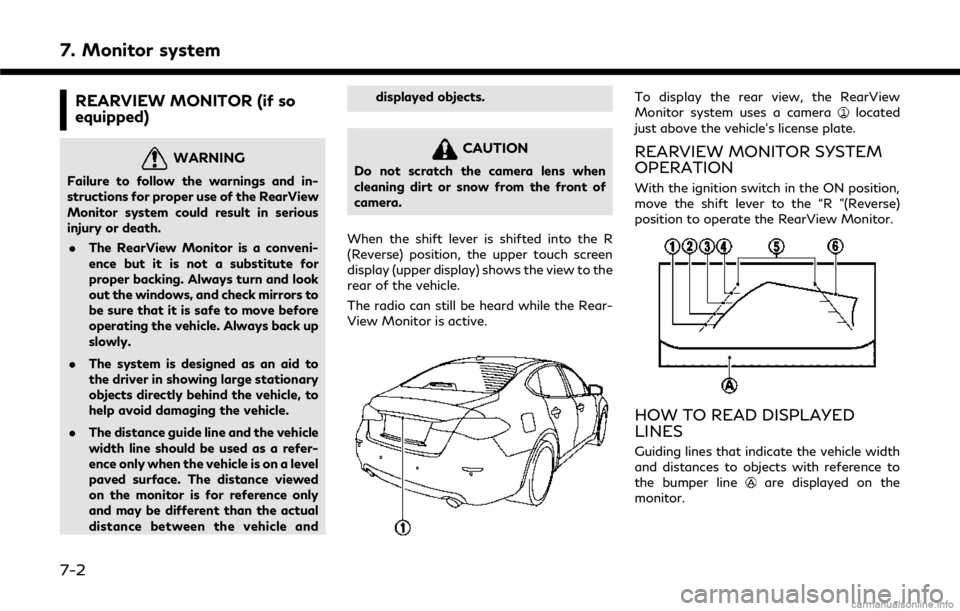
When the shift lever is shifted into the R
(Reverse) position, the upper touch screen
display (upper display) shows the view to the
rear of the vehicle.
The radio can still be heard while the Rear-
View Monitor is active.
To display the rear view, the RearView
Monitor system uses a cameralocated
just above the vehicle’s license plate.
REARVIEW MONITOR SYSTEM
OPERATION
With the ignition switch in the ON position,
move the shift lever to the “R ”(Reverse)
position to operate the RearView Monitor.
HOW TO READ DISPLAYED
LINES
Guiding lines that indicate the vehicle width
and distances to objects with reference to
the bumper line
are displayed on the
monitor.
7-2
Page 136 of 292
8. Information and settings
SiriusXM TRAVEL LINK® (if so
equipped)
SiriusXM Travel Link information is a sub-
scription service offered by SiriusXM Satel-
lite Radio. It is necessary to subscribe to use
the SiriusXM Travel Link information.
This service provides real-time information
regarding current weather, fuel prices,
sports scores, stock tickers and movie times
where available. The SiriusXM Travel Link is
broadcast to the vehicle by SiriusXM Satel-
lite Radio.
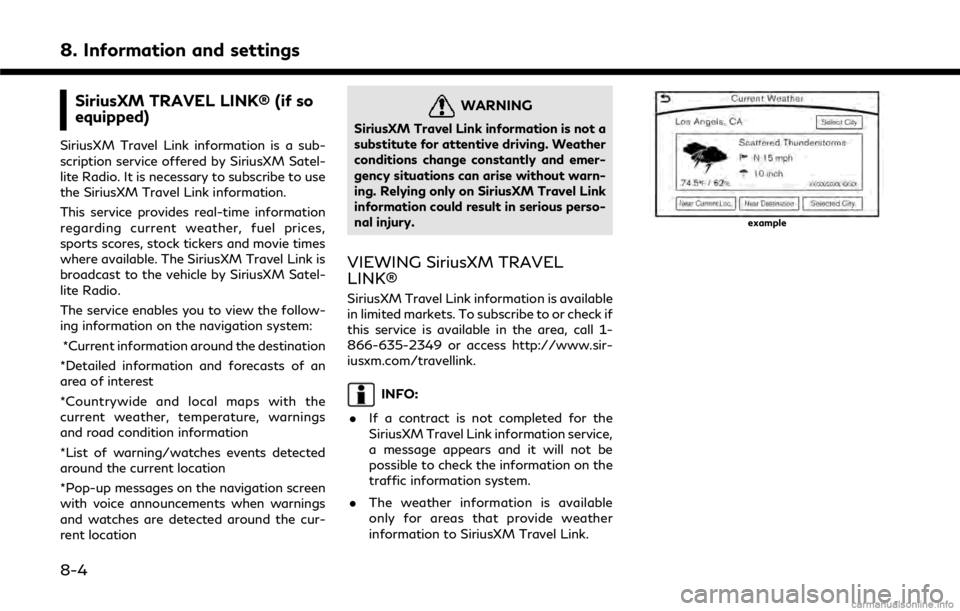
The service enables you to view the follow-
ing information on the navigation system:*Current information around the destination
*Detailed information and forecasts of an
area of interest
*Countrywide and local maps with the
current weather, temperature, warnings
and road condition information
*List of warning/watches events detected
around the current location
*Pop-up messages on the navigation screen
with voice announcements when warnings
and watches are detected around the cur-
rent location
WARNING
SiriusXM Travel Link information is not a
substitute for attentive driving. Weather
conditions change constantly and emer-
gency situations can arise without warn-
ing. Relying only on SiriusXM Travel Link
information could result in serious perso-
nal injury.
VIEWING SiriusXM TRAVEL
LINK®
SiriusXM Travel Link information is available
in limited markets. To subscribe to or check if
this service is available in the area, call 1-
866-635-2349 or access http://www.sir-
iusxm.com/travellink.
INFO:
. If a contract is not completed for the
SiriusXM Travel Link information service,
a message appears and it will not be
possible to check the information on the
traffic information system.
. The weather information is available
only for areas that provide weather
information to SiriusXM Travel Link.
example
8-4
Page 139 of 292
![INFINITI Q50 2018 Infiniti Intouch Sports Score information
Step 1 Step 2 Menu itemAction
Push
<MENU> [SXM Info] [Sports
Scores]Select from list
Display current event state (scheduled game,
during the game, match results)
XM channels t](/img/42/34989/w960_34989-138.png "INFINITI Q50 2018 Infiniti Intouch Sports Score information
Step 1 Step 2 Menu itemAction
Push
<MENU> [SXM Info] [Sports
Scores]Select from list
Display current event state (scheduled game,
during the game, match results)
XM channels t")
Sports Score information
Step 1 Step 2 Menu itemAction
Push