Navigation settings INFINITI Q50 2021 Infiniti Intouch
[x] Cancel search | Manufacturer: INFINITI, Model Year: 2021, Model line: Q50, Model: INFINITI Q50 2021Pages: 268, PDF Size: 1.13 MB
Page 188 of 268
![INFINITI Q50 2021 Infiniti Intouch 6. Navigation (if so equipped)
ROUTE PREFERENCE
It is possible to set the conditions of the route search.
1. Push<MENU> and touch [Settings].
2. Touch [Navigation] and touch [Route Preference].
3. Tou](/img/42/35007/w960_35007-187.png "INFINITI Q50 2021 Infiniti Intouch 6. Navigation (if so equipped)
ROUTE PREFERENCE
It is possible to set the conditions of the route search.
1. Push<MENU> and touch [Settings].
2. Touch [Navigation] and touch [Route Preference].
3. Tou")
6. Navigation (if so equipped)
ROUTE PREFERENCE
It is possible to set the conditions of the route search.
1. Push
Page 189 of 268
![INFINITI Q50 2021 Infiniti Intouch [Never Use]Calculates route avoiding the use of seasonal restricted
roads.
[Use Traffic Informa-
tion] [Auto]
Calculates the route automatically taking traffic information
into consideration.
[Accept]](/img/42/35007/w960_35007-188.png "INFINITI Q50 2021 Infiniti Intouch [Never Use]Calculates route avoiding the use of seasonal restricted
roads.
[Use Traffic Informa-
tion] [Auto]
Calculates the route automatically taking traffic information
into consideration.
[Accept]")
[Never Use]Calculates route avoiding the use of seasonal restricted
roads.
[Use Traffic Informa-
tion] [Auto]
Calculates the route automatically taking traffic information
into consideration.
[Accept] If a traffic jam or incident occurs, a confirmation screen will
appear before calculation.
[OFF] Calculates the route without taking traffic information into
consideration.
[Use Avoid Area Settings] When enabled, the system avoids the previously defined
avoid areas.
[Use Ferries] Includes the use of ferries.
[Use Car-Carrying Trains] Includes the use of car-carrying trains.
[Use Unpaved Roads] Includes the use of unpaved roads.
[Use HOV Lanes] Includes the use of HOV lanes.
[Use Learned Routes] Uses the roads that are most frequently traveled with the help
of self-learning technology.
[Customize More
Routes] [3types]
Calculates 3 types of route when confirming other routes.
[1type] Calculates an alternative route when confirming other routes.
[Estimated Time] [Destination] Displays the estimated time of arrival or remaining time to the
destination during route guidance.
[Waypoint] Displays the estimated time of arrival or remaining time to the
waypoint during the route guidance.
[Time Shown on Map] [ETA] Displays the estimated time of arrival.
[Remaining] Displays the remaining time to arrive.
6. Navigation (if so equipped)
6-35
Page 190 of 268
6. Navigation (if so equipped)
INFO:
. If the vehicle greatly deviates from the suggested route, the system calculates a new route.
. Traffic jam information displayed on the map screen is not statistical traffic information.
. If [Ignore Restrictions] is selected for [Time Restricted Roads] setting, the system calculates a route without any consideration of the
regulations concerning the time or day of the week. Therefore, the suggested route may include a road subject to traffic regulations
concerning the time or day of the week. When driving along the route, always follow all traffic regulations regardless of whether [Time
Restricted Roads] is set to be considered or not.
. Even when [Use Traffic Information] is turned on, if traffic information has not been provided for the area, a detour may not always be
indicated in a location where a traffic jam occurs.
. The system calculates to reduce the time required for the entire route from the start to the destination. If there are no appropriate routes,
the system may lead to a route where a traffic jam occurs instead of leading to a detour.
. The system may not lead to a detour if the traffic closure or a traffic jam occurs far from the present location.
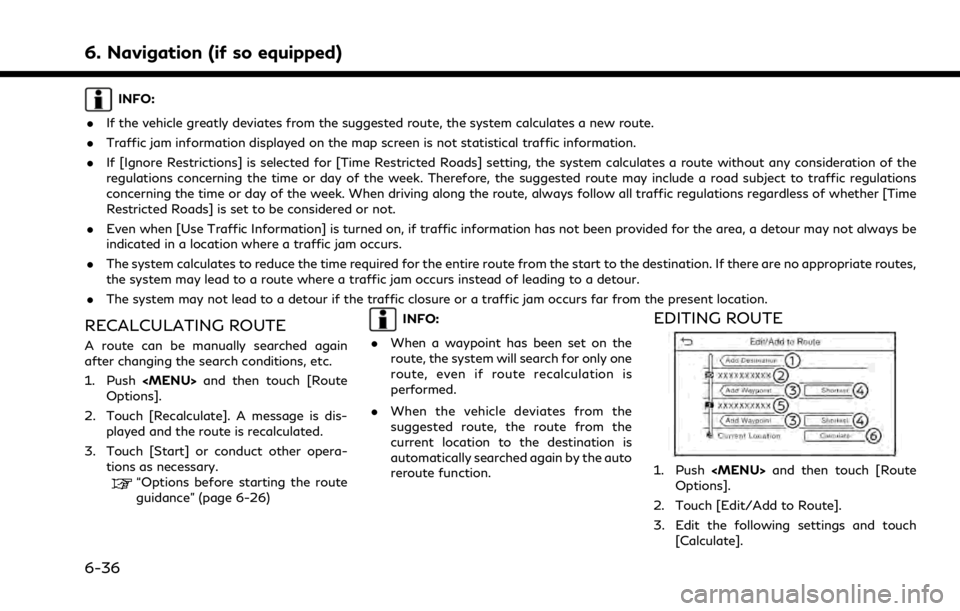
RECALCULATING ROUTE
A route can be manually searched again
after changing the search conditions, etc.
1. Push
Page 192 of 268
![INFINITI Q50 2021 Infiniti Intouch 6. Navigation (if so equipped)
3. Touch a destination or waypoint that isalready set.
4. Touch to edit the following settings: Available setting items
.[Delete]:A selected destination or waypoint
that](/img/42/35007/w960_35007-191.png "INFINITI Q50 2021 Infiniti Intouch 6. Navigation (if so equipped)
3. Touch a destination or waypoint that isalready set.
4. Touch to edit the following settings: Available setting items
.[Delete]:A selected destination or waypoint
that")
6. Navigation (if so equipped)
3. Touch a destination or waypoint that isalready set.
4. Touch to edit the following settings: Available setting items
.[Delete]:A selected destination or waypoint
that has already been set can be
deleted.
.[Change Order]:The order of a destination and way-
points that are already set can be
changed.
.[Move Destination]:
The location of the destination or
waypoint can be adjusted by moving
the cross pointer across the map on
the touch screen display.
5. Touch [Calculate] to apply the change.
INFO:
If the destination is deleted, the route
guidance will be canceled.
Changing route calculation condi-
tions
Each section of the route between way-
points can have different route calculation
conditions.
1. Push
Page 194 of 268
![INFINITI Q50 2021 Infiniti Intouch 6. Navigation (if so equipped)
GUIDANCE SETTINGS
Various settings are available to customize the guidance information provided by the system.
1. Push<MENU> and touch [Settings].
2. Touch [Navigation]](/img/42/35007/w960_35007-193.png "INFINITI Q50 2021 Infiniti Intouch 6. Navigation (if so equipped)
GUIDANCE SETTINGS
Various settings are available to customize the guidance information provided by the system.
1. Push<MENU> and touch [Settings].
2. Touch [Navigation]")
6. Navigation (if so equipped)
GUIDANCE SETTINGS
Various settings are available to customize the guidance information provided by the system.
1. Push
Page 198 of 268
6. Navigation (if so equipped)
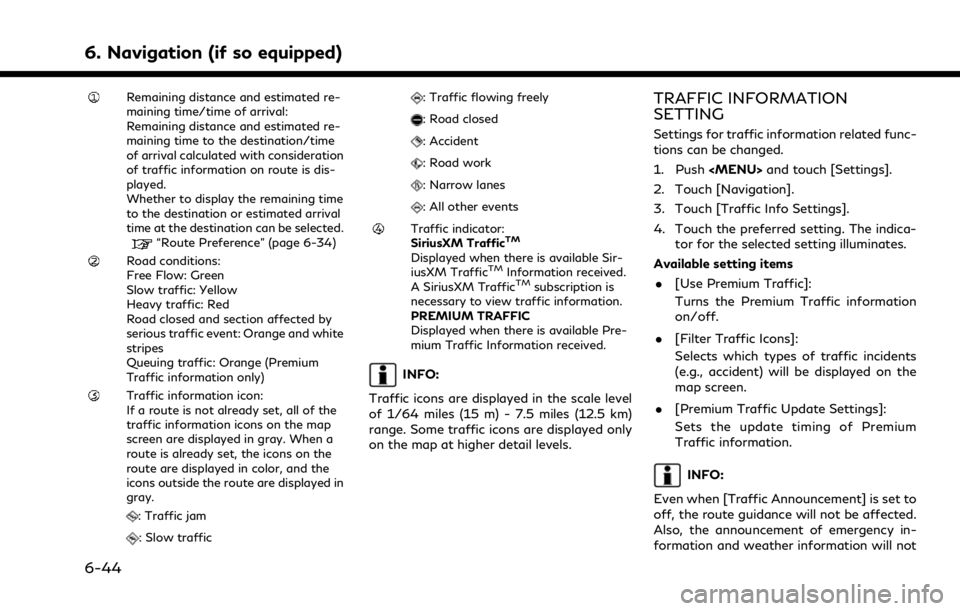
Remaining distance and estimated re-
maining time/time of arrival:
Remaining distance and estimated re-
maining time to the destination/time
of arrival calculated with consideration
of traffic information on route is dis-
played.
Whether to display the remaining time
to the destination or estimated arrival
time at the destination can be selected.
“Route Preference” (page 6-34)
Road conditions:
Free Flow: Green
Slow traffic: Yellow
Heavy traffic: Red
Road closed and section affected by
serious traffic event: Orange and white
stripes
Queuing traffic: Orange (Premium
Traffic information only)
Traffic information icon:
If a route is not already set, all of the
traffic information icons on the map
screen are displayed in gray. When a
route is already set, the icons on the
route are displayed in color, and the
icons outside the route are displayed in
gray.
: Traffic jam
: Slow traffic
: Traffic flowing freely
: Road closed
: Accident
: Road work
: Narrow lanes
: All other events
Traffic indicator:
SiriusXM TrafficTM
Displayed when there is available Sir-
iusXM TrafficTMInformation received.
A SiriusXM TrafficTMsubscription is
necessary to view traffic information.
PREMIUM TRAFFIC
Displayed when there is available Pre-
mium Traffic Information received.
INFO:
Traffic icons are displayed in the scale level
of 1/64 miles (15 m) - 7.5 miles (12.5 km)
range. Some traffic icons are displayed only
on the map at higher detail levels.
TRAFFIC INFORMATION
SETTING
Settings for traffic information related func-
tions can be changed.
1. Push
Page 199 of 268

be turned off.STORING A LOCATION/ROUTE
STORING LOCATION
Often visited locations can be stored in the
Address Book. The stored addresses can be
easily retrieved to set them as a destination
or waypoint. The Address Book can store up
to 200 locations.
Storing home or work location
A home or work location can be stored in the
system.
1. Push
Page 200 of 268
![INFINITI Q50 2021 Infiniti Intouch 6. Navigation (if so equipped)
5. Touch [Add New].
6. Touch an appropriate method to set alocation. Refer to the search methods
used for destination setting.
“Setting destination” (page 6-14)
7. T](/img/42/35007/w960_35007-199.png "INFINITI Q50 2021 Infiniti Intouch 6. Navigation (if so equipped)
5. Touch [Add New].
6. Touch an appropriate method to set alocation. Refer to the search methods
used for destination setting.
“Setting destination” (page 6-14)
7. T")
6. Navigation (if so equipped)
5. Touch [Add New].
6. Touch an appropriate method to set alocation. Refer to the search methods
used for destination setting.
“Setting destination” (page 6-14)
7. Touch [OK].
8. A message is displayed, and the address of the location is stored in the Address
Book.
9. Adjust and edit the contents of the stored item as necessary. Touch [OK]
to confirm.
“Editing stored location”
(page 6-48)
INFO:
. When the location is stored in the Saved
Locations, [Address Book] can be used
to search for the location.
“Searching from address book”
(page 6-21)
. When 200 locations are already stored,
a new location cannot be stored until a
currently stored location is deleted.
Storing location by moving map
1. Move to the preferred location on the
map and display the shortcut menu.
“Shortcut menu” (page 2-13)
2. Touch [Save Location]. A message isdisplayed.
3. The icon representing the stored location is displayed on the map. Push
VOICE> on the INFINITI controller to
return to the current location map
screen.
STORING ROUTE
A maximum of 10 calculated routes can be
stored. Stored routes can be easily retrieved
and set as the suggested route.
A route requires at least one waypoint in
order to be stored. 1. Push
Page 201 of 268
.The route is stored in the first available
position number in the stored routes list.
. When 10 routes are already stored in the
address book, a new route cannot be
stored until a route is deleted.
“Deleting stored item” (page 6-51)
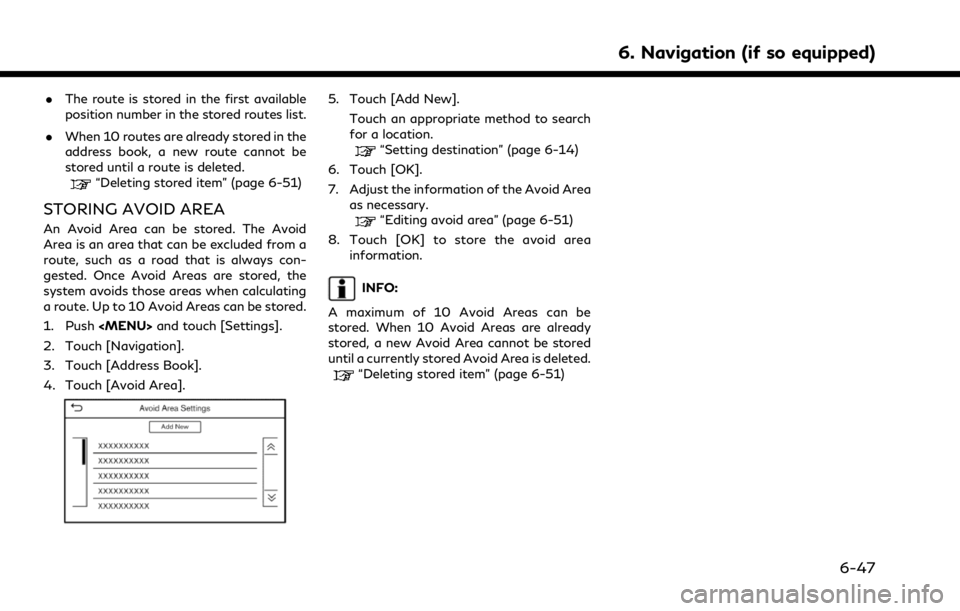
STORING AVOID AREA
An Avoid Area can be stored. The Avoid
Area is an area that can be excluded from a
route, such as a road that is always con-
gested. Once Avoid Areas are stored, the
system avoids those areas when calculating
a route. Up to 10 Avoid Areas can be stored.
1. Push
Page 202 of 268
![INFINITI Q50 2021 Infiniti Intouch 6. Navigation (if so equipped)
EDITING STORED INFORMATION
Items stored in the system can be edited.
Editing stored location
1. Push<MENU> and touch [Settings].
2. Touch [Navigation] and touch [Address](/img/42/35007/w960_35007-201.png "INFINITI Q50 2021 Infiniti Intouch 6. Navigation (if so equipped)
EDITING STORED INFORMATION
Items stored in the system can be edited.
Editing stored location
1. Push<MENU> and touch [Settings].
2. Touch [Navigation] and touch [Address")
6. Navigation (if so equipped)
EDITING STORED INFORMATION
Items stored in the system can be edited.
Editing stored location
1. Push