steering INFINITI Q60 COUPE 2014 Owner's Guide
[x] Cancel search | Manufacturer: INFINITI, Model Year: 2014, Model line: Q60 COUPE, Model: INFINITI Q60 COUPE 2014Pages: 458, PDF Size: 4.27 MB
Page 182 of 458
SAA2488
Models with navigation system
JVH0182M
Models without navigation system
Comfort settings
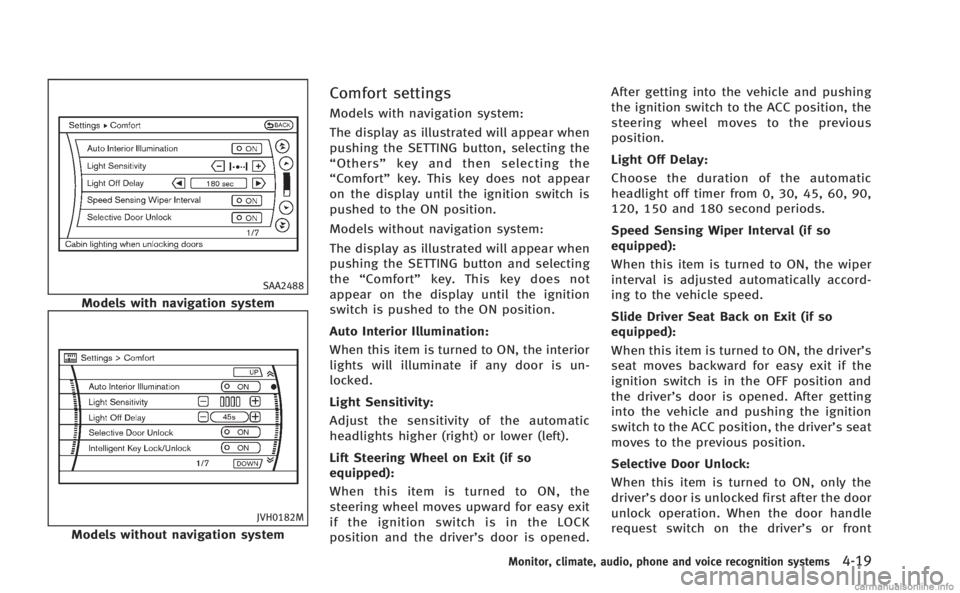
Models with navigation system:
The display as illustrated will appear when
pushing the SETTING button, selecting the
“Others” key and then selecting the
“Comfort” key. This key does not appear
on the display until the ignition switch is
pushed to the ON position.
Models without navigation system:
The display as illustrated will appear when
pushing the SETTING button and selecting
the “Comfort” key. This key does not
appear on the display until the ignition
switch is pushed to the ON position.
Auto Interior Illumination:
When this item is turned to ON, the interior
lights will illuminate if any door is un-
locked.
Light Sensitivity:
Adjust the sensitivity of the automatic
headlights higher (right) or lower (left).
Lift Steering Wheel on Exit (if so
equipped):
When this item is turned to ON, the
steering wheel moves upward for easy exit
if the ignition switch is in the LOCK
position and the driver’s door is opened. After getting into the vehicle and pushing
the ignition switch to the ACC position, the
steering wheel moves to the previous
position.
Light Off Delay:
Choose the duration of the automatic
headlight off timer from 0, 30, 45, 60, 90,
120, 150 and 180 second periods.
Speed Sensing Wiper Interval (if so
equipped):
When this item is turned to ON, the wiper
interval is adjusted automatically accord-
ing to the vehicle speed.
Slide Driver Seat Back on Exit (if so
equipped):
When this item is turned to ON, the driver’s
seat moves backward for easy exit if the
ignition switch is in the OFF position and
the driver’s door is opened. After getting
into the vehicle and pushing the ignition
switch to the ACC position, the driver’s seat
moves to the previous position.
Selective Door Unlock:
When this item is turned to ON, only the
driver’s door is unlocked first after the door
unlock operation. When the door handle
request switch on the driver’s or front
Monitor, climate, audio, phone and voice recognition systems4-19
Page 187 of 458
4-24Monitor, climate, audio, phone and voice recognition systems
.Do not put anything on the RearView
camera. The rearview camera is installed
above the license plate.
. When washing the vehicle with high-
pressure water, be sure not to spray it
around the camera. Otherwise, water
may enter the camera unit causing water
condensation on the lens, a malfunction,
fire or an electric shock.
. Do not strike the camera. It is a precision
instrument. Otherwise, it may malfunc-
tion or cause damage resulting in a fire
or an electric shock.
CAUTION
Do not scratch the camera lens when
cleaning dirt or snow from the cover.
SAA1896
HOW TO READ DISPLAYED LINES
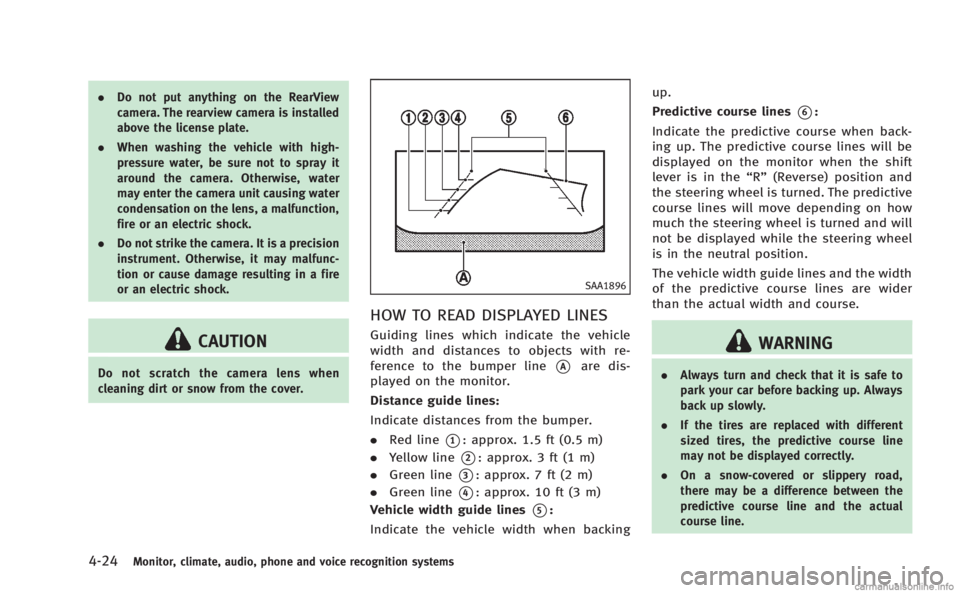
Guiding lines which indicate the vehicle
width and distances to objects with re-
ference to the bumper line
*Aare dis-
played on the monitor.
Distance guide lines:
Indicate distances from the bumper.
. Red line
*1: approx. 1.5 ft (0.5 m)
. Yellow line
*2: approx. 3 ft (1 m)
. Green line
*3: approx. 7 ft (2 m)
. Green line
*4: approx. 10 ft (3 m)
Vehicle width guide lines
*5:
Indicate the vehicle width when backing up.
Predictive course lines
*6:
Indicate the predictive course when back-
ing up. The predictive course lines will be
displayed on the monitor when the shift
lever is in the “R”(Reverse) position and
the steering wheel is turned. The predictive
course lines will move depending on how
much the steering wheel is turned and will
not be displayed while the steering wheel
is in the neutral position.
The vehicle width guide lines and the width
of the predictive course lines are wider
than the actual width and course.
WARNING
. Always turn and check that it is safe to
park your car before backing up. Always
back up slowly.
. If the tires are replaced with different
sized tires, the predictive course line
may not be displayed correctly.
. On a snow-covered or slippery road,
there may be a difference between the
predictive course line and the actual
course line.
Page 189 of 458

4-26Monitor, climate, audio, phone and voice recognition systems
SAA1898
3. Slowly back up the vehicle adjustingthe steering wheel so that the predic-
tive course lines
*Benter the parking
space
*C.
4. When the back of the vehicle enter the parking space
*C, maneuver the steer-
ing wheel to make the vehicle width guide lines
*Dparallel to the parking
space
*C.
5. When the vehicle is parked in the space completely, move the shift lever to the
P (Park) position (Automatic Transmis-
sion models) or in an appropriate gear
(Manual Transmission models) and
apply the parking brake.
SAA1899
Page 237 of 458
4-74Monitor, climate, audio, phone and voice recognition systems
trial use.
. A new disc may be rough on the inner
and outer edges. Remove the rough
edges by rubbing the inner and outer
edges with the side of a pen or pencil
as illustrated.
USB memory
. Do not touch the terminal portion of the
USB memory.
. Do not place heavy objects on the USB
memory.
. Do not store the USB memory in highly
humid locations.
. Do not expose the USB memory to
direct sunlight.
. Do not spill any liquids on the USB
memory.
Refer to the USB memory Owner’s Manual
for the details.
SAA2923
Models with navigation system
SAA2924
Models without navigation system
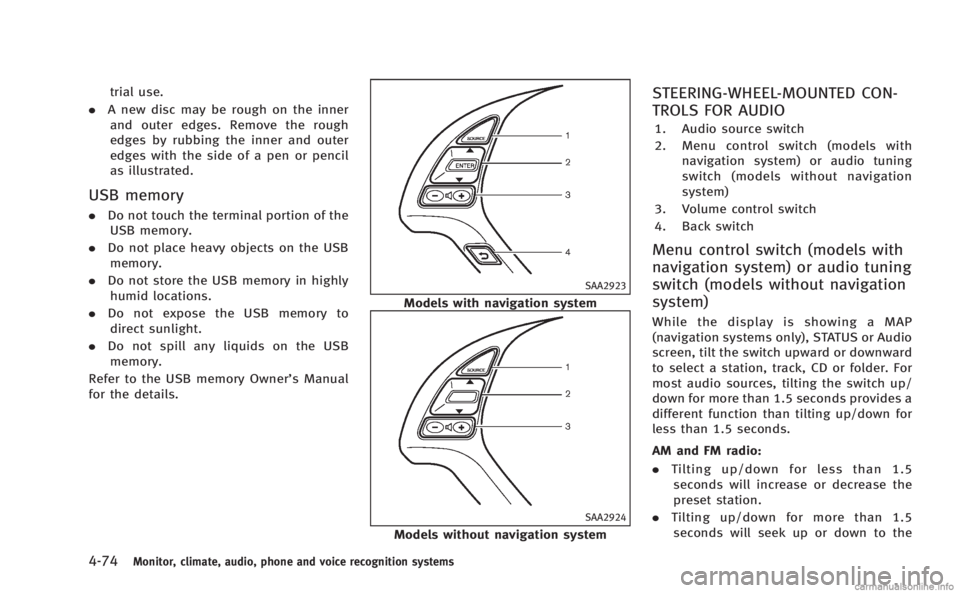
STEERING-WHEEL-MOUNTED CON-
TROLS FOR AUDIO
1. Audio source switch
2. Menu control switch (models with navigation system) or audio tuning
switch (models without navigation
system)
3. Volume control switch
4. Back switch
Menu control switch (models with
navigation system) or audio tuning
switch (models without navigation
system)
While the display is showing a MAP
(navigation systems only), STATUS or Audio
screen, tilt the switch upward or downward
to select a station, track, CD or folder. For
most audio sources, tilting the switch up/
down for more than 1.5 seconds provides a
different function than tilting up/down for
less than 1.5 seconds.
AM and FM radio:
. Tilting up/down for less than 1.5
seconds will increase or decrease the
preset station.
. Tilting up/down for more than 1.5
seconds will seek up or down to the
Page 245 of 458
4-82Monitor, climate, audio, phone and voice recognition systems
JVH0478X
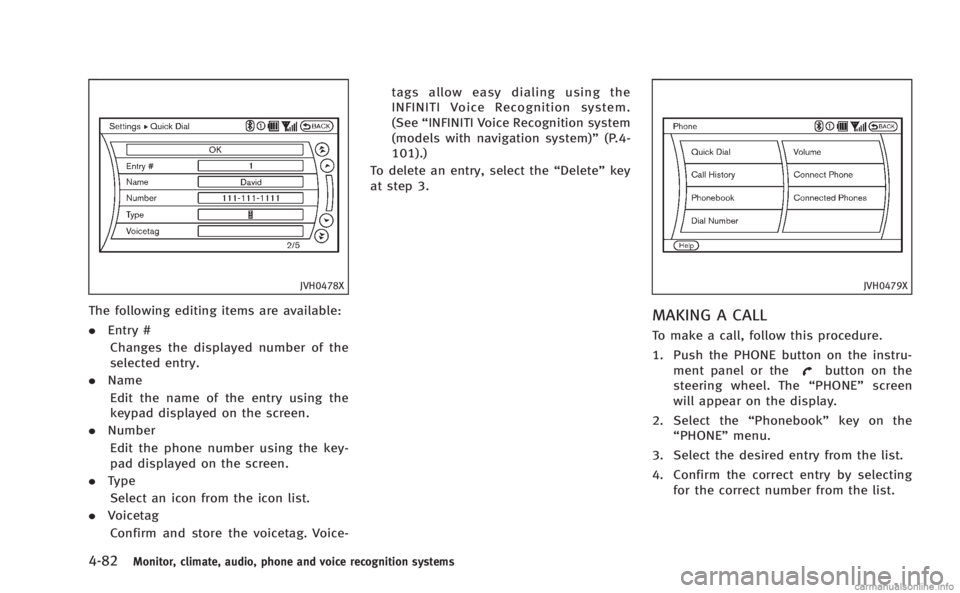
The following editing items are available:
.Entry #
Changes the displayed number of the
selected entry.
. Name
Edit the name of the entry using the
keypad displayed on the screen.
. Number
Edit the phone number using the key-
pad displayed on the screen.
. Type
Select an icon from the icon list.
. Voicetag
Confirm and store the voicetag. Voice- tags allow easy dialing using the
INFINITI Voice Recognition system.
(See
“INFINITI Voice Recognition system
(models with navigation system)” (P.4-
101).)
To delete an entry, select the “Delete”key
at step 3.
JVH0479X
MAKING A CALL
To make a call, follow this procedure.
1. Push the PHONE button on the instru- ment panel or the
button on the
steering wheel. The “PHONE”screen
will appear on the display.
2. Select the “Phonebook”key on the
“PHONE” menu.
3. Select the desired entry from the list.
4. Confirm the correct entry by selecting for the correct number from the list.
Page 246 of 458
JVH0495X
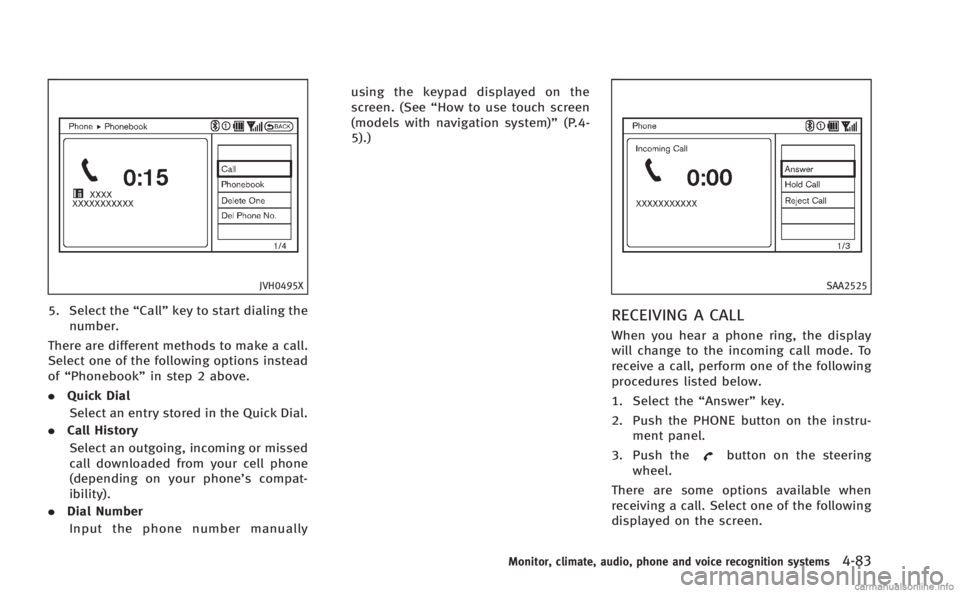
5. Select the“Call”key to start dialing the
number.
There are different methods to make a call.
Select one of the following options instead
of “Phonebook” in step 2 above.
. Quick Dial
Select an entry stored in the Quick Dial.
. Call History
Select an outgoing, incoming or missed
call downloaded from your cell phone
(depending on your phone’s compat-
ibility).
. Dial Number
Input the phone number manually using the keypad displayed on the
screen. (See
“How to use touch screen
(models with navigation system)” (P.4-
5).)
SAA2525
RECEIVING A CALL
When you hear a phone ring, the display
will change to the incoming call mode. To
receive a call, perform one of the following
procedures listed below.
1. Select the “Answer”key.
2. Push the PHONE button on the instru- ment panel.
3. Push the
button on the steering
wheel.
There are some options available when
receiving a call. Select one of the following
displayed on the screen.
Monitor, climate, audio, phone and voice recognition systems4-83
Page 247 of 458
4-84Monitor, climate, audio, phone and voice recognition systems
.Answer
Accept an incoming call to talk.
. Hold Call
Put an incoming call on hold.
. Reject Call
Reject an incoming call.
To finish the call, perform one of the
following procedures listed below.
1. Select the “Hang up”key.
2. Push the PHONE button on the instru- ment panel.
3. Push the
button on the steering
wheel.SAA3587
DURING A CALL
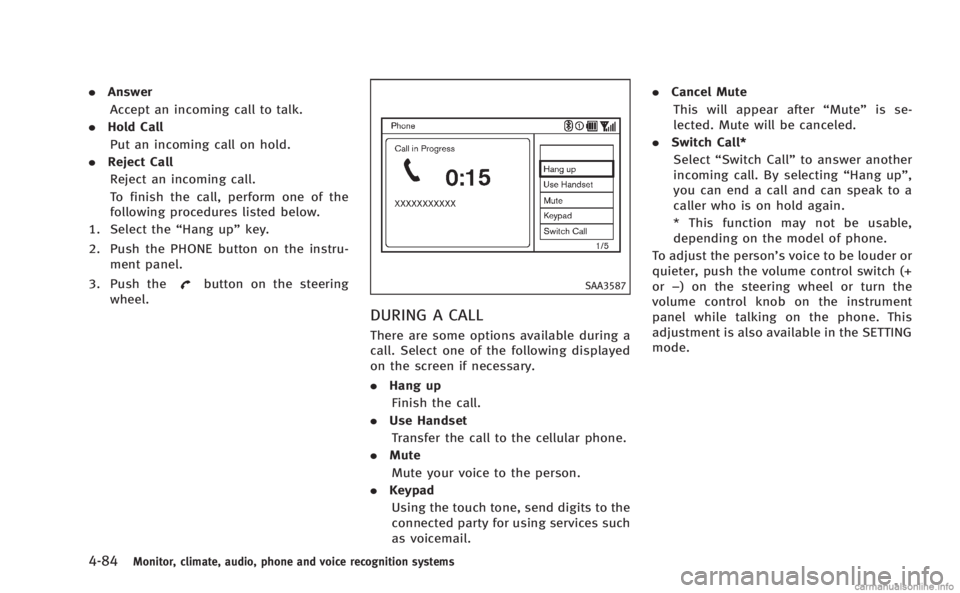
There are some options available during a
call. Select one of the following displayed
on the screen if necessary.
. Hang up
Finish the call.
. Use Handset
Transfer the call to the cellular phone.
. Mute
Mute your voice to the person.
. Keypad
Using the touch tone, send digits to the
connected party for using services such
as voicemail. .
Cancel Mute
This will appear after “Mute”is se-
lected. Mute will be canceled.
. Switch Call*
Select “Switch Call” to answer another
incoming call. By selecting “Hang up”,
you can end a call and can speak to a
caller who is on hold again.
* This function may not be usable,
depending on the model of phone.
To adjust the person’s voice to be louder or
quieter, push the volume control switch (+
or −) on the steering wheel or turn the
volume control knob on the instrument
panel while talking on the phone. This
adjustment is also available in the SETTING
mode.
Page 252 of 458

Bluetooth®trademark
Bluetooth®is a trademark
owned by Bluetooth SIG, Inc.,
and licensed to Visteon Cor-
poration.
SAA1582
CONTROL BUTTONS
1. PHONE SENDbutton
Push the button to initiate a VR (Voice
Recognition) session or answer an
incoming call. You can also use the
button to skip through system feed-
back and to enter commands during a
call.
2. PHONE END
button
Push the button to cancel a VR
session or end a call.
VOICE RECOGNITION SYSTEM
You can also use the Bluetooth®hands-
free phone system with Voice Recognition
System.
INFO
. The available voice commands are only
applicable to the relevant language set
in the LANGUAGE setting screen. (See
“How to use SETTING button” (P.4-14).)
. If the vehicle is in motion, some
commands may not be available so full
attention may be given to vehicle
operation.
Using system
Initialization:
When the ignition switch is pushed to the
ON position, Voice Recognition System is
initialized, which may take up to one
minute. When completed, the system is
ready to accept voice commands. If the
switch on the steering wheel is pushed
before the initialization completes, the
system will not accept any command.
Monitor, climate, audio, phone and voice recognition systems4-89
Page 253 of 458
4-90Monitor, climate, audio, phone and voice recognition systems
Before starting:
To get the best performance out of the
Voice Recognition System, observe the
following:
.Keep the interior of the vehicle as quiet
as possible. Close the windows to
eliminate the surrounding noises (traf-
fic noises, vibration sounds, etc.),
which may prevent the system from
recognizing the voice commands cor-
rectly.
. Wait until a tone sounds before speak-
ing a command.
. Speak a voice command within 5
seconds after the beep sound. If no
voice command is given, the system
will ask you for a number. If no further
command is given, the session ends.
. Speak in a natural voice without paus-
ing between words.
SAA2643
Giving voice command:
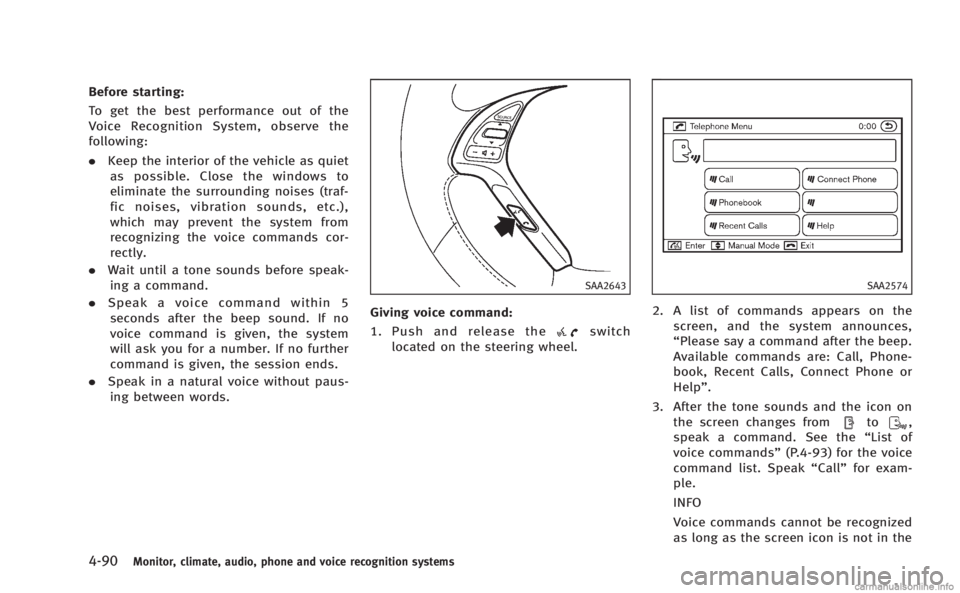
1. Push and release the
switch
located on the steering wheel.
SAA2574
2. A list of commands appears on the screen, and the system announces,
“Please say a command after the beep.
Available commands are: Call, Phone-
book, Recent Calls, Connect Phone or
Help”.
3. After the tone sounds and the icon on the screen changes from
to,
speak a command. See the “List of
voice commands” (P.4-93) for the voice
command list. Speak “Call”for exam-
ple.
INFO
Voice commands cannot be recognized
as long as the screen icon is not in the
Page 254 of 458

command recognition mode.
4. The system acknowledges the com- mand and announces the next set of
available commands.
5. After the tone sounds, speak the phone number.
6. When you have finished speaking the phone number, the system repeats it
back and announces the available
commands.
7. After system responds, speak “Dial”
and the system dials the spoken
numbers.
Operating tips:
. Voice commands cannot be accepted
when the icon is
.
. If the command is not recognized, the
system announces, “Please say again”.
Repeat the command in a clear voice.
. Push the
switch or the BACKbutton
once to return to the previous screen.
. If you want to cancel the command,
push the
switch. The message
“ Voice input is canceled” will be
announced. If you want to adjust the
volume of the system feedback, push
the volume control buttons [+] or [−]on
the steering wheel or use the audio system volume knob while the system
is making an announcement.
How to speak commands:
The Voice Recognition System requires a
certain way to speak voice commands.
Speak normally and clearly in the direction
of the microphone (located in front of the
rearview mirror). Every digit of the number
must be spoken individually and in a
normal manner. The hands-free mode will
work best when the telephone number is
spoken in blocks of three to five digits.
After each spoken block is terminated, the
system will repeat the three to five digits
and wait for you to speak the next digit or
block of digits required for the telephone
number.
See “List of voice commands” (P.4-93) for
the appropriate commands that can be
spoken for the hands-free mode system.
Example:
In order to initiate a call, speak “Phone-
book”.
INFO
. If you are controlling the telephone
system by voice command for the first
time or do not know the appropriate
voice command, speak “Help” . The system announces the available com-
mands.
. When you speak numbers, you can
speak both “zero”or“oh” for“0”.
Personal vocabulary (voicetags): Voice Recognition System is equipped with
the function called “voicetags”, which can
be associated with the phone number and
name in the phonebook. Using the voice
tag will automatically generate a speed
dial to the registered number.
See “Phonebook registration” (P.4-95).
You can call the identified number using
the following command: “Dial”followed by
the voice tag.
Dialling a name with a voice tag:
It is possible to call up a name via a voice
tag instead of a number, provided the
name and number of your correspondent
has been previously stored in the phone-
book.
Dial via a voice tag, according to the
following procedure.
1. Push the
switch.
2. The system replies “please say a
command after the beep. Available
commands are: Call, Phonebook, Re-
Monitor, climate, audio, phone and voice recognition systems4-91