phone INFINITI Q60 COUPE 2018 Infiniti Intouch
[x] Cancel search | Manufacturer: INFINITI, Model Year: 2018, Model line: Q60 COUPE, Model: INFINITI Q60 COUPE 2018Pages: 292, PDF Size: 1.45 MB
Page 171 of 292
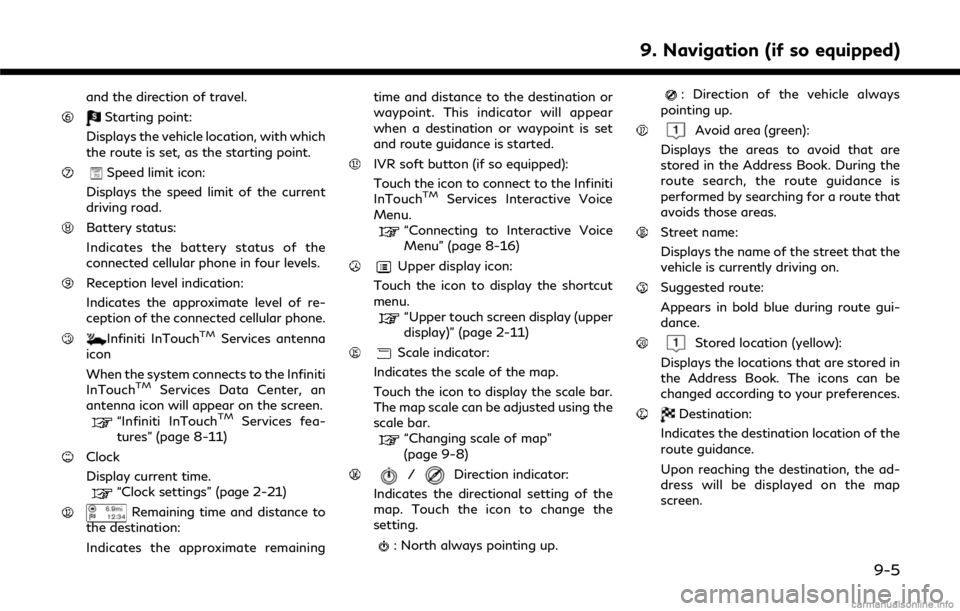
and the direction of travel.
Starting point:
Displays the vehicle location, with which
the route is set, as the starting point.
Speed limit icon:
Displays the speed limit of the current
driving road.
Battery status:
Indicates the battery status of the
connected cellular phone in four levels.
Reception level indication:
Indicates the approximate level of re-
ception of the connected cellular phone.
Infiniti InTouchTMServices antenna
icon
When the system connects to the Infiniti
InTouch
TMServices Data Center, an
antenna icon will appear on the screen.
“Infiniti InTouchTMServices fea-
tures” (page 8-11)
Clock
Display current time.
“Clock settings” (page 2-21)
Remaining time and distance to
the destination:
Indicates the approximate remaining time and distance to the destination or
waypoint. This indicator will appear
when a destination or waypoint is set
and route guidance is started.
IVR soft button (if so equipped):
Touch the icon to connect to the Infiniti
InTouch
TMServices Interactive Voice
Menu.
“Connecting to Interactive Voice
Menu” (page 8-16)
Upper display icon:
Touch the icon to display the shortcut
menu.
“Upper touch screen display (upper
display)” (page 2-11)
Scale indicator:
Indicates the scale of the map.
Touch the icon to display the scale bar.
The map scale can be adjusted using the
scale bar.
“Changing scale of map”
(page 9-8)
/Direction indicator:
Indicates the directional setting of the
map. Touch the icon to change the
setting.
: North always pointing up.
: Direction of the vehicle always
pointing up.
Avoid area (green):
Displays the areas to avoid that are
stored in the Address Book. During the
route search, the route guidance is
performed by searching for a route that
avoids those areas.
Street name:
Displays the name of the street that the
vehicle is currently driving on.
Suggested route:
Appears in bold blue during route gui-
dance.
Stored location (yellow):
Displays the locations that are stored in
the Address Book. The icons can be
changed according to your preferences.
Destination:
Indicates the destination location of the
route guidance.
Upon reaching the destination, the ad-
dress will be displayed on the map
screen.
9. Navigation (if so equipped)
9-5
Page 184 of 292
![INFINITI Q60 COUPE 2018 Infiniti Intouch 9. Navigation (if so equipped)
[Freeway Entrance/Exit] Searches for a destination from a freeway entrance/exit.“Setting freeway entrance/exit” (page 9-24)
Step 1 Step 2 Setting item Action
Push <M](/img/42/34989/w960_34989-183.png "INFINITI Q60 COUPE 2018 Infiniti Intouch 9. Navigation (if so equipped)
[Freeway Entrance/Exit] Searches for a destination from a freeway entrance/exit.“Setting freeway entrance/exit” (page 9-24)
Step 1 Step 2 Setting item Action
Push <M")
9. Navigation (if so equipped)
[Freeway Entrance/Exit] Searches for a destination from a freeway entrance/exit.“Setting freeway entrance/exit” (page 9-24)
Step 1 Step 2 Setting item Action
Push
Page 192 of 292
9. Navigation (if so equipped)
2. After the tone sounds, speak a com-mand.
To set the destination from the Stored
Locations:
“ Stored Locations”
SETTING BY PHONE NUMBER
If the phone number of a facility is known, it
is possible to search for a facility by entering
the phone number.
INFO:
. If the area code of the specified tele-
phone number does not exist in the map
data, the system cannot search for the
location.
. Only the locations included in the data-
base in the map data can be searched for
by phone number. Residential phone
numbers cannot be used to search for a
location.
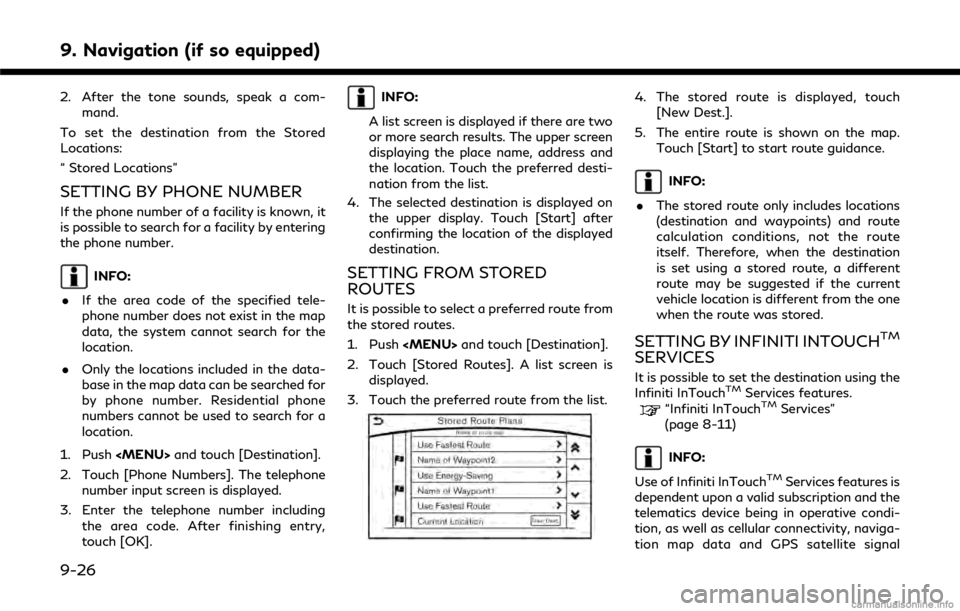
1. Push
Page 218 of 292
![INFINITI Q60 COUPE 2018 Infiniti Intouch 9. Navigation (if so equipped)
Editing stored home and location
Step 1Step 2Step 3 Step 4 Action
1.Push<MENU>
2.Touch [Settings]
3.Touch [Navigation]
4.Touch [Edit/Delete
Stored Locations]
5.Touch [St](/img/42/34989/w960_34989-217.png "INFINITI Q60 COUPE 2018 Infiniti Intouch 9. Navigation (if so equipped)
Editing stored home and location
Step 1Step 2Step 3 Step 4 Action
1.Push<MENU>
2.Touch [Settings]
3.Touch [Navigation]
4.Touch [Edit/Delete
Stored Locations]
5.Touch [St")
9. Navigation (if so equipped)
Editing stored home and location
Step 1Step 2Step 3 Step 4 Action
1.Push
Page 219 of 292
![INFINITI Q60 COUPE 2018 Infiniti Intouch Step 1Step 2Step 3 Step 4 Action
1.Push<MENU>
2.Touch [Settings]
3.Touch [Navigation]
4.Touch [Edit/Delete
Stored Locations]
5.Touch [Stored Loca-
tions]
Touch the preferred
stored address from
the li](/img/42/34989/w960_34989-218.png "INFINITI Q60 COUPE 2018 Infiniti Intouch Step 1Step 2Step 3 Step 4 Action
1.Push<MENU>
2.Touch [Settings]
3.Touch [Navigation]
4.Touch [Edit/Delete
Stored Locations]
5.Touch [Stored Loca-
tions]
Touch the preferred
stored address from
the li")
Step 1Step 2Step 3 Step 4 Action
1.Push
Page 227 of 292

*Areas with numerous tall trees
*In a canyon
INFO:
The GPS antenna is located on the instru-
ment panel inside the vehicle. Do not place
any objects, especially cellular phones or
transceivers, on the instrument panel. Be-
cause the strength of the GPS signal is
approximately one billionth of that of TV
waves, phones and transceivers will affect
or may totally disrupt the signal.
Incorrect display of vehicle position
The following cases may affect the display
accuracy of the vehicle’s position or traveling
direction. The accuracy will return to normal
if the driving conditions return to normal.
* When there is a similar road nearby.
*When the vehicle is traveling in an area
with a grid pattern road system.
*When the vehicle is passing through a
large Y-shaped intersection/junction.
9. Navigation (if so equipped)
9-61
Page 235 of 292

use of such marks in this product does not
imply any sponsorship, approval, or endor-
sement by such companies of this product.
End-user terms
The data (“Data”) is provided for your
personal, internal use only and not for resale.
It is protected by copyright, and is subject to
the following terms and conditions which
are agreed to by you, on the one hand, and
CLARION CO., LTD. (“CLARION”) and its
licensors (including their licensors and sup-
pliers) on the other hand.
© 2017 HERE. All rights reserved.
This data includes information taken with
permission from Canadian authorities, in-
cluding © Her Majesty, © Queen’s Printer for
Ontario, © Canada Post, GeoBase®, ©
Department of Natural Resources Canada.
All rights reserved.
HERE holds a non-exclusive license from the
United States Postal Service® to publish and
sell ZIP+4® information.
© United States Postal Service® 2017.
Prices are not established, controlled or
approved by the United States Postal Ser-
vice®. The following trademarks and regis-
trations are owned by the USPS: United
States Postal Service, USPS, and ZIP+4.Terms and conditions:
Personal Use Only.
You agree to use this
Data together with Nissan Automotive
Products for the solely personal, non-com-
mercial purposes for which you were li-
censed, and not for service bureau, time-
sharing or other similar purposes. Accord-
ingly, but subject to the restrictions set forth
in the following paragraphs, you agree not
to otherwise reproduce, copy, modify, de-
compile, disassemble or reverse engineer any
portion of this Data, and may not transfer or
distribute it in any form, for any purpose,
except to the extent permitted by manda-
tory laws. Multi-disc sets may only be
transferred or sold as a complete set as
provided by CLARION and not as a subset
thereof.
Restrictions.Except where you have been
specifically licensed to do so by CLARION,
and without limiting the preceding para-
graph, you may not (a) use this Data with
any products, systems, or applications in-
stalled or otherwise connected to or in
communication with vehicles, capable of
vehicle navigation, positioning, dispatch, real
time route guidance, fleet management or
similar applications; or (b) with or in com-
munication with any positioning devices or any mobile or wireless-connected electronic
or computer devices, including without lim-
itation cellular phones, palmtop and hand-
held computers, pagers, and personal digital
assistants or PDAs.
Warning.The Data may contain inaccurate
or incomplete information due to the pas-
sage of time, changing circumstances,
sources used and the nature of collecting
comprehensive geographic data, any of
which may lead to incorrect results.
No Warranty.This Data is provided to you
“as is,” and you agree to use it at your own
risk. CLARION and its licensors (and their
licensors and suppliers) make no guarantees,
representations or warranties of any kind,
express or implied, arising by law or other-
wise, including but not limited to, content,
quality, accuracy, completeness, effective-
ness, reliability, fitness for a particular
purpose, usefulness, use or results to be
obtained from this Data, or that the Data or
server will be uninterrupted or error-free.
9. Navigation (if so equipped)
9-69
Page 242 of 292
10. Voice recognition
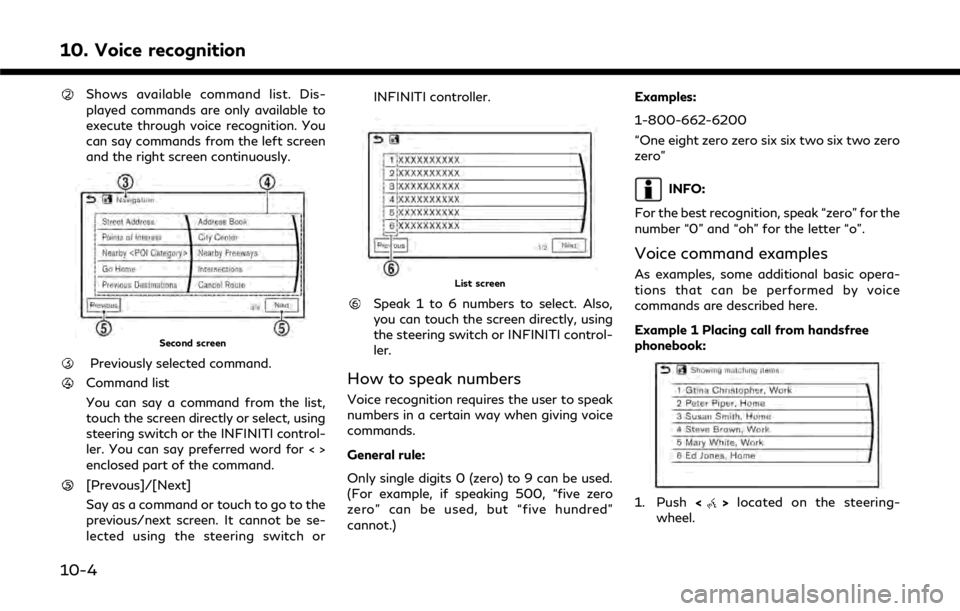
Shows available command list. Dis-
played commands are only available to
execute through voice recognition. You
can say commands from the left screen
and the right screen continuously.
Second screen
Previously selected command.
Command list
You can say a command from the list,
touch the screen directly or select, using
steering switch or the INFINITI control-
ler. You can say preferred word for < >
enclosed part of the command.
[Prevous]/[Next]
Say as a command or touch to go to the
previous/next screen. It cannot be se-
lected using the steering switch orINFINITI controller.
List screen
Speak 1 to 6 numbers to select. Also,
you can touch the screen directly, using
the steering switch or INFINITI control-
ler.
How to speak numbers
Voice recognition requires the user to speak
numbers in a certain way when giving voice
commands.
General rule:
Only single digits 0 (zero) to 9 can be used.
(For example, if speaking 500, “five zero
zero” can be used, but “five hundred”
cannot.)
Examples:
1-800-662-6200
“One eight zero zero six six two six two zero
zero”
INFO:
For the best recognition, speak “zero” for the
number “0” and “oh” for the letter “o”.
Voice command examples
As examples, some additional basic opera-
tions that can be performed by voice
commands are described here.
Example 1 Placing call from handsfree
phonebook:
1. Push <>located on the steering-
wheel.
10-4
Page 243 of 292
2. Wait for the indicator to change to.
Speak “Phone”.
INFO:
.You can also speak “Phone” “Call
spoken, no name listed in Phonebook
can be recognized. Only telephone
numbers can be recognized.
3. Speak “Call
of a cell phone, the option can be
commanded directly. For example, “Call
John Smith Work” or “Call John Smith
Other”, etc.
INFO:
.Names in Phonebook can be recog-nized by speaking the person’s first
and last name, or just their first name.
When a name is spoken in the order
of last name and then first name, or
when only the last name is spoken,
the name cannot be recognized.
.Even if words describing family rela-
tions, such as “Dad” or “Mom”, are
registered in a cell phone, the system can only recognize names. If you want
the system to recognize words like
“Dad” or “Mom”, register “Dad/Mom”
in Favorites from [Phonebook/Fa-
vorites Settings] or register “Dad/
Mom” as a name in a cell phone.
“Phone settings” (page 5-10)
4. The system announces, “Please say or select an item number from the displayed
list.” To select the displayed matching
item, speak a number from 1 to 6.
INFO:
.If the selected number has more thanone phone number registered to it,
the phone number list screen is dis-
played.
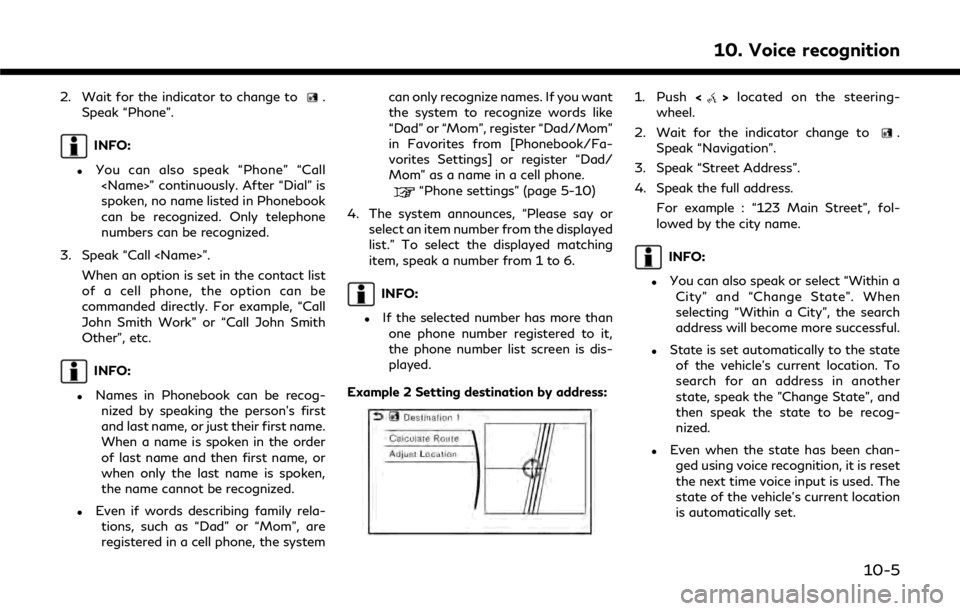
Example 2 Setting destination by address:
1. Push <>located on the steering-
wheel.
2. Wait for the indicator change to
.
Speak “Navigation”.
3. Speak “Street Address”.
4. Speak the full address.
For example : “123 Main Street”, fol-
lowed by the city name.
INFO:
.You can also speak or select “Within aCity” and “Change State”. When
selecting “Within a City”, the search
address will become more successful.
.State is set automatically to the stateof the vehicle’s current location. To
search for an address in another
state, speak the "Change State", and
then speak the state to be recog-
nized.
.Even when the state has been chan-ged using voice recognition, it is reset
the next time voice input is used. The
state of the vehicle’s current location
is automatically set.
10. Voice recognition
10-5
Page 245 of 292

Command list
To use the Voice recognition function, you can speak commands in the order of 1st command, 2nd command and 3rd command. You can also
operate the system by directly speaking the 2nd or 3rd command.
Variable numbers or words such as names can be applied in the < > when speaking a command.
Some navigation commands are only for English.
General Command
CommandAction
Show More Commands Display other commands of the same category.
Go Back Corrects the last recognition result to return to the previous screen.
Exit Cancels Voice recognition.
Help Announces how to use voice guidance.
Next Skip to the next page.
Previous Skip to the previous page.
General phone command
The following commands can be used during a phone Voice recognition session.
Command Action
Change Number Change a spoken phone number.
Dial The system makes a call to the spoken phone number.
10. Voice recognition
10-7