mirror INFINITI QX50 2014 User Guide
[x] Cancel search | Manufacturer: INFINITI, Model Year: 2014, Model line: QX50, Model: INFINITI QX50 2014Pages: 498, PDF Size: 2.47 MB
Page 158 of 498

Adjusting outside mirrors
The outside mirror control switch is located
on the armrest.
The outside mirror will operate only when
the ignition switch is in the ACC or ON
position.
Turn the switch right or left to select the
right or left side mirror
*1, then adjust
using the control switch
*2.
Defrosting outside mirrors
The outside mirrors will be heated when
the rear window defroster switch is oper-
ated.SPA1829
Foldable outside mirrors
Fold the outside mirror by pushing it
toward the rear of the vehicle.
Reverse tilt-down feature (if so
equipped)
When backing up the vehicle, the right or
left outside mirror will turn downward
automatically to provide better rear visibi-
lity.
1. Push the ignition switch to the ON position.
2. Move the shift lever to the R (Reverse) position. 3. Choose the right or left outside mirror
by operating the outside mirror control
switch.
4. The selected outside mirror surface moves downward.
When one of the following conditions has
occurred, the selected outside mirror sur-
face will return to its original position.
. The shift lever is moved to any position
other than R (Reverse).
. The outside mirror control switch is set
to the center position.
. The ignition switch is pushed to the OFF
position.
Pre-driving checks and adjustments3-25
Page 159 of 498
3-26Pre-driving checks and adjustments
SIC3869
VANITY MIRROR
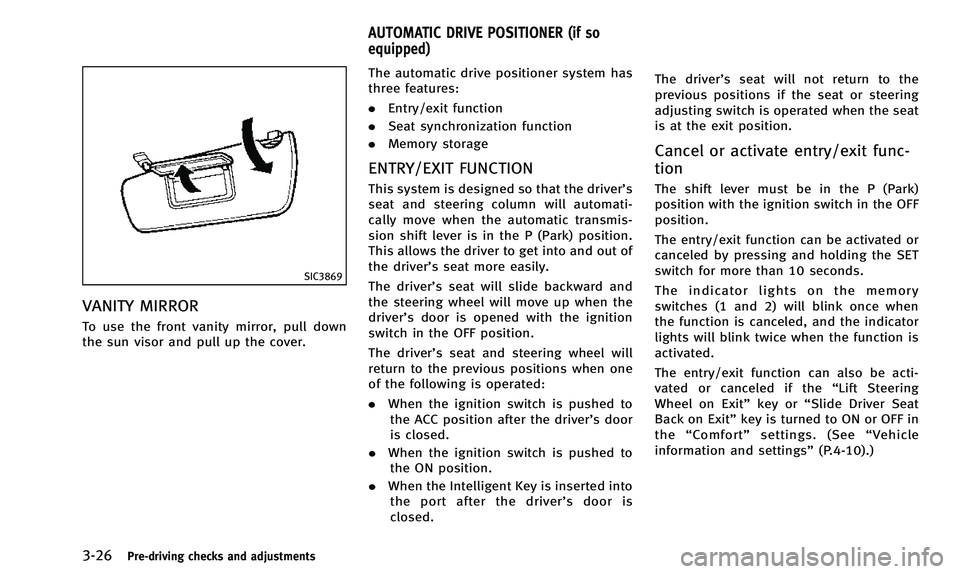
To use the front vanity mirror, pull down
the sun visor and pull up the cover.The automatic drive positioner system has
three features:
.
Entry/exit function
. Seat synchronization function
. Memory storage
ENTRY/EXIT FUNCTION
This system is designed so that the driver’s
seat and steering column will automati-
cally move when the automatic transmis-
sion shift lever is in the P (Park) position.
This allows the driver to get into and out of
the driver’s seat more easily.
The driver’s seat will slide backward and
the steering wheel will move up when the
driver’s door is opened with the ignition
switch in the OFF position.
The driver’s seat and steering wheel will
return to the previous positions when one
of the following is operated:
. When the ignition switch is pushed to
the ACC position after the driver’s door
is closed.
. When the ignition switch is pushed to
the ON position.
. When the Intelligent Key is inserted into
the port after the driver’ s door is
closed. The driver’s seat will not return to the
previous positions if the seat or steering
adjusting switch is operated when the seat
is at the exit position.
Cancel or activate entry/exit func-
tion
The shift lever must be in the P (Park)
position with the ignition switch in the OFF
position.
The entry/exit function can be activated or
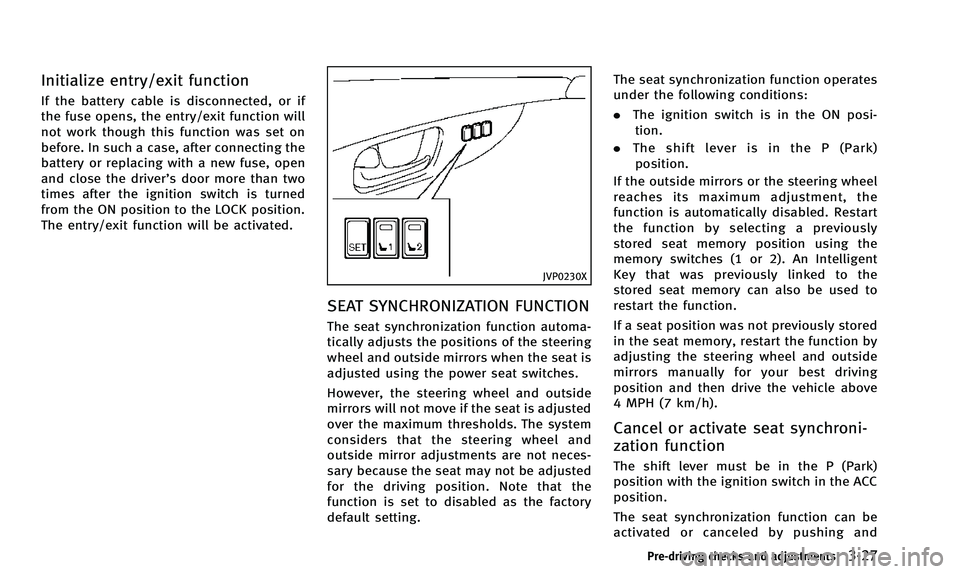
canceled by pressing and holding the SET
switch for more than 10 seconds.
The indicator lights on the memory
switches (1 and 2) will blink once when
the function is canceled, and the indicator
lights will blink twice when the function is
activated.
The entry/exit function can also be acti-
vated or canceled if the “Lift Steering
Wheel on Exit” key or“Slide Driver Seat
Back on Exit” key is turned to ON or OFF in
the “Comfort” settings. (See “Vehicle
information and settings” (P.4-10).)
AUTOMATIC DRIVE POSITIONER (if so
equipped)
Page 160 of 498
Initialize entry/exit function
If the battery cable is disconnected, or if
the fuse opens, the entry/exit function will
not work though this function was set on
before. In such a case, after connecting the
battery or replacing with a new fuse, open
and close the driver’s door more than two
times after the ignition switch is turned
from the ON position to the LOCK position.
The entry/exit function will be activated.
JVP0230X
SEAT SYNCHRONIZATION FUNCTION
The seat synchronization function automa-
tically adjusts the positions of the steering
wheel and outside mirrors when the seat is
adjusted using the power seat switches.
However, the steering wheel and outside
mirrors will not move if the seat is adjusted
over the maximum thresholds. The system
considers that the steering wheel and
outside mirror adjustments are not neces-
sary because the seat may not be adjusted
for the driving position. Note that the
function is set to disabled as the factory
default setting. The seat synchronization function operates
under the following conditions:
.
The ignition switch is in the ON posi-
tion.
. The shift lever is in the P (Park)
position.
If the outside mirrors or the steering wheel
reaches its maximum adjustment, the
function is automatically disabled. Restart
the function by selecting a previously
stored seat memory position using the
memory switches (1 or 2). An Intelligent
Key that was previously linked to the
stored seat memory can also be used to
restart the function.
If a seat position was not previously stored
in the seat memory, restart the function by
adjusting the steering wheel and outside
mirrors manually for your best driving
position and then drive the vehicle above
4 MPH (7 km/h).
Cancel or activate seat synchroni-
zation function
The shift lever must be in the P (Park)
position with the ignition switch in the ACC
position.
The seat synchronization function can be
activated or canceled by pushing and
Pre-driving checks and adjustments3-27
Page 161 of 498
3-28Pre-driving checks and adjustments
holding the SET switch for more than 10
seconds while the ignition switch is in the
ACC position.
The indicator lights on the memory
switches (1 and 2) will blink once when
the function is canceled, and the indicator
lights will blink twice when the function is
activated.
MEMORY STORAGE
Two positions for the driver’s seat, steering
column and outside mirrors can be stored
in the automatic drive positioner memory.
Follow these procedures to use the mem-
ory system.
1. Move the shift lever to the P (Park) position.
2. Push the ignition switch to the ON position.
3. Adjust the driver’s seat, steering col- umn and outside mirrors to the desired
positions by manually operating each
adjusting switch. For additional infor-
mation, see “Seats”(P.1-2),“Tilt/tele-
scopic column” (P.3-21) and“Outside
mirrors” (P.3-24).
4. Push the SET switch and, within 5 seconds, push the memory switch (1 or 2) fully for at least 1 second.
The indicator light for the pushed
memory switch will stay on for approxi-
mately 5 seconds after pushing the
switch.
If memory is stored in the same
memory switch, the previous memory
will be deleted.Linking Intelligent Key to a stored
memory position
The Intelligent Key can be linked to a
stored memory position with the following
procedure.
1. Follow the steps for storing a memory
position.
2. While the indicator light for the memory switch being set is illuminated for 5
seconds, push the UNLOCK
button
on the Intelligent Key. If the indicator
light blinks, the Intelligent Key is linked
to that memory setting.
Push the ignition switch to the OFF posi-
tion, and then push the UNLOCK
button on the Intelligent Key. The driver’s
seat, steering wheel and outside mirrors
will move to the memorized position or to
the exit position when the entry/exit function is set to active.
Confirming memory storage
.
Push the ignition switch to the ON
position and push the SET switch. If
the main memory has not been stored,
the indicator light will come on for
approximately 0.5 second. When the
memory has stored in position, the
indicator light will stay on for approxi-
mately 5 seconds.
. If the battery cable is disconnected, or if
the fuse opens, the memory will be
canceled. In this case, reset the desired
position using the previous procedure.
. If optional Intelligent Keys are added to
your vehicle, the memory storage pro-
cedure to switch 1 or 2 and linking
Intelligent Key procedure to a stored
memory position should be performed
again for each Intelligent Key. For
additional Intelligent Key information,
see “Keys” (P.3-2).
Page 162 of 498

Selecting the memorized position
1. Move the shift lever to the P (Park)position.
2. Use one of the following methods to move the driver’ s seat, the outside
mirrors and the steering wheel.
.Push the ignition switch to the ON position and push the memory
switch (1 or 2) fully for at least 1
second.
.Within 45 seconds of opening thedriver’ s door, push the memory
switch (1 or 2) fully for at least 1
second.
The driver’s seat, steering column and
outside mirrors will move to the mem-
orized position or to the exit position
when the entry/exit function is set to
active with the indicator light flashing,
and then the light will stay on for
approximately 5 seconds.
SYSTEM OPERATION
The automatic drive positioner system will
not work or will stop operating under the
following conditions:
. When the vehicle speed is above 4 MPH
(7 km/h). .
When the adjusting switch for the
driver’s seat and steering column is
turned on while the automatic drive
positioner is operating.
. When the memory switch 1 or 2 is not
pushed for at least 1 second.
. When the seat, steering column and
outside mirrors have already been
moved to the memorized position.
. When no position is stored in the
memory switch.
. When the engine is started while
moving the automatic drive positioner.
. When the AT shift lever is moved from
the P (Park) position to any other
position. (However, it will not be
canceled if the switch is pushed while
the seat and steering column are
returning to the previous positions
(entry/exit function).)
. When the driver’s door remains open
for more than 45 seconds and the
ignition switch is not in the ON posi-
tion.
. The seat synchronization function is
automatically disabled if the outside
mirrors or steering wheel reaches its
maximum adjustment. .
The seat synchronization function will
not operate if the seat is adjusted over
one of the following maximum thresh-
olds:
— Seat sliding: 3.0 in (76 mm)
— Seatback reclining: 9.1 degrees
— Seat lifter (rear side): 0.8 in (20 mm)
Pre-driving checks and adjustments3-29
Page 187 of 498

4-24Monitor, climate, audio, phone and voice recognition systems
—Maximum Resolution: 2048 61536
pixels
— Maximum Size: 2-MB
— Colors: 32768 (15-bit)
— Maximum File Name lengths: 253-
Bytes
— Maximum Folders: 500
— Maximum Images per Folder: 1024
. If an electronic device (such as a digital
camera) is directly connected to the
vehicle using a USB cable, no image
will be displayed on the screen.
. If the file name is too long, some file
names may not be entirely displayed.
. When the total number of characters in
the file name exceeds 100 or if 1 file
name in a directory exceeds 100
characters, all files will show a shor-
tened 8-character version. The image
will still be displayed when selected. The system is designed as an aid to the
driver in situations such as slot parking or
parallel parking.
When the shift lever is shifted into the R
(Reverse) position, the monitor display
shows view to the rear of the vehicle.
WARNING
.
The RearView camera is a convenience
but it is not a substitute to check behind
the vehicle when backing up.
. The driver is always responsible for
safety during parking and other maneu-
vers.
. Objects viewed in the RearView Monitor
differ from actual distance because a
wide-angle lens is used. Objects in the
RearView Monitor will appear visually
opposite like ones viewed in the inside
and outside mirrors.
. Make sure that the lift gate is securely
closed when backing up.
. Underneath the bumper and the corner
areas of the bumper cannot be viewed on
the RearView monitor because of its
monitoring range limitation. .
Do not put anything on the RearView
camera. The RearView camera is in-
stalled above the license plate.
. When washing the vehicle with high-
pressure water, be sure not to spray it
around the camera. Otherwise, water
may enter the camera unit causing water
condensation on the lens, a malfunction,
fire or an electric shock.
. Do not strike the camera. It is a precision
instrument. Otherwise, it may malfunc-
tion or cause damage resulting in a fire
or an electric shock.
CAUTION
Do not scratch the camera lens when
cleaning dirt or snow from the lens.
REARVIEW MONITOR (if so equipped)
Page 188 of 498

SAA1896
HOW TO READ DISPLAYED LINES
Guiding lines which indicate the vehicle
width and distances to objects with re-
ference to the bumper line
*Aare dis-
played on the monitor.
Distance guide lines:
Indicate distances from the bumper.
. Red line
*1: approx. 1.5 ft (0.5 m)
. Yellow line
*2: approx. 3 ft (1 m)
. Green line
*3: approx. 7 ft (2 m)
. Green line
*4: approx. 10 ft (3 m)
Vehicle width guide lines
*5:
Indicate the vehicle width when backing up.
Predictive course lines
*6:
Indicate the predictive course when back-
ing up. The predictive course lines will be
displayed on the monitor when the shift
lever is in the R (Reverse) position and the
steering wheel is turned. The predictive
course lines will move depending on how
much the steering wheel is turned and will
not be displayed while the steering wheel
is in the neutral position.
The vehicle width guide lines and the width
of the predictive course lines are wider
than the actual width and course.
WARNING
. Always turn and check that it is safe to
park your car before backing up. Always
back up slowly.
. If the tires are replaced with different
sized tires, the predictive course line
may not be displayed correctly.
. On a snow-covered or slippery road,
there may be a difference between the
predictive course line and the actual
course line. .
The displayed lines will appear slightly
off to the right because the RearView
camera is not installed in the rear center
of the vehicle.
. The distance guide line and the vehicle
width guide line should be used as a
reference only when the vehicle is on a
level paved surface. The distance viewed
on the monitor is for reference only and
may be different than the actual distance
between the vehicle and displayed ob-
jects.
. When backing up the vehicle up a hill,
objects viewed in the monitor are further
than they appear. When backing up the
vehicle down a hill, objects viewed in the
monitor are closer than they appear. Use
the inside mirror or glance over your
shoulder to properly judge distances to
other objects.
Monitor, climate, audio, phone and voice recognition systems4-25
Page 194 of 498

When you push theCAMERAbutton or shift
the shift lever into the R (Reverse) position
while the ignition switch is in the ON
position, the Around View Monitor oper-
ates. The monitor displays various views of
the position of the vehicle.
Available views:
. Bird-Eye View
The surrounding view of the vehicle.
. Front-Side View
The view around and ahead of the front
passenger’s side wheel.
. Front View
The view to the front of the vehicle.
. RearView
The view to the rear of the vehicle.
. Rear-Wide View
An approximately 180-degree view of
the rear of the vehicle.
The system is designed as an aid to the
driver in situations such as slot parking or
parallel parking.
SAA2148
There are some areas where the system
will not show objects. When in the front or
the rearview display, an object below the
bumper or on the ground may not be
viewed
*1. When in the bird-eye view, a
tall object near the seam of the camera
viewing areas will not appear in the monitor
*2.
WARNING
.
The Around View Monitor is a conveni-
ence but it is not a substitute for proper
vehicle operation because it has areas
where objects cannot be viewed. Always
look out the windows and check to be
sure that it is safe to move before
operating the vehicle. Always operate
the vehicle slowly.
. Do not use the Around View Monitor with
the outside mirror in the stored position,
and make sure that the lift gate is
securely closed when operating the
vehicle using the Around View Monitor.
. The distance between objects viewed on
the Around View Monitor differs from the
actual distance.
. The cameras are installed above the
front grille, the outside mirrors and
above the rear license plate. Do not put
anything on the cameras.
. When washing the vehicle with high-
pressure water, be sure not to spray it
around the cameras. Otherwise, water
may enter the camera unit causing water
Monitor, climate, audio, phone and voice recognition systems4-31
AROUND VIEW MONITOR (if so equipped)
Page 197 of 498

4-34Monitor, climate, audio, phone and voice recognition systems
.The view on the screen on the passen-
ger’s side switches to the front-side
view
*Cwhen the CAMERAbutton is
pushed
*3. When the CAMERAbutton
is pushed again
*5, the rear-wide view
*Dis displayed. When the CAMERA
button is pushed again
*7, the view on
the screen on the passenger’s side
switches to the bird-eye view
*B.
The passenger’s side screen returns to
another by operating the same proce-
dures again.
When selecting the “Wide”,“Side”or
“Top ”key on the screen using the
INFINITI controller and pushing the
ENTER button, the view on the screen
will change to the one previously
selected
*4,*6,*8.
. Once you have changed the view on the
screen on the passenger’s side, the
view on the driver’s side will change to
the front view by shifting the shift lever
out of the R (Reverse) position
*12,*14.
When the shift lever is moved to any
other position than the R (Reverse)
position while the rear-wide view
*D
is displayed, another view that is set to
a higher priority will be displayed
*16.
Starting with the CAMERA button
operation
. When the CAMERAbutton is pushed*9
while another screen*Ais displayed,
Around View Monitor operates and the
front view and bird-eye view
*Eare
displayed.
. The view on the screen on the passen-
ger’s side switches to the front-side
view
*Fwhen the CAMERAbutton is
pushed
*10. When the CAMERAbutton
is pushed again
*17, the screen*Ais
displayed.
. When selecting the “Side”or“Top ”key
on the screen using the INFINITI con-
troller and pushing the ENTER button,
the view on the screen will change to
the one previously selected
*11.
. The left screen switches to the rearview
*B,*Cwhen the shift lever is shifted
into the R (Reverse) position
*13,*15
and returns to the front view*E,*F
when the shift lever is shifted out of the
R (Reverse) position
*12,*14.
. Push another button on the control
panel to quit the Around View Monitor.
HOW TO SEE EACH VIEW
WARNING
. The distance guide line and the vehicle
width line should be used as a reference
only when the vehicle is on a paved,
level surface. The distance viewed on the
monitor is for reference only and may be
different than the actual distance be-
tween the vehicle and displayed objects.
. Use the displayed lines and the bird-eye
view as a reference. The lines and the
bird-eye view are greatly affected by the
number of occupants, fuel level, vehicle
position, road condition and road grade.
. If the tires are replaced with different
sized tires, the predictive course line
and the bird-eye view may be displayed
incorrectly.
. When driving the vehicle up a hill,
objects viewed in the monitor are further
than they appear. When driving the
vehicle down a hill, objects viewed in
the monitor are closer than they appear.
Use the mirrors or actually look to
properly judge distances to other ob-
jects.
Page 199 of 498
4-36Monitor, climate, audio, phone and voice recognition systems
WARNING
.The distance between objects viewed in
the rearview differs from actual distance
because a wide-angle lens is used.
Objects in the rearview will appear
visually opposite than when viewed in
the rearview and outside mirrors.
. On a snow-covered or slippery road,
there may be a difference between the
predictive course line and the actual
course line.
. If predictive course lines are displayed
incorrectly, drive the vehicle on a
straight road for 110 yd (100 m) at a
speed of above 20 MPH (30 km/h).
. The displayed lines on the rearview will
appear slightly off to the right because
the rearview camera is not installed in
the rear center of the vehicle.
NOTE:
When the monitor displays the front view
and the steering wheel turns about 90
degrees or less from the neutral position,
both the right and left predictive course
lines
*6are displayed. When the steering wheel turns about 90 degrees or more, a
line is displayed only on the opposite side
of the turn.
SAA1841
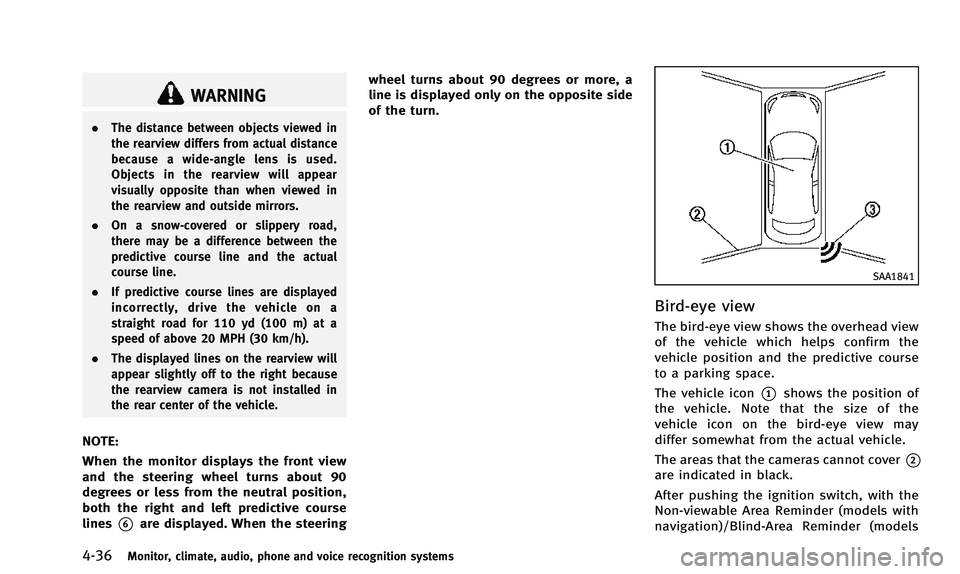
Bird-eye view
The bird-eye view shows the overhead view
of the vehicle which helps confirm the
vehicle position and the predictive course
to a parking space.
The vehicle icon
*1shows the position of
the vehicle. Note that the size of the
vehicle icon on the bird-eye view may
differ somewhat from the actual vehicle.
The areas that the cameras cannot cover
*2
are indicated in black.
After pushing the ignition switch, with the
Non-viewable Area Reminder (models with
navigation)/Blind-Area Reminder (models