phone INFINITI QX60 2018 Infiniti Connection
[x] Cancel search | Manufacturer: INFINITI, Model Year: 2018, Model line: QX60, Model: INFINITI QX60 2018Pages: 284, PDF Size: 1.34 MB
Page 147 of 284

.Max Speed Alert:
Max Speed Alert allows you to monitor
the speed of your vehicle by receiving
alerts. You can set the maximum speed
via the Infiniti InTouch
TMServices web-
site, and if your vehicle exceeds the
specified speed threshold, you will re-
ceive a notification via the chosen meth-
od. You can also query the Infiniti
InTouch
TMServices website to view a
listing of Max Speed Alert notifications.
. Mobile Information Service (if so
equipped):
Mobile Information Service (MIS) deli-
vers information such as the latest news
headlines, stock quotes and sports
scores set in the Infiniti InTouch
TM
Services website to be displayed on your
navigation screen or to be read out.
“Viewing information feeds”
(page 5-22)
. Valet Alert:
Valet Alert notifies you if the vehicle
moves outside a radius of the vehicle
location set on the Infiniti InTouch
TM
Services website. You can activate Valet
Alert from the “Voice Menu” and saying
“Valet Alert” when the call is connected.
“Connecting to Interactive Voice
Menu” (page 5-21)
. Journey Planner feature allows you to
set the route according to the route plan
created in advance by the INFINITI
Owner’s Portal Website.
“Using Journey Planner”
(page 6-25)
Notice to Bluetooth® Hands-Free
Phone users
While the vehicle is connected to the Infiniti
InTouchTMServices Response Specialists or
the emergency support staff at the Infiniti
Response Center, the Bluetooth® Hands-
Free Phone System will be disabled and the
Hands-Free mode will switch to the handset
mode automatically. After the call is termi-
nated, the Bluetooth® Hands-Free Phone
System will switch from handset mode to
Hands-Free mode automatically.
This is to avoid various services by Infiniti
InTouch
TMServices Response Specialists
(such as route guidance) and Infiniti In-
Touch
TMServices emergency support staff
being interrupted by incoming calls. Incom-
ing phone calls received while the vehicle is
connected to the Service Center will not be
listed in the call history of the Bluetooth® Hands-Free Phone System. However those
incoming calls may be listed in the call history
of your mobile phone, depending on its
capabilities. After disconnecting communi-
cation with the Infiniti InTouch
TMServices
Response Specialist or Infiniti InTouchTM
Services emergency support staff, check
the incoming call history on your mobile
phone when it is safe to do so.
INFO:
If your Bluetooth® Hands-Free Phone re-
ceives an incoming call while you are speak-
ing with an operator, a pop-up message
asking whether you would like to take the
call is displayed.
“4. Bluetooth® Hands-Free Phone”
Service application
A separately purchased Infiniti InTouchTM
Services subscription is required. For de-
tailed information, contact an INFINITI
retailer or refer to the following Infiniti
InTouch
TMServices website:
usa.infinitiintouch.com (for U.S.)
canada.infinitiintouch.com (for Canada)
5. Information
5-19
Page 148 of 284
5. Information
INFO:
If the vehicle is owned by another person
and is resold, the subscription for this service
must be canceled and all data stored on the
device must be deleted.
Operating tips
WARNING
. Use the Infiniti InTouchTMServices
after stopping your vehicle in a safe
location. If you have to use the Infiniti
InTouch
TMServices while driving, ex-
ercise extreme caution at all times so
full attention may be given to vehicle
operation.
. If you are unable to devote full
attention to vehicle operation while
talking with the Infiniti InTouch
TM
Services, pull off the road to a safe
location and stop your vehicle.
. Do not use the Infiniti InTouch
TMSer-
vices with the engine or the hybrid
system stopped. Doing so may discharge
the vehicle battery (12V battery). .
The Infiniti InTouch
TMServices cannot
be used under the following conditions:
— The Infiniti InTouch
TMServices sub-
scription has expired.
— The vehicle is outside the area where the cellular network service is recei-
vable.
— The vehicle is in a location with poor signal reception such as tunnels,
underground parking garages, behind
buildings or in mountainous areas.
— The line is busy.
— The TCU (Telematics Control Unit) or other systems of your vehicle are not
working properly.
— The Infiniti InTouch
TMServices net-
work system is disabled.
. Information Feeds download cannot be
used when the vehicle is connected to
the Infiniti InTouch
TMServices Data
Center and Infiniti InTouchTMServices
Response Center.
. Communication with the Infiniti In-
Touch
TMServices Data Center is related
to the data communication mode and
may cause occasional difficulty in receiv-
ing signals, and the signal receivable area may be limited compared to regular
mobile phones.
. You may hear clicks or experience inter-
ruptions while speaking with the Infiniti
InTouch
TMServices Response Specia-
lists. This is due to a shift in the
connection zone and is not a malfunc-
tion.
. Depending on the line used, the sound
volume may decrease. Adjust the volume
as necessary.
. Received sounds may be distorted or
ambient noise may sound like voices of a
crowd. This is due to the use of the
digital line and is not a malfunction.
. You may hear your own voice from the
speaker when talking with the Infiniti
InTouch
TMServices Response Specialists
due to a network disturbance. When this
occurs, reconnect the line after a few
minutes or at a different location.
. This vehicle incorporates a communica-
tion device that is called a TCU (Tele-
matics Control Unit). The communication
connection between this unit and the
Infiniti InTouch
TMServices Data Center
allows for various services. When the
system connects to the Infiniti In-
5-20
Page 149 of 284

TouchTMServices Data Center, an an-
tenna icon will appear on the screen. Use
the service in a location where the
symbol representing good signal recep-
tion appears on the screen.
: When the signal reception is good
: When the signal reception is bad
. The Infiniti InTouch
TMServices use the
TCU (Telematics Control Unit) for com-
munications. Even if the signal strength
bar of the in-vehicle data communication
module indicates good reception, con-
nection to the Infiniti InTouch
TMServices
Data Center may be disabled. This does
not indicate a malfunction. Operate the
system again after a few minutes.
CONNECTING TO INTERACTIVE
VOICE MENU
Various services to support your driving are
available by answering Interactive Voice
Menu.
For more details, contact the Infiniti In-
Touch
TMServices support line at 1-855-
444-7244 or refer to the Infiniti InTouchTM
Services website usa.infinitiintouch.com (for
U.S.)/canada.infinitiintouch.com (for Cana-
da). 1. Display the Information menu screen.
“Displaying operation screen”
(page 2-14)
2. Touch [InTouch Services].
3. Touch [Connect to Voice Menu].
4. The system connects to the Infiniti InTouch
TMServices Response Center
and menu options will be announced.
Speak your preferred option.
.Destination Assistance
Sets a destination using an Interactive
Voice Response (IVR) system.
.Roadside AssistanceConnects to the Roadside Response
Specialist.
.Valet AlertTurns on the Valet Alert function and
monitors the vehicle movement within
a certain range.
INFO:
. You can also connect to an Infiniti
InTouch
TMServices Interactive Voice
Menu by touching the IVR soft button
on the map.
. After selecting [Connect to Voice Menu],
it may take some time until the system
initiates connection, depending on the
technical environment and whether the
TCU (Telematics Control Unit) is being
used by other services.
. If your Bluetooth® Hands-Free phone
receives an incoming call while you are
speaking with an operator, a pop-up
message asking whether you would like
to take the call is displayed.
. To avoid disconnecting the line, do not
turn off the engine or the hybrid system.
SETTING ROUTE TO A
SEARCHED DESTINATION
Use Connected Search to find destinations
via the Internet and set a route to them
directly from your navigation system.
1. Display the Information menu screen.
“Displaying operation screen”
(page 2-14)
5. Information
5-21
Page 151 of 284
.Content settings can be made using the
Infiniti InTouchTMServices website. For
more details, contact the Infiniti In-
Touch
TMServices support line at 1-
855-444-7244 or refer to the Infiniti
InTouch
TMServices website usa.infini-
tiintouch.com (for U.S.)/canada.infini-
tiintouch.com (for Canada).
Screen information:
When information feeds are downloaded
from the Infiniti InTouch
TMServices Data
Center, the contents of the information are
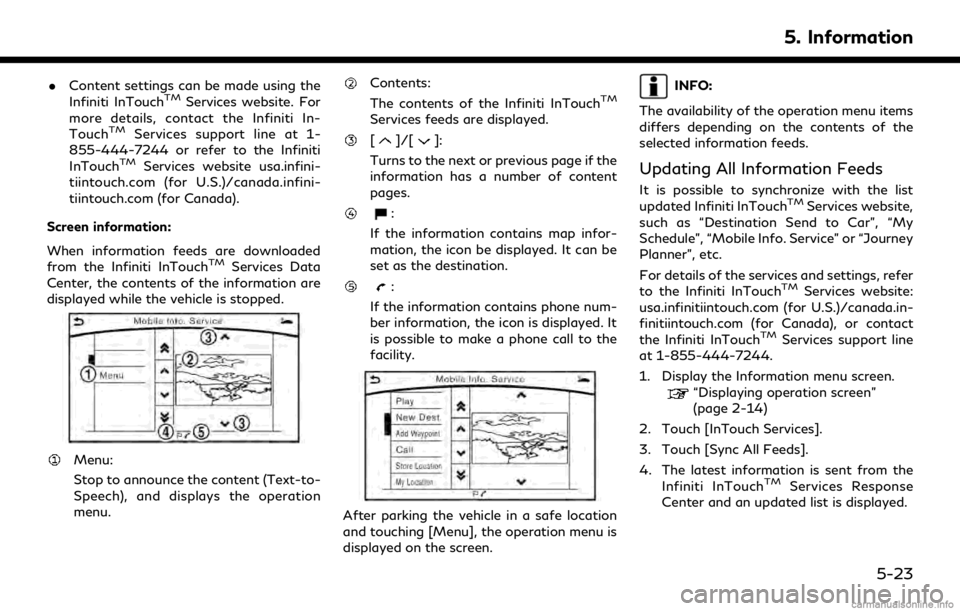
displayed while the vehicle is stopped.
Menu:
Stop to announce the content (Text-to-
Speech), and displays the operation
menu.
Contents:
The contents of the Infiniti InTouchTM
Services feeds are displayed.
[]/[]:
Turns to the next or previous page if the
information has a number of content
pages.
:
If the information contains map infor-
mation, the icon be displayed. It can be
set as the destination.
:
If the information contains phone num-
ber information, the icon is displayed. It
is possible to make a phone call to the
facility.
After parking the vehicle in a safe location
and touching [Menu], the operation menu is
displayed on the screen.
INFO:
The availability of the operation menu items
differs depending on the contents of the
selected information feeds.
Updating All Information Feeds
It is possible to synchronize with the list
updated Infiniti InTouchTMServices website,
such as “Destination Send to Car”, “My
Schedule”, “Mobile Info. Service” or “Journey
Planner”, etc.
For details of the services and settings, refer
to the Infiniti InTouch
TMServices website:
usa.infinitiintouch.com (for U.S.)/canada.in-
finitiintouch.com (for Canada), or contact
the Infiniti InTouch
TMServices support line
at 1-855-444-7244.
1. Display the Information menu screen.
“Displaying operation screen”
(page 2-14)
2. Touch [InTouch Services].
3. Touch [Sync All Feeds].
4. The latest information is sent from the Infiniti InTouch
TMServices Response
Center and an updated list is displayed.
5. Information
5-23
Page 163 of 284

6 Navigation (if so equipped)
Safety information ........................................................... 6-3
Map data authentication ................................................ 6-3
Map operation ................................................................... 6-4Map types ..................................................................... 6-4
Displaying current vehicle location ........................ 6-6
Moving map ................................................................... 6-7
Changing scale of map .............................................. 6-8
Changing map orientation ........................................ 6-9
Setting split screen ..................................................... 6-9
Map view settings .................................................... 6-11
Setting information on map ................................... 6-14
Traffic information on map .................................... 6-14
Setting destination ......................................................... 6-15 Changing region ........................................................ 6-15
Destination screen .................................................... 6-17
Finding address ......................................................... 6-20
Finding points of interest ....................................... 6-21
Setting home as destination .................................. 6-23
Finding nearby place ................................................ 6-24
Searching from stored locations ........................... 6-24
Searching from history ............................................ 6-25
Using Journey Planner ............................................. 6-25
Setting intersection .................................................. 6-26
Setting freeway entrance/exit .............................. 6-26
Setting city center ..................................................... 6-27 Setting by phone number ..................................... 6-27
Setting from stored routes ................................... 6-27
Searching by connecting Data Center .............. 6-28
Setting by Infiniti InTouch
TMServices .............. 6-28
Setting point on map ............................................. 6-29
Procedures after setting route ........................... 6-30
Route guidance ............................................................... 6-31
About route guidance ............................................ 6-31
Route guidance screens ........................................ 6-34
Canceling route ........................................................ 6-36
Route menu screen ................................................. 6-36
Editing route ............................................................. 6-37
Recalculating route ................................................. 6-39
Searching for detour route using
traffic information ................................................. 6-40
Displaying turn list .................................................. 6-41
Route guidance settings ....................................... 6-42
Storing a location/route .............................................. 6-47 Storing location ....................................................... 6-47
Storing route ........................................................... 6-48
Storing avoid area .................................................. 6-48
Editing stored information .................................. 6-50
Deleting stored item ............................................... 6-53
Transferring information to/from
address book ............................................................ 6-55
Page 180 of 284
![INFINITI QX60 2018 Infiniti Connection 6. Navigation (if so equipped)
Step 1Step 2Setting item Action
[Previous Destinations] Sets the previous starting point as the destination. Searches for the destination from the previous destinations.](/img/42/35074/w960_35074-179.png "INFINITI QX60 2018 Infiniti Connection 6. Navigation (if so equipped)
Step 1Step 2Setting item Action
[Previous Destinations] Sets the previous starting point as the destination. Searches for the destination from the previous destinations.")
6. Navigation (if so equipped)
Step 1Step 2Setting item Action
[Previous Destinations] Sets the previous starting point as the destination. Searches for the destination from the previous destinations.
“Searching from history” (page 6-25)
[Journey Planner] Sets a route plan downloaded from the INFINITI Owner’s Portal Website.
“Using Journey Planner” (page 6-25)
[Intersection] Searches for a destination from an intersection.
“Setting intersection” (page 6-26)
[Freeway Entrance/Exit] Searches for a destination from a freeway entrance/exit.
“Setting freeway entrance/exit” (page 6-26)
[City Center] Sets the center of a city as the destination.
“Setting city center” (page 6-27)
[Phone Numbers] Searches for a point of interest by a telephone number.
“Setting by phone number” (page 6-27)
[Stored Routes] Selects a stored route.
“Setting from stored routes” (page 6-27)
[Connected Search] Input a keyword of a point of interest and connect and search the Infiniti InTouch
TMServices Data Center.“Searching by connecting Data Center” (page 6-28)
Scroll map and touch [
] [New Destination] Set a location scrolled to on the map as the destination.“Setting point on map” (page 6-29)
6-18
Page 189 of 284
![INFINITI QX60 2018 Infiniti Connection 7. Whole route map is displayed. Touch[Start] to start route guidance.
SETTING CITY CENTER
It is possible to set the center of a specified
city as a destination.
1. Display the Navigation menu screen.](/img/42/35074/w960_35074-188.png "INFINITI QX60 2018 Infiniti Connection 7. Whole route map is displayed. Touch[Start] to start route guidance.
SETTING CITY CENTER
It is possible to set the center of a specified
city as a destination.
1. Display the Navigation menu screen.")
7. Whole route map is displayed. Touch[Start] to start route guidance.
SETTING CITY CENTER
It is possible to set the center of a specified
city as a destination.
1. Display the Navigation menu screen.
“Displaying operation screen”
(page 2-14)
2. Touch [Destination Menu].
3. Touch [City Center]. A character input screen is displayed.
4. Enter the name of the city and touch [List]. A list screen is displayed.
INFO:
Touch [Last 5 Cities] to display the last
five cities recently set as destinations.
5. Touch the preferred destination from the list.
INFO:
Touch [Map] to preview on the display.
6. Touch [Start] after confirming the loca- tion of the displayed destination.
SETTING BY PHONE NUMBER
If the phone number of a facility is known, it
is possible to search for a facility by entering
the phone number.
INFO:
. If the area code of the specified tele-
phone number does not exist in the map
data, the system cannot search for the
location.
. Only the locations included in the data-
base in the map data can be searched for
by phone number. Residential phone
numbers cannot be used to search for a
location.
1. Display the Navigation menu screen.
“Displaying operation screen”
(page 2-14)
2. Touch [Destination Menu].
3. Touch [Phone Numbers]. The telephone number input screen is displayed.
4. Enter the telephone number including the area code. After finishing entry,
touch [OK].
INFO:
A list screen is displayed if there are two
or more search results. Touch the pre-
ferred destination from the list.
5. The selected destination is displayed. Touch [Start] after confirming the loca-
tion of the displayed destination.
SETTING FROM STORED
ROUTES
It is possible to select a preferred route from
the stored routes.
1. Display the Navigation menu screen.
“Displaying operation screen”
(page 2-14)
2. Touch [Destination Menu].
3. Touch [Stored Routes]. A list screen is displayed.
4. Touch the preferred route from the list.
6. Navigation (if so equipped)
6-27
Page 193 of 284

tion (street address and phone number)
stored in the map data, it can also be
displayed.
Moving location of destination
The location of the destination can be
adjusted by moving the cross pointer across
the map.
1. After setting destination, touch [MoveLoc.].
2. A map screen with the destination located on the map center is displayed.
3. Adjust the location by moving the cross pointer across the map and touch [OK].
The location of the destination is mod-
ified.
INFO:
The map scale can be changed by touching
[
].
ROUTE GUIDANCE
ABOUT ROUTE GUIDANCE
After setting the route, select [Start] to start
route guidance.
Throughout route guidance, the system
navigates you through the guide points
using visual and voice guidance.
CAUTION
. The navigation system’s visual and
voice guidance is for reference pur-
poses only. The contents of the gui-
dance may be inappropriate
depending on the situation.
. Follow all traffic regulations when
driving along the suggested route
(e.g., one-way traffic).
“Route guidance” (page 6-64)
6. Navigation (if so equipped)
6-31
Page 212 of 284

6. Navigation (if so equipped)
EDITING STORED INFORMATION
Items stored in the system can be modified. These settings can be edited to make the navigation system more useful.
Editing stored home and location
Step 1Step 2Step 3 Step 4 Action
1.Display the Settings
menu screen.
“Displaying op-
eration screen”
(page 2-14)
2.Touch [Navigation].
3.Touch [Edit/Delete
Stored Locations].
4.Touch [Stored Loca-
tions].
[Sort] Sorts the stored locations.
[Add New] Adds a new location.
“Storing location by searching” (page 6-47)
[Home Location] [Edit] [Move Location] Adjusts the location of the stored home. [Phone No.]Stores the telephone number of the home location.
[Icon] Changes the icon of the home to the preferred one.
[Show Icon on Map] Displays the home icon on the map.
[Alarm Sounds] Sets the tone of the alarm that sounds when the vehicle
approaches the home.
[Alarm Direction] Sets the alarm to sound when approaching from a
specific direction.
[Alarm Distance] Sets the alarm to sound when reaching a specific
distance to the home.
6-50
Page 213 of 284
![INFINITI QX60 2018 Infiniti Connection Step 1Step 2Step 3 Step 4 Action
[Delete] Deletes the stored home location.
Touch the preferred
stored address from
the list. [Edit] [Move Location]
Adjusts the location of the stored location.
[Name]](/img/42/35074/w960_35074-212.png "INFINITI QX60 2018 Infiniti Connection Step 1Step 2Step 3 Step 4 Action
[Delete] Deletes the stored home location.
Touch the preferred
stored address from
the list. [Edit] [Move Location]
Adjusts the location of the stored location.
[Name]")
Step 1Step 2Step 3 Step 4 Action
[Delete] Deletes the stored home location.
Touch the preferred
stored address from
the list. [Edit] [Move Location]
Adjusts the location of the stored location.
[Name] Changes the name of a stored location.
[Phone No.] Stores the telephone number of a stored location.
[Icon] Changes the icon of a stored location to the preferred
one.
[Show Icon on Map] Displays the icon on the map of a stored location.
[Group] Groups the stored locations.
[Alarm Sounds] Sets the tone of the alarm that sounds when the vehicle
approaches a stored location.
[Alarm Direction] Sets the alarm to sound when approaching from a
specific location.
[Alarm Distance] Sets the alarm to sound when reaching a specific
distance to a stored location.
[Delete] Delete the stored location.
INFO:
. By changing the icons, the usage of the [By Icon] option of the sort function can be optimized more effectively.
. By grouping the stored addresses, the [By Group] option of the sort function can be used more effectively in the [Sort] mode.
. Once the direction and the distance to sound an alarm are set, the system will sound the alarm when the vehicle enters the triggering zone.
6. Navigation (if so equipped)
6-51