phone INFINITI QX60 2023 Owners Manual
[x] Cancel search | Manufacturer: INFINITI, Model Year: 2023, Model line: QX60, Model: INFINITI QX60 2023Pages: 636, PDF Size: 7.28 MB
Page 14 of 636

INFINITI CARES...
Both INFINITI and your INFINITI retailer are
dedicated to serving all your automotive
needs. Your satisfaction with your vehicle
and your INFINITI retailer are our primary
concerns. Your INFINITI retailer is always
available to assist you with all your automo-
bile sales and service needs.
However, if there is something that your
INFINITI retailer cannot assist you with or
you would like to provide INFINITI directly
with comments or questions, please contact
our (INFINITI’s) Consumer Affairs Depart-
ment using our toll-free number:
For U.S. customers1-800-662-6200
For Canadian customers 1-800-361-4792 The Consumer Affairs Department will ask
for the following information:
– Your name, address, and telephone
number
– Vehicle identification number (on dash panel)
– Date of purchase
– Current odometer reading
– Your INFINITI retailer's name
– Your comments or questions
OR You can write to INFINITI with the informa-
tion on the left at:
For U.S. customers
INFINITI Division
Nissan North America, Inc. Consumer Affairs Department
P.O. Box 685003
Franklin, TN 37068-5003
or via e-mail at:
[email protected]
For Canadian customers INFINITI Division
Nissan Canada Inc.
5290 Orbitor Drive
Mississauga, Ontario L4W 4Z5
or via e-mail at:
information.centre@nissancanada. com
If you prefer, visit us at:
www.infinitiUSA.com (for U.S. customers)
or
www.infiniti.ca (for Canadian customers)
We appreciate your interest in INFINITI and thank you for buying a quality INFINITI vehicle.
INFINITI CUSTOMER CARE PROGRAM
Page 15 of 636
Table of
contentsIllustrated table of contents
Safety-Seats, seat belts and supplemental restraint system
Instruments and controls
Pre-driving checks and adjustments
Monitor, climate, audio, phone and voice recognition systems
Starting and driving
In case of emergency
Appearance and care
Do-it-yourself
Maintenance and schedules
Technical and consumer information
Index
0
1
2
3
4
5
6
7
8
9
10
11
Page 23 of 636

19. Center multi-function control buttons*
20. Push-button ignition switch (P. 5-13)
21. Electronic parking brake (P. 5-25)Automatic brake hold switch (P. 5-27)
22. Idling Stop System switch (P. 5-178)
23. INFINITI Drive Mode Selector (P. 5-29)
24. Cruise control switches (if so equipped)
(P. 5-83)
ProPILOT Assist switches
(if so equipped) (P. 5-84)
Bluetooth® Hands-Free Phone System*
25. Driver supplemental knee air bag
(P. 1-72)
26. Tilt and telescopic steering wheel control
(P. 3-30)
27. Hood release (P. 3-21)
28. Control panel and vehicle information
display switches (P. 2-22 or 2-44)
Steering wheel switch for audio control*
29. Liftgate instrument panel switch
(P. 3-22)
Steering Assist switch (if so equipped)
(P. 2-88)
Head Up Display (HUD) switch
(if so equipped) (P. 2-89)
*: Refer to the separate INFINITI InTouchtm
Owner's Manual (if so equipped).
Refer to the page number indicated in paren-
theses for operating details.
Illustrated table of contents0-7
Page 107 of 636

19. Center multi-function control buttons*
20. Push-button ignition switch (P. 5-13)
21. Electronic parking brake (P. 5-25)Automatic brake hold switch (P. 5-27)
22. Idling Stop System switch (P. 5-178)
23. INFINITI Drive Mode Selector (P. 5-29)
24. Cruise control switches (if so equipped)
(P. 5-83)
ProPILOT Assist switches
(if so equipped) (P. 5-84)
Bluetooth® Hands-Free Phone System*
25. Driver supplemental knee air bag
(P. 1-72)
26. Tilt and telescopic steering wheel control
(P. 3-30)
27. Hood release (P. 3-21)
28. Control panel and vehicle information
display switches (P. 2-22 or 2-44)
Steering wheel switch for audio control*
29. Liftgate instrument panel switch
(P. 3-22)
Steering Assist switch (if so equipped)
(P. 2-88)
Head Up Display (HUD) switch
(if so equipped) (P. 2-89)
*: Refer to the separate INFINITI InTouchtm
Owner's Manual (if so equipped).
Refer to the page number indicated in paren-
theses for operating details.
Instruments and controls2-5
Page 193 of 636
–– Speed Limit Sign
–– Audio
–– TEL/SMS
• Reset
NOTE:
Emergency information may display even if
the HUD is turned off.
This product includes the following software.
(1) Panasonic Corporation or software devel-
oped for Panasonic Corporation
(2) Third-party software licensed to Pana-
sonic Corporation
(3) Open source software
Regarding (3) Open source software, it in-
cludes open source software (OSS), including
various software to which license informa-
tion applies.
Refer to the license web site at:
http://car.panasonic.jp/oss/i02lln39.
DRIVER ASSISTANCE/
NAVIGATION LINKING
The HUD will display driver assistance and
navigation information. The driver assistance display will show
warning situations for the following systems:
• Forward Emergency Braking (FEB) with
Pedestrian Detection
• Lane Departure Warning (LDW)
• Predictive Forward Collision Warning (PFCW)
• Hands-free warning (for vehicles with Pro- PILOT Assist) (if so equipped)
• Traffic Sign Recognition (TSR) (if so equipped)
The Navigation System linking display will
show the following items:
• Intersection names
• Arrows indicating turning direction
• Distance to the next intersection
The Audio System linking display will show
the following items:
• Songs
• Radio stations
The TEL/SMS linking display will show the
following items:
• Caller’s name or phone number
Display brightness
The brightness of the display may be con-
trolled by the Navigation System. The bright-
ness will also be adjusted automatically ac-
cording to the exterior ambient lighting
brightness.
NOTE:
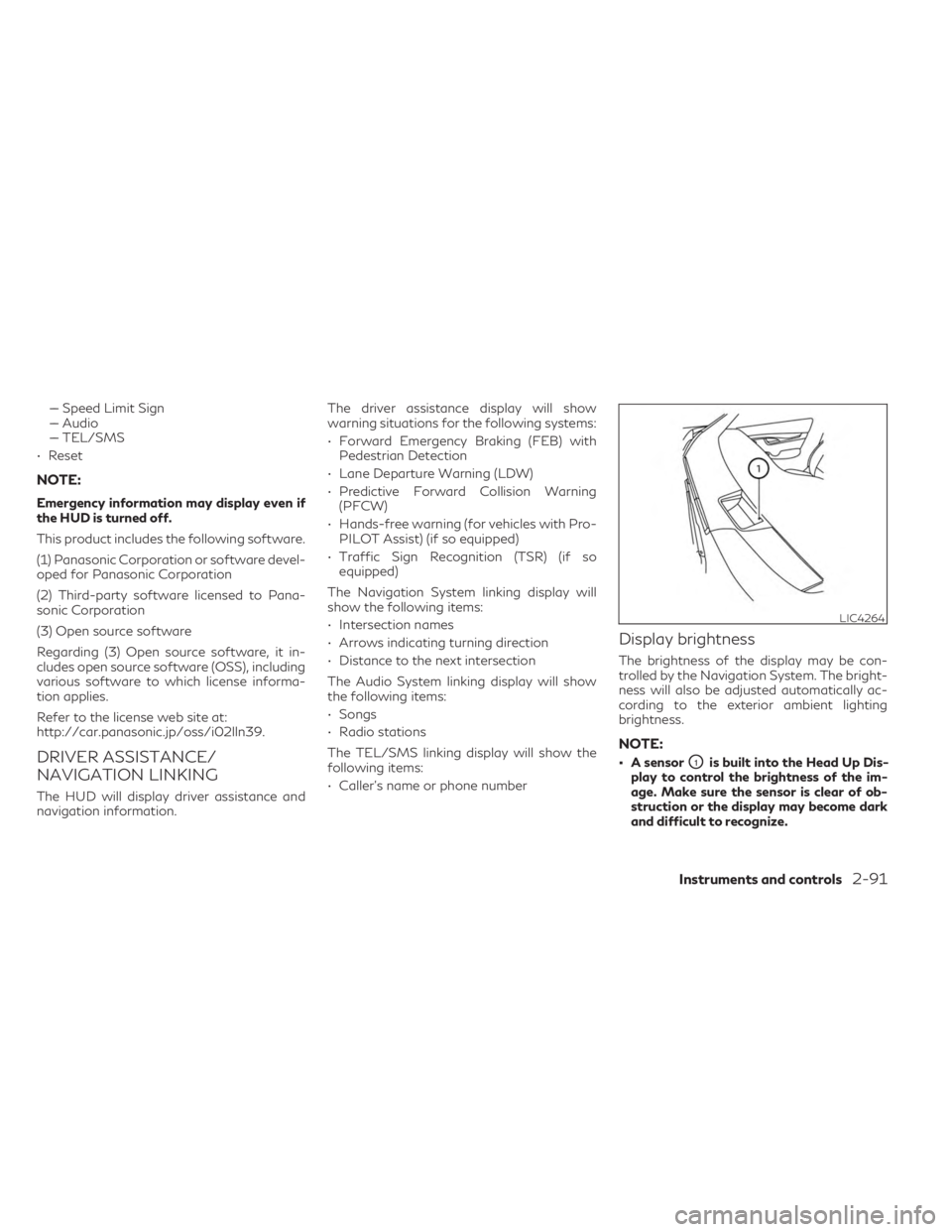
• A sensorO1is built into the Head Up Dis-
play to control the brightness of the im-
age. Make sure the sensor is clear of ob-
struction or the display may become dark
and difficult to recognize.
LIC4264
Instruments and controls2-91
Page 196 of 636

12V OUTLETS
The power outlets are for powering electrical
accessories such as cellular telephones. They
are rated at 12 volt, 120W (10A) maximum.
The console power outlets are powered only
when the ignition switch is in the ACC or ON
position.
The power outlet in the cargo area is pow-
ered directly by the vehicle’s battery.
CAUTION
• The outlet and plug may be hot during or
immediately after use.
• Only certain power outlets are designed
for use with a cigarette lighter unit. Do
not use any other power outlet for an
accessory lighter. It is recommended
that you visit an INFINITI retailer for ad-
ditional information.
• Do not use with accessories that exceed
a 12 volt, 120W (10A) power draw.
• Do not use double adapters or more than
one electrical accessory. •
Use power outlets with the engine run-
ning to avoid discharging the vehicle
battery.
• Avoid using power outlets when the air
conditioner, headlights or rear window
defroster is on.
• Before inserting or disconnecting a plug,
be sure the electrical accessory being
used is turned OFF.
• Push the plug in as far as it will go. If good
contact is not made, the plug may over-
heat or the internal temperature fuse
may open.
LIC4823
Center Console
LIC4811
2nd Row (if so equipped)
LIC4705
Cargo Area
POWER OUTLETS
2-94Instruments and controls
Page 199 of 636

The wireless charger is located on the front
of the center console. Lay the smartphone on
the pad of the wireless charger. Charging will
start automatically. The smartphone will be
charged continuously while the ignition
switch is in the ON position.
WARNING
• Never put metallic materials between
the wireless charger and a smartphone. •
Those who use a pacemaker or other medi-
cal equipment should contact the electric
medical equipment manufacturer for the
possible influences before use.
• Never put cloth over the smartphone
during charging process.
• Never charge a smartphone when it is
wet.
• Never put metallic materials or small
goods such as a cigarette lighter, Intelli-
gent Key or memory drive.
CAUTION
• Do not put an RFID/NFC/credit card
between the wireless charger and a
smartphone. This could cause data cor-
ruption in the card.
• Do not use the wireless charger with dust
accumulated or dirt on the pad.
• Do not hit the surface of the wireless
charger.
• Do not spill liquid (water, drinks, etc.) on
the charging pad.
• Do not use grease, oil or alcohol for
cleaning charging pad.LIC5032
3rd row
LIC4868
1. Indicator
2. Charging pad
WIRELESS CHARGER
Instruments and controls2-97
Page 200 of 636

WIRELESS CHARGER
INDICATOR
The indicator(1)will illuminate in orange
when the charging process is started.
When the charging has completed, the indi-
cator illuminates in green.
If a malfunction occurs or the charging pro-
cess has stopped, the indicator will blink in
orange for 8 seconds then turn off.
WIRELESS CHARGER
OPERATION
To use the wireless charger, it is necessary to
seat the smartphone well within the charging
pad. To maximize charging performance, en-
sure the smartphone is fully seated on the
center of the charging pad over the "Qi" logo
OA. Because the location of the power re-
ceiver may vary depending on the smart-
phone, you will need to try and find the area
that suits your smartphone.
Because some smartphone cases or accesso-
ries may adversely affect charging, remove
them before wireless charging. Turn off the
vibration function of the smartphone before
wireless charging.
NOTE:
• Only a Qi compatible smartphone can be
used.
• The smartphone may be warmed during
charging process and the charging may
stop by the protection function of the
wireless charger. This is not a malfunction.
If this occurs, restart charging after the
smartphone cooled down. The indicator
will blink in orange then turn off.
• The wireless charging process may be
stopped by the status of the smartphone
(battery temperature, etc.).
• If a radio noise interference occurs during
charging process, put the smartphone
onto the center (“Qi” logo) position of the
wireless charger.
• The wireless charging process will stop
during process of searching the Intelligent
Key.
• The wireless charging process will not be
started when a USB (Universal Serial Bus)
cable is connected to the smartphone. The
indicator may illuminate in orange or blink
if the smartphone is put on the wireless
charger with a USB cable connected. How-
ever, charging is not performed. •
Depending on the type of the smartphone,
the indicator may remain illuminated in or-
ange even when the charging process has
been completed.
FCC ID: BEJWC500MNM
IC: 2703H-WC500MNM
This device complies with part 15 of the FCC
Rules and RSS-Gen of IC Rules.
Operation is subject to the following two
conditions:
(1) This device may not cause harmful inter-
ference, and
(2) This device must accept any interference
received, including interference that may
cause undesired operation.
Changes or modifications not expressly ap-
proved by the party responsible for compli-
ance could void the user’s authority to oper-
ate the equipment.
RF Radiation Exposure Statement: This
equipment complies with FCC RF Radiation
exposure limits set forth for an uncontrolled
environment.
This device and its antenna must not be co-
located or operating in conjunction with any
other antenna or transmitter.
2-98Instruments and controls
Page 233 of 636

CAUTION
• Be sure to carry the Intelligent Key with
you when operating the vehicle.
• Never leave the Intelligent Key in the ve-
hicle when you leave the vehicle.
The Intelligent Key is always communicating
with the vehicle as it receives radio waves.
The Intelligent Key system transmits weak
radio waves. Environmental conditions may
interfere with the operation of the Intelligent
Key system under the following operating
conditions:
• When operating near a location where strong radio waves are transmitted, such as
a TV tower, power station and broadcast-
ing station.
• When in possession of wireless equipment, such as a cellular telephone, transceiver or
a CB radio.
• When the Intelligent Key is in contact with or covered by metallic materials.
• When any type of radio wave remote con- trol is used nearby.
• When the Intelligent Key is placed near an electric appliance such as a personal
computer.
• When the vehicle is parked near a parking meter. In such cases, correct the operating condi-
tions before using the Intelligent Key function
or use the mechanical key.
Although the life of the battery varies de-
pending on the operating conditions, the bat-
tery’s life is approximately two years. If the
battery is discharged, replace it with a new
one.
When the Intelligent Key battery is low, an
indicator illuminates in the vehicle informa-
tion display. For additional information, see
“Vehicle information display 7 inch (18 cm)
Type A” (P. 2-22) or “Vehicle information dis-
play 12.3 inch (21 cm) Type B” (P. 2-44).
Since the Intelligent Key is continuously re-
ceiving radio waves, if the key is left near
equipment which transmits strong radio
waves, such as signals from a TV and per-
sonal computer, the battery life may become
shorter.
For additional information, see “Battery re-
placement” (P. 8-24).
As many as four Intelligent Keys can be reg-
istered and used with one vehicle. For infor-
mation about the purchase and use of addi-
tional Intelligent Keys, it is recommended that
you visit an INFINITI retailer.CAUTION
Listed below are conditions or occurrences
which will damage the Intelligent Key:
• Do not allow the Intelligent Key, which
contains electrical components, to come
into contact with water or salt water.
This could affect the system function.
• Do not drop the Intelligent Key.
• Do not strike the Intelligent Key sharply
against another object.
• Do not change or modify the Intelligent
Key.
• Wetting may damage the Intelligent
Key. If the Intelligent Key gets wet, im-
mediately wipe until it is completely dry.
• Do not place the Intelligent Key for an
extended period in an area where tem-
peratures exceed 140°F (60°C).
• Do not attach the Intelligent Key with a
key holder that contains a magnet.
• Do not place the Intelligent Key near
equipment that produces a magnetic
field, such as a TV, audio equipment and
personal computers.
Pre-driving checks and adjustments3-7
Page 251 of 636

• Three beeps will sound and the liftgate willbegin moving within two seconds after the
kick.
CAUTION
Before performing the kicking motion,
steady your stance to prevent any loss of
balance. Also, while making the kicking
motion, take caution around hot exhaust
system parts. Otherwise, there may be
danger of injury.
WARNING
Prevent unintentional liftgate opening/
closing. There may be conditions when
opening/closing the liftgate is not desired.
Keep the Intelligent Key out of range of the
liftgate, (31.5 in or 80 cm), when washing
or working around the back of the vehicle.
CAUTION
• Interference or malfunction can be
caused by parking in close proximity to
radio or satellite towers.
• Intelligent Key interference could be
caused if you have your key fob stored
next to your cell phone or any RF-
enabled smart card. For additional infor-
mation, see “INFINITI Intelligent Key”
(P. 3-2).
LIFTGATE RELEASE
WARNING
• Always be sure the liftgate has been
closed securely to prevent it from open-
ing while driving.
• Do not drive with the liftgate open. This
could allow dangerous exhaust gases to
be drawn into the vehicle. For additional
information, see “Exhaust gas (carbon
monoxide)” (P. 5-4).
• To avoid personal injury, do not attempt
to activate the power liftgate if one or
both of the liftgate struts are removed.LPD3264
DO: Quick forward kick and return while the key fob is within range
LPD3265
DO NOT: Swing foot side to side or pause during kick
Pre-driving checks and adjustments3-25