air INFINITI QX60 HYBRID 2014 Navigation Manual
[x] Cancel search | Manufacturer: INFINITI, Model Year: 2014, Model line: QX60 HYBRID, Model: INFINITI QX60 HYBRID 2014Pages: 267, PDF Size: 3.09 MB
Page 10 of 267
2. Getting started
2-2
CONTROL BUTTONS AND FUNCTIONS
Designs and button layout may vary
depending on the specifications and the
model.
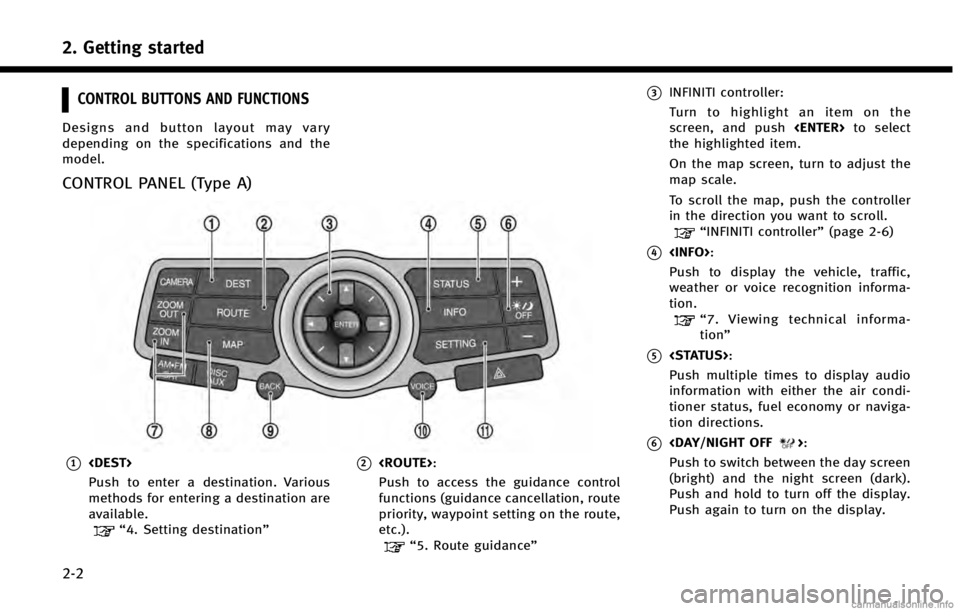
CONTROL PANEL (Type A)
*1
Push to enter a destination. Various
methods for entering a destination are
available.
“4. Setting destination”
*2
Push to access the guidance control
functions (guidance cancellation, route
priority, waypoint setting on the route,
etc.).
“5. Route guidance”
*3INFINITI controller:
Turn to highlight an item on the
screen, and push
the highlighted item.
On the map screen, turn to adjust the
map scale.
To scroll the map, push the controller
in the direction you want to scroll.
“INFINITI controller” (page 2-6)
*4
Push to display the vehicle, traffic,
weather or voice recognition informa-
tion.
“7. Viewing technical informa-
tion”
*5
Push multiple times to display audio
information with either the air condi-
tioner status, fuel economy or naviga-
tion directions.
*6
Push to switch between the day screen
(bright) and the night screen (dark).
Push and hold to turn off the display.
Push again to turn on the display.
Page 12 of 267

2. Getting started
2-4
*3INFINITI controller:
Slide or rotate to highlight an item on
the screen, and push
the highlighted item.
On the map screen, turn to adjust the
map scale.
To scroll the map, slide the controller
in the direction you want to scroll.
“INFINITI controller” (page 2-6)
*4
Push to display the vehicle, traffic,
weather or voice recognition informa-
tion.
“7. Viewing technical informa-
tion”
*5
Push to access the system settings.
“8. Other settings”
*6
Push to access the guidance control
functions (guidance cancellation, route
priority, waypoint setting on the route,
etc.).
“5. Route guidance”
*7
Page 13 of 267
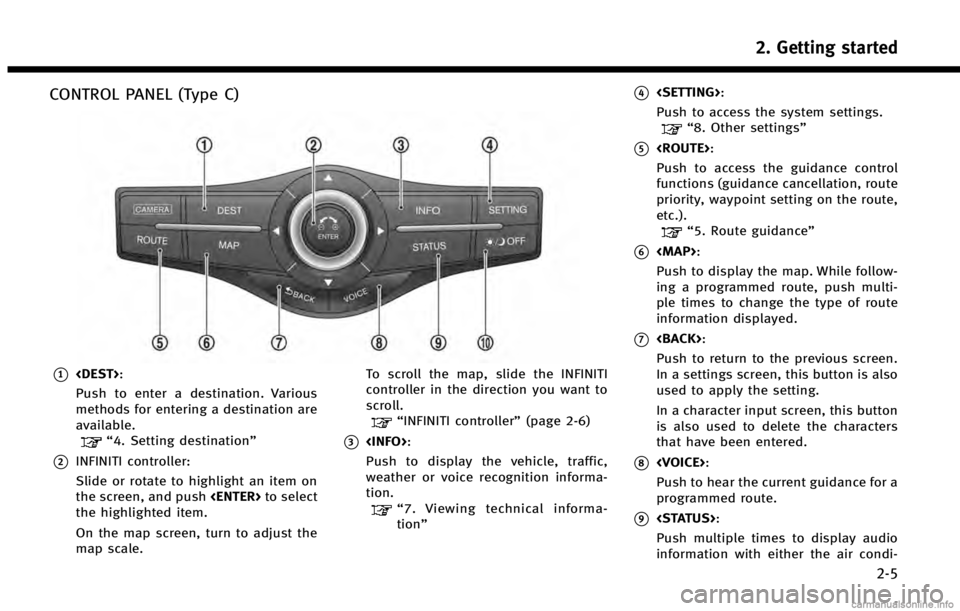
CONTROL PANEL (Type C)
*1
Push to enter a destination. Various
methods for entering a destination are
available.
“4. Setting destination”
*2INFINITI controller:
Slide or rotate to highlight an item on
the screen, and push
the highlighted item.
On the map screen, turn to adjust the
map scale. To scroll the map, slide the INFINITI
controller in the direction you want to
scroll.
“INFINITI controller”
(page 2-6)
*3
Push to display the vehicle, traffic,
weather or voice recognition informa-
tion.
“7. Viewing technical informa-
tion”
*4
Push to access the system settings.
“8. Other settings”
*5
Push to access the guidance control
functions (guidance cancellation, route
priority, waypoint setting on the route,
etc.).
“5. Route guidance”
*6
Page 17 of 267
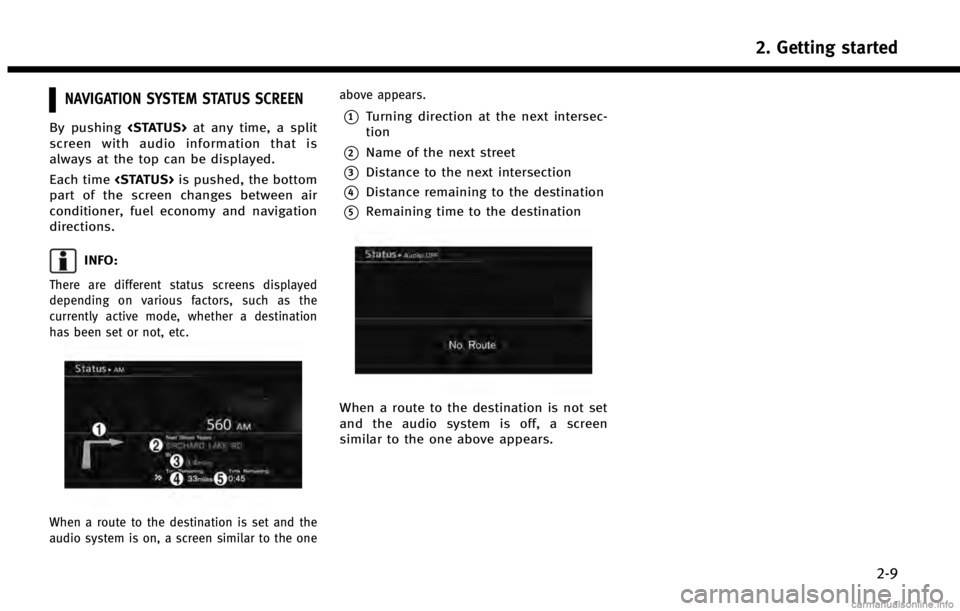
NAVIGATION SYSTEM STATUS SCREEN
By pushing
screen with audio information that is
always at the top can be displayed.
Each time
part of the screen changes between air
conditioner, fuel economy and navigation
directions.
INFO:
There are different status screens displayed
depending on various factors, such as the
currently active mode, whether a destination
has been set or not, etc.
When a route to the destination is set and the
audio system is on, a screen similar to the one above appears.
*1Turning direction at the next intersec-
tion
*2Name of the next street
*3Distance to the next intersection
*4Distance remaining to the destination
*5Remaining time to the destination
When a route to the destination is not set
and the audio system is off, a screen
similar to the one above appears.
2. Getting started
2-9
Page 35 of 267

INFINITI VOICE RECOGNITION
INFINITI Voice Recognition allows hands-
free operation of the navigation system
and other systems equipped on this
vehicle, such as the phone, vehicle infor-
mation and audio.
INFINITI Voice Recognition can be used in
one of two selectable modes, Standard
Mode or Alternate Command Mode.
In Standard Mode, the commands that are
available are always shown on the display
and announced by the system. To perform
operations, simply follow the prompts
given by the system.
For advanced operations, change to Alter-
nate Command Mode. When this mode is
active, an expanded list of commands can
be spoken after pushing
steering wheel, and the voice command
menu prompts are turned off. Note that in
this mode the recognition success rate may
decrease because there are more com-
mands available and more ways of speak-
ing each command. Otherwise, it is
recommended that Alternate Command
Mode be turned off and Standard Mode
be used for the best recognition perfor-
mance.
INFO:
.
For U.S. customers, Standard Mode is
selected by default. For Canadian custo-
mers, Alternate Command Mode is the
default mode.
.For voice recognition system operations
related to the phone, audio or vehicle
information systems, refer to the vehicle
Owner’s Manual.
.When the system language is set to
“Français” (French) or “Español”(Spanish),
the available commands and functions may
differ from those that are available when
using the system in English.
USING VOICE RECOGNITION SYS-
TEM
Initialization
When the ignition switch is pushed to the
ON position, INFINITI Voice Recognition is
initialized, which may take up to one
minute. When completed, the system is
ready to accept voice commands. If
completes, the display will show the
message: “System not ready.”
BEFORE STARTING
To get the best recognition performance
from INFINITI Voice Recognition, observe
the following points.
. The interior of the vehicle should be as
quiet as possible. Close the windows to
eliminate the surrounding noises (traf-
fic noise, vibration sounds, etc.), which
may prevent the system from correctly
recognizing the voice commands.
. The voice recognition system cannot be
operated when the retractable hard top
is not closed (for G37 Convertible only).
. Wait until the tone sounds before
speaking a command.
. Speak in a natural conversational voice
without pausing between words.
. If the air conditioner is set to “AUTO”,
the fan speed is automatically lowered
so that commands can be recognized
more easily.
2. Getting started
2-27
Page 150 of 267

7. Viewing technical information
7-4
closer to the antenna than specified by
the pacemaker manufacturer. The radio
waves from the TCU antenna may ad-
versely affect the operation of the pace-
maker while using the Infiniti Connection
service.
CAUTION!
Please note that the Automatic Collision
Notification service and Emergency Call
function cannot be used in the following
conditions:. The vehicle moves outside the service
area where the TCU (Telematics Commu-
nication Unit) is connected to Infiniti
Connection.
. The vehicle is in a location with poor
signal reception such as a tunnel, under-
ground parking, behind a building or in a
mountainous area.
. It may not be possible to make an
emergency call in all accidents or emer-
gencies, or if you are in a location
without reception.
INFO:
.
Infiniti Connection features are dependent
upon subscription enrollment and the tele-
matics device being in operative condition,
cellular connectivity, navigation map data
and GPS satellite signal reception. Terms
and conditions of Infiniti Connection Sub-
scription Agreement apply.
.Enrollment is required in order to receive
Infiniti Connection services. The services
that can be received vary depending on
the plan in which you are enrolled.
.All services can be used free of charge for
the first year of ownership.
.After the first year, use of the service will no
longer be free of charge. The services that
can be received vary depending on the plan
to which you subscribe.
.Laws in some communities may restrict the
use of “Text-to-Speech.” Check local regula-
tions before using this feature.
Infiniti Connection services may be up-
dated. The latest detailed information is
available on the following websites or
support line.
Infiniti Connection website: www.infiniticonnection.com (for U.S.)
https://canada.infiniticonnection.com
(for Canada)
Infiniti Connection support line:
1-800-334-7858 (for U.S.)
1-855-892-7418 (for Canada)
. Automatic Collision Notification:
TCU (Telematics Communication Unit)
generates a signal automatically to the
Infiniti Connection Response Center in
the case of an accident severe enough
to trigger one of the vehicle’s airbags.
Upon the signal, a Response Specialist
receives the vehicle location and cus-
tomer information and notifies the
proper authorities in accordance with
established policies and procedures.
. Emergency Call:
Emergency Call feature provides emer-
gency assistance by connecting to an
Response Specialist in case of an
emergency by pushing the in‐vehicle
can help provide various types of
assistance depending on the situation.
“Emergency support” (page 7-14)
Page 152 of 267

7. Viewing technical information
7-6
around the vehicle location via the
Destination menu of the navigation
system. This search links to the Infiniti
Connection database which may have
destination information more up-to-
date than your Infiniti hard-drive navi-
gation system.
“Setting by Infiniti ConnectionTM”
(page 4-14)
. Drive Zone:
Drive Zone feature allows you to
monitor the movement of your vehicle
in and out of specified regions. Using
the Infiniti Connection website or the
Interactive Voice Response (IVR), you
can define a series of allowed or
restricted regions, and are then alerted
via your chosen notification method
when the vehicle enters or leaves a
designated region. You can also query
the Infiniti Connection website to see a
listing of alert notifications received.
. Max Speed Alert:
Max Speed Alert allows you to monitor
the speed of your vehicle by receiving
alerts. You can set the maximum speed
via the Infiniti Connection website, and
if your vehicle exceeds the specified
speed threshold, you will receive a notification via the chosen method.
You can also query the Infiniti Connec-
tion website to view a listing of Max
Speed Alert notifications.
. Mobile Information Service (if so
equipped):
Mobile Information Service (MIS) deli-
vers information such as the latest
news headlines, stock quotes and
sports scores set in the Infiniti Connec-
tion website to be displayed on your
navigation screen or be read out.
“Viewing information feeds”
(page 7-9)
. Infiniti Personal Assistant:
Infiniti Personal Assistant delivers a
high‐ quality assistant‐ like service by
providing a quick‐assist program de-
signed to provide immediate informa-
tion or assistance. Services and
features are driver‐centric and enable
you to make restaurant, hotel or airline
reservations, purchase movie, theater
or sporting event tickets, and receive
local information based on your re-
quests.
“Connecting to Interactive Voice
Menu” (page 7-10) .
Valet Alert:
Valet Alert notifies you if the vehicle
moves outside a 0.2 mile radius of the
location set on the Infiniti Connection
website. You can activate Valet Alert
from the "Voice Menu" and saying
"Valet Alert" when the call is con-
nected.
“Connecting to Interactive Voice
Menu” (page 7-10)
Notice to Bluetooth®Hands-free
phone users
The Bluetooth®Hands-free phone system
will be disabled and not be able to take
phone calls while the vehicle is connected
to the Infiniti Connection Response Spe-
cialists or the emergency support staff at
the Infiniti Response Center. This is to
avoid various services by Infiniti Connec-
tion Response Specialists (such as route
guidance) and Infiniti Connection emer-
gency support staff being interrupted by
incoming calls. Incoming phone calls re-
ceived while the vehicle is connected to the
Service Center will not be listed in the call
history of the Bluetooth
®Hands-free
phone system. However those incoming
calls may be listed in the call history of
Page 162 of 267
7. Viewing technical information
7-16
VIEWING AVAILABLE TRAFFIC INFORMA-
TION
NavTraffic information is a subscription
service offered by SiriusXM Satellite Radio.
This service provides real-time information
regarding traffic flow, accidents, road
construction and other incidents, where
available.
NavTraffic combines information from com-
mercial and public traffic data providers
including government departments of
transportation, police, emergency services,
road sensors, cameras and aircraft reports.
The traffic information is broadcast to the
vehicle by the SiriusXM satellites. Avail-
able traffic information on the route the
driver selected is shown on the navigation
screen so traffic conditions between you
and the destination are known. Three types
of real-time traffic information for major
roadways are shown on the navigation
system:
* Unscheduled traffic data for example,
accidents and disabled vehicles.
* Scheduled traffic data, for example road
construction and road closures.
* Traffic flow information (rate of speeddata).WARNING!
NavTraffic information is not a substitute for
attentive driving. Traffic conditions change
constantly and emergency situations can
arise without warning. Relying only on
NavTraffic information may lead to a collision
and could result in serious personal injury.
NOTE:
Flow information is provided only for roads
equipped with traffic sensors and is not
available in all markets covered by the service.
Flow data may not be available on portions of a
road that is under construction.
NavTraffic information is available in lim-
ited markets. To subscribe or to check if
this service is available in the area:
call 1-866-635-2349 or see www.siriusxm.
com/navtraffic
INFO:
If a contract is not completed for NavTraffic
traffic information service, a message appears,
and it will not be possible to check the
information on the traffic information system.
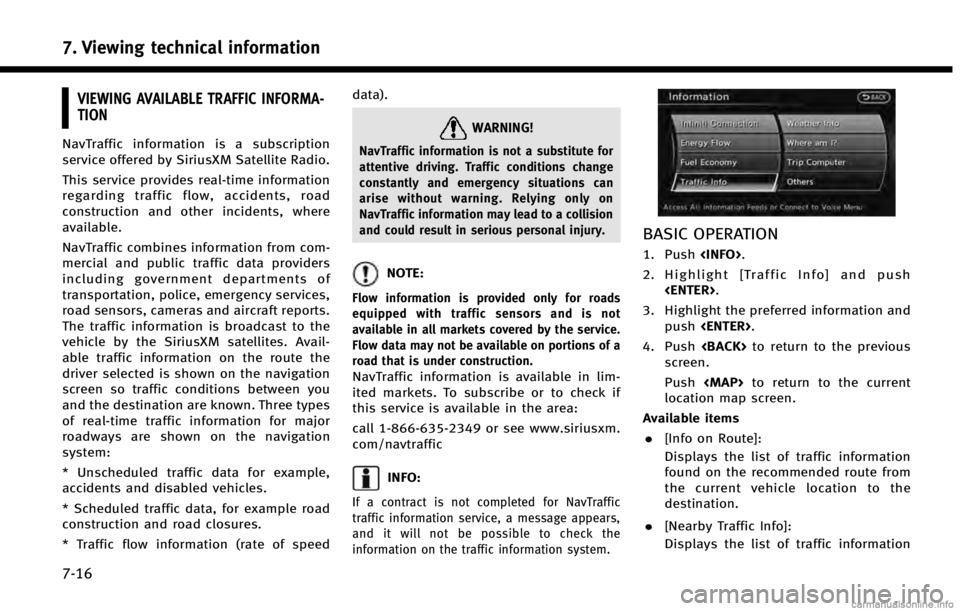
BASIC OPERATION
1. Push
2. Highlight [Traffic Info] and push
3. Highlight the preferred information and push
4. Push
screen.
Push
Page 176 of 267
7. Viewing technical information
7-30
Category Warnings/Watches
Extremes Excessive Heat
Other Red Flag, Tsunami, Avalanche, Spe- cial Marine, Earthquake, Law Enfor-
cement, Hazardous Materials,
Nuclear Power Plant, Radiological
Hazard, Civil Danger, Fire, Shelter in
Place, Volcano, Other Watches,
Other Warnings
INFO:
.
The “Other Watches” category in the
“Other” category includes Inland Hurricane
Watch, Hurricane Watch, Typhoon Watch,
Tropical Storm Watch, Inland Tropical Storm
Watch and Fire Weather Watch.
.The “Other Warnings” category in the
“Other” category includes Dense Fog Warn-
ing, Freezing Fog Warning, Extreme Cold
Warning, Frost Warning, Hydrologic Warn-
ing, Ashfall Warning, Air Stagnation Warn-
ing, Low Water Warning, Ice Accretion
Warning, Dense Smoke Warning, Dense
Smoke Advisory, Freezing Fog Advisory,
Dense Fog Advisory, Ashfall Advisory and
Air Stagnation Advisory.
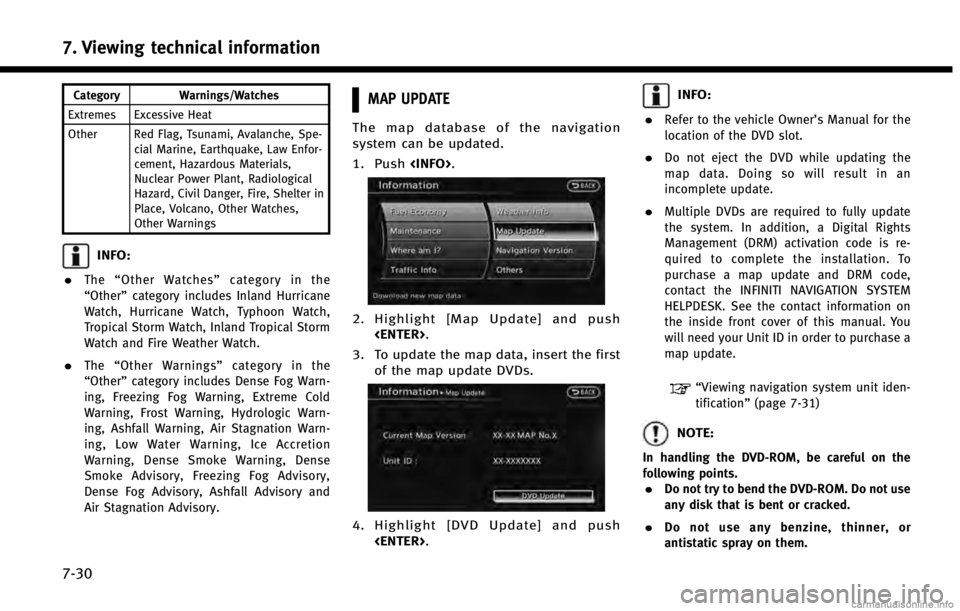
MAP UPDATE
The map database of the navigation
system can be updated.
1. Push
2. Highlight [Map Update] and push
3. To update the map data, insert the first of the map update DVDs.
4. Highlight [DVD Update] and push
INFO:
.
Refer to the vehicle Owner’s Manual for the
location of the DVD slot.
.Do not eject the DVD while updating the
map data. Doing so will result in an
incomplete update.
.Multiple DVDs are required to fully update
the system. In addition, a Digital Rights
Management (DRM) activation code is re-
quired to complete the installation. To
purchase a map update and DRM code,
contact the INFINITI NAVIGATION SYSTEM
HELPDESK. See the contact information on
the inside front cover of this manual. You
will need your Unit ID in order to purchase a
map update.
“Viewing navigation system unit iden-
tification” (page 7-31)
NOTE:
In handling the DVD-ROM, be careful on the
following points.
.Do not try to bend the DVD-ROM. Do not use
any disk that is bent or cracked.
.Do not use any benzine, thinner, or
antistatic spray on them.
Page 196 of 267
9. Voice recognition
9-4
tion.
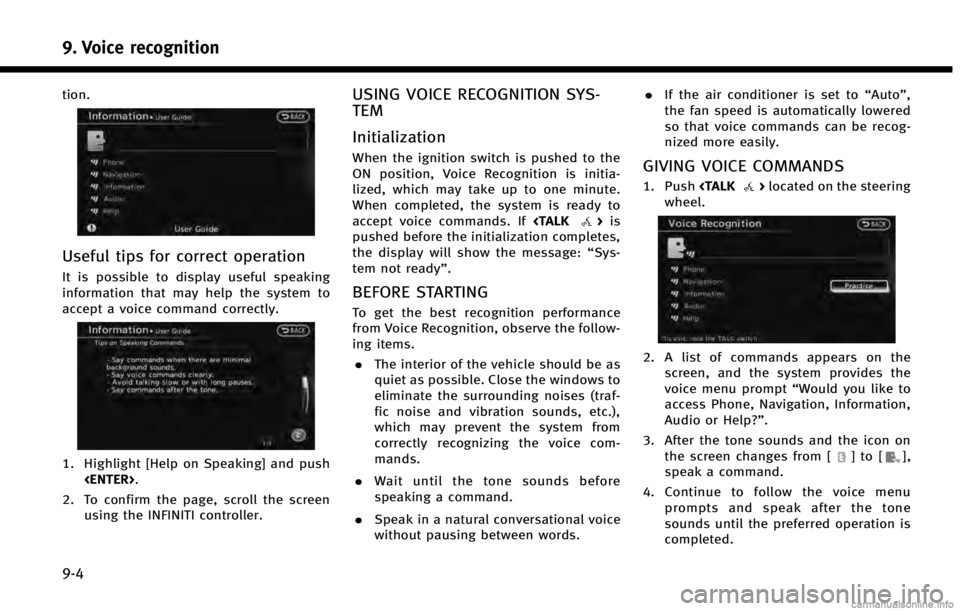
Useful tips for correct operation
It is possible to display useful speaking
information that may help the system to
accept a voice command correctly.
1. Highlight [Help on Speaking] and push
2. To confirm the page, scroll the screen using the INFINITI controller.
USING VOICE RECOGNITION SYS-
TEM
Initialization
When the ignition switch is pushed to the
ON position, Voice Recognition is initia-
lized, which may take up to one minute.
When completed, the system is ready to
accept voice commands. If
pushed before the initialization completes,
the display will show the message: “Sys-
tem not ready”.
BEFORE STARTING
To get the best recognition performance
from Voice Recognition, observe the follow-
ing items.
. The interior of the vehicle should be as
quiet as possible. Close the windows to
eliminate the surrounding noises (traf-
fic noise and vibration sounds, etc.),
which may prevent the system from
correctly recognizing the voice com-
mands.
. Wait until the tone sounds before
speaking a command.
. Speak in a natural conversational voice
without pausing between words. .
If the air conditioner is set to “Auto”,
the fan speed is automatically lowered
so that voice commands can be recog-
nized more easily.
GIVING VOICE COMMANDS
1. Push
wheel.
2. A list of commands appears on the screen, and the system provides the
voice menu prompt “Would you like to
access Phone, Navigation, Information,
Audio or Help?”.
3. After the tone sounds and the icon on the screen changes from [
]to[],
speak a command.
4. Continue to follow the voice menu prompts and speak after the tone
sounds until the preferred operation is
completed.