Controls JAGUAR XF 2010 1.G User Guide
[x] Cancel search | Manufacturer: JAGUAR, Model Year: 2010, Model line: XF, Model: JAGUAR XF 2010 1.GPages: 225, PDF Size: 8 MB
Page 117 of 225
R
(FM8) SEMCON JLR OWNER GUIDE VER 1.00 EURO
LANGUAGE: english-en; MARQUE: jaguar; MODEL: XF
Portable media
117
PLAYING A PORTABLE DEVICE
If you are using a USB mass storage device or
approved iPod, you can control playback using
the touch screen controls.
If you are using a Blue tooth® device, you can
control playback using the touch screen, but
some controls are unavailable.
If you are using any portable media device via
the AUX socket, then you must control
playback from the device itself.
Jaguar does not recommend the use of
a Hard Disc Drive via the USB link while
the vehicle is in motion. These devices
are not designed for in car use and may
be damaged.
CONNECTING MULTIPLE DEVICES
Do not plug non-audio devices into the
USB port.
You can connect multiple devices
simultaneously to the portable media interface
and switch between th em using the touch
screen. Select iPod, USB , Bluetooth or AUX, to
switch between modes.
The device docked first will remain the active
device until you choose to change.
If, after changing to the newly-docked device,
you change back to the first device, play will
resume at the point you left it (USB and iPod
only).
Note: You cannot use a USB hub to connect
more than one USB devi ce to the audio unit.
Note: Devices connected to the iPod and USB
ports will be charged, but devices that are fully
discharged will not play.
Note: Options such as Repeat and Shuffle
relate to the device curre ntly playing, they will
not apply to any subsequent device.
PAIRING AND CONNECTING USING
THE MEDIA PLAYER
For further information on Bluetooth®, see
129, BLUETOOTH® INFORMATION .
Note: The process of pairing and connecting
your media device with the vehicle, using the
media device, will vary depending on the type
of media device.
1. Switch on the ignition and ensure the touch
screen is active.
2. From the Home menu, select Audio/Video,
then My Music .
3. A menu will appear. Select Search new.
4. Select Device to vehicle option.
Note: The vehicle’s Bluetooth® system is
only discoverable for 3 minutes.
5. Using the media device, search for
Bluetooth® devices. On some media
devices, this is referred to as new paired
device. See your medi a device’s operating
instructions for further information.
6. When the vehicle’s Bluetooth® system is
discovered, follow the on-screen
instructions. Select Yes when prompted, to
confirm the pairing.
Either your device or the vehicle system
will ask for a PIN (Personal Identification
Number). When prompted, enter a PIN of
your choice and select OK to confirm.
7. Enter the same PIN into the other device.
8. Once your device is paired and connected
to the system, a confirmation message will
be displayed, before switching to the My
music: Bluetooth screen.
Note: Some media devices do not
automatically connect and need to be
manually connected, via the device or by
using the Change device option.
Page 119 of 225

R
(FM8) SEMCON JLR OWNER GUIDE VER 1.00 EURO
LANGUAGE: english-en; MARQUE: jaguar; MODEL: XF
CD player
119
CD playerLOADING COMPACT DISCS
Do not force the disc into the slot.
Do not use irregular shaped CDs and
CDs with a scratch protection film or
self-adhesive labels attached.
The CD unit will play compact discs that
conform to the inte rnational Red Book
standard audio specif ication. Playback
of CDs not conforming to this standard
cannot be guaranteed.
Recordable (CD-R) discs and
re-writable (CD-RW) discs may not
function correctly.
Dual format, dual- sided discs (DVD
Plus, CD-DVD format) are thicker than
normal CDs and conse quently playback
cannot be guaranteed and jamming
may occur.
It is recommended that only high quality 12 cm
(4.7 in.) circular discs are used.
The unit will play Compact Disc Digital Audio
(CDDA) discs, MP3, WMA, WAV and AAC files.
The CD player will accommodate one disc at a
time, but up to 10 CDs can be uploaded into the
CD store. Only CDDA discs can be uploaded
into the CD store.
To locate the CD load sl ot and the eject button,
see 104, AUDIO/VIDEO CONTROLS .
MP3 FILE PLAYBACK
If an MP3 CD is to be used, each session must
be properly closed but the whole disc does not
have to be finalised.
When Browse is selected, the list of folders and
MP3 files is displayed. Select a folder to view
and select the tracks contained within.
• The highest compressi on rate supported is
320k bits per second (kbps). If anything
less than 128 kbps is used, Digital Signal
Processing (DSP) functionality may be
lost.
• The CD player may take a longer time to
load an MP3 disc if there are more tracks
than on a normal CD. To minimise loading
time, a rigid folder structure is
recommended.
• If a CD contains a mixture of MP3 and
CDDA tracks, any MP 3 tracks will be
ignored.
Page 120 of 225
L
(FM8) SEMCON JLR OWNER GUIDE VER 1.00 EURO
LANGUAGE: english-en; MARQUE: jaguar; MODEL: XF
CD player
120
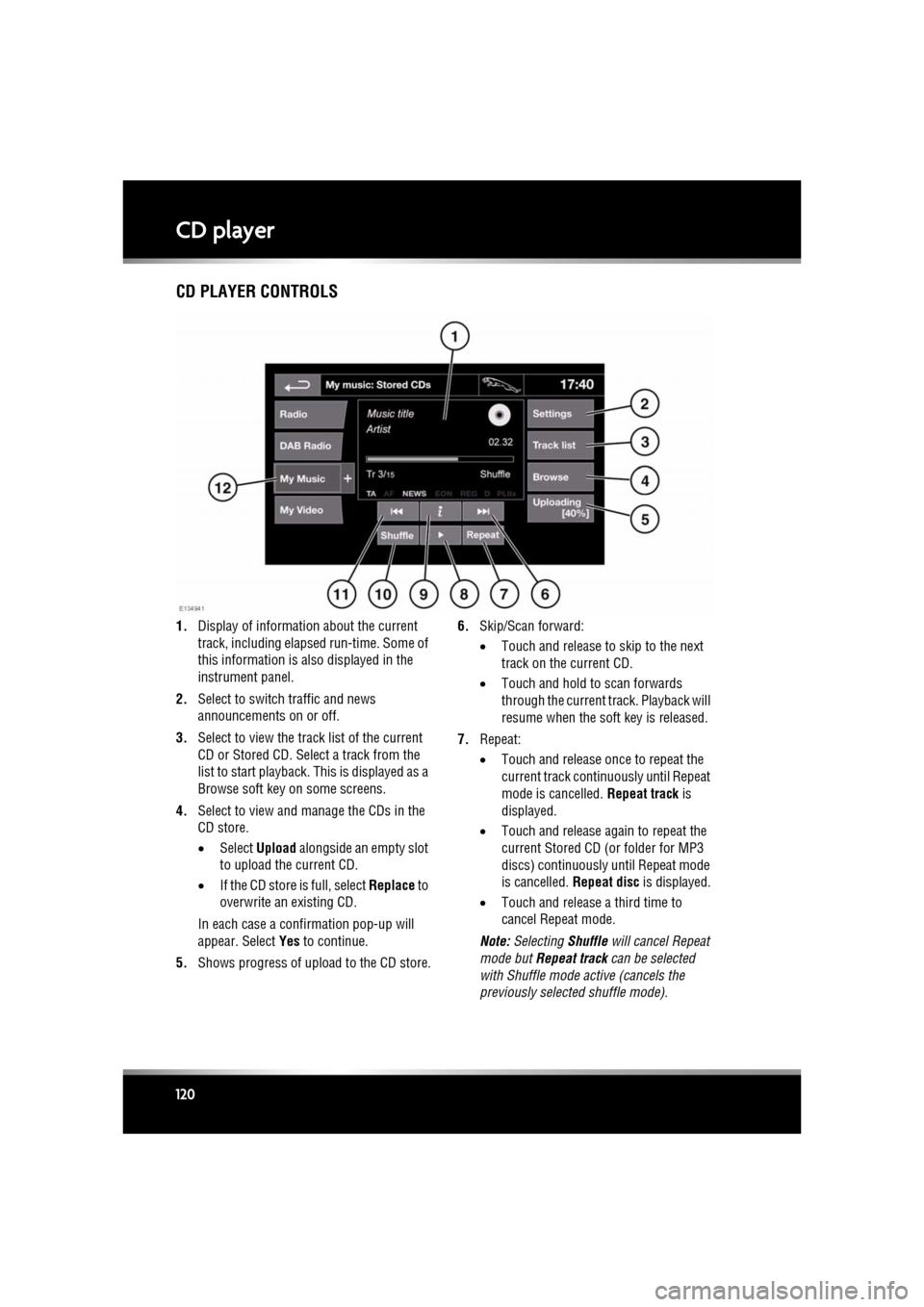
CD PLAYER CONTROLS
1. Display of information about the current
track, including elapse d run-time. Some of
this information is also displayed in the
instrument panel.
2. Select to switch traffic and news
announcements on or off.
3. Select to view the track list of the current
CD or Stored CD. Select a track from the
list to start playback. This is displayed as a
Browse soft key on some screens.
4. Select to view and manage the CDs in the
CD store.
•Select Upload alongside an empty slot
to upload the current CD.
• If the CD store is full, select Replace to
overwrite an existing CD.
In each case a confirmation pop-up will
appear. Select Yes to continue.
5. Shows progress of upload to the CD store. 6.
Skip/Scan forward:
•Touch and release to skip to the next
track on the current CD.
• Touch and hold to scan forwards
through the current track. Playback will
resume when the soft key is released.
7. Repeat:
•Touch and release onc e to repeat the
current track continuously until Repeat
mode is cancelled. Repeat track is
displayed.
• Touch and release again to repeat the
current Stored CD (or folder for MP3
discs) continuously until Repeat mode
is cancelled. Repeat disc is displayed.
• Touch and release a third time to
cancel Repeat mode.
Note: Selecting Shuffle will cancel Repeat
mode but Repeat track can be selected
with Shuffle mode active (cancels the
previously selected shuffle mode).
Page 121 of 225

R
(FM8) SEMCON JLR OWNER GUIDE VER 1.00 EURO
LANGUAGE: english-en; MARQUE: jaguar; MODEL: XF
CD player
121
8. Pause/Play: Select to pause playback.
Select again to resume playback.
9. Select to view more detailed information
about the current track.
10. Shuffle:
•Touch and release once to play random
tracks on the current CD (MP3 folder).
Shuffle disc is displayed.
• Touch and release again to play
random tracks from all Stored CDs
(MP3 disc). Shuffle all is displayed.
• Touch and release a third time to
cancel Shuf fle mode.
11. Skip/Scan backward:
•Touch and release with in 3 seconds of
track playback to skip to the previous
track.
• Touch and release af ter 3 seconds of
track playback to skip to the beginning
of the current track.
• Touch and hold to scan backwards
through the current track. Playback will
resume when the soft key is released.
12. Touch to select playback from either the
current CD or from CDs uploaded onto the
CD store. Selection of portable media
device playback is al so made from this
menu. See 115, PORTABLE MEDIA
CONTROLS .
Page 122 of 225
L
(FM8) SEMCON JLR OWNER GUIDE VER 1.00 EURO
LANGUAGE: english-en; MARQUE: jaguar; MODEL: XF
Television
122
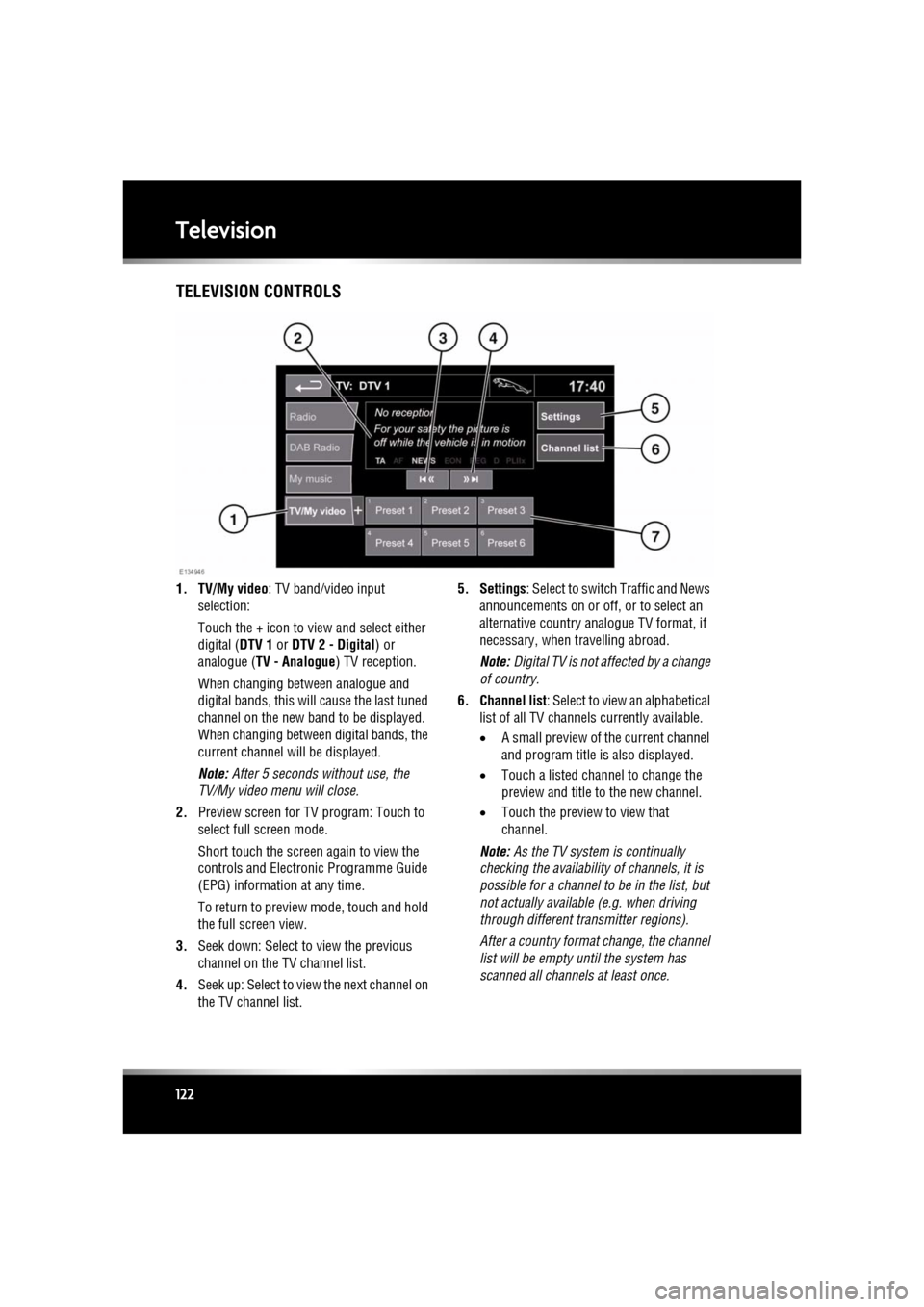
TelevisionTELEVISION CONTROLS
1. TV/My video : TV band/video input
selection:
Touch the + icon to view and select either
digital ( DTV 1 or DTV 2 - Digital ) or
analogue ( TV - Analogue ) TV reception.
When changing between analogue and
digital bands, this will cause the last tuned
channel on the new band to be displayed.
When changing between digital bands, the
current channel wi ll be displayed.
Note: After 5 seconds without use, the
TV/My video menu will close.
2. Preview screen for TV program: Touch to
select full screen mode.
Short touch the screen again to view the
controls and Electronic Programme Guide
(EPG) information at any time.
To return to preview mode, touch and hold
the full screen view.
3. Seek down: Select to view the previous
channel on the TV channel list.
4. Seek up: Select to view the next channel on
the TV channel list. 5. Settings
: Select to switch Traffic and News
announcements on or off, or to select an
alternative country an alogue TV format, if
necessary, when travelling abroad.
Note: Digital TV is not af fected by a change
of country.
6. Channel list : Select to view an alphabetical
list of all TV channels currently available.
• A small preview of the current channel
and program title is also displayed.
• Touch a listed channel to change the
preview and title to the new channel.
• Touch the preview to view that
channel.
Note: As the TV system is continually
checking the availability of channels, it is
possible for a channel to be in the list, but
not actually availabl e (e.g. when driving
through different tr ansmitter regions).
After a country format change, the channel
list will be empty unt il the system has
scanned all channe ls at least once.
Page 123 of 225

R
(FM8) SEMCON JLR OWNER GUIDE VER 1.00 EURO
LANGUAGE: english-en; MARQUE: jaguar; MODEL: XF
Television
123
7. TV channel presets:
•Long touch to store the current
channel as a preset. The channel name
will then be displayed on the soft key.
• Short touch to se lect the channel
stored on that preset.
Note: Stored presets contain information
identifying the country where the preset
was stored. When a stored preset is
selected, the TV format of that country will
be adopted. As analogue TV formats differ
in different countries , this may create a
situation where the analogue channel list is
empty.
For information on the use of the audio/video
controls, on the audio unit and steering wheel,
see 104, AUDIO/VIDEO CONTROLS .
ANALOGUE/DIGITAL TELEVISION
The TV offers both analogue and digital TV
reception. You can switch between the two
modes using the touc h screen controls.
• From the TV/My video menu, select TV/My
video again or touch the + button
alongside.
• Select the desired option from DTV 1or
DTV 2 - Digital or ATV - Analogue . There
is no difference in the reception mode
between DTV 1 and DTV 2. The preset list
is the only thing that changes.
Page 124 of 225
L
(FM8) SEMCON JLR OWNER GUIDE VER 1.00 EURO
LANGUAGE: english-en; MARQUE: jaguar; MODEL: XF
Video media player
124
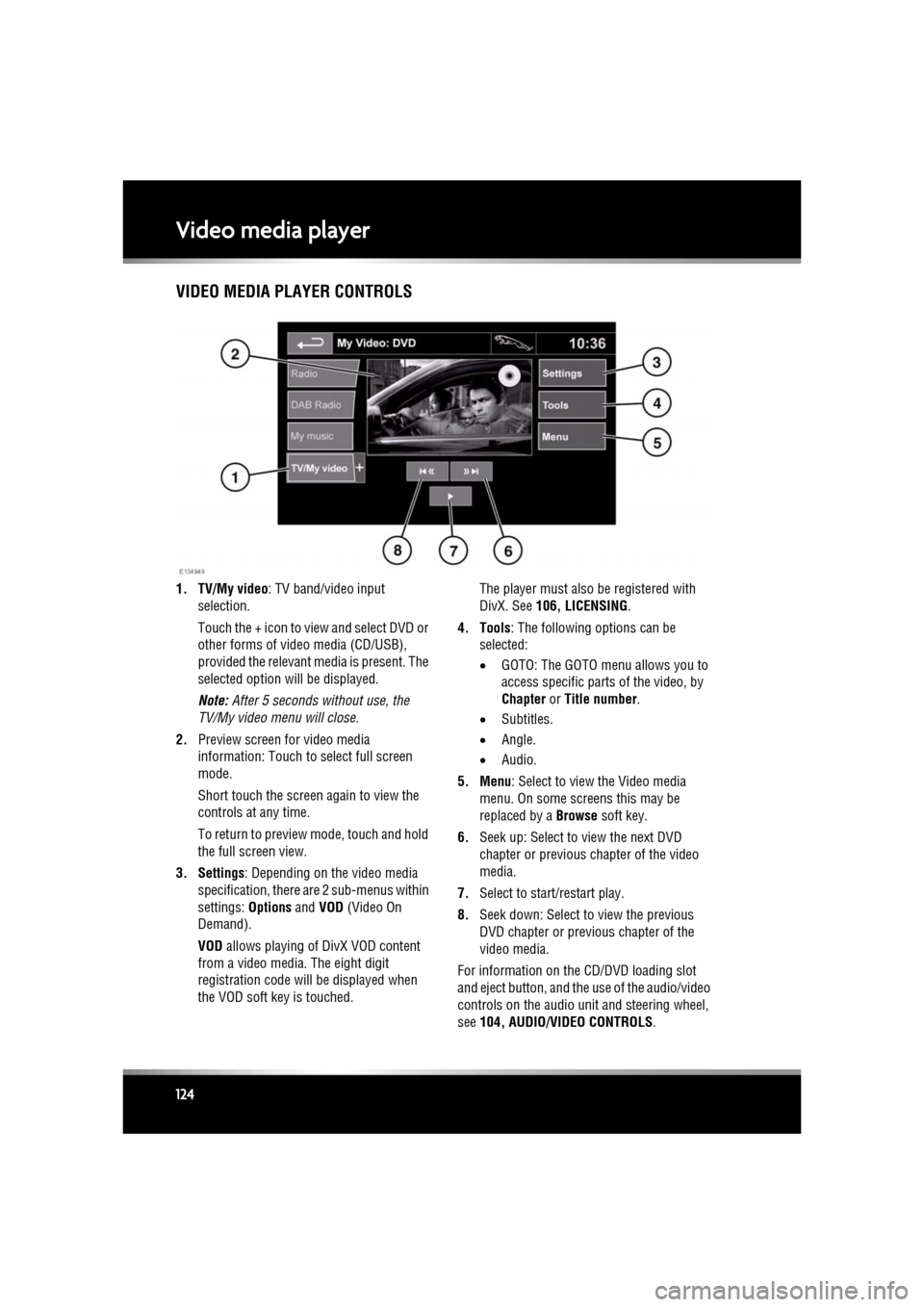
Video media playerVIDEO MEDIA PLAYER CONTROLS
1. TV/My video : TV band/video input
selection.
Touch the + icon to view and select DVD or
other forms of video media (CD/USB),
provided the relevant media is present. The
selected option will be displayed.
Note: After 5 seconds without use, the
TV/My video menu will close.
2. Preview screen for video media
information: Touch to select full screen
mode.
Short touch the screen again to view the
controls at any time.
To return to preview mode, touch and hold
the full screen view.
3. Settings : Depending on the video media
specification, there are 2 sub-menus within
settings: Options and VOD (Video On
Demand).
VOD allows playing of DivX VOD content
from a video media. The eight digit
registration code will be displayed when
the VOD soft key is touched. The player must also be registered with
DivX. See
106, LICENSING .
4. Tools : The following options can be
selected:
• GOTO: The GOTO menu allows you to
access specific part s of the video, by
Chapter or Title number .
• Subtitles.
• Angle.
• Audio.
5. Menu : Select to view the Video media
menu. On some screens this may be
replaced by a Browse soft key.
6. Seek up: Select to view the next DVD
chapter or previous chapter of the video
media.
7. Select to start/restart play.
8. Seek down: Select to view the previous
DVD chapter or previous chapter of the
video media.
For information on the CD/DVD loading slot
and eject button, and the use of the audio/video
controls on the audio unit and steering wheel,
see 104, AUDIO/VIDEO CONTROLS .
Page 125 of 225
R
(FM8) SEMCON JLR OWNER GUIDE VER 1.00 EURO
LANGUAGE: english-en; MARQUE: jaguar; MODEL: XF
Video media player
125
LOADING DVDs
Do not force the disc into the slot.
Do not use irregular shaped DVDs and
DVDs with a scratch protection film or
self-adhesive labels attached.
Recordable (DVD-R or DVD+R) discs
may not function correctly.
Dual format, dual- sided discs (DVD
Plus, CD-DVD format) are thicker than
normal CDs and conse quently playback
cannot be guaranteed, and jamming
may occur.
It is recommended that only high quality 12 cm
(4.7 in.) circular discs are used.
To locate the DVD load slot and the eject
button, see 104, AUDIO/VIDEO CONTROLS .
VIDEO MEDIA INHIBIT WITH VEHICLE
MOVING
When the vehicle is moving the video picture
will automatically be inhibited. The touch
screen will display the TV/My video screen and
the relevant safety message will be displayed.
FULL SCREEN VIEW CONTROLS
When full screen mode is selected, the seek
controls operate in the same manner as they do
in preview mode.
Display format : Use the relevant soft key to
select the 4:3, 16:9 or Zoom option.
Digital TV display format : The picture can be
displayed in either the correct format as
transmitted by the broadcaster (either 4:3 or
16:9 ) or select Zoom to magnify the picture.
Page 126 of 225
L
(FM8) SEMCON JLR OWNER GUIDE VER 1.00 EURO
LANGUAGE: english-en; MARQUE: jaguar; MODEL: XF
Voice control
126
Voice controlUSING VOICE CONTROL
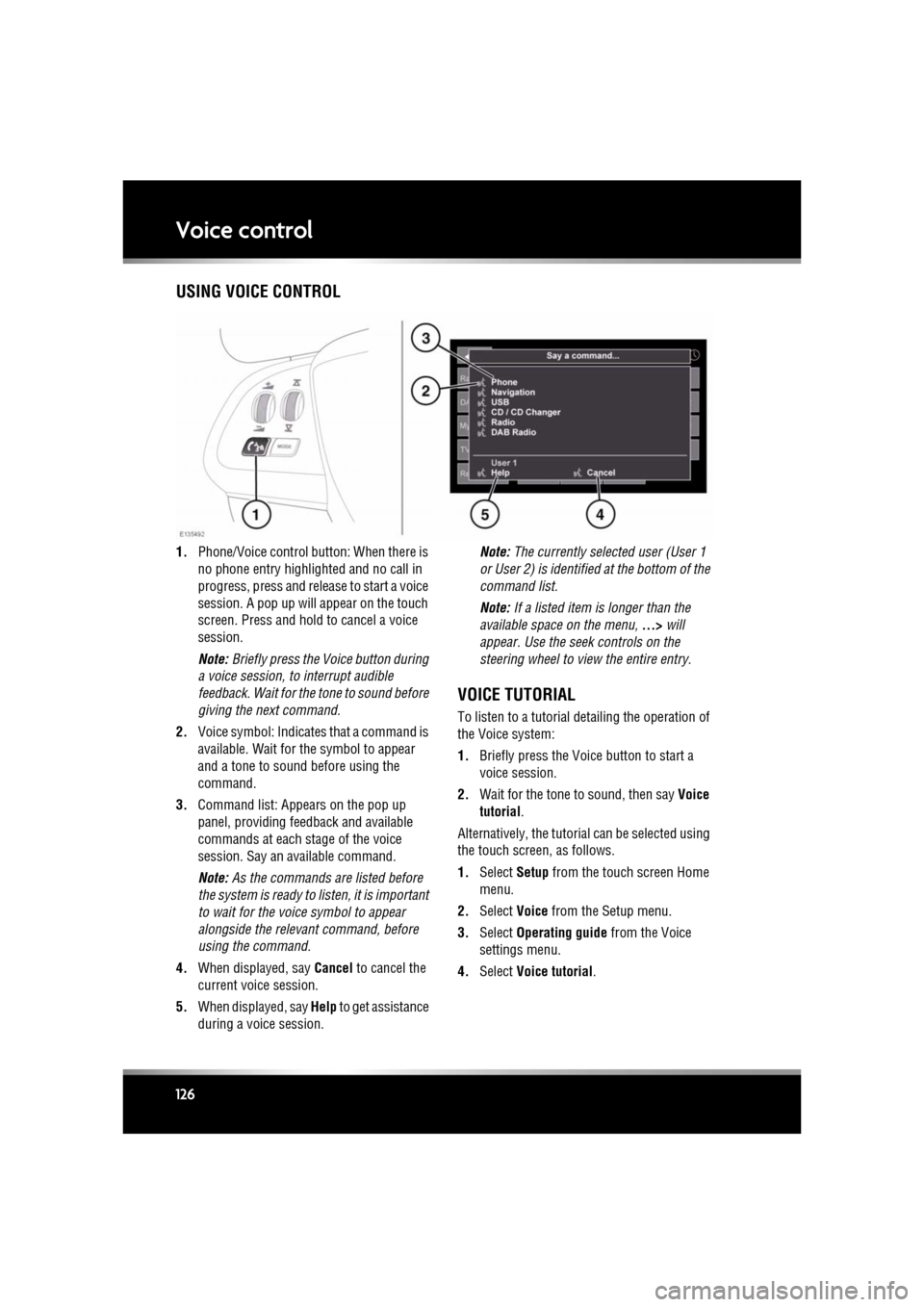
1. Phone/Voice cont rol button: When there is
no phone entry highlighted and no call in
progress, press and release to start a voice
session. A pop up will appear on the touch
screen. Press and hold to cancel a voice
session.
Note: Briefly press the Voice button during
a voice session, to interrupt audible
feedback. Wait for the tone to sound before
giving the next command.
2. Voice symbol: Indicates that a command is
available. Wait for the symbol to appear
and a tone to sound before using the
command.
3. Command list: Appears on the pop up
panel, providing fee dback and available
commands at each stage of the voice
session. Say an available command.
Note: As the commands are listed before
the system is ready to listen, it is important
to wait for the voice symbol to appear
alongside the relevant command, before
using the command.
4. When displayed, say Cancel to cancel the
current voice session.
5. When displayed, say Help to get assistance
during a voice session. Note:
The currently selected user (User 1
or User 2) is identified at the bottom of the
command list.
Note: If a listed item is longer than the
available space on the menu, ...> will
appear. Use the seek controls on the
steering wheel to view the entire entry.
VOICE TUTORIAL
To listen to a tutorial detailing the operation of
the Voice system:
1. Briefly press the Voice button to start a
voice session.
2. Wait for the tone to sound, then say Voice
tutorial .
Alternatively, the tutorial can be selected using
the touch screen, as follows.
1. Select Setup from the touch screen Home
menu.
2. Select Voice from the Setup menu.
3. Select Operating guide from the Voice
settings menu.
4. Select Voice tutorial.
Page 132 of 225
L
(FM8) SEMCON JLR OWNER GUIDE VER 1.00 EURO
LANGUAGE: english-en; MARQUE: jaguar; MODEL: XF
Telephone
132
STEERING WHEEL CONTROLS
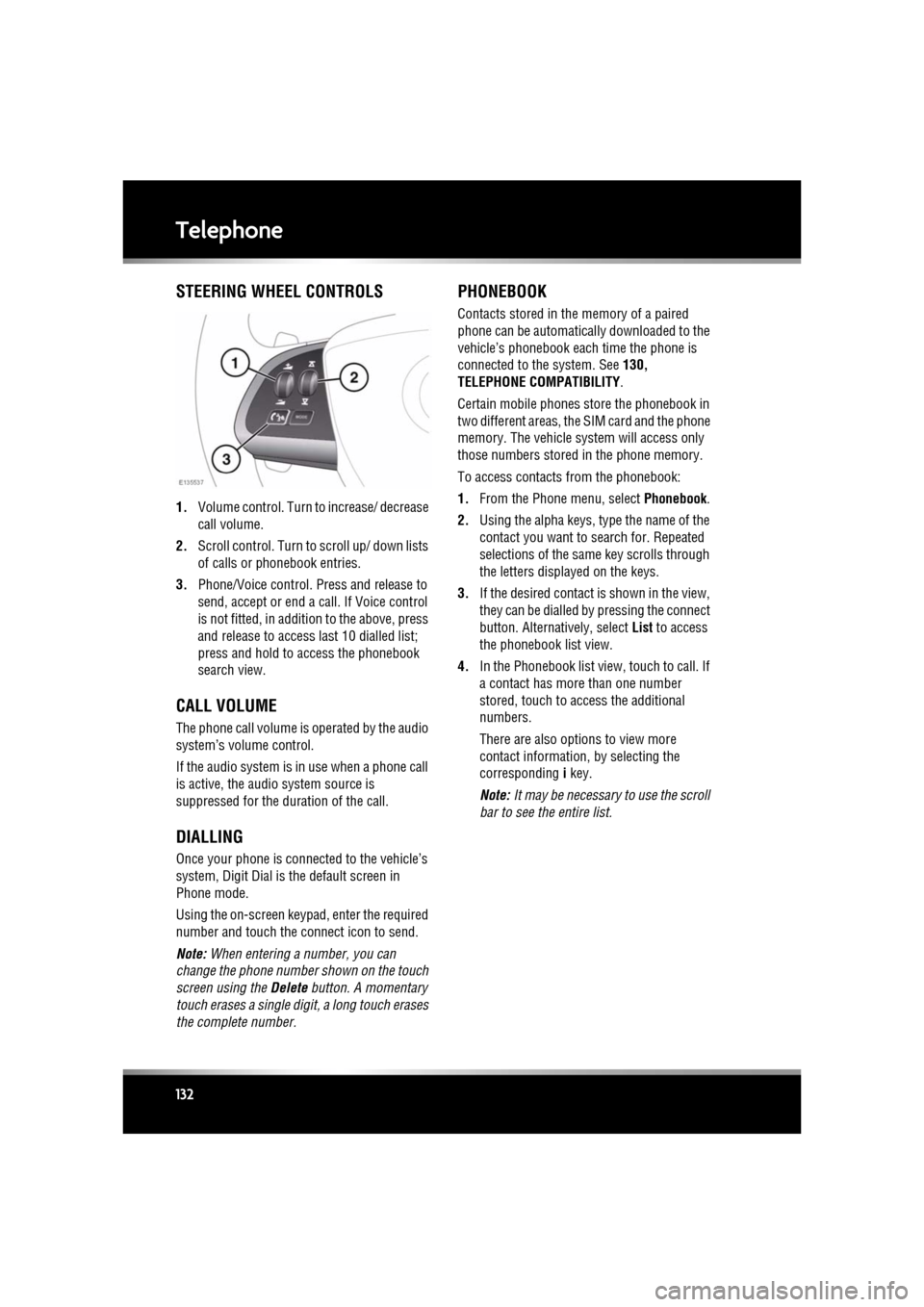
1. Volume control. Turn to increase/ decrease
call volume.
2. Scroll control. Turn to scroll up/ down lists
of calls or phonebook entries.
3. Phone/Voice control. Press and release to
send, accept or end a call. If Voice control
is not fitted, in addition to the above, press
and release to access last 10 dialled list;
press and hold to ac cess the phonebook
search view.
CALL VOLUME
The phone call volume is operated by the audio
system’s volume control.
If the audio system is in use when a phone call
is active, the audio system source is
suppressed for the dur ation of the call.
DIALLING
Once your phone is conne cted to the vehicle’s
system, Digit Dial is the default screen in
Phone mode.
Using the on-screen keypad, enter the required
number and touch the connect icon to send.
Note: When entering a number, you can
change the phone number shown on the touch
screen using the Delete button. A momentary
touch erases a single digi t, a long touch erases
the complete number.
PHONEBOOK
Contacts stored in the memory of a paired
phone can be automatically downloaded to the
vehicle’s phonebook each time the phone is
connected to the system. See 130,
TELEPHONE COMPATIBILITY .
Certain mobile phones store the phonebook in
two different areas, the SIM card and the phone
memory. The vehicle system will access only
those numbers stored in the phone memory.
To access contacts from the phonebook:
1. From the Phone menu, select Phonebook.
2. Using the alpha keys, type the name of the
contact you want to search for. Repeated
selections of the sa me key scrolls through
the letters displayed on the keys.
3. If the desired contact is shown in the view,
they can be dialled by pressing the connect
button. Alternatively, select List to access
the phonebook list view.
4. In the Phonebook list view , touch to call. If
a contact has more than one number
stored, touch to access the additional
numbers.
There are also options to view more
contact information, by selecting the
corresponding i key.
Note: It may be necessary to use the scroll
bar to see the entire list.