settings JAGUAR XF 2010 1.G Owner's Manual
[x] Cancel search | Manufacturer: JAGUAR, Model Year: 2010, Model line: XF, Model: JAGUAR XF 2010 1.GPages: 225, PDF Size: 8 MB
Page 96 of 225
L
(FM8) SEMCON JLR OWNER GUIDE VER 1.00 EURO
LANGUAGE: english-en; MARQUE: jaguar; MODEL: XF
Adaptive cruise control
96
Adaptive cruise controlADAPTIVE CRUISE CONTROL
OVERVIEW
The Adaptive Cruise Control (ACC) system is
designed to aid the driver to maintain a gap
from the vehicle ahead or a set road speed if
there is no slower vehicle ahead. ACC is
available at vehicle sp eeds of 32 to 180 km/h
(20 to 112 mph).
ACC is not a collision warning or
avoidance system. Additionally, ACC
will not react to:
• Stationary or slow moving vehicles below
10 km/h (6 mph).
• Pedestrians or objec ts in the roadway.
• Oncoming vehicles in the same lane.
The ACC system uses a radar sensor, which
projects a beam directly forward of the vehicle
to detect objects ahead.
The radar sensor is mounted in the centre of
the lower bumper, to provide a clear view
forward for the radar beam.
• Only use ACC when conditions are
favourable (i.e. main roads with free
flowing traffic).
• Do not use in poor visibility, specifically
fog, heavy rain, spray or snow.
• Do not use on icy or slippery roads.
• It is the drivers respons ibility to stay alert,
drive safely and be in control of the vehicle
at all times.
• Keep the area in front of the radar sensor
free from dirt, meta l badges or objects,
including vehicle front protectors, which
may prevent the sensor from operating.
• Do not use ACC when entering or leaving a
motorway.
USING ACC
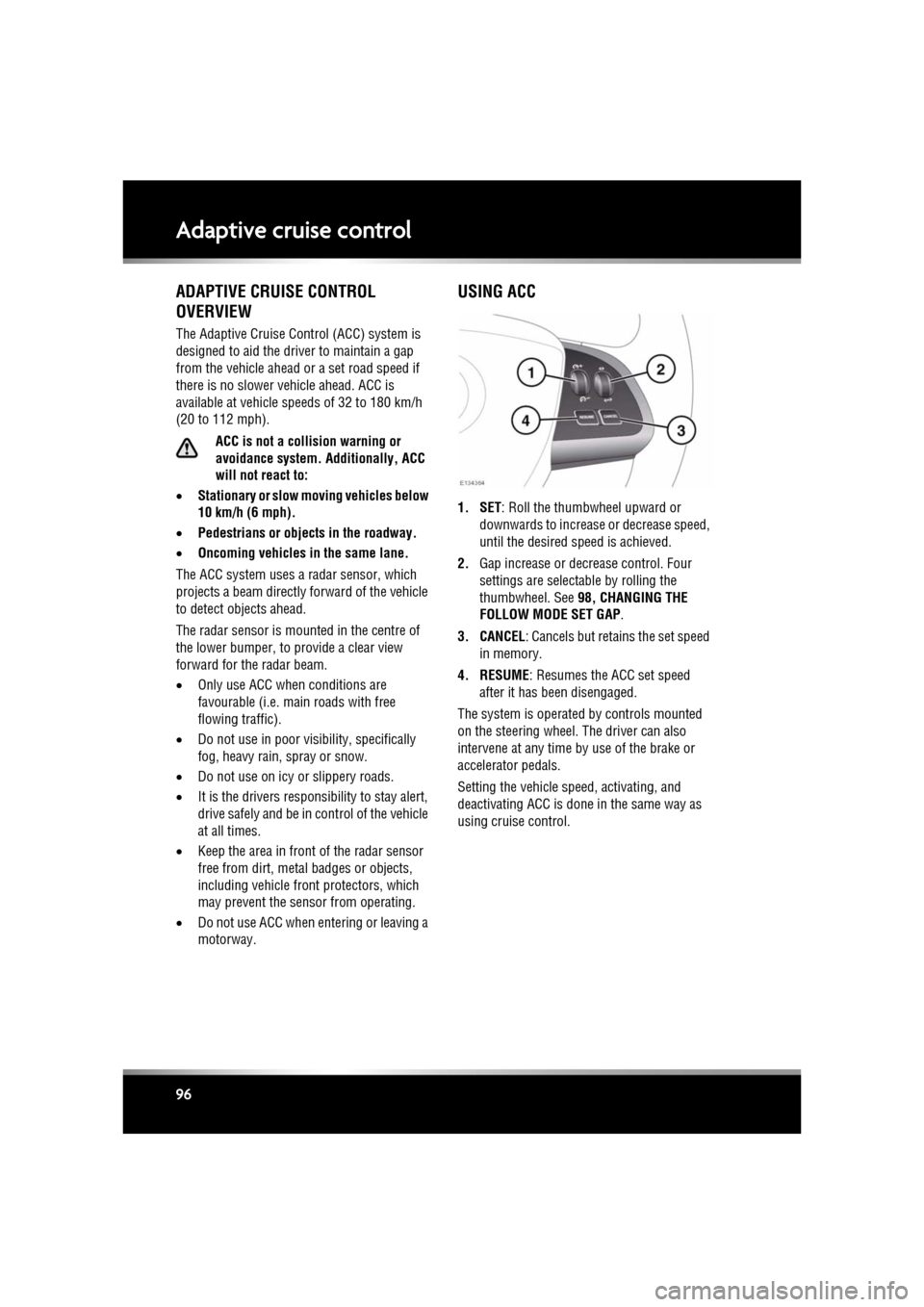
1. SET: Roll the thumbwheel upward or
downwards to increase or decrease speed,
until the desired speed is achieved.
2. Gap increase or decrease control. Four
settings are selectable by rolling the
thumbwheel. See 98, CHANGING THE
FOLLOW MODE SET GAP .
3. CANCEL: Cancels but retains the set speed in memory.
4. RESUME : Resumes the ACC set speed
after it has been disengaged.
The system is operated by controls mounted
on the steering wheel. The driver can also
intervene at any time by use of the brake or
accelerator pedals.
Setting the vehicle speed, activating, and
deactivating ACC is done in the same way as
using cruise control.
Page 98 of 225

L
(FM8) SEMCON JLR OWNER GUIDE VER 1.00 EURO
LANGUAGE: english-en; MARQUE: jaguar; MODEL: XF
Adaptive cruise control
98
CHANGING THE FOLLOW MODE SET
GAP
Four gap settings are available and the selected
gap setting will be displayed on the message
centre when the gap adjustment control is
operated.
Each gap level is indi cated by an additional
chevron in front of the vehicle icon in the
message centre (one chevron (gap level 1)
being the shortest, four chevrons (gap level 4)
being the longest).
Note: When the ignition is switched off, the
gap setting will revert to the default setting
(gap level 3) when switched on again.
Note: It is the driver’s res ponsibility to select a
gap appropriate to the driving conditions.
OVERRIDING THE SPEED AND
FOLLOW MODE
Whenever the driver is overriding the
ACC by depressing the accelerator
pedal, the ACC will not automatically
apply the brakes to maintain
separation from any vehicle ahead.
The set speed and gap can be overridden by
pressing the accelerator pedal when cruising at
constant speed or in follow mode. If the vehicle
is in follow mode, the warning lamp will go out
when the ACC is overridden by the driver using
the accelerator and CRUISE OVERRIDE will be
displayed on the message centre. When the
accelerator is released the ACC function will
operate again and vehicle speed will decrease
to the set speed, or a lower speed if follow
mode is active.
AUTOMATIC LOW SPEED
SWITCH-OFF
If the speed of the vehicle decreases below 30
km/h (18 mph), the ACC system will be
automatically switched off and the warning
lamp will go out.
If the brakes were bei ng applied by the ACC
system, they will be slowly released.
This will be accompanied by an audible
warning, and DRIVER INTERVENE will be
displayed on the message centre. The driver
must take control.
ACC AUTO OFF
ACC will disengage, but not clear the memory
when:
• The CANCEL button is pressed
• The brake pedal is pressed
• Neutral ( N), Park (P ) or Reverse ( R) gear is
selected
• Dynamic Stability Control activates.
ACC will disengage, and clear the memory
when:
• The ignition system is switched off
• Maximum vehicle speed is reached
• A fault occurs in the ACC system.
Page 105 of 225
R
(FM8) SEMCON JLR OWNER GUIDE VER 1.00 EURO
LANGUAGE: english-en; MARQUE: jaguar; MODEL: XF
Audio/video overview
105
7. Seek down:
Short press:
•To auto seek down the frequency to the
next radio station.
• To select the previous track or start of
current track on chosen audio source -
CD, MP3 etc.
• To select the previous TV channel on
the channel list or the previous DVD
chapter.
Long press:
• To activate radio manual seek mode.
• To skip backward through current
audio source track.
With radio manual seek mode activated,
further short presse s will change the
frequency in single decrements. A further
long press will scan backward through the
current waveband until the button is
released.
8. CD/DVD eject button.
9. Rotate to adjust volume.
10. Rotate (up or down) and release repeatedly
to scroll through:
•The radio presets.
• The previous track or start of next track
on chosen audio source - CD, MP3 etc.
11. MODE : Press repeatedly to scroll through
all audio/video sources.
12. If Telephone and Voice control are not
fitted, press to mute/un-mute audio.
Otherwise, if Tele phone is fitted, see 128,
TELEPHONE SYSTEM OVERVIEW. If Voice
control is fitted, see 126, USING VOICE
CONTROL .AUDIO SETTINGS
To view the audio settings menu, select
Settings and then Sound on the touch screen.
To adjust the sound settings:
1. Touch the + or - soft keys to adjust Bass,
Treble or Subwoofer levels.
2. If surround sound is fitted, touch the
appropriate soft key to select DPL II X, DTS
Neo6 or select Off to switch surround
sound off.
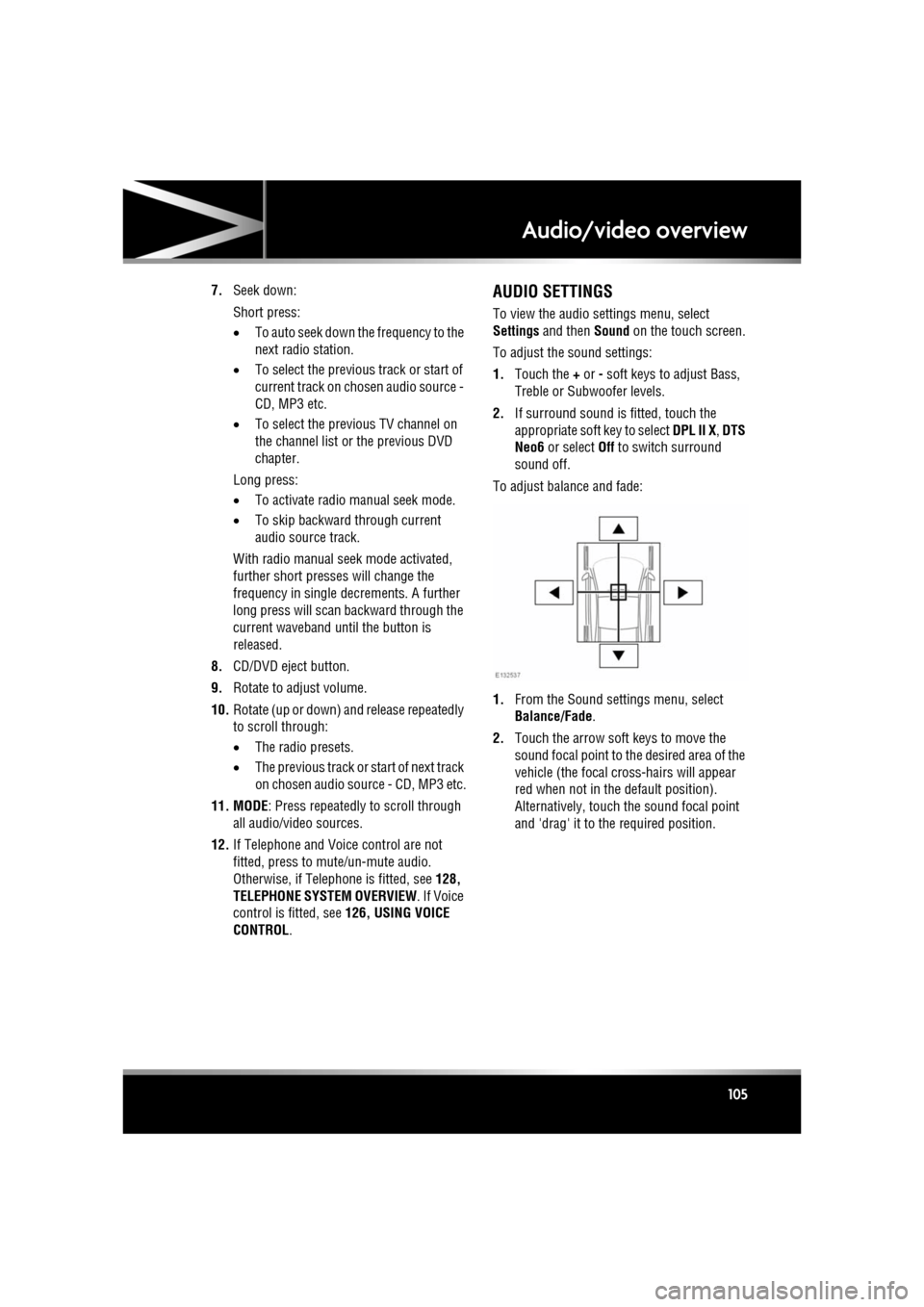
To adjust balance and fade:
1. From the Sound settings menu, select
Balance/Fade.
2. Touch the arrow soft keys to move the
sound focal point to the desired area of the
vehicle (the focal cr oss-hairs will appear
red when not in the default position).
Alternatively, touch the sound focal point
and 'drag' it to the required position.
Page 106 of 225
L
(FM8) SEMCON JLR OWNER GUIDE VER 1.00 EURO
LANGUAGE: english-en; MARQUE: jaguar; MODEL: XF
Audio/video overview
106
LICENSING
Manufactured under lic ense from Dolby
Laboratories.
Dolby, Pro Logic, and the double-D symbol are
registered trademarks of Dolby Laboratories.
Manufactured under lice nse under U.S. Patent
#’s: 5,451,942; 5, 956,674; 5,974,380;
5,978,762; 6,487,535; 7,003,467 & other U.S.
and worldwide patents is sued & pending. DTS,
the Symbol, and Neo:6 are registered
trademarks, & DTS Digital Surround and the
DTS logos are trademarks of DTS, Inc. Product
includes software. © DTS, Inc. All Rights
Reserved. Manufactured under licens
e under U.S. Patent
#’s: 5,451,942; 5,956,674; 5,974,380;
5,978,762; 6,487,535 & other U.S. and
worldwide patents issued & pending. DTS and
the Symbol are registered trademarks, & DTS
2.0+ Digital Out and the DTS logos are
trademarks of DTS, Inc. Product includes
software. © DTS, Inc. All Rights Reserved.
DivX Certified® to play DivX® video.
DivX®, DivX Certified® and associated logos
are registered trademarks of DivX, Inc. and are
used under license.
ABOUT DIVX VIDEO: DivX ® is a digital video
format created by DivX, Inc. This is an official
DivX Certified device th at plays DivX video.
Visit www.divx.com for more information and
software tools to convert your files into DivX
video.
ABOUT DIVX VIDEO-ON-DEMAND: This DivX
Certified® device must be registered in order
to play DivX Video-on- Demand (VOD) content.
To generate the registration code, locate the
DivX VOD section in the device setup menu.
1. Follow the route, Home Menu - Audio
Video - TV/My video - Settings - VOD.
2. An eight digit code will be displayed. This is
your unique DivX code. Make a note of this
code and keep it for future reference.
Page 109 of 225
R
(FM8) SEMCON JLR OWNER GUIDE VER 1.00 EURO
LANGUAGE: english-en; MARQUE: jaguar; MODEL: XF
Radio
109
RadioRADIO CONTROLS
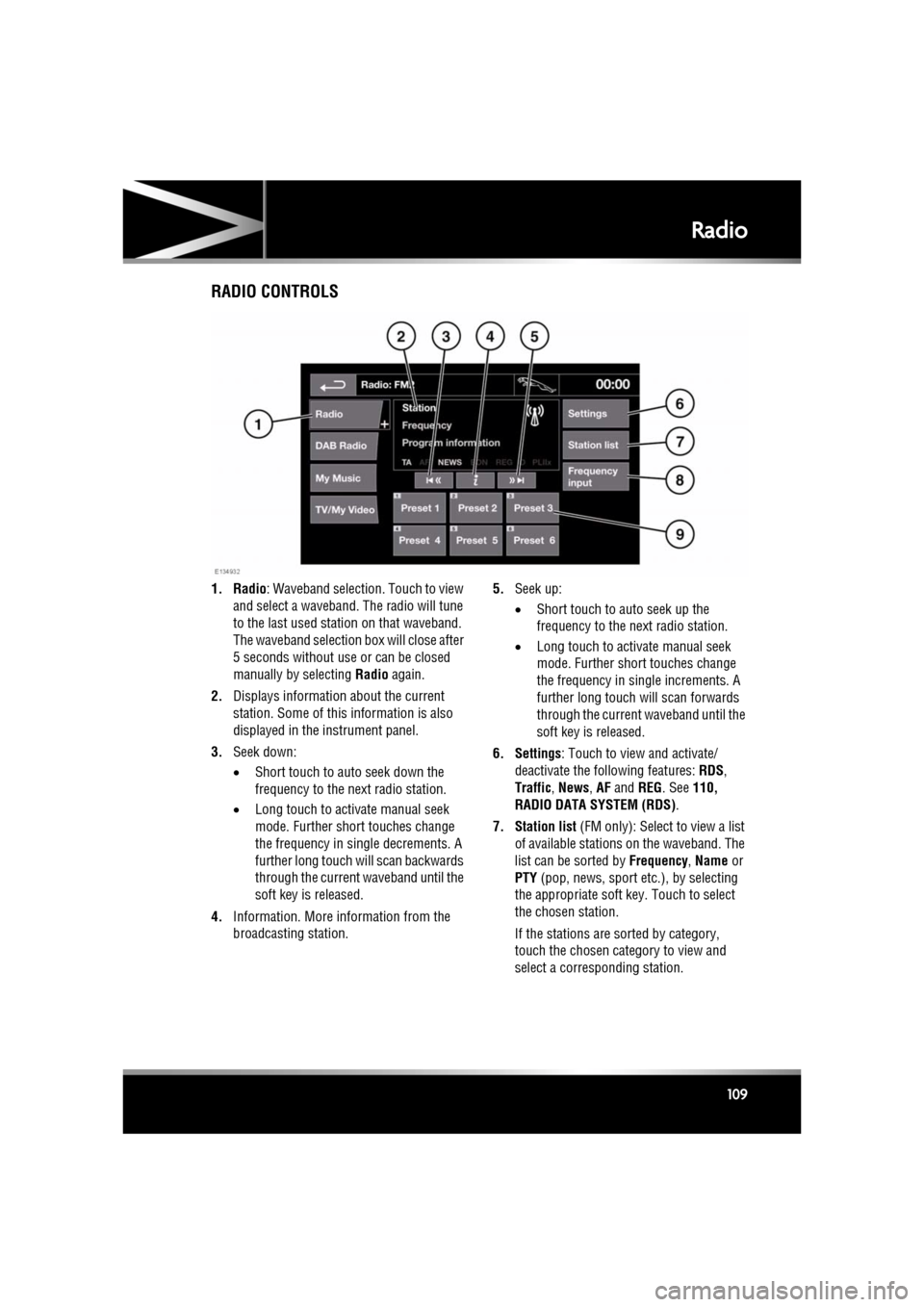
1. Radio : Waveband selection. Touch to view
and select a waveband. The radio will tune
to the last used stat ion on that waveband.
The waveband selection box will close after
5 seconds without use or can be closed
manually by selecting Radio again.
2. Displays informati on about the current
station. Some of this information is also
displayed in the instrument panel.
3. Seek down:
•Short touch to auto seek down the
frequency to the next radio station.
• Long touch to activate manual seek
mode. Further short touches change
the frequency in single decrements. A
further long touch will scan backwards
through the current waveband until the
soft key is released.
4. Information. More information from the
broadcasting station. 5.
Seek up:
•Short touch to auto seek up the
frequency to the next radio station.
• Long touch to activate manual seek
mode. Further short touches change
the frequency in single increments. A
further long touch will scan forwards
through the current waveband until the
soft key is released.
6. Settings : Touch to view and activate/
deactivate the following features: RDS ,
Traffic , News , AF and REG. See 110,
RADIO DATA SYSTEM (RDS) .
7. Station list (FM only): Select to view a list
of available stations on the waveband. The
list can be sorted by Frequency, Name or
PTY (pop, news, sport et c.), by selecting
the appropriate soft key. Touch to select
the chosen station.
If the stations are sorted by category,
touch the chosen category to view and
select a corre sponding station.
Page 110 of 225

L
(FM8) SEMCON JLR OWNER GUIDE VER 1.00 EURO
LANGUAGE: english-en; MARQUE: jaguar; MODEL: XF
Radio
110
8. Frequency input : Select to enter a known
frequency of a station on the current
waveband, using the numeric keypad that
appears. Select OK or wait for 2 seconds to
tune to the entered frequency.
9. Station presets: Ea ch waveband has 6
preset positions.
• Touch and release to tune to the
station stored on that preset.
• Touch and hold to store the current
station on that preset (the radio will
mute while the station is stored then
beep).
• Use the seek buttons on the steering
wheel to change to th e next or previous
preset station.
RADIO DATA SYSTEM (RDS)
Your radio is equipped with RDS which enables
the audio unit to receive additional information
with normal FM radio signals.
Note: Not all FM radio stat ions broadcast RDS
information.
Select Settings (6) to view or alter RDS
settings.
• Traffic/News : Provides local travel or news
information.
• Regionalisation (REG) : Select to prevent
the radio tuning into an alternative local
station that has a stronger signal.
• Alternative Frequency (AF) : Select to
allow the radio to automatically re-tune to
a stronger alternative frequency for the
current station. This is useful on a journey
where the vehicle travels through different
transmitter areas.
Page 111 of 225
R
(FM8) SEMCON JLR OWNER GUIDE VER 1.00 EURO
LANGUAGE: english-en; MARQUE: jaguar; MODEL: XF
DAB radio
111
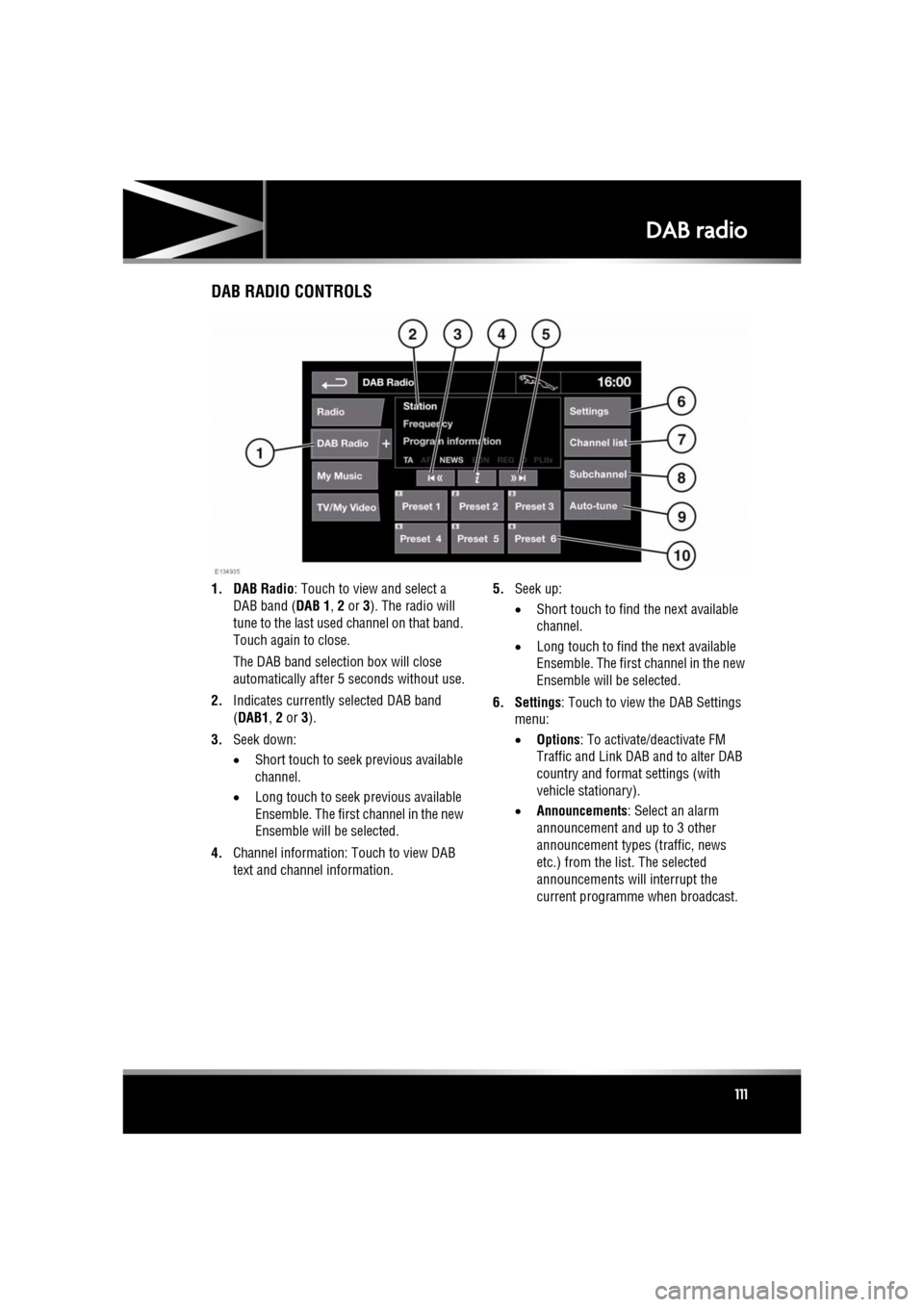
DAB radioDAB RADIO CONTROLS
1. DAB Radio : Touch to view and select a
DAB band ( DAB 1, 2 or 3). The radio will
tune to the last used channel on that band.
Touch again to close.
The DAB band selecti on box will close
automatically after 5 seconds without use.
2. Indicates currently selected DAB band
(DAB1 , 2 or 3).
3. Seek down:
•Short touch to seek previous available
channel.
• Long touch to seek previous available
Ensemble. The first channel in the new
Ensemble will be selected.
4. Channel information: Touch to view DAB
text and channel information. 5.
Seek up:
•Short touch to find the next available
channel.
• Long touch to find the next available
Ensemble. The first channel in the new
Ensemble will be selected.
6. Settings : Touch to view the DAB Settings
menu:
• Options : To activate/deactivate FM
Traffic and Link D AB and to alter DAB
country and format settings (with
vehicle stationary).
• Announcements : Select an alarm
announcement and up to 3 other
announcement types (traffic, news
etc.) from the list. The selected
announcements will interrupt the
current programme when broadcast.
Page 115 of 225
R
(FM8) SEMCON JLR OWNER GUIDE VER 1.00 EURO
LANGUAGE: english-en; MARQUE: jaguar; MODEL: XF
Portable media
115
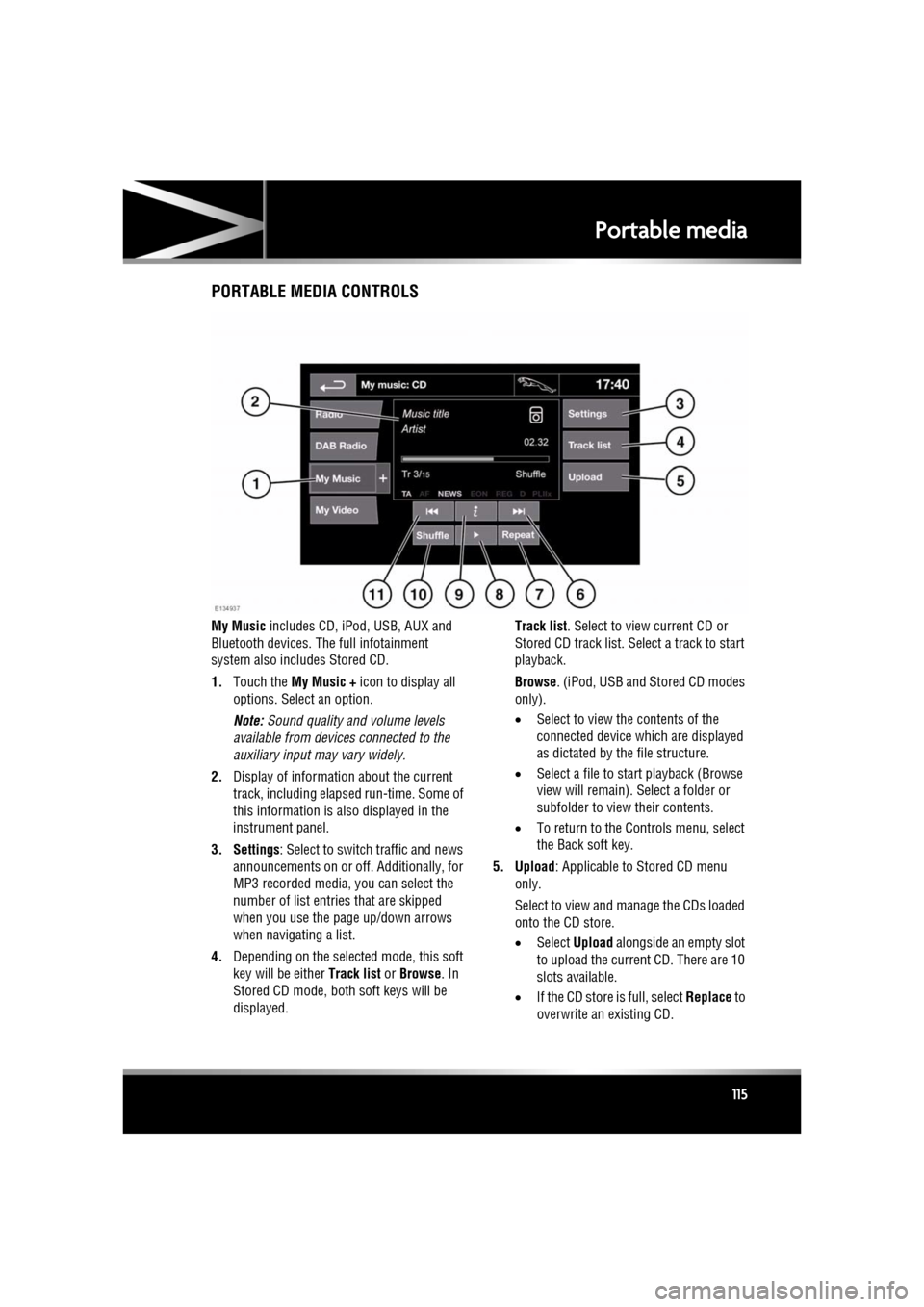
PORTABLE MEDIA CONTROLS
My Music includes CD, iPod, USB, AUX and
Bluetooth devices. Th e full infotainment
system also includes Stored CD.
1. Touch the My Music + icon to display all
options. Select an option.
Note: Sound quality and volume levels
available from devices connected to the
auxiliary input may vary widely.
2. Display of information about the current
track, including elapse d run-time. Some of
this information is also displayed in the
instrument panel.
3. Settings : Select to switch traffic and news
announcements on or off. Additionally, for
MP3 recorded media, you can select the
number of list entries that are skipped
when you use the page up/down arrows
when navigating a list.
4. Depending on the selected mode, this soft
key will be either Track list or Browse . In
Stored CD mode, both soft keys will be
displayed. Track list
. Select to view current CD or
Stored CD track list. Select a track to start
playback.
Browse . (iPod, USB and Stored CD modes
only).
• Select to view the contents of the
connected device wh ich are displayed
as dictated by the file structure.
• Select a file to start playback (Browse
view will remain). Se lect a folder or
subfolder to view their contents.
• To return to the Cont rols menu, select
the Back soft key.
5. Upload : Applicable to Stored CD menu
only.
Select to view and manage the CDs loaded
onto the CD store.
• Select Upload alongside an empty slot
to upload the current CD. There are 10
slots available.
• If the CD store is full, select Replace to
overwrite an existing CD.
Page 122 of 225
L
(FM8) SEMCON JLR OWNER GUIDE VER 1.00 EURO
LANGUAGE: english-en; MARQUE: jaguar; MODEL: XF
Television
122
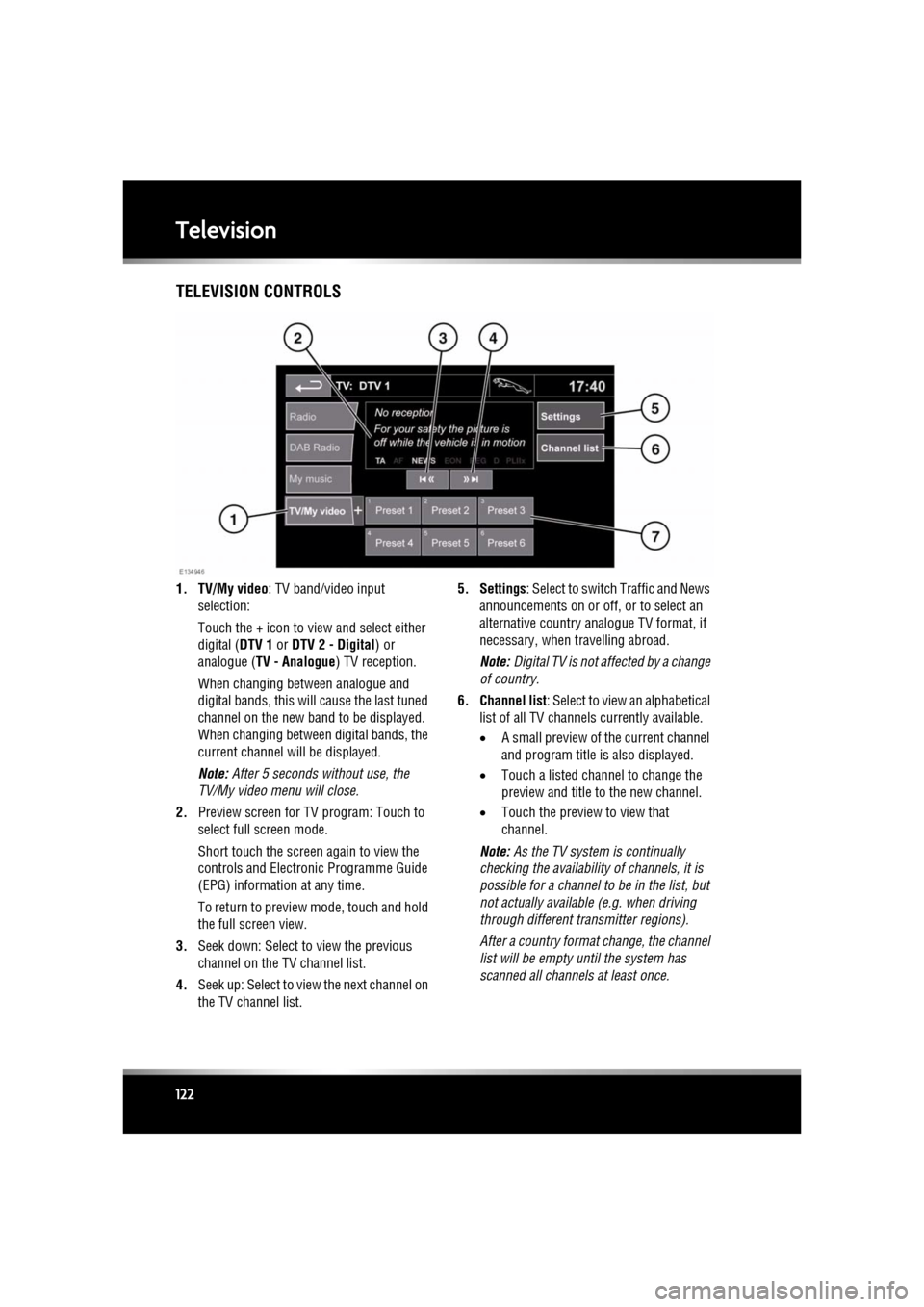
TelevisionTELEVISION CONTROLS
1. TV/My video : TV band/video input
selection:
Touch the + icon to view and select either
digital ( DTV 1 or DTV 2 - Digital ) or
analogue ( TV - Analogue ) TV reception.
When changing between analogue and
digital bands, this will cause the last tuned
channel on the new band to be displayed.
When changing between digital bands, the
current channel wi ll be displayed.
Note: After 5 seconds without use, the
TV/My video menu will close.
2. Preview screen for TV program: Touch to
select full screen mode.
Short touch the screen again to view the
controls and Electronic Programme Guide
(EPG) information at any time.
To return to preview mode, touch and hold
the full screen view.
3. Seek down: Select to view the previous
channel on the TV channel list.
4. Seek up: Select to view the next channel on
the TV channel list. 5. Settings
: Select to switch Traffic and News
announcements on or off, or to select an
alternative country an alogue TV format, if
necessary, when travelling abroad.
Note: Digital TV is not af fected by a change
of country.
6. Channel list : Select to view an alphabetical
list of all TV channels currently available.
• A small preview of the current channel
and program title is also displayed.
• Touch a listed channel to change the
preview and title to the new channel.
• Touch the preview to view that
channel.
Note: As the TV system is continually
checking the availability of channels, it is
possible for a channel to be in the list, but
not actually availabl e (e.g. when driving
through different tr ansmitter regions).
After a country format change, the channel
list will be empty unt il the system has
scanned all channe ls at least once.
Page 124 of 225
L
(FM8) SEMCON JLR OWNER GUIDE VER 1.00 EURO
LANGUAGE: english-en; MARQUE: jaguar; MODEL: XF
Video media player
124
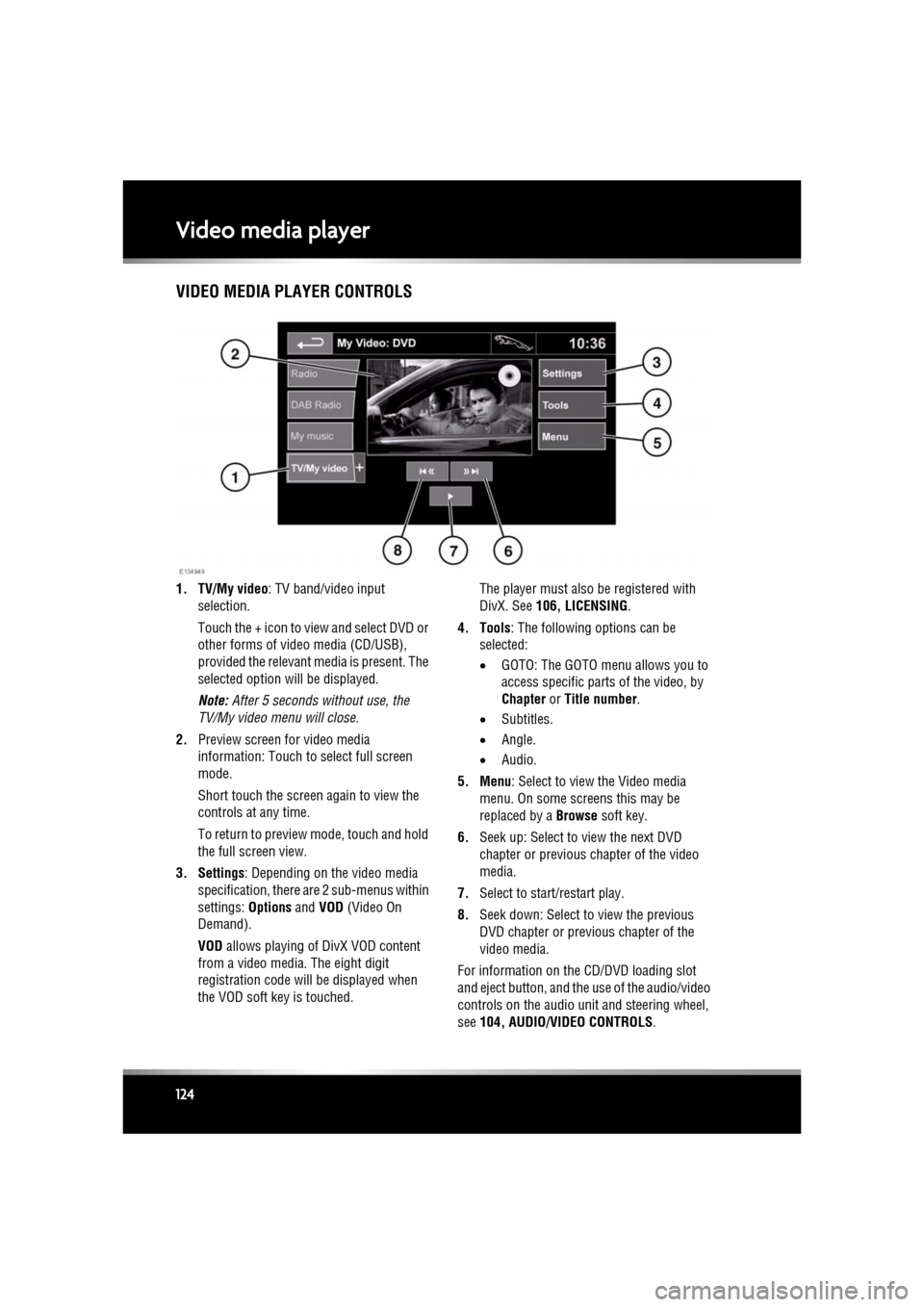
Video media playerVIDEO MEDIA PLAYER CONTROLS
1. TV/My video : TV band/video input
selection.
Touch the + icon to view and select DVD or
other forms of video media (CD/USB),
provided the relevant media is present. The
selected option will be displayed.
Note: After 5 seconds without use, the
TV/My video menu will close.
2. Preview screen for video media
information: Touch to select full screen
mode.
Short touch the screen again to view the
controls at any time.
To return to preview mode, touch and hold
the full screen view.
3. Settings : Depending on the video media
specification, there are 2 sub-menus within
settings: Options and VOD (Video On
Demand).
VOD allows playing of DivX VOD content
from a video media. The eight digit
registration code will be displayed when
the VOD soft key is touched. The player must also be registered with
DivX. See
106, LICENSING .
4. Tools : The following options can be
selected:
• GOTO: The GOTO menu allows you to
access specific part s of the video, by
Chapter or Title number .
• Subtitles.
• Angle.
• Audio.
5. Menu : Select to view the Video media
menu. On some screens this may be
replaced by a Browse soft key.
6. Seek up: Select to view the next DVD
chapter or previous chapter of the video
media.
7. Select to start/restart play.
8. Seek down: Select to view the previous
DVD chapter or previous chapter of the
video media.
For information on the CD/DVD loading slot
and eject button, and the use of the audio/video
controls on the audio unit and steering wheel,
see 104, AUDIO/VIDEO CONTROLS .