lock JEEP COMPASS 2008 1.G Workshop Manual
[x] Cancel search | Manufacturer: JEEP, Model Year: 2008, Model line: COMPASS, Model: JEEP COMPASS 2008 1.GPages: 399, PDF Size: 6.59 MB
Page 182 of 399

will remain active for up to 10 minutes after the ignition
switch has been turned off. Opening a vehicle front door
will cancel this feature.
ELECTRONIC DIGITAL CLOCK
The clock and radio each use the display panel built into
the radio. A digital readout shows the frequency and/or
time in hours and minutes (depending on your radio
model) whenever the ignition switch is in the ªONº or
ªACCº position.
When the ignition switch is in the ªOFFº position, or
when the radio frequency is being displayed, time keep-
ing is accurately maintained.
On the AM/FM/CD (6-disc) radio the time button alter-
nates the location of the time and frequency on the
display. On the AM/FM/CD (single-disc) radio only one
of the two, time or frequency is displayed.
Clock Setting Procedure
1. Press and hold the time button until the hours blink.
2. Adjust the hours by turning the right side Tune /
Audio control.
3. After the hours are adjusted, press the right side Tune
/ Audio control to set the minutes.
4. Adjust the minutes using the right side Tune / Audio
control.
5. To exit, press any button/knob or wait approximately
5 seconds.
182 UNDERSTANDING YOUR INSTRUMENT PANEL
Page 185 of 399

Clock Setting Procedure
1. Press and hold the time button until the hours blink.
2. Adjust the hours by turning the right side Tune/
Audio control.
3. After the hours are adjusted, press the right side
Tune/Audio control to set the minutes. The minutes will
begin to blink.
4. Adjust the minutes using the right side Tune/Audio
control.
5. To exit, press any button/knob or wait 5 seconds.
RW/FF (Radio Mode)
Pressing the rewind/fast forward button causes the tuner
to search for the next frequency in the direction of the
arrows. This feature operates in either AM, FM or Satel-
lite (if equipped) frequencies.
TUNE Control (Radio Mode)
Turn the right side rotary control clockwise to increase or
counter-clockwise to decrease the frequency.
AM/FM Button (Radio Mode)
Press the button to select AM or FM Modes.
Setting the Tone, Balance, and Fade
Press the rotary TUNE control and BASS will display.
Turn the TUNE control to the right or left to increase or
decrease the Bass tones.
Press the rotary TUNE control a second time and MID
will display. Turn the TUNE control to the right or left to
increase or decrease the Mid Range tones.
Press the rotary TUNE control a third time and TREB will
display. Turn the TUNE control to the right or left to
increase or decrease the Treble tones.
UNDERSTANDING YOUR INSTRUMENT PANEL 185
4
Page 186 of 399

Press the rotary TUNE control a fourth time and BAL will
display. Turn the TUNE control to the right or left to
adjust the sound level from the right or left side speakers.
Press the rotary TUNE control a fifth time and FADE will
display. Turn the TUNE control to the left or right to
adjust the sound level between the front and rear speak-
ers.
Press the tune control again or wait 5 seconds to exit
setting tone, balance, and fade.
RND/SET Button (Radio Mode) To SET The
Push-Button Memory
When you are receiving a station that you wish to
commit to push-button memory, press the SET button.
The symbol SET 1 will now show in the display window.
Select the button (1-6) you wish to lock onto this station
and press and release that button. If a button is notselected within 5 seconds after pressing the SET button,
the station will continue to play but will not be stored
into push-button memory.
You may add a second station to each push-button by
repeating the above procedure with this exception: Press
the SET button twice and SET 2 will show in the display
window. Each button can be set for SET 1 and SET 2 in
both AM and FM. This allows a total of 12 AM, 12 FM,
and 12 Satellite (if equipped) stations to be stored into
push-button memory. The stations stored in SET 2
memory can be selected by pressing the push-button
twice.
Every time a preset button is used, a corresponding
button number will display.
Preset Buttons1-6(Radio Mode)
These buttons tune the Radio to the stations that you
commit to push-button memory {12 AM, 12 FM, and 12
Satellite (if equipped) stations}.
186 UNDERSTANDING YOUR INSTRUMENT PANEL
Page 189 of 399

Operation Instructions - Auxiliary Mode
The auxiliary (AUX) jack is an audio input jack, which
allows the user to plug in a portable device such as an
MP3 player, cassette player, or microphone and utilize
the vehicle's audio system to amplify the source and play
through the vehicle speakers.
The auxiliary mode becomes active when an electrical
device is plugged into the AUX jack using a standard 3.5
mm stereo audio cable and the user presses and releases
the MODE button until AUX appears on the display.
NOTE:The radio will return to the last stored mode if
the ignition switch is turned from the OFF/LOCK posi-
tion to the ACC position, the radio is turned on, and the
radio was previously in the AUX mode.
SEEK Button (Auxiliary Mode)
No function.
MUTE Button (Auxiliary Mode)
Press the MUTE button to cancel the sound from the
speakers.9MUTE9will display. Press the MUTE button a
second time and the sound from the speakers will return.
Rotating the volume control or turning OFF the ignition
will also return the sound from the speakers.
SCAN Button (Auxiliary Mode)
No function.
EJECT Button (Auxiliary Mode)
No function.
PSCAN Button (Auxiliary Mode)
No function.
UNDERSTANDING YOUR INSTRUMENT PANEL 189
4
Page 193 of 399

Clock Setting Procedure
1. Press and hold the time button until the hours blink.
2. Adjust the hours by turning the right side Tune /
Audio control.
3. After the hours are adjusted, press the right side Tune
/ Audio control to set the minutes. The minutes will
begin to blink.
4. Adjust the minutes using the right side Tune / Audio
control.
5. To exit, press any button/knob or wait 5 seconds.
RW/FF (Radio Mode)
Pressing the rewind/fast forward button causes the tuner
to search for the next frequency in the direction of the
arrows. This feature operates in either AM, FM or Satel-
lite (if equipped) frequencies.
TUNE Control (Radio Mode)
Turn the right side rotary control clockwise to increase or
counter-clockwise to decrease the frequency.
AM/FM Button (Radio Mode)
Press the button to select AM or FM Modes.
Setting the Tone, Balance, and Fade
Press the rotary TUNE control and BASS will display.
Turn the TUNE control to the right or left to increase or
decrease the Bass tones.
Press the rotary TUNE control a second time and MID
will display. Turn the TUNE control to the right or left to
increase or decrease the Mid Range tones.
Press the rotary TUNE control a third time and TREBLE
will display. Turn the TUNE control to the right or left to
increase or decrease the Treble tones.
UNDERSTANDING YOUR INSTRUMENT PANEL 193
4
Page 195 of 399
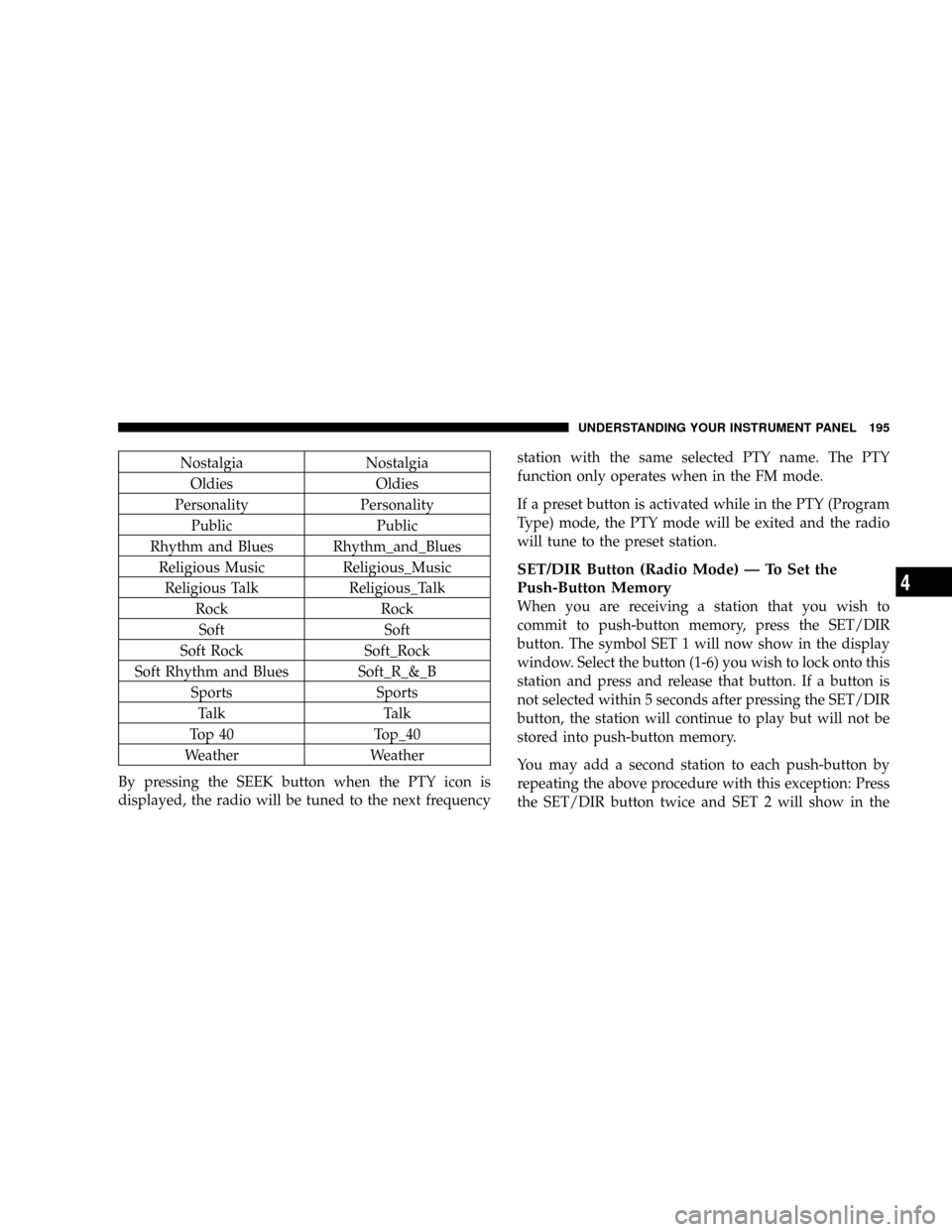
Nostalgia Nostalgia
Oldies Oldies
Personality Personality
Public Public
Rhythm and Blues Rhythm_and_Blues
Religious Music Religious_Music
Religious Talk Religious_Talk
Rock Rock
Soft Soft
Soft Rock Soft_Rock
Soft Rhythm and Blues Soft_R_&_B
Sports Sports
Talk Talk
Top 40 Top_40
Weather Weather
By pressing the SEEK button when the PTY icon is
displayed, the radio will be tuned to the next frequencystation with the same selected PTY name. The PTY
function only operates when in the FM mode.
If a preset button is activated while in the PTY (Program
Type) mode, the PTY mode will be exited and the radio
will tune to the preset station.
SET/DIR Button (Radio Mode) Ð To Set the
Push-Button Memory
When you are receiving a station that you wish to
commit to push-button memory, press the SET/DIR
button. The symbol SET 1 will now show in the display
window. Select the button (1-6) you wish to lock onto this
station and press and release that button. If a button is
not selected within 5 seconds after pressing the SET/DIR
button, the station will continue to play but will not be
stored into push-button memory.
You may add a second station to each push-button by
repeating the above procedure with this exception: Press
the SET/DIR button twice and SET 2 will show in the
UNDERSTANDING YOUR INSTRUMENT PANEL 195
4
Page 205 of 399

menus and instructions for selecting a variety of destina-
tions and routes, AM/FM stereo radio and six-disc CD
changer with MP3 capability.
Mapping information for navigation is supplied on a
DVD that is loaded into the unit. One map DVD covers
all of North America. Refer to your ªNavigation User's
Manualº for detailed operating instructions.
Operating Instructions Ð Satellite Radio (If
Equipped)
Refer to your ªNavigation User's Manualº for detailed
operating instructions.
REC Setting the Clock
GPS Clock
The GPS receiver used in this system is synchronized to
the time data being transmitted by the GPS satellites. The
satellites' clock is Greenwich Mean Time (GMT). This isthe worldwide standard for time. This makes the sys-
tem's clock very accurate once the appropriate time zone
and daylight savings information is set.
1. At theMain Menuscreen, highlight ªClock Setupº
and press ENTERORpress and hold for 3 seconds the
TIME button on the unit's faceplate. TheClock Setup
screen appears.
UNDERSTANDING YOUR INSTRUMENT PANEL 205
4
Page 206 of 399

2. To show the GPS clock, select ªDisplayed Clock: GPS
Clockº and press ENTER.
3. To adjust the time zone, Select ªTime Zoneº and press
ENTER. Select the appropriate time zone and press
ENTER.
4. To turn daylight savings on or off, select ªDaylight
Savingsº and press ENTER. Select ªOnº or ªOffº and
press ENTER.
5. Select DONE to exit from the clock setting mode. Press
ENTER to save your changes. If you press CANCEL or
NAV then your changes will not be saved.
User Defined Clock
If you wish to set the clock to a time different than the
system clock, you can manually adjust the time by
choosing the ªUser Defined Clockº option.
1. At theClock Setupscreen highlight ªDisplayed
Clock: User Defined Clockº.2. To increase the clock by hours, make sure ªHR +º is
highlighted and press ENTER. Press ENTER again to
increase the clock by another hour. You will see on the
ªUser Defined Timeº display the number of hours you
have increased the clock by.
206 UNDERSTANDING YOUR INSTRUMENT PANEL
Page 207 of 399

3. To decrease the clock by one hour, use the Select
Encoder to highlight the ª-º sign. Press ENTER. Press
ENTER again to decrease the clock by another hour.
4. To increase the clock by minutes, make sure ªMIN +º
is highlighted and press ENTER. Press ENTER again to
increase the clock by another minute.
5. To decrease the clock by minutes, use the Select
Encoder to highlight the ª-ª sign. Press ENTER. Press
ENTER again to decrease the clock by another minute.
6. Select ªDONEº to exit from the clock setting mode.
Press ENTER to save your changes. If you press CAN-
CEL or NAV then your changes will not be saved.Audio Clock Display
Select this option to change the size of the clock on the
audio screens.
1. When you are at an audio screen, quickly press the
TIME button on the navigation faceplate.
2. In this example the large clock appears on the screen.
UNDERSTANDING YOUR INSTRUMENT PANEL 207
4
Page 208 of 399

3. To switch the clock to the small clock, quickly press
TIME again.
4. To toggle back to the large clock, simply press TIME.SATELLITE RADIO Ð IF EQUIPPED
Satellite radio uses direct satellite to receiver broadcast-
ing technology to provide clear digital sound, coast to
coast. The subscription service provider is SiriusŸ Satel-
lite Radio. This service offers over 100 channels of music,
sports, news, entertainment, and programming for chil-
dren, directly from its satellites and broadcasting studios.
System Activation
To activate your Sirius Satellite Radio service, call the
toll-free number 888-539-7474, or visit the Sirius web site
at www.sirius.com. Please have the following informa-
tion available when activating your system:
1. The Electronic Serial Number/Sirius Identification
Number (ESN/SID).
2. Credit card information.
3. Your Vehicle Identification Number.
208 UNDERSTANDING YOUR INSTRUMENT PANEL